How to fix
GOG Galaxy high disk usage
on Windows
Resolve GOG Galaxy high disk usage on Windows 10 and 11 with our expert-tested solutions. Get your system running smoothly again, fixed in minutes!

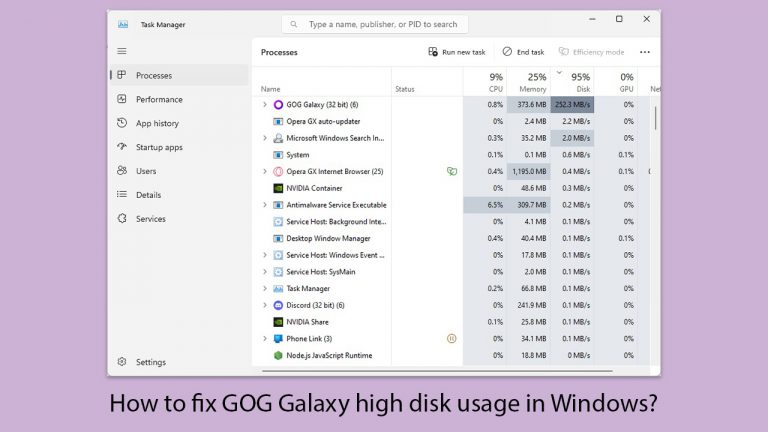
What causes How to fix GOG Galaxy high disk usage in Windows?
- Downloading or updating large game files
- Inefficient management of hard disk space or SSD capacity
- Software bugs within the GOG Galaxy application
- Underlying issues with the Windows operating system
Repairs Windows system files, removes malware, and restores a clean OS state — without reinstalling.
Hi. Today, I noticed that my PC began lagging and I wondered what was going on, so I checked the Task Manager. There, I saw that GOG Galaxy is taking 80-90% of Disk usage, which is very unusual. This now happens every time I turn on the GOG platform. How can I fix this?
GOG Galaxy is a video game platform that includes a library, a marketplace, and an online gaming community. It is intended to provide a simple way to buy, play, and manage games, both from the GOG.com catalog and from other platforms. It distinguishes out for its user-friendly design, the option to play without being constantly online, and its dedication to DRM-free gaming.
However, some users of GOG Galaxy on Windows have reported experiencing high disk usage, particularly when downloading or updating games. This issue can cause slower computer performance, longer load times, and a general decrease in system speed.
GOG Galaxy high disk usage can be caused by a variety of factors, including the process of downloading or updating large game files, inefficient management of hard disk space or solid-state drive (SSD) capacity, software bugs within the GOG Galaxy application, or underlying issues with the Windows operating system.
To remedy the high disk usage caused by GOG Galaxy, you should first examine the size of the game being downloaded or updated, as larger files naturally consume more resources. Making sure your HDD or SSD has enough free space might also help to reduce system stress.
Additionally, keeping the GOG Galaxy software up to current is critical, as updates frequently include solutions for known flaws and speed enhancements. If the problem persists, more investigation into potential conflicts with other software or deeper operating system issues may be required.
For those who encounter persistent high disk usage and suspect it may be due to underlying Windows issues, utilizing a professional PC repair tool [d1] can offer a convenient solution. Such tools are designed to automatically identify and fix common Windows problems, potentially resolving the high disk usage issue without the need for extensive troubleshooting.
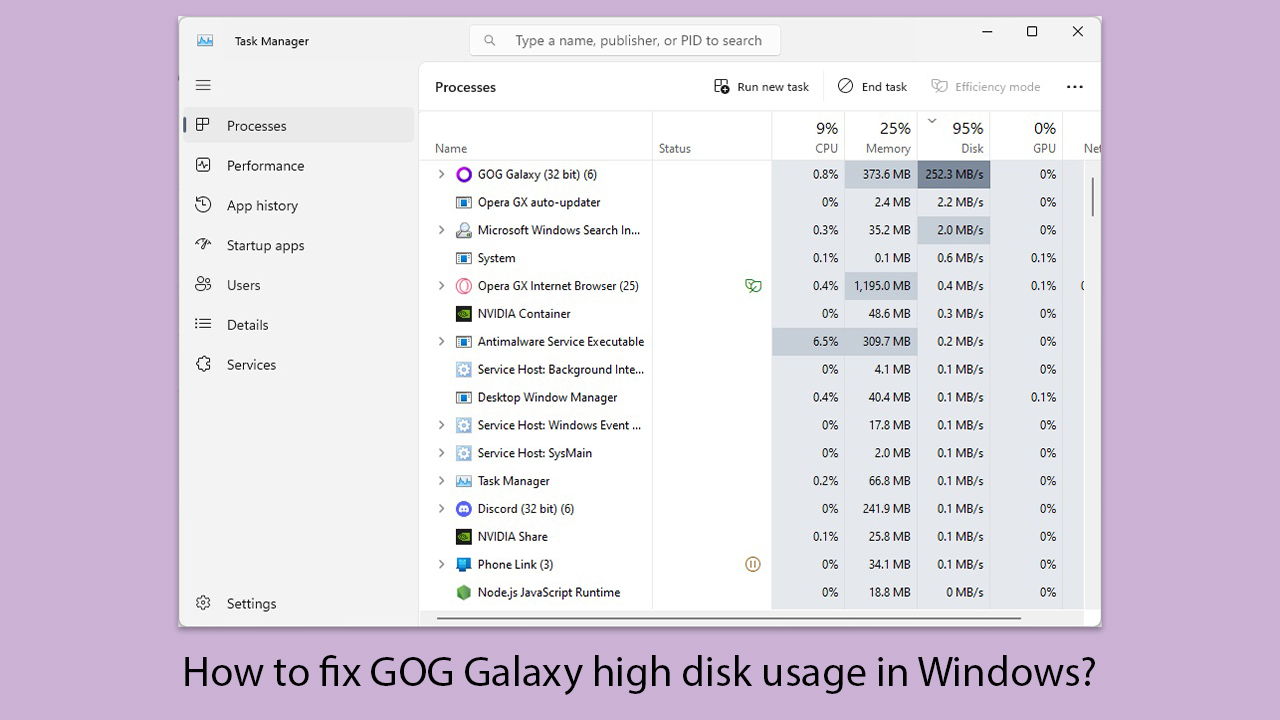
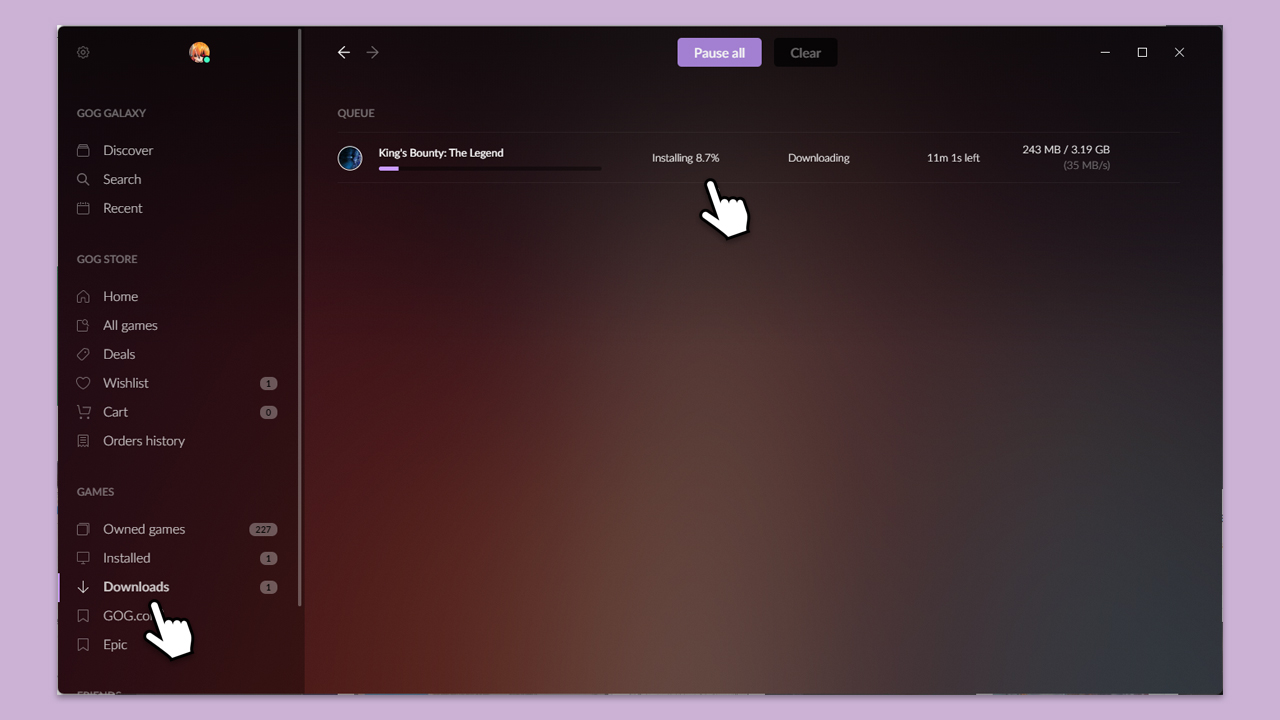
Fix 1. Check whether a game update or download is ongoing
This step verifies if high disk usage is due to game files being downloaded or updated. Since game files can be significantly large, their download or update can temporarily increase disk usage.
- Open GOG Galaxy.
- Navigate to the Downloads section to check if any games are being downloaded or updated.
- If a game is downloading or updating, allow it to finish and then observe if disk usage decreases.
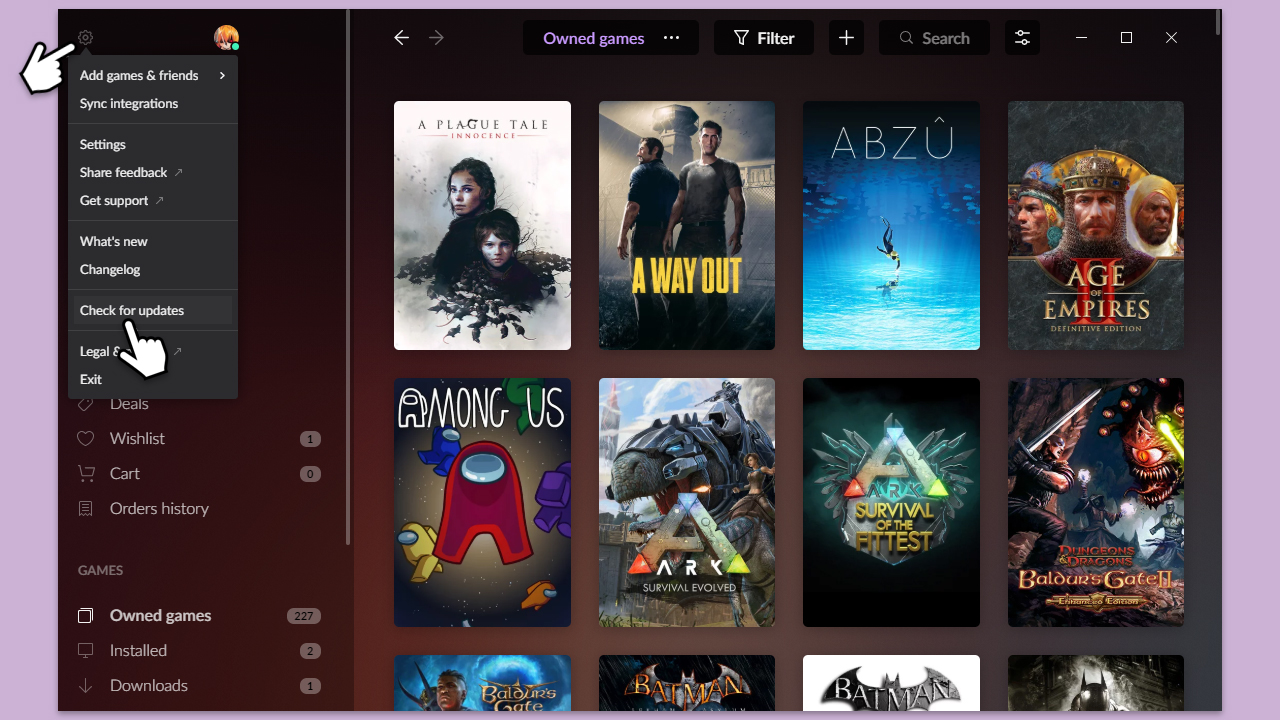
Fix 2. Update GOG Galaxy
Software that is out of date can contain bugs or inefficiencies that lead to high disk usage. Updating GOG Galaxy ensures you have the latest fixes and performance enhancements.
- Open GOG Galaxy.
- Click on the cogwheel (Settings) at the top left corner.
- Select Check for updates.
- Wait till they are installed and reboot your PC.
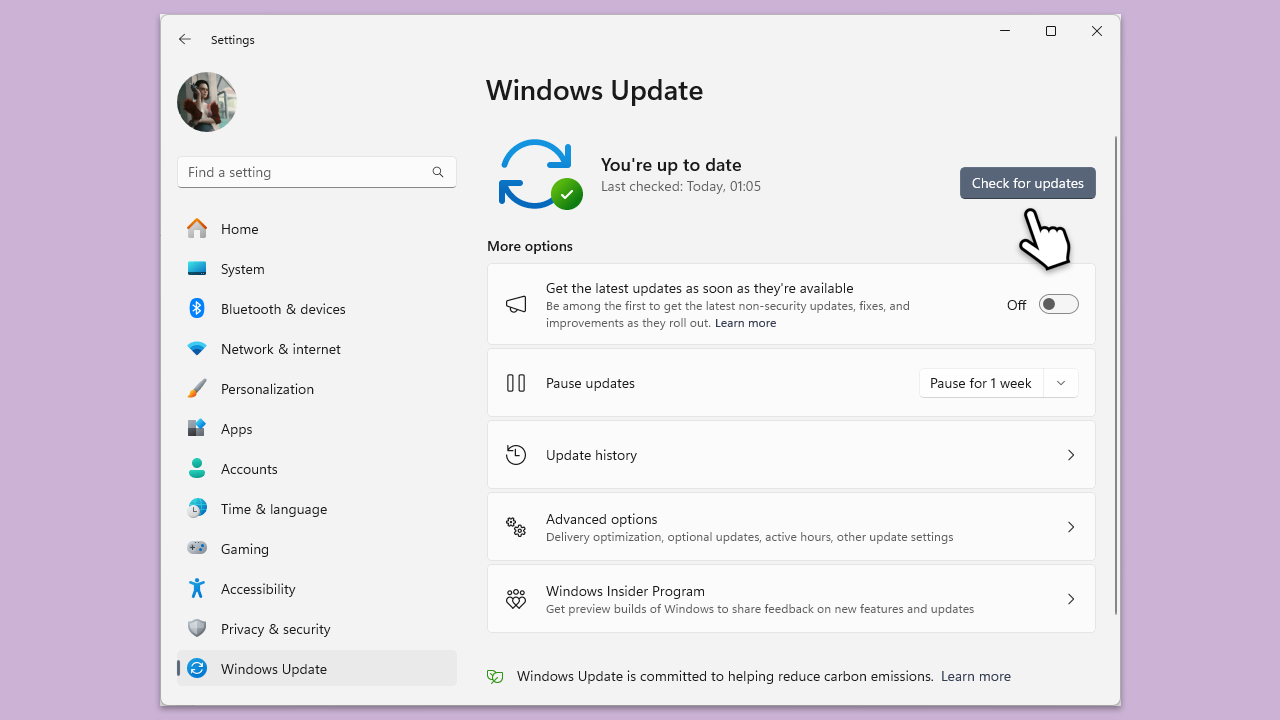
Fix 3. Install all Windows updates
Windows updates can enhance system stability and performance. Installing available updates can resolve underlying issues causing high disk usage.
- Type Updates in the Windows search box and press Enter.
- Click Check for Updates.
- Wait till all the required files are installed.
- Install all the optional and pending updates as well.
- Restart your system.
Fix 4. Perform Disk Cleanup
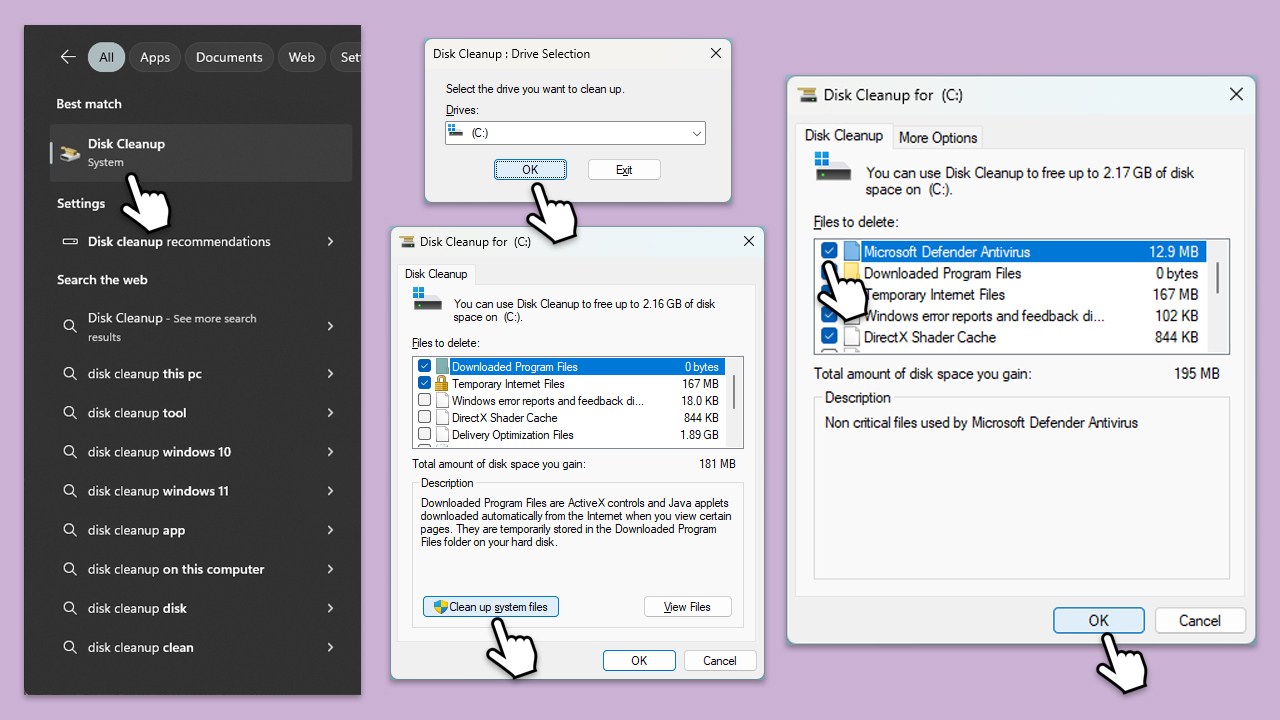
Disk Cleanup helps free up space on your hard drive and can improve system performance by removing temporary files, system files, and other unnecessary items.
- Open the Windows search bar and type Disk Cleanup. Press Enter to open the Disk Cleanup utility.
- In the Disk Cleanup window, click Clean up system files.
- Select the drive (C: by default) again and click OK.
- In the list of files that can be cleaned up, select the largest portions of data, such as Windows Update, Temporary Internet Files, Temporary Files, and others.
- Click OK to begin the cleanup process.
Fix 5. Run Check Disk
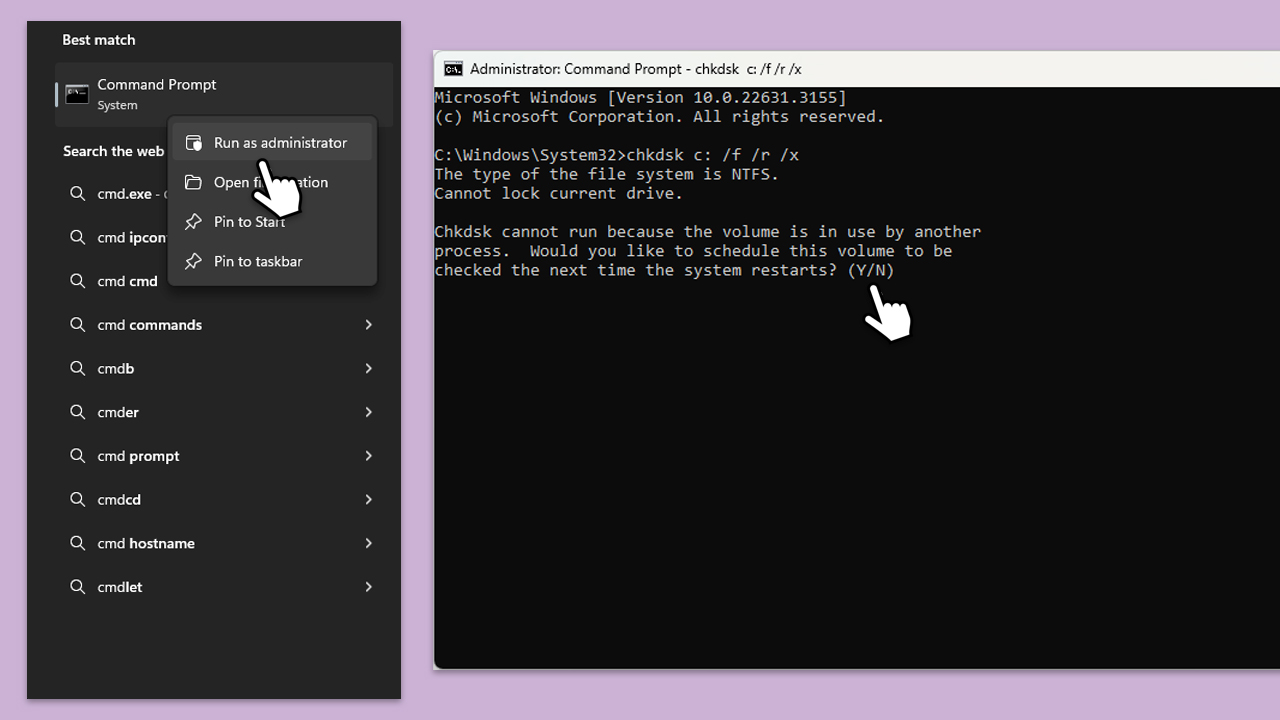
Check Disk can scan for and fix file system errors or bad sectors on your hard disk, which might be causing high disk usage.
- Open Command Prompt as administrator.
- In the new window, type in the following command and press Enter after:
chkdsk c: /f
(Note: use chkdsk c: /f /r /x command if you are using SSD as your primary partition. Also, replace c: with another drive letter if you are not using default) - If you receive an error, type in Y, close down Command Prompt and restart your computer.
- Wait till the scan is finished.
Fix 6. Perform SFC and DISM scans
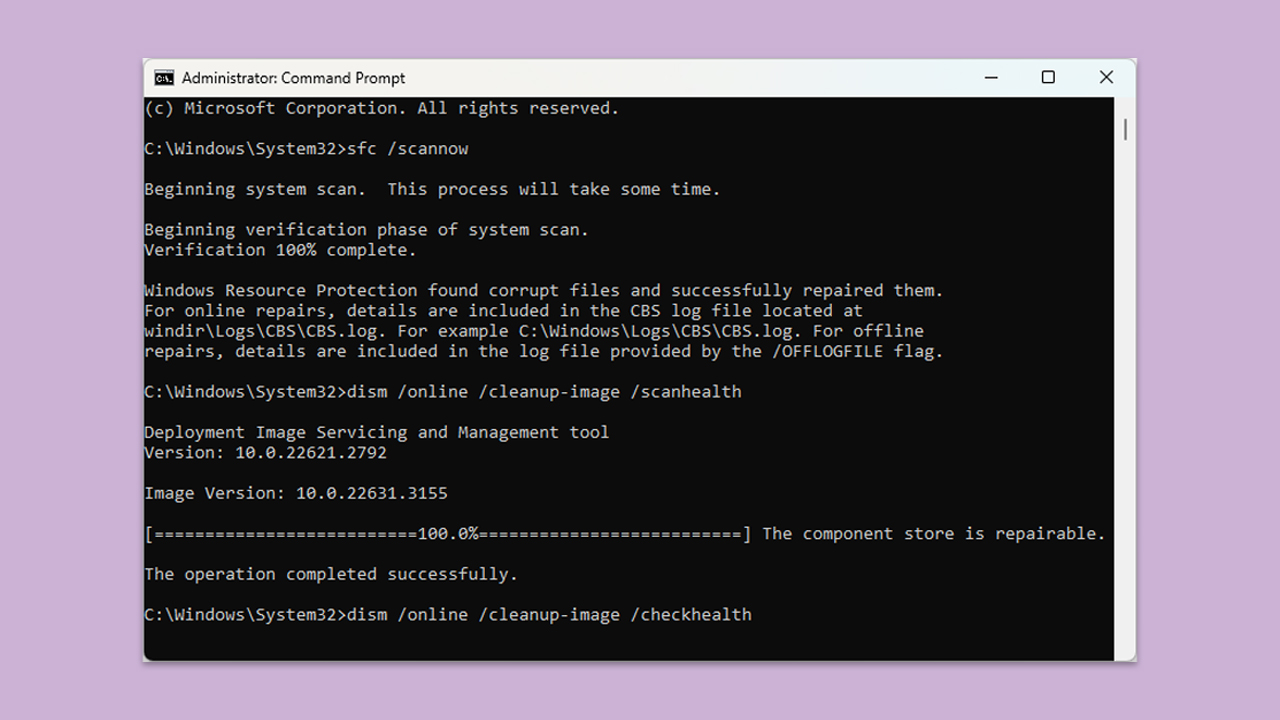
You can try running built-in tools designed to fix corrupted files and Windows image issues.
- Type in cmd in Windows search.
- Right-click on Command Prompt and select Run as administrator.
- In the User Account Control window, click Yes.
- In the Command Prompt window, paste the following command and hit Enter:
sfc /scannow - Next, use the following commands, pressing Enter each time:
Dism /Online /Cleanup-Image /CheckHealth
Dism /Online /Cleanup-Image /ScanHealth
Dism /Online /Cleanup-Image /RestoreHealth
(Note: if you get an error executing this last command, add /Source:C:\RepairSource\Windows /LimitAccess to it and try again). - Reboot your computer.
Fix 7. Reinstall GOG Galaxy
Try reinstalling the application and see if that helps the situation.
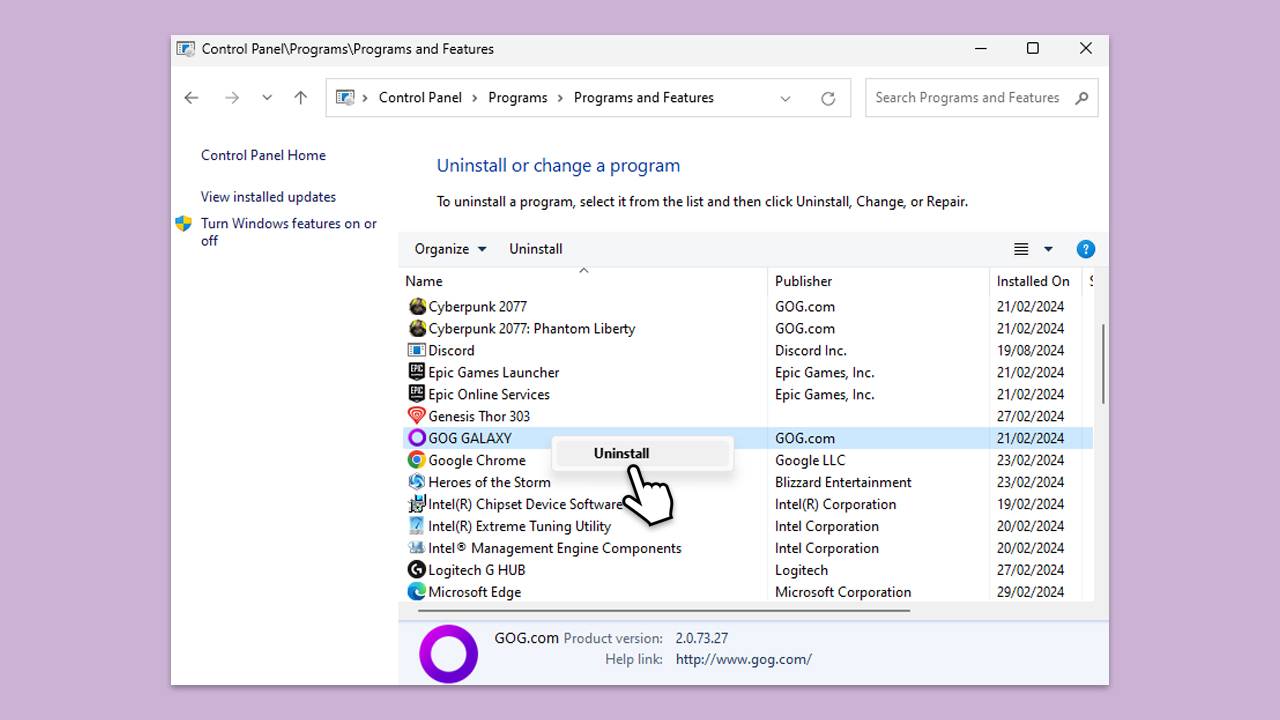
- Type Control Panel in Windows search and press Enter.
- Go to Programs > Uninstall a program.
- From the list, locate GOG Galaxy.
- Right-click and select Uninstall, then follow the prompts to finish the process.
- Restart your PC and reinstall the app from the official website.
Fix 8. Perform Clean Boot
Performing a clean boot for your computer reduces conflicts related to software that can bring up the root causes of high disk usage. By starting Windows with a minimal set of drivers and startup programs, you can determine whether a background program is causing the issue.
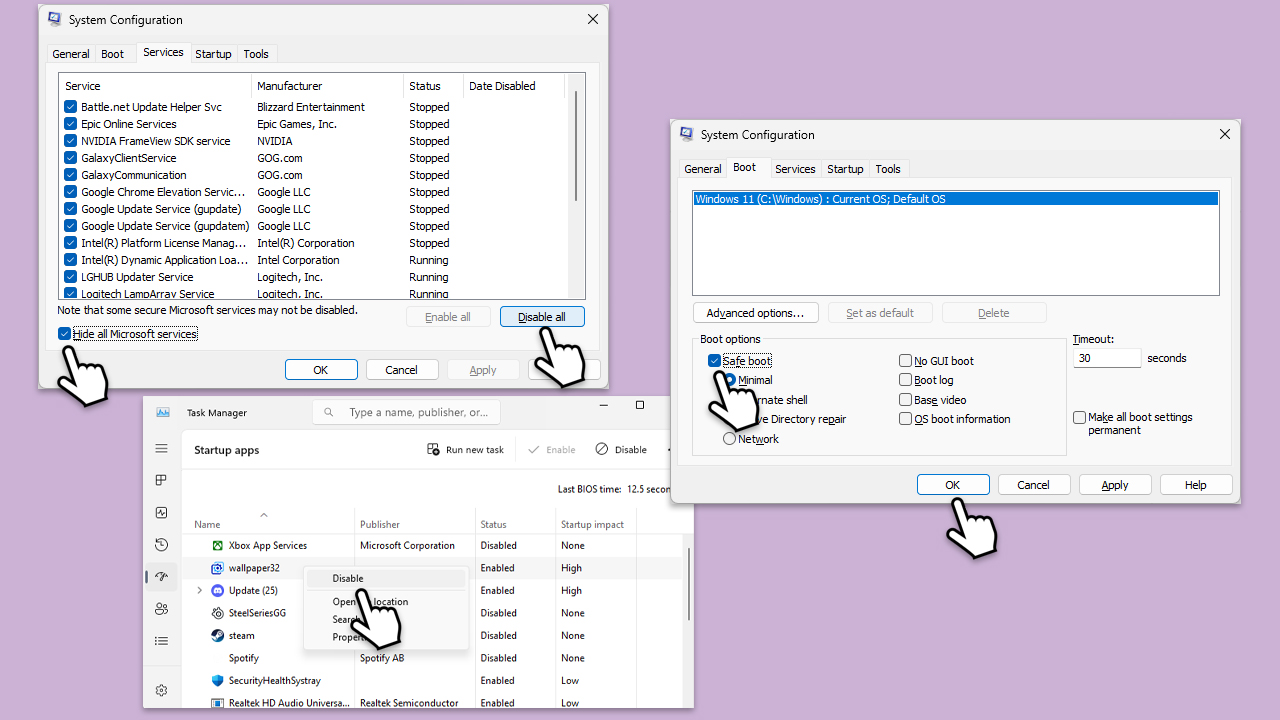
- Type msconfig in Windows search and hit Enter.
- Go to the Services tab and tick the Hide all Microsoft services checkbox.
- Select Disable all.
- Go to the Startup tab and click Open Task Manager.
- Here, right-click on each of the non-Windows entries and select Disable.
- Close down the Task Manager.
- Go to the Boot tab and tick the Safe boot option.
- Click OK and restart your computer.
- After restarting, your computer will be in a clean boot environment. Monitor your disk usage to see if the issue persists. If your disk usage is normalized, it indicates one of the disabled services or startup items was causing the problem. You can then enable services and startup items one by one (or in groups) and restart your computer after each to identify the problematic software.
- Once you identify the source of the problem, you can decide whether to update, disable, or uninstall the software causing high disk usage.
Other articles you might find useful:
Bottom line
To fix the high disk usage caused by GOG Galaxy, check the size of the game being downloaded or updated and ensure your HDD or SSD has enough free space. Keeping the GOG Galaxy software updated is also crucial. If the problem persists, consider investigating potential software conflicts or using a professional PC repair tool.
Frequently asked questions
High disk usage by GOG Galaxy on Windows 10 can be caused by background downloads, game updates, or excessive caching. Checking your download settings and limiting concurrent downloads may help reduce disk usage.
To reduce GOG Galaxy's disk usage on Windows 11, consider disabling automatic updates for games or adjusting the download speed limit in the application settings. Additionally, clearing the cache can free up disk space.
Yes, you can fix high disk usage by GOG Galaxy on Windows by terminating unnecessary background processes, adjusting settings in the app, and using the built-in repair feature to fix any issues.




Report an issue
What's wrong with this guide? We review every report and update or remove content.
Report received — thank you. We'll review and fix it.
You need a free account to submit a report.
Be the first to comment