How to fix
EALauncher.exe Bad Image error
on Windows
Solve the EALauncher.exe Bad Image error on Windows 10 and 11 effortlessly. Get quick fixes with expert-tested solutions and screenshots.


What causes How to fix EALauncher.exe Bad Image error in Windows?
- Corrupted Windows system files
- Incomplete installation of the EA Desktop app
- Outdated Windows operating system
- Missing necessary components to support the application
- DLL file errors
Repairs Windows system files, removes malware, and restores a clean OS state — without reinstalling.
Hello, I can't launch the Sims because whenever I press Play on the EA launcher I get an EALauncher.exe Bad Image error. How can I fix it?
EALauncher.exe is the executable file for EA Desktop (formerly known as Origin), an application platform created by Electronic Arts. This platform is vital for gamers who want to access, buy, and play EA's extensive video game collection - popular brands such as "FIFA," "The Sims," and "Battlefield," among others.
For fans of these games, EALauncher.exe serves as a gateway, allowing them to launch and manage EA products straight from their desktop. The "Bad Image" error associated with EALauncher.exe shows when Windows is unable to properly run the executable file.
EALauncher.exe Bad Image error typically presents a message stating that a DLL file (such as VCRUNTIME140.dll) is either not designed to run on Windows or contains an error, resulting in the inability to launch the application properly. This can be due to several reasons, such as corrupted Windows system files, an incomplete installation of the EA Desktop app, or an outdated Windows operating system that lacks the necessary components to support the application.
Addressing the "Bad Image" error involves ensuring that your Windows operating system is up to date with the latest updates and patches, which can resolve compatibility issues and replace corrupted system files. Additionally, reinstalling the EA Desktop application can help by providing a fresh, uncorrupted version of EALauncher.exe.
For those looking for an automated solution to address underlying Windows issues that could be contributing to the EALauncher.exe Bad Image error, using a professional PC repair tool [d1] can be an efficient way to diagnose and fix these problems without the need for extensive technical knowledge.
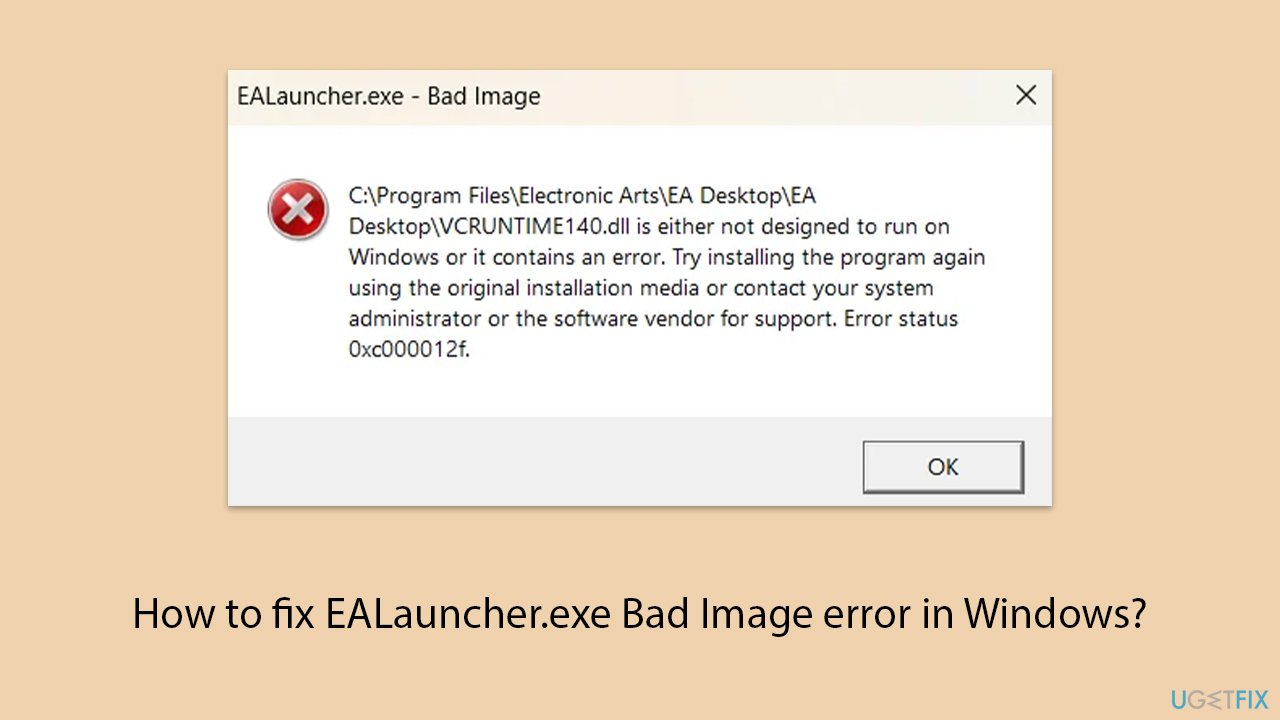
Fix 1. Update Windows
Updating Windows ensures that your operating system has the latest features, security enhancements, and system files, which can resolve compatibility issues and replace corrupted system files that might be causing the EALauncher.exe Bad Image error.
- Type Updates in Windows search and press Enter.
- Here, click Check for updates.
- Wait till Windows downloads and installs all the files.
- If optional updates are available, install them as well.
- Reboot your device.
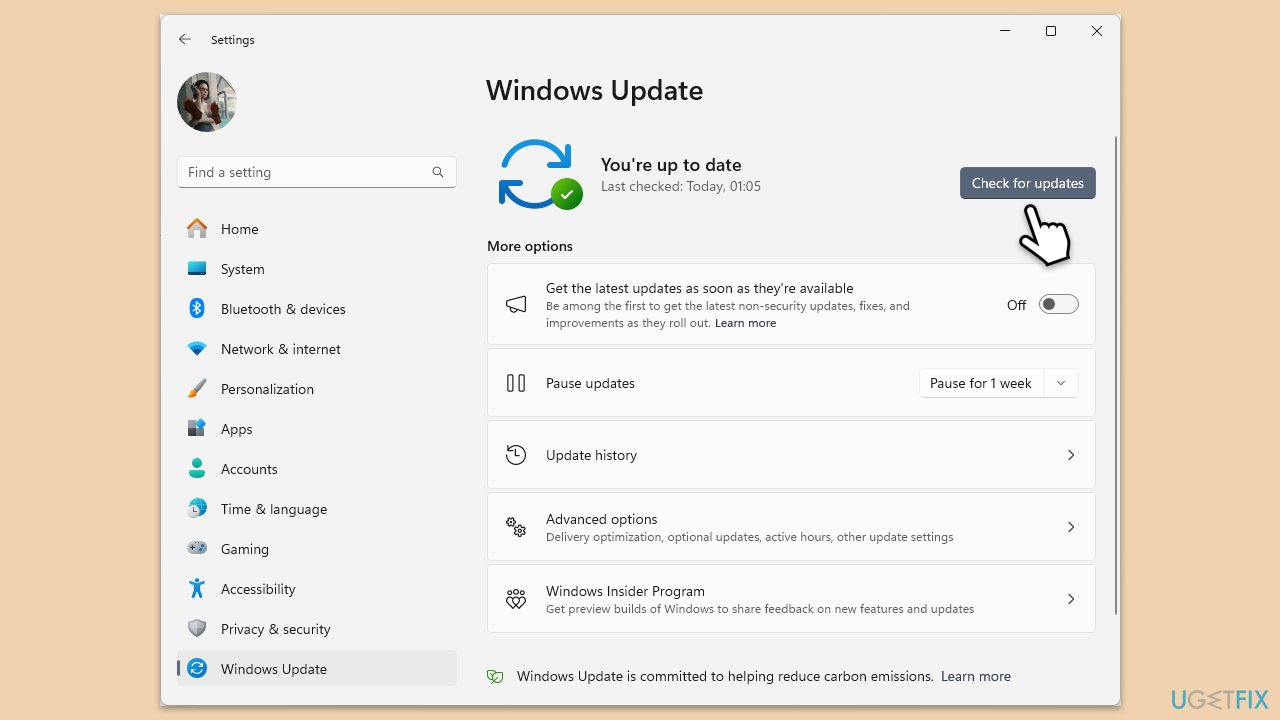
Fix 2. Repair EA App
The EA Desktop app includes a repair option that can fix corrupted files within the app itself without requiring a complete reinstallation.
- Type EA in Windows search.
- Right-click on the EA App and select Open File Location.
- Double-click on App Recovery.
- When prompted, click Clear cache and follow on-screen instructions.
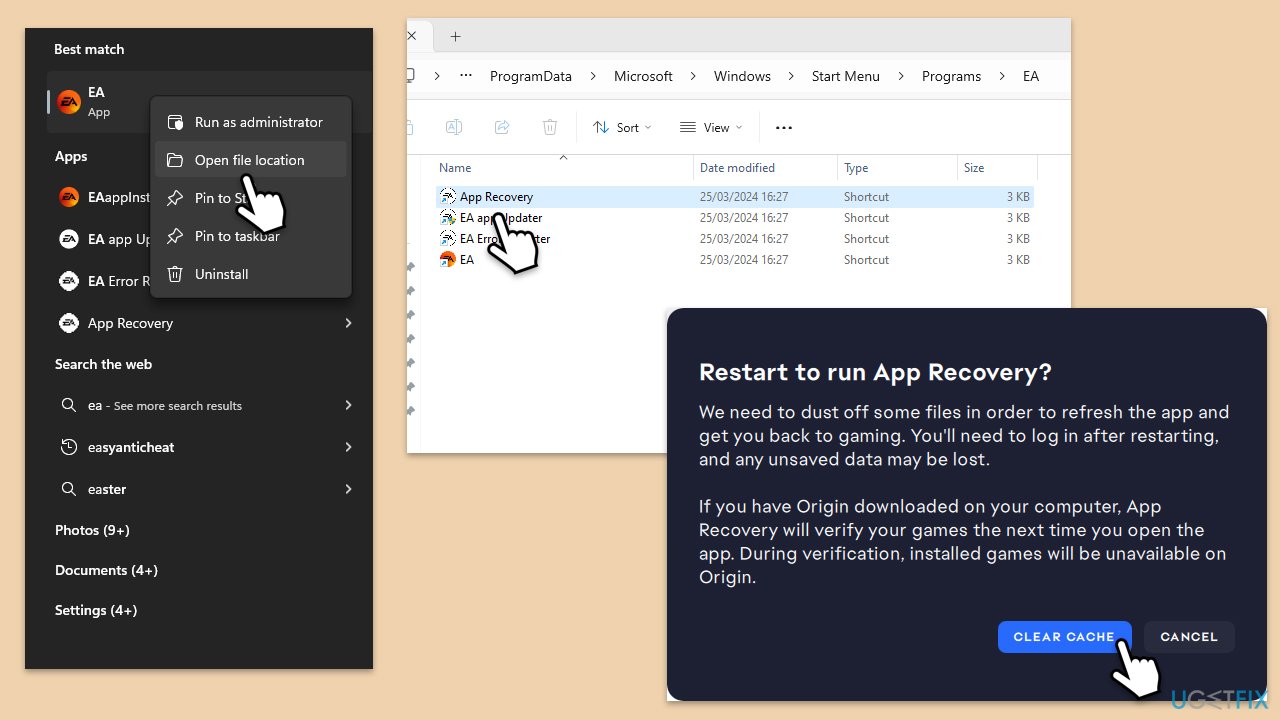
Fix 3. Reinstall EA app
Reinstalling the EA Desktop app ensures you have the most recent and uncorrupted version of EALauncher.exe, which can eliminate the Bad Image error.
- Press Win + I to open Settings.
- Go to Apps and select Installed apps.
- Scroll down and find the EA Desktop app in the list, then click on it.
- Select Uninstall and follow the prompts to remove the app.
- Download the latest version of the EA Desktop app from the official EA website.
- Run the installer and follow the instructions to install the app.
- Launch the newly installed EA Desktop app.
Fix 4. Update GPU drivers
Outdated or corrupted graphics card drivers can cause issues with games and applications. Updating your GPU drivers can enhance compatibility and performance.
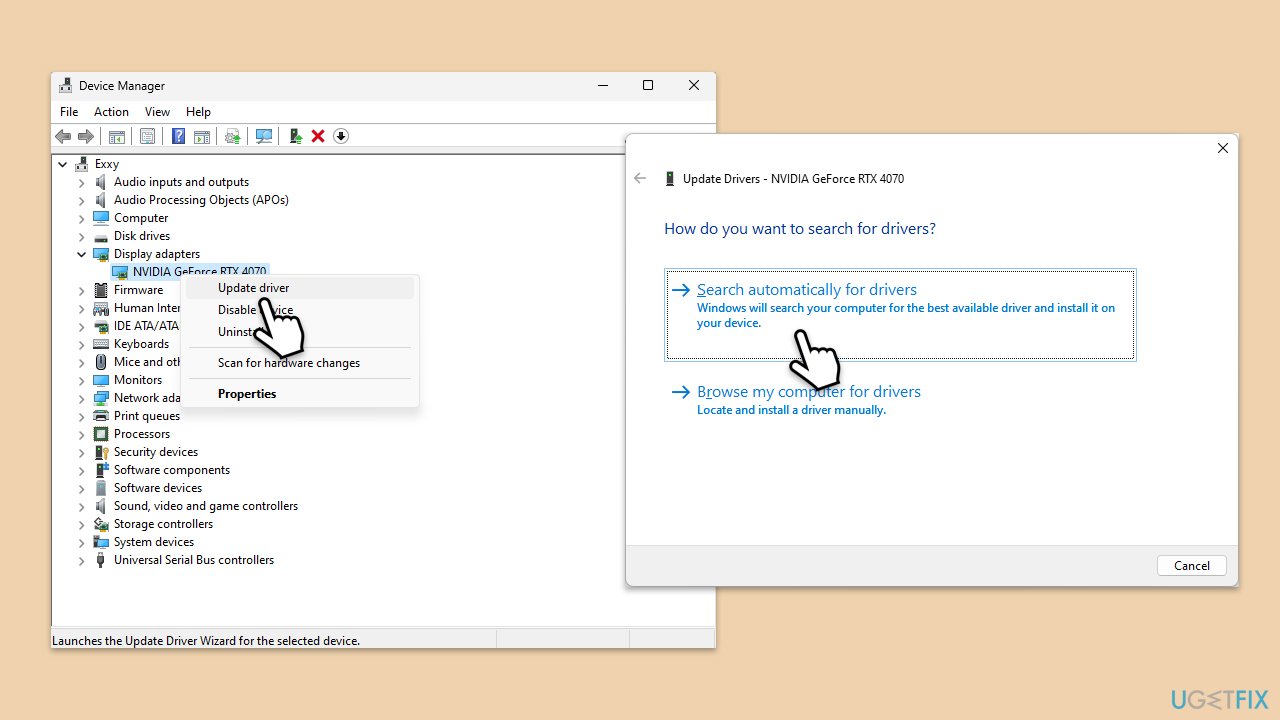
- Right-click on the Start button and select Device Manager from the menu.
- Expand the Display adapters section.
- Right-click on your graphics card and select Update driver.
- Pick Search automatically for drivers.
- If updates are found, allow them to install.
- Restart your computer after updating all necessary drivers.
Fix 5. Install the Visual C++ Redistributables
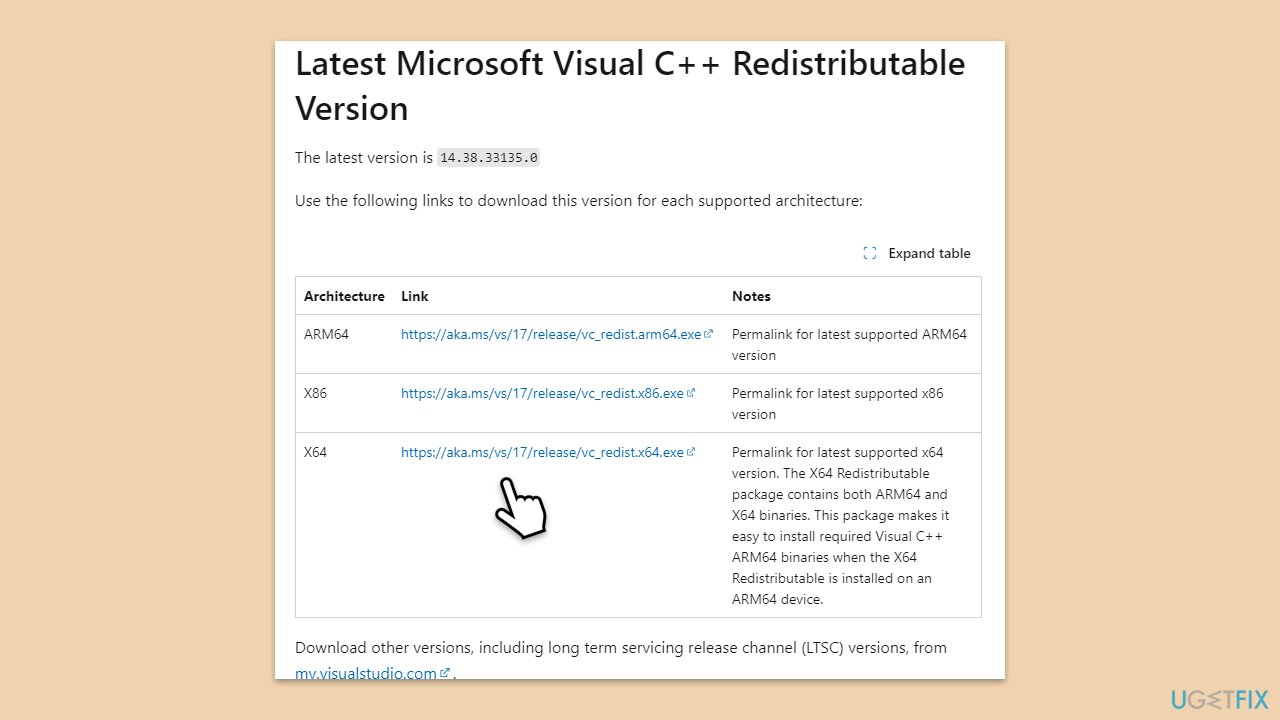
Some applications, including EA Desktop, require Microsoft Visual C++ Redistributable packages to run. Installing the latest packages can resolve the EALauncher.exe Bad Image error.
- Open the Control Panel and go to Programs > Uninstall a program.
- Here, scroll down and check the list of the installed Visual C++ versions.
- Open your browser and navigate to the official Microsoft Visual C++ download page.
- Download and install all the missing versions of Visual Studio (note: if you are using a 64-bit system, install both x86.exe and x64.exe files)
- Restart your system and check whether the problem is resolved.
- If not, try reinstalling each of the following components:
Microsoft Visual C++ 2010 Redistributable Package (x86)
Visual C++ Redistributable for Visual Studio 2012
Visual C++ Redistributable Packages for Visual Studio 2013
Visual C++ Redistributable Packages for Visual Studio 2015, 2017, 2019, and 2022. - Restart your PC when done.
Fix 6. Run SFC and DISM
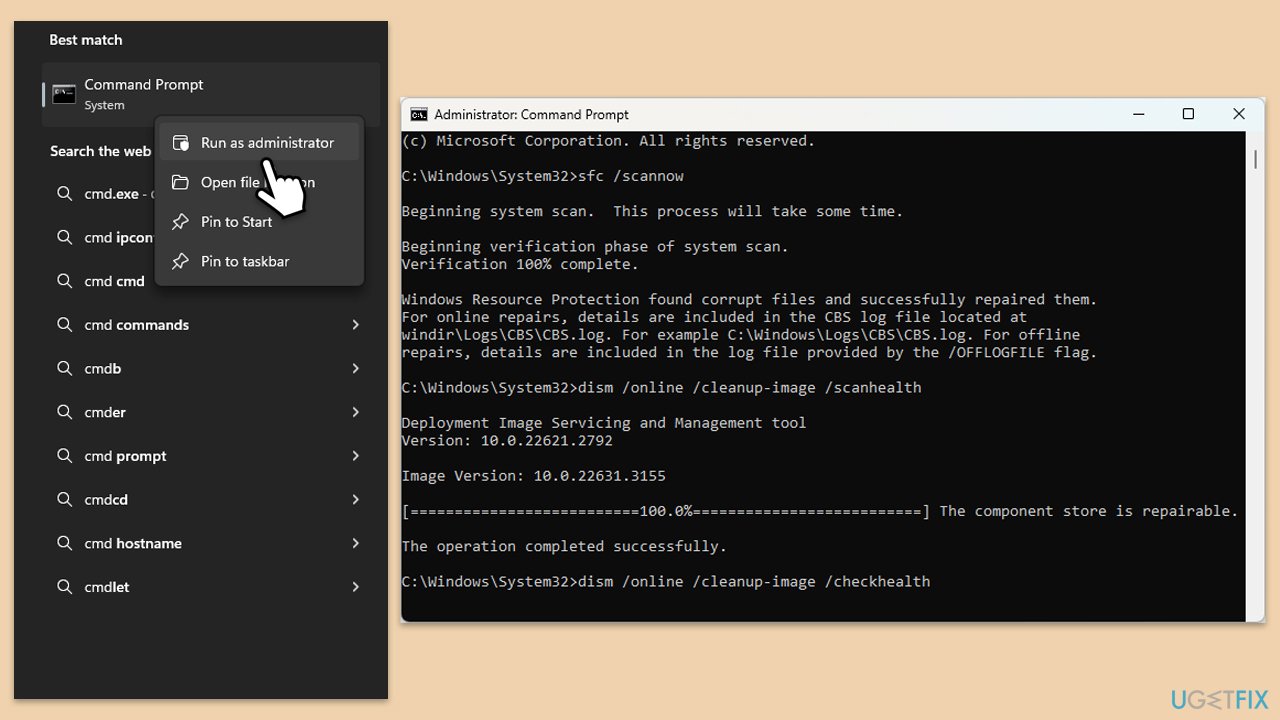
To repair corrupted system files, run SFC and DISM scans via the elevated Command Prompt:
- Type in cmd in Windows search.
- Right-click on Command Prompt and select Run as administrator.
- When User Account Control shows up, click Yes.
- In the Command Prompt window, paste the following command and hit Enter:
sfc /scannow - Next, use the following commands, pressing Enter each time:
Dism /Online /Cleanup-Image /CheckHealth
Dism /Online /Cleanup-Image /ScanHealth
Dism /Online /Cleanup-Image /RestoreHealth
(Note: if you get an error executing this last command, add /Source:C:\RepairSource\Windows /LimitAccess to it and try again). - Restart your system.
Bottom line
To fix the EALauncher.exe Bad Image error, ensure your Windows operating system is up to date and consider reinstalling the EA Desktop application for a fresh version. If these solutions do not resolve the issue, using a professional PC repair tool may help diagnose and fix underlying problems.
Frequently asked questions
The EALauncher.exe Bad Image error is typically caused by corrupted files, incompatible software, or issues with system updates in Windows 10 or Windows 11.
You can use the System File Checker tool by opening the Command Prompt as an administrator and running the command 'sfc /scannow' to repair corrupted system files in Windows 10 or Windows 11.
Yes, uninstalling and then reinstalling the EA launcher can resolve the Bad Image error, as it refreshes the application files and settings in Windows 10 or Windows 11.




Report an issue
What's wrong with this guide? We review every report and update or remove content.
Report received — thank you. We'll review and fix it.
You need a free account to submit a report.
Be the first to comment