How to fix
VCRUNTIME140.dll is Missing Error
on Windows
Resolve the VCRUNTIME140.dll missing error on Windows 10 and 11 quickly with easy solutions. Expert-tested fixes to get you back on track in no time!


What causes How to Fix VCRUNTIME140.dll is Missing Error on Windows?
- After installing a Windows update
- After an unsuccessful installation of a specific program
- Corrupted VCRUNTIME140.dll file
- Missing VCRUNTIME140.dll file
- Incorrect version of VCRUNTIME140.dll for the operating system
Repairs Windows system files, removes malware, and restores a clean OS state — without reinstalling.
Hello. Recently I am not able to run Photoshop, and Skype due to “The program can’t start because VCRUNTIME140.dll is missing from your computer” error. I have never heard of the file, and I have no clue where it is located. Can I download this file from the internet? If so, where do I put it? Can you please help me as I want to use the mentioned applications again. Any help would be appreciated.
"VCRUNTIME140.dll is Missing" is an error that can occur on Microsoft Windows computers. Typically, the issue arises after installing a Windows update or after an unsuccessful installation of a specific program. Sometimes reinstalling the program that needs this file works, but there are other reasons and solutions for this problem.
DLL is a Dynamic Link Library[ref en-4] file - it works similarly to executable but is only loaded when the software using it needs it. Therefore, when such a file is corrupted or not present, users receive this error, resulting in the application of startup failure.
The pop-up informing about the missing file usually prompts users to start looking for the file download link online, however, you should not download this file from shady websites, and you also must know which version is suitable for your operating system. Besides, third-party sites can often be employed to host malware in the download links, so better stay away from them.[ref en-5]
In this article, we are going to provide several VCRUNTIME140.dll is Missing error fixes so that you can solve the issue without a computer technician's help. Keep in mind that it is important to read the instructions and follow the given steps carefully to add the right version of the .dll file to your Windows operating system in order to fix the file was not found issue.
Speaking of the origins of the missing file, we must say that the dll in question is a file used by Visual C++ Redistributable for Visual Studio 2015-2019[ref en-1]. C++ package of files is installed by the software that requires it, and the separate C ++ files are further responsible for the execution of software run-time components.
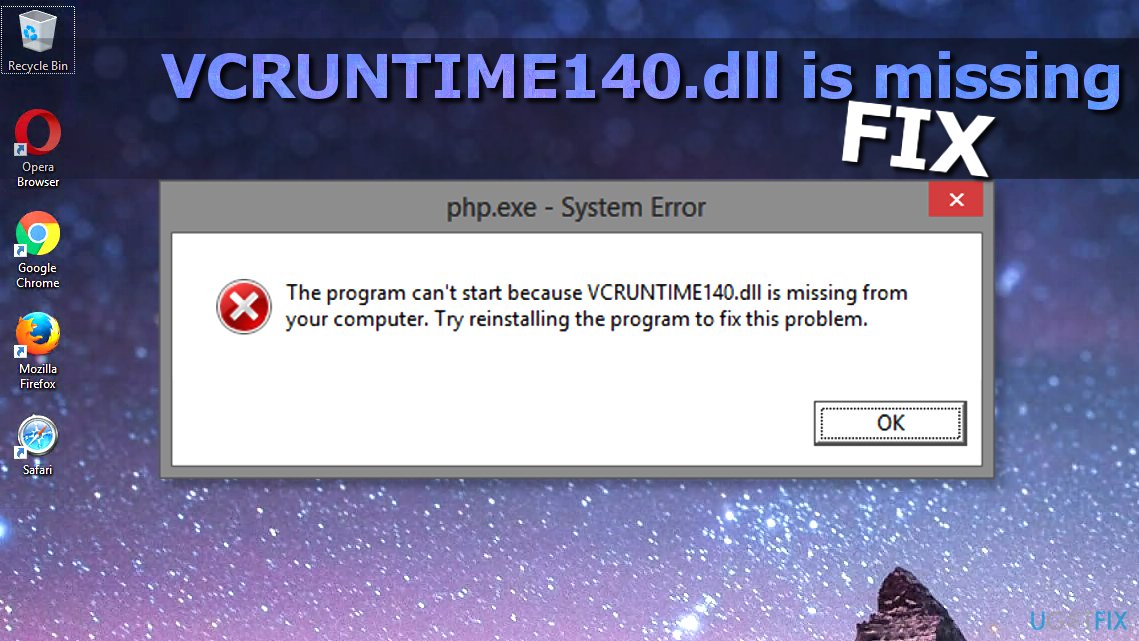
Therefore, if any of the C ++ package constituents are removed accidentally, corrupted or fails to function, the programs that require C++ may not respond and fail with the following error:
The program can’t start because VCRUNTIME140.dll is missing from your computer.
Try reinstalling the program to fix this problem.
Common causes of the Dll file missing error
- Many people encounter the missing dll file error on Adobe’s Creative Cloud. According to Adobe’s technicians, the problem may occur due to the Adobe Creative Cloud’s migration from Microsoft runtimes to Visual C++. This change has been initiated to ensure that the software is using the runtimes supported by Microsoft.
- The vast majority of complaints come from people saying that they are having dll file Kodi issues. The aforementioned error message appears when starting Kodi and it seems that reinstalling the free media player software doesn't solve the issue.
- The issue can occur when the system is infected with malware. The machine gets corrupted or damaged. Also, such file damage can occur when the particular application gets deleted. Needed components missing cause the need for file download.
- Finally, some users have expressed complaints regarding missing MVCR110.DLL and VCRUNTIME140.DLL files that won't allow WAMP software to work. The file is missing issue can be fixed using the guidelines given below.
How to fix VCRuntime140.dll Is Missing Error and Run Any Program You Want
The first thing you should do when trying to solve the issue is to reinstall Visual C ++ from the official Microsoft website. If, however, the issue persists, you should try to either use a trustworthy website to download the missing file or copy it over from another computer.
If this fix doesn't help you to get rid of the problem, we suggest checking the system for malware[ref en-2], install the latest Windows Updates, and check whether your OS does not have corrupted files. The easiest way to check for file corruption is by running a specific repair tool. Also, you could try reinstalling the application that is causing the error and see if that helps you.
1. Run a PC repair tool
Damaged DLL files can be the result of installing and reinstalling programs constantly. Some files get overwritten a few times and corrupted like this. This causes problems with those particular applications when the programs need older versions of the DLL to run. but it is overwritten with the newer version. The program starts showing errors and malfunction or even crash, so you can't run wanted apps.
Tools like [d1] can replace missing or corrupted DLL files with fresh ones, clean and update such data to fix problems. This PC repair program can replace DLL files and fixed the dll is a missing error on Windows machines. Various files may cause problems for you without you even knowing about the issue. The proper system scan can indicate damage or missing data and repair those, so the Windows run as supposed to. There are various dll issues that people constantly complain about: Api-ms-win-crt-runtime-l1-1-0.dll, WDSUTIL.dll, XPSSVCS.DLL .
2. Re-register the DLL file
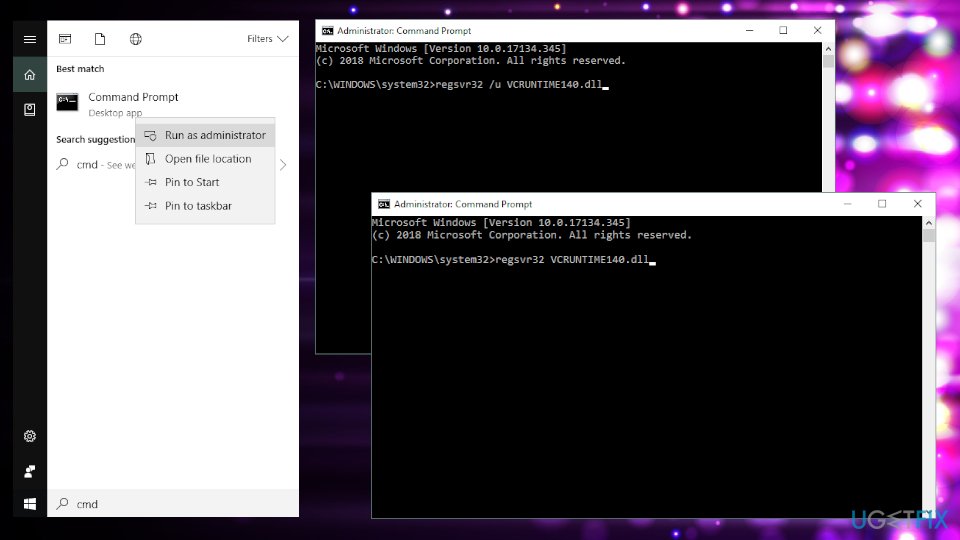
The Regsvr32 command in Command Prompt (Admin) can help you fix the error. For that, follow these steps:
- Type cmd or Command Prompt into the search box
- Right-click on search results and select Run as Administrator
- To unregister the file, type in the following and hit Enter
regsvr32 /u VCRUNTIME140.dll
- To reregister the file, type in the following and hit Enter
regsvr32 VCRUNTIME140.dll
3. Reinstall the latest Visual C++ Redistributable for Visual Studio 2015
IT specialists recommend reinstalling the Visual C++ Redistributable for Visual Studio 2015 to fix the missing file error. It is important to follow official Microsoft guidelines and install the missing files properly, otherwise, you will have to struggle with each corrupted program separately, which you clearly do not want to happen.
Although you may find various download sources for this software, we would strongly recommend downloading it from the official Microsoft’s website. Here is what you need to do:
- Get Microsoft Visual C++ Redistributable from official Microsoft website. Click the download button.
- You will be taken to a page which will ask you to choose the download you want. There will be two files: vc_redist.x64.exe and vc_redist.x86.exe. If you are using 32-bit Windows, you can get away with just installing the x86 file. If you are running the 64-bit Windows, you should install them both.
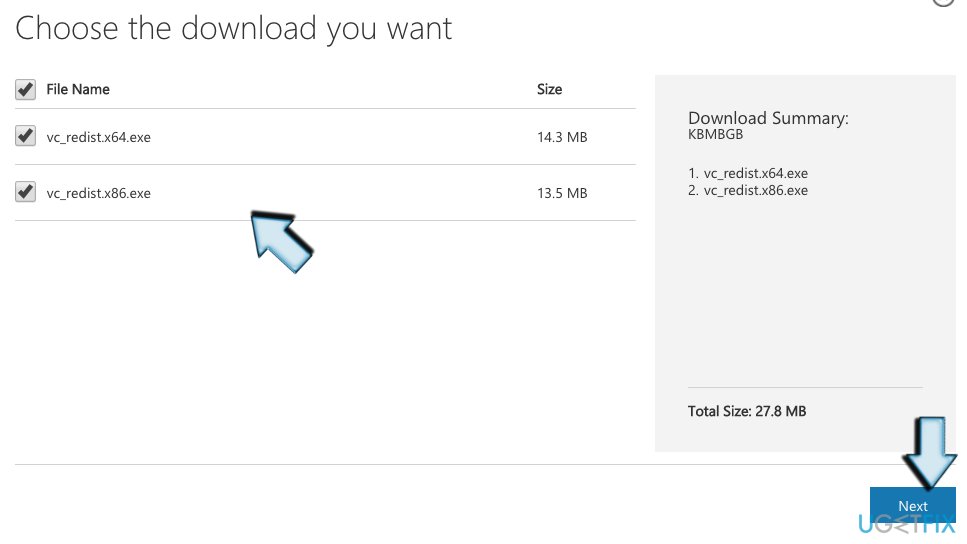
Download microsoft c redistributable package choice - Open the file (you should see its name in the lower part of your browser window). You will be asked to read Microsoft Software License Terms and agree to them in order to install the missing software piece. Put a tick on "I agree to the license terms and conditions" and select Install.
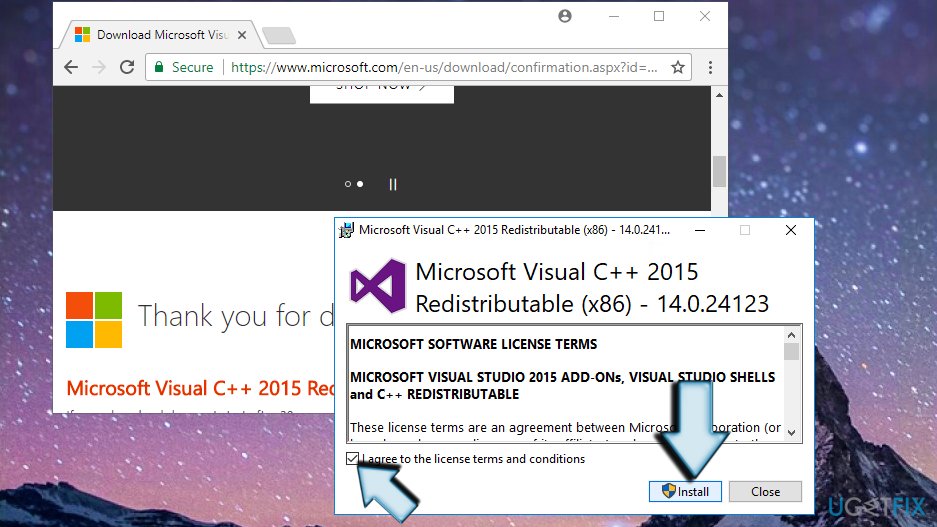
Install microsoft c 2015 redistributable on windows - This should solve the problem you are experiencing, and various programs should no longer be showing you the described error ever again.
4. Repair Microsoft Visual C++ 2015 Redistributable
- Right-click on Windows start menu icon and select Control Panel. You can also find the same program by opening Search and typing “control” in the search bar.
- Open Programs & Features or Add/Remove Programs according to the OS type that you use.
- Find Microsoft Visual C++ 2015 Redistributable ) (x64) – [version number] and click Change.
- When the uninstaller appears, DO NOT click "Uninstall." Instead of that, select Repair.
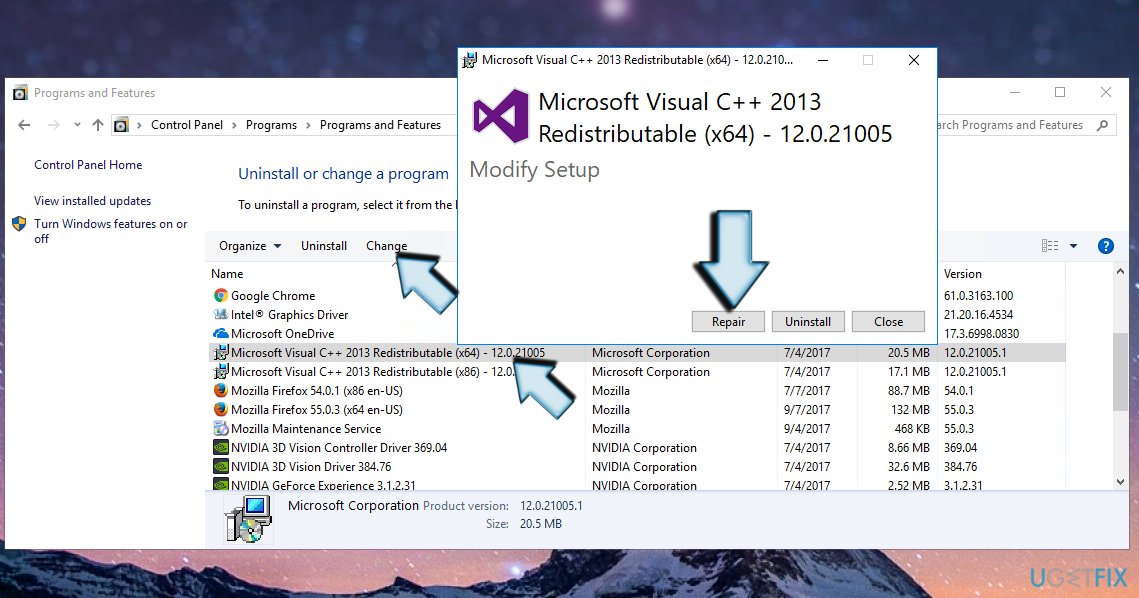
Repair microsoft c 2015 redistributable on windows - Finally, reboot the system.
5. Run System File Checker
Run System File Checker[ref en-3] to see if the system does not contain corrupted/outdated/damaged files.
- Use windows search to find Command Prompt.
- Right-click on it and select Run as administrator.
- Then, type sfc/scannow command. Press Enter to execute it.
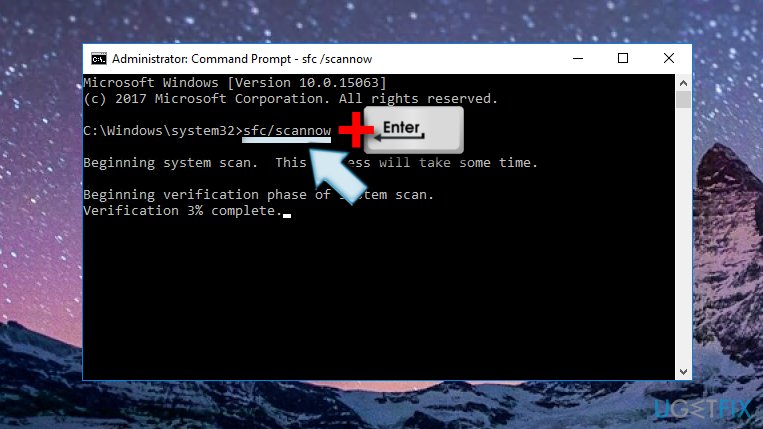
Scan system via command prompt
IMPORTANT: you may find offers to install the dll file separately. However, do not fall for downloading it! Hackers often disguise malicious programs under .dll files. Therefore, as soon as you try to execute the required file, you might end up with a malware infection.
6. Reinstall the program that cannot be launched
For instance, if Skype or Skyrim has been affected and the missing DLL error occurs, uninstall it from Control Panel and then download the latest version from the official website. You can also do the "repair" trick using the same technique described in the methods above.
7. Install Windows Updates
- Open the Settings app and go to the Update & Security.
- Click Check for Updates and wait for the search to complete.
- Install the latest version to fix possible OS bugs.
8. Reset Windows
If none of the above steps helped, you can try resetting Windows. You might have to restart programs but this process will keep your personal files intact.
- Go to Settings app once again
- Select Update & Security and go to Recovery
- At the top, under Reset this PC section, click Get Started
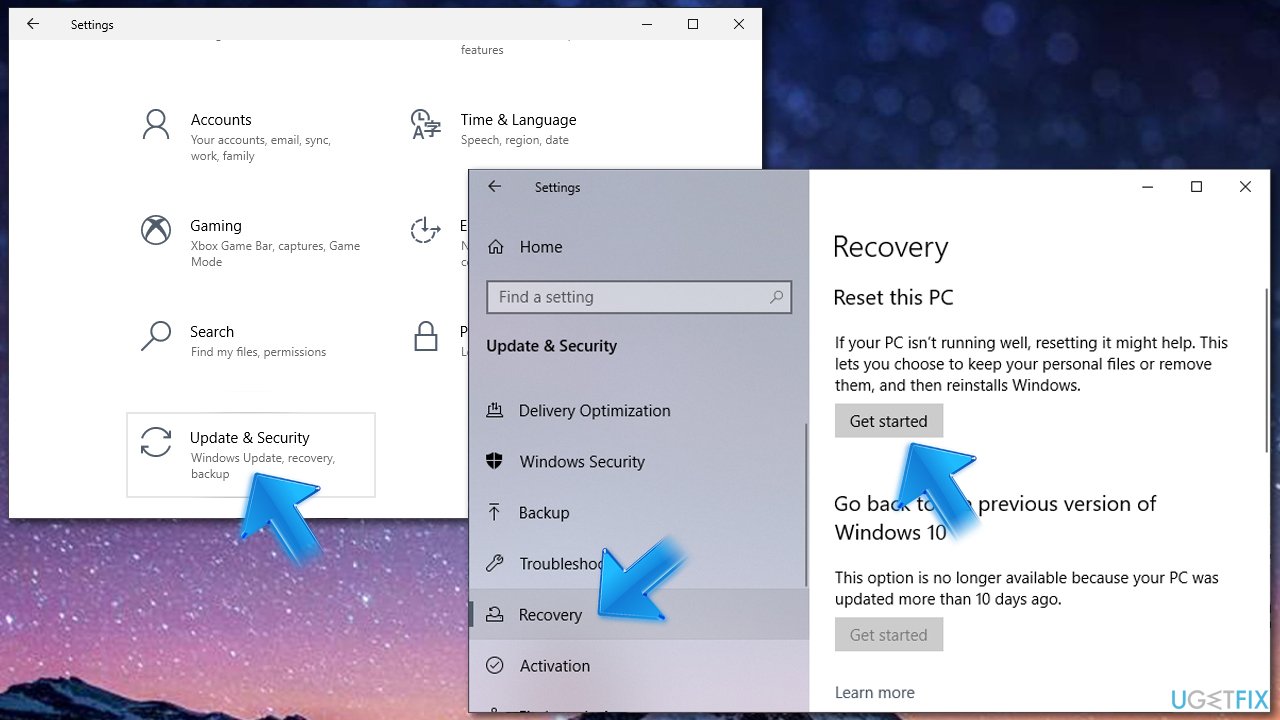
How to fix vcruntime140 dll missing reset windows - Select Keep my files and pick Cloud download
- Proceed with the instructions and restart your PC.
Check out our video guide
You can see the steps in a video format, so the instructions are easier to follow
[youtube V5iZ6zpJmhg]
Bottom line
To fix the VCRUNTIME140.dll is missing error, you can try reinstalling the program that requires the file, ensuring you have the correct version of the Visual C++ Redistributable installed, or checking for Windows updates. If none of these solutions work, consider seeking assistance from a computer technician.
Frequently asked questions
This error typically arises due to a corrupted or missing Visual C++ Redistributable package, which is essential for running applications that depend on it. Installing or repairing the Visual C++ Redistributable can resolve this issue on Windows 10.
To fix the VCRUNTIME140.dll error on Windows 11, you can reinstall the Microsoft Visual C++ Redistributable package. Download the latest version from the official Microsoft website and follow the installation instructions.
Yes, running the System File Checker (SFC) scan can help detect and repair corrupted system files that may be causing the VCRUNTIME140.dll missing error on Windows 10 and Windows 11. Open Command Prompt as an administrator and type 'sfc /scannow' to initiate the scan.




Report an issue
What's wrong with this guide? We review every report and update or remove content.
Report received — thank you. We'll review and fix it.
You need a free account to submit a report.
Be the first to comment