How to fix
Remove “Trending in NBA”
on Windows
Easily remove "Trending in NBA" from your Windows 10 or Windows 11 lock screen with our expert-tested guide. Enjoy a personalized experience today!

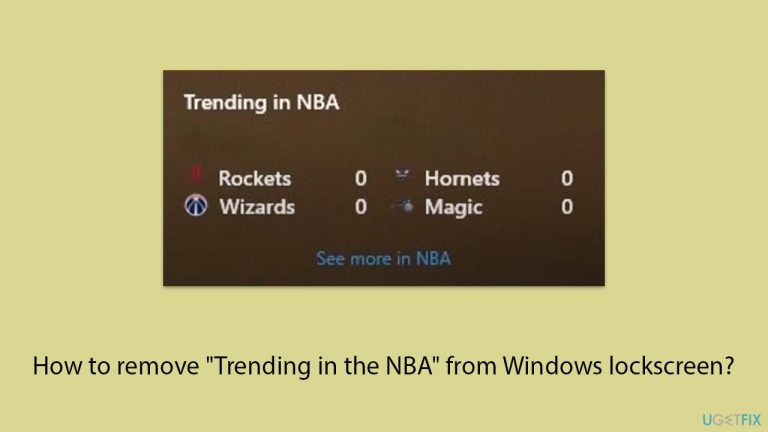
Why does How to remove “Trending in NBA” from Windows lockscreen occur?
- Windows Spotlight feature displaying unwanted notifications
- Third-party applications showing information on the lock screen
- Lock screen settings configured to show specific widgets
- Recent updates or changes in system settings
Repairs Windows system files, removes malware, and restores a clean OS state — without reinstalling.
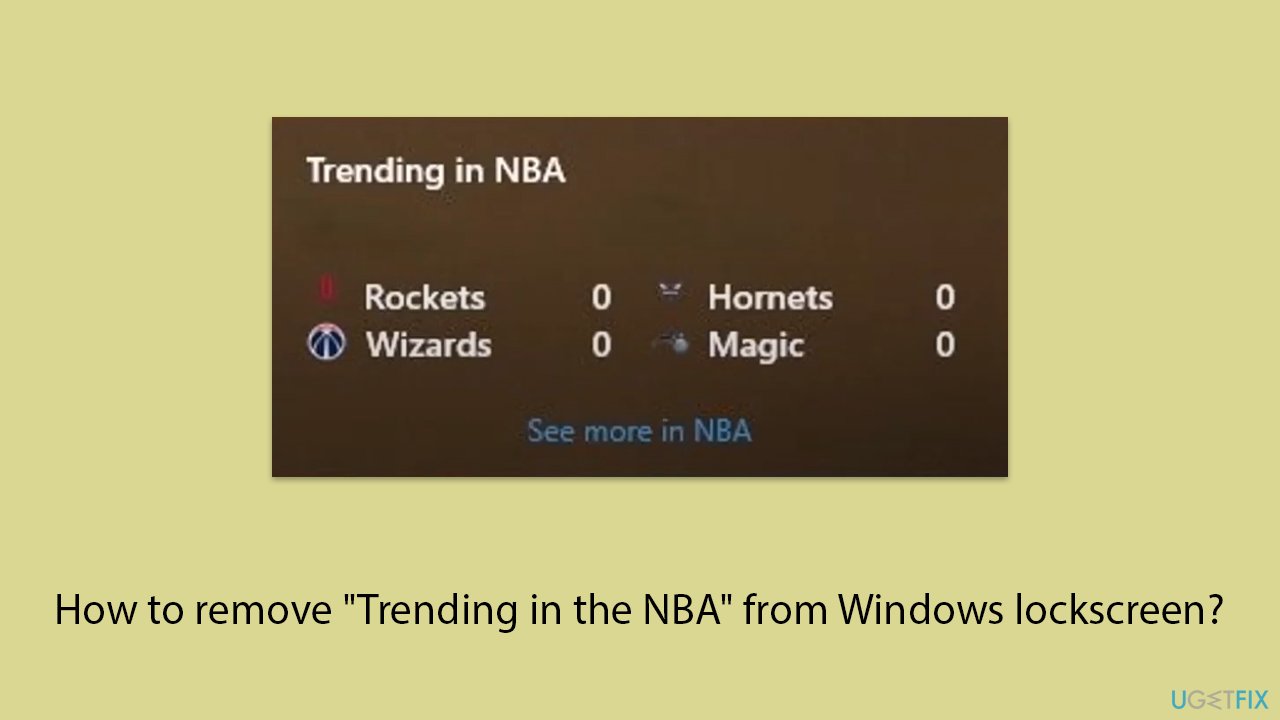
When I boot my PC and access the lock screen, I keep seeing the "Trending in the NBA" widget showing me NBA news. I am not interested in sports so I am not sure why this is being shown to me. How can I remove this?
When you turn on your computer, the lock screen appears as usual, providing quick access to useful information like the weather and clock. However, you may have recently noticed additional boxes, such as the "Trending in NBA" widget. If you are not interested in the NBA and wish to remove this specific box, you can adjust your settings to eliminate it.
"Trending in NBA" box on your lock screen is likely due to the Windows Spotlight feature or a third-party application displaying information. Windows Spotlight is a feature that shows different backgrounds and occasionally suggestions, tips, and other information from Microsoft. Sometimes, third-party apps or widgets can also display information on your lock screen without being directly listed in the lock screen settings.
To resolve this issue and remove the "Trending in NBA" box from your lock screen, you can try several methods. These include disabling Windows Spotlight, adjusting lock screen settings, checking for third-party applications, and editing Group Policy settings.
For comprehensive maintenance and automatic repair of your Windows operating system, you can always rely on a powerful PC utility [d1], especially when it is difficult to get rid of serious problems such as BSODs or system errors.
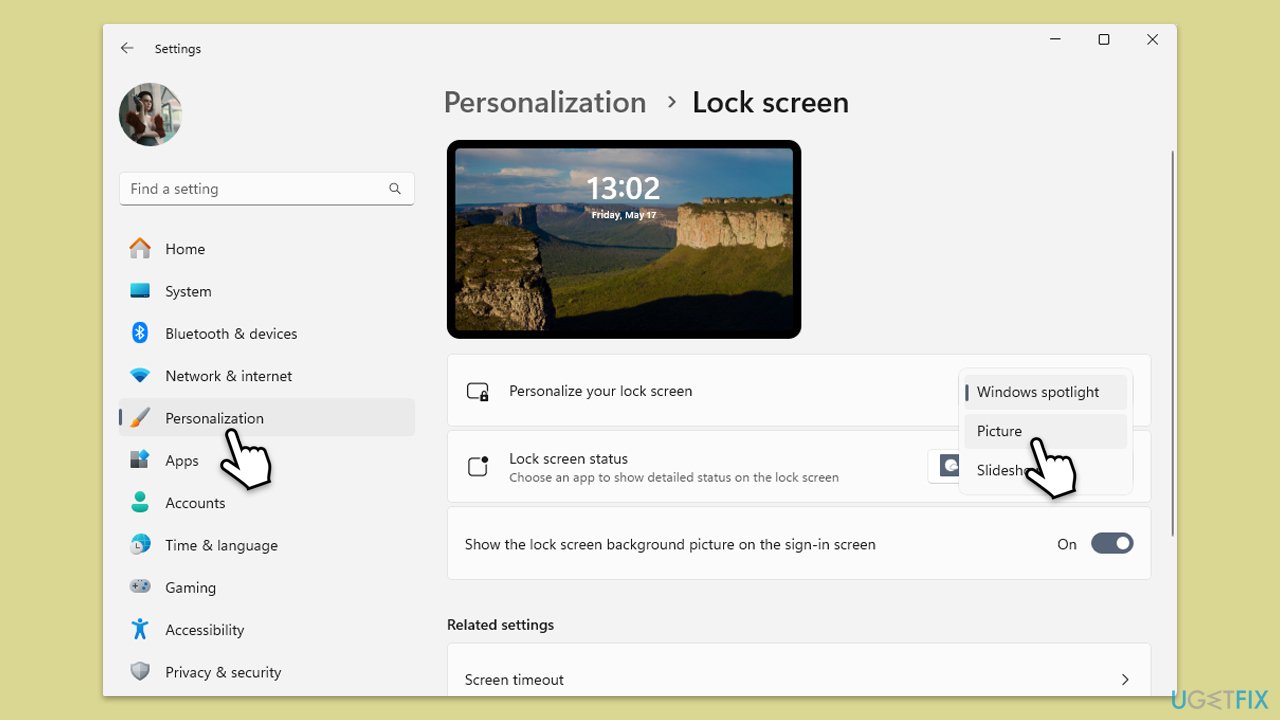
Fix 1. Disable Windows spotlight
Windows Spotlight displays various images and can include tips, tricks, and other notifications, such as "Trending in the NBA". By disabling Windows Spotlight, you can prevent these unwanted notifications from appearing on your lock screen.
- Press Win + I to open Settings.
- Go to Personalization.
- Select Lock screen.
- Under Personalize your lock screen, select Picture or Slideshow instead of Windows Spotlight in the drop-down menu.
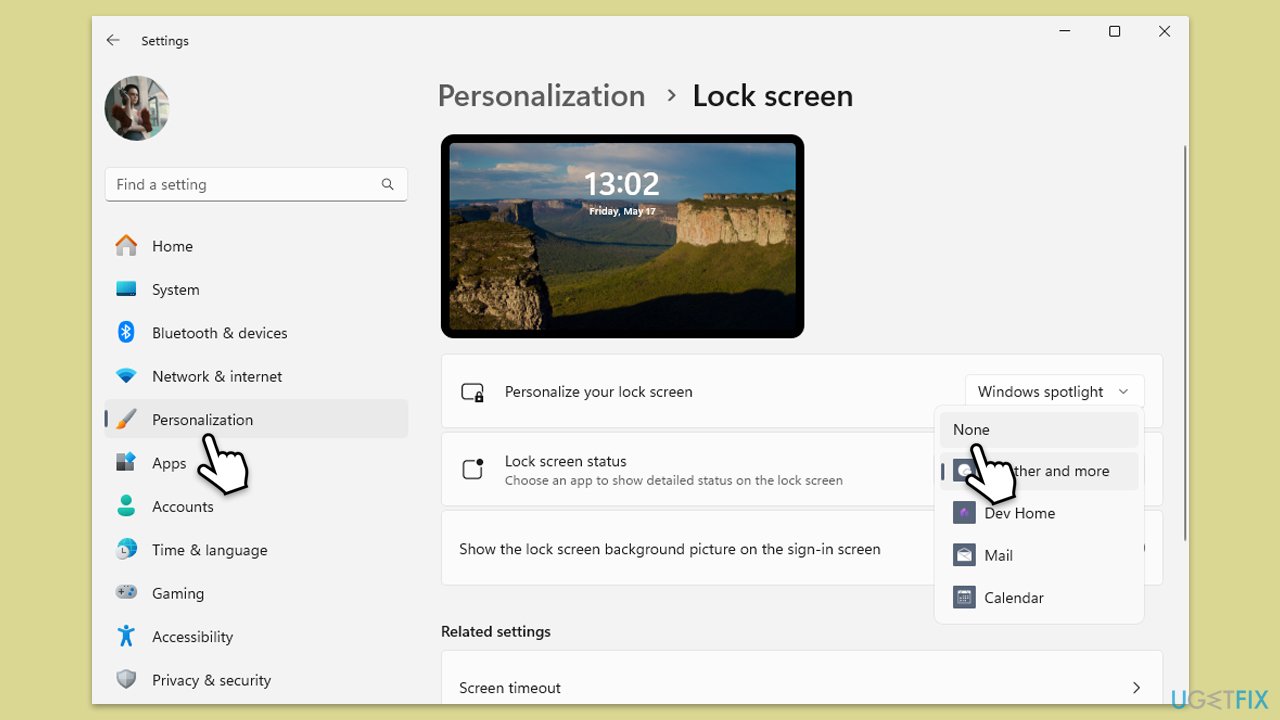
Fix 2. Adjust Lock Screen settings
The lock screen settings allow you to choose which apps can display detailed and quick status information. By configuring these settings, you can remove unwanted content such as "Trending in NBA".
- Open Settings.
- Go to Personalization.
- Select Lock screen.
- Under Lock screen status/Choose an app to show detailed status, set it to None.
- Under Choose apps to show quick status, remove all apps or select only the ones you need.
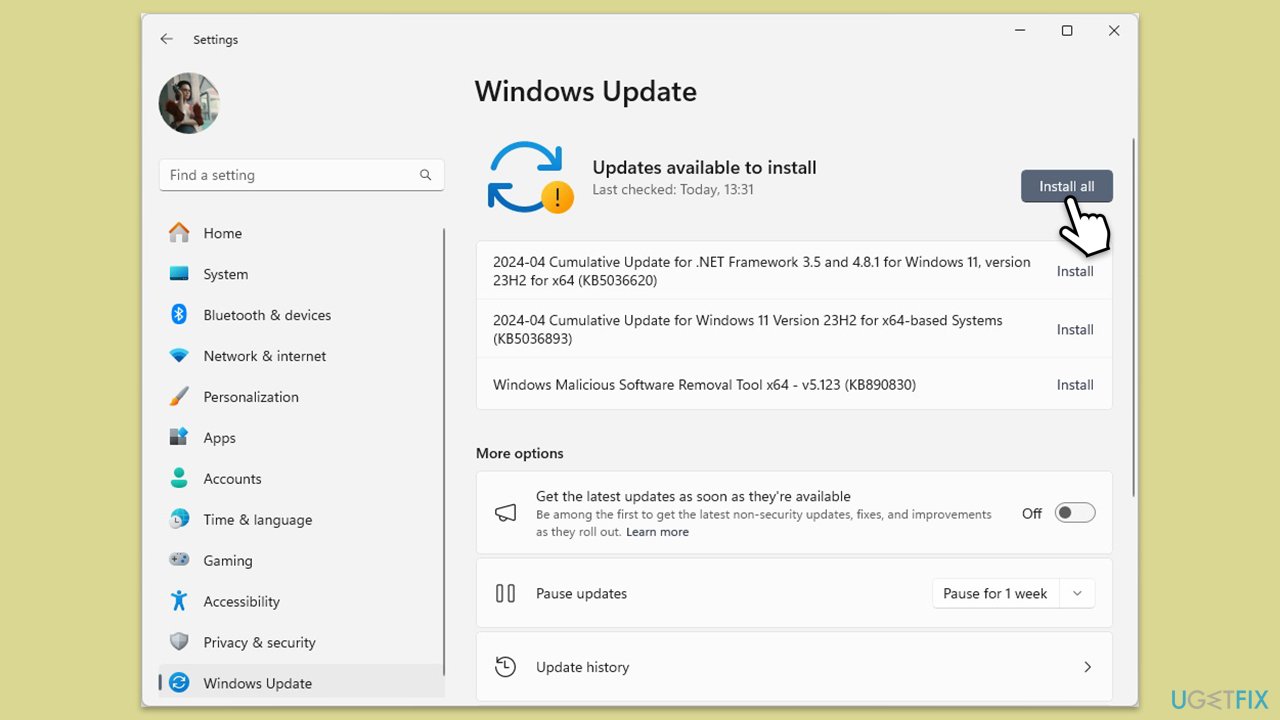
Fix 3. Install the latest Windows updates
Installing the latest Windows updates ensures your system is running the most current version of Windows, which can fix bugs and glitches, including issues with the lock screen.
- Type Updates in Windows search and hit Enter.
- If updates are available, click Install updates. Otherwise, select Check for updates.
- If optional updates are available, install them as well.
- When all the update processes are complete, restart your PC.
Fix 4. Edit Group Policy settings
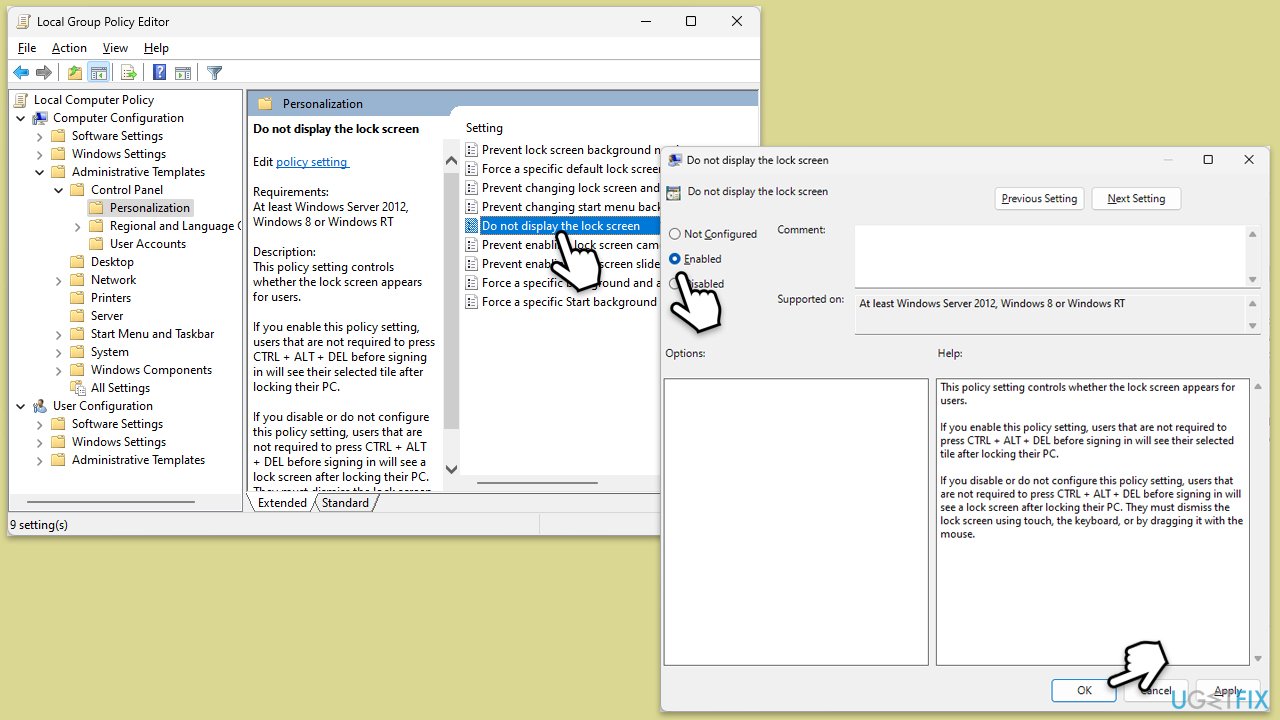
Group Policy settings allow you to manage and configure the operating system's behavior. By disabling the lock screen through Group Policy, you can eliminate all unwanted content from appearing.
- Type Group Policy in Windows search and press Enter.
- Navigate to Computer Configuration > Administrative Templates > Control Panel > Personalization.
- Double-click Do not display the lock screen.
- Set it to Enabled to disable the lock screen entirely (optional if you want to get rid of all lock screen content).
Fix 5. Perform Clean Boot
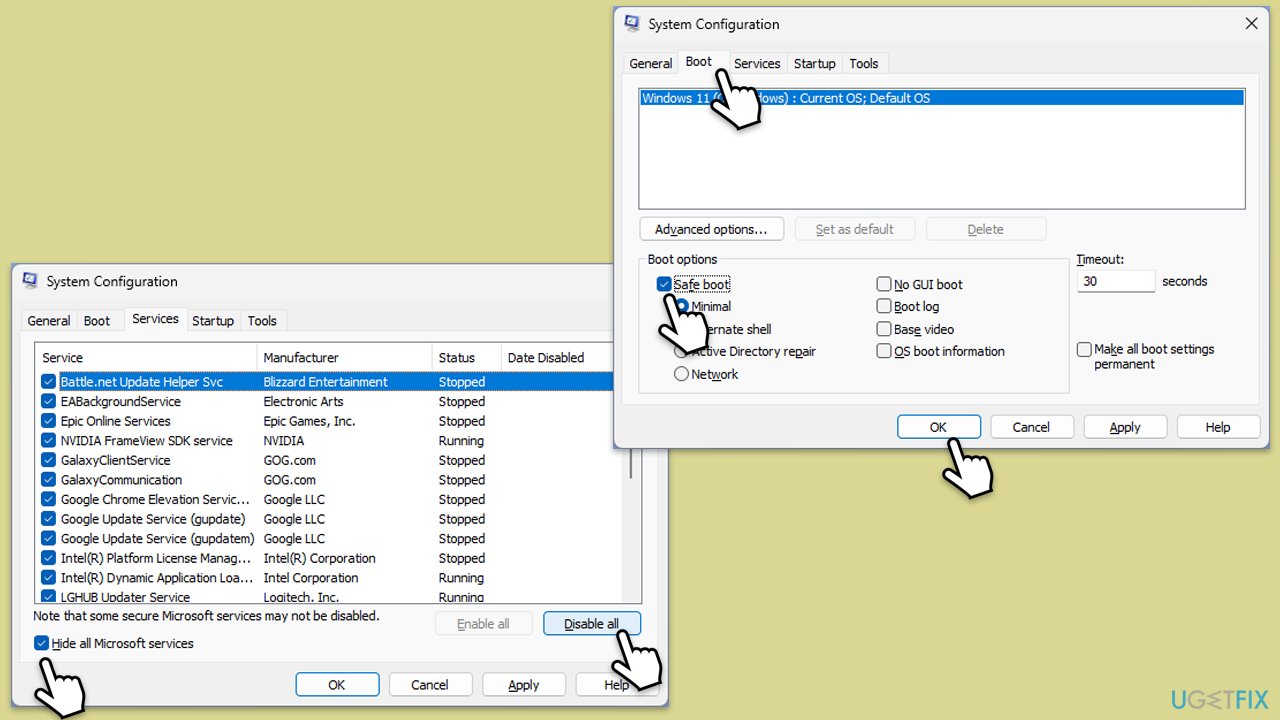
- Type msconfig inWindows Search and press Enter to open the System Configuration window.
- Click on the Services tab and check the Hide all Microsoft Services box.
- Click Disable all to disable non-Microsoft services, then click the Startup tab.
- Open the Task Manager, disable all startup items, and close the Task Manager.
- Go to the Boot tab and mark the Safe boot option.
- Click OK on the System Configuration window and restart your PC.
- After the restart, observe if the "Trending in NBA" box still appears on the lock screen. If it does not appear, this indicates that one of the disabled services or startup items is causing the issue.
- Re-enable services and startup items one by one (or in groups), restarting your computer each time, to identify the specific program or service responsible for the issue.
- Once identified, keep the problematic program or service disabled or uninstall it if necessary.
Bottom line
To remove the 'Trending in NBA' widget from your lock screen, you can disable Windows Spotlight, adjust your lock screen settings, or check for third-party applications. If these methods do not resolve the issue, consider using a powerful PC utility for comprehensive maintenance and repair.
Frequently asked questions
To remove 'Trending in NBA' from your Windows 10 lock screen, go to Settings > Personalization > Lock screen and turn off the option for 'Get fun facts, tips, and more from Windows and Cortana on your lock screen.'
Yes, in Windows 11, navigate to Settings > Personalization > Lock screen, and uncheck the box for 'Get fun facts, tips, and more from Windows and Cortana on your lock screen' to prevent 'Trending in NBA' from showing up.
No, disabling 'Trending in NBA' will not affect other lock screen features; you can still customize your background and other settings as desired.




Report an issue
What's wrong with this guide? We review every report and update or remove content.
Report received — thank you. We'll review and fix it.
You need a free account to submit a report.
Be the first to comment