How to fix
Classpnp.sys BSOD
on Windows
Resolve the Classpnp.sys BSOD error in Windows 10 and 11 effectively with our expert-tested solutions. Fix it quickly and safely with zero traces left.

What causes How to fix Classpnp.sys BSOD in Windows?
- Corrupt system files
- Faulty hardware components like hard drives or RAM
- Driver conflicts
- Viruses or malware
- Software conflicts from recent installations or updates
Repairs Windows system files, removes malware, and restores a clean OS state — without reinstalling.
Occasionally, I get a PC crash that mentions Classpnp.sys file (DRIVER_IRQL_NOT_LESS_OR_EQUAL). While my PC is not crashing constantly, it still happens enough to disrupt my work. Is there a way to fix it? What is Classpnp.sys?
Classpnp.sys BSOD in Windows
Classpnp.sys is a critical system file in Windows operating systems, responsible for managing storage device drivers. It ensures proper communication between the hardware and the operating system, particularly for hard drives and SSDs.
Occasionally, users may encounter a Blue Screen of Death (BSOD) error related to Classpnp.sys. This error typically occurs during startup or during intensive disk operations and is accompanied by a message that includes "CLASSPNP.SYS" and a stop code such as KMODE_EXCEPTION_NOT_HANDLED or DRIVER_IRQL_NOT_LESS_OR_EQUAL, indicating a serious system issue.
Causes of Classpnp.sys BSOD
The Classpnp.sys BSOD error can be caused by several factors. These include corrupt system files, faulty hardware components like hard drives or RAM, driver conflicts, viruses or malware, and software conflicts from recent installations or updates.
How can you fix Classpnp.sys Blue Screen of Death
To address the Classpnp.sys BSOD error, you can try the following troubleshooting steps:
- Check and repair system files. Use tools like SFC (System File Checker) and DISM to scan and repair corrupted system files.
- Update drivers. Ensure all your drivers, especially storage device drivers, are up-to-date.
- Examine hardware. Check your hard drive and RAM for any faults using diagnostic tools.
- Run antivirus scans. Perform a full system scan to detect and remove any malware.
- Remove recent software. Uninstall any recently installed software or updates that might be causing conflicts.
- Boot into Clean Boot. Start Windows in Clean Boot mode to troubleshoot and isolate third-party software causing issues.
For detailed instructions on these and other steps, refer to the section below.
Using a PC repair tool like [d1] can also help fix underlying Windows issues automatically, ensuring system stability and preventing BSOD errors.
Fix 1. Check and repair system files
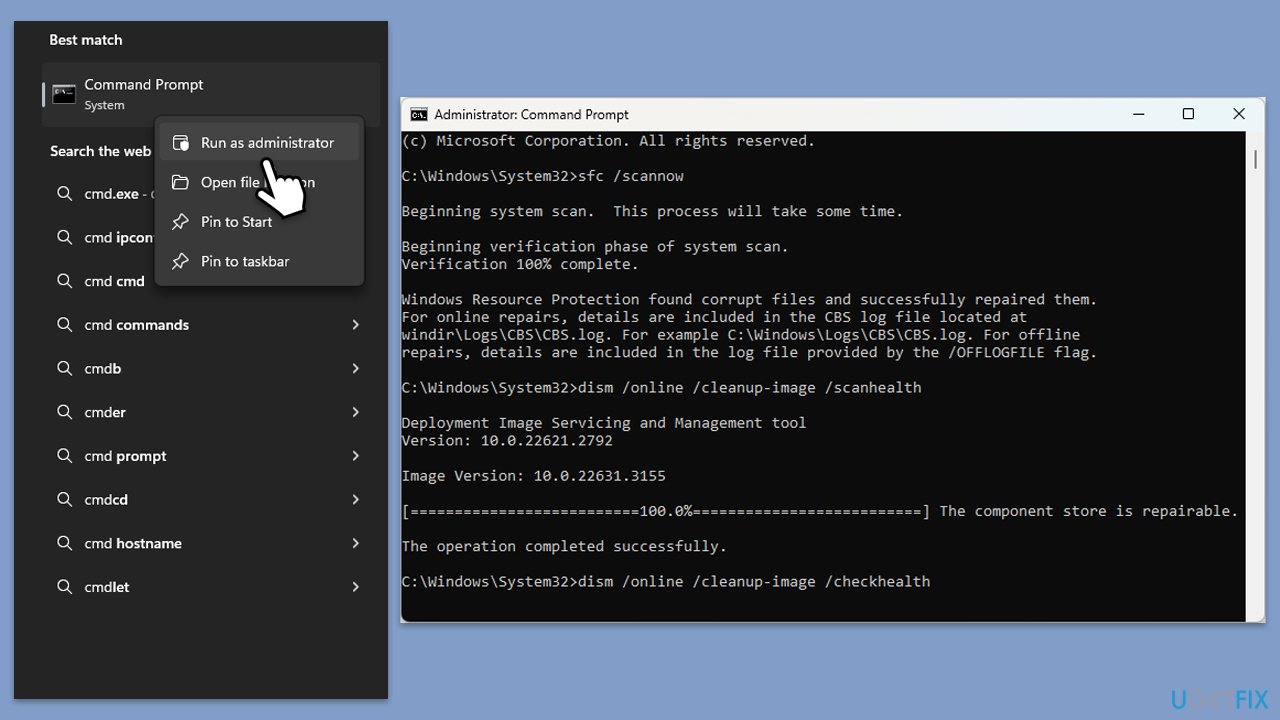
Corrupt system files can cause the Classpnp.sys BSOD. Using SFC and DISM tools can help repair these files.
- Type cmd in Windows search.
- Right-click on Command Prompt and pick Run as administrator.
- User Account Control (UAC) will ask whether you want to allow changes - click Yes.
- Use the following command lines, pressing Enter after each:
sfc /scannow
DISM /Online /Cleanup-Image /CheckHealth
DISM /Online /Cleanup-Image /ScanHealth
DISM /Online /Cleanup-Image /RestoreHealth
(Note: if you get an error executing this last command, add /Source:C:\RepairSource\Windows /LimitAccess to it and try again). - Restart your computer.
Fix 2. Update drivers
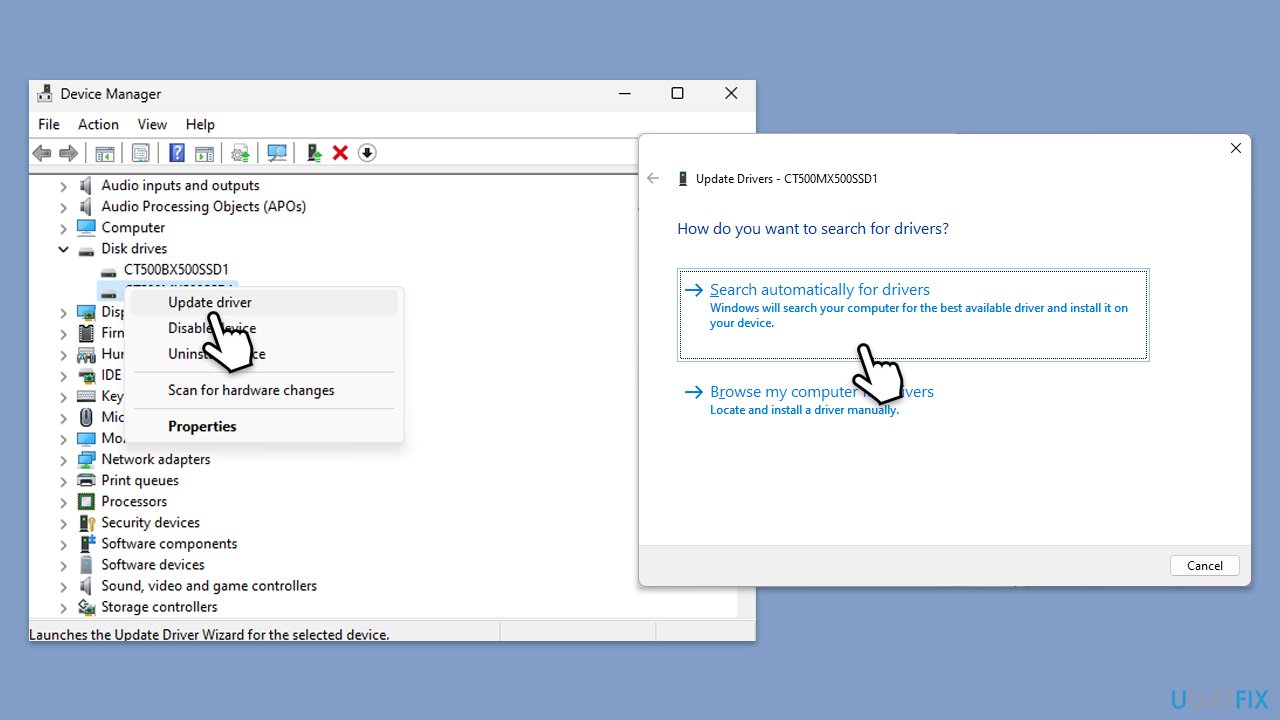
Outdated or incompatible drivers can lead to BSOD errors. Ensure all drivers, especially for storage devices, are updated.
- Right-click on Start and pick Device Manager.
- Expand the Disk drives section.
- Right-click your drive and select Update driver.
- Choose Search automatically for drivers.
- Follow the prompts to update the driver.
- Restart your system.
Fix 3. Examine hardware
Faulty hardware can cause BSOD errors. Check your hard drive and RAM for any issues.
Check RAM:
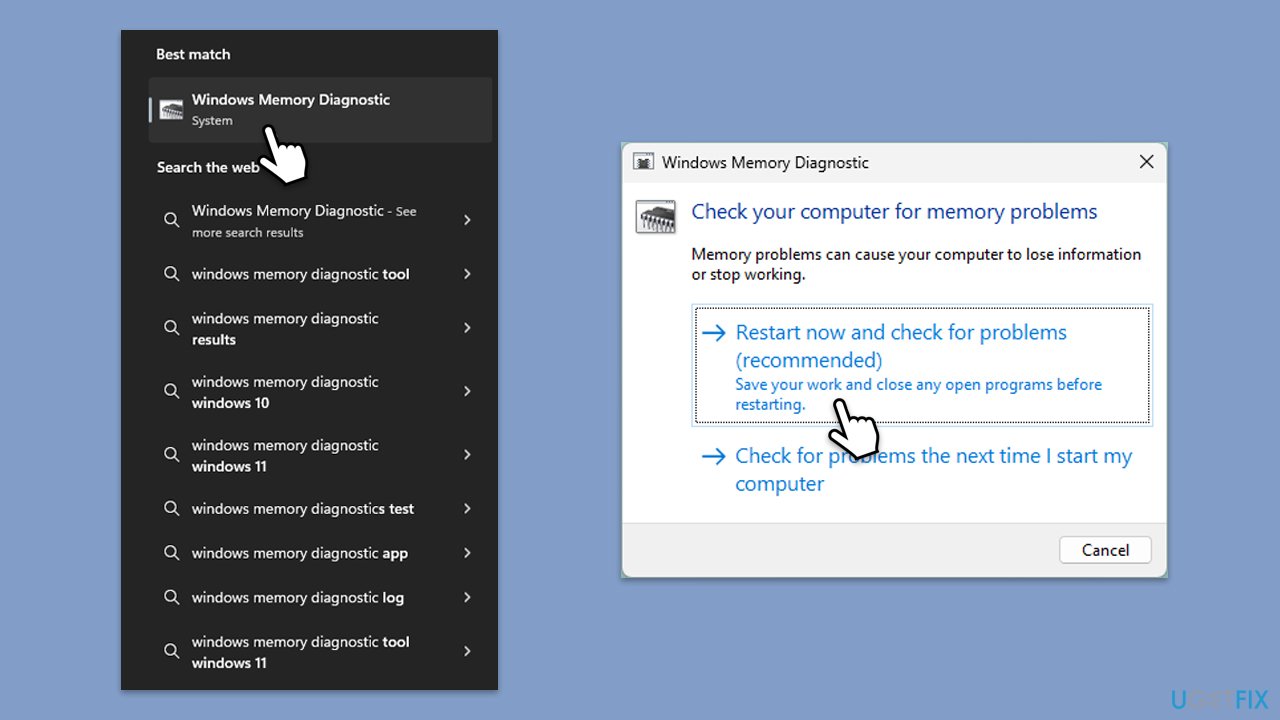
- Type Windows Memory Diagnostic into the Windows search bar and select it.
- Choose Restart now and check for problems. Your computer will restart, and the memory diagnostic will run.
- After completion, the computer will restart again, and the test results will be displayed after logging in.
Run Check Disk:
- Open Command as administrator.
- In the new window, type in the following command and press Enter after:
chkdsk c: /f
(Note: use chkdsk c: /f /r /x command if you are using SSD as your primary partition. Also, replace c: with another drive letter if you are not using default) - If you receive an error, type in Y, close down Command Prompt and restart your system.
- Wait till the scan is finished and results reported.
Fix 4. Run antivirus scans
Malware can corrupt system files, so scanning it with security software is important when getting system crashes. You can use Microsoft Safety Scanner, employ a reputable third-party app, or use the built-in Defender offline scan:
- Type Windows Security in the Windows search bar and hit Enter.
- Select Virus & threat protection.
- Pick Scan options.
- Choose Microsoft Defender Offline scan and click Scan now.
- Your computer will immediately restart and begin a deep scan.
Fix 5. Try Clean Boot
Starting Windows in Clean Boot can help troubleshoot and isolate the cause of the BSOD.
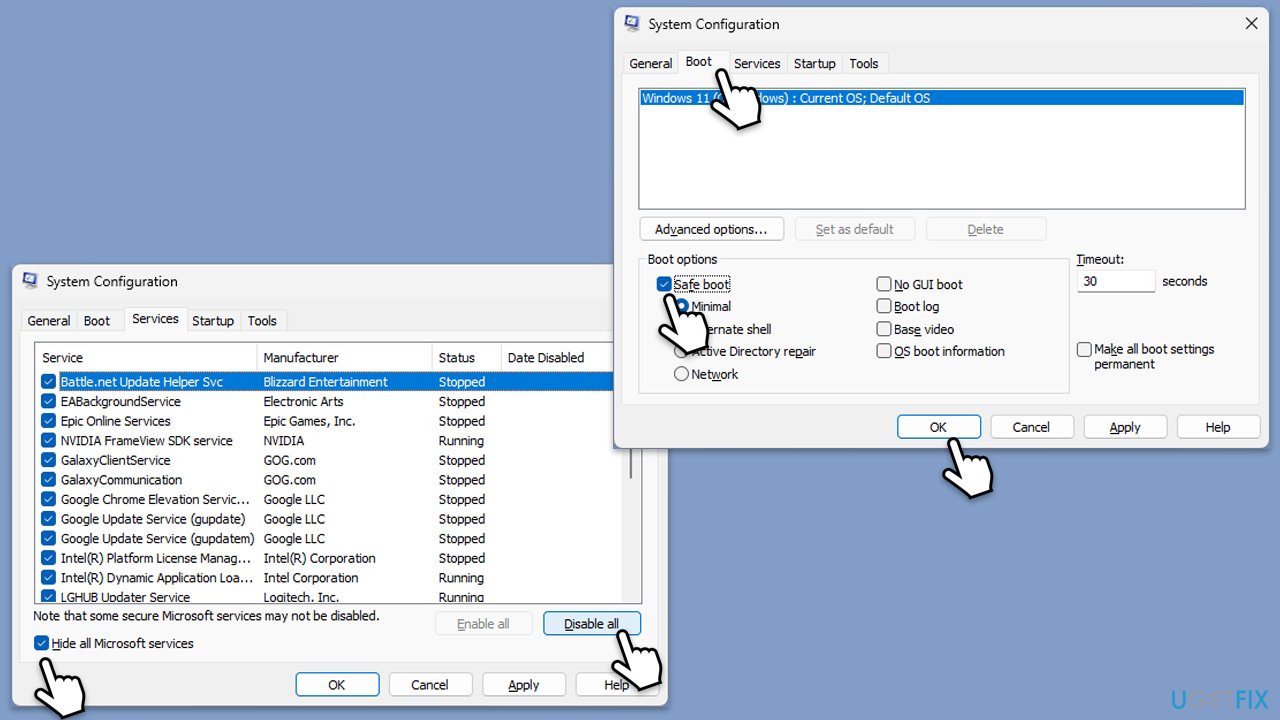
- Type msconfig in Windows search and press Enter.
- In the System Configuration window, go to the Services tab and check the box next to Hide all Microsoft services.
- Click Disable all to disable all non-Microsoft services.
- Go to the Startup tab and click Open Task Manager.
- In Task Manager, disable all startup items.
- Close Task Manager and click OK in the System Configuration window.
- Go to the Boot tab and select Safe Boot.
- Click OK, and restart your computer.
- To find out which app(s) is causing conflicts, enable each of the processes (or you can do it in groups), restart, and see if the problem persists. Repeat until you find the faulty app, then either update or uninstall it.
Fix 6. Reset BIOS/UEFI settings
Incorrect BIOS/UEFI settings can cause hardware-related BSOD errors, including those related to Classpnp.sys. Resetting these settings to their defaults can help resolve such issues.
- Restart your PC.
- During the startup process, press the key to enter BIOS/UEFI setup. This key is usually Del, F2, Esc, F10, or another, depending on your motherboard manufacturer. The key is displayed briefly during the initial boot screen.
- Once in the BIOS/UEFI setup utility, look for an option labeled Load Default Settings, Load Setup Defaults, Load Optimized Defaults, or something similar.
- Select the option to load default settings and confirm if prompted.
- Save the changes and exit the BIOS/UEFI setup.
- Your PC will restart with the default BIOS/UEFI settings applied.
Fix 7. Perform System Restore
If the BSOD started after a recent change, performing a system restore can revert your system to a previous state.
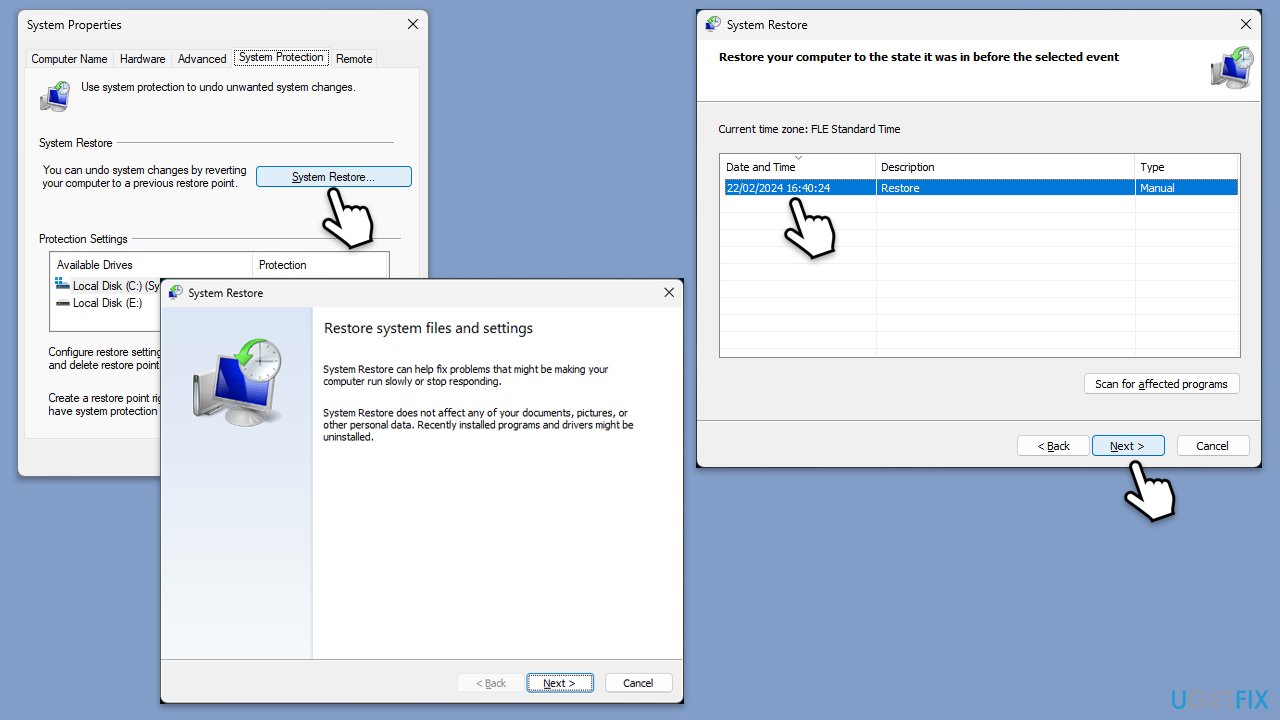
- Type in Create a restore point in Windows search and hit Enter.
- Go to System Restore and click Next.
- Mark the Show more restore points option (if available).
- Pick the time when the problem did not exist and click Next.
- Finalize the process - your device will restart.
Bottom line
To fix the Classpnp.sys BSOD error, you can check and repair system files using SFC and DISM tools, update your drivers, examine hardware for faults, run antivirus scans, and remove any recently installed software. If these steps do not resolve the issue, consider using a PC repair tool to address underlying Windows problems.
Frequently asked questions
The Classpnp.sys BSOD is often triggered by issues related to drivers, particularly storage drivers, or problems with hardware components such as hard drives and SSDs.
You can start by updating your storage drivers, running the built-in Windows Memory Diagnostic tool, or performing a system file check using the 'sfc /scannow' command in Command Prompt.
Disabling driver signature enforcement can help in some cases, but it poses security risks; it's better to update or replace problematic drivers instead.




Report an issue
What's wrong with this guide? We review every report and update or remove content.
Report received — thank you. We'll review and fix it.
You need a free account to submit a report.
Be the first to comment