How to fix
Clear Delivery Optimization cache
on Windows
Easily clear the Delivery Optimization cache in Windows 10 and 11 to boost performance and free up space. Expert-tested steps included for quick results!


Why does How to clear Delivery Optimization cache in Windows occur?
- Delivery Optimization cache can fill up over time
- Large volume of data held by Delivery Optimization
- Insufficient disk space due to cache size
- Decline in system speed caused by large cache
- Peer-to-peer sharing may contribute to cache growth
Repairs Windows system files, removes malware, and restores a clean OS state — without reinstalling.
I have noticed that my C: drive is running low on space so I began checking what is taking it, as I don't seem to have large games or similar installed on it. I have noticed that Delivery Optimization is taking way too much space (over 80GB). How can I remove Delivery Optimization files and is it safe to do so?
Delivery Optimization is a feature in Windows that helps in downloading updates and apps more efficiently by using both local and internet-based sources. It utilizes peer-to-peer sharing to deliver updates faster by downloading parts of the updates from other PCs on the local network or from devices on the internet. This can greatly save bandwidth use and expedite the updating process.
But with time, Delivery Optimization's cache can fill up and become large, which could lead to problems like insufficient disk space and a decline in system speed. The cache can occasionally take up tens of gigabytes of space due to the large volume of data it can hold.
In case you're facing similar issues and are unsure whether it's safe to delete Delivery Optimization files, the response is that it's typically safe. Cleaning up the Delivery Optimization cache can fix storage problems and free up plenty of disk space without affecting the operation of the system.
Clearing this cache does not affect your ability to receive updates, as Windows will simply re-download necessary files directly from Microsoft or through the usual peer-to-peer process. This can be particularly useful if you are trying to reclaim storage space on your hard drive.
For detailed instructions on how to clear the Delivery Optimization cache, refer to the section below. If you want a quick solution for removing all temp, junk, and other unnecessary files that take up too much space, employ a repair and maintenance utility [d1].

Method 1. Clear Delivery Optimization cache via Settings
Clearing the Delivery Optimization cache through Windows Settings is a straightforward method.
Windows 11
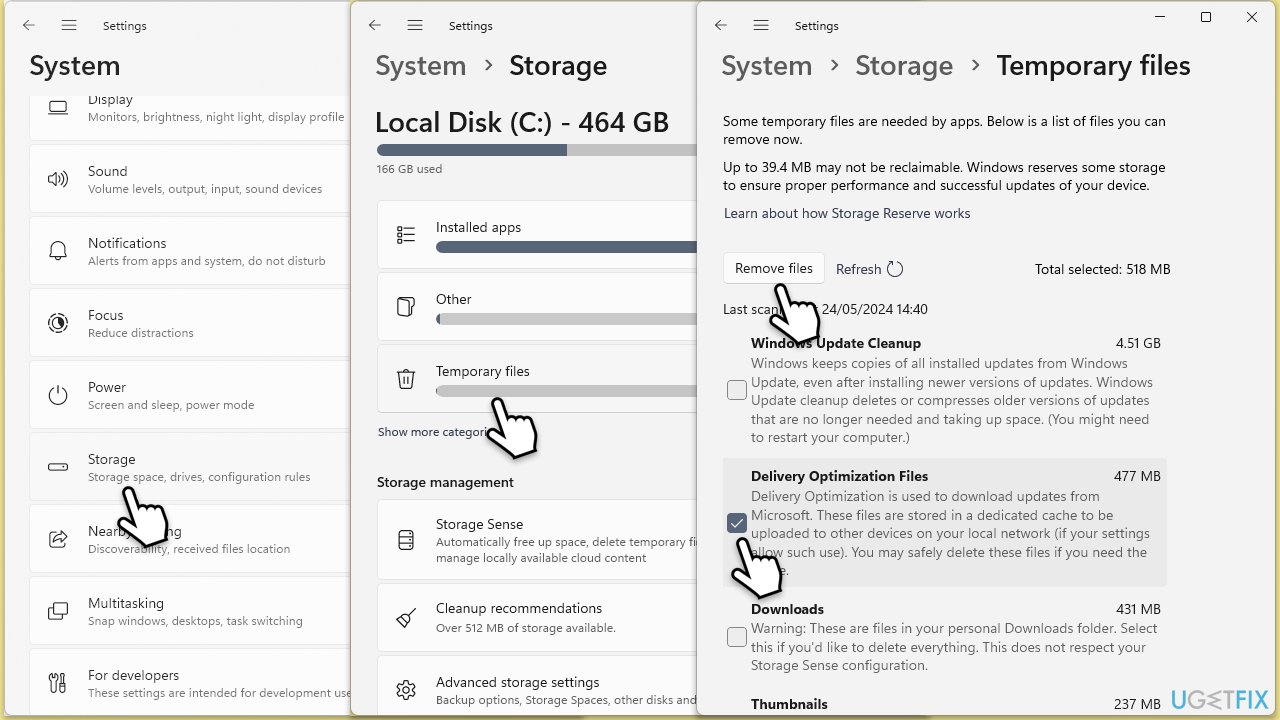
- Open Settings by pressing Win + I.
- Go to the System section.
- Select Storage and then Temporary files.
- Check the box next to Delivery Optimization Files.
- Click Remove files to delete the cache.
Windows 10
- Open Settings by pressing Win + I.
- Go to Update & Security.
- Select Delivery Optimization from the left-hand menu.
- Click on Advanced options.
- Scroll down and click on the Clear cache button.
Method 2. Clear Delivery Optimization cache using Disk Cleanup
Disk Cleanup can help remove unnecessary files, including the Delivery Optimization cache.
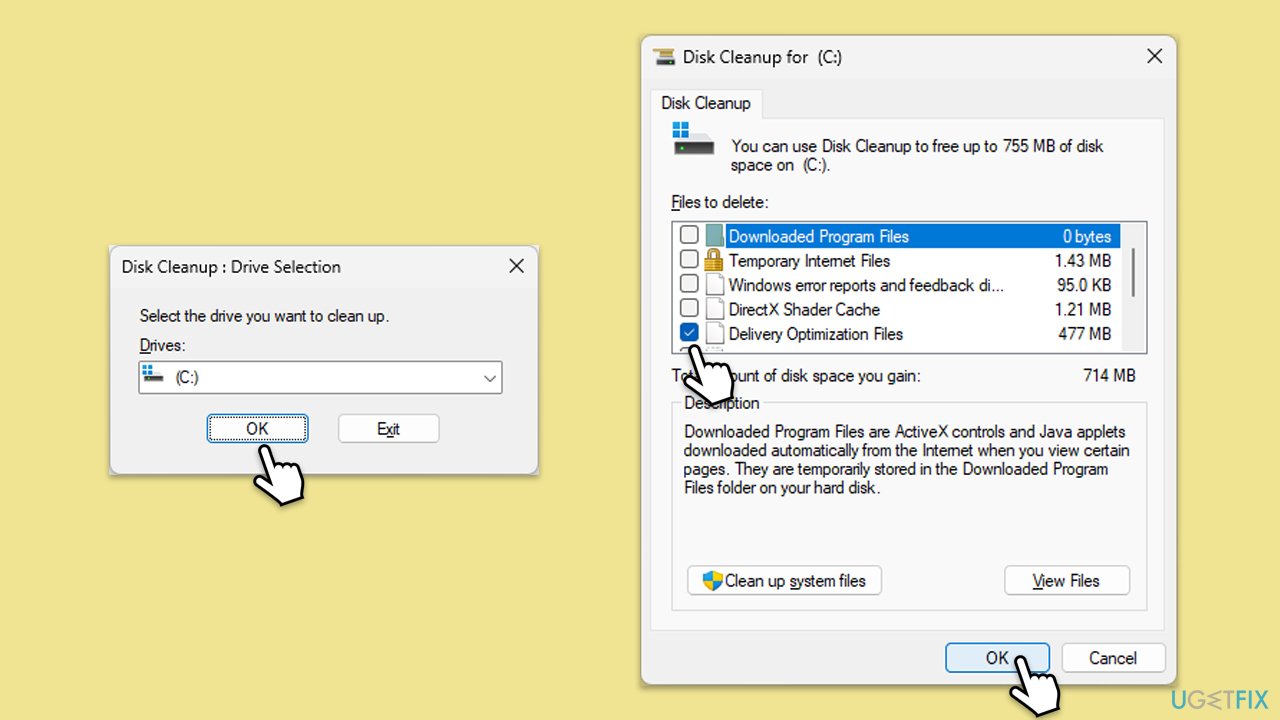
- Type Disk Cleanup in Windows search and press Enter to open the Disk Cleanup utility.
- In the pop-up window, select the drive where your Windows operating system is installed (usually drive C:) and click OK.
- Mark the Delivery Optimization Files option.
- Click OK to begin the cleanup process.
- Your Delivery Optimization cache should be removed.
Method 3. Use Command Prompt to clear Delivery Optimization cache
Using Command Prompt provides a direct way to clear the cache.
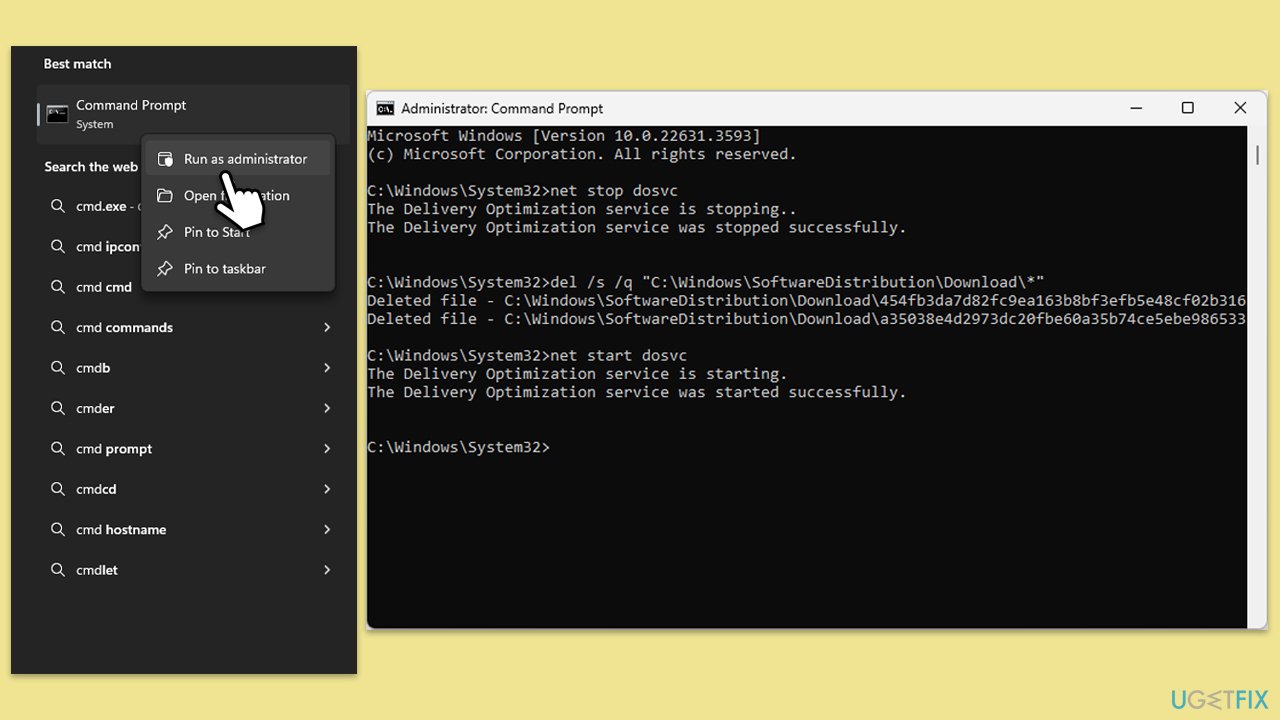
- Type cmd in Windows search.
- Right-click on Command Prompt and select Run as administrator.
- When User Account Control asks you to allow changes, click Yes.
- Type the following commands and press Enter after each:
net stop dosvc
del /s /q "C:\Windows\SoftwareDistribution\Download\*"
net start dosvc - Finally, restart your computer.
Method 4. Use Storage Sense to clear Delivery Optimization cache
Storage Sense can automatically manage and clean up unnecessary files, including Delivery Optimization cache.
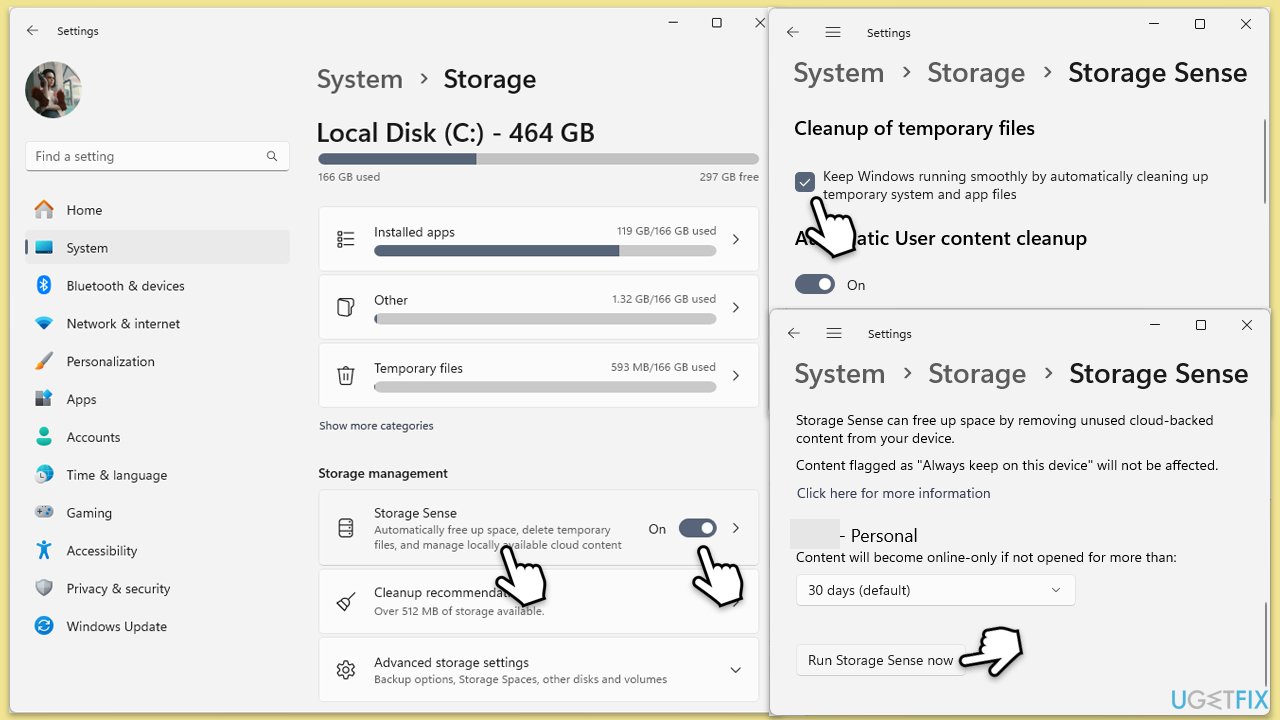
- Open Settings and go to System.
- Select Storage from the left-hand menu.
- Turn on Storage Sense if it's off.
- Click on Configure Storage Sense or Run it now (in Windows 11, simply click on Storage Sense).
- Under Temporary Files, ensure that Delete temporary files that my apps aren’t using is checked (in Windows 11, mark Keep Windows running smoothly by automatically cleaning up temporary system and app files.
- At the bottom, click Clean now or Run Storage Sense now.
Method 5. Manually delete Delivery Optimization cache files
Manually deleting the cache files can be a direct method if other methods do not work.
- Press Win + E to open File Explorer.
- Open File Explorer and navigate to the following location:
C:\ProgramData\Microsoft\Windows\Delivery Optimization\Cache - Select all files in the Cache folder and press Delete.
- Confirm the deletion.
- Clear your Recycle Bin after.
Bonus: Adjust Delivery Optimization settings to limit cache size
Limiting the cache size can prevent it from growing too large in the future.
Windows 11
- Open Settings.
- Go to Windows Update.
- Select Advanced options.
- Click on Delivery Optimization.
- Click on Advanced options.
- Under Absolute bandwidth, set a limit for how much bandwidth Delivery Optimization can use for downloading updates in the background.
- Adjust the cache size limit under the Monthly upload limit section by specifying the maximum cache size in gigabytes (GB) or as a percentage of your total available storage.
Windows 10
- Open Settings.
- Go to Update & Security.
- Select Delivery Optimization from the left-hand menu.
- Click on Advanced options.
- Under Absolute bandwidth, set a limit for how much bandwidth Delivery Optimization can use for downloading updates in the background.
- Adjust the cache size limit under the Monthly upload limit section.
Bottom line
Clearing the Delivery Optimization cache can help reclaim storage space and improve system performance. This can be done through Windows Settings or by using a repair and maintenance utility. If these methods do not resolve the issue, further investigation into other storage-consuming files may be necessary.
Frequently asked questions
Delivery Optimization is a feature that allows Windows 10 and Windows 11 to download updates and apps from other PCs on the internet or your local network, improving download speeds and reducing bandwidth usage.
You can access the Delivery Optimization cache by navigating to Settings > Update & Security > Delivery Optimization > Advanced Options and then selecting 'Clear' under the 'Delivery Optimization' section.
Clearing the Delivery Optimization cache can help resolve issues with slow updates or poor performance, especially if the cache has become corrupted or bloated over time.




Report an issue
What's wrong with this guide? We review every report and update or remove content.
Report received — thank you. We'll review and fix it.
You need a free account to submit a report.
Be the first to comment