How to fix
SYSTEM_THREAD_EXCEPTION_NOT_HANDLED (atikmdag.sys) BSOD
on Windows
Resolve the SYSTEM_THREAD_EXCEPTION_NOT_HANDLED (atikmdag.sys) BSOD on Windows 10 and 11 easily. Get expert-tested fixes and regain system stability fast!

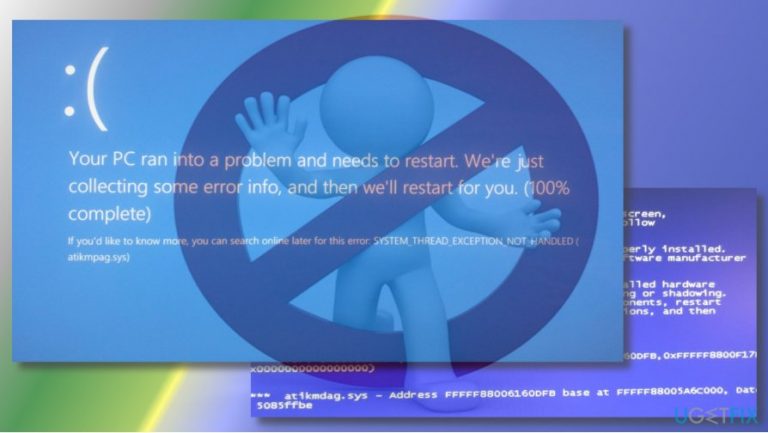
What causes How to Fix SYSTEM_THREAD_EXCEPTION_NOT_HANDLED (atikmdag.sys) BSOD on Windows?
- Driver software conflicts
- Hardware failure
- Malware triggering false BSOD
- Issues after upgrading Windows
- External graphic card driver conflicts
Repairs Windows system files, removes malware, and restores a clean OS state — without reinstalling.
Hello all. I would highly appreciate someone’s help. It’s the second day counting when I cannot boot my PC up. When I try to do so, I get a BSOD with SYSTEM_THREAD_EXCEPTION_NOT_HANDLED related to the atikmpag.sys file. Thanks in advance!
Blue Screen of Death (abbreviated as BSOD)[ref en-3] is a fatal Windows error, which is generated as a full-screen window and, typically, prevents the system from booting. It is also known as STOP error, Blue Screen of Doom, bug check, and similar names. BSOD errors may be fake -- triggered by malware, but, in most of the cases, the culprit is related to serious system crashes like driver software, hardware failure, and failure of the software running in the Windows kernel. Typically, regular apps do not trigger BSOD errors. Not only these errors prevent the system from booting, but may also cause data loss.
Recently, few people reported SYSTEM_THREAD_EXCEPTION_NOT_HANDLED, which, although has already been described in our blog, appears to be having a new form and trigger.[ref en-2] This time, the error shows up with a file name next to it - SYSTEM_THREAD_EXCEPTION_NOT_HANDLED (atikmdag.sys). A particular user has claimed that this type of BSOD error appeared when he was trying to use X-Plane simulator on his PC.[ref en-1]
The Atikmdag.sys file is a software component of ATI Radeon Family developed by Advanced Mirco Devices, Inc. It functions as a system driver, which enables hardware components to communicate with software without additional programming from the software developer. Therefore, the atikmdag.sys BSOD cannot be fixed by deleting or otherwise modifying the file itself.
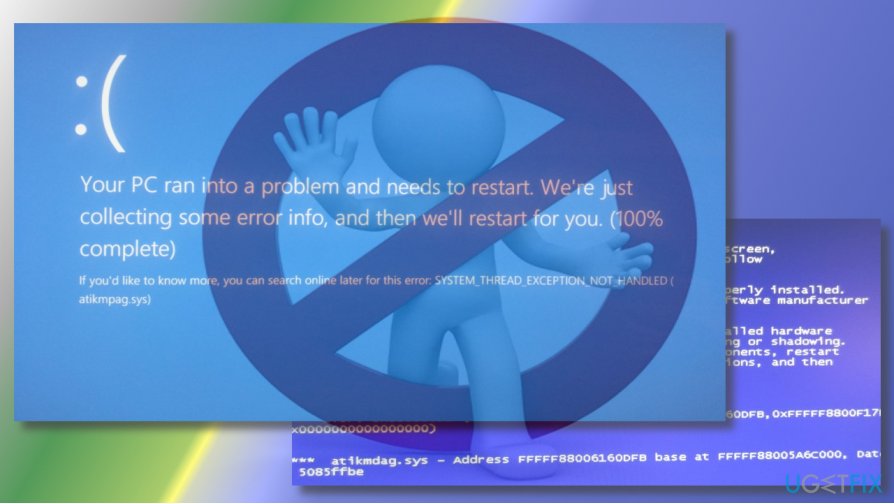
The atikmdag.sys BSOD usually shows up when Windows users try to upgrade or soon after upgrading Windows 7, 8 or 8.1 to the Windows 10 build 1703. Most of the people who reported the bug use PCs that have AMD graphic cards. In this case, the culprit of the SYSTEM_THREAD_EXCEPTION_NOT_HANDLED (atikmdag.sys) BSOD is related to the external graphic card drivers, which runs into conflict with the hardware.
How to Fix SYSTEM_THREAD_EXCEPTION_NOT_HANDLED (atikmdag.sys) BSOD on Windows?
If you have managed to boot into your PC eventually (normally or in Safe Mode), please try the first method. If you cannot boot your system anyway, try the second atikmdag.sys error fix. To perform the last method, prepare a bootable Windows USB drive.
However, if none of these methods have appeared successful to you (which is occasionally rare), there might be a malicious problem that has been triggering the appearance of this error. To find out if this speculation is true or false, you should scan your machine with software such as [d1]
Method 1. Reinstall conflicting driver
- Start your PC up and press F8 before Windows logo screen opens.
- Now select Troubleshoot and select Advanced Options.
- Select Startup Settings and press F4 or F5 on the following screen.
- Once the PC boots up into Safe Mode, right-click Windows key and open Device Manager. Alternatively, you can press Windows key + R, type devmgmt.msc, and press Enter.
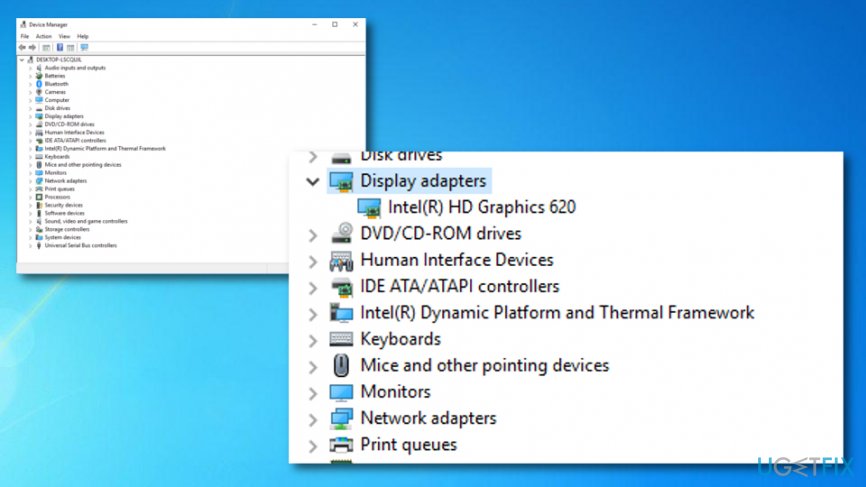
Method 1 1 - Expand Display Adapters section, select the conflicting driver, and click Uninstall from the context menu.
- Close Device Manager and open Control Panel.
- Go to Programs and Features and locate the AMD Catalyst Install Manager. The latter name may differ, so if you cannot find AMD Catalyst Install Manager, look for another software related to the graphics card.
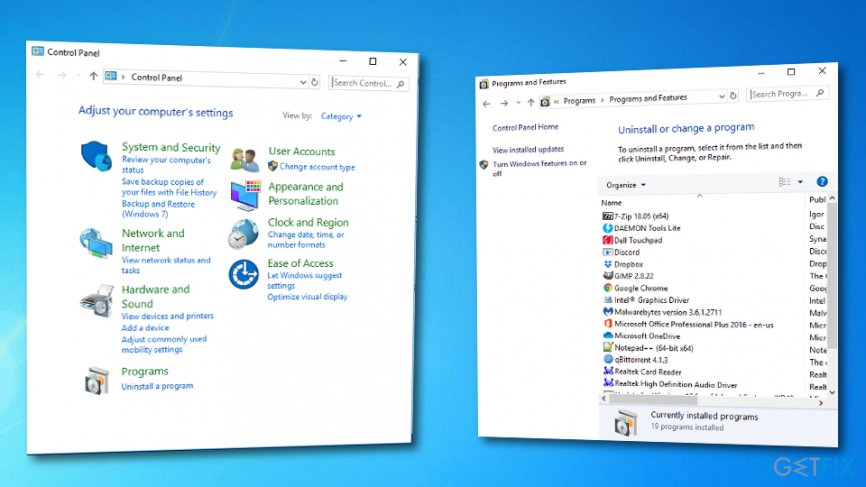
Method 1 - Click it and select Uninstall.
- Once the removal is finished, reboot the system.
- Finally, navigate to the manufacturer’s website of the driver that you have removed before and install it.
Method 2. Undo recent changes by opting for System Restore
There might have been some unknown changes performed on your machine lately that can be the cause of SYSTEM_THREAD_EXCEPTION_NOT_HANDLED (atikmdag.sys) BSOD error. In order to find out if the problem is hiding here, try reversing modifications with the help of these steps:
- Locate Windows Search.
- Type in "system restore".
- Click the Enter key.
- Select System Restore and follow the given instructions to create a restore point.
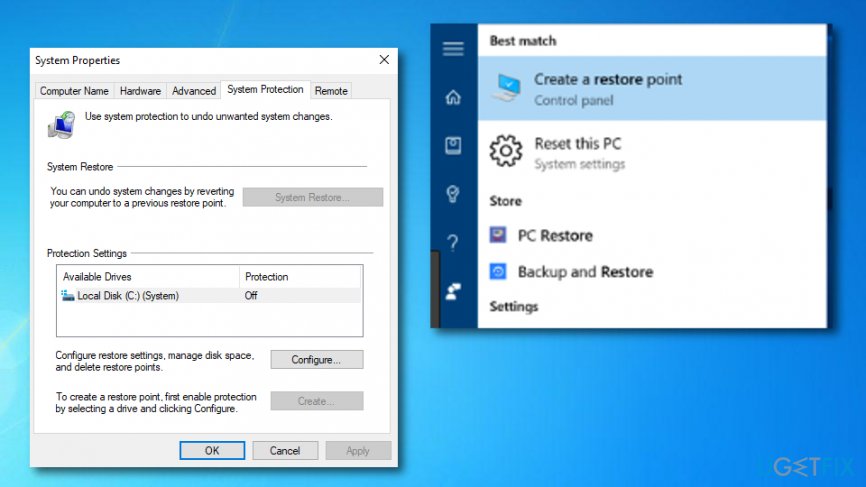
Method 2 - Reboot the machine when you are finished.
Method 3. Opt for the "sfc /scannow" command
- Launch Command Prompt (Administrator) via Windows Search.
- You also can press the Win key and R button at the same time. When a run box shows up, type "cmd".
- Once the black window appears, type "sfc /scannow" and hit Enter.
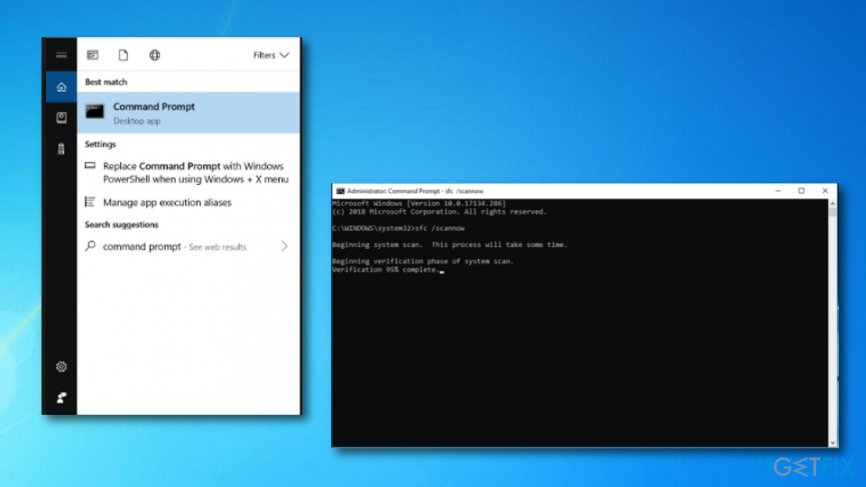
Method 3 - Complete all the commands that you are given.
Method 4. Install missing updates
- Go to Windows Search and type "windows update".
- After hitting Enter, the Windows Update window should appear.
- Check if there are any available updates.
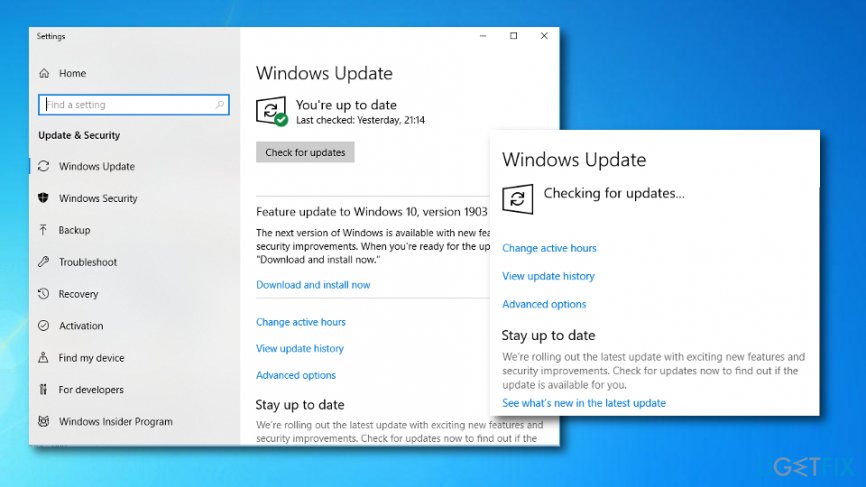
Method 4 - If there are some, opt for Install Updates.
This method might be helpful for those who have some updates that have not been installed properly and might be forcing the BSOD error to show up. However, if this appears not to be the problem, continue with other techniques.
Method 5. Check your disk for possible damage
- Type "cmd" in the Windows Search zone.
- Open Command Prompt with Administrative powers.
- Once the black dialogue box appears, type in the "chkdsk /f" command and press Enter.
- After that, follow any commands that you are provided with and hope for the best.
Method 6. Repair your PC using Windows Installation Media
If, unfortunately, you cannot boot Windows due to the atikmdag.sys STOP error, instet a drive with the Windows 10 Installation Media. If you don't have the disc yet, you can create it by following the steps given on this page.
- Reboot the PC and press any key to boot the system from the installation media.
- Select language, time, currency, and keyboard/input method and press Next.
- Click Repair your computer (NOT Install Windows) and select the type of OS you want to repair.
- Click Troubleshoot.
- Select Advanced and click Automatic Repair or Startup Repair.
- When the system detects the OS, select the one that is running on your PC.
- Finally, unplug the USB or remove DVD bootable media and try to boot your device.
If the bug has reoccurred and you cannot boot Windows anyway, try these steps:
- Click Power button and try to boot your PC.
- Press F8 key repeatedly at boot and select Repair your computer.
- Select Command Prompt and type the following commands.
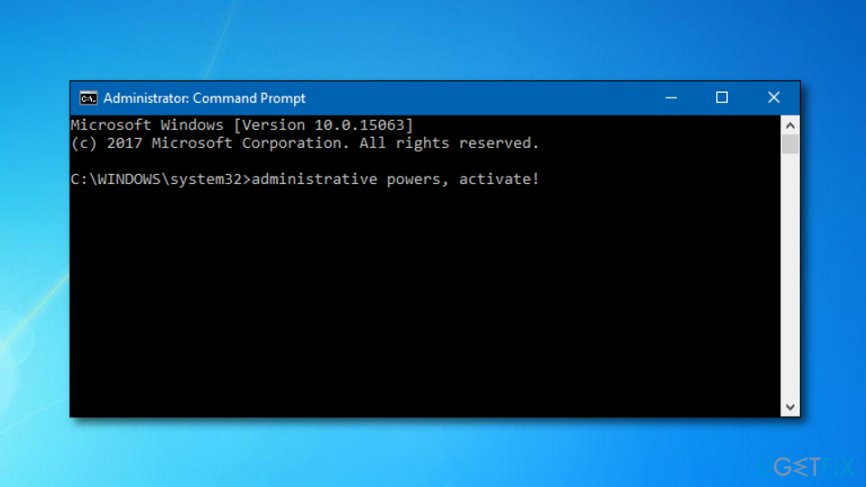
Method 6 - Press Enter after each one and DO NOT remove the space before / symbol.
bootrec /fixMBR
bootrec /fixBoot
bootrec /rebuildBCD
Bottom line
To fix the SYSTEM_THREAD_EXCEPTION_NOT_HANDLED (atikmdag.sys) BSOD, users can try booting into Safe Mode, updating or reinstalling graphic card drivers, or rolling back to a previous Windows version. If none of these solutions work, further troubleshooting or professional assistance may be necessary.
Frequently asked questions
This error typically indicates a problem with your graphics drivers, specifically related to the AMD graphics card driver file atikmdag.sys. It can lead to a Blue Screen of Death (BSOD) when your system cannot handle a specific thread in the system.
You can resolve this issue by updating your graphics drivers through Device Manager or downloading the latest drivers from the AMD website. Additionally, performing a system restore to a previous point may also help.
To prevent this error, ensure that you regularly update your graphics drivers and Windows 10 or Windows 11 to the latest versions. Additionally, check for hardware issues like overheating or faulty memory that could contribute to this problem.




Report an issue
What's wrong with this guide? We review every report and update or remove content.
Report received — thank you. We'll review and fix it.
You need a free account to submit a report.
Be the first to comment