How to fix
Boost Bluetooth signal and range
on Windows
Enhance your Bluetooth signal and range on Windows 10 or 11 with our expert tips, ensuring a stable connection for all your devices. Updated 2025.

Why does How to boost Bluetooth signal and range on Windows occur?
- Short range of Bluetooth devices
- Interference from other wireless devices
- Physical obstacles like walls
- Power settings of the Bluetooth adapter
- Quality of Bluetooth hardware and software
Repairs Windows system files, removes malware, and restores a clean OS state — without reinstalling.
I came to my cousin's place and needed to connect to Bluetooth via the PC there. I noticed that the range of it is very short and the signal disappears as soon as I go a bit further from the device. Is there a way to boost the Bluetooth signal on Windows?
Understanding Bluetooth technology
Bluetooth is a wireless technology standard used for exchanging data between fixed and mobile devices over short distances. It operates on the 2.4 GHz ISM band and can connect devices like smartphones, laptops, headphones, and more without needing cables. Bluetooth devices use a master-slave structure where one device (master) controls communication with up to seven other devices (slaves) within a small network called a piconet.
Bluetooth works by sending short-wavelength UHF radio waves from a transmitter to a receiver. Its range and performance can vary due to factors such as physical obstacles, interference from other wireless devices, and the power of the Bluetooth radio. Signal strength can be influenced by the distance between devices, the materials in the surrounding environment, and even the power settings of the Bluetooth adapter.
Understanding Bluetooth signal and range
The quality and range of a Bluetooth connection depend on several factors. These include the class of the Bluetooth device, with Class 1 having the highest power and longest range (up to 100 meters), and Class 2 and Class 3 having shorter ranges. Other factors impacting signal strength and range include physical obstructions like walls, interference from other wireless devices, and the overall quality of the Bluetooth hardware and software.
So, is there a way to boost Bluetooth signal and range on Windows?
Possible ways to boost Bluetooth signal and range on Windows
Boosting Bluetooth signal and range on a Windows device can be achieved through various methods. One of the simplest ways is to ensure that the Bluetooth adapter is up-to-date with the latest drivers and your Windows is using the latest version.
Another effective method is to use a Bluetooth signal booster or an external USB Bluetooth adapter with a higher power class. Positioning the Bluetooth devices to minimize obstructions and interference can also improve signal strength. Additionally, adjusting the power settings of the Bluetooth adapter in the Windows device manager may help enhance the signal.
Method 1. Update Bluetooth drivers
Outdated drivers can cause connectivity issues and poor performance. Keeping your Bluetooth drivers updated ensures that your device has the latest improvements and bug fixes.
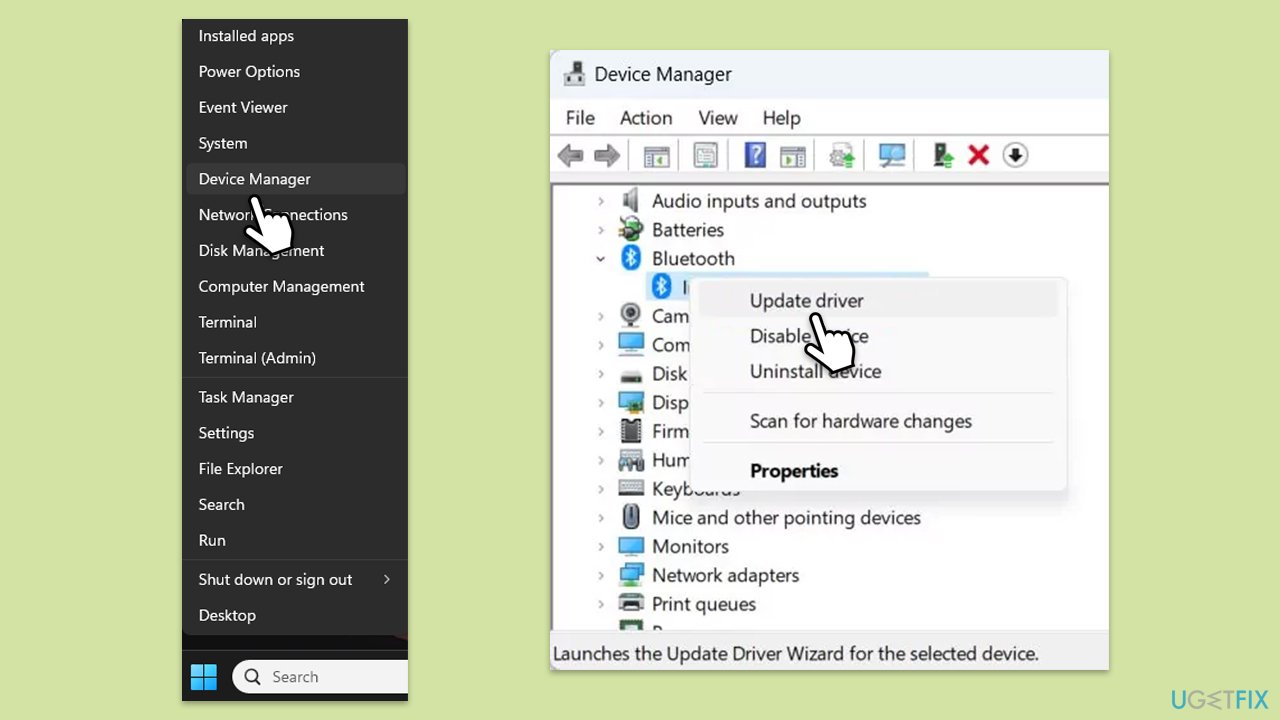
- Right-click on Start and pick Device Manager.
- Expand the Bluetooth section.
- Right-click on your Bluetooth adapter and select Update driver.
- Choose Search automatically for drivers and follow the prompts.
- Restart your device to implement the changes.
Note that Device Manager might not always find and install the latest drivers for your particular adapter. So, if you would like to make driver update process easier, you can always employ tools like [d1] or [rev id="DriverFix"].
Method 2. Update Windows
Microsoft releases updates regularly on Patch Tuesdays and, if for some reason they aren't being applied automatically, you might have bugs on your system present. To rectify it, update Windows to the latest version.
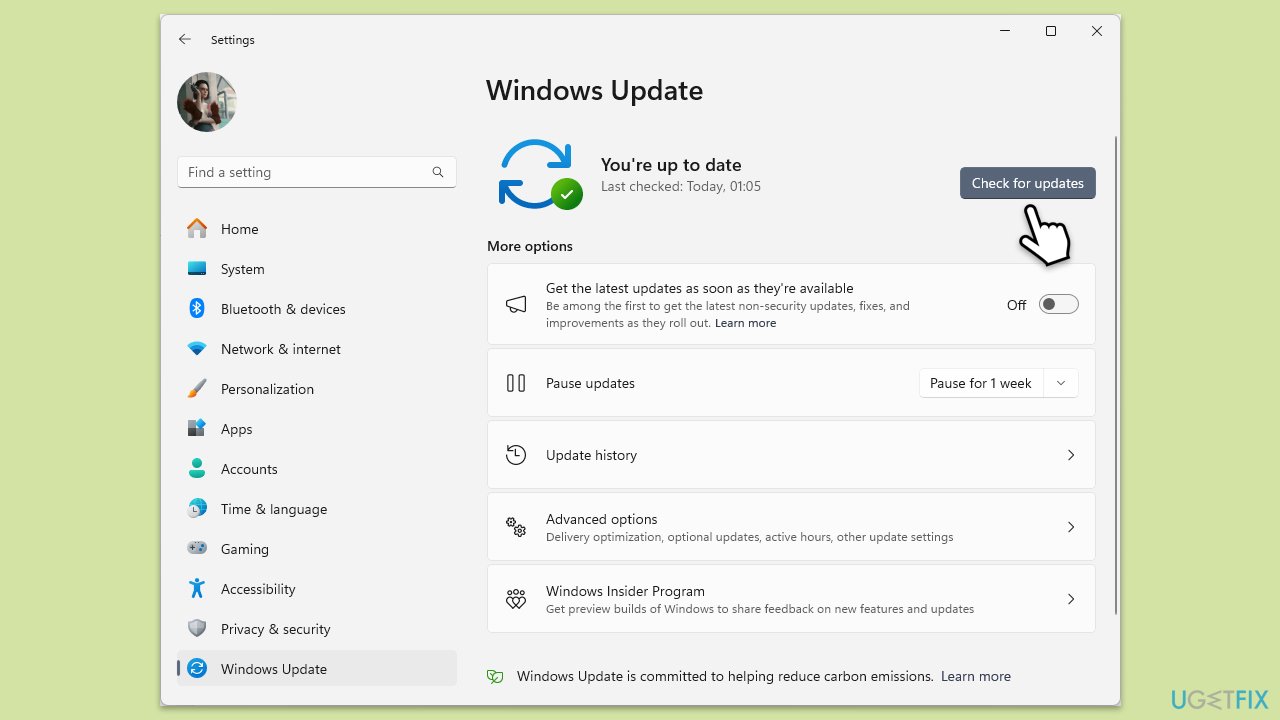
- Type Updates in the Windows search box and press Enter.
- Click Check for Updates or Install all.
- Ensure optional and pending updates are installed as well.
- Wait till the process is finished.
- Restart your device.
Method 3. Use an external USB Bluetooth adapter
External USB Bluetooth adapters often have better range and signal strength compared to built-in adapters, especially those that come with a higher power class. Mahe sure you already have the new adapter ready for this method.
- Open Device Manager.
- Expand the Bluetooth section.
- Right-click on your device and select Disable.
- Plug the Class 1 USB Bluetooth adapter into an available USB port on your computer.
- Install any necessary drivers provided with the adapter.
- Disable the built-in Bluetooth adapter in Device Manager to avoid conflicts.
Method 4. Optimize device placement
The position of your Bluetooth devices can greatly affect signal strength. Keeping devices closer and reducing physical obstructions can improve performance.
- Place your Bluetooth devices within the recommended range (usually within approx. 10 meters/33 feet).
- Avoid placing devices behind walls, furniture, or other obstructions.
- Keep the devices away from other wireless devices that might cause interference, such as Wi-Fi routers or microwaves.
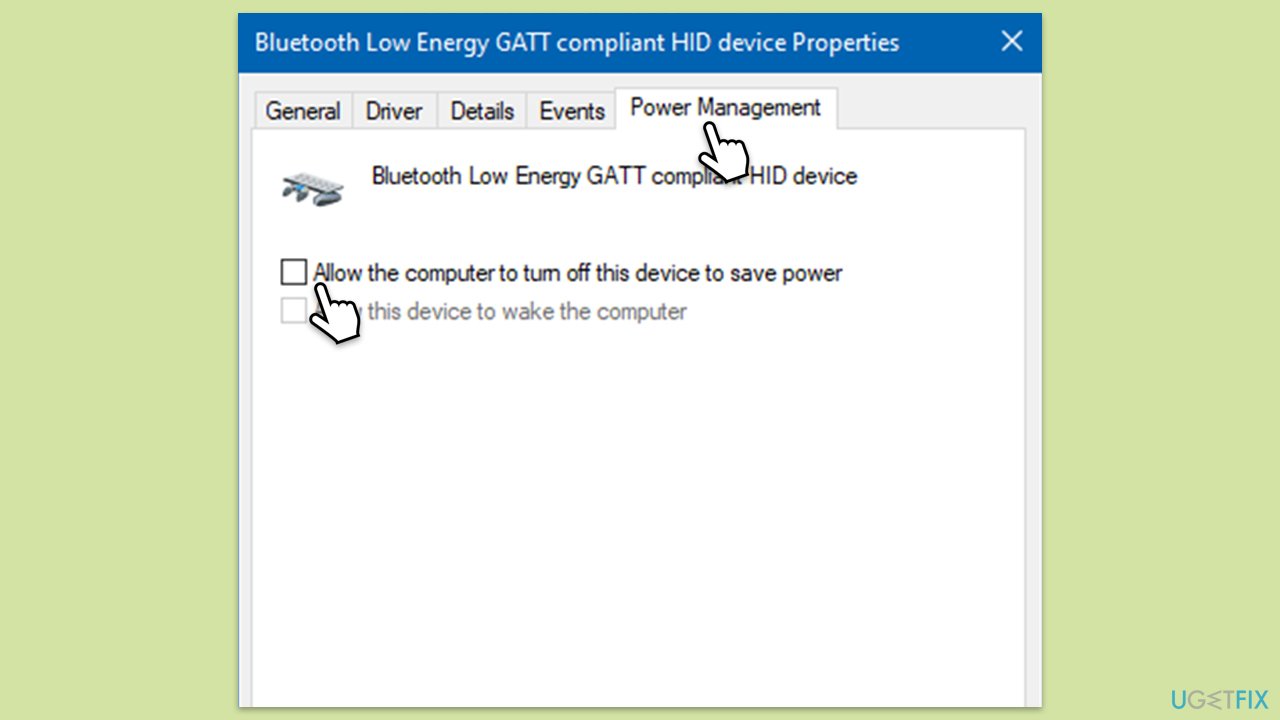
Method 5. Adjust Bluetooth adapter power settings
Changing the power settings of your Bluetooth adapter can help improve signal strength and stability.
- Open Device Manager.
- Expand the Bluetooth section and right-click on your Bluetooth adapter, then select Properties.
- Go to the Power Management tab.
- Uncheck Allow the computer to turn off this device to save power and click OK.
Method 6. Use a Bluetooth signal booster
Bluetooth signal boosters amplify the signal and extend the range of your Bluetooth connection.
- Purchase a Bluetooth signal booster compatible with your devices.
- Plug the booster into a power source and pair it with your computer and Bluetooth device.
- Follow the instructions provided by the device manufacturer.
Bottom line
To boost Bluetooth signal and range on Windows, ensure your Bluetooth adapter has the latest drivers and consider using a Bluetooth signal booster or an external USB Bluetooth adapter with a higher power class. If these methods do not improve the situation, further investigation into the environment and device compatibility may be necessary.
Frequently asked questions
You can adjust the Bluetooth settings in Windows 10 or Windows 11 by navigating to Settings > Devices > Bluetooth & other devices, and ensuring that Bluetooth is enabled and your device is discoverable.
To minimize interference, keep your Windows 10 or Windows 11 device away from other wireless devices like Wi-Fi routers and microwave ovens, and ensure there are no physical obstructions between your Bluetooth device and the computer.
Yes, there are third-party tools available that can help optimize Bluetooth performance on Windows 10 or Windows 11, but be sure to choose trusted software to avoid potential security risks.




Report an issue
What's wrong with this guide? We review every report and update or remove content.
Report received — thank you. We'll review and fix it.
You need a free account to submit a report.
Be the first to comment