How to fix
Nvspcap64.dll error
on Windows
Resolve the nvspcap64.dll error in Windows 10 or 11 quickly and effectively. Get expert-tested solutions to fix it in minutes!

What causes How to fix nvspcap64.dll error in Windows?
- Corrupted Installation
- Virus Or Malware Infection
- Accidental Deletion
- Software Conflicts
- Outdated Drivers
Repairs Windows system files, removes malware, and restores a clean OS state — without reinstalling.
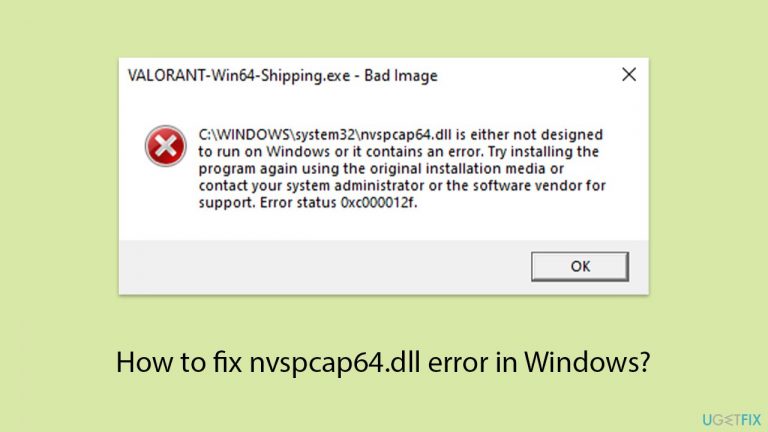
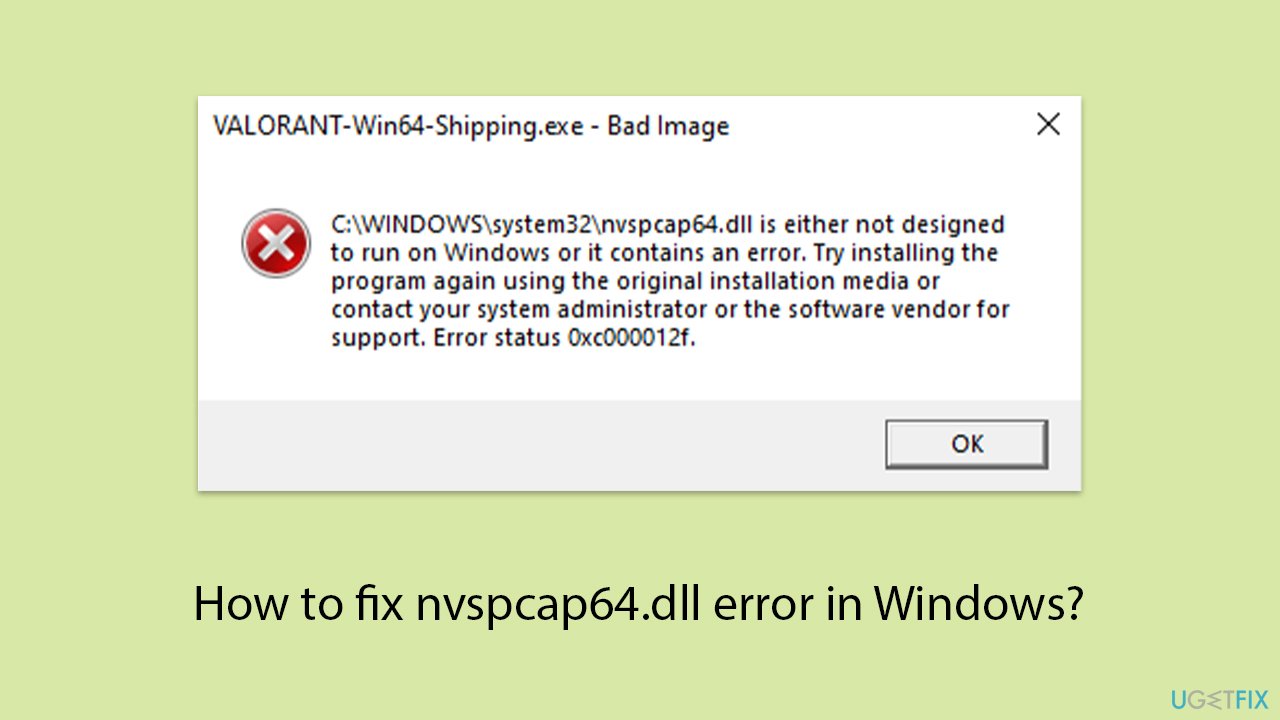
Every time I launch any game I own (for example, Valorant), I always ger an error message saying "C:\Windows\system32\nvspcap64.dll is either not designed to run on Windows or it contains an error. Try installing the program again using the original installation media or contact your system administrator or the software vendor for support. Error status 0xc000012f." Why is this happening?
The nvspcap64.dll error is a common issue that Windows users may encounter, particularly when starting various games or during Windows startup. This error can manifest as a "Bad Image" error with the message: "C:\Windows\system32\nvspcap64.dll is either not designed to run on Windows or it contains an error" or as a RUN DLL error stating, "There was a problem starting C:\Windows\system32\nvspcap64.dll. The specified module could not be found."
Dynamic Link Libraries (DLLs) are essential files used by Windows operating systems and various applications to share code and resources. DLLs allow multiple programs to use the same code base, which saves memory and reduces redundancy. When a program needs a function contained within a DLL, it calls the DLL file, which loads and executes the required functionality.
The nvspcap64.dll file is associated with NVIDIA graphics cards and is part of the GeForce Experience software suite. This DLL file is related to NVIDIA ShadowPlay, a feature that allows users to record and share high-quality gameplay videos. When this file is missing, corrupted, or not designed for your version of Windows, it can lead to errors and disrupt the normal functioning of games and other applications that rely on it.
Why might nvspcap64.dll go missing?
There are several reasons why the nvspcap64.dll file might go missing or become corrupted:
- Corrupted installation
- Virus or malware infection
- Accidental deletion
- Software conflicts
- Outdated drivers, etc.
While the nvspcap64.dll error can be disruptive, it is often fixable through several methods, including updating drivers, reinstalling software, or using repair tools like [d1]. For all manual instructions on how to fix it, check out the section below.
Fix 1. Update NVIDIA graphics drivers
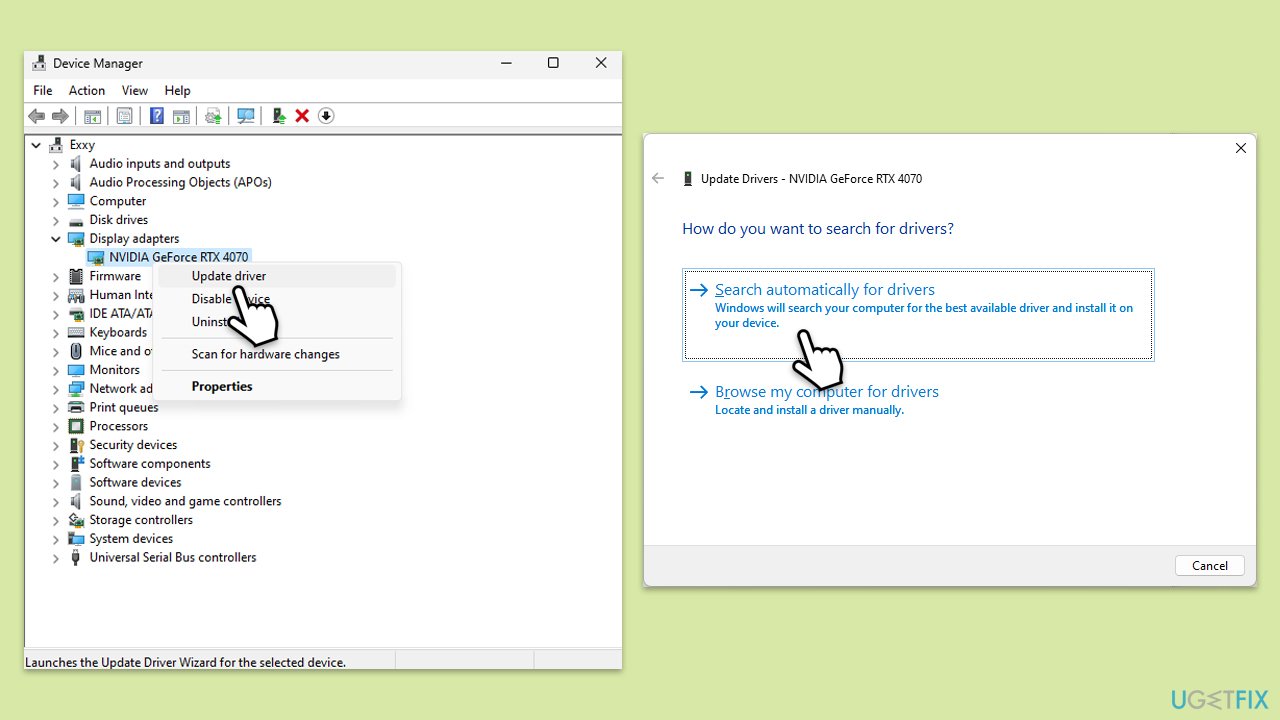
- Right-click on Start and pick Device Manager.
- Expand the Display adapters section.
- Right-click on your GPU and select Update driver.
- Choose Search automatically for drivers.
- Follow the on-screen instructions to complete the update.
- Restart your computer to apply the changes.
Fix 2. Reinstall GPU drivers
- Open Device Manager.
- Expand the Display adapters section.
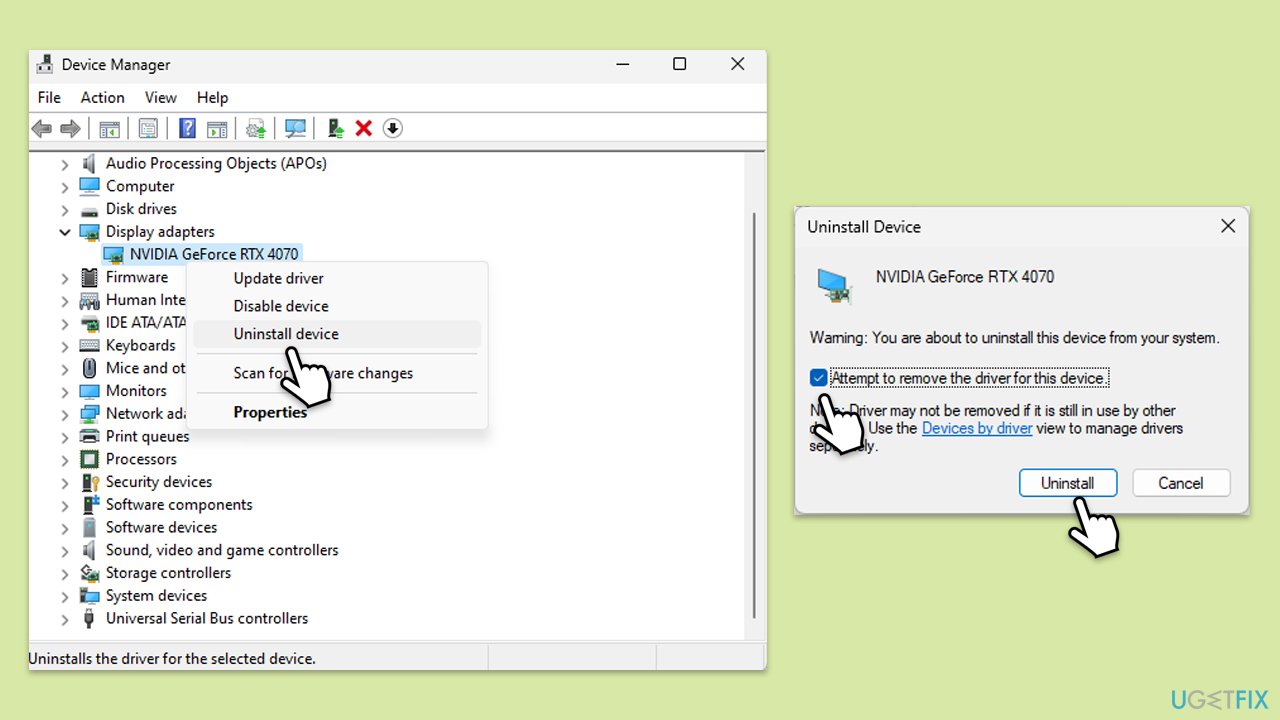
- Right-click on your graphics card and pick Uninstall device.
- Mark the box to delete all the driver software.
- Confirm the uninstallation.
- Restart your device.
- Install the newest NVIDIA driver from the official website or use tools like [rev id="DriverFix"].
To properly reinstall Nvidia drivers, please follow our NVIDIA drivers reinstall instructions page.
Fix 3. Re-register nvspcap64.dll file
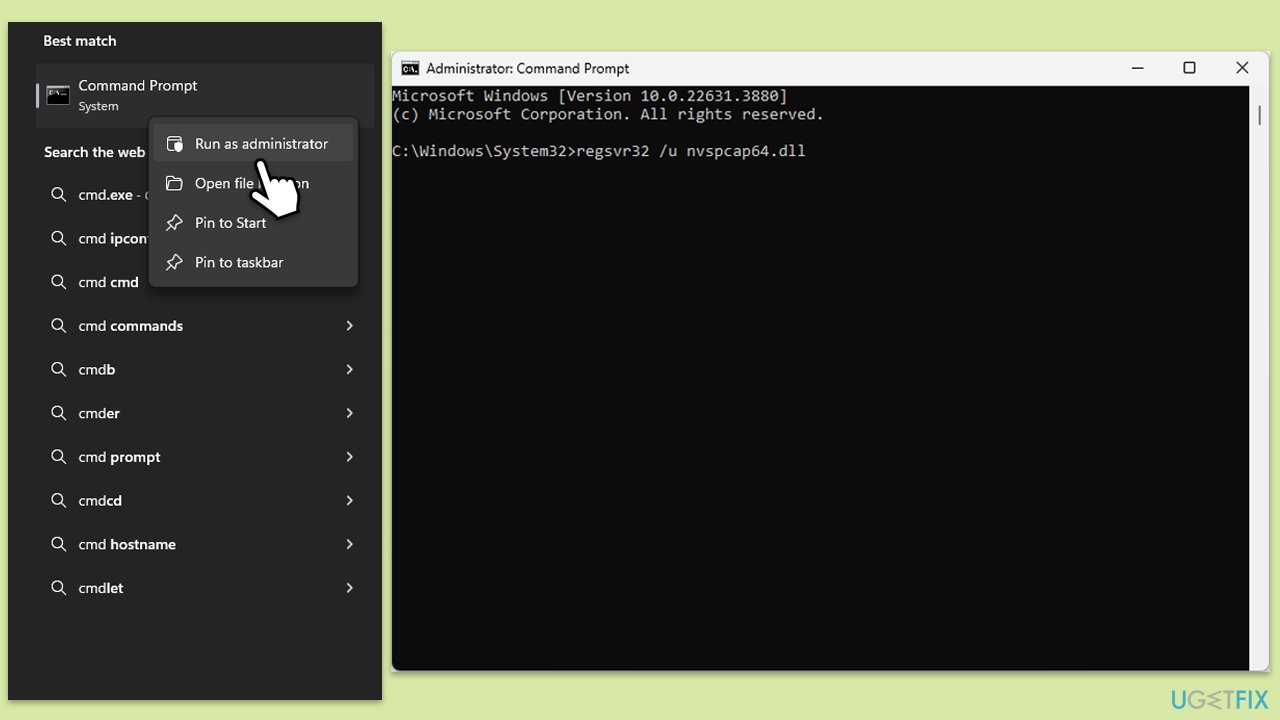
- Type in cmd in Windows search.
- Right-click on Command Prompt and select Run as administrator.
- In the User Account Control window, click Yes.
- Type in the following commands and press Enter after each:
regsvr32 /u nvspcap64.dll
regsvr32 nvspcap64.dll - Close down everything and restart your computer.
Fix 4. Disable NVIDIA GeForce Experience from startup
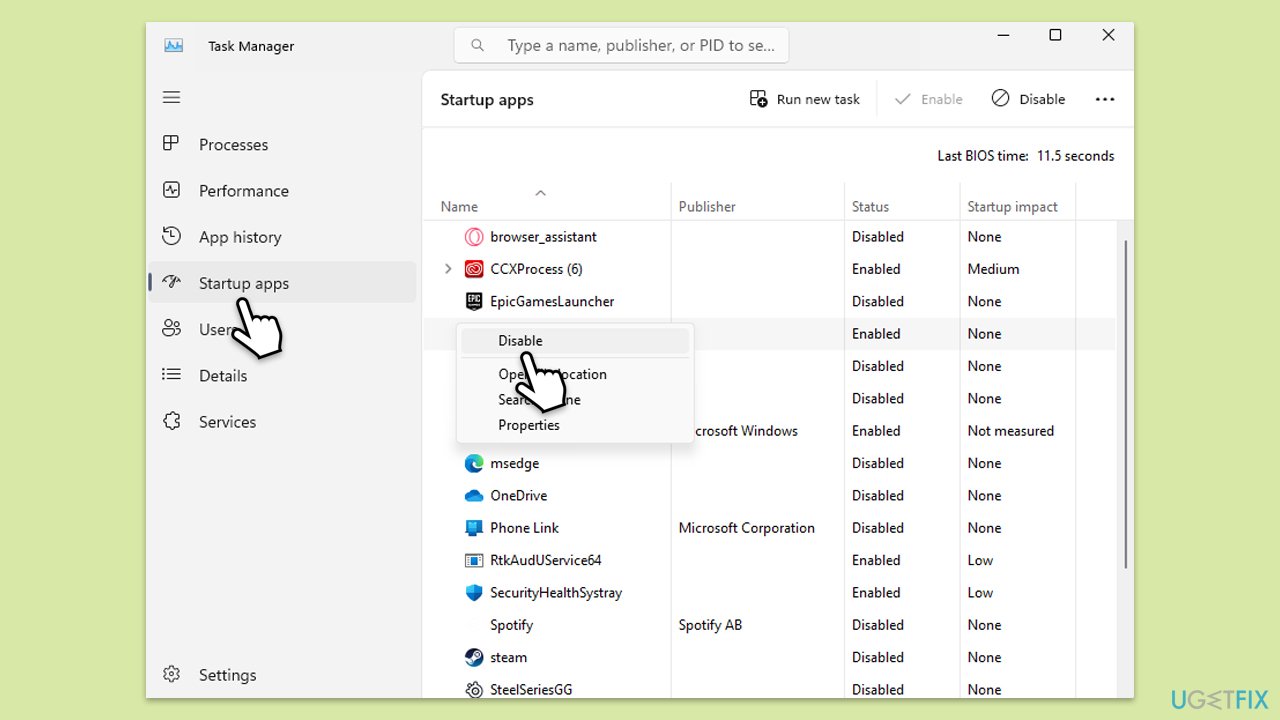
For some users, the reason for the nvspcap64.dll error was a startup item left after uninstalling GeForce Experience software. Disabling it should fix the problem.
- Press Ctrl + Shift + Esc to open Task Manager.
- Go to the Startup tab.
- Find NVIDIA GeForce Experience in the list.
- Right-click on it and select Disable.
- Close Task Manager and restart your computer.
Fix 5. Reinstall or uninstall NVIDIA GeForce Experience
- Press Win + R to open the Run dialog.
- Type appwiz.cpl and press Enter.
- Find NVIDIA GeForce Experience in the list and select it.
- Click on Uninstall/Change and follow the prompts to uninstall.
- If you want to reinstall, download the latest version from the NVIDIA website.
- Install the downloaded version and restart your computer.
Fix 6. Run SFC and DISM
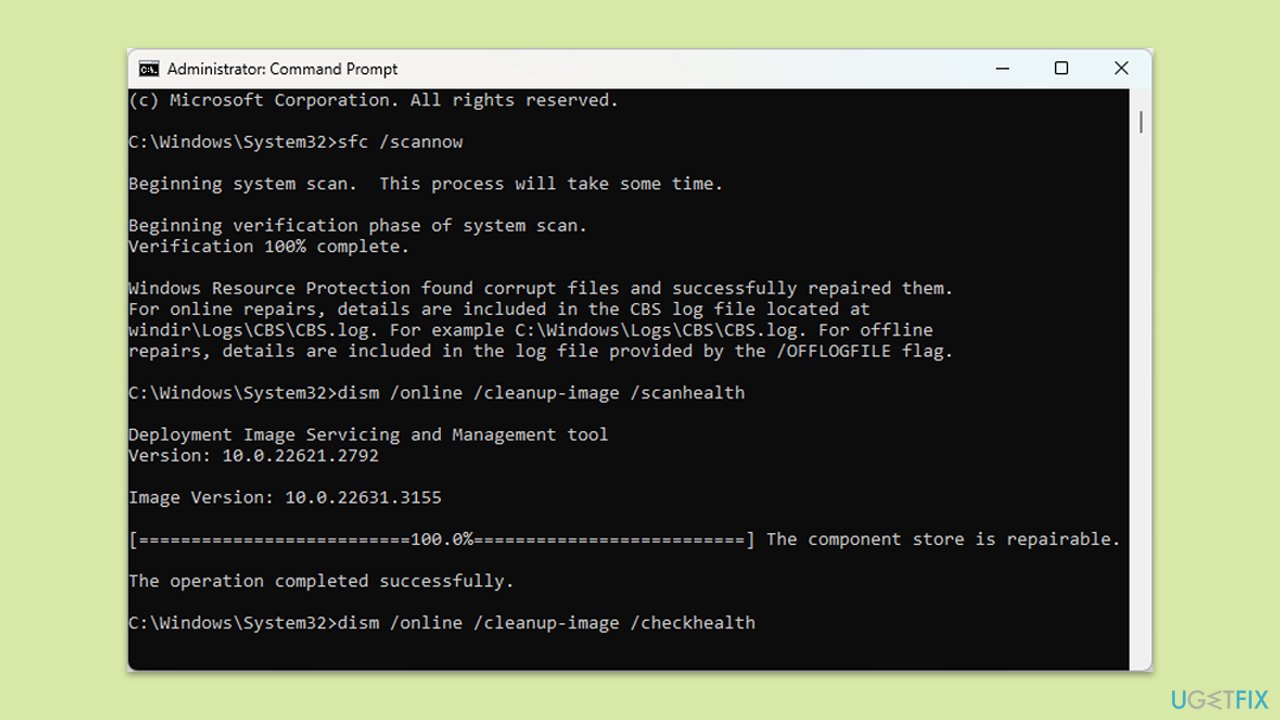
- Open Command Prompt as administrator.
- In the Command Prompt window, paste the following command and hit Enter:
sfc /scannow - Next, use the following commands, pressing Enter each time:
Dism /Online /Cleanup-Image /CheckHealth
Dism /Online /Cleanup-Image /ScanHealth
Dism /Online /Cleanup-Image /RestoreHealth
(Note: if you get an error executing this last command, add /Source:C:\RepairSource\Windows /LimitAccess to it and try again). - Reboot your system.
Bottom line
The nvspcap64.dll error can often be resolved by updating NVIDIA graphics drivers, reinstalling the GeForce Experience software, or using repair tools. If these methods do not work, consider seeking additional support from your system administrator or the software vendor.
Frequently asked questions
The nvspcap64.dll error typically occurs due to issues with the NVIDIA graphics driver or if the file is missing or corrupted. This can also happen when the NVIDIA ShadowPlay feature is not functioning correctly.
To reinstall the NVIDIA drivers, go to the Device Manager, right-click on your NVIDIA graphics card, select 'Uninstall device', and then download the latest drivers from the NVIDIA website for Windows 10 or Windows 11.
Yes, you can manually replace the nvspcap64.dll file by downloading it from a trusted source and placing it in the C:\Windows\System32 folder, but make sure to back up the original file first.




Report an issue
What's wrong with this guide? We review every report and update or remove content.
Report received — thank you. We'll review and fix it.
You need a free account to submit a report.
Be the first to comment