How to fix
Outlook error code 0x800CCC0E
on Windows
Resolve Outlook error code 0x800CCC0E in Windows 10/11 effortlessly with our expert-tested solutions. Fix in minutes and get back to work!


What causes How to fix Outlook error code 0x800CCC0E in Windows?
- Incorrect email settings
- Interference from antivirus software
- Unreliable network connections
- Server downtime
Repairs Windows system files, removes malware, and restores a clean OS state — without reinstalling.
I can't send or receive emails anymore and the error code shown is 0x800CCC0E. It's like using an email app that's offline except that my internet connection is fine. What is happening?
When Windows users try to send or receive emails using Microsoft Outlook, they can sometimes run into the Outlook error 0x800CCC0E. This problem typically indicates a communication breakdown between the email client and mail server. Usually, when setting up account settings or attempting to send or receive messages via a server connection, the issue occurs.
What causes the 0x800CCC0E error in Outlook?
The error code 0x800CCC0E can arise from a few distinct issues:
- Incorrect email settings. Mistakes in SMTP (Simple Mail Transfer Protocol) or POP3 (Post Office Protocol) settings can lead to failures in server connection.
- Interference from antivirus software. Some antivirus programs can obstruct Outlook's ability to operate effectively, particularly in relation to sending and receiving emails.
- Unreliable network connections. Poor or unstable internet connections can prevent Outlook from reaching the server.
- Server downtime. Sometimes, the issue may be with the email server itself being temporarily unavailable due to maintenance or technical problems.
The 0x800CCC0E error prevents users from sending and receiving emails, which can seriously impair communication in both personal and professional contexts. Usually, the issue causes customers to double-check their network connections or server settings, which might result in time-consuming debugging procedures.
Choosing a specialist [d1] repair tool could offer a practical and easy-to-use option for people who are having continuous problems with the 0x800CCC0E error or who find the manual troubleshooting processes intimidating. These tools help to swiftly restore email functionality by automatically identifying and fixing typical problems such as misconfigurations, software conflicts, and connectivity issues. This streamlines the troubleshooting process.

Fix 1. Verify email account settings
Ensuring that your account settings are correctly configured is crucial, as improper SMTP or POP3 settings can prevent Outlook from connecting to your email server.
- Open Outlook.
- Go to File > Account Settings > Server Settings.
- Check and correct the incoming and outgoing mail server settings (SMTP, POP3).
- Ensure that your username and password are entered correctly.
Fix 2. Disable antivirus email scanning
Sometimes antivirus software can interfere with Outlook's ability to send and receive emails by scanning them for threats, which can block the connection.
- Open your antivirus software.
- Navigate to the settings or protection areas where email scanning options are listed.
- Disable the email scanning feature.
Fix 3. Check network connectivity
A stable internet connection is essential for Outlook to communicate with email servers.
Windows 11
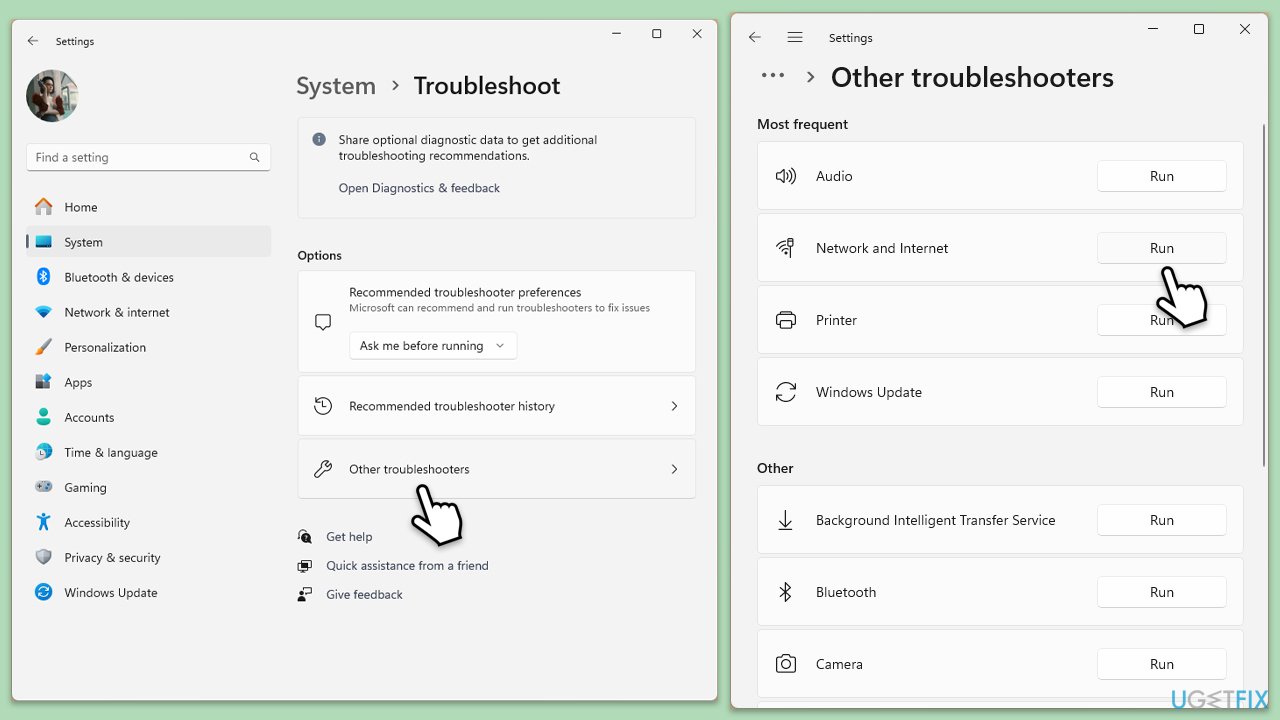
- Type Troubleshoot in Windows search and hit Enter.
- Select Other troubleshooters.
- Find Network & Internet from the list and select Run.
- Wait till the scan is finished - you will be provided with potential causes so you can proceed with fixes.
- If no suggestions were provided, proceed with the solutions below.
Windows 10
- Right-click on Start and pick Settings.
- Go to Network & Internet section.
- On the right side, find the Advanced network settings section.
- Click Network troubleshooter, specify the problem, and wait till the scan is finished.
- When done, apply all the recommendations.
Fix 4. Increase server timeout settings
Increasing the time Outlook waits for a response from the mail server can help avoid this error when connections are slow.
- In Outlook, go to File > Account Settings > Server Settings.
- Select your email account and click on More Settings.
- Go to the Advanced tab and increase the server timeout slider.
- Save the changes and restart Outlook.
Fix 5. Repair Outlook data files
Corrupted Outlook data files can cause numerous errors, including 0x800CCC0E.
- Close Outlook.
- Navigate to the search bar and type Control Panel, then open it.
- Under View by, select Small icons from the drop-down menu.
- Go to Mail and then click on Data Files.
- In the Account Settings window, you’ll see the Data Files tab; here, you will find the location of your PST files listed.
- Take note of the location.
- Press Win + E to open File Explorer.
- Navigate to one of these locations (depending on your Office version):
C:\Program Files\Microsoft Office\Office[version]\
C:\Program Files\Microsoft Office\root\Office16 - Open the Inbox Repair Tool (scanpst.exe)
- Click Browse and select the PST file/OST file.
- Click Start and follow the prompts to repair the file.

Fix 6. Change the outgoing port
Sometimes, the default SMTP port (25) is blocked by Internet Service Providers, which can cause this error.
- Open Outlook.
- Go to File > Account Settings > Server Settings.
- Select More Settings and go to the Advanced tab.
- Change the outgoing server (SMTP) port to 587 or 465 and select SSL as the encryption type.
- Click OK and restart Outlook.
Fix 7. Re-create email profile
A corrupt email profile can cause persistent issues with sending and receiving emails.
- Open Control Panel.
- Select Small icons view.
- Click Mail (Microsoft Outlook).
- Click on Show Profiles.
- Select Add and create a new profile.
- Set the new profile as the default and restart Outlook.

Fix 8. Reinstall Outlook
Reinstalling Outlook can help resolve persistent errors by replacing all program files and eliminating any that may have become corrupted.
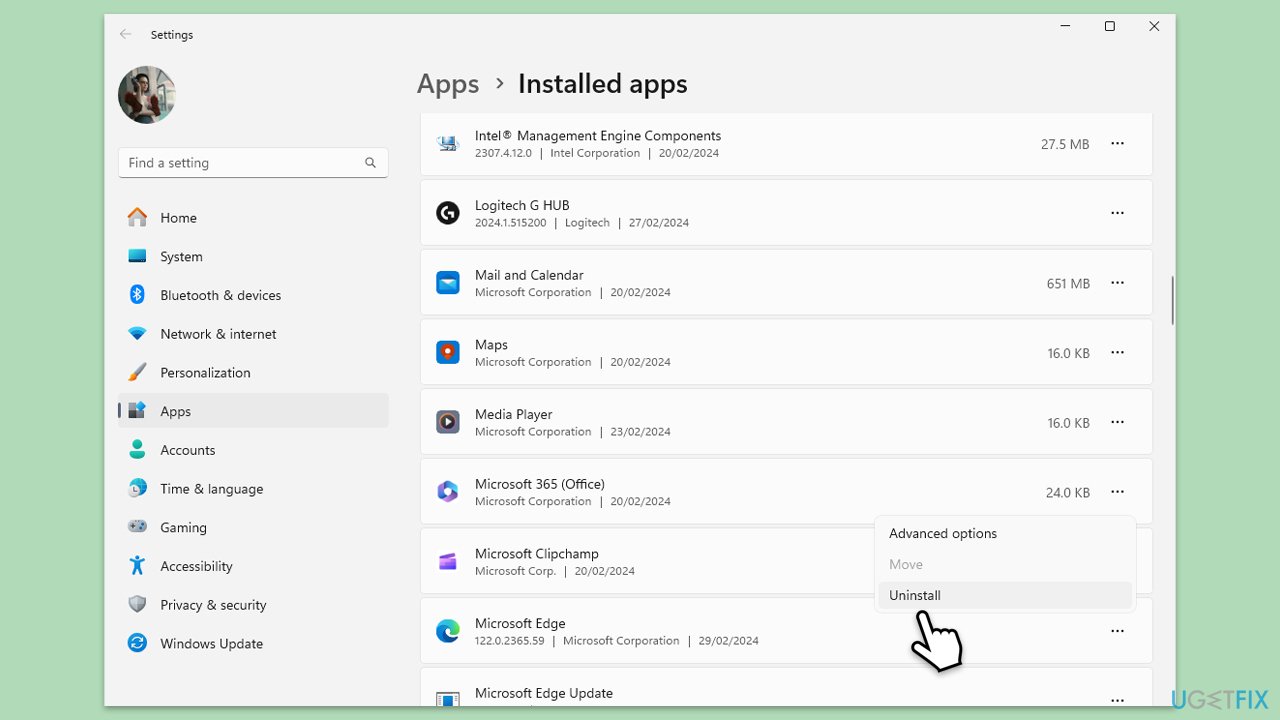
- Right-click on Start and pick Apps and Features/Installed apps.
- Scroll down to find the MS Office installation.
- Click Uninstall and confirm with Uninstall.
- Follow on-screen instructions to remove the app completely.
- Press Win + E to open File Explorer.
- Navigate to the following location and delete its contents:
C:\Program Files\Microsoft Office - Next, type regedit in Windows search and press Enter.
- Go to the following locations in the Registry Editor and delete these items:
Computer\HKEY_LOCAL_MACHINE\SOFTWARE\Microsoft\AppVISV
Computer\HKEY_LOCAL_MACHINE\SOFTWARE\Microsoft\Office\ClickToRun
Computer\HKEY_CURRENT_USER\Software\Microsoft\Office - Restart your system and then reinstall Microsoft Office.
Bottom line
To fix the Outlook error code 0x800CCC0E, ensure that your email account settings are correctly configured, check for antivirus interference, and verify your network connection. If the issue persists, consider using a specialist repair tool to automatically identify and resolve common problems. If none of these solutions work, further troubleshooting may be necessary.
Frequently asked questions
The error code 0x800CCC0E typically occurs due to issues with your internet connection, incorrect email settings, or firewall interference that blocks Outlook from accessing the mail server.
To check your email settings, open Outlook, go to 'File' > 'Account Settings' > 'Account Settings' again, select your account, and click 'Change' to verify the server settings are correct.
If your firewall is causing the error, you should temporarily disable it to see if Outlook connects, and if it does, add Outlook as an exception in your firewall settings.




Report an issue
What's wrong with this guide? We review every report and update or remove content.
Report received — thank you. We'll review and fix it.
You need a free account to submit a report.
Be the first to comment