How to fix
EpicGamesLauncher.exe – Application Error
on Windows
Resolve the EpicGamesLauncher.exe error on Windows 10 or 11 effortlessly. Quick fixes and expert tips ensure your gaming experience is restored in minutes.


What causes How to fix EpicGamesLauncher.exe – Application Error in Windows?
- Incompatibility issues between 32-bit and 64-bit applications
- Missing or corrupted required files
- Missing or damaged Microsoft Visual C++ Redistributable files
- Missing or damaged DirectX files
- Other system dependencies not being met
Repairs Windows system files, removes malware, and restores a clean OS state — without reinstalling.
Hi, I can't seem to be able to fix the EpicGamesLauncher.exe - Application Error, which says that "The application was unable to start correctly." What can I do to resolve this?
Epic Games Launcher is considered a leading platform for millions of gamers to access and play multiple games available in the market. It is well known for games like Fortnite, Rocket League, and many more. All this makes downloading, installation, and updates simple and allows one to manage the game library. Unfortunately, like with any software, the Epic Games Launcher can sometimes run into problems, making things really annoying when you're trying to launch your favorite game.
Application Error: understanding EpicGamesLauncher.exe
One common issue that you are likely to face while using the Epic Games Launcher is the "EpicGamesLauncher.exe - Application Error," with the error message: "The application was unable to start correctly (0xc000007b)." This particular error generally occurs due to the issues that arise from the files of the application or even the system's configuration, thereby making it impossible for the launcher to initiate.
Why would Epicgameslauncher.exe - Application Error occur?
The 0xc000007b error code usually occurs because of incompatibility issues between 32-bit and 64-bit applications and the Windows OS. For example, a required file, which is supposed to be 64-bit, not found or corrupted, would cause the launcher not to start properly. This could also be related to missing or damaged Microsoft Visual C++ Redistributable files, or in general, DirectX, along with other system dependencies that the launcher is using.
How to fix EpicGamesLauncher.exe - Application Error
Most of the time, an EpicGamesLauncher.exe - Application Error is fixed using installation or repair procedures on the launcher's required system files: Microsoft Visual C++ Redistributable and DirectX. You may also have to check whether your systems have the correct editions of these files.
Detailed troubleshooting steps are to be displayed beneath the article, which will take you through the procedures needed to get the launcher working again. For a less complicated, automated approach, try using a repair tool from [d1], which will automatically repair underlying Windows issues to keep your system running healthily.

Fix 1. Run the Epic Games launcher as administrator
- Locate the Epic Games Launcher shortcut on the desktop (of the EXE file in the installation folder).
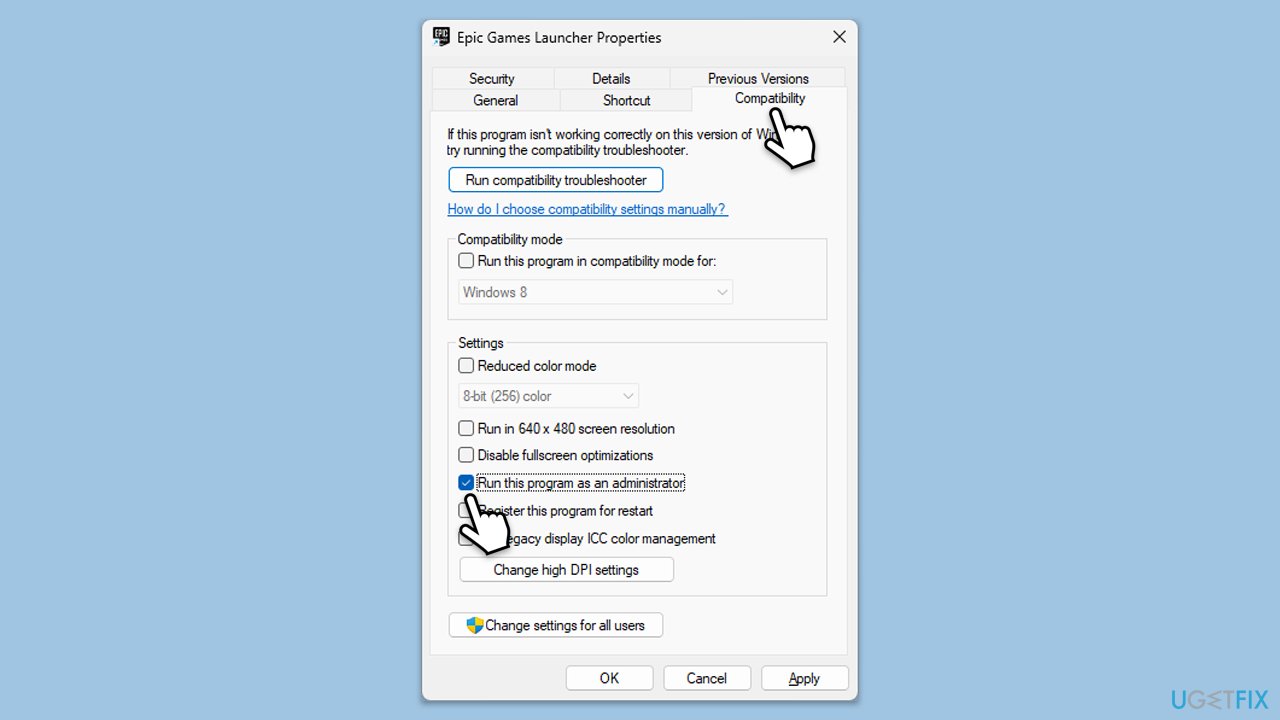
- Right-click and choose Properties from the context menu.
- Navigate to the Compatibility tab.
- Tick the box for Run this program as an administrator.
- Click Apply, then OK.
- Open Epic Games Launcher to check if the issue is resolved.
Fix 2. Reinstall Microsoft Visual C++ Redistributables
- Open the Control Panel and go to Programs > Uninstall a program.
- Here, scroll down and check the list of the installed Visual C++ versions.
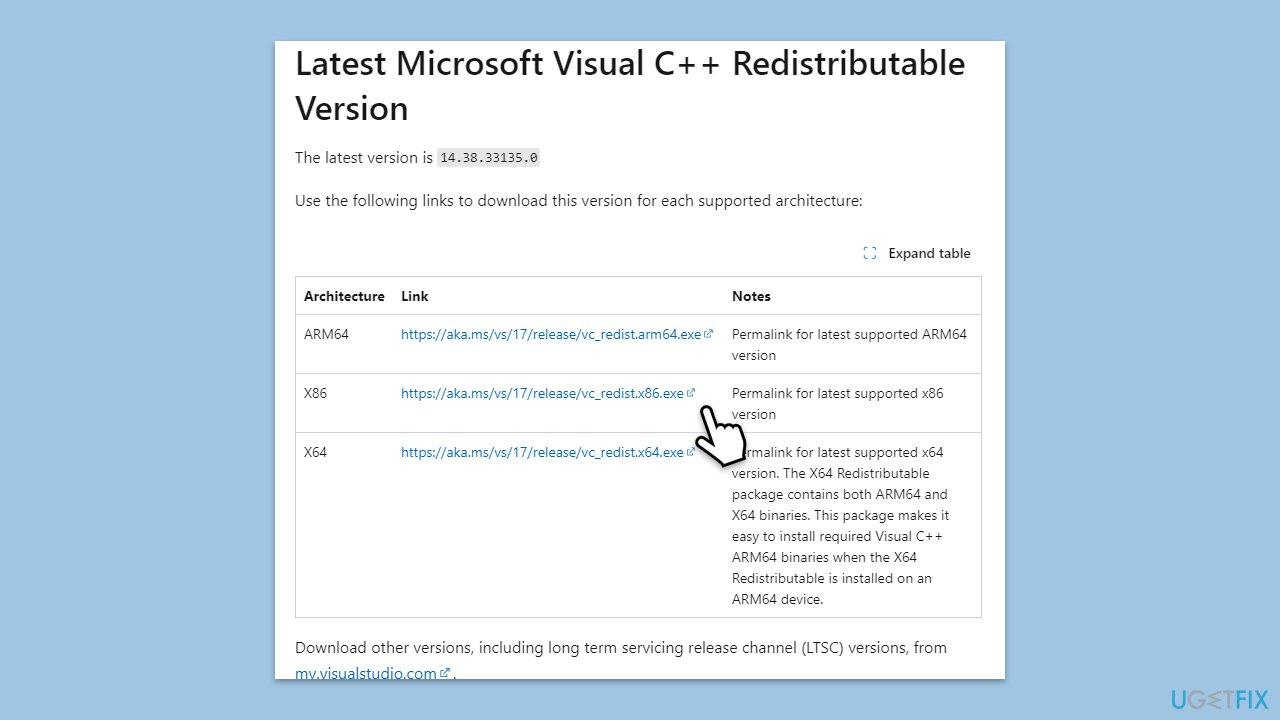
- Open your browser and navigate to the official Microsoft Visual C++ download page.
- Download and install all the missing versions of Visual Studio (note: if you are using a 64-bit system, install both x86.exe and x64.exe files)
- Restart your system and check whether the problem is resolved.
- If not, try reinstalling each of the following components:
Microsoft Visual C++ 2010 Redistributable Package (x86)
Visual C++ Redistributable for Visual Studio 2012
Visual C++ Redistributable Packages for Visual Studio 2013
Visual C++ Redistributable Packages for Visual Studio 2015, 2017, 2019, and 2022. - Restart your PC when done.
Fix 3. Move the DLL files to the appropriate location
Most people managed to fix the EpicGamesLauncher.exe - Application Error by moving DLL files to the Binaries folder in the app's installation location.
- Go to the Epic Games Launcher installation folder (C:\Program Files (x86)\Epic Games by default).
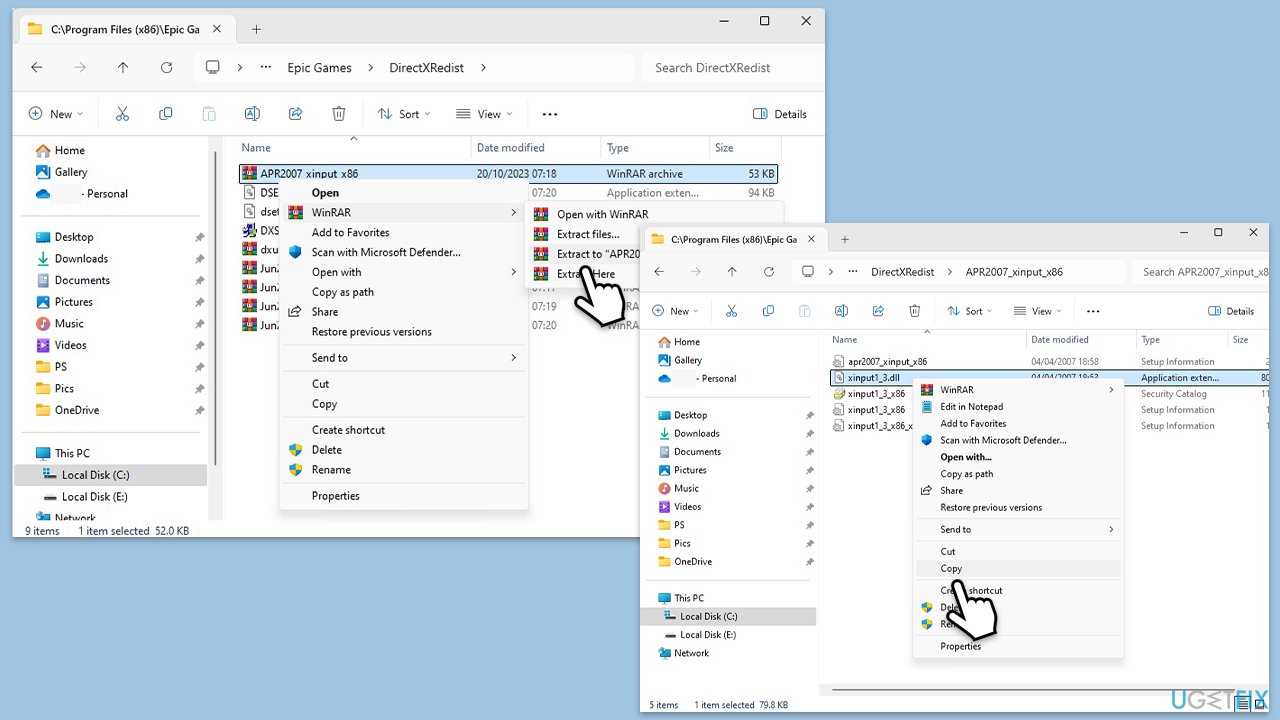
- Access the DirectXRedist folder.
- There, you will see either CAB or RAR files.
- Extract using Winrar or Windows Archiver.
- Inside the extracted folder, you will see a DLL file, for example, xinput1_3.dll (ignore files with other extensions).
- Copy this file somewhere you can easily find, e.g., your desktop.
- Repeat this process with each of the CAB/RAR archives.
- Once all of the existing DLLs are copied to a safe location, navigate to the following location (note this may vary depending on your installation location of the launcher):
C:\Program Files (x86)\Epic Games\Launcher\Portal\Binaries\Win32\ - Copy all of the DLL files to this location.
- Launch the Epic Games app as usual.
Fix 4. Update DirectX
- Visit the official Microsoft DirectX End-User Runtime Web Installer download page.
- Download the setup file to your computer.
- Once the download is complete, open the setup file.
- Follow the on-screen instructions to install the latest version of DirectX.
- Complete the installation and restart your computer.
- After restarting, launch Steam and try to run the game again.
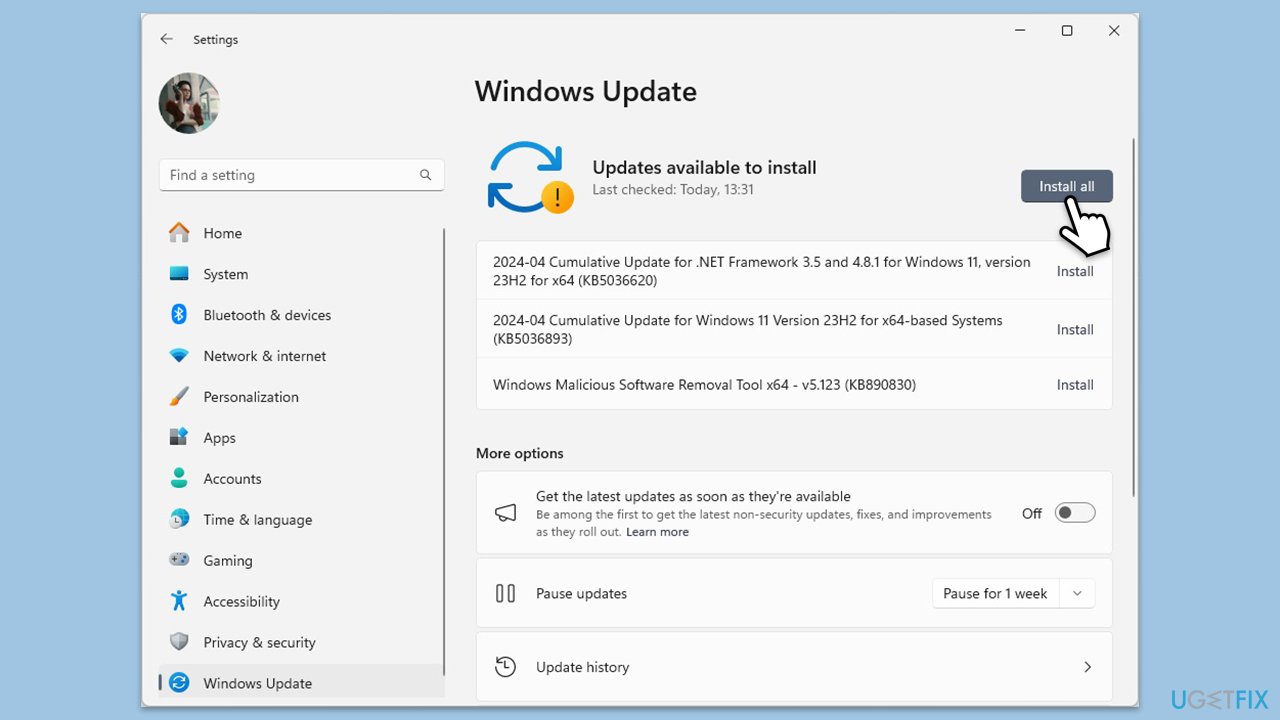
Fix 5. Check for Windows Updates
- Type Updates in Windows search and press Enter.
- In the new window, click Check for updates.
- Wait till all the necessary files are downloaded and installed.
- If optional updates are available, install them as well.
- When done, reboot your system to apply updates.
Fix 6. Repair Corrupted System Files
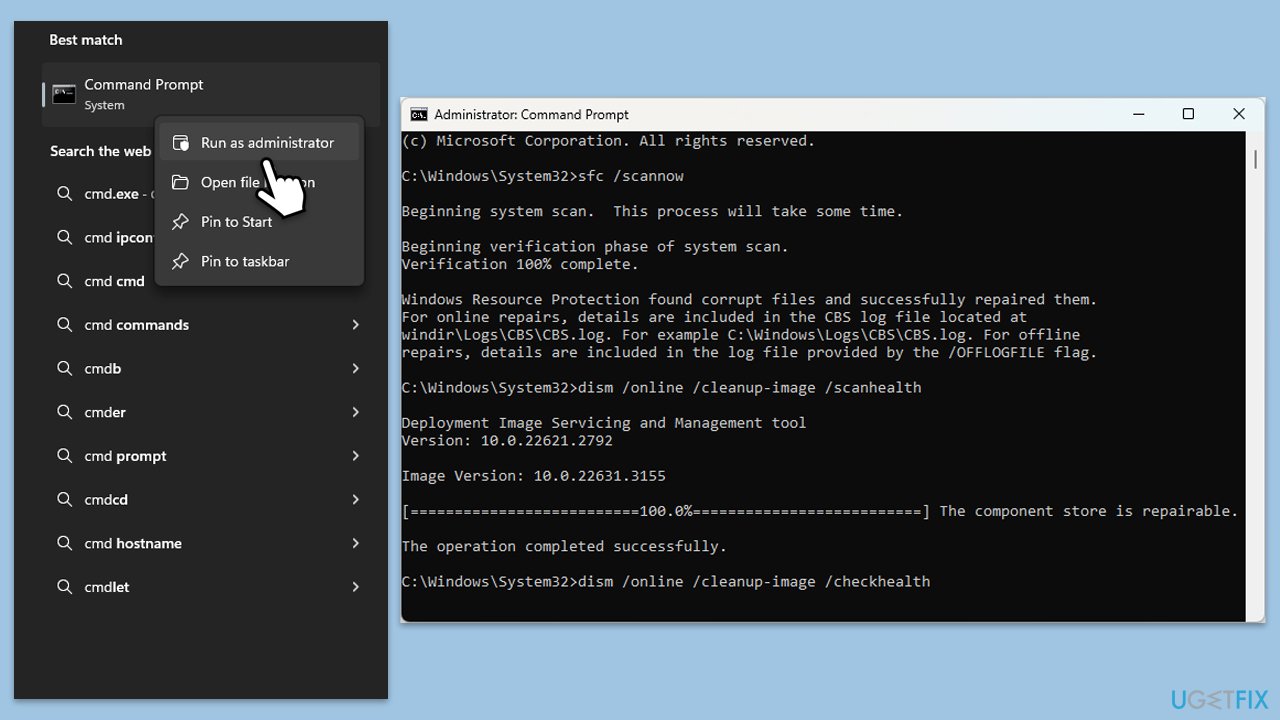
- Type cmd in Windows search.
- Right-click on Command Prompt and pick Run as administrator.
- User Account Control (UAC) will ask whether you want to allow changes - click Yes.
- Use the following command lines, pressing Enter after each:
- In the Command Prompt window, paste the following command and press Enter:
sfc /scannow - Wait for the scan to complete.
- Once the SFC scan is finished, run the following set of DISM commands, pressing Enter after each one:
DISM /Online /Cleanup-Image /CheckHealth
DISM /Online /Cleanup-Image /ScanHealth
DISM /Online /Cleanup-Image /RestoreHealth - After completing the DISM commands, restart your computer.
Bottom line
To fix the EpicGamesLauncher.exe - Application Error, you may need to repair or reinstall Microsoft Visual C++ Redistributable and DirectX. Additionally, ensure that your system has the correct editions of these files. If these solutions do not work, consider using a repair tool to address underlying Windows issues.
Frequently asked questions
You can try reinstalling the Epic Games Launcher or repairing it via the Control Panel in Windows 10 to resolve the application error.
In Windows 11, ensure that your graphics drivers are up to date and consider running the launcher as an administrator to fix the application error.
To prevent future application errors on Windows, regularly check for updates for both Windows and the Epic Games Launcher, and clear its cache periodically.




Report an issue
What's wrong with this guide? We review every report and update or remove content.
Report received — thank you. We'll review and fix it.
You need a free account to submit a report.
Be the first to comment