How to fix
Change maximum recording time
on Windows
Easily adjust the maximum recording time in Windows Game Bar for optimal gameplay captures. Expert-tested tips for Windows 10 and 11 users, updated 2025.

Why does How to change maximum recording time in Windows Game Bar occur?
- Default recording time is set to 30 seconds
- Users may want longer recordings for gaming sessions
- Storage space considerations for shorter recordings
- Lack of clarity in changing recording settings
- Different time settings available from 30 minutes to 2 hours
Repairs Windows system files, removes malware, and restores a clean OS state — without reinstalling.
I started recording things when gaming for a few weeks now - I wanna make a YouTube video in the end. The problem is that I don't know how to prolong the Game Bar recording time - it's now only 30 seconds. I want to be able to record at least several minutes at a time. Is it possible? If yes, how do I do that?
Windows Game Bar comes built into Windows 10 and Windows 11. It helps record your screen or capture gaming moments, though it was mainly created for gamers. It connects with Xbox and gives quick access to recording, screenshots, and watching system performance. No need to install other software. Many use it to record games, stream, or take pictures while playing. It uses very little system power, making it a helpful tool for content creators and even casual players.
One big feature of the Game Bar is its screen recording tool. It lets people record videos from games or apps. By default, recording runs for a set time, which fits most users' needs. But sometimes, a person might want either longer or shorter recordings. Maybe someone wants to catch long gaming sessions or use less storage space by recording for shorter amounts of time.
Changing the video length is not easy for everyone because the option isn’t really clear. The Game Bar gives users different time settings, ranging from 30 minutes to 2 hours. It depends on how much control one wants. Advanced settings also help users choose the recording quality, frame rate, and how long to record.
For those looking to fine-tune their recording settings, whether for longer streams or optimized storage, finding and adjusting these options is crucial. And if you're looking for a smooth, optimized experience when using the Game Bar, a reliable [d1] optimization and repair utility can help ensure your system runs efficiently while recording, minimizing lag or potential issues during gameplay or screen capture.
Method 1. Change maximum recording time via Windows settings
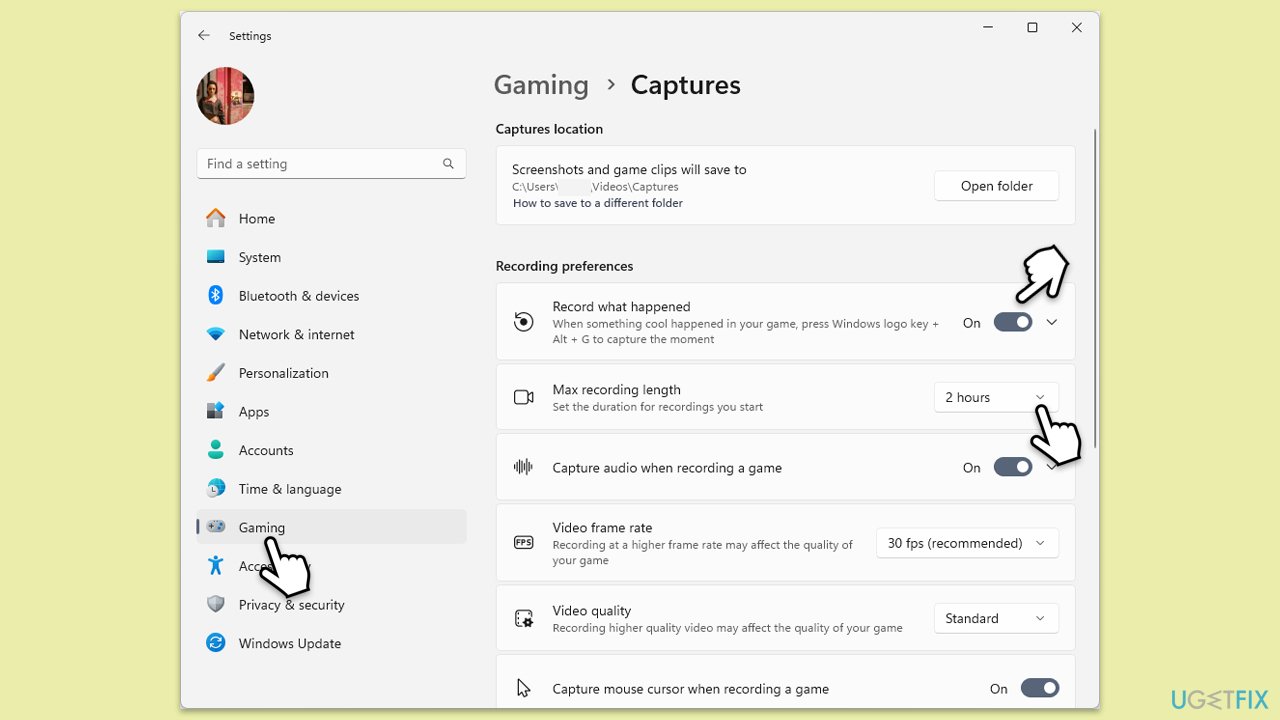
The easiest way to change the maximum recording time is through the Game Bar’s built-in settings. Here, you can select how long you want Game Bar to record before it stops automatically.
- Press Win + I to open Settings.
- Select Gaming, then choose Captures from the menu.
- Enable the Record what happened option by toggling the switch to the On position.
- Under it, you should see the Max recording length section.
- Click the dropdown and choose the desired recording time (options range from 30 minutes to 4 hours).
Method 2. Modify registry settings (advanced users)
For those comfortable with system-level changes, the registry editor provides a way to manually set custom recording lengths beyond the built-in options.
- Press Win + R to open the Run dialog.
- Type regedit and press Enter to open the Registry Editor.
- When UAC shows up, click Yes.
- Navigate to the following location:
HKEY_CURRENT_USER\Software\Microsoft\Windows\CurrentVersion\GameDVR. - Here, you need to find the MaximumRecordLength value on the right side. If it doesn't exist, simply right-click on empty space, select New > QWORD (64-bit) value, and name it MaximumRecordLength.
- Double-click the value, and check Value data field - that's where you need to type the recording time. Available choices are as follows:
144000000000 for 4 hours
72000000000 for 2 hours
36000000000 for 1 hour
18000000000 for 30 minutes - Once you enter the desired length, make sure Base is set to Decimal.
- Click OK.
- Exit the registry editor and restart your system.

Method 3. Change recording length through Windows PowerShell
PowerShell can also be used to customize certain settings in Windows, including adjusting Game Bar’s recording duration.
- Press Win + X and select Windows Terminal (Admin).
- Type the following command:
Set-GameDVRRecordingDuration -Duration [desired time in minutes]. - Replace "[desired time]" with your preferred recording length.
- Press Enter and restart your computer to apply the changes.

Method 4. Update Windows for new recording options
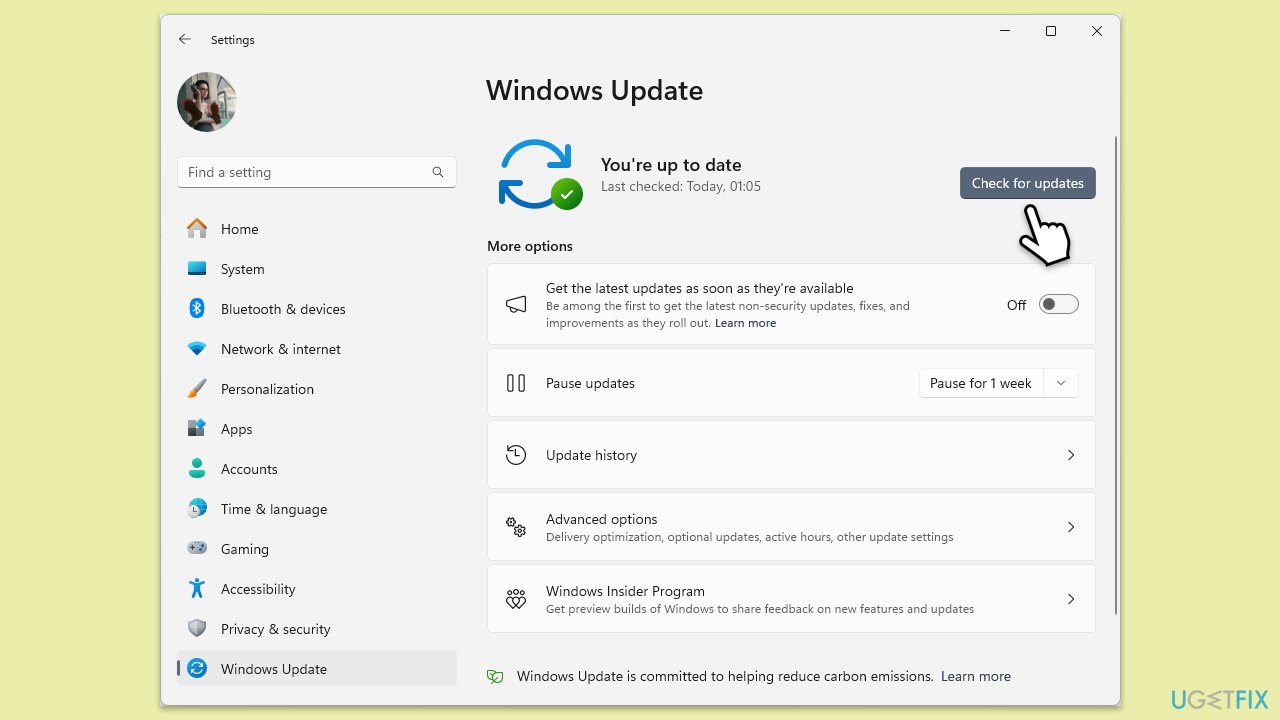
Microsoft occasionally updates the Game Bar, introducing new features, including potential changes to recording times.
- Type Updates in Windows search and press Enter.
- When the new window opens, click Check for updates and wait.
- If there are optional updates available, install them as well.
- Restart your device.
- After updating, go back to the Game Bar settings to check if new recording length options are available.
Bottom line
To change the maximum recording time in Windows Game Bar, you can adjust the settings through Windows settings. Additionally, explore advanced settings for recording quality and frame rate. If these solutions do not resolve the issue, consider using a reliable optimization and repair utility.
Frequently asked questions
To change the maximum recording time, open the Game Bar settings by pressing Win + G, then navigate to Settings > Capturing and adjust the 'Recording length' option.
Yes, in Windows 11, you can set a custom recording time by accessing the Game Bar settings through Win + G and modifying the 'Recording length' under the Capturing section.
The default maximum recording time in Windows Game Bar is typically set to 30 minutes, but you can adjust it up to 4 hours depending on your needs.




Report an issue
What's wrong with this guide? We review every report and update or remove content.
Report received — thank you. We'll review and fix it.
You need a free account to submit a report.
Be the first to comment