How to fix
“Missing codec” error 0xc004f011
on Windows
Resolve the "Missing codec" error 0xc004f011 on Windows 10 and 11 effortlessly with our expert-tested solutions. Get back to smooth playback, fixed in m…


What causes How to fix “Missing codec” error 0xc004f011 in Windows?
- Older version of media player software
- Corrupted codec files
- Missing codec packs in the system
- Disturbances caused by system updates
- Conflicts with third-party applications
Repairs Windows system files, removes malware, and restores a clean OS state — without reinstalling.
I am trying to play a video on my Windows computer, but I continue getting an error message that says "Missing codec" with error code 0xc004f011. I did attempt playing with different media players, but the same error keeps coming up. I have no idea what kind of codec I'm missing. Can you help me out and get my videos to play?
Error 0xc004f011 in Windows mostly appears while trying to play some type of audio or video. This means that through this error, users will not be able to access multimedia content, which becomes a source of annoyance, especially if one has depended typically upon Windows Media Player or other media-playing utilities. Online discussions show that this problem often appears when trying to play certain file formats or after the recent system updates.
The error 0xc004f011 involves missing or unsupported codec files, which are very crucial for decoding multimedia. The codec is a software component employed by media players to compress or decompress audio and video data to support various file formats. This may happen because of an older version of media player software, corrupted codec files, or important missing codec packs in the system. Sometimes, these are also disturbed by system updates or conflicts with third-party applications.
By nature, troubleshooting for the "Missing codec" error 0xc004f011 usually involves updating the media player to its latest build, followed by installing the required codec packs or making sure that your system has all the software required for handling that particular media format. It may also include a check for system file corruption or even a reinstall of related components.
The [d1] repair tool can automatically find and fix problems with underlying Windows that may be causing the missing codec error to further simplify this process.

Fix 1. Update Windows
Ensuring your system is up to date can help fix codec-related issues.
- Type Updates in Windows search and press Enter.
- In the new window, click Check for updates/Install all.
- Wait till all the necessary files are downloaded and installed.
- If optional updates are available, install them as well.
- When done, reboot your system to apply updates.
Fix 2. Install missing codec packs
Installing the appropriate codec packs can help play various media file types without errors.
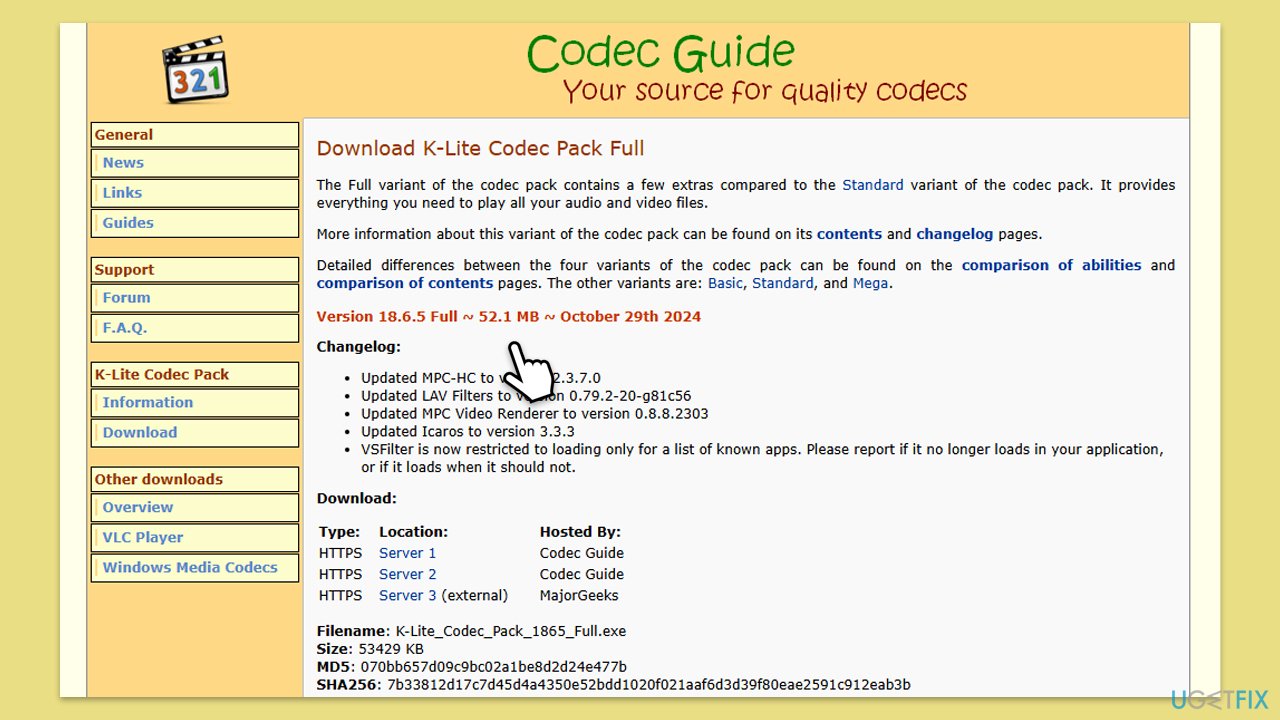
- Look for a reliable codec pack online, such as K-Lite Codec Pack.
- Download and install the codec pack.
- Follow the on-screen installation instructions.
- Restart your computer and attempt to play the media file again.
Fix 3. Use a different media player
Some media players come with built-in codecs that can handle a wide range of formats.
- Download and install an alternative media player - something like VLC Media Player.
- Open the media file with the new player.
- Check if the file plays without error.

Fix 4. Reinstall audio and video drivers
Outdated or corrupted drivers can interfere with media playback.
- Right-click on the Start button and select Device Manager from the menu.
- Expand the Display adapters section.
- Right-click on your GPU and select Uninstall device.
- Confirm driver removal.
- Expand Sound, video, and game controllers.
- Right-click on your audio device and select Uninstall device.
- Restart your computer, and Windows will reinstall the driver automatically.
- To make sure that Windows has the latest updates installed that are compatible, you can always check out [rev id="DriverFix"].

Fix 5. Run the Video Playback troubleshooter
This built-in tool can help diagnose and fix media playback issues.
- Type Troubleshoot in Windows search and hit Enter.
- Select Additional troubleshooters/Other troubleshooters.
- Find Video Playback from the list and select Run the troubleshooter/Run.
- Wait till the scan is finished - you will be provided with potential causes so you can proceed with fixes.
- If no suggestions were provided, proceed with the solutions below.

Fix 6. Check for system file corruption
Corrupted system files can cause codec errors.
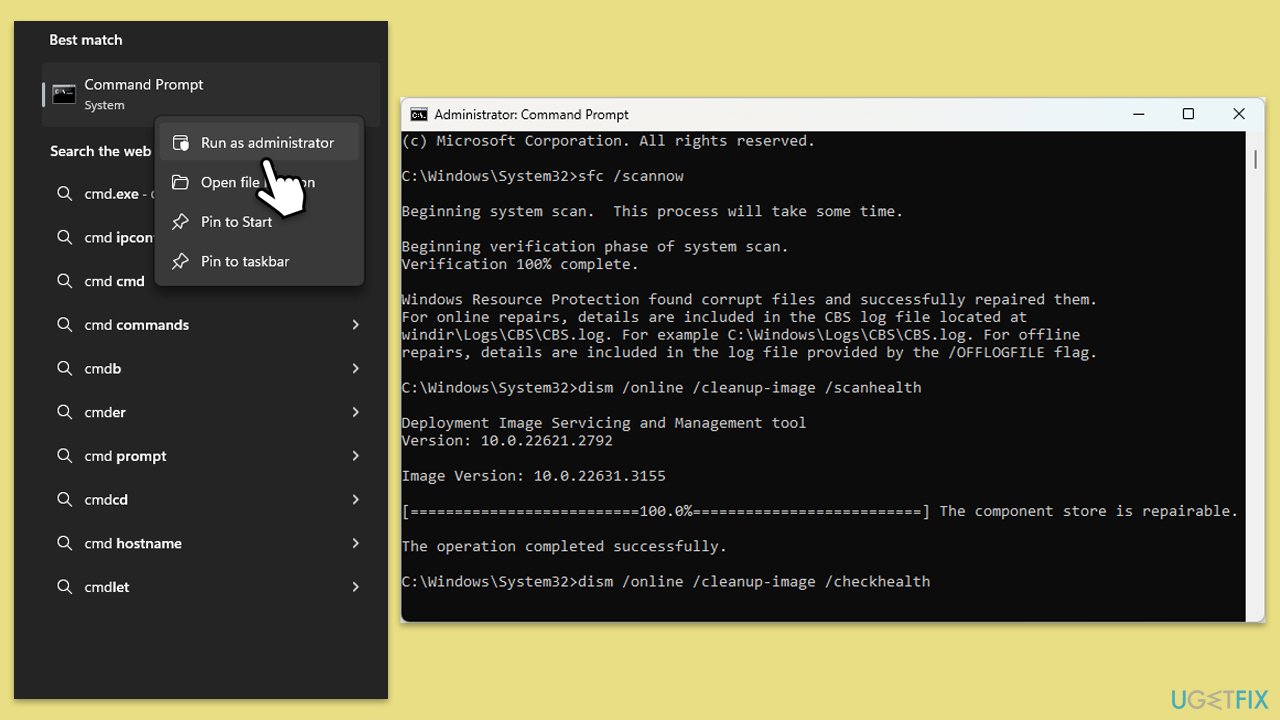
- Type in cmd in Windows search.
- Right-click on Command Prompt and select Run as administrator.
- User Account Control window will show up - click Yes when prompted.
- In the Command Prompt window, paste the following command and press Enter:
sfc /scannow - Wait for the scan to complete.
- Once the SFC scan is finished, run the following set of DISM commands, pressing Enter after each one:
DISM /Online /Cleanup-Image /CheckHealth
DISM /Online /Cleanup-Image /ScanHealth
DISM /Online /Cleanup-Image /RestoreHealth
(Note: if you get an error executing this last command, add /Source:C:\RepairSource\Windows /LimitAccess to it and try again). - After completing the DISM commands, restart your computer.
Fix 7. Reinstall media components
Reinstalling essential media components can replace any corrupted files.
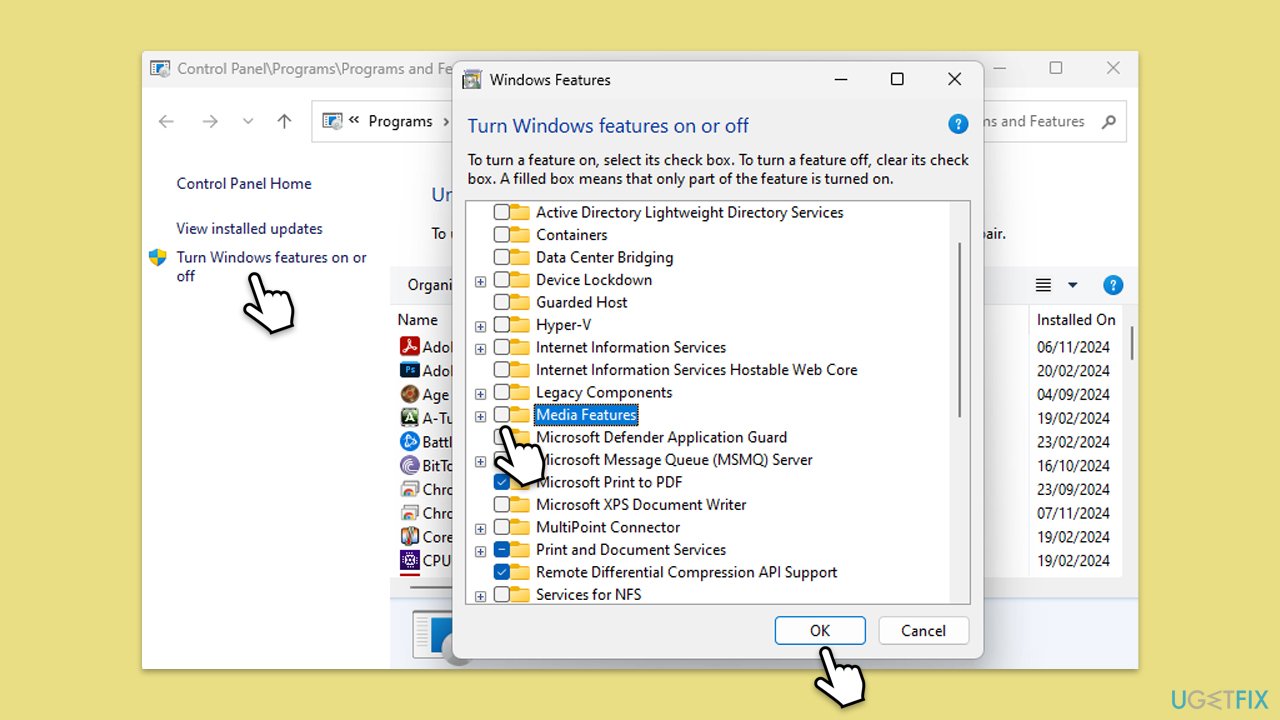
- Type appwiz.cpl in Windows search and press Enter.
- Click on Turn Windows features on or off.
- Uncheck Media Features and click OK to uninstall.
- Restart your computer.
- Go back to the same menu and check Media Features to reinstall.
- Restart your computer and check if the error is resolved.
Bottom line
To fix the missing codec error 0xc004f011, ensure your media player is updated, install the necessary codec packs, and check for system file corruption. If these steps do not resolve the issue, consider using a repair tool to automatically find and fix underlying problems.
Frequently asked questions
The 'Missing codec' error 0xc004f011 typically occurs due to outdated or incompatible codecs required for media playback. This can happen after a Windows update or when specific media files are played that require additional codecs.
To install missing codecs, you can download and install a third-party codec pack like K-Lite Codec Pack, which supports a wide range of media formats. After installation, restart your media player to see if the error is resolved.
Yes, you can use the Windows Store to download the necessary codec pack or use the built-in Windows Media Player to troubleshoot and automatically download compatible codecs. This method is often effective for resolving the 0xc004f011 error.




Report an issue
What's wrong with this guide? We review every report and update or remove content.
Report received — thank you. We'll review and fix it.
You need a free account to submit a report.
Be the first to comment