How to fix
Disable Hyper-V
on Windows
Easily disable Hyper-V in Windows 10 to optimize performance and enhance your system. Follow our expert-tested guide for fast results!

Why does How to Disable Hyper-V in Windows 10 occur?
- Error during uninstallation process
- Need to reboot the computer
- Compatibility issues with third-party applications
- Hardware virtualization extension conflicts
- Lack of user-friendly options for disabling/enabling Hyper-V
Repairs Windows system files, removes malware, and restores a clean OS state — without reinstalling.
Hello all. Do you have any ideas why Windows does not allow me to uninstall Hyper-V? When I try to do so, I get an error saying: “The changes couldn't be completed. Please reboot your computer and try again. Error Code: 0x800F0831.” I’ve tried many things, including bcdedit option, powershell scripts, DISM, and some other things, but none of them worked. Have you any ideas?
Hyper-V is not a tool for inexperienced PC users.[ref en-1] It’s a utility, which replaces Microsoft Virtual PC and allows running multiple operating systems on a single device. Hyper-V simplifies the lives of software developers, professional IT workers or tech-savvy people who opt for working or experimenting with multiple OS, including various Linux releases, FreeBSD, and Windows.
When using the tool, there’s no need for physical hardware injected into machines. Hyper-V turns different OS into virtual machines (“guest”), which run in tandem on a single computer (“host”). While the tool is useful for many PC enthusiasts and experts, many of them find it lacking for some features, for example, live migration of virtual machines from one host to another, Hyper-V Replica, Virtual Fiber Channel, virtualizing GPUs using RemoteFX, and so on.
Due to this or other reasons, they decide to switch to other virtualization products. The problem is that sometimes Hyper-V removal fails and returns errors like “The changes couldn't be completed. Please reboot your computer and try again. Error Code: 0x800F0831.” Users[ref en-2] also search for ways to make the program more user-friendly since it is difficult to disable/ enable the app when needed.
Also, like with other programs, there are possible issues with compatibility when some third-party applications are not working along with this app, so people need to disable Hyper-V when trying to launch any other piece of software. Such behavior seems to be common because various virtualization applications depend on the particular hardware extensions that are available on processors.
Only one software component can use this hardware virtualization extension at the time and those pieces cannot be shared. The problem causes crashes and keeps the user from using Hyper-V or different software until one of them is completely disabled.
This video has all the information required:
[youtube XJTeQdJUMDM]
Disable Hyper-V Hypervisor
- Press Windows key + X and select Apps and Features.
- Scroll down to the bottom and click Programs and Features link.
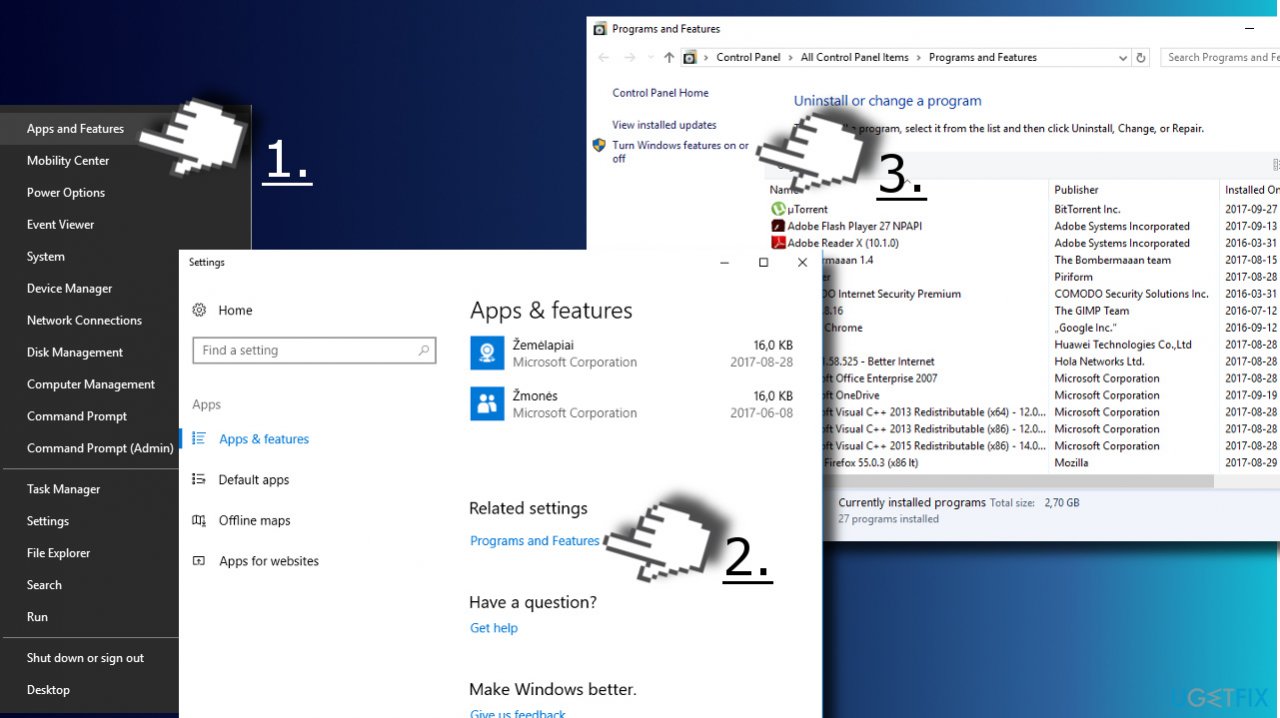
Instructions1 - Then click the Turn Windows features on or off link on the left pane.
- Locate Hyper-V option and unmark it.
- Click OK to save the changes and reboot.
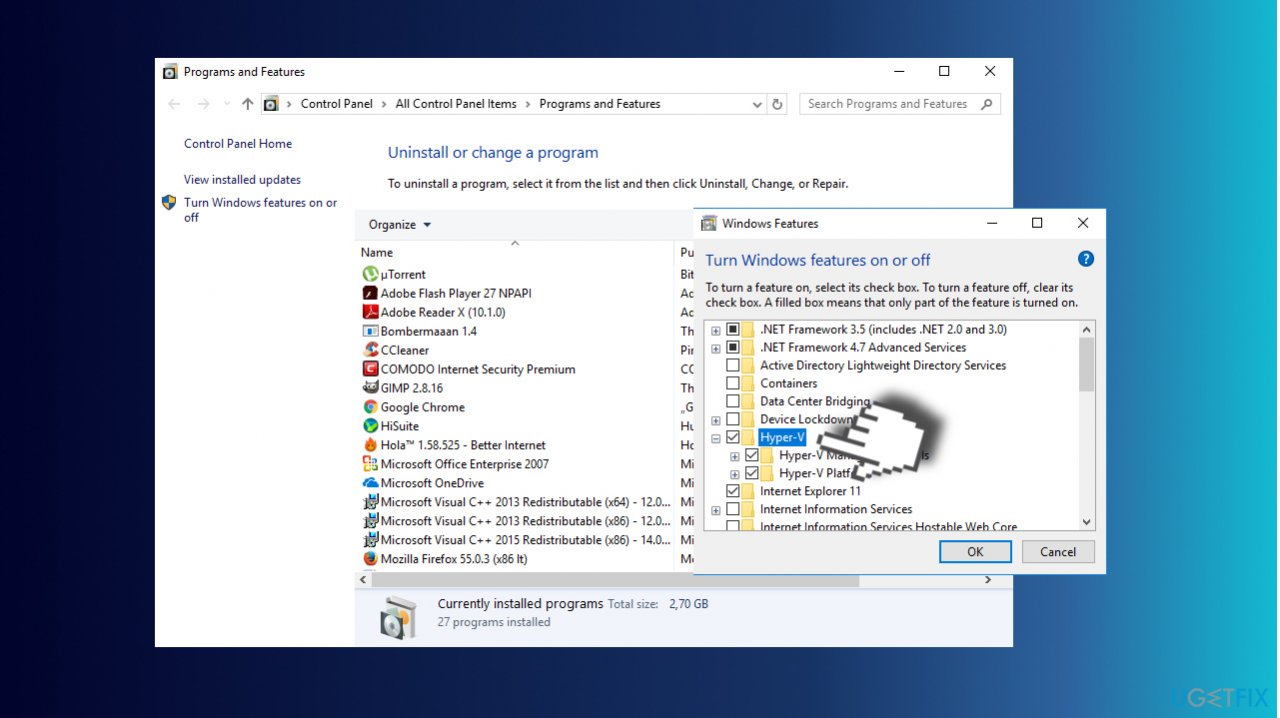
Instructions2
NOTE: this option will not uninstall Hyper-V, but disable the feature temporarily. It will be enabled automatically after the installation of crucial Windows Updates.
Disable Hyper-V via Command Prompt and PowerShell environments
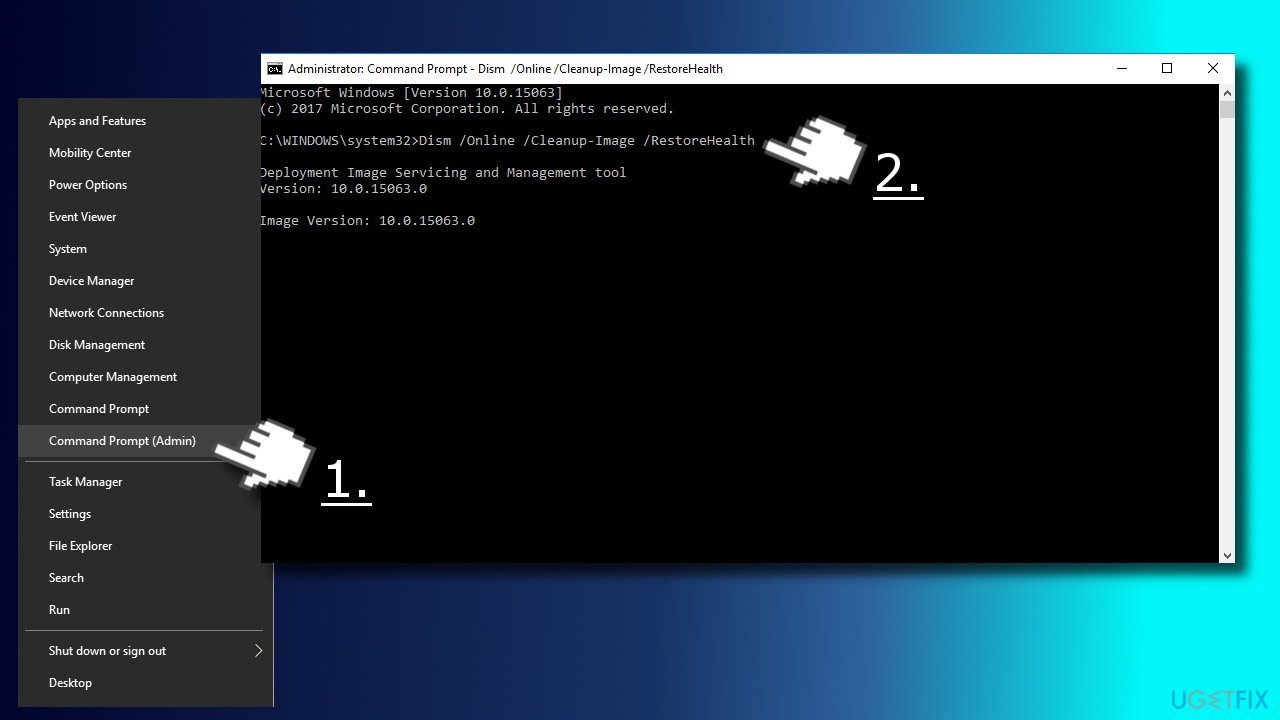
- Right-click on Windows key and select Command Prompt (Admin).
- Copy and paste the Dism /Online /Cleanup-Image /RestoreHealth. Press Enter.
- Then run the Dism.exe /online /Cleanup-Image /StartComponentCleanup command and hit Enter.
- Now type the sfc /scannow and press Enter again.
- Close Command Prompt and open Windows PowerShell (with administrative privileges).
Instructions3 - Type PowerShell in Windows search, right-click it, and select Run as Administrator.
- Copy and paste the Disable-WindowsOptionalFeature -Online -FeatureName Microsoft-Hyper-V-All.
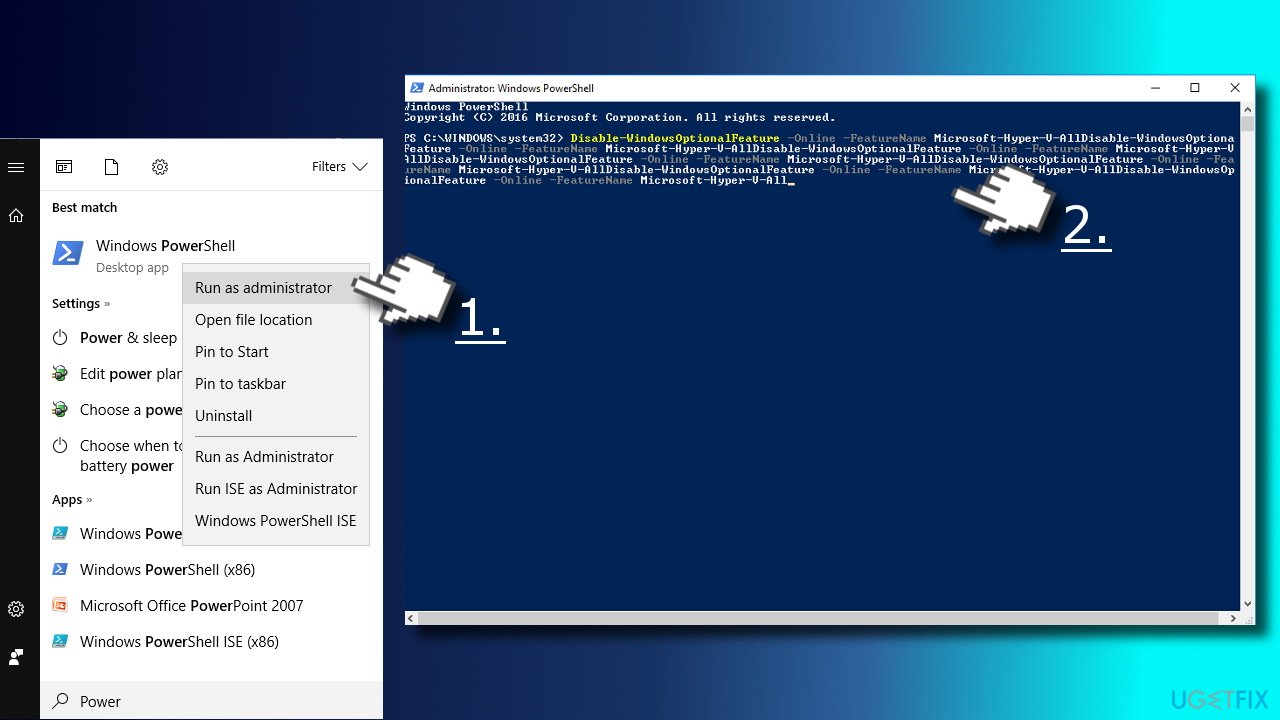
Instructions4 - Close PowerShell and reboot the PC.
Reinstall .NET Framework to fix the Hyper-V disable/enable issue
Download the latest version of the .NET Framework. If it has been damaged or removed due to virus infection or other reasons, follow these simple steps:
- Navigate to this website.
- Find .NET Framework and download it.
- Run the setup file and confirm the installation. Don’t worry if the process lasts up to 10 minutes.
- Once installed, try to Uninstall/Disable Hyper-V.
Bottom line
The error may occur due to issues like needing to reboot the computer or conflicts with third-party applications. Users have attempted various fixes such as using bcdedit, PowerShell scripts, and DISM without success. If none of these solutions work, further troubleshooting may be required.
Frequently asked questions
To disable Hyper-V via Control Panel, go to 'Programs' > 'Turn Windows features on or off', uncheck 'Hyper-V', and click 'OK'. Restart your computer to apply the changes.
Yes, you can disable Hyper-V by opening Command Prompt as an administrator and entering the command 'bcdedit /set hypervisorlaunchtype off'. Restart your computer afterward.
If Hyper-V keeps re-enabling, check for any third-party applications or Windows updates that may be restoring it; you may also want to disable it in the BIOS settings if applicable.




Report an issue
What's wrong with this guide? We review every report and update or remove content.
Report received — thank you. We'll review and fix it.
You need a free account to submit a report.
Be the first to comment