How to fix
Change the Recycle Bin Icon
on Windows
Easily customize your Windows 10 Recycle Bin icon with our expert-tested guide. Transform your desktop in minutes, leaving zero traces behind.

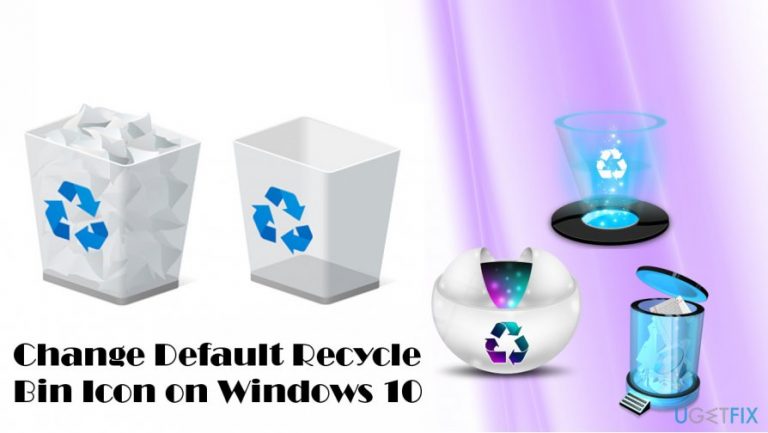
Why does How to Change the Recycle Bin Icon on Windows 10 occur?
- Users may find the default Recycle Bin icon unattractive.
- The Recycle Bin icon may not fit the modern aesthetic of Windows 10.
- Users may want a personalized desktop experience.
- The icon is prominently displayed on the desktop, making it more noticeable.
- Changing the icon can enhance user satisfaction with the interface.
Repairs Windows system files, removes malware, and restores a clean OS state — without reinstalling.
I don’t like the look of the Recycle Bin icon on my Windows 10. I wonder is it possible to change it to something else?
Windows 10 introduced many innovations, including settings, apps, features, and design. While the latter changes triggered the least people’s discussions and complaints, there are many small things that Windows 10 users opt for changing. For example, the Recycle Bin icon. Although it’s a small thing, the icon that falls out from the context of the modern operating system may become an irritating thing, especially keeping in mind that it shows up right on the desktop all the time.

Luckily, Microsoft did not leave the Recycle Bin icon immutable. The possibility to change the default Windows Recycle Bin icon has been transferred to Windows 10 from the earlier versions, so you can do that without a delay. For this purpose, you’ll have to open the Desktop Icon Settings. The panel will provide options to change default Windows Recycle Bin, This PC, and Network icons to custom ones.
NOTE: earlier Windows versions had a Personalization window, which had a link to Desktop icon settings. Thus, if you are using an older version, you can open the Personalization window, click on the mentioned link and locate the option to change the Recycle Bin icon. In Windows 10, the procedure is a little bit more complicated, but still not too difficult to master.
A Guide on How to Change the Recycle Bin Icon to the Custom One on Windows 10
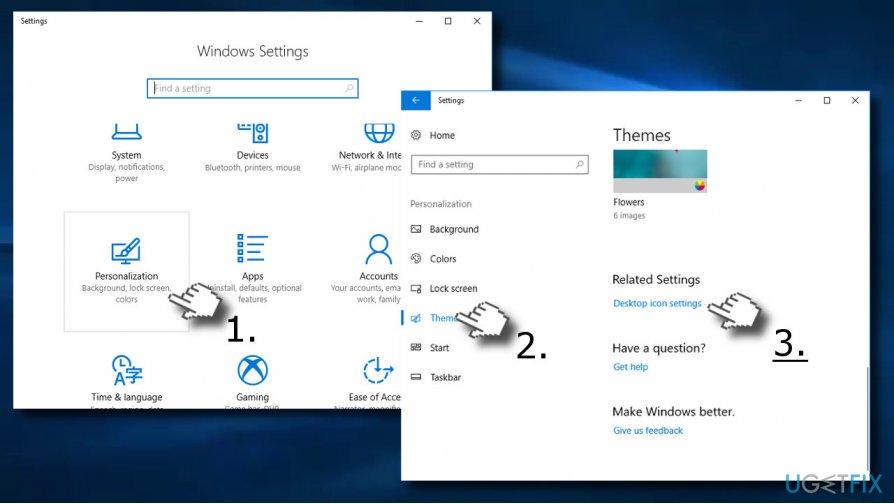
1. Press Windows key to open Settings.
2. Now open Personalization section and click Themes on the left pane.
3. Scroll down until you find the Desktop Icon Settings link. Click it.
4. Click on the Recycle Bin (Full) icon and select Change icon button.
5. Now you can either select the icon from the icons given on the list or click the Browse button.
6. If you have chosen to Browser, navigate to the location where the preferable icon is stored. Select the icon.
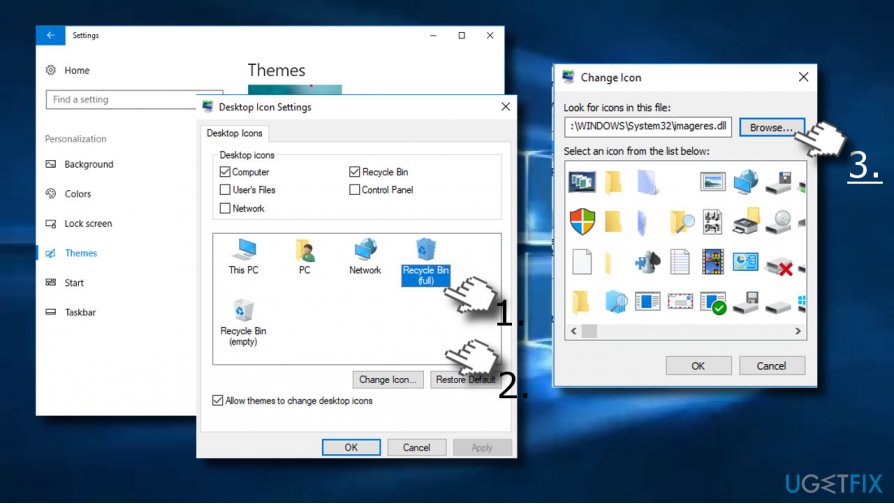
7. Click Open to set the new icon.
8. Then go back to the Settings -> Personalization -> Themes -> Desktop Icon Settings and click on the Recycle Bin (Empty) icon.
9. Click on Change button and follow the steps given on 5 and 6.
10. Finally, click OK and Apply to save the changes.
IMPORTANT: make sure to download an icon file that is in .ico format. Otherwise, it will be rejected. Besides, select a reliable source for downloading icons. Irrelevant websites may be spreading virus infection even under .ico format files. To prevent any damage, keep anti-virus tool up-to-date and make sure to enable real time protection.
Bottom line
To change the Recycle Bin icon on Windows 10, you can access the Desktop Icon Settings through the Personalization section in Settings. From there, you can select a new icon from the list or browse for a custom one. If these steps do not resolve your issue, consider seeking additional support or resources.
Frequently asked questions
Right-click on the desktop, select 'Personalize', then choose 'Themes' and click on 'Desktop icon settings' to find the option to change the Recycle Bin icon.
Yes, you can use custom icons by clicking 'Change Icon' in the Desktop Icon Settings and browsing to your desired icon file.
No, changing the Recycle Bin icon only alters its appearance and does not affect the files or folders stored within it.




Report an issue
What's wrong with this guide? We review every report and update or remove content.
Report received — thank you. We'll review and fix it.
You need a free account to submit a report.
Be the first to comment