How to fix
Discord stuck at gray screen
on Windows
Quickly resolve the Discord gray screen issue on Windows 10 and 11 with effective troubleshooting tips. Expert-tested solutions for seamless chatting.

What causes How to fix Discord stuck at gray screen on Windows?
- Corrupted cache files
- Compatibility conflicts between Discord and the operating system
- Outdated graphics drivers
- Glitches in the app due to updates
Repairs Windows system files, removes malware, and restores a clean OS state — without reinstalling.
Upon starting Discord, it does not load anymore and all I can see is gray screen. I tried restarting it several times, rebooting the PC, but is not helping. What can I do to fix it?
Some individuals find themselves unable to access Discord due to an issue where the application displays only a gray screen upon launch. This problem occurs without any visible user interface components, leaving the application entirely unusable. Restarting the app does not resolve the issue, and it continues to hinder the experience of those affected.
The appearance of a gray screen in Discord can be attributed to several underlying reasons. Corrupted cache files are among the most common culprits, as they can prevent the application from loading its interface properly. Compatibility conflicts between Discord and the operating system might also trigger such display errors, particularly when recent updates alter the app's behavior.
Additionally, outdated graphics drivers can fail to meet the demands of Discord, leading to visual issues such as the persistent gray screen. Lastly, occasional glitches in the app itself, often introduced through updates, may also be responsible for this occurrence.
Addressing the Discord gray screen problem typically involves identifying and mitigating these root causes. Ensuring the app can run without interference, whether by clearing unnecessary files or adjusting compatibility settings, often helps restore normal functionality.
Additionally, reinstalling Discord can eliminate any damaged components, while keeping the operating system and drivers up to date ensures optimal performance. Identifying these contributing factors is key to resolving the issue and restoring access to Discord's features.
If the issue persists, using a reliable PC repair tool, such as [d1], can help resolve underlying Windows-related problems automatically, ensuring smoother application performance.
Fix 1. Clear Discord cache files
The corrupted cache files are some of the main reasons for Discord gray screen, since they interfere with the app loading process. Clearing them out ensures that Discord starts without any conflicts.
- Press Ctrl + Shift + Esc on your keyboard.
- Click More details if necessary.
- Locate Discord under Apps section.
- Right-click the app and select End Task.
- Scroll down and do the same with any other Discord background processes still running.
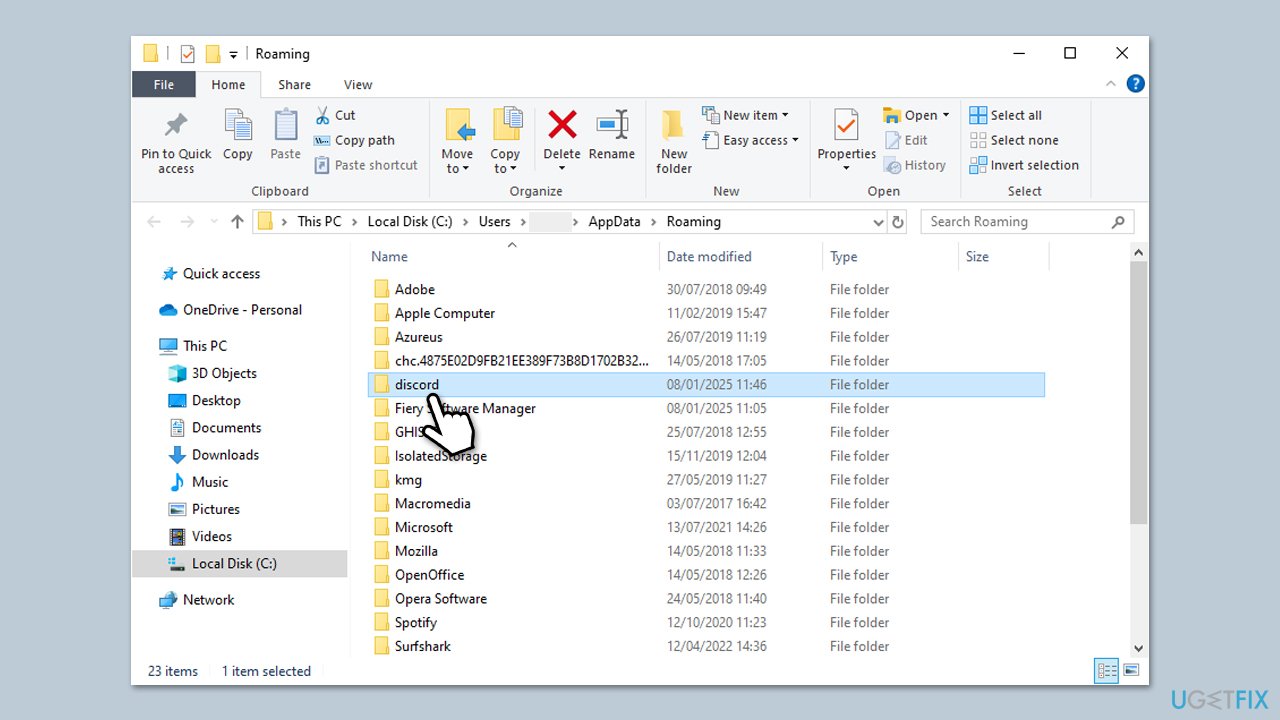
- Type %AppData% in Windows search and press Enter.
- Locate the Discord folder on the list and select it.
- Press Shift + Del on your keyboard and confirm the prompt.
- Restart Discord to check if the issue is resolved.
Fix 2. Run Discord as administrator
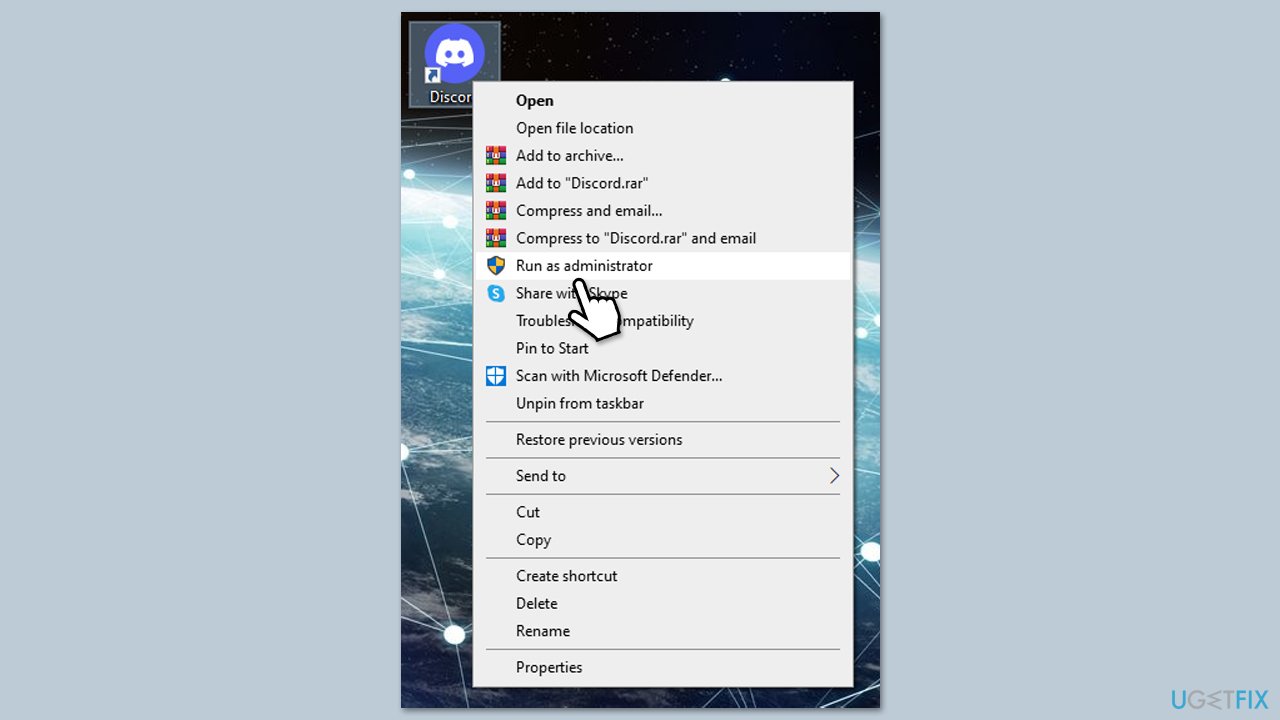
Running Discord as an administrator resolves issues related to lac of permissions to access certain resources.
- Right-click on the Discord shortcut.
- Select Run as administrator from the context menu.
- Confirm any prompts to proceed.
Fix 3. Update graphics drivers
Make sure that your GPU drivers are updated, as UI issues can be related to this hardware component. The easiest way to do this is by using an automatic tool such as [rev id="DriverFix"], although you can do it manually yourself:
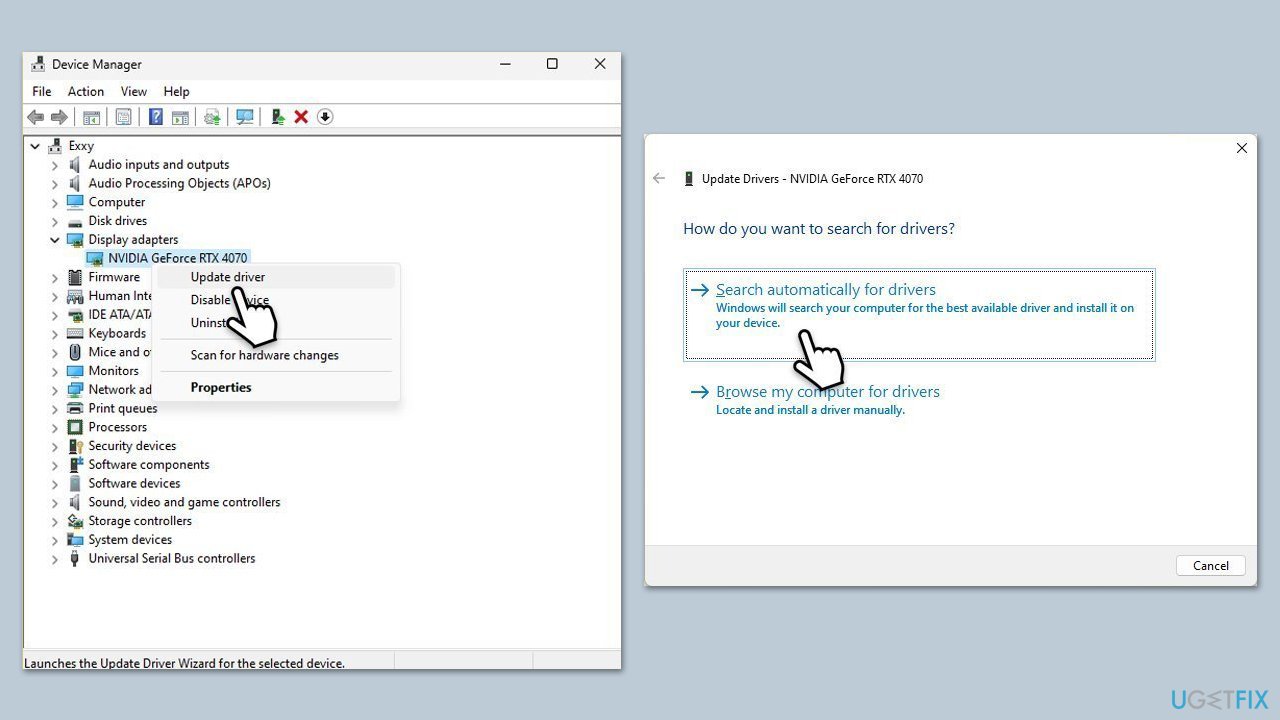
- Right-click on Start and pick Device Manager.
- Expand Display Adapters section.
- Right-click on your GPU and select Update driver.
- Select Search automatically for drivers.
- Restart your computer to implement the changes.
Fix 4. Check for Windows updates
Missing Windows updates can result in compatibility issues with applications, including Discord.
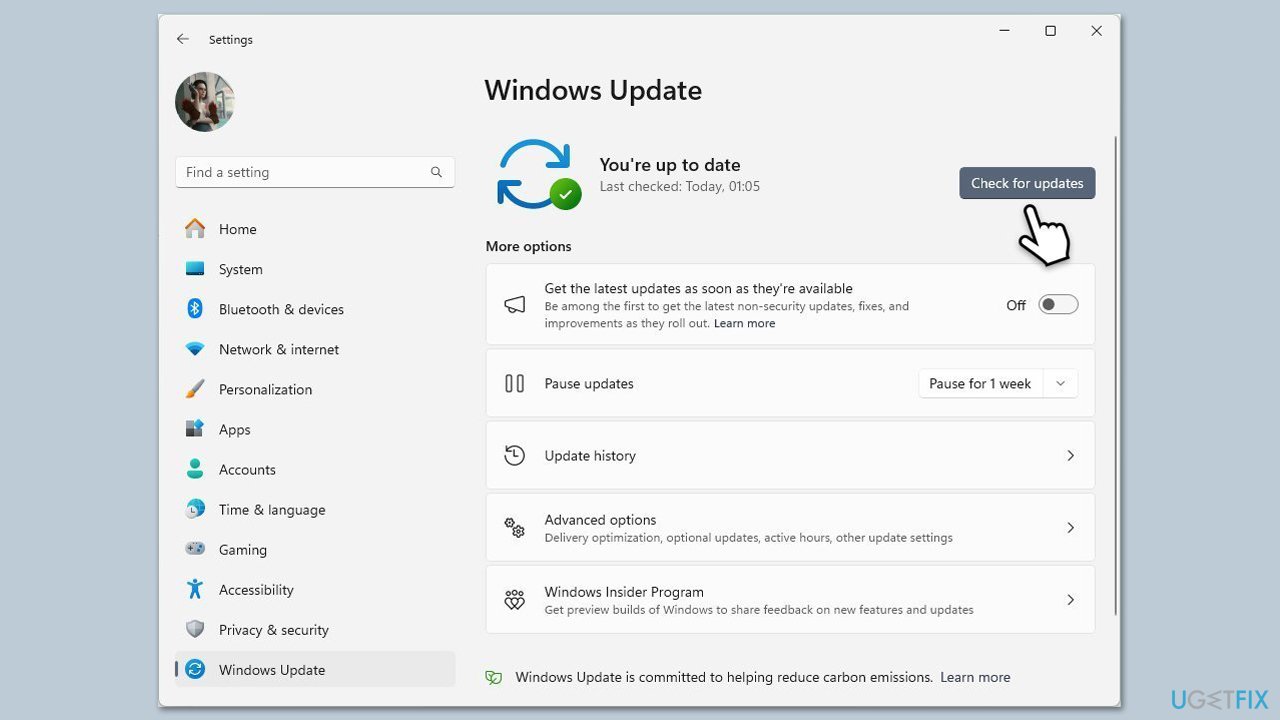
- Type Updates in Windows search and press Enter.
- Here, click Check for updates or Install updates, depending on which one is available.
- Wait till Windows downloads and installs all the necessary files.
- If optional updates are available, install them too.
- Restart your system.
Fix 5. Reinstall Discord
Reinstalling Discord ensures a clean installation, removing corrupted files or configurations that might cause the gray screen issue.
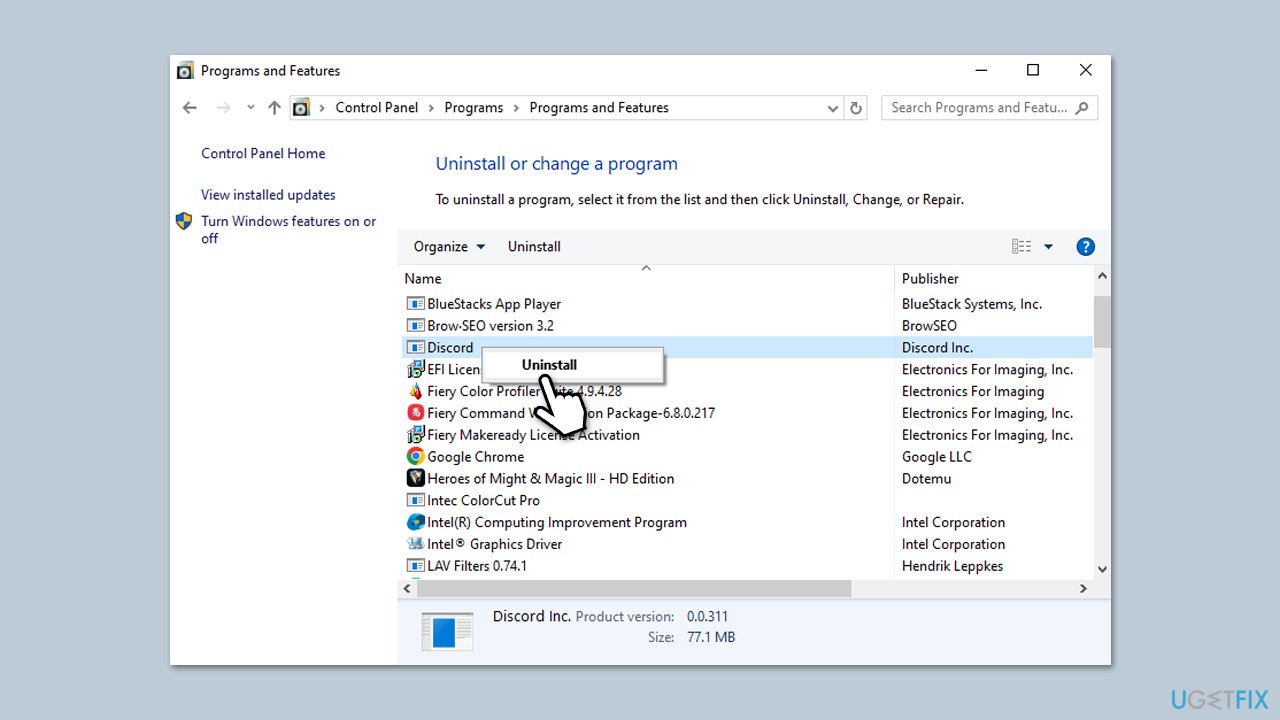
- Right-click on Start and pick Apps and Features/Installed apps.
- Scroll down to find Discord.
- Click Uninstall and follow up with Uninstall again to confirm it.
- Follow on-screen instructions to remove the app.
- Download it from the official website and install it anew.
- Install Discord and log in to your account.
Fix 6. Run Discord in compatibility mode
Running Discord in compatibility mode can resolve conflicts with the operating system, especially after recent updates.
- Right-click the Discord shortcut and choose Properties.
- Go to the Compatibility tab.
- Check Run this program in compatibility mode for and select an earlier version of Windows.
- Click Apply and then OK.
- Try running Discord again.
Fix 7. Reset network settings
Network misconfigurations can prevent Discord from loading properly. Resetting these settings can resolve connectivity-related issues.
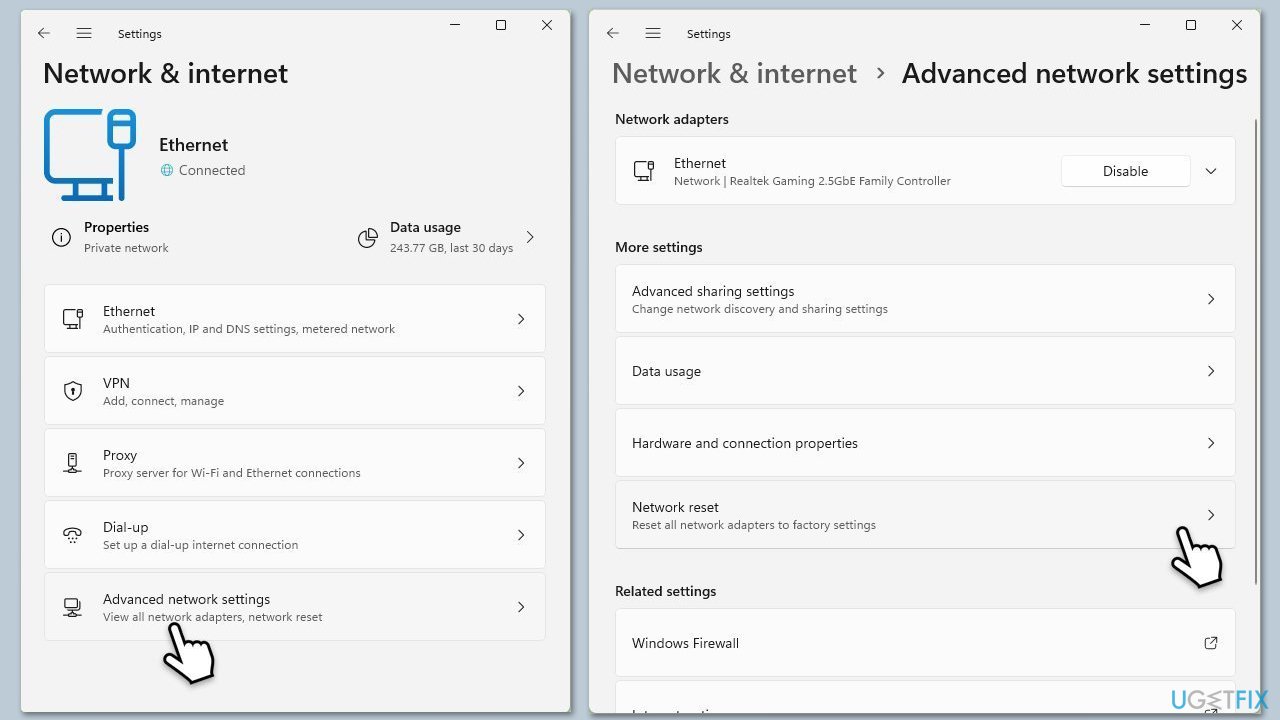
- Right-click on Start and pick Settings.
- Go to Network & Internet.
- Under Advanced network settings, click Network reset.
- Click Reset Now.
- Confirm the action and then restart your system.
Fix 8. Disable VPN or proxy settings
VPNs or proxy settings can interfere with Discord's ability to connect to its servers, leading to display issues. Disabling them may help resolve the problem.
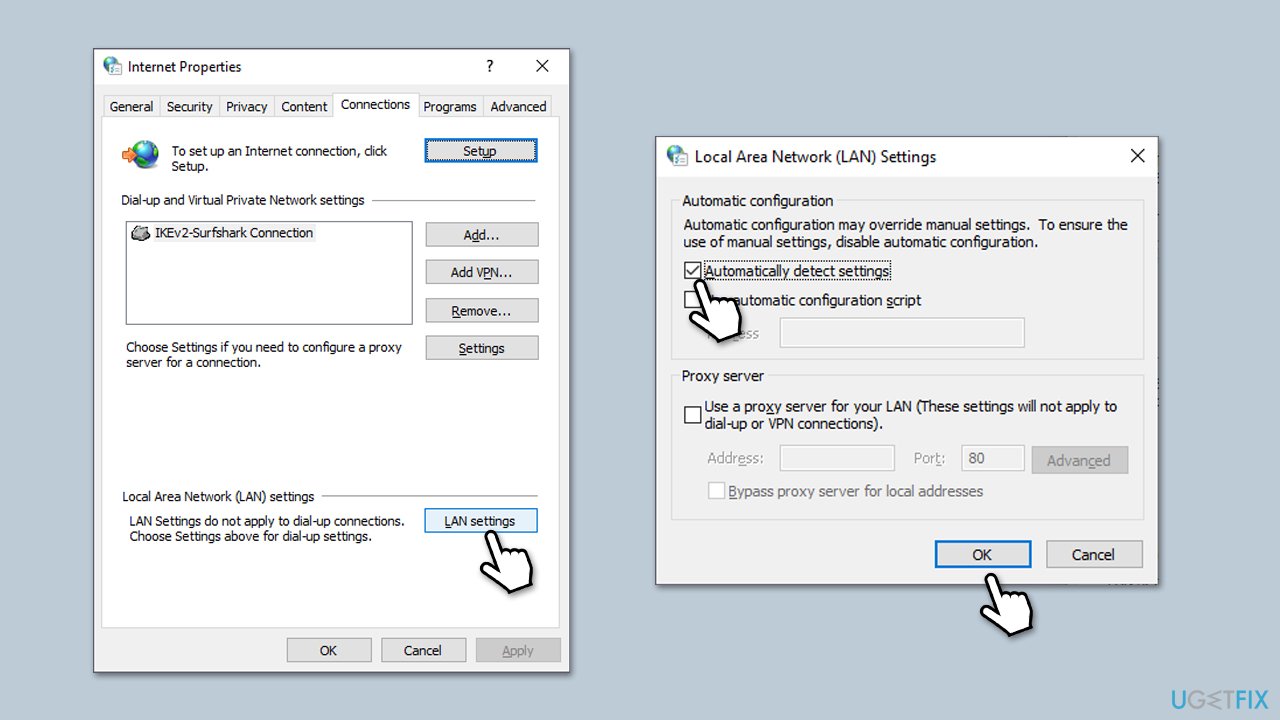
- Type inetcpl.cpl in Windows search and press Enter.
- Go to the Connections tab and click on LAN settings.
- Make sure that Automatically detect setting is checked and Use a proxy server for your LAN is unchecked.
Bottom line
To fix the Discord gray screen issue, you can clear the cache files, adjust compatibility settings, or reinstall Discord. Keeping your operating system and drivers up to date is also essential. If the problem persists, consider using a reliable PC repair tool to address underlying Windows-related issues.
Frequently asked questions
Try clearing the Discord cache by navigating to the AppData folder and deleting the 'Discord' folder. Then, restart Discord to see if the issue is resolved.
Ensure that your graphics drivers are up to date, as outdated drivers can cause display issues; you can update them via Device Manager. Additionally, try running Discord as an administrator to see if that resolves the problem.
Yes, you can try disabling hardware acceleration in Discord's settings if you can access them; this is often helpful in resolving display-related issues.




Report an issue
What's wrong with this guide? We review every report and update or remove content.
Report received — thank you. We'll review and fix it.
You need a free account to submit a report.
Be the first to comment