How to fix
Outlook error code 3399811147
on Windows
Resolve Outlook error code 3399811147 on Windows 10 or 11 quickly and efficiently. Fix this issue with expert-tested solutions and regain access today!


What causes How to fix Outlook error code 3399811147 in Windows?
- Corrupted cached credentials
- Expired cached credentials
- Conflicts from using the same account on multiple devices
- Issues with the Web Account Manager (WAM)
- Corrupt Outlook data files
- Incompatible add-ins
Repairs Windows system files, removes malware, and restores a clean OS state — without reinstalling.
I can't use my Outlook account because of error code 3399811147. I am using it for my work. Any advice?
Facing Outlook error code 3399811147 in Windows can be annoying, as it tends to interfere with email accessibility and productivity. The error generally appears with a message, "Something went wrong. [1001]" or "Error Tag: 7ita9," and users look for proper remedies.
Users have indicated that they have experienced error code 3399811147 in a range of situations, from returning to the office after working remotely to trying to sign into Outlook after being away for a weekend. In some cases, the error is accompanied by messages indicating that cached credentials have expired, thus preventing changes from being uploaded or downloaded. This problem can happen on laptops and desktops alike, and although access to the online version of Outlook is not affected, the desktop client does not work correctly.
The primary reasons for error code 3399811147 are corrupted or expired cached credentials, conflicts resulting from using the same account on multiple devices, and issues with the Web Account Manager (WAM) component of Windows. This error can also be brought about by corrupt Outlook data files or incompatible add-ins.
To repair error code 3399811147, several potential solutions may be attempted. These include repairing the Web Account Manager, setting up a new Outlook user profile, removing and reinstalling work or school accounts, and operating Outlook in safe mode to identify problematic add-ins. Each of these approaches is designed to rectify problems that may be causing the error.
For users who seek a comprehensive solution to such problems, the [d1] repair tool can prove particularly useful. The tool is designed to resolve a broad spectrum of system-related problems, such as corrupted system files, registry breaches, and other internal issues that can cause errors like 3399811147. Utilizing such a tool can simplify troubleshooting and more effectively restore Outlook functionality.

Fix 1. Update Outlook
Running outdated software can lead to compatibility issues, including error 3399811147. Keeping both Outlook and Windows updated ensures access to the latest fixes.
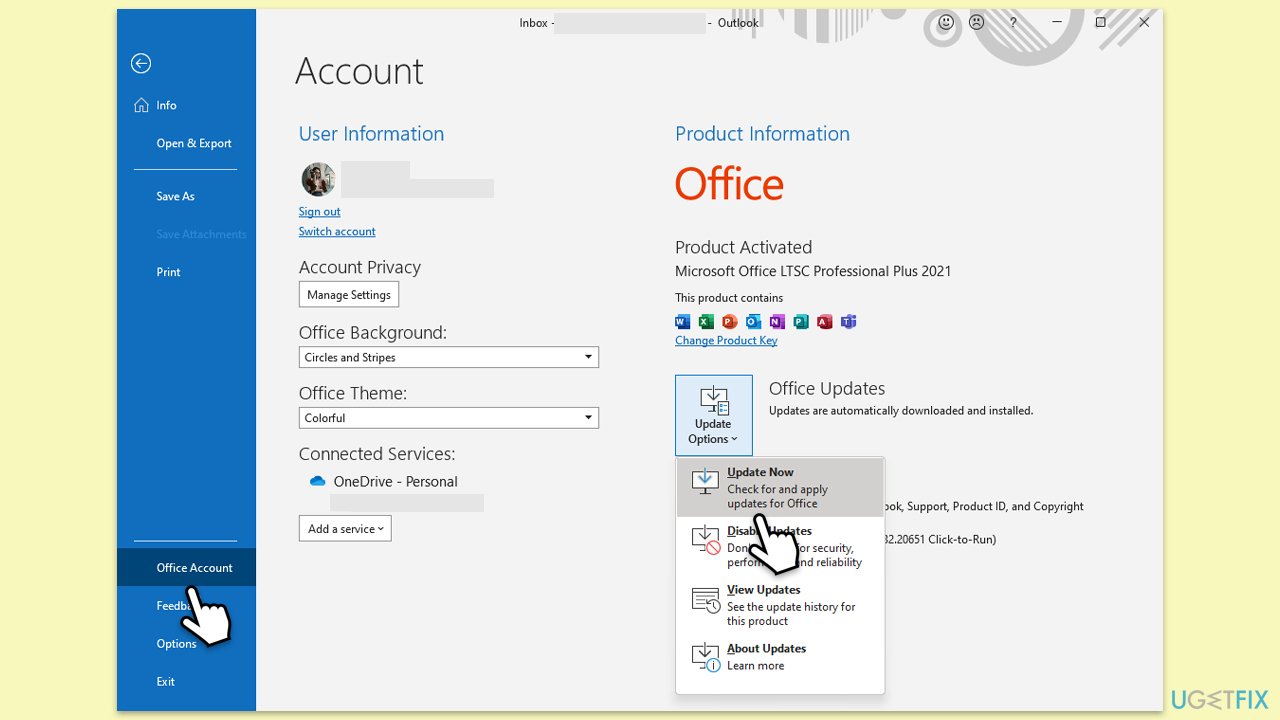
- Open Outlook and click on the File menu.
- Choose Office Account or Account (the option may vary depending on your version of Outlook).
- Under the Product Information section, you will find an Update Options button. Click it and select Update Now.
- Outlook will check for and install any available updates.
- Once the update is complete, restart Outlook to ensure the changes take effect.
Fix 2. Update Windows
- Open Outlook and click on the File menu.
- Choose Office Account or Account (the option may vary depending on your version of Outlook).
- Under the Product Information section, you will find an Update Options button. Click it and select Update Now.
- Outlook will check for and install any available updates.
- Once the update is complete, restart Outlook to ensure the changes take effect.

Fix 3. Clear Outlook cached credentials
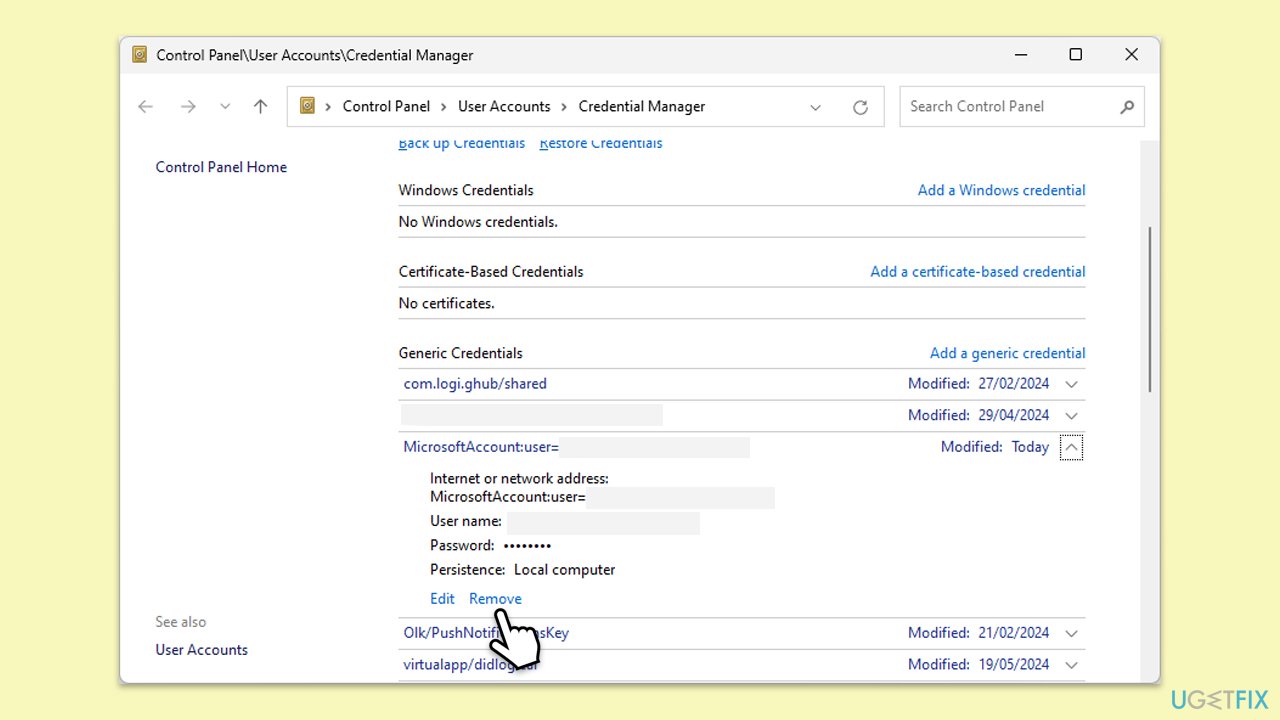
- Type Credential Manager in Windows search and press Enter.
- Select Windows Credentials.
- Locate and remove any stored credentials related to Microsoft Outlook or Office 365.
- Restart your computer.
- Try to log in again.
Fix 4. Restart the Web Account Manager (WAM)
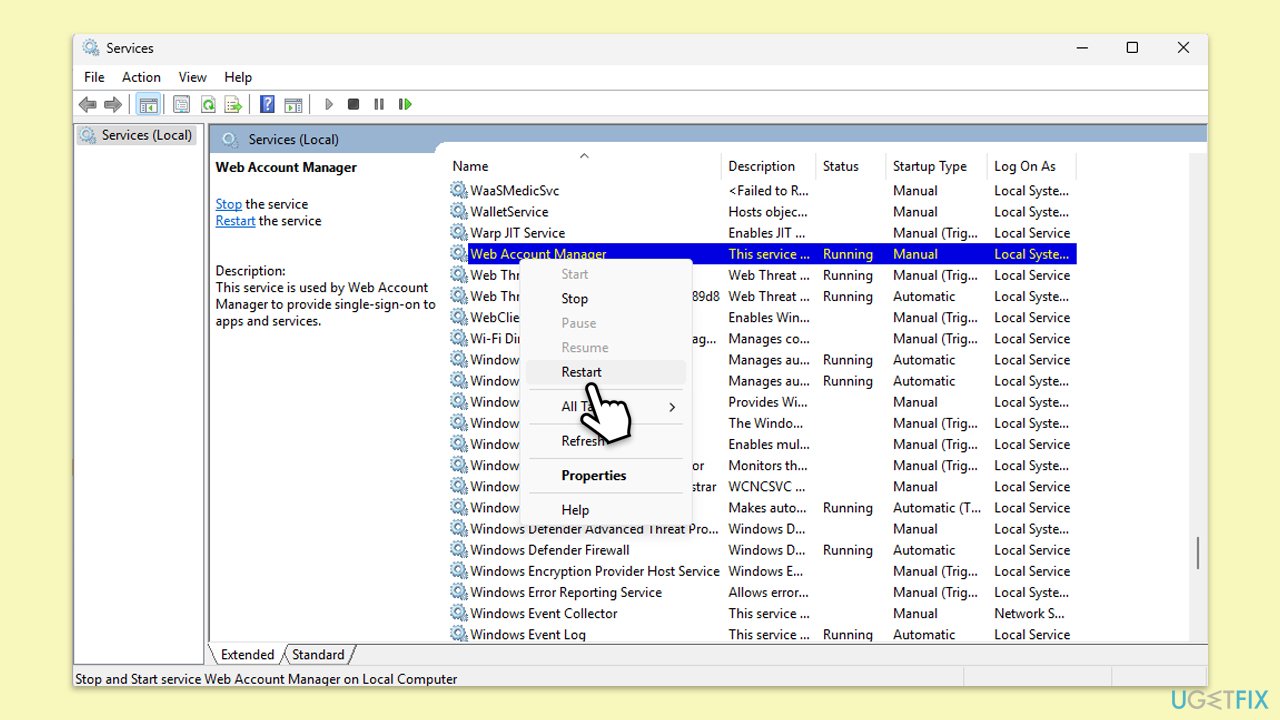
The Web Account Manager (WAM) handles sign-ins for apps like Outlook. If it is misconfigured or corrupted, Outlook may struggle to verify your account, leading to error 3399811147.
- Type Services in Windows search and press Enter.
- Find Web Account Manager in the list.
- Right-click it and select Restart.
- Close the Services window and reopen Outlook.
Fix 5. Create a new Outlook profile
- Open Control Panel.
- Select Small icons view.
- Click Mail (Microsoft Outlook).
- Click on Show Profiles.
- Select Add and create a new profile.
- Set the new profile as the default.
- Restart Outlook and sign in with the new profile.

Fix 6. Disable problematic Add-ins
Add-ins can interfere with Outlook’s functionality, leading to errors like 3399811147. Disabling them ensures that Outlook runs without conflicts.
- Press Win + R to open the Run dialog.
- Type in outlook /safe and press Enter.
- If the problem does not exist in this environment, the problem is related to the add-in.
- Next, go to File > Options.
- Go to the Add-ins section.
- At the bottom, on the right side, select COM Add-ins from the drop-down menu and pick Go.
- Here, untick all the add-ins but one, and click OK.
- Check if the error went away. If not, try it with the next add-in until you find the culprit.

Fix 7. Remove and re-add work or school account
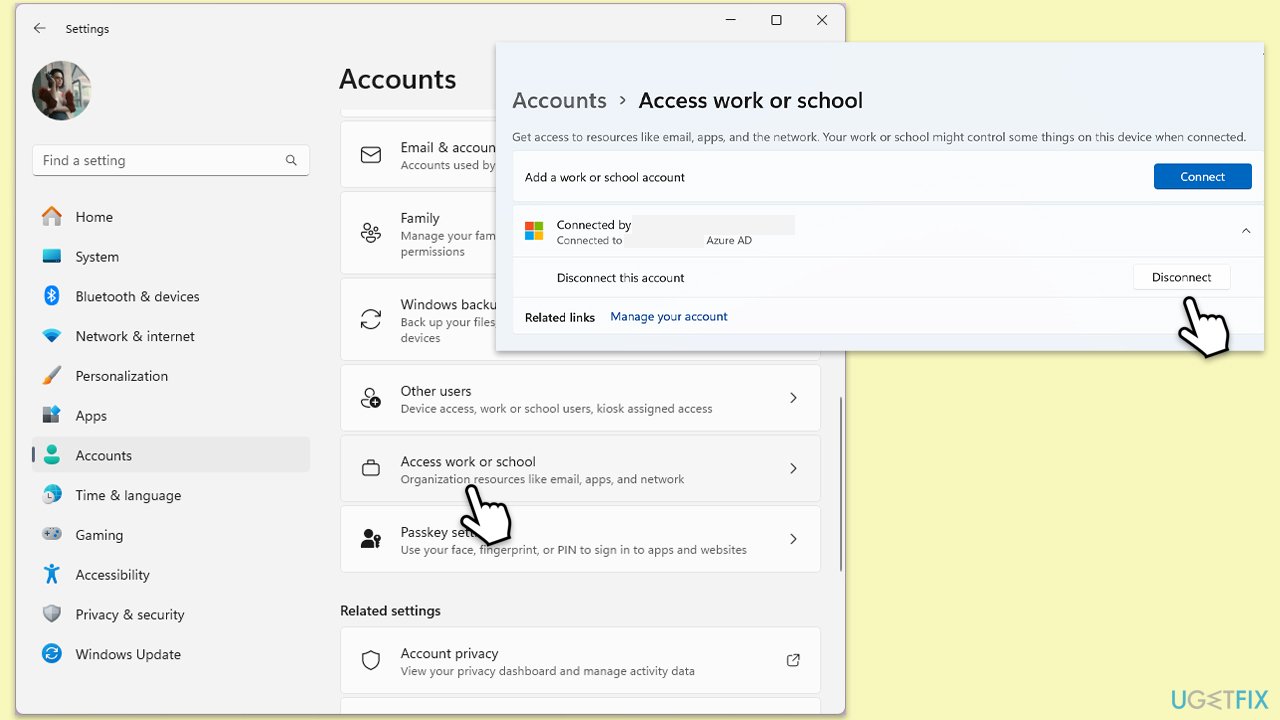
- Right-click on Start and pick Settings.
- Click on Accounts.
- Select Access work or school.
- Click on your connected account and select Disconnect.
- Restart your PC.
- After restarting, go back to Access work or school and select Connect to re-add your account.
- Follow the prompts to complete the process.
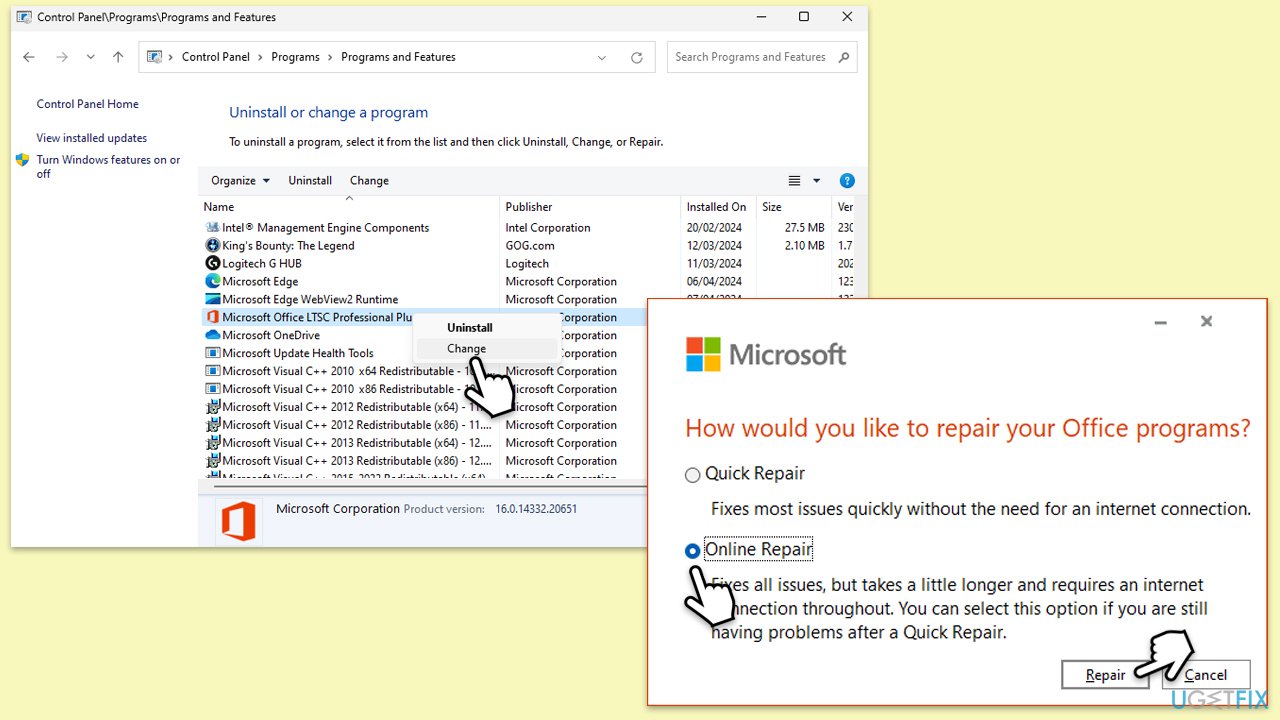
Fix 8. Repair Office installation
Corrupted Office files can affect Outlook’s performance and cause error. Repairing the Office installation helps fix these underlying issues.
- Open the Control Panel again.
- Select Programs > Programs and Features.
- Select Microsoft Office and click on Change.
- Choose the option for Online Repair and click Repair.
- Follow the prompts to finish the process.
Bottom line
To fix error code 3399811147, you can update Outlook, repair the Web Account Manager, set up a new Outlook user profile, remove and reinstall work or school accounts, and operate Outlook in safe mode to identify problematic add-ins. If none of these solutions work, consider using a repair tool designed to resolve system-related problems.
Frequently asked questions
This error typically indicates that there is a problem with the Outlook installation or a missing/corrupted file. It can prevent you from accessing your emails and other Outlook features.
You can repair Outlook by going to Control Panel, selecting 'Programs and Features', finding Microsoft Office, and choosing the 'Change' option to initiate a repair. This process should resolve any corrupted files causing the error.
Yes, ensure that your Windows 11 is up to date by checking for updates in the Settings app under 'Windows Update', as missing updates can sometimes lead to Outlook errors.




Report an issue
What's wrong with this guide? We review every report and update or remove content.
Report received — thank you. We'll review and fix it.
You need a free account to submit a report.
Be the first to comment