How to fix
“Gameplatformservices.dll is either not designed to run
on Windows
Resolve the "Gameplatformservices.dll is either not designed to run on Windows or it contains an error" issue on Windows 10/11 quickly and easily. Exper…


What causes How to fix “Gameplatformservices.dll is either not designed to run on Windows or it contains an error” in Windows?
- Windows update affecting system files
- Corrupted DLL from a faulty Xbox app setup
- Antivirus software blocking the DLL
- Missing Gameplatformservices.dll file
- Mismatch between DLL and Windows version
Repairs Windows system files, removes malware, and restores a clean OS state — without reinstalling.
Hi there. I was trying to launch Minecraft through Xbox app and I got an error "XboxPcAppFT.exe Bad Image – C:\Windows\SYSTEM32\gameplatformservices.dll is either not designed to run on Windows or it contains an error." What does this mean and is there anything I can do to fix it?
Dynamic Link Libraries, or DLLs, are vital parts of your Windows system. They’re small sets of code that programs share to carry out tasks - like handling graphics or managing sound. When you start an app, Windows pulls the needed DLLs from its collection to keep things running smoothly, saving space and supporting your software efficiently.
But sometimes, these DLLs run into trouble. A file might get damaged, go missing, or not match your Windows version, leading to error messages. You could see apps fail to open, random alerts appear, or other disruptions occur.
One such issue is the "Gameplatformservices.dll is either not designed to run on Windows or it contains an error" error. It normally appears when you start your computer or try to use something that is related to Xbox services. The error appears in a dialog box named XboxPcAppFT.exe - Bad Image, typically followed by a number such as 0xc0e90002, and it might freeze your screen or keep appearing until you close it. It's an unpleasant surprise for most - particularly if Xbox isn't something they find themselves using every day.
So, what’s Gameplatformservices.dll? It’s a DLL connected to the Xbox app and Gaming Services on Windows, supporting features like game streaming or social tools. Even if you don’t play Xbox games, it might still be there due to Microsoft’s pre-installed software. When it fails, you’ll notice "Gameplatformservices.dll is either not designed to run on Windows or it contains an error" on your screen.
What causes this? It might be a Windows update affecting system files, a corrupted DLL from a faulty Xbox app setup, or antivirus software blocking it. Possible fixes include reinstalling the Xbox app, scanning for system file problems, or reversing recent updates. If the Gameplatformservices.dll is either not designed to run on Windows or it contains an error issue lingers due to deeper system faults, a repair tool like [d1] could address underlying Windows problems, bringing your PC back to normal.

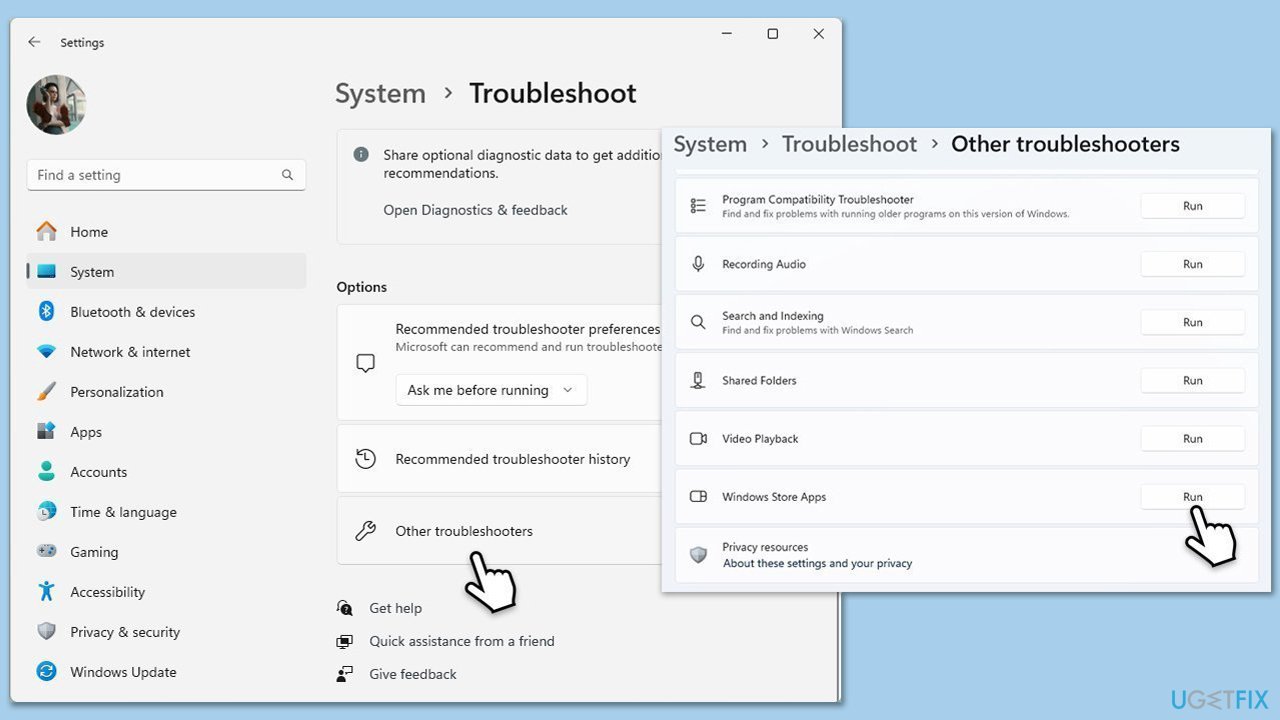
Fix 1. Run Windows Store apps troubleshooter
Begin with the easiest method - the built-in troubleshooter, which is by far the easiest fix to implement.
- Type Troubleshoot in Windows search and hit Enter.
- Click Additional troubleshooters/Other troubleshooters.
- Scroll down to find Windows store apps and select it.
- Click Run the troubleshooter/Run.
- Wait till the process is finished and apply the fixes.
Fix 2. Update Windows
Make sure all the most recent Windows updates are installed.
- Type Updates in Windows search and press Enter.
- When the new window opens, click Check for updates and wait.
- If there are optional updates available, install them as well.
- Restart your computer to implement the changes.

Fix 3. Repair system file corruption
- Type cmd in Windows search box.
- Right-click on Command Prompt and select Run as administrator.
- The User Account Control window will ask whether you allow changes - click Yes.
- Copy and paste the following command, pressing Enter after:
sfc /scannow - Wait till the scan is finished. If Windows finds system file integrity violations, it will attempt to fix them. After this, use the set of the following commands, pressing Enter each time:
DISM /Online /Cleanup-Image /CheckHealth
DISM /Online /Cleanup-Image /ScanHealth
DISM /Online /Cleanup-Image /RestoreHealth - (Note: if you get an error executing this last command, add /Source:C:\RepairSource\Windows /LimitAccess to it and try again).
- Close down the Command Prompt and restart your system.

Fix 4. Repair or reset Xbox app
You can use the built-in repair or reset feature to check if that helps with making the app work fine again.
- Right-click on Start and pick Apps & Features/Installed apps.
- Scroll down to locate the Xbox app and click Advanced options.
- Click Terminate and Repair.
- If that does not help, try the Reset option instead.
- If needed, repeat the same with the Microsoft Store and Gaming Services.

Fix 5. Reinstall Xbox app and Gaming Services
Xbox app
- Right-click on Start and pick Apps & Features/Installed apps.
- Scroll down to the Xbox app, select it (or click three vertical dots), and click Uninstall.
- Confirm any prompts and follow on-screen instructions.
- Restart your PC.
- Reinstall the app from the Microsoft Store.
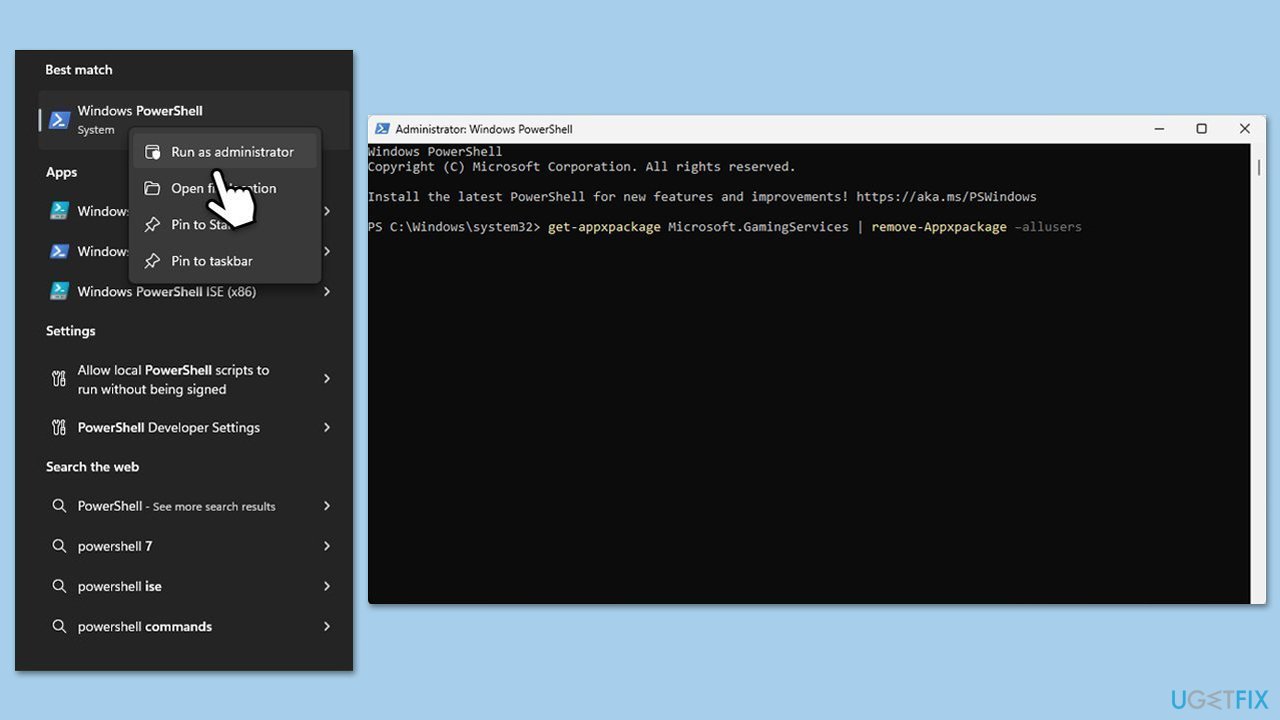
Gaming Services
- Type PowerShell in Windows search, right-click, and select Run as administrator.
- When UAC shows up, click Yes.
- In the new window, copy and paste the following commands and hit Enter:
get-appxpackage Microsoft.GamingServices | remove-Appxpackage –allusers
Remove-Item -Path "HKLM:\System\CurrentControlSet\Services\GamingServices" -recurse
Remove-Item -Path "HKLM:\System\CurrentControlSet\Services\GamingServicesNet" -recurse - Close down PowerShell and restart your system.
- Next, install Gaming Services from the Microsoft Store.
Fix 6. Try Clean Boot
Clean Boot can help you determine whether third-party software is causing these issues.
- Type msconfig in Windows search and press Enter.
- Pick the Services tab.
- Mark Hide all Microsoft services and select Disable all.
- Select the Startup tab and click Open Task Manager.
- In the Task Manager, right-click on each of the items and select Disable, then close the Task Manager.
- Go to the Boot tab, mark the Safe Boot option, then click Apply and OK.
- Restart your PC.
- To find out which app(s) is causing conflicts, enable each of the processes (or you can do it in groups), restart, and see if the problem persists. Repeat until you find the faulty app, then either update or uninstall it.

Fix 7. Perform in-place upgrade
Some users said that repairing Windows installation helped them to fix Gameplatformservices.dll error.
- Visit the official Microsoft website and download Windows 10 installation media. (Windows 11 version).
- Double-click the installer and select Yes when UAC shows up.
- Agree to terms.
- Select Upgrade this PC now and select Next.
- Windows will now download all the necessary files – it might take a while.
- Agree to the terms once again and click Next.
- Before installing, ensure you are happy with your choices (otherwise, you can click the Change what to keep option).
- Click Install to begin the upgrade process.

Bottom line
To fix the error, you can try reinstalling the Xbox app, scanning for system file problems, or reversing recent updates. If these solutions do not resolve the issue, further troubleshooting may be necessary.
Frequently asked questions
First, try reinstalling the application that is causing the error, as this can often replace the corrupted DLL file. If that doesn't work, consider running the System File Checker tool to repair any corrupted system files.
Yes, keeping Windows 11 up to date can provide fixes for known issues and may include updates for the DLL or related components that resolve the error.
You can try registering the DLL file manually by using the Command Prompt; simply open it as an administrator and type 'regsvr32 Gameplatformservices.dll'.




Report an issue
What's wrong with this guide? We review every report and update or remove content.
Report received — thank you. We'll review and fix it.
You need a free account to submit a report.
Be the first to comment