How to fix
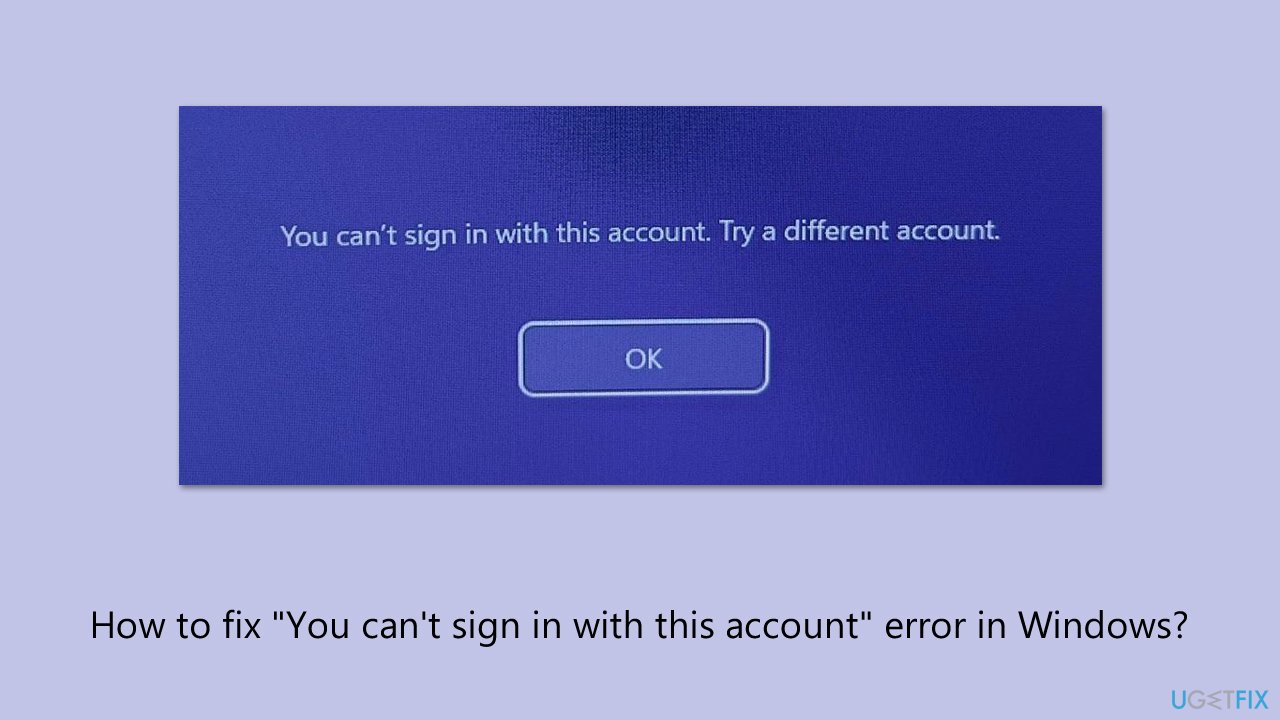
“You can’t sign in with this account” error
on Windows
Resolve the "You can't sign in with this account" error on Windows 10 and 11 effortlessly. Get back to work quickly with expert-tested solutions.


What causes How to fix “You can’t sign in with this account” error in Windows?
- Buggy user profile due to failed update
- Improper shutdown
- Disk problems
- Connectivity issues preventing authentication
- Wrong account settings
- Locked Microsoft account
Repairs Windows system files, removes malware, and restores a clean OS state — without reinstalling.
So yesterday there was a Windows update pending, so I let it install before shutting down the PC. Today, to my surprise, I can no longer access Windows because it wouldn't let me. There's a blue screen with the message, "You can’t sign in with this account. Try a different account." What should I do?
Logging into Windows 10 or 11 with a Microsoft account enables setting synchronization, cloud-based functionality like OneDrive, and remote management of one's devices through an associated profile, enabling the user experience to bind together applications, settings, and data between devices. It is based on a strong authentication framework to authenticate credentials and enable access. But such errors as "You can't sign in with this account. Try a different account" can disrupt this, preventing users from accessing their system.
"You can't sign in with this account" error typically appears on the Windows login screen when you've entered your Microsoft account credentials, displaying You can't sign in with this account. Try a different account, keeping users from proceeding.
It has been felt by users of various technology forums, with most of them pointing to it following a Windows update, for instance, the 24H2 feature update, or while changing accounts, with some of them being redirected to a temporary account without their personalized settings and files.
The glitch is usually precipitated by a buggy user profile that can be the result of a failed update, improper shutdown, or disk problems. Connectivity issues that keep Windows from authenticating your account on Microsoft servers, wrong account settings, or a locked Microsoft account are other potential causes. In some cases, the recent Windows updates can have introduced compatibility issues that affect the sign-in function.
There are some troubleshooting steps which fix the "You can't sign in with this account" problem, ranging from resetting your PIN, creating a new local account, to uninstalling troublemaking updates. The below describes eight of them that you may follow to restore access to your Windows account. For instant fix, we recommend you to employ [d1], a PC tune-up program which can repair profile issues, registry issues, and other Windows problems that could be causing login issues.
Fix 1. Restart your computer
A temporary glitch in the sign-in process can cause this error, and a simple restart can often resolve it by resetting the authentication system.
- Press Ctrl + Alt + Delete on the login screen.
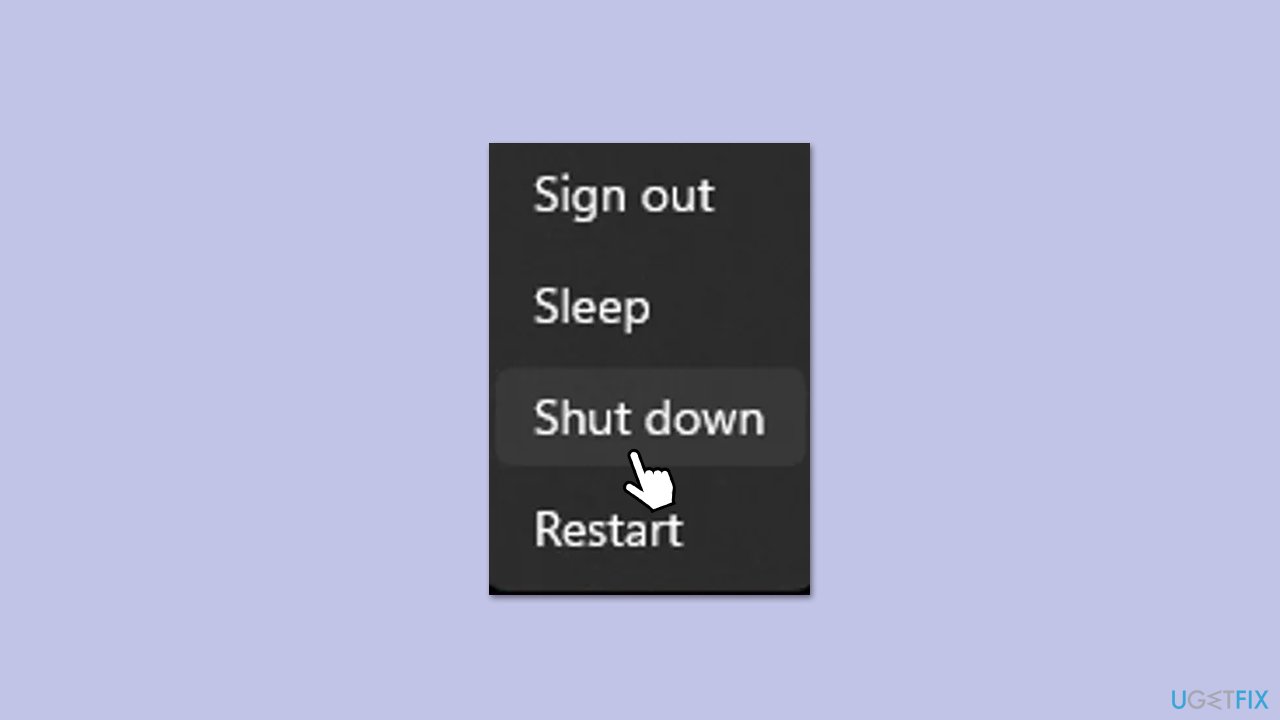
- Click the power icon in the bottom-right corner and select Restart/Shut down.
- Wait for your computer to reboot fully.
- Attempt to sign in with your Microsoft account again.
- If the error persists, proceed to the next fix.
Fix 2. Reset your PIN
A corrupted PIN can prevent sign-in with your Microsoft account, especially after updates like 24H2, and resetting it can help you regain access.
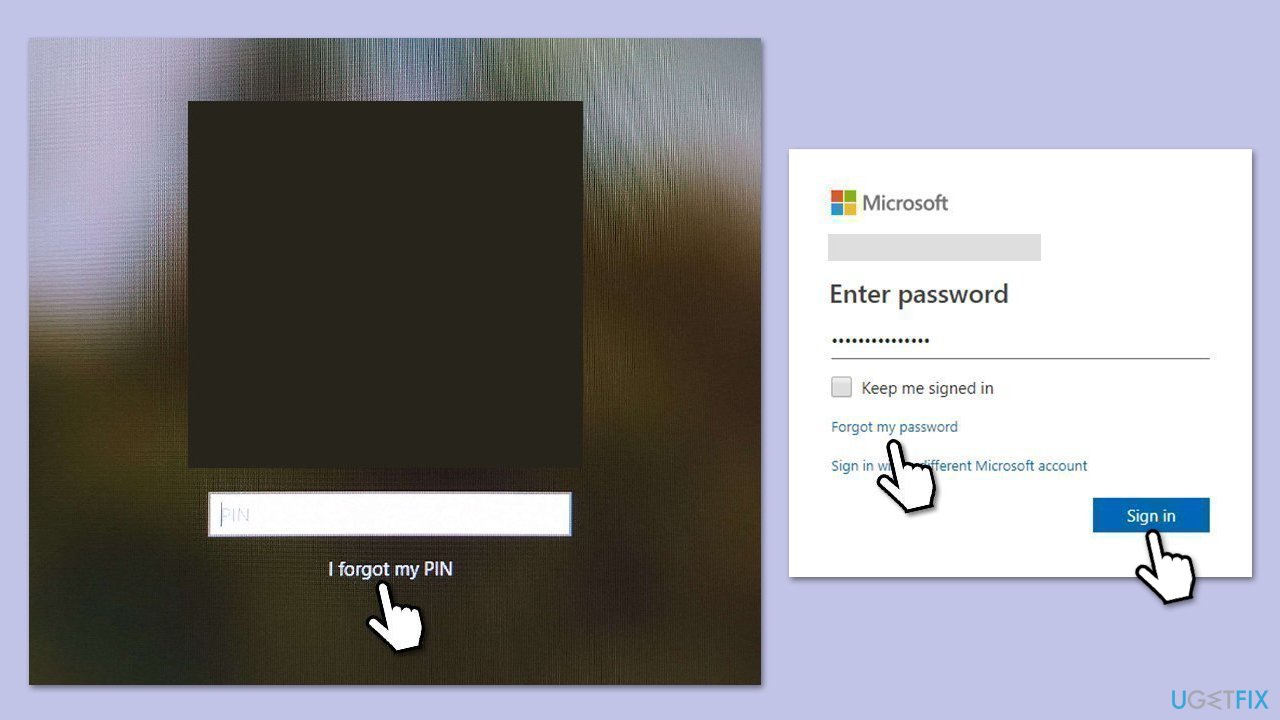
- From the login screen, click on I forgot my password/PIN.
- In a few moments, Windows will show you the login screen.
- Here, enter the password for your Microsoft account and click Sign in.
- If you can't remember your Microsoft password, you should click Forgot password?
- In the verification method screen, pick your email and click Next.
- Enter the verification code sent to your email and click Next.
- Create a new password and log back in.
Fix 3. Sign in with a local account
If your Microsoft account profile is corrupted, signing in with a local account can allow you to access your system and troubleshoot further.
- On the login screen, select a local account if available, or create one.
- If none exists, boot into Safe Mode as follows:
- Restart your computer.
- Once Windows starts booting, press the Power button, interrupting the loading process - do this two more times.
- After that, Windows will automatically enter Advanced Startup mode.
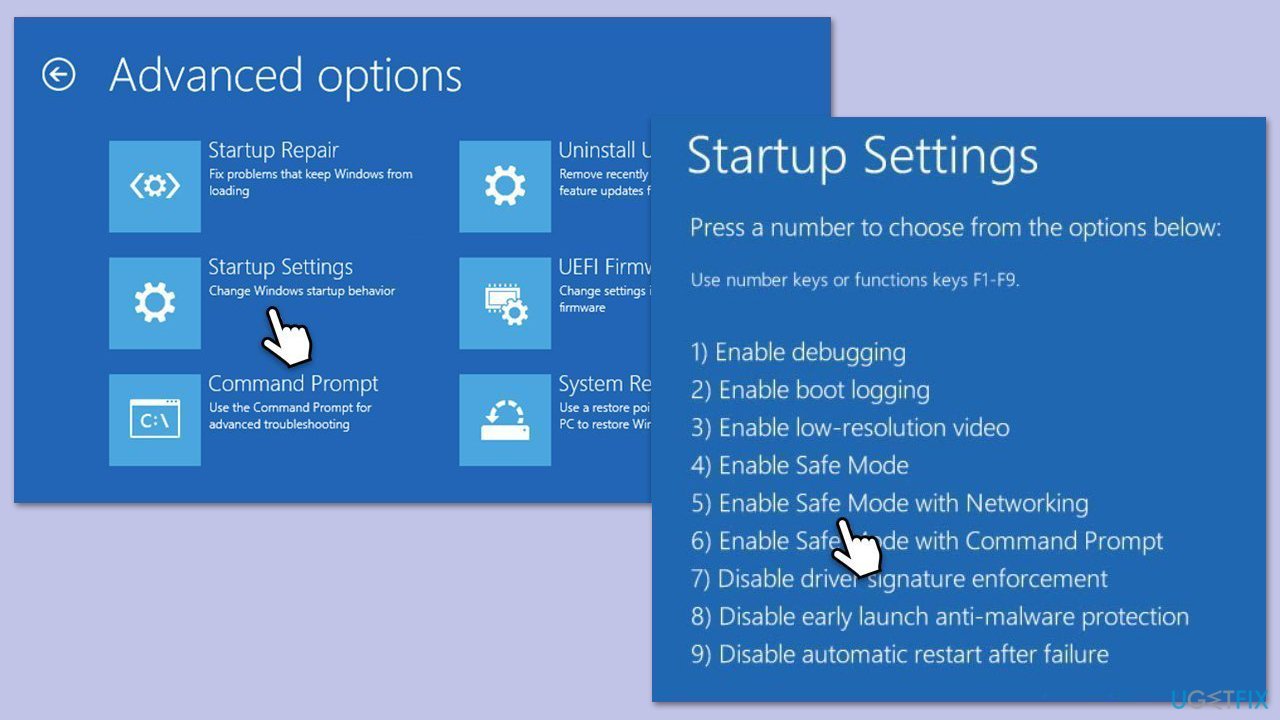
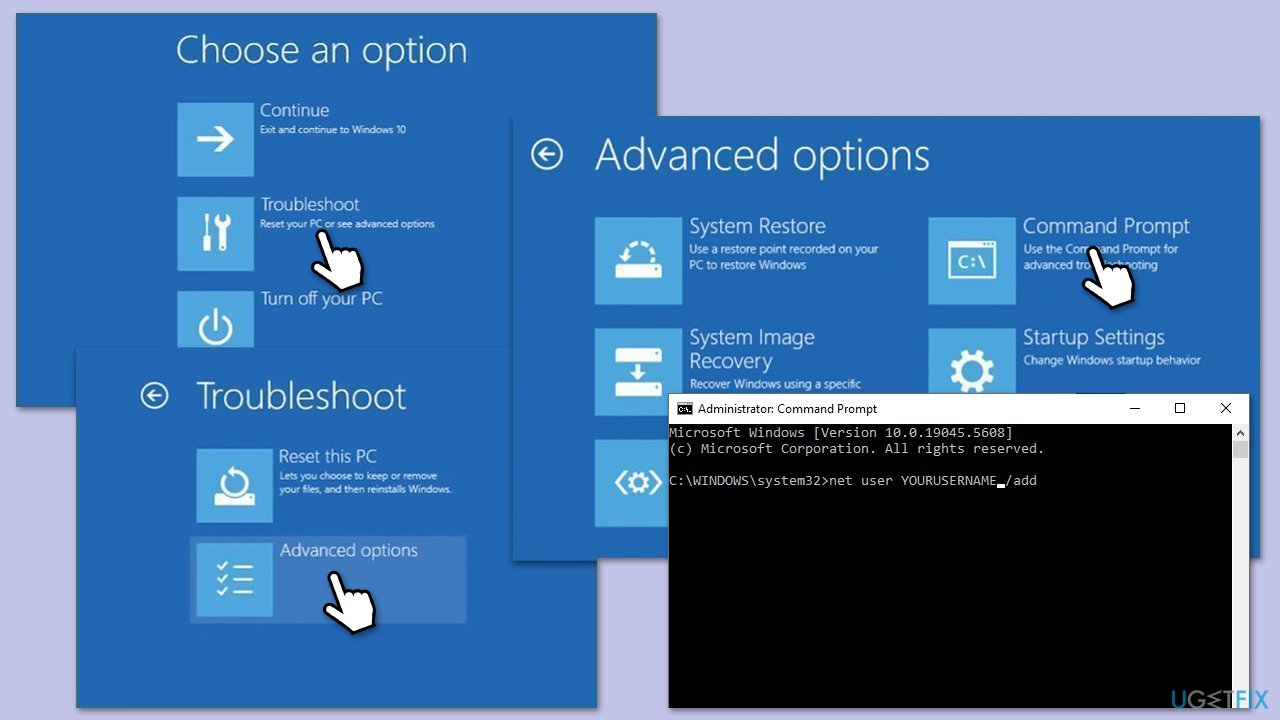
- Select Troubleshoot > Advanced options > Startup Settings and Restart.
- After a reboot, pick either 4/F4 for Safe Mode or 5/F5 for Safe Mode with Networking.
- In Safe Mode, go to Settings > Accounts > Your info.
- Click Sign in with a local account instead and follow the prompts to create one.
- Sign in with the local account and attempt to add your Microsoft account later.
Fix 4. Create a new local administrator account via Command Prompt
A corrupted user profile can cause this error, and creating a new local administrator account via Command Prompt ensures you have access to the system for further troubleshooting.
- Boot into Safe Mode as explained in fix 3.
- Right-click the Start button and select Command Prompt (Admin) or Terminal (Admin).
- Type in the following command and press Enter:
net user user1 /add (replace user1 with your desired username). - Type in the following command and press Enter:
net localgroup administrators user1 /add - Restart your computer and sign in with the new account.
Fix 5. Create a completely new user profile
If other methods fail, creating a completely new user profile can bypass the corrupted profile issue, though it’s not ideal as you’ll need to set up your settings again.
- Sign in with a new local administrator account (see Fix 5).
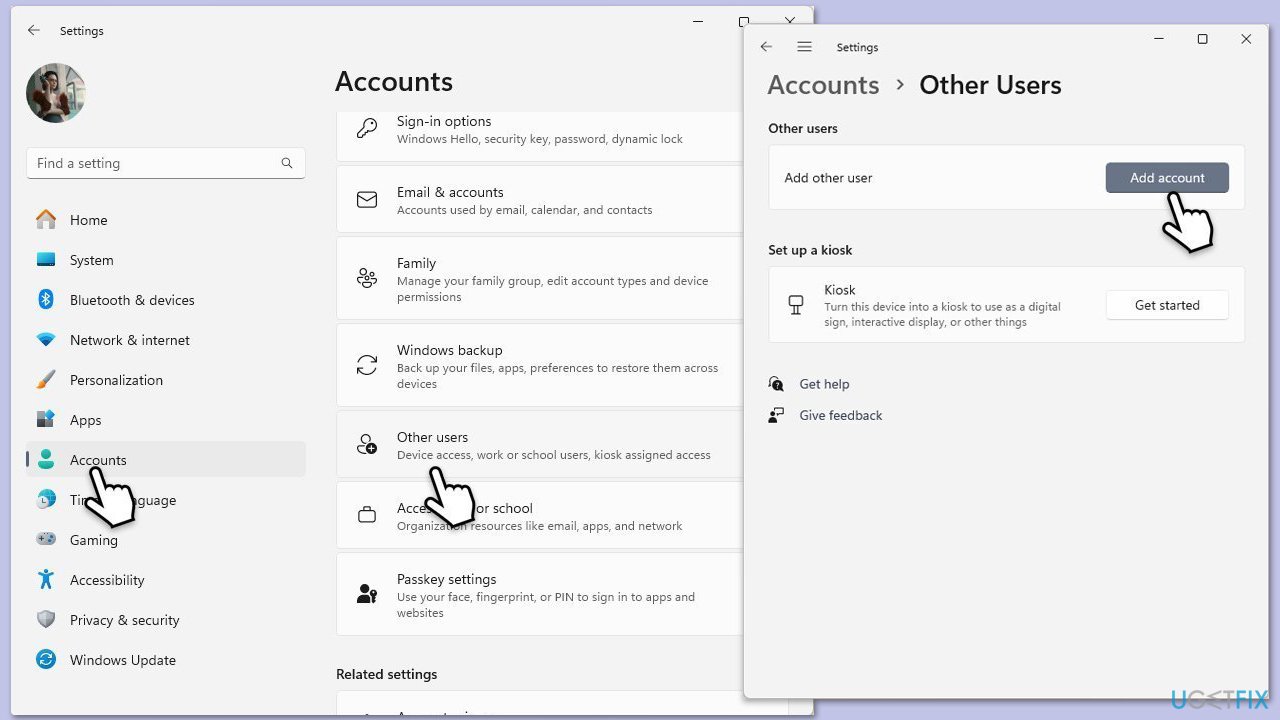
- Right-click on Start and pick Settings.
- Go to Accounts > Family & other users.
- Under Other users, click Add someone else to this PC and create a new user.
- Sign in with the new user and add your Microsoft account from there.
Fix 6. Uninstall Windows update
Recent updates, such as the 24H2 feature update or a quality update, can introduce compatibility issues that cause sign-in errors. Uninstalling the update can help.
- Boot into Safe Mode.
- Right-click on Start and pick Settings.
- Go to Windows Update > Update history > Uninstall updates.
- Locate the most recent update (e.g., KB5053657), select it, and click Uninstall.
- Restart your computer and try signing in again.
To uninstall major updates such as 24H2, follow the steps we provide in our guide.
Fix 7. Reset Windows
If the error persists, a deeper system issue might be preventing sign-in. Resetting Windows can resolve this by reinstalling the OS while keeping your files.
- Boot into Safe Mode.
- Right-click on Start and then select Settings.
- Go to Update & Security and pick Recovery on the left side of the window.
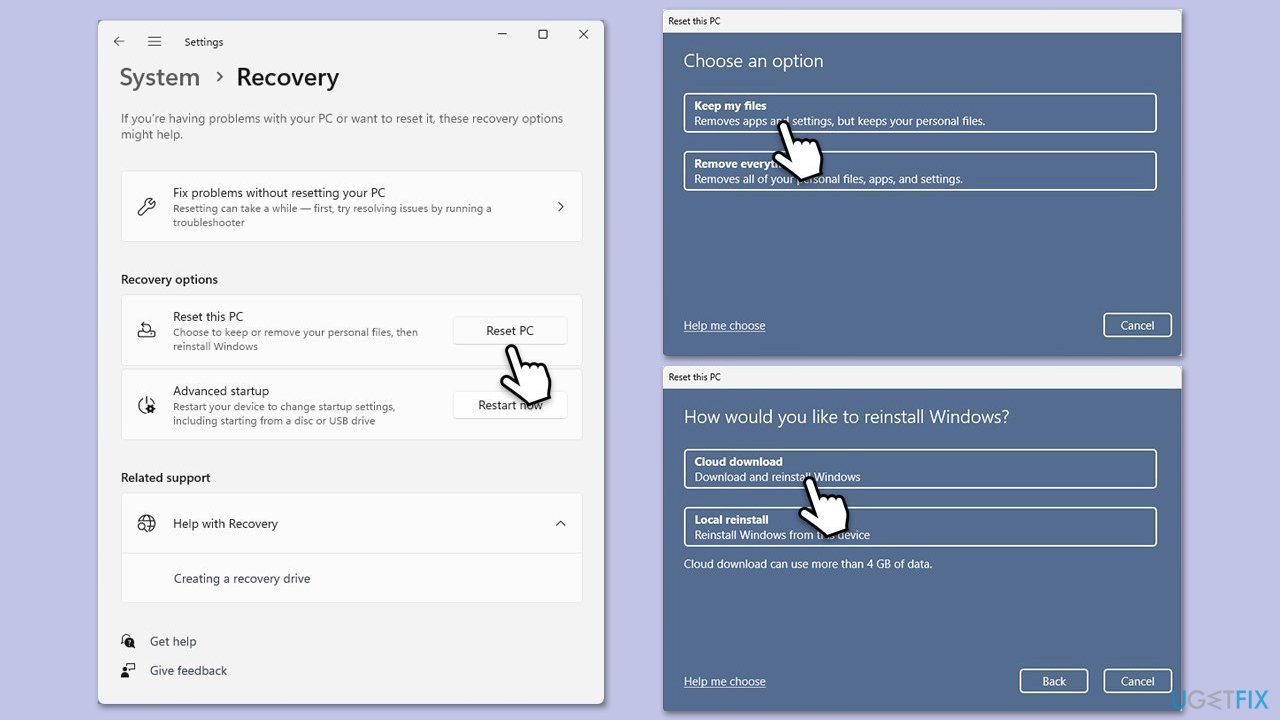
- Find Reset this PC section and click Get Started.
- Select Keep my files and Cloud download.
- Next, pick whether you want to reinstall the apps.
- Click Reset.
- Your computer will restart, and Windows reset process will begin.
Bottom line
To fix the "You can't sign in with this account" error, you can try resetting your PIN, creating a new local account, or uninstalling recent updates that may be causing the issue. If none of these solutions work, consider using a PC tune-up program to repair profile and registry issues.
Frequently asked questions
Try resetting your password through the Microsoft account recovery page, then attempt to sign in again. If the issue persists, check for any account restrictions or issues with your internet connection.
Ensure that your Windows 11 is updated to the latest version, as updates can fix account-related bugs. If the problem continues, consider creating a new local account and transferring your data.
Yes, you can create a new local user account and then migrate your files from the problematic account. This way, you can access your data without losing it.




Report an issue
What's wrong with this guide? We review every report and update or remove content.
Report received — thank you. We'll review and fix it.
You need a free account to submit a report.
Be the first to comment