How to fix
OneDrive error code 0x8004e4be
on Windows
Resolve OneDrive error code 0x8004e4be on Windows 10 and 11 quickly. Get expert-tested solutions for seamless cloud access, fixed in minutes!


What causes How to fix OneDrive error code 0x8004e4be in Windows?
- System clock is off
- OneDrive client is outdated
- Session is interrupted or timed out
- Basic components of OneDrive are damaged
- Windows system files are corrupted
- Startup programs are interfering
Repairs Windows system files, removes malware, and restores a clean OS state — without reinstalling.
How can I fix the 0x8004e4be error in OneDrive? It appears every time when I try to log in to OneDrive. This happened out of nowhere - I used OneDrive with no problems before for years. Could you help me with this?
OneDrive is the native cloud product of Microsoft which allows users to store files, sync them on devices, and access them from anywhere. It is the basic file management app for most Windows users, allowing seamless integration into the operating system as well as Microsoft accounts. Despite its convenience, issues like OneDrive error code 0x8004e4be can make access to the service impossible, stopping the syncing or downloading of files.
The 0x8004e4be error will most often be encountered when logging in or when OneDrive attempts to sync. Users may find they are unable to connect or get unexpectedly signed out without warning. At other times, OneDrive simply won't respond or even disappears from the taskbar altogether. Such symptoms can leave the cloud service unusable for a time, disrupting productivity, and access to important files.
There are many different reasons OneDrive error code 0x8004e4be might occur, and each would call for a different solution:
- If the system clock is off, then correcting the date and time may allow OneDrive to successfully authenticate.
- If the OneDrive client is outdated, then an update to the most current version will correct glitches and have it running properly once more.
- If the session is interrupted or timed out, then signing out and signing in to the Microsoft account might restore the connection.
- If OneDrive's basic components are damaged, then resetting the program will re-initialize its parameters and correct the issue.
- If Windows system files are corrupted, then scanning and repairing them might remove the obstacle causing the error.
- If startup programs are interfering, then performing a Clean Boot might identify conflicts.
- If none of the above works, then reinstalling OneDrive is typically the best last resort.
All of the manual solutions are included below. However, for people who want to save time or do not have the patience to do manual steps, using [d1] is a secure way to fix Windows problems automatically.

Fix 1. Check date and time settings
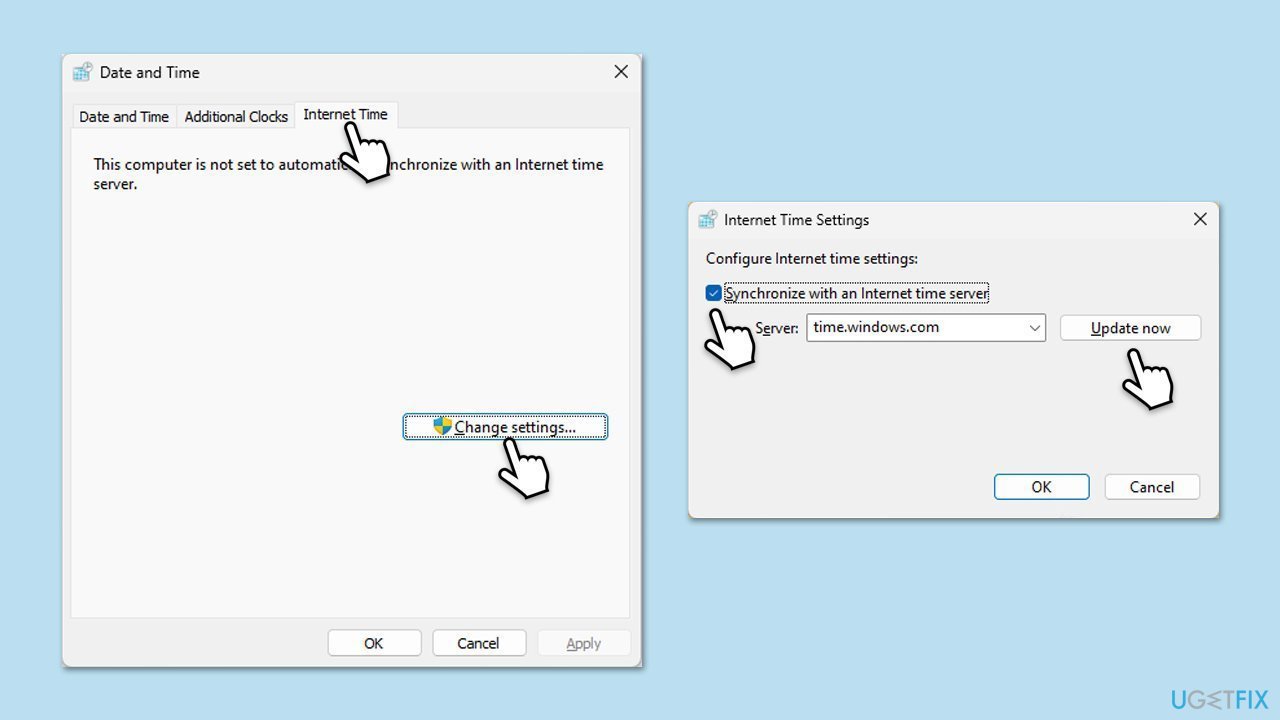
Incorrect date and time settings can interfere with Microsoft services, including OneDrive. Making sure your clock is synced properly can resolve authentication issues.
- Type Control Panel in Windows search and press Enter.
- Go to Clock and Region and click on Date and Time.
- Pick the Internet Time tab and select Change Settings.
- Make sure that the Synchronize with an Internet time server box is ticked.
- Click Update now and OK.
Fix 2. Update OneDrive
Outdated versions of OneDrive may cause compatibility or connection issues. Installing the latest update can fix known bugs and improve stability.
- Open the OneDrive app.
- Click on the Help & Settings icon in the notification area.
- Select Settings.
- In the settings menu, go to the About tab.
- Click on the OneDrive version - this should open the browser and the release notes from Microsoft.
- If the latest version listed there matches with the one on your app, you are up to date.
- If the version does not match, simply click on Download OneDrive for Windows, follow the installation instructions, and it will install the latest version on your device.

Fix 3. Sign out and back into OneDrive
A broken session or account issue may be resolved simply by signing out and back in again.
- Click on the OneDrive icon in the system tray.
- Go to Help & Settings and then choose Unlink this PC.
- When prompted, confirm with Unlink this PC.
- After signing out, sign back in with your credentials.

Fix 4. Reset OneDrive
Resetting OneDrive will clear its cache and fix underlying sync or launch problems without removing your files.
- Press Win + R on your keyboard.
- When the Run window opens, copy and paste the following text into it:
%localappdata%\Microsoft\OneDrive\onedrive.exe /reset
(Note: you might get an error here. In that case, use %programfiles(x86)%\Microsoft OneDrive\onedrive.exe /reset or C:\Program Files (x86)\Microsoft OneDrive\onedrive.exe /reset instead) - Press Enter or click OK.
- After this command is executed, the app should be reset, and OneDrive should open.
- If it doesn't, wait a few minutes, then open the Run window again and use the following command:
%localappdata%\Microsoft\OneDrive\onedrive.exe - Press Enter.

Fix 5. Repair corrupted system files
Broken Windows files can interfere with OneDrive’s ability to operate normally. Running a system scan may detect and fix them.
- Type cmd in Windows search.
- Right-click on Command Prompt and pick Run as administrator.
- When User Account Control shows up, click Yes.
- Use the following command lines, pressing Enter after each:
sfc /scannow - The System File Checker will now scan your system for any corrupted or missing files and try to repair them.
- After the scan is done, copy the following commands and press Enter:
DISM /Online /Cleanup-Image /CheckHealth
DISM /Online /Cleanup-Image /ScanHealth
DISM /Online /Cleanup-Image /RestoreHealth
(Note: if you get an error executing this last command, add /Source:C:\RepairSource\Windows /LimitAccess to it and try again). - Once the process completes, restart your system.

Fix 6. Perform a Clean Boot
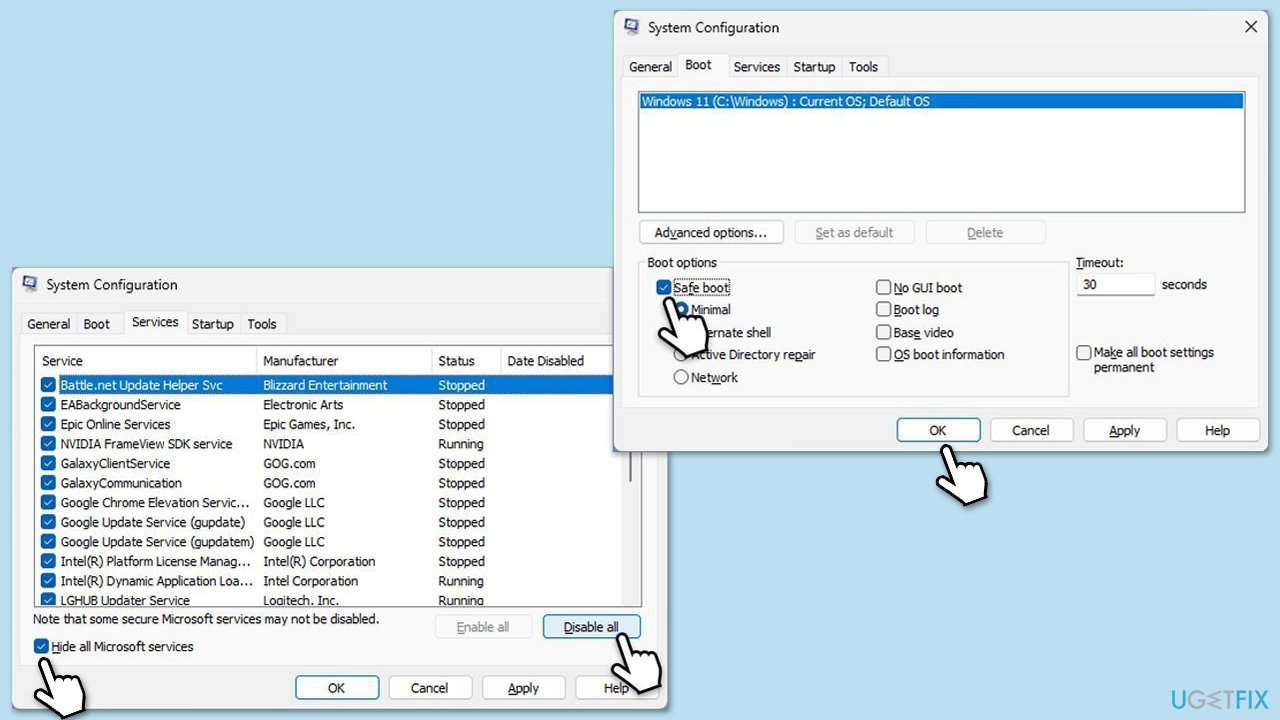
Other apps or services may conflict with OneDrive. A Clean Boot helps you start Windows with only essential services to identify the cause.
- Type msconfig in Windows Search and press Enter.
- Click on the Services tab and check the Hide all Microsoft Services box.
- Click Disable all to disable non-Microsoft services, then click the Startup tab.
- Open the Task Manager, disable all startup items, and close the Task Manager.
- Go to the Boot tab and mark the Safe boot option.
- Click OK on the System Configuration window and restart your computer.
- Restart the system.
Fix 7. Reinstall OneDrive
If the installation is damaged beyond repair, reinstalling OneDrive ensures all files and configurations are reset.
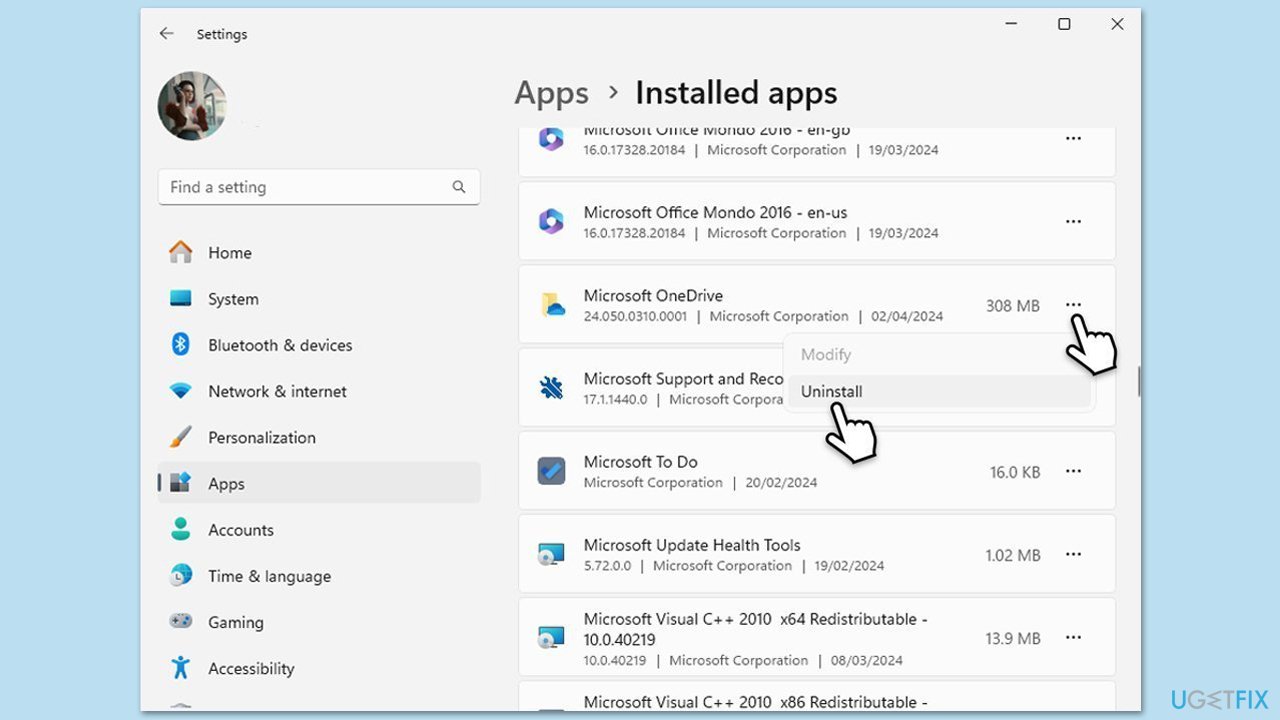
- Right-click on Start and pick Apps and Features/Installed apps.
- Scroll down and find Microsoft OneDrive.
- Click Uninstall and follow the prompts to remove the app.
- Next, open File Explorer and make sure Hidden items are visible.
- Navigate to the following locations and delete all contents from OneDrive folders located in the following directories (replace USERNAME with your username):
C:\Users\USERNAME\AppData\Local\
C:\Users\USERNAME\AppData\Local\Temp
C:\Users\USERNAME\AppData\LocalLow\Temp
C:\Windows\Temp - Restart your PC.
- Once rebooted, open your browser and go to the official Microsoft site to download OneDrive.
Bottom line
To fix the 0x8004e4be error in OneDrive, you can correct the system clock, update the OneDrive client, sign out and sign in to your Microsoft account, reset the program, scan and repair Windows system files, or perform a Clean Boot. If none of these solutions work, reinstalling OneDrive is typically the best last resort.
Frequently asked questions
The error code 0x8004e4be typically indicates connectivity issues between OneDrive and the Microsoft servers on Windows 10 or Windows 11.
To fix this error on Windows 11, try resetting the OneDrive app by running the command 'onedrive.exe /reset' from the Run dialog.
Yes, ensuring that your network connection is stable and checking for any VPN or firewall settings that might block OneDrive can help resolve the error in Windows 10.




Report an issue
What's wrong with this guide? We review every report and update or remove content.
Report received — thank you. We'll review and fix it.
You need a free account to submit a report.
Be the first to comment