How to fix
Windows boot error code 0xc0000229 (B1InitializeLibrary failed)
on Windows
Resolve the Windows boot error code 0xc0000229 quickly and effectively with our expert-tested guide. Get your system running smoothly again, fixed in mi…

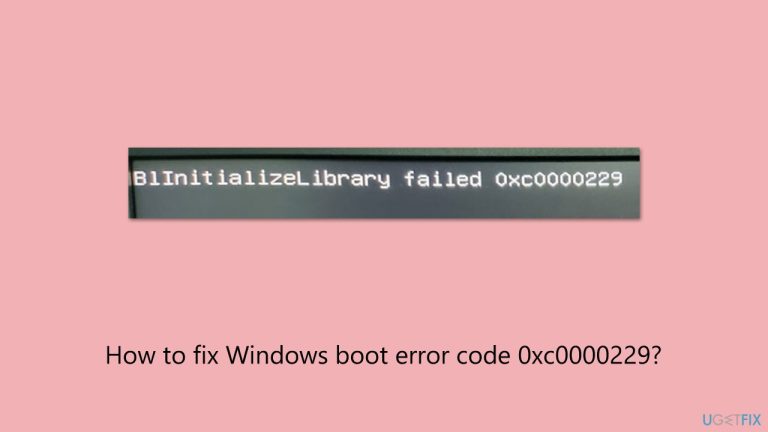
What causes How to fix Windows boot error code 0xc0000229 (B1InitializeLibrary failed)?
- Misconfigured Trusted Platform Module (TPM) settings
- Misconfigured Secure Boot settings
- Corrupted system files
- Incompatible BIOS firmware
- Failing hardware components
Repairs Windows system files, removes malware, and restores a clean OS state — without reinstalling.
For some reason, my PC stopped working today. When I tried booting it up this morning, it failed to boot and showed error code 0xc0000229. I tried restarting several times but the result is always the same. Could you help me?
The Windows boot error 0xc0000229 is a critical issue that halts the booting of Windows 10 or 11 machines, showing a black screen with the message "B1InitializeLibrary failed 0xc0000229," as users reported years ago.
The error reflects the failure of the B1InitializeLibrary function, which in most cases relates to hardware initialization upon booting, disrupting operating system access and even risking data inaccessibility if not fixed.
B1InitializeLibrary 0xc0000229 can be triggered by a host of issues ranging from misconfigured Trusted Platform Module (TPM) or Secure Boot settings in the BIOS which should be reset or disabled. Corrupted system files can also interfere with hardware initialization which can be fixed by running SFC or DISM scans in the recovery environment, and incompatible BIOS firmware can be updated.
Hardware issues like a failing drive can be repaired by checking connections, and recent system modifications that are inducing the fix 0xc0000229 error can be undone using a System Restore.
The steps below provide eight solutions to repair the Windows boot error 0xc0000229. For a faster repair, we recommend the use of [d1], a PC repair tool with the capacity to automatically repair boot issues, file corruption, as well as hardware-related problems causing this error.
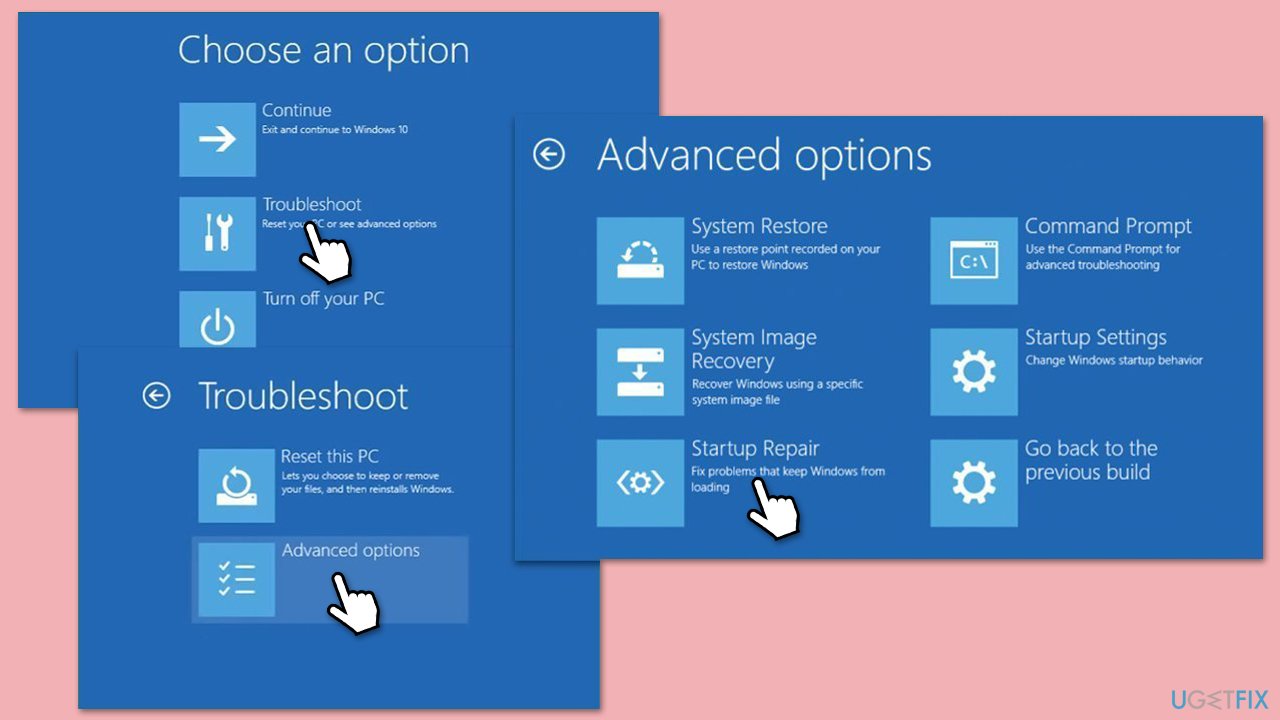
Fix 1. Run Startup Repair
Startup Repair can automatically fix issues preventing Windows from booting.
- Insert a Windows installation USB or DVD and restart your computer.*
- Press the key to access the boot menu (usually Del, Esc, F8, F10, or F12 - depends on your motherboard or laptop manufacturer) and select the installation media.
- Choose your language, click Next, then select Repair your computer.
- Navigate to Troubleshoot > Advanced options > Startup Repair.
- Let the tool run, then restart your computer to check if the error persists.
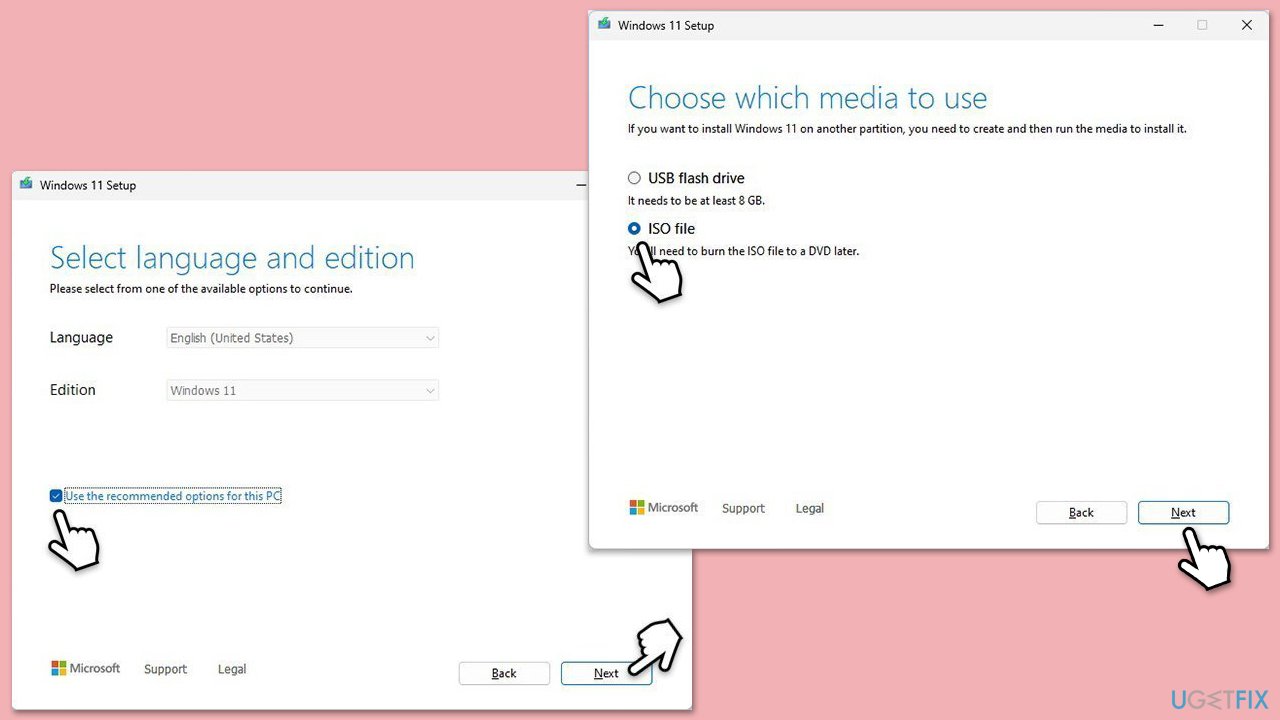
* - if you are not sure how to create Windows Installation USB, follow these steps:
- Download Windows 11 Installation media from the official Microsoft website. [Windows 10 version]
- Double-click the MediaCreationTool.exe file to launch it.
- When UAC shows up, click Yes.
- Accept license terms.
- Select Language and Edition (make sure it matches the one you have currently installed) or simply mark the Use the recommended options for this PC and click Next).
- Select the ISO file and click Next.
- Pick the location for your ISO file and wait till all the needed files are downloaded, then click Finish.
Fix 2. Repair EFI partition and regenerate UEFI boot files
You can restore correct booting process by regenerating UEFI boot files.
- Boot from the installation media and go to Troubleshoot > Advanced options.
- Select Command Prompt.
- Type in the following commands in bold and press Enter after each:
diskpart
list volume
select volume 2 (replace 2 with the volume labeled as ESP)
assign letter=Z
exit
bcdboot C:\windows /s Z: /f UEFI - Restart your computer and check if the error is resolved.
Fix 3. Rebuild Boot Configuration Data
A corrupted BCD can cause the 0xc0000225 error and needs rebuilding.
- Boot from the installation media.
- Go to Troubleshoot > Advanced options.
- From the subsequent options, open Command Prompt.
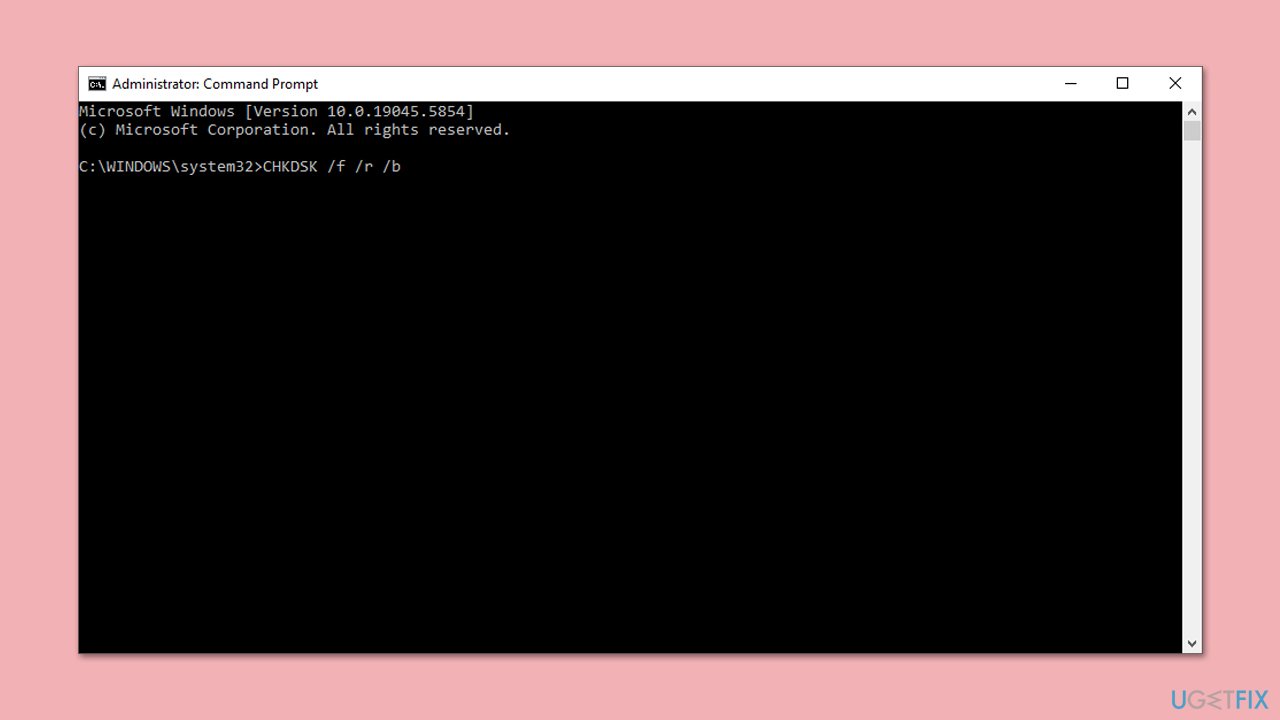
- In Command Prompt, type the following commands and press Enter each time (wait for every command to execute):
CHKDSK /f /r /b
Bootrec /Scanos
Bootrec /Rebuildbcd
Bootrec /Fixmbr
Bootrec /Fixboot - Restart your computer.
Fix 4. Run SFC and DISM scans
Corrupted system files can trigger the boot error and can be repaired.
- Boot from the installation media.
- Select Troubleshoot > Advanced options > Command Prompt.
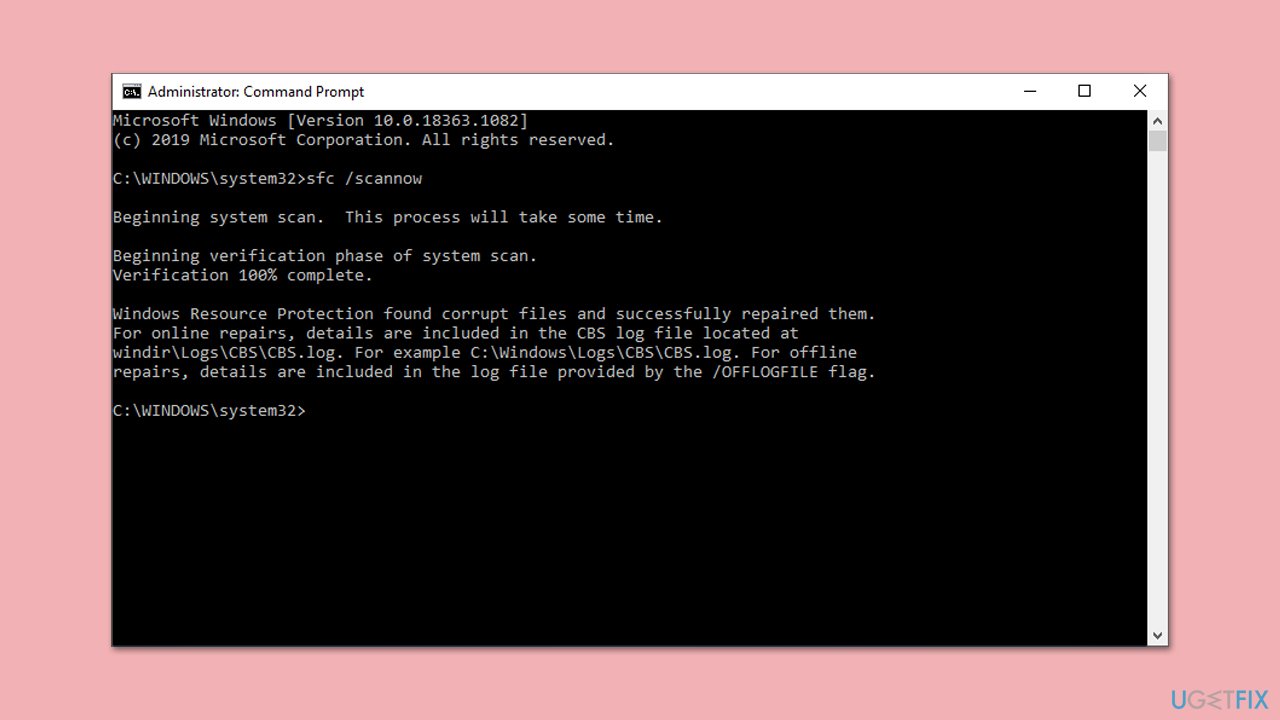
- In the Command Prompt, type in the following command and press Enter. This command will initiate the scanning process.
sfc /scannow - Allow some time for the scan to complete and repair any corrupted files found.
- When done, use the following command, pressing Enter after:
Dism /Online /Cleanup-Image /RestoreHealth - Once finished, reboot your system in normal mode.
Fix 5. Use System Restore
If any restore points were available from before, you can try bringing your PC's state to the earlier date.
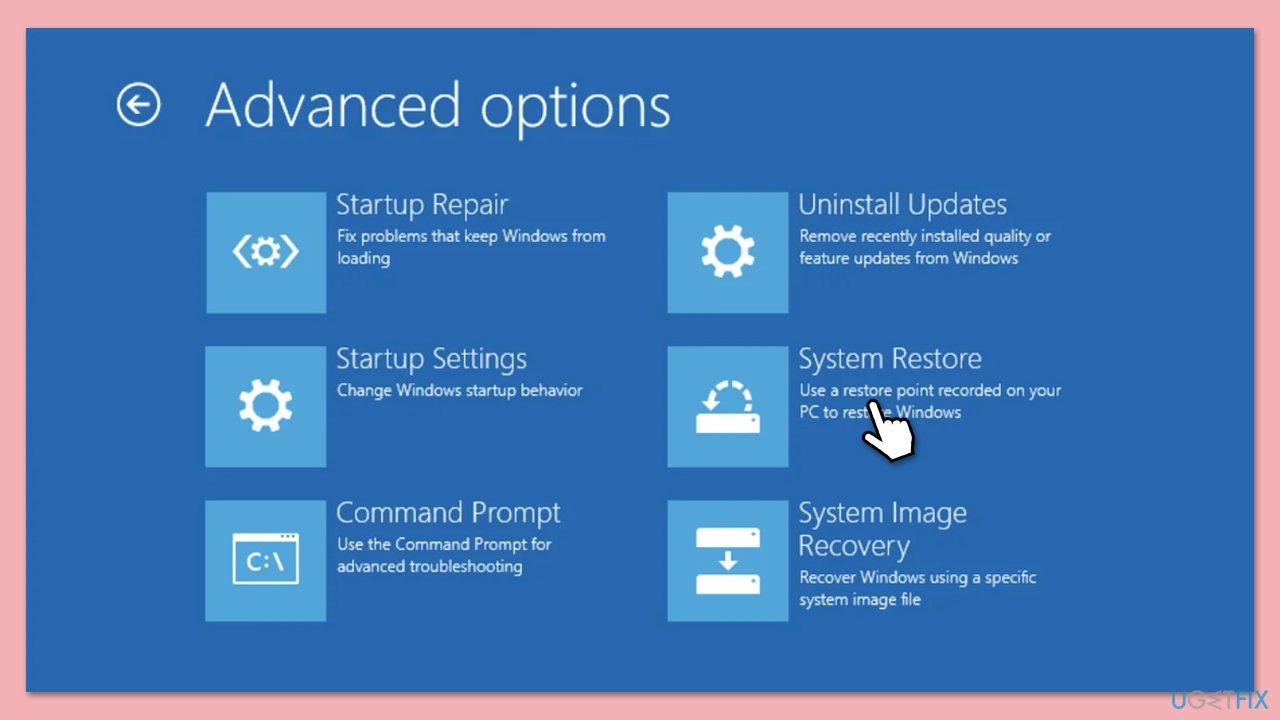
- Boot from the installation media and go to Troubleshoot > Advanced options.
- From here, pick System Restore.
- Pick the point in time when the problem did not exist and follow on-screen instructions.
- Your system will restart.
Fix 6. Reset TPM and Secure Boot settings
Misconfigured TPM or Secure Boot settings can cause the B1InitializeLibrary failure.
- Restart your computer and press the key to enter BIOS (e.g., Del or F2).
- Navigate to the Security or Boot section (varies by motherboard).
- Locate Trusted Platform Module (TPM) settings and select Clear TPM or Reset to factory defaults.
- Find Secure Boot, disable it, save changes, and exit BIOS (e.g., press F10).
- Restart your computer and attempt to boot normally.
Fix 7. Update BIOS firmware
Keep in mind that botched BIOS update can mess up your PC. Make sure you know what you are doing or refer to a professional.
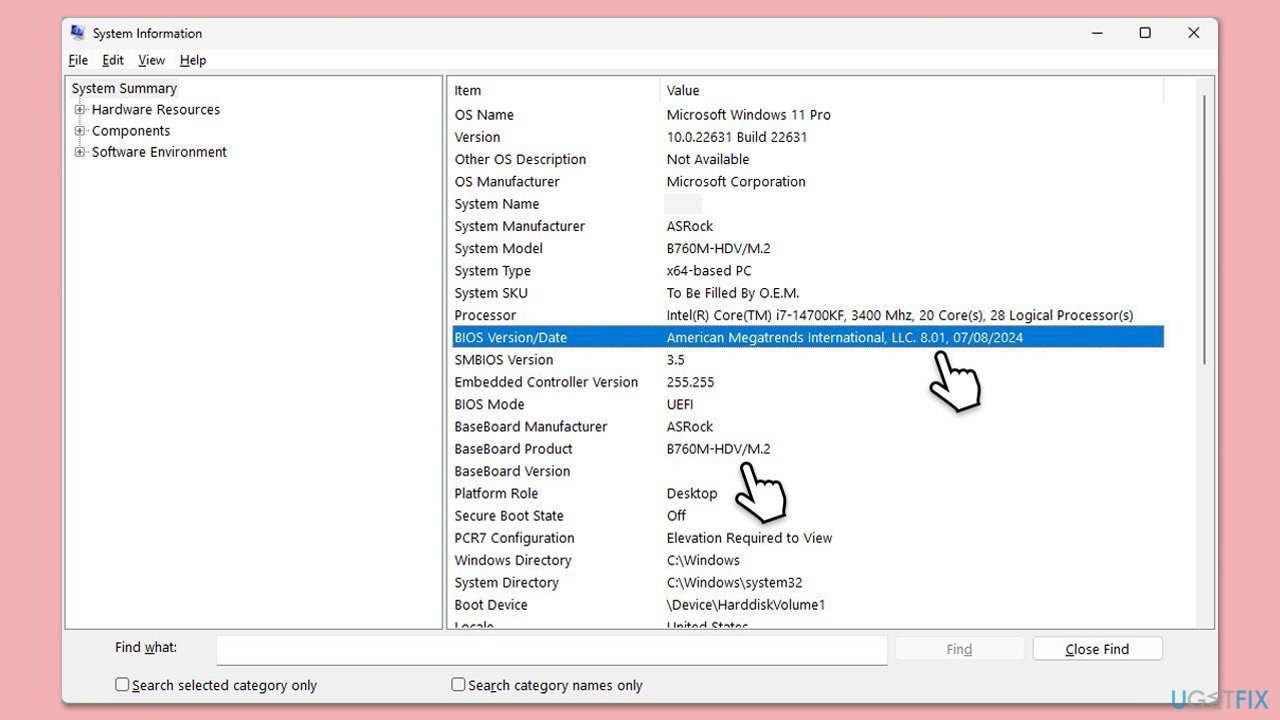
- Access your laptop/motherboard manufacturer's website and download your specific model's latest BIOS update file (you can check which BIOS you are using by typing System information in Windows search and checking the BIOS Version/Date and BaseBoard Product entries there).
- Extract the BIOS update files and read any provided instructions or documentation.
- Create a bootable USB drive with the BIOS update files, if required.
- Update the BIOS using the manufacturer's recommended method, which may be through a built-in utility or booting from a USB drive.
- Restart your computer to complete the process and attempt to enable Secure Boot again.
Bottom line
To fix the Windows boot error code 0xc0000229, you can try running Startup Repair, resetting BIOS settings, or performing SFC and DISM scans. If these solutions do not resolve the issue, consider using a PC repair tool or performing a System Restore.
Frequently asked questions
The error code 0xc0000229 typically indicates a failure in loading the boot configuration data, often due to corrupted system files or issues with the boot manager.
You can repair the boot configuration data by booting from a Windows 10 installation media, selecting 'Repair your computer', and using the Command Prompt to execute 'bootrec /rebuildbcd'.
Yes, you can attempt to fix the error by using the Startup Repair option available in the recovery environment, which can fix various boot-related issues without a full reinstall.




Report an issue
What's wrong with this guide? We review every report and update or remove content.
Report received — thank you. We'll review and fix it.
You need a free account to submit a report.
Be the first to comment