How to fix
System Image Backup Error Code 0X807800C5
on Windows
Resolve System Image Backup Error Code 0X807800C5 on Windows 10 efficiently with expert-tested solutions that ensure your backups are secure, fixed in m…


What causes How to Fix System Image Backup Error Code 0X807800C5 on Windows 10?
- Duplicate of the previous backup files
- Partitions of the previous Windows versions
- Disabled System Protection feature
- Faulty System Protection settings
- Corrupted system’s files
Repairs Windows system files, removes malware, and restores a clean OS state — without reinstalling.
Two weeks after upgrading to Windows 10 Creators Update (1703), I encountered a bug when creating a system image backup. It fails with an error code 0X807800C5. I have never had such a problem when using v1607, so I would highly appreciate your help.
Having a backup copy of personal data is the best and probably the only trustworthy option for protecting it from permanent loss after accidental removal, hardware failure or ransomware[ref en-1] attack. However, documents, photos, videos, and other personal information is not the only data that people should worry about. Specialists recommend creating backup copies[ref en-2] of the important system files and applications as well, so that they could be recovered in case of virus infection of other problems.
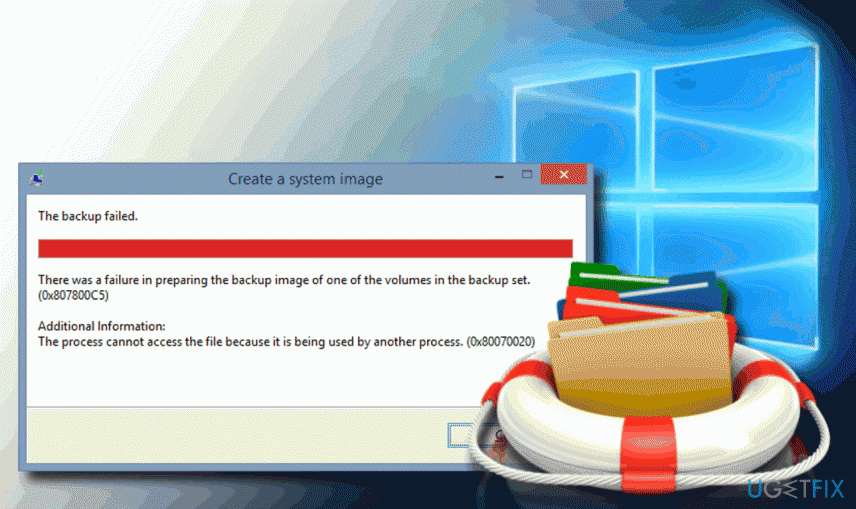
To create backups of non-personal information,[ref en-3] third-party software or external hard drive is not required, at least on Windows 10. Microsoft has introduced an inbuilt image backup option, which creates a backup of the whole computer’s system, including system’s logs, settings, files, applications, and personal information.
Unfortunately, system image backup feature may fail to work. There is a plenty of reasons, including the duplicate of the previous backup files, partitions of the previous Windows versions, disabled System Protection feature, faulty System Protection settings or corrupted system’s files.
Several people have recently reported a System Image Backup Error Code 0X807800C5. System returns the error while creating image backup. Sometimes the error contains additional information, but sometimes it simply states that the backup failed without further explanations. Therefore, we'll provide all fixes applicable for 0X807800C5 error.
Instructions on How to Fix System Image Backup Error Code 0X807800C5 on Windows 10
Method 1. Remove the WindowsImageBackup folder
- Open File Explorer and navigate to the C:\\System Volume Information.
- Look for the WindowsImageBackup folder.
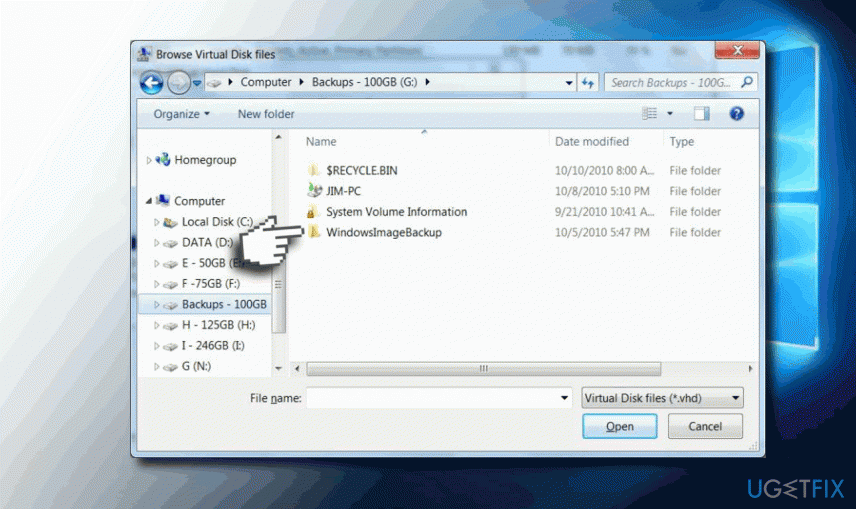
- If the folder is present under System Volume Information folder, right-click on it and select Remove.
Method 2. Remove EFI System Partition and Recovery Partition
In case some of the partitions of the previous Windows versions haven’t been removed during the upgrade to Windows 10, you may need to remove them manually because these partitions may be confronting with the System Image Backup service. Thus, you should:
- Right-click on Windows key and select Disk Management.
- Find the hard drive where you want to store system image backup. It should contain two partitions - EFI System Partition and Recovery Partition.
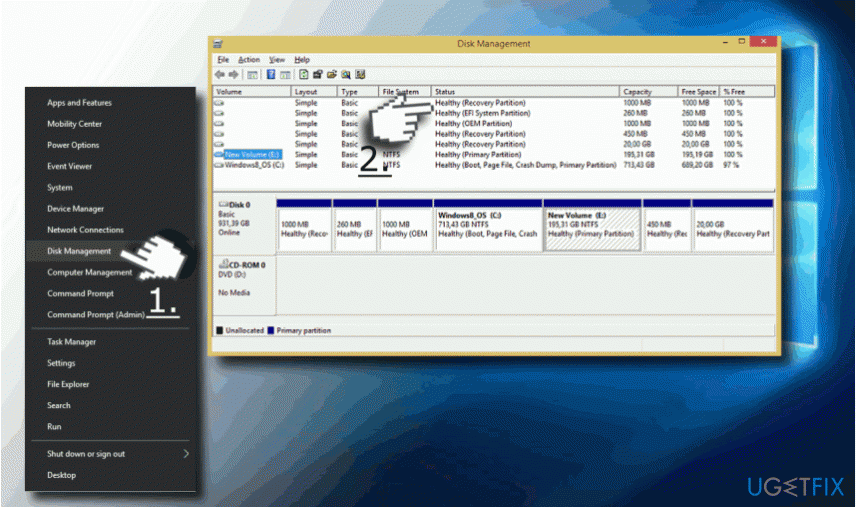
- Right-click on each of them and select Remove.
- After that, try to create System Image Backup.
Method 3. Change System Protection Settings
- Open Control Panel and click System on the left pane.
- Select System Protection and click on the disc that you are using for system image backup storing.
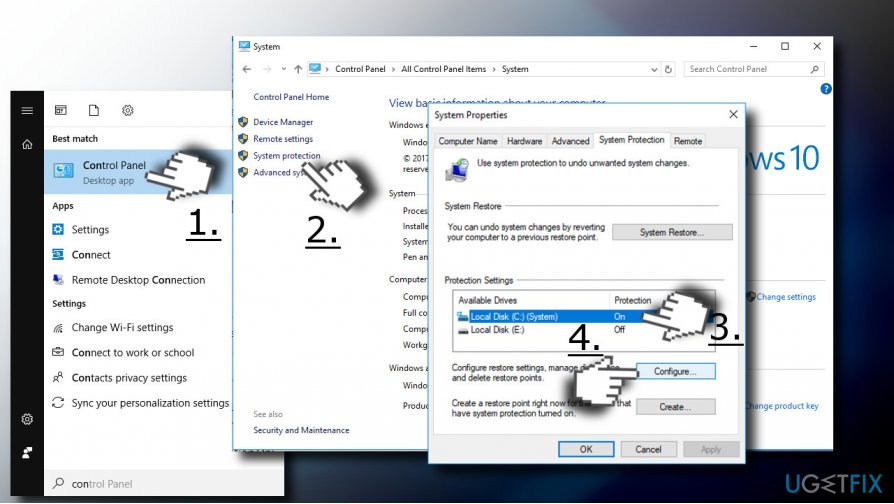
- Click Configure button and make sure that Turn on system protection option is enabled.
- Now open Disk Space Usage and slide a toggle next to Max Usage to 10-15%.
- Finally, click Apply and OK to save the changes.
- Restart the system.
Method 4. Turn System Protection on or off
First of all, you should check what the current state of the System Protection is (on or is off). Accordingly, you should try to change it:
Turn System Protection On:
- Open Control Panel and select System.
- Now click System Protection on the left pane.
- Find Windows 10 System Image and mark it.
- Click Configure button and select Turn on system protection.
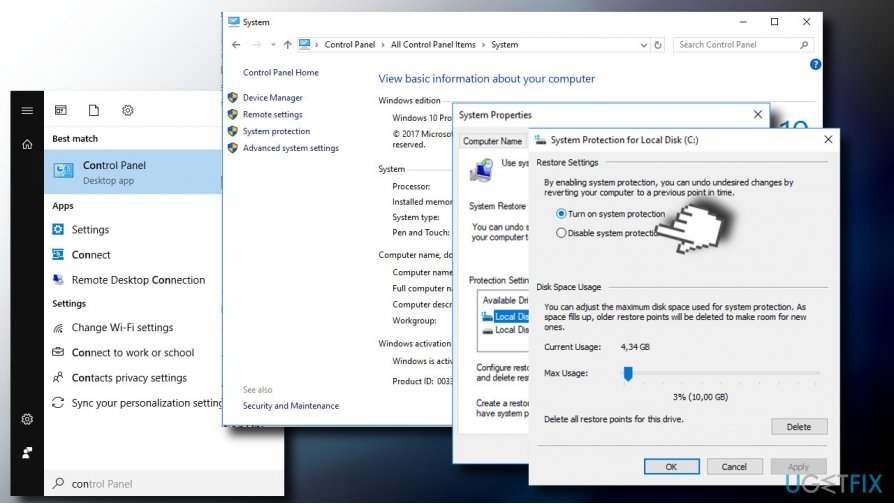
- Click Apply and OK to save the changes.
Turn System Protection Off:
- Open Control Panel and select System.
- Now click System Protection on the left pane.
- Find Windows 10 System Image and mark it.
- Click Configure button and select Turn off system protection.
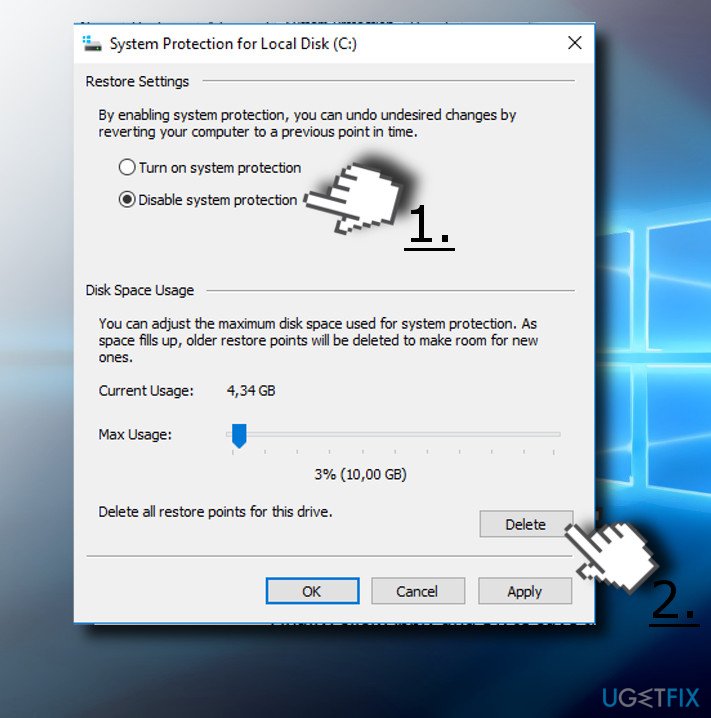
IMPORTANT: If System Protection was enabled and you have disabled it, make sure to remove the previous Restore Points to fix 0X807800C5 error. For this purpose, open System Protection -> Configure -> Delete (at the bottom on the window).
Method 5. Check the System for Corrupted Files
If hard drive contains corrupted files, you should check if it contains corrupted files, which may be triggering a conflict. For that, you can run a scan with [d1] or use chkdsk command. If you prefer the latter, follow these steps:
- Right-click on Windows key and select Command Prompt (Admin).
- Copy and paste the chkdsk /r X: command into the Command Prompt window (NOTE: X stands for your hard drive partition).
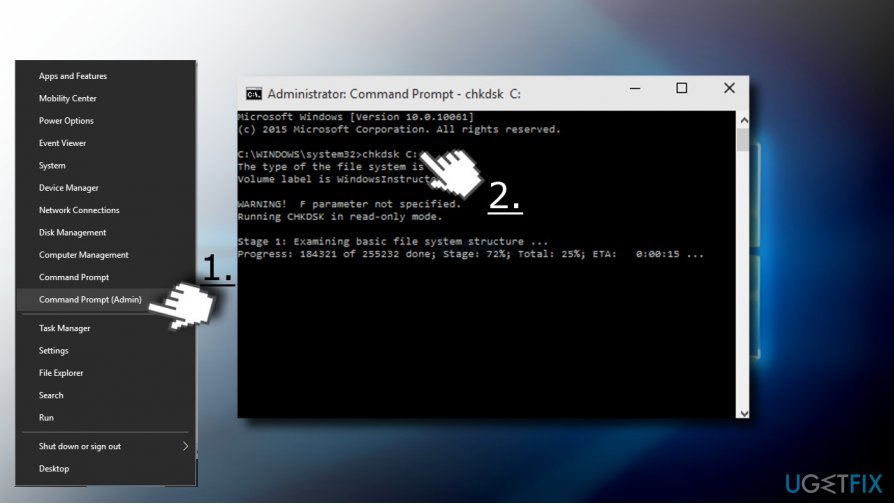
- Press Enter after the command to execute it.
Bottom line
To fix the System Image Backup Error Code 0X807800C5, you can remove the WindowsImageBackup folder and delete any EFI System Partition and Recovery Partition that may have been left over from previous Windows versions. If these solutions do not resolve the issue, further troubleshooting may be necessary.
Frequently asked questions
This error typically occurs due to a corrupted backup process or issues with the hard drive where the backup is being stored. It can also be triggered by insufficient disk space or misconfigured backup settings.
To fix this error, try running the built-in Windows Check Disk tool to scan and repair your hard drive, and ensure there is enough space available for the backup. Additionally, consider using the Windows Backup and Restore feature to reset your backup settings.
Yes, regularly check your hard drive for errors and maintain enough free space for backups to avoid this error. Additionally, keep your Windows 11 system updated to ensure all backup features function properly.




Report an issue
What's wrong with this guide? We review every report and update or remove content.
Report received — thank you. We'll review and fix it.
You need a free account to submit a report.
Be the first to comment