How to fix
Zip and Unzip Files
on Windows
Discover quick tips to zip and unzip files efficiently on Windows 10 and 11. Streamline your file management with expert-tested methods.


Why does How to Zip and Unzip Files on Mac occur?
- Need to save time and space when downloading programs or transferring email attachments
- Files taking too much space leading to multiple email letters
- Suspicious third-party applications may be malicious or ineffective
- Built-in compressing system not easily accessible in Applications folder
- Lack of awareness about using Finder for zipping and unzipping files
Repairs Windows system files, removes malware, and restores a clean OS state — without reinstalling.
Hello. I need to compress my files and I have noticed that there are many tools online I can download. However, I wonder whether I really need them or I could do it by myself? So, could you explain how to zip and unzip files on Mac?

Zipping and Unzipping files are necessary for those who seek to save time and space when downloading programs or transferring email attachments[ref en-1]. We all had encountered a problem when our records took too much place, and we had to send multiple email letters. To avoid this issue, we will present several techniques which should help you learn how to zip and unzip data on Mac.
Note that there are numerous third-party applications which claim to help convert files to .zip[ref en-2]. However, there are no guarantees that they are legitimate and useful. There is a strong possibility that it will either be a malicious program or an attempt to trick you into purchasing expensive and ineffective utility.
Likewise, security experts do not recommend downloading any suspicious tools which come from unauthorized developers. You should be aware that Mac computers come with a built-in system to help you compress your files. However, you will not find in the Applications folder.
Archive utility is available only for app developers since it is considered to be a core service of the Mac OS[ref en-3]. Although, the built-in compressing system is widely used by such programs as Mac Mail, Safari, etc. Luckily, the Finder also allows you to zip and unzip files in a fairly simple manner.
Therefore, you shouldn't download any third-party applications to compress your data. Instead, learn how to zip and unzip files on Mac from the instructions below. You will find several methods which will briefly explain to you how to compress single and multiple files as well as how to decompress them.
Method 1. Zip and Unzip a single file or folder using Finder
Compress your data:
- Navigate to the bottom-left corner of your screen and open Finder.
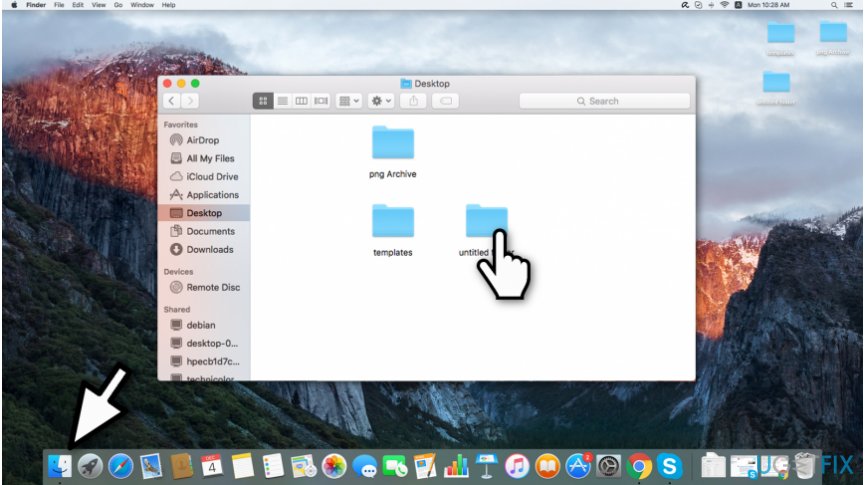
Open finder on mac and right click on the file you want to zip - Find the file or folder you want to zip.
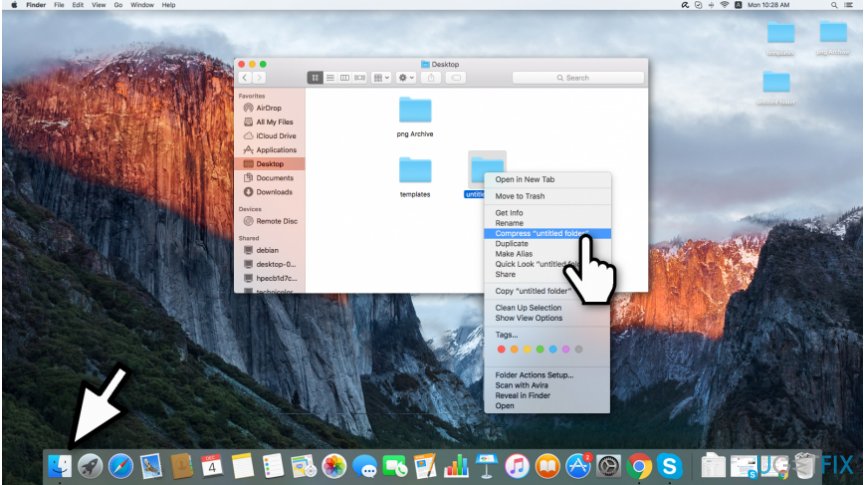
Select compress the file - Right-click on it and select "Compress [your selected file/folder name]";
- The compressed file will appear in the same place the original file is and will contain a .zip extension.
Decompress your information:
- Find the file or folder you want to unzip.
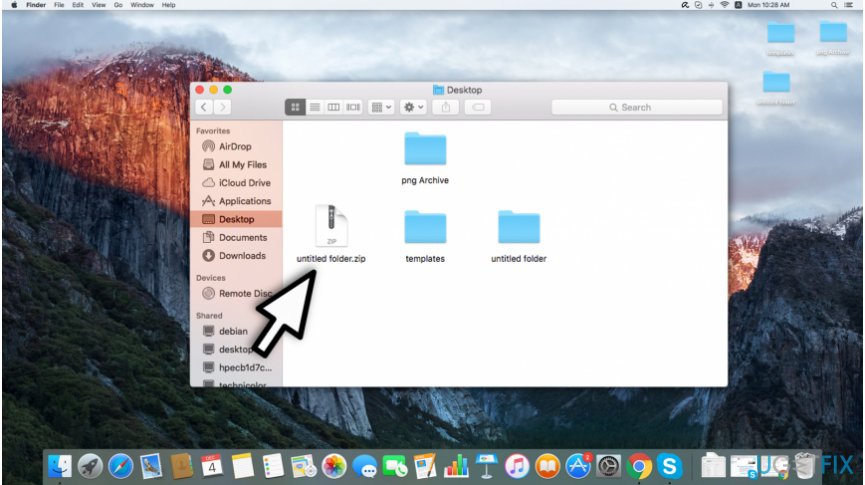
File zip on mac - Double-click on it;
- The decompressed data will be located in the same place as the zip file.
Method 2. Zip and Unzip multiple files using Finder
Compress several files:
- Open the folder containing the items you attempt to zip;
- Select the records you want to include into the zip file;
- Right-click on any of the selected items.
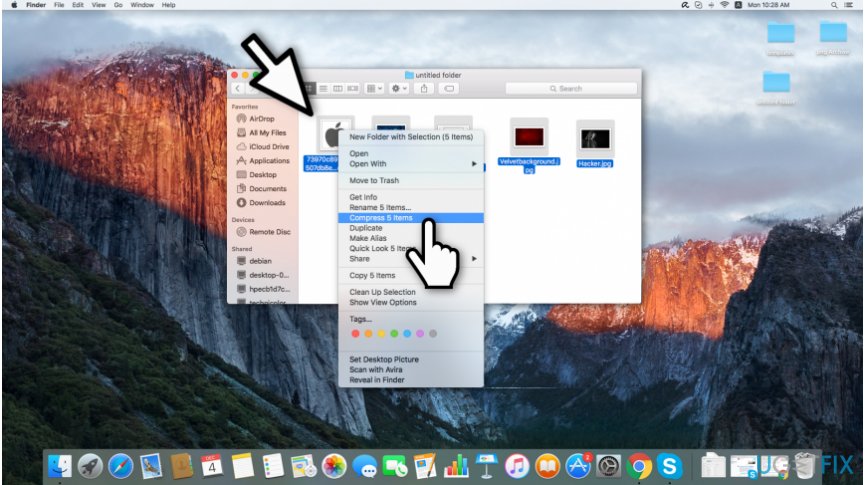
How to zip multiple files on mac - Select "Compress [number of selected files] items";
- The zipped files will be placed in the same folder with a .zip extension.
Decompress multiple records:
- Locate the zip folder you want to decompress.
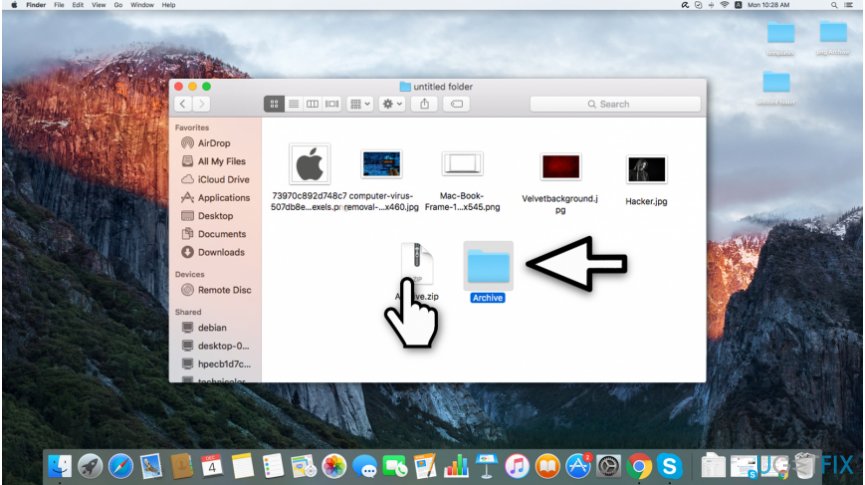
Unzip multiple files on mac - Double-click on it;
- Unzipped files will be stored in the same place as the compressed one.
Bottom line
To zip and unzip files on Mac, you can use the built-in Finder method, which allows for easy compression of single and multiple files. If you encounter issues or need more advanced features, consider using trusted third-party applications. If none of these solutions work, seek further assistance from Apple support.
Frequently asked questions
Yes, Windows 10 and Windows 11 allow you to zip files by right-clicking the selected files, choosing 'Send to', and then selecting 'Compressed (zipped) folder'.
To unzip a file, right-click on the zipped folder and select 'Extract All', then follow the prompts to choose the destination for the unzipped files.
Yes, applications like 7-Zip and WinRAR can be downloaded to create and manage zipped files more efficiently on Windows 10 or Windows 11.




Report an issue
What's wrong with this guide? We review every report and update or remove content.
Report received — thank you. We'll review and fix it.
You need a free account to submit a report.
Be the first to comment