How to fix
Disable Location Services
on Windows
Master location settings on Windows 10/11 effortlessly to boost privacy and security. Expert-tested methods for complete control over your device.

Why does How to Disable Location Services on Mac occur?
- Location Services is enabled by default on Mac OS X.
- Mobile devices use GPS and Wi-Fi to track approximate location.
- Various apps require location access for functionality.
- Users may not want to reveal their location for privacy reasons.
- Disabling Location Services may not prevent all tracking methods.
Repairs Windows system files, removes malware, and restores a clean OS state — without reinstalling.
How can I disable Location Services on Mac OS X? I am concerned about my privacy and want to add an extra protection layer on it.
Location Services is available on all iOS devices, such as iPhones, iPad, MacBooks, and Macs. This service is enabled by default and allows tracking your location in order to provide the best experience.[ref en-1] However, users become more and more concerned about their privacy and do not find the need to reveal where they are.
Mobile devices usually use GPS location to detect where you are. However, once you connect to Wi-Fi[ref en-2] with your Mac, it allows knowing your approximate location. Various apps need to know your location in order to provide specific information too. For instance, weather app needs it to provide you the most accurate weather information to prevent you from getting wet in the rain.
However, many other applications might not need to know where you are. Thus, you should limit their permissions to protect your privacy. Of course, you can also disable Location Services on Mac entirely. But it may not give you the desired privacy.
Even if you turn off Location Services, some apps or websites[ref en-3] might still track your location using other methods. Unfortunately, full anonymity is impossible. But it doesn’t mean that you should not make data tracking slightly complicated.
Instructions how to disable Location Services on Mac
As we have mentioned, you can either limit or disable Location Services on Mac OS X. If you are certain of turning off this feature, follow these steps:
- Go to System Preferences.
- Access Security & Privacy panel.
- Go to the Privacy tab.
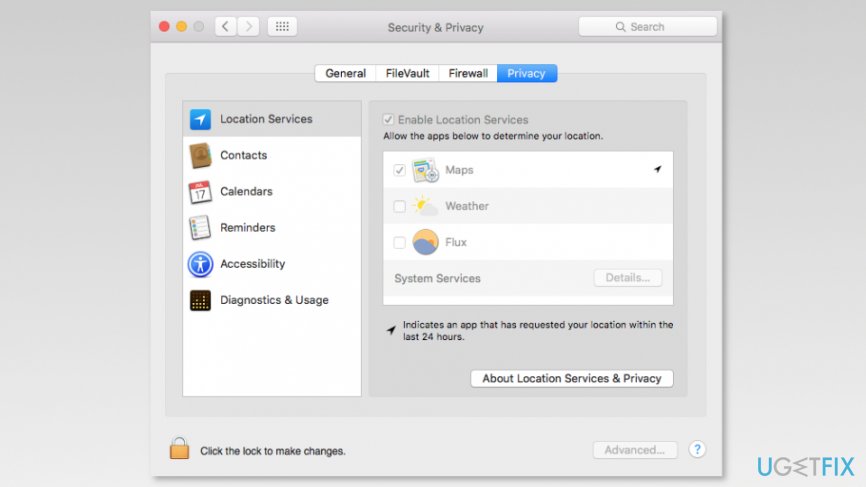
Open privacy tab - Click the lock to make the changes at the left lower corner of the window.
- Enter the password for your account.
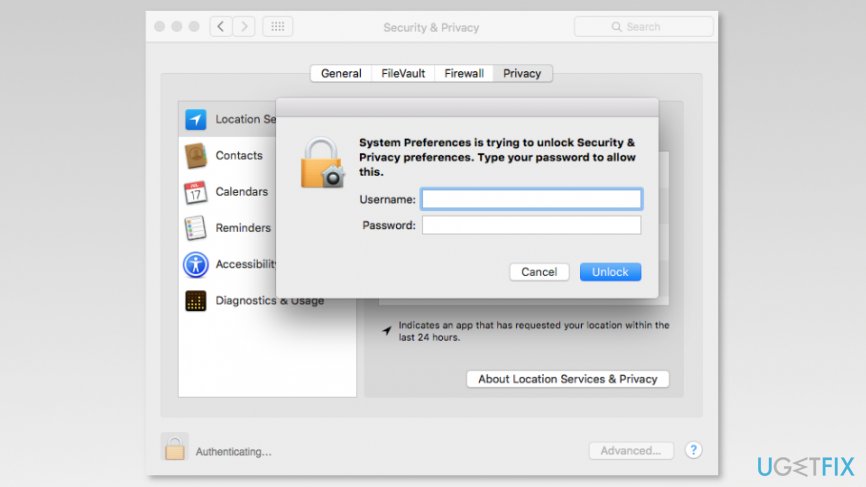
Enter administrator name and password - Remove the tick form Enable Location Services option.
- Click Turn Off button in the appeared pop-up saying:
Turning off Location Services will prevent you from locating this Mac with Find My Mac.
Click Turn Off to disable Location Services and remove this Mac from Find My Mac.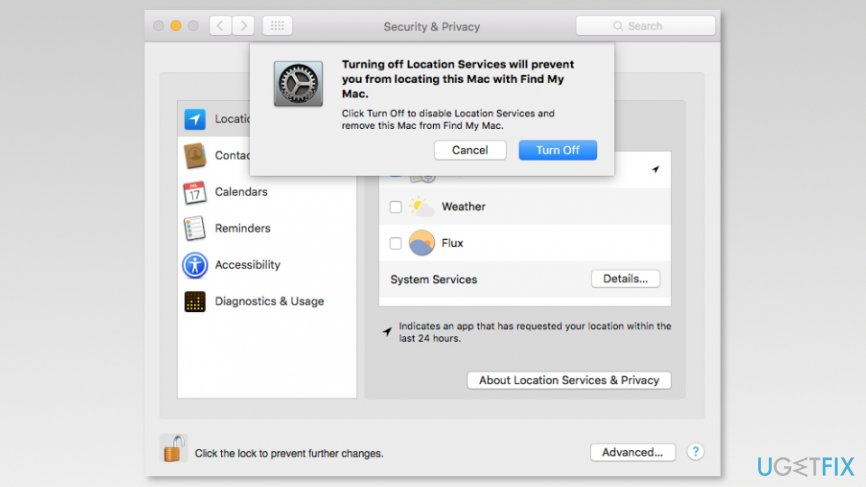
Turn off loctation services - Close System Preferences.
If you ever want to enable Location Services, you have to follow the same steps, but instead of removing the tick, mark Enable Location Services option.
If you want to check which apps are using this service and limit their access, you can do it by following these steps:
- Access System Preferences.
- Go to Security & Privacy panel.
- Open Privacy tab.
- Click the lock icon and enter your password (you should be logged in to the administrator account).
- You should see the list of apps that are using Location Services. Deselect the checkbox to turn of the settings from the particular app.
- Scroll down to the end of the app list until you see System Services line and Details… button. Click it.
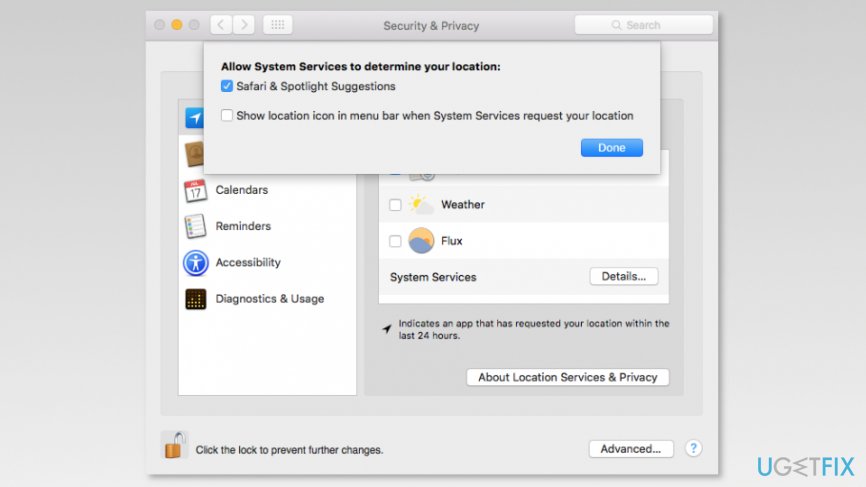
Allow system services to determine your location - You will see what specific system services are using your location. After making (or not) changes, click Done button and close System Preferences.
NOTE. If you disable Location Settings for particular apps, you will receive a prompt asking to enable it every time you launch the app. In some cases, applications might not work properly if you do not enable this feature.
Bottom line
To disable Location Services on Mac, go to System Preferences, access the Security & Privacy panel, and remove the tick from the Enable Location Services option. If you still encounter issues with location tracking, consider reviewing app permissions or consult further resources.
Frequently asked questions
To disable location services on Windows 10, go to Settings > Privacy > Location, and toggle the Location service off.
Yes, in Windows 11, you can go to Settings > Privacy & security > Location and manage location access for specific apps individually.
Disabling location services on your Windows 10 device should not significantly affect performance, but some apps that rely on location data may not function as intended.




Report an issue
What's wrong with this guide? We review every report and update or remove content.
Report received — thank you. We'll review and fix it.
You need a free account to submit a report.
Be the first to comment