How to fix
Install MacOS High Sierra on an older Mac
on Windows
Discover tips for optimizing Windows 10 or Windows 11 settings for better performance. Expert-tested methods ensure smooth operation with zero traces left.

Why does How to install MacOS High Sierra on an older Mac occur?
- Older Mac devices may not meet the requirements for installation
- Specific models are not compatible with the hack
- SIP (System Integrity Protection) may be enabled
- Lack of backups can lead to data loss
- Insufficient USB drive space for installation
Repairs Windows system files, removes malware, and restores a clean OS state — without reinstalling.
Hi. I have a Mac from early 2008. Could you show me how to install MacOS High Sierra? Or is it impossible?
You can install MacOS High Sierra on an older Mac. However, there are specific requirements, and not all older Mac devices can be "hacked" that way. Additionally, note that there are high risks since performing such actions goes against Apple's advice. Likewise, weigh the advantages and disadvantages before proceeding.
If you have still decided to install MacOS High Sierra on an older Mac, you will need several things before you can start. First of all, get a USB drive[ref en-1] with at least of 8 GB of free space and download MacOS High Sierra Patcher. Later, get a copy of MacOS High Sierra, and you are able to start the procedure.
You can install MacOS High Sierra on the following devices:
- Early-2008 or newer iMac, Mac Pro, or MacBook Pro;
- Early-2008 or newer Xserve;
- Late-2008 or newer Aluminum Unibody MacBook or MacBook Air;
- Early-2009 or newer white MacBook or Mac Mini.
Unfortunately, but this hack won't work on the following Mac computers:
- 2006-2007 Mac Pros, MacBook Pros, iMacs, and Mac Minis;
- 2006-2008 MacBooks;
- 2007 iMac 7,1 (If you have updated the CPU to Penryn-based Core 2 Duo);
- 2008 MacBook Air.
Learn how to install MacOS High Sierra on an older Mac
Before you start the procedure, it is important to make sure that SIP[ref en-2] is disabled. If you are not sure whether it is disabled or it re-enables use the following instructions to fix this issue:
- Click on the Apple's icon and select Restart;
- While the computer is still restarting hold Command + R to reboot your Mac into Recovery System;
- Open Terminal and type csrutil disable;
- Press Return.
Also, it is wise to store backups[ref en-3] in case you encounter any damage to your system. If you store them in the cloud or an external drive, they will be safe, and you will avoid any data loss.
Step 1. Prepare your USB drive
- Insert the USB drive;
- Open Disk Utility.
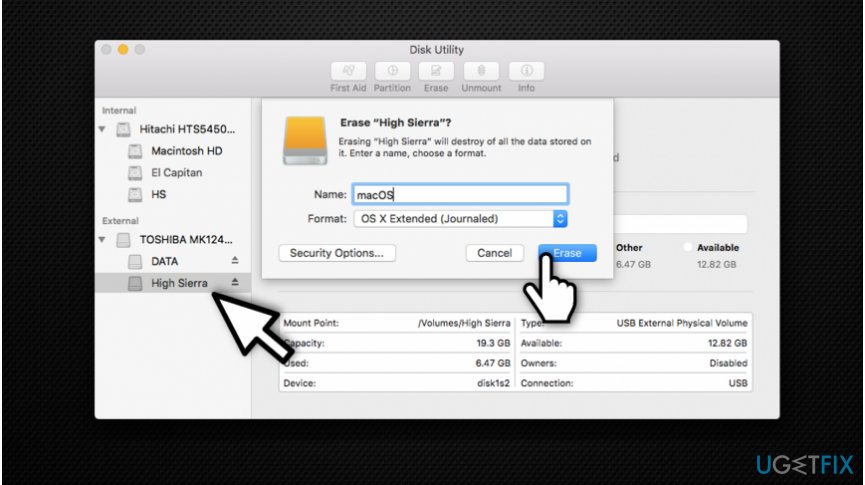
Erase high sierra - Pick OS X Extended (Journaled) and format it.
Step 2. Use MacOS High Sierra Patcher
- Open MacOS High Sierra Patcher;
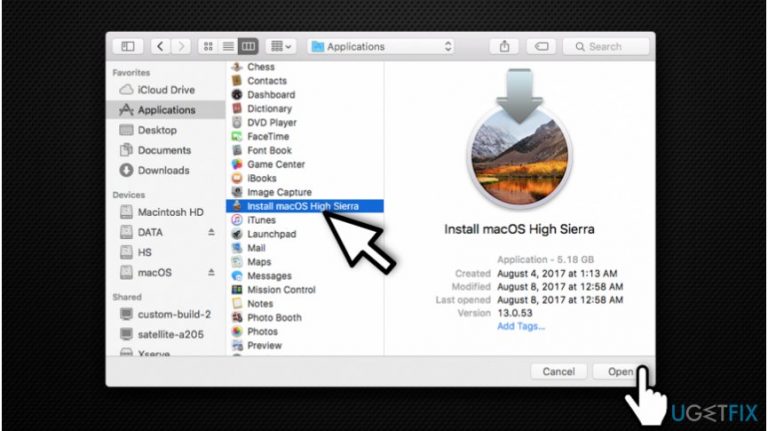
- Search for the copy of MacOS High Sierra Installer and open it.
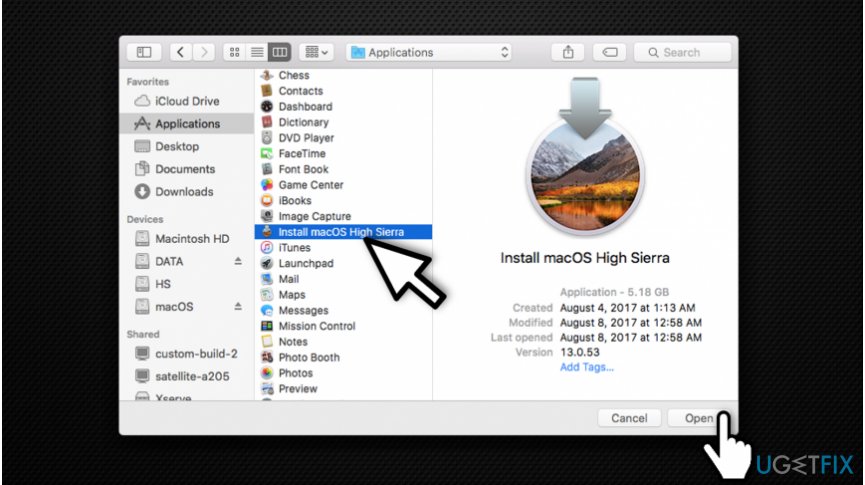
Open the installer of macos high sierra - Wait for the Patcher to verify it;
- In the right-bottom corner select your USB drive;
- Press Start Operation.
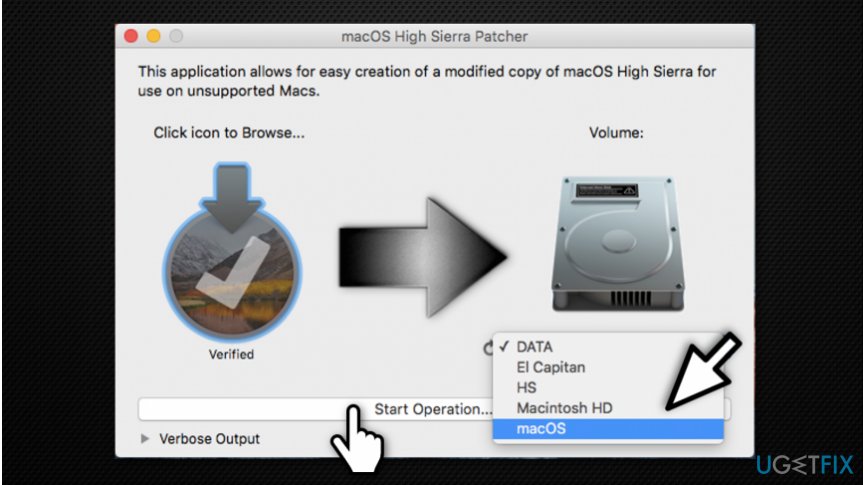
Upload high sierra on your usb drive - After the operation is completed, turn your Mac on while holding the Option key;
- Select your USB drive once the Mac is on.
Step 3. Install Mac OS High Sierra
- Install MacOS normally and boot back into the installer drive;
- Open MacOS Post Install application;
- Select the model of Mac you are using and on which volume you have installed MacOS High Sierra on;
- Click Patch and once it is finished press Reboot.
Bottom line
To install MacOS High Sierra on an older Mac, ensure SIP is disabled and prepare a USB drive with at least 8 GB of free space. If you encounter issues, consider backing up your data and following the installation steps carefully. If none of these solutions work, consult Apple support or consider upgrading your hardware.




Report an issue
What's wrong with this guide? We review every report and update or remove content.
Report received — thank you. We'll review and fix it.
You need a free account to submit a report.
Be the first to comment