How to fix
Update Google Chrome
on Windows
Easily update Google Chrome on Windows 10 or Windows 11 with our expert tips and tricks. Enjoy a smoother browsing experience, fixed in minutes!

Why does How to update Google Chrome occur?
- Updates are not installed automatically
- Browser has not been closed for a long time
- User has not checked for updates manually
- Available updates have been ignored for too long
- Security vulnerabilities need to be addressed
Repairs Windows system files, removes malware, and restores a clean OS state — without reinstalling.
I switched from Mozilla Firefox to Google Chrome. Though, I am not sure how to update this browser. Does it install updates automatically or should I do it manually?
Google Chrome is one of the most popular web browsers[ref en-1] that provide updates to their users quite frequently. Typically, they are installed as soon as a new version of the browser is released. Normally, updates are downloaded when you close the browser. This process runs in the background, and once you open Chrome, you might see some changes.
However, not all updates are visual and include changes on the startup page. Some of the updates are needed to fix bugs, vulnerabilities or improve your security. Though, you can always check for available upgrades and update Google Chrome manually by accessing browser’s settings menu.
Additionally, you can also enable automatic browser updates. It’s an easy task. Below you can find detailed instructions how to turn them on Windows and Mac operating systems. Then you can be certain that you are surfing the web with the most secure version of Chrome.
Explanation on how to download updates on Google Chrome
Normally, browser updates are installed automatically as soon as you close the browser. However, if it’s been a long time since you closed it, you can look up and install updates yourself. If you want to check for available Google Chrome updates, you have to follow these steps:
- Open the browser.
- Click on More (settings) icon in the top right corner.
- If there are any available updates, you will see them. They might be provided in three different colors:[ref en-3]
- Green updates mean that they are available for 2 says;
- Orange updates were available for 4 days;
- Red updates were available for 7 days.
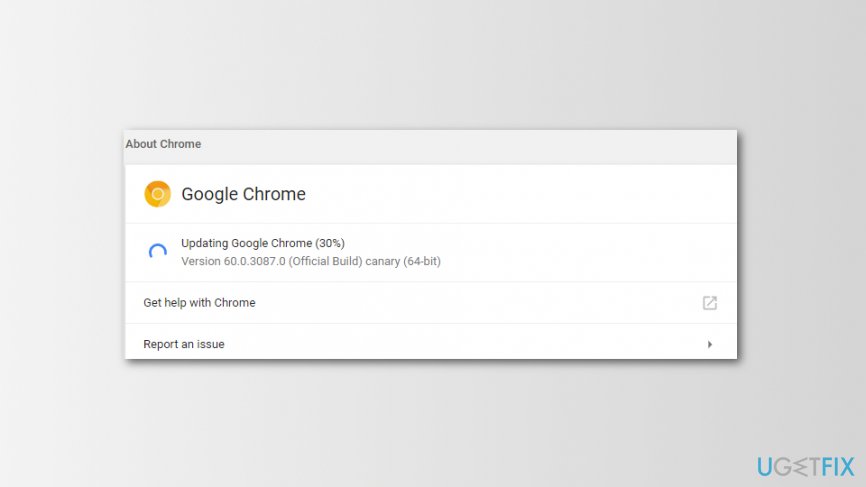
Available chrome update
There’s no doubt that you should not keep available updates uninstalled because it may lead to various cyber attacks.[ref en-2] Thus, your privacy and security might be at risk. Thus, to update Google Chrome, follow these steps:
- Open the browser and click More at the right top corner.
- Click Update Google Chrome option. If you do not see it, it means that your browser is up-to-date.
- Click Relaunch. All the opened tabs will be saved and restored. Thus, do not worry that browser restart will cause some harm.
How to enable automatic Google Chrome updates on the computer
Enabling automatic browser updates can save your time and ensures that you are using the latest version of Chrome. The procedure of how to enable updates on Mac and Windows devices is slightly different.
Turn on automatic Chrome updates on Mac
- Open the browser.
- Navigate to Settings.
- Click on the left pane and choose About Chrome.
- Click Automatically update Chrome for all users option.
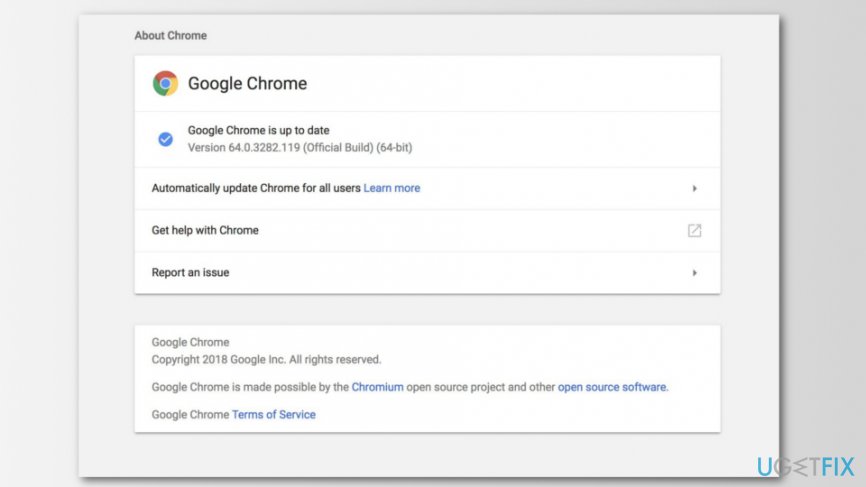
Automatically update chrome for all users option
Enable automatic Google Chrome updates on Windows
- Close Google Chrome.
- Run Windows dialogue window by clicking Windows Key + R.
- In the Run box enter msconfig.
- Click OK.
- In the appeared System Configuration window, go to Services tab.
- In the list of services, look up for Google Update (gupdate) and Google Update (gupdatem) and mark the ticka next to them.
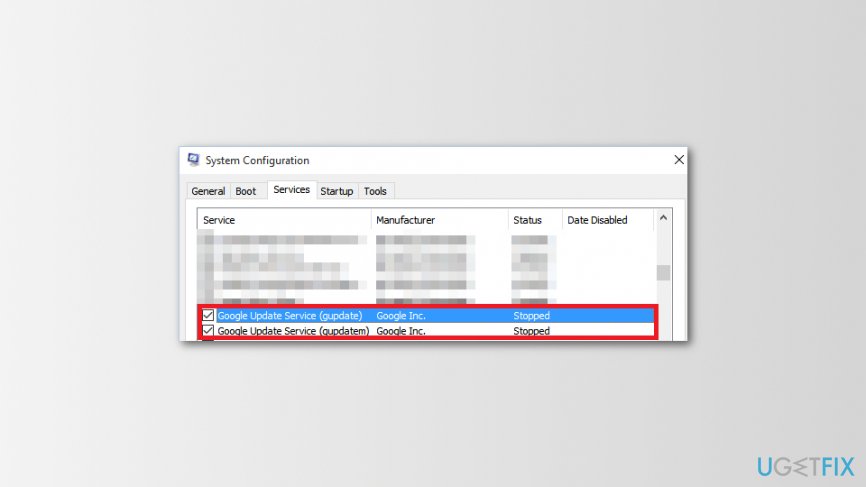
System configuration settings - Click Apply and then OK to save the changes.
- Restart your computer.
Bottom line
To update Google Chrome, you can either wait for automatic updates when closing the browser or check manually by clicking on the More icon and selecting Update Google Chrome. If you do not see the option to update, ensure that you have closed the browser for a sufficient time or enable automatic updates in the settings. If none of these solutions work, consider reinstalling the browser.
Frequently asked questions
To update Google Chrome, open the browser, click on the three dots in the top right corner, go to 'Help', and select 'About Google Chrome'. The browser will automatically check for updates and install them if available.
If Chrome won't update, try restarting your computer and then attempt the update again. If the problem persists, consider checking your internet connection or temporarily disabling any firewall or antivirus software that may be blocking the update.
Yes, keeping Google Chrome updated is essential for security and performance improvements, ensuring that you have the latest features available on Windows 10 or Windows 11.




Report an issue
What's wrong with this guide? We review every report and update or remove content.
Report received — thank you. We'll review and fix it.
You need a free account to submit a report.
Be the first to comment