How to fix
Disable Sticky Keys
on Windows
Easily disable Sticky Keys on Windows 10 or 11 with our expert-tested guide. Optimize your settings for a smoother experience, fixed in minutes!

Why does How to disable Sticky Keys on Windows occur?
- Sticky Keys feature is enabled
- Holding Shift or Ctrl keys triggers a pop-up
- Users may find Sticky Keys annoying
- Online gamers frequently hold Shift key
- Keyboard shortcut to enable Sticky Keys is pressing Shift 5 times
Repairs Windows system files, removes malware, and restores a clean OS state — without reinstalling.
I often click something on the keyboard and receive a pop-up asking if I want to turn on Sticky Keys. Well, I don’t. But how can I avoid getting this alert?
Sticky Keys[ref en-1] is a Windows OS feature that allows people with physical disabilities to use a computer conveniently. However, regular users might find this feature annoying because when you hold Shift or Ctrl keys for a while, the pop-up offering to enable Sticky Keys appears.
Sticky Keys allows modifier keys,[ref en-2] such as Shift, Alt or Ctrl, to function as Caps Lock. Meaning, that once a key is pressed and released it remains active until a user clicks another key.
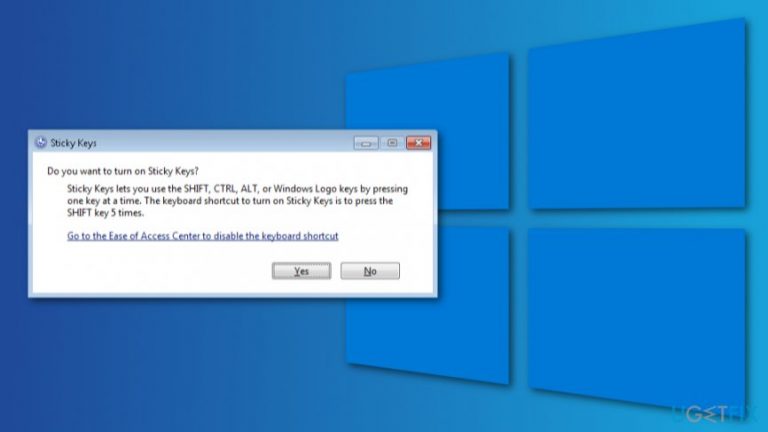
However, people who play lots of online games might find this activity bothersome, because holding Shift key for a while is often needed when gaming. As a result, they receive a pop-up saying:
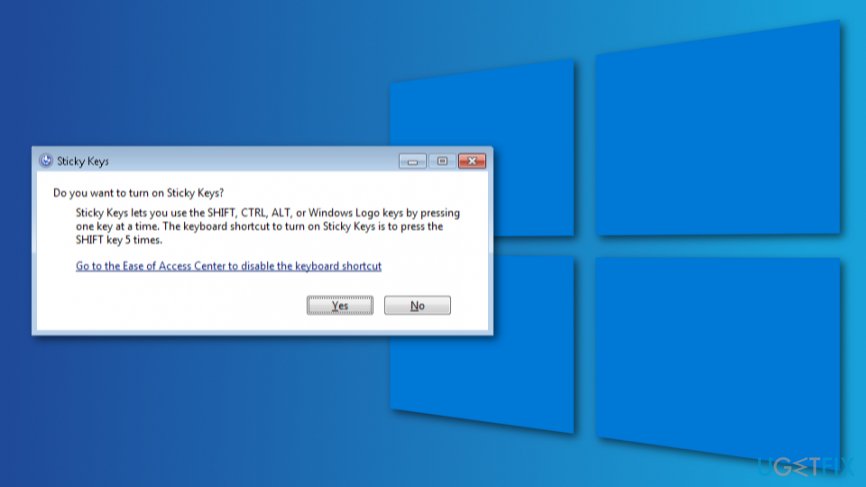
Do you want to turn on Sticky Keys?
Sticky Keys lets you use the SHIFT, CTRL, ALT, or Windows Logo keys by pressing one key at a time. The keyboard shortcut to turn on Sticky Keys is to press the SHIFT key 5 times.
If you receive this prompt frequently, you can stop this activity by turning off Sticky Keys on your Windows machine. Below you can find four methods that will help to do this.
Methods to disable Sticky Keys on Windows computer
The easiest way to get rid of Sticky Keys alerts is to disable this feature. However, if it does not help for some reason, you should try changing our keyboard’s power management settings or modify “Change how your keyboard works” feature. Finally, edit Windows registry,[ref en-3] but don’t forget to back up it first!
Method 1. Turn off Sticky Keys feature
- Right-click Start and navigate to Control Panel.
- Click Ease of Access Center option.
- Choose Change how your keyboard works settings.
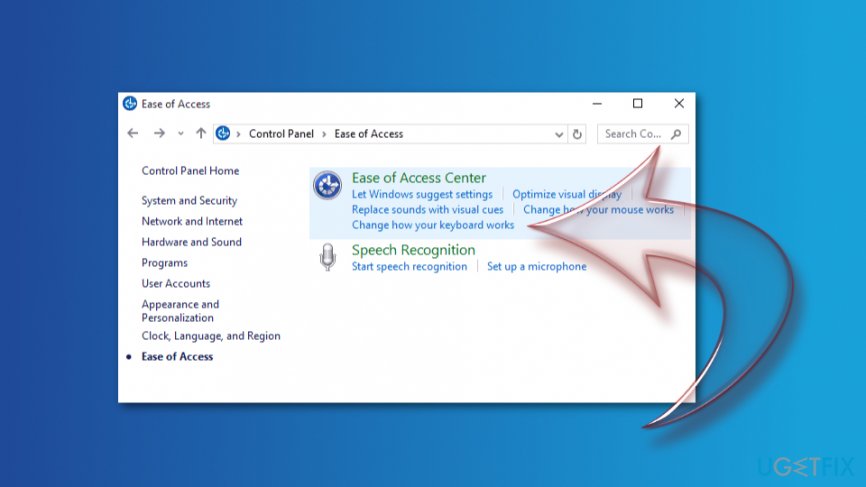
Change how your keyboard works - Click Set up Sticky Keys under Make is easier to type section.
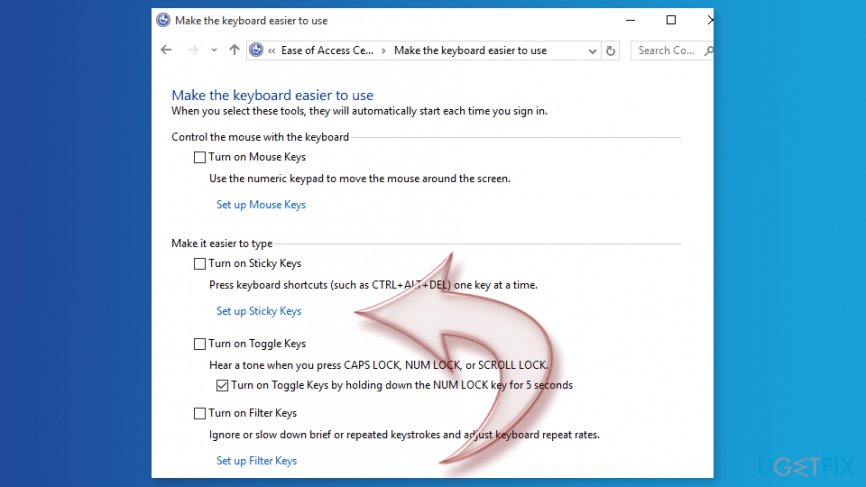
Set up sticky keys - Remove the tick from Turn on Sticky Keys when SHIFT is pressed 5 times option.
Method 2. Change keyboard power management settings
If the first method did not help, the reason might be hiding under keyboard power management settings. However, you have to take a few steps to fix Sticky Keys pop-ups:
- Right-click Start and choose Device Manager.
- When in device manager, find Keyboards and expend the list. You should see your keyboard there. If not, look up for it under the Human Interface Devices category.
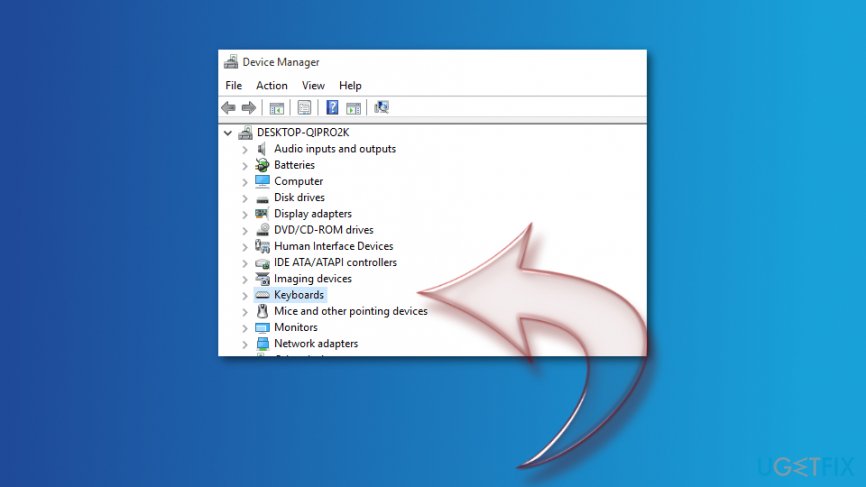
Find your keyboard - Once you find your keyboard, right-click on it and choose Properties.
- Click Power Management tab.
- Find Allow the computer to turn off this device to save power option under Power Management section and uncheck it.
- Click OK to save the changes.
Method 3. Change how your keyboard works
Another way to disable Sticky Keys pop-up is to change the way how your keyboard works. These are other keyboard settings listed under Ease of Access Center menu:
- Right-click Start and go to Control Panel.
- Navigate to Ease of Access Center and choose Change how your keyboard works option.
- Go to Make your keyboard easier to use.
- Navigate to Make it easier to type section. Here, you should uncheck some of all selected entries.
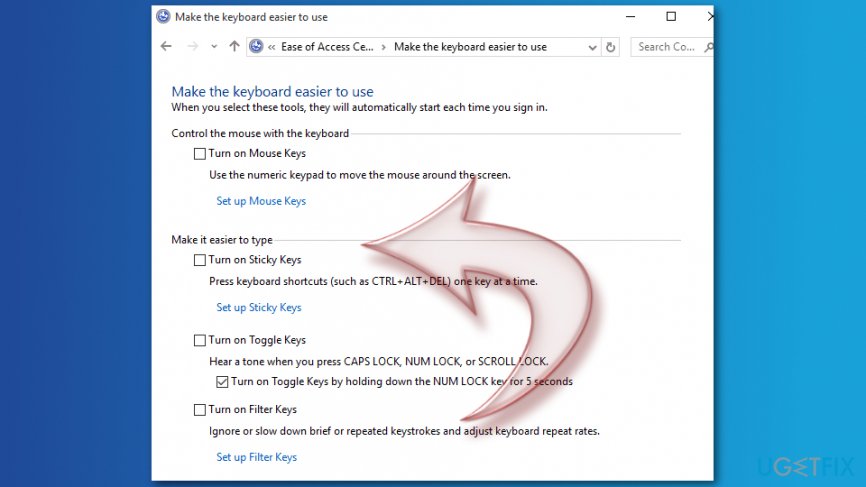
Make it easier to type
Method 4. Edit Windows registry
If none of the above methods helped, you should edit the registry. However, we recommend backing up it first in case something goes wrong.
- Right-click Start and choose Run.
- In the Run box, enter regedit and click OK or hit Enter.
- Find this folder in the left pane: HKEY_CURRENT_USER\\Control Panel\\Accessibility\\StickyKeys
- Find the folder called Flags in the right pane and double-click it.
- In the appeared Edit String box change Value data to 506.
- Click OK.
- Find this folder in the left pane: HKEY_CURRENT_USER\\Control Panel\\Accessibility\\Keyboard Response
- In the right pan find Flags. Double-click it and set the Value data to 122.
- Click OK to save the changes.
- Find this folder in the left pane: HKEY_CURRENT_USER\\Control Panel\\Accessibility\\ToggleKeys folder
- In the right pane find Flags. Double-click it and change its value to 58.
- Click OK.
- Close Registry Editor and restart your PC.
Hopefully, this method helps you to get rid of Sticky Keys pop-up on Windows. If not, please let us know. There are other ways to fix this issue. However, above-mentioned solutions worked for the majority of users.
Bottom line
To disable Sticky Keys, you can turn off the feature through the Control Panel, change keyboard power management settings, or modify the 'Change how your keyboard works' feature. If these methods do not resolve the issue, consider editing the Windows registry after backing it up.
Frequently asked questions
To disable Sticky Keys, go to Settings > Ease of Access > Keyboard, and toggle off the Sticky Keys option.
You can quickly turn off Sticky Keys by pressing the Shift key five times in a row and then selecting 'No' when prompted.
Yes, you can disable Sticky Keys by going to Control Panel > Ease of Access Center > Make the keyboard easier to use, and unchecking the Sticky Keys option.




Report an issue
What's wrong with this guide? We review every report and update or remove content.
Report received — thank you. We'll review and fix it.
You need a free account to submit a report.
Be the first to comment