How to fix
Enable Mac screen sharing without third-party apps
on Windows
Unlock seamless remote access on Windows 10 and 11 with expert tips to enable screen sharing without third-party apps. Fixed in minutes!

Why does How to enable Mac screen sharing without third-party apps occur?
- Crashes of third-party screen sharing apps
- Poor quality of third-party screen sharing apps
- Potential infiltration of cyber threats from third-party apps
- Excessive CPU usage by installed screen sharing software
- Intrusive advertisements from third-party apps
Repairs Windows system files, removes malware, and restores a clean OS state — without reinstalling.
I have noticed numerous advertisements of useful screen sharing apps. Although, it seems that they cannot be reliable as I have experienced crashes and poor quality. Maybe there is a way how I could enable Mac screen sharing without third-party apps? Thanks for your help!
Mac screen sharing[ref en-1] is a useful feature for all people who have to co-work with others on the computer. This function allows users to see what other computer's screen in real-time. Likewise, people in business and other international workers use this feature on a daily basis.
Screen sharing on Mac allows:
- View the screen in real-time;
- Browse through the folders;
- Use installed applications on the computer, etc.
While app developers have noticed the success of this feature on Mac, they have started developing their own third-party tools to set up screen sharing on Mac. However, not all of them are effective as well as safe. Keep in mind that most of them might require purchasing the full version of the software after the trial.
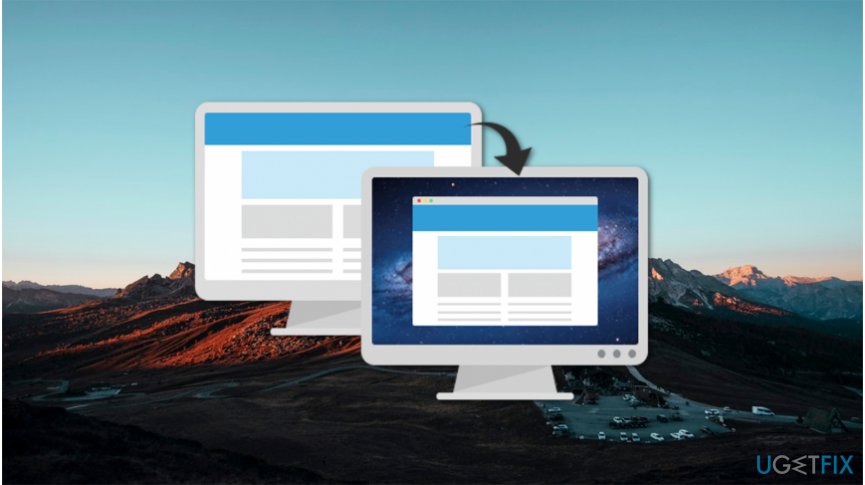
Fortunately, there are ways how you can set up Mac screen sharing without additional apps. The company has an inbuilt feature on their devices which allows users to access other computers' screens in real-time easily. If you are interested in how to activate this function, read the instructions below.
Additionally, even though most of the apps are harmless, some of them might be designed to infiltrate other cyber threats or potentially unwanted programs (PUPs)[ref en-2] on your computer. For this reason, we suggest you enable screen sharing on Mac without any additional software in order to avoid any potential damage it might cause.
Set up Mac screen sharing without third-party apps
If you have recently installed screen sharing software and it has started performing the following activity, we recommend you to get [rev id=”Reimage”] and clean your system:
- Sending intrusive advertisements;
- Operating in the background without your knowledge;
- Using an excessive amount of CPU[ref en-3] power.
Instructions on how to enable screen sharing on Mac without extra software:
- Open Settings;
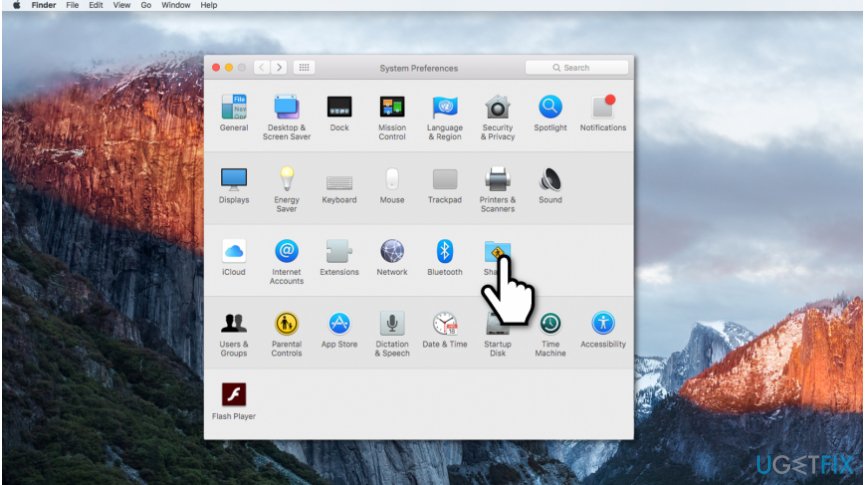
Mac screen sharing - Select Sharing;
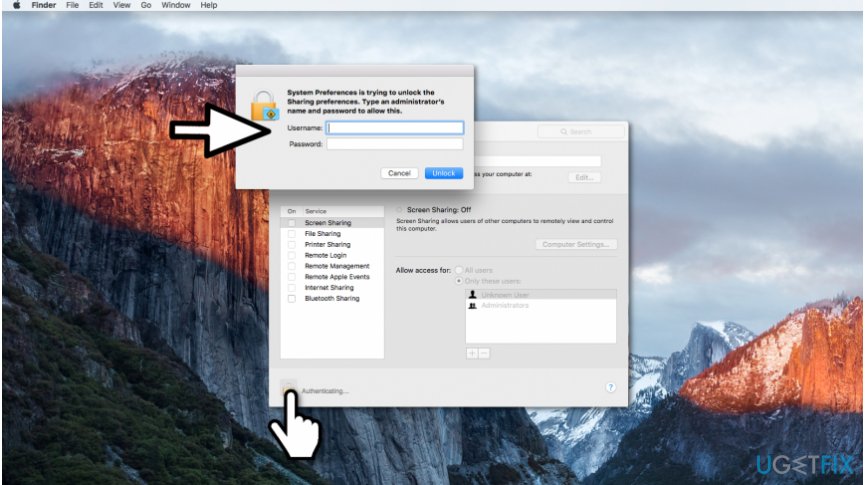
Mac screen sharing instructions - Click on the lock icon in the bottom-left corner of the window;
- Log in as Admin user;
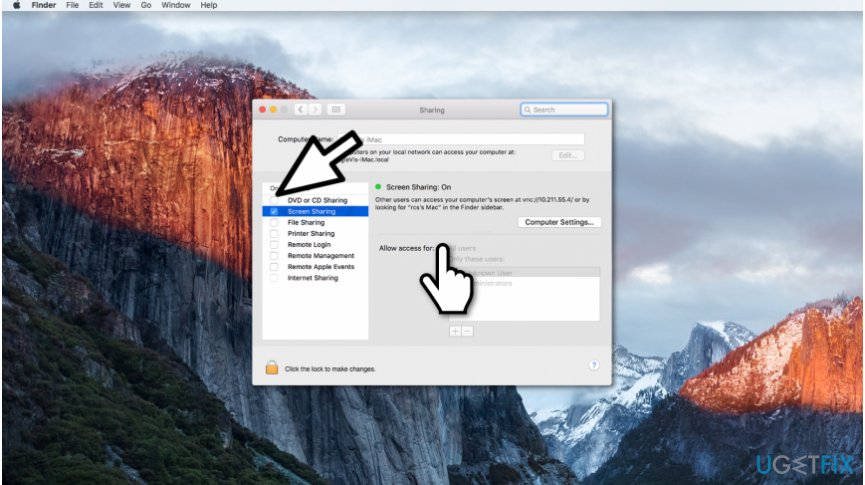
Mac screen sharing guide - On the left panel, choose Screen Sharing;
- You can select one of the following:
- All users;
- Anyone might ask for permission to view and control your screen;
- Only these users;
- People who are on the list will just be able to control the screen;
- or other options by clicking the Computer Settings button.
- All users;
Bottom line
To enable Mac screen sharing without third-party apps, you can open Settings, select Sharing, and click on the lock icon in the bottom-left corner. This built-in feature allows for real-time screen sharing without the risks associated with external software. If these steps do not resolve the issue, consider cleaning your system with a recommended tool.
Frequently asked questions
No, screen sharing on a Mac must be enabled directly on the Mac itself; Windows 10 or Windows 11 cannot configure this setting remotely.
You need to go to System Preferences, select Sharing, and check the Screen Sharing option to enable it.
Yes, you can use the built-in Remote Desktop Protocol (RDP) from Windows, but you must first enable screen sharing on the Mac.




Report an issue
What's wrong with this guide? We review every report and update or remove content.
Report received — thank you. We'll review and fix it.
You need a free account to submit a report.
Be the first to comment