How to fix
0x0000012B BSOD
on Windows
Resolve the frustrating 0x0000012B BSOD on Windows 10 effortlessly with our expert-tested solutions. Fix it quickly and get your PC running smoothly again.

What causes How to Fix 0x0000012B BSOD on Windows 10?
- Damaged ntkrnlmp.exe file
- Corrupted by malware
- Recent software changes
- Kaspersky anti-virus
- Old or corrupted device drivers
- RAM corruption
Repairs Windows system files, removes malware, and restores a clean OS state — without reinstalling.
Hi everyone. About a week ago I got a BSOD “FAULTY_HARDWARE_CORRUPTED_PAGE” with a stop code 0x0000012B. I’ve rebooted my laptop and the error disappeared. However, yesterday the screen went blue again while I was simply web browsing on Edge. Again, restart helped. But today the same BSOD during the game play online. Could someone please help?
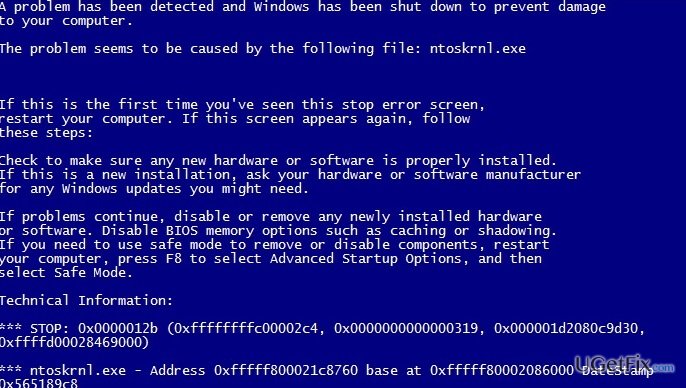
FAULTY_HARDWARE_CORRUPTED_PAGE is a blue screen error, which is also known as Error Code 0x0000012B or Stop Code 0x12B. Initially, the problem has been recorded a long time ago, i.e. counting from the release of Windows 10 OS. However, several users have started a discussion about 0x0000012B BSOD on the official Microsoft forum a couple of days ago, so it seems that it hasn’t been fixed permanently. In comparison to other BSOD errors, FAULTY_HARDWARE_CORRUPTED_PAGE BSOD does not exhibit any extraordinary traits. It shows up unexpectedly and crashes the active program window. The PC user receives such a notification:
STOP Error 0x12B: FAULTY_HARDWARE_CORRUPTED_PAGE
A problem has been detected and Windows has been shut down to prevent damage to your computer. The problem seems to be caused by the following file:xxxxxx
Typically, before the emergence of the FAULTY_HARDWARE_CORRUPTED_PAGE BSOD, the PC starts running sluggishly, unresponsively (to mouse or keyboard), freezes more often, boots slowly, and so on. Usually, the issue appears due to the damaged ntkrnlmp.exe file, which is one of the Windows OS components. The file might have been corrupted by malware, recent software changes, and similar. Additionally, 0x0000012B BSOD may be fostered by Kaspersky anti-virus, old/corrupted device drivers or RAM corruption. The latter provocative is the lowest expected. Even though BSOD errors often look like fatal, usually they can be fixed without the intervention of Windows-certified technicians. We believe that the fixes provided in this post will help you to fix 0x0000012B BSOD easy enough.
How to Fix 0x0000012B BSOD on Windows 10?
If you have started experiencing 0x0000012B error out of nowhere, there is a couple of easy things that you can try in the first place:
- Boot your PC into Safe Mode with Networking and the go back to the normal mode by restarting the system. Use your PC as usually and check if the problem reoccurs.
- Uninstall Kaspersky or another third-party anti-virus.
- Run Windows 10 BSOD troubleshooter.
- Install all available Windows 10 updates using Windows Update service.
If none of these steps helped you to fix 0x0000012B error, then you may have to try these methods:
Fix 1. Run a scan with an optimization tool
As we have already pointed out, this bug check may occur due to the ntkrnlmp.exe corruption. Such and similar system files are extremely vulnerable to malware, potentially unwanted third-party programs, and other external factors. Therefore, to fix FAULTY_HARDWARE_CORRUPTED_PAGE BSOD, run a scan with [d1], which is a powerful PC optimization tool with an inbuilt Avira Antivir engine. It will scan for Windows registry damage, corrupted system files, and of course, malware.
Fix 2. Run DISM scan
- Click Win key + X and select Command Prompt (Admin).
- Type the following command and press Enter after each of them:
DISM /Online /Cleanup-Image /CheckHealth
DISM /Online /Cleanup-Image /ScanHealth
DISM /Online /Cleanup-Image /RestoreHealth - Once done, reboot the system.
Fix 3. Update Device Drivers
- Press Win key and type Device Manager.
- Open Device Manager. Expand the list of the devices using the left pane and update each of them one by one.
- For this purpose, right-click on the Device Driver, select Properties, and click Update Drivers.
Fix 4. Use System Restore Point
If the previous methods did not help, try to enable a System Restore Point, but for that, you must have created one before. If you did, do the following:
- Hold power button to turn off your PC and then restart the system.
- Before Windows logo shows up, press F8 to boot into Safe Mode.
- Log in to your account if required.
- Once the system boots up, disable your antivirus.
- Click Win key and type system restore.
- Select Create a restore point, select System Restore, and hit Next.
- Select the latest system restore point and click Next.
Fix 5. Try a Clean Boot
- Click Win key and type msconfig.
- Click System Configuration and open Services tab.
- Mark Hide all Microsoft services box and select Disable all.
- Open Startup tab and click Open Task Manager.
- Click on each startup item and select Disable.
- Close Task Manager and click OK on the System Configuration window.
- Reboot the system.
If Clean Boot resolved the FAULTY_HARDWARE_CORRUPTED_PAGE BSOD, it means that the culprit is the software running on the system. To specify it, enable programs one by one and try to recognize, which will trigger the blue screen. We would recommend reinstalling or removing such software if it’s not necessary.
Bottom line
To fix the 0x0000012B BSOD, you can try booting your PC into Safe Mode with Networking and then restarting to return to normal mode. If the issue persists, consider checking for corrupted files or updating your drivers. If none of these solutions work, further investigation or professional help may be necessary.
Frequently asked questions
The 0x0000012B BSOD error indicates a critical system issue, typically related to hardware or driver conflicts in Windows 10. This error can prevent your PC from booting properly.
To troubleshoot the 0x0000012B BSOD, you can start by booting into Safe Mode and updating your drivers, or performing a system restore to revert recent changes. Additionally, running the Windows Memory Diagnostic tool can help identify hardware issues.
Reinstalling Windows 10 can potentially resolve the 0x0000012B BSOD error, especially if it's caused by corrupted system files. However, it's advisable to try less drastic measures first, like driver updates and system repairs.




Report an issue
What's wrong with this guide? We review every report and update or remove content.
Report received — thank you. We'll review and fix it.
You need a free account to submit a report.
Be the first to comment