How to fix
KB5037591 causes BSOD
on Windows
Resolve the BSOD issue caused by KB5037591 on Windows 11 quickly and effectively. Get expert-tested solutions today!

What causes How to fix KB5037591 causes BSOD in Windows 11?
- System crashes due to the KB5037591 update
- Driver-related problems after Windows updates
- Older version of the Logitech driver causing conflicts
- Logitech G Hub software conflicting with the new update
Repairs Windows system files, removes malware, and restores a clean OS state — without reinstalling.
Yesterday, I installed the newest Windows 11 update KB5037591 and it seemed to be fine. Today, I have been getting quite a few system crashes/BSODs, which did not occur before. How can I fix this?
A number of consumers have reported problems with KB5037591, an update for. NET Framework 3.5 and 4.8.1 for Windows 11 versions 22H2 and 23H2 that was issued on May 14. This update was meant to improve system security and efficiency concerning the .NET Framework component (even though for some users, it failed to install). Unfortunately, some have reported that Windows might randomly crash with a Blue Screen of Death (BSOD) after updating their PCs with KB5037591.
A serious system error known as BSOD causes Windows to crash outright. This error, which usually appears as a blue screen, is frequently brought on by hardware or driver problems, rendering the computer inoperable until it is rebooted. The BSOD in this instance seems to be connected to the update.
Driver-related problems are the most frequent causes of BSODs, particularly following Windows updates. In this instance, it seems that an older version of the Logitech driver might be the culprit. Logitech G Hub, a software used for managing and customizing Logitech hardware devices, could be conflicting with the new update, causing the system to crash.
To fix the issue where KB5037591 cases BSOD on Windows, updating Logitech G Hub to the latest version might resolve the driver conflicts. If updating the program doesn't solve the problem, try reinstalling the Logitech G Hub app.
Another viable option is to remove the KB5037591 upgrade and go back to the earlier version. To accomplish this, go to the Settings app's update history and choose the remove update option.
Using a PC repair program like [d1] can help users with persistent BSOD problems automatically troubleshoot and correct underlying Windows issues, assuring system stability and performance.
Fix 1. Update Logitech G Hub
First of all, you should make sure that you are using the latest version of Logitech G Hub.
- Open Logitech G Hub - the update should start automatically.
- You will be notified about changes.
- If an automatic update does not start, you can initiate it manually.
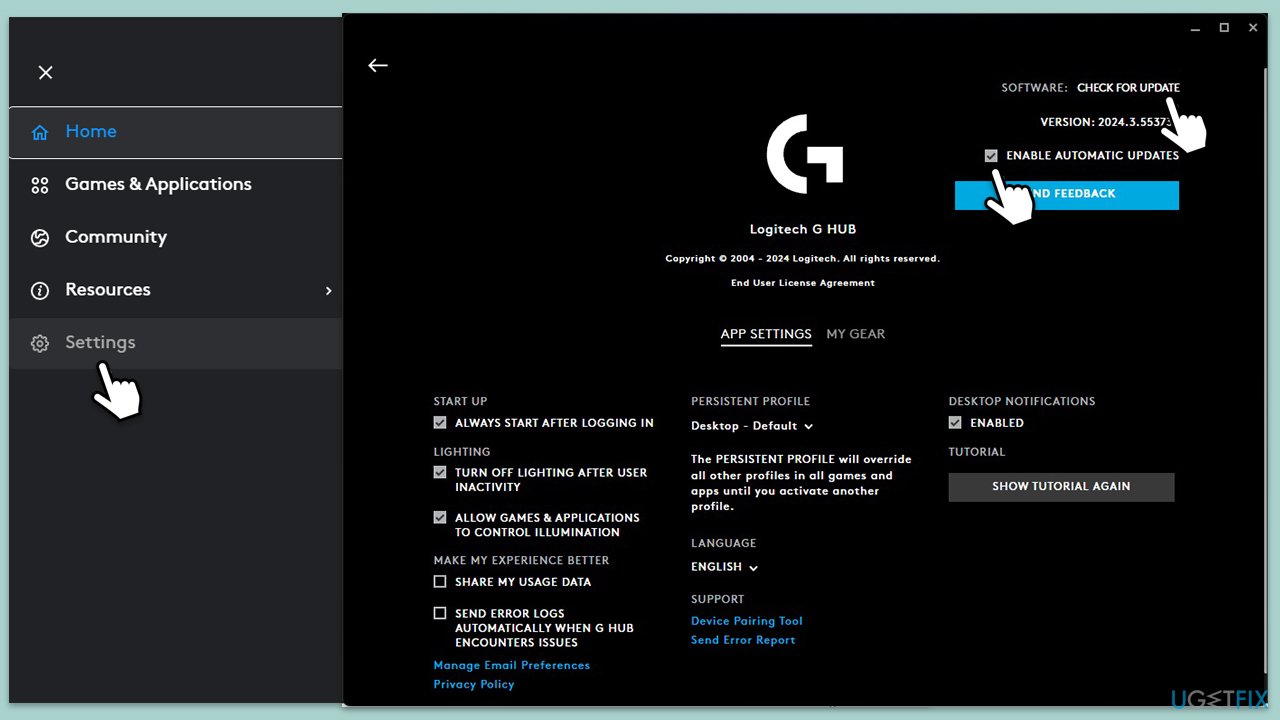
- Open the app and press on the three-line menu on the left side of the window, then select Settings.
- At the top-right corner, click Check for update; the latest version of the app will be then installed.
- For the future, make sure you tick the Enable automatic updates checkbox.
Fix 2. Reinstall Logitech G Hub
Reinstalling Logitech G Hub can ensure that any corrupted files are replaced, potentially fixing the BSOD issue.
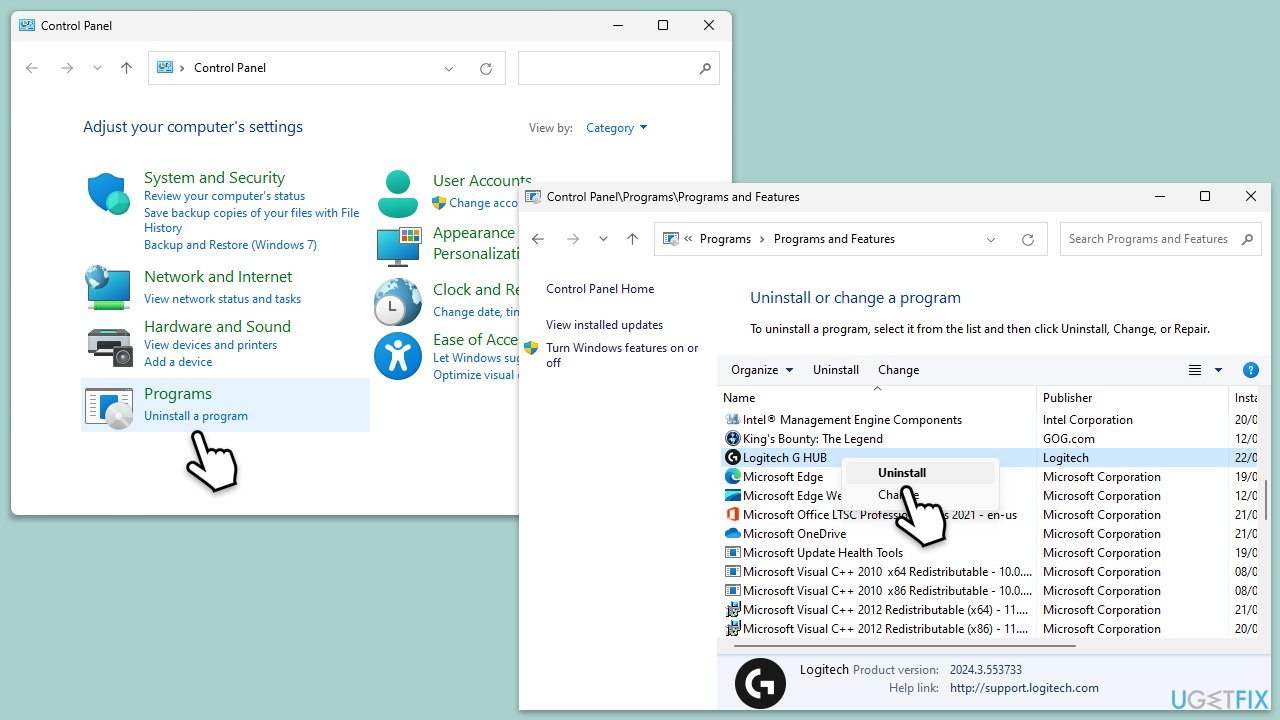
- Type Control Panel in Windows search and press Enter.
- Select Programs > Installed programs.
- Scroll down to find Logitech G Hub.
- Right-click on the app and select Uninstall.
- Follow on-screen instructions to finish the process.
- Visit the official Logitech website to download and install the latest version of the app.
Fix 3. Uninstall KB5037591
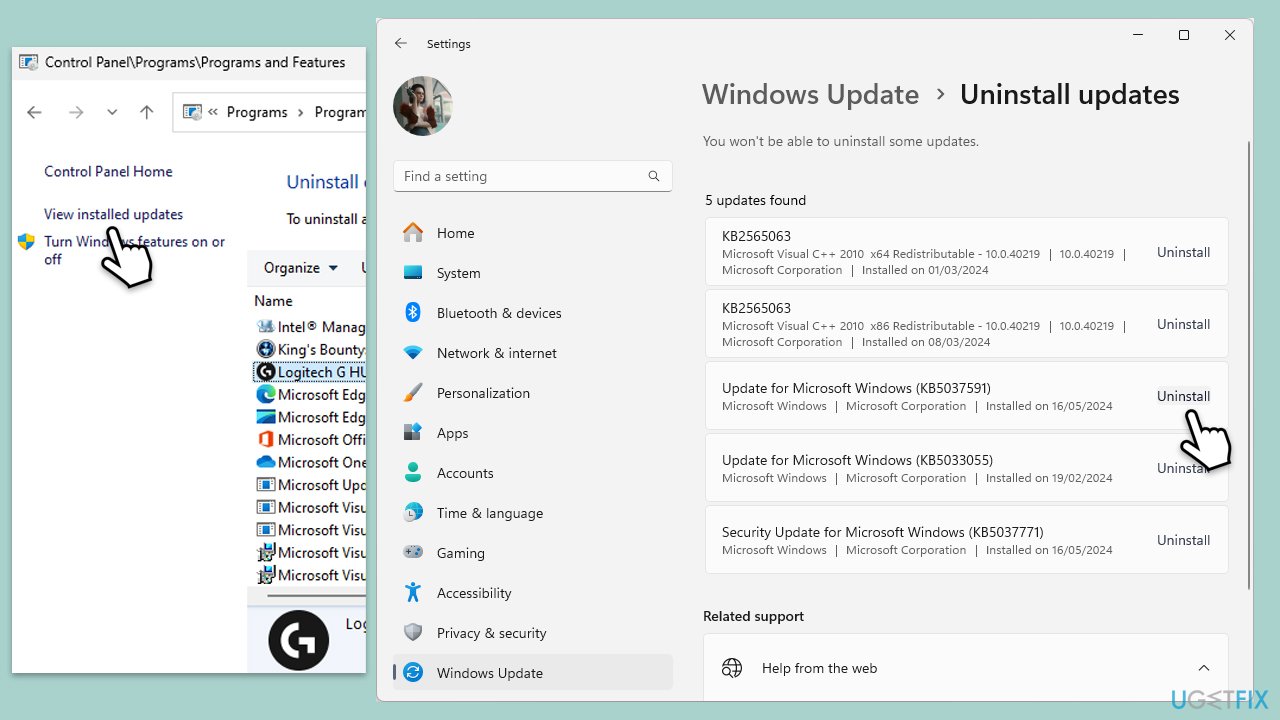
You can try reverting to the previous version of Windows by uninstalling the the update if you want to eep the old version of Logitech drivers until the problem is solved by Logitech or Microsoft.
- Open Control Panel.
- Select Programs > Uninstall a program.
- Click on View installed updates on the left side of the window.
- Find the KB5037591 update and uninstall it.
- Proceed with on-screen instructions.
- Restart your device.
- After booting back up, don't forget to pause the update.
Fix 4. Run Windows Update troubleshooter
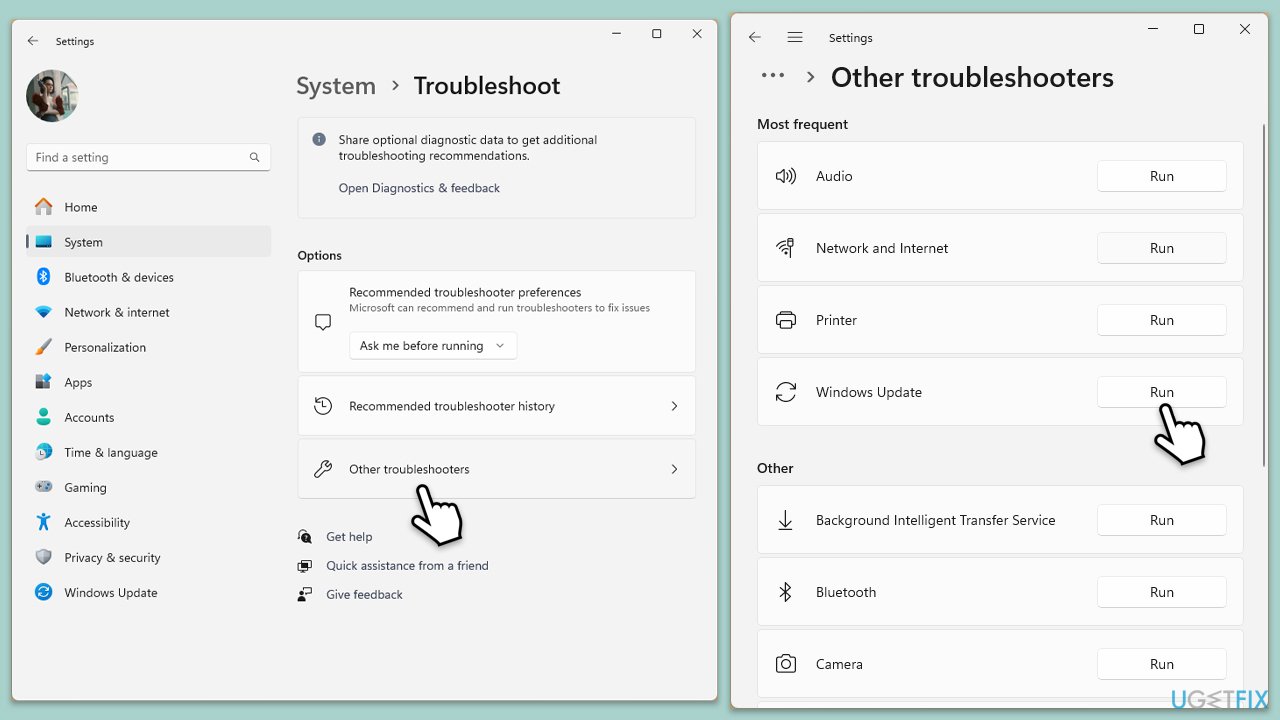
As a general solution, you might want to run a Windows update troubleshooter as follows:
- Type Troubleshoot into the Windows search bar and press Enter.
- Next, on the right side of the window, select Other troubleshooters.
- Scroll down to locate the Windows update option and click on it.
- Click on Run and allow the process to complete.
- Once it is finished, implement any recommended fixes and restart Windows.
Fix 5. Perform a System Restore
Using System Restore can revert your system to a previous state before the KB5037591 update was installed, potentially fixing the BSOD.
- Type System Restore in the search box and click Create a restore point.
- In the System Properties window, click System Restore.
- Click Next, choose a restore point from before the issues began, and click Next again.
- Follow the on-screen instructions to complete the restoration.
- Restart your computer after the process is completed.

Bottom line
To fix the BSOD caused by KB5037591, users should first update Logitech G Hub to the latest version. If that doesn't resolve the issue, reinstalling the Logitech G Hub app or removing the KB5037591 update may help. If none of these solutions work, consider using a PC repair program to troubleshoot and correct underlying Windows issues.
Frequently asked questions
First, try booting into Safe Mode and uninstalling the KB5037591 update via the Settings app. If the issue persists, consider running the Windows Recovery Environment to restore your system to a previous state.
To prevent future BSOD issues, make sure to pause updates temporarily until Microsoft releases a fix, and regularly check for updates from Windows Update. Additionally, keep your drivers and software up to date to minimize compatibility issues.
You can check the update history in Settings under 'Windows Update' to see if KB5037591 was recently installed before the BSOD occurred. Additionally, reviewing the BSOD error codes can help confirm if the issue is linked to this specific update.




Report an issue
What's wrong with this guide? We review every report and update or remove content.
Report received — thank you. We'll review and fix it.
You need a free account to submit a report.
Be the first to comment