How to fix
Microsoft Store error 0x80240008
on Windows
Resolve Microsoft Store error 0x80240008 easily on Windows 10 and 11. Follow our expert-tested solutions for a smooth experience, fixed in minutes.

What causes How to fix Microsoft Store error 0x80240008?
- Damaged system files
- Corrupted or bugged cache files
- Issues with the Windows Update procedure
- Out-of-date software versions
- Conflicts between system components
Repairs Windows system files, removes malware, and restores a clean OS state — without reinstalling.
Microsoft Store is not downloading anything and it keeps giving me error code 0x80240008 every time I try. Is there anything I can do to fix it?
With its vast selection of services and apps, the Microsoft Store is a vital component of the Windows ecosystem. But occasionally, problems with the Microsoft Store arise, making it impossible for users to update or install new apps.
0x80240008 error is a typical error that can interfere with your experience. It can cause you a great deal of inconvenience and irritation by preventing you from installing new applications or getting the updates you need.
The 0x80240008 error can occur for several reasons, making it a complex issue to diagnose and resolve. One common cause is damaged system files that interfere with the normal operation of the Microsoft Store. Additionally, issues with the Microsoft Store itself, such as corrupted or bugged cache files, can trigger this error.
As updates are necessary to keep the Microsoft Store operating smoothly, issues with the Windows Update procedure may also be a factor in the occurrence of this error. Sometimes, out-of-date software versions or conflicts between system components can also cause apps to fail to download or update.
Some actions that may help mitigate this error include using a system file checker to address corrupted system files, cleaning and resetting the Microsoft Store cache, ensuring the Windows Update service is operating properly, and upgrading all pertinent software components.
Use the steps below for a thorough comprehensive guide on how to fix the 0x80240008 error. Consider utilizing the [d1] maintenance and repair tool to fix more complicated problems like corrupted system files, broken registry, or blue screen of death errors. This tool works especially well in cases when determining the root cause is challenging.

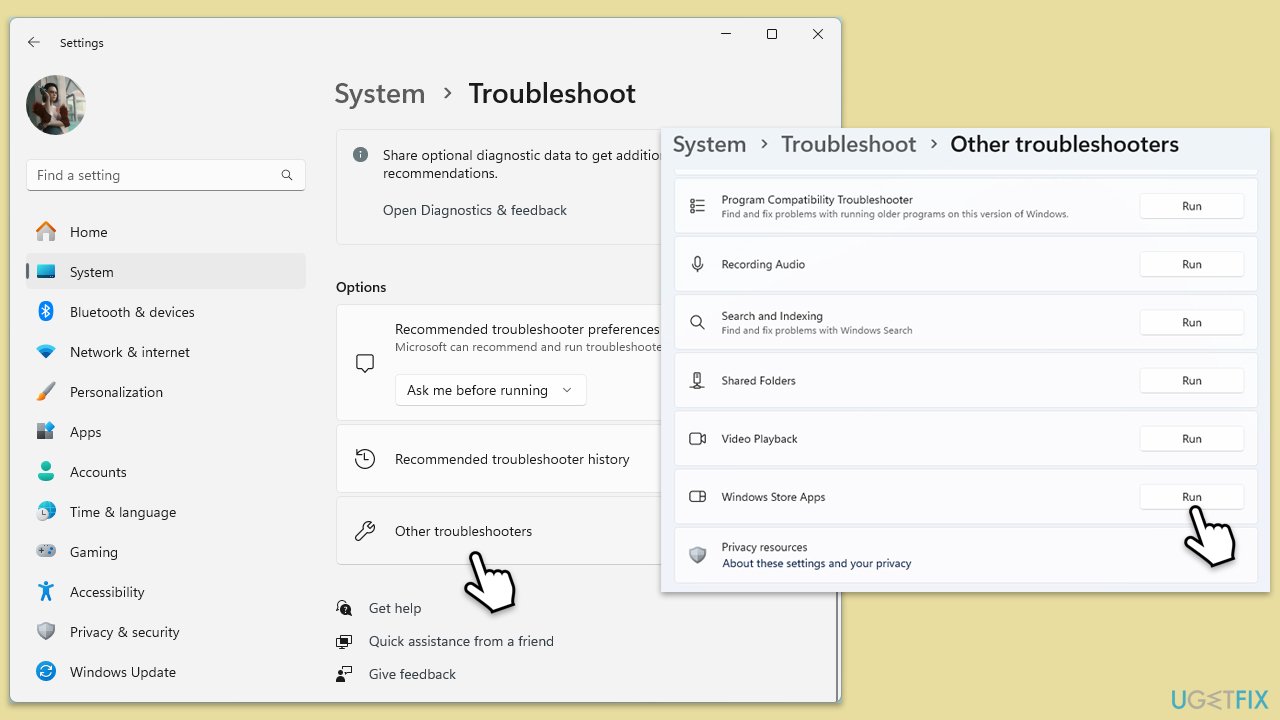
Fix 1. Run Windows Store Apps troubleshooter
The 0x80240008 error could be caused by a common Windows update issue that can be detected and resolved with Windows Update Troubleshooter.
- Type Troubleshoot in Windows search and hit Enter.
- Click Additional Troubleshooters or Other troubleshooters.
- Scroll down to find Windows store apps and select it.
- Click Run or Run the troubleshooter.
- Wait till the process is finished and apply the fixes.
- Repeat the process with the Windows update troubleshooter.
Fix 2. Clear Microsoft Store Cache
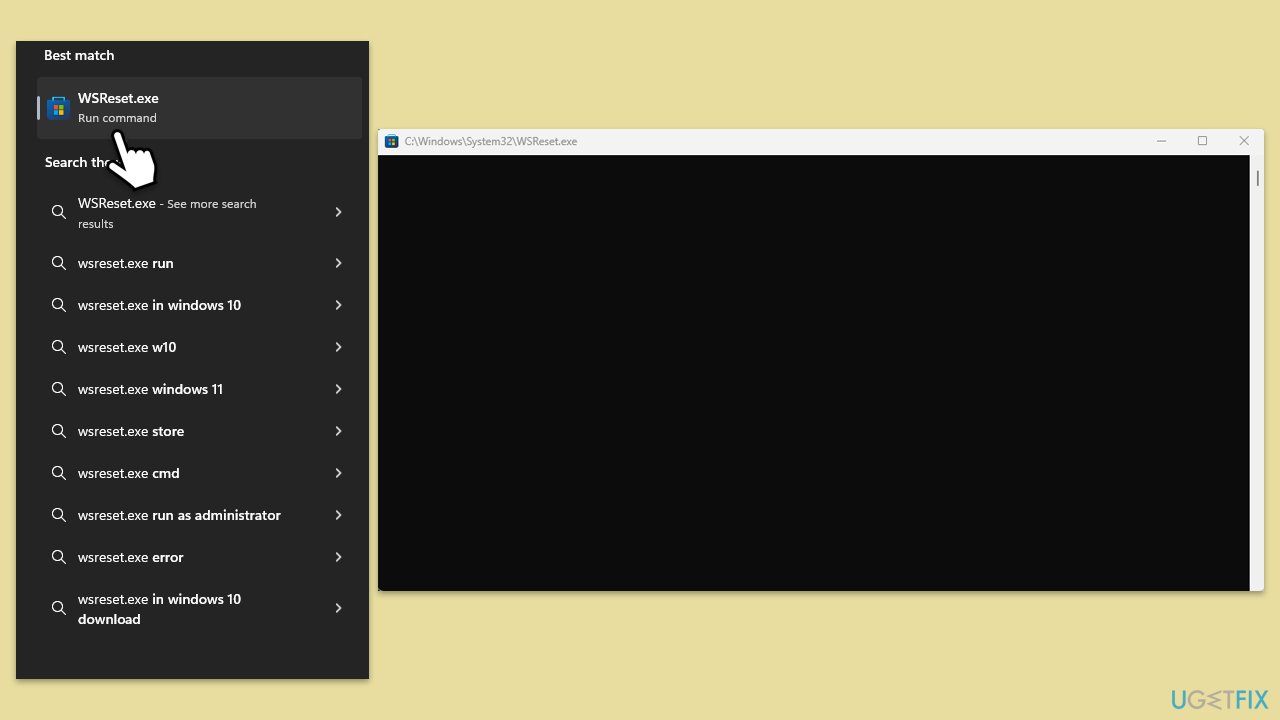
- Type WSReset.exe in the Windows search bar and press Enter.
- Wait till a black pop-up window shows up – do not close it.
- The pop-up window will close soon, and the Windows Store should reopen.
- Check if the error is gone.
Fix 3. Update Windows
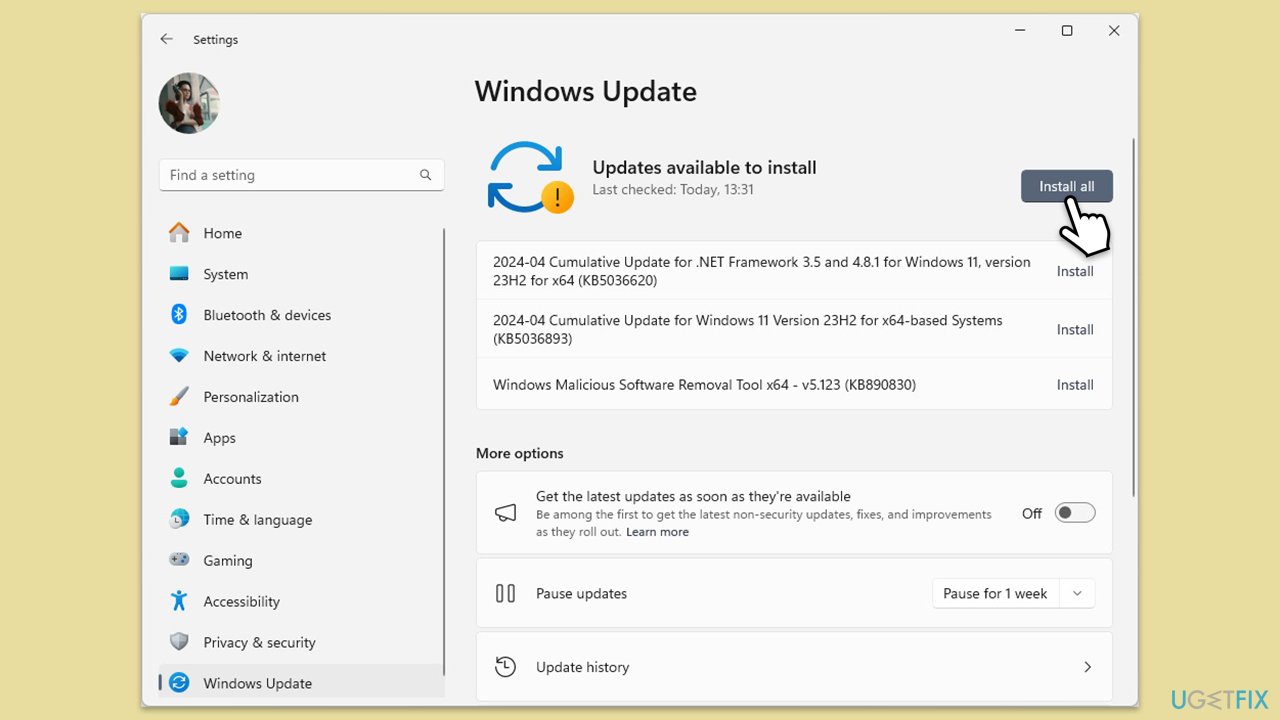
Ensuring that your operating system is up-to-date can fix bugs and issues that might be causing the error.
- Type Updates in Windows search and hit Enter.
- In the new window, click Check for updates.
- If optional updates are available, install them as well.
- When all the update processes are complete, restart your device.
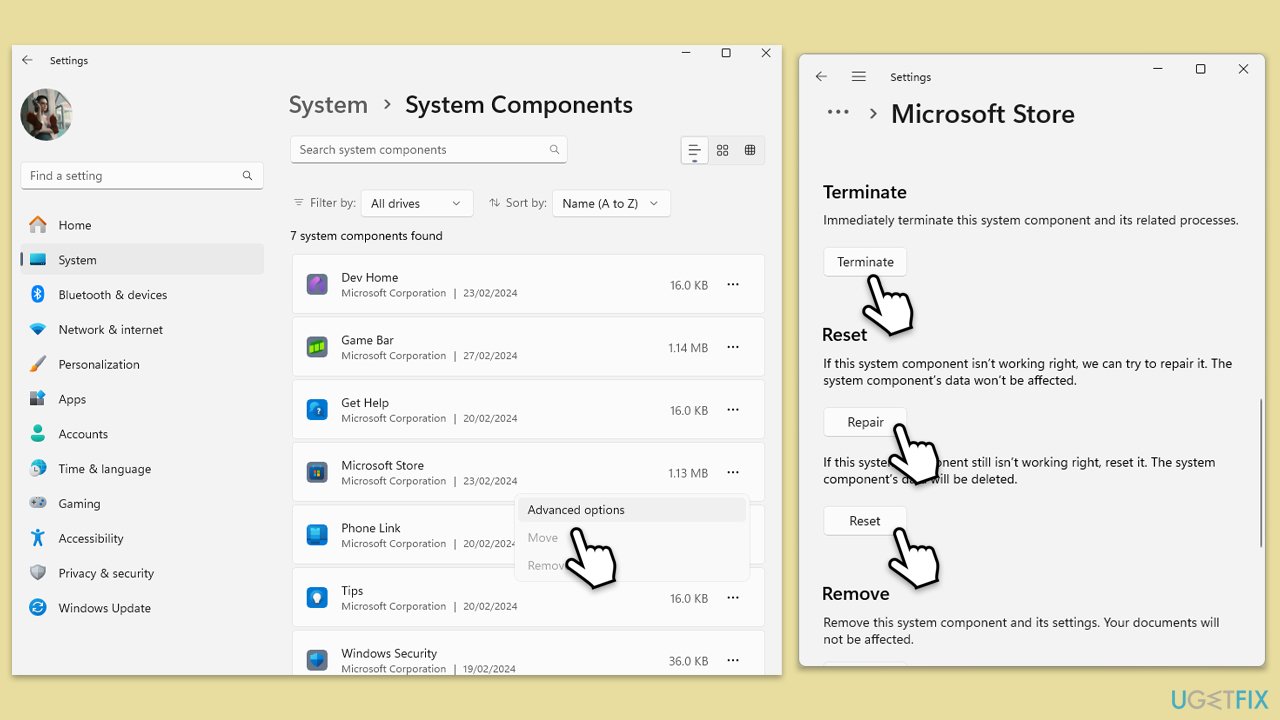
Fix 4. Reset Microsoft Store
Reset the Microsoft Store to its original configuration.
- Right-click on Start and select Apps & Features/Installed apps.
- Scroll down to find Microsoft Store and click Advanced options.
- Scroll down again and click Terminate and Repair.
- If that does not work, try using Reset.
Fix 5. Repair file corruption
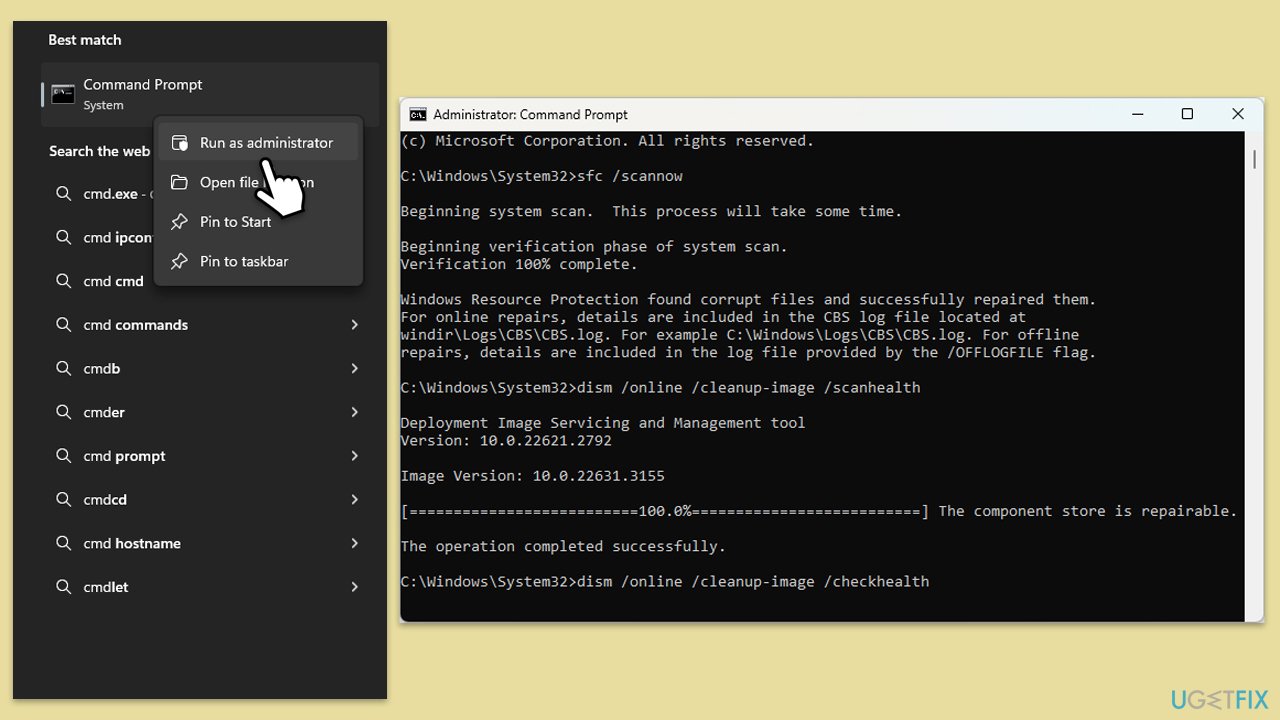
Special commands in the Control Panel can scan and repair corrupted system files that might be causing the error.
- Type cmd in Windows search.
- Right-click on Command Prompt and pick Run as administrator.
- When User Account Control shows up, click Yes.
- Type this command and press Enter:
sfc /scannow - Wait for the scan to finish.
- As soon as the scan finishes, Windows will report whether integrity violations were found and if they could be fixed. Regardless of the outcome, use these commands next, pressing Enter after each:
Dism /Online /Cleanup-Image /CheckHealth
Dism /Online /Cleanup-Image /ScanHealth
Dism /Online /Cleanup-Image /RestoreHealth - Close down the Command Prompt and restart your computer.
Fix 6. Reset Windows Update components
If the issue lies with bugged Windows Update components, you can reset them as follows:
- Open Command Prompt as administrator, as explained previously.
- In the new window, use the following commands, pressing Enter after each:
net stop bits
net stop wuauserv
net stop appidsvc
net stop cryptsvc
Del “%ALLUSERSPROFILE%\Application Data\Microsoft\Network\Downloader\*.*”
rmdir %systemroot%\SoftwareDistribution /S /Q
rmdir %systemroot%\system32\catroot2 /S /Q
regsvr32.exe /s atl.dll
regsvr32.exe /s urlmon.dll
regsvr32.exe /s mshtml.dll
netsh winsock reset
netsh winsock reset proxy
net start bits
net start wuauserv
net start appidsvc
net start cryptsvc - Restart your system.
Fix 7. Re-register Microsoft Store
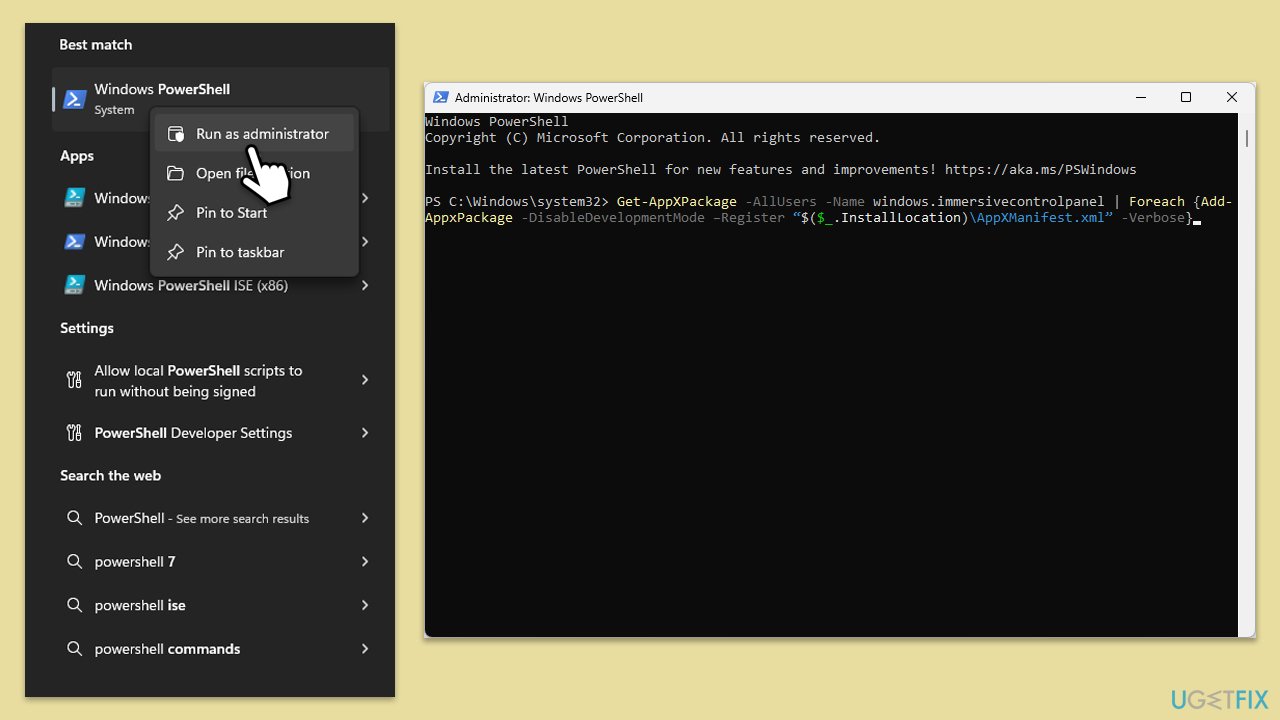
- Type PowerShell in Windows search.
- Right-click on the result and select Run as administrator.
- When UAC shows up, click Yes.
- Copy and paste the following command and press Enter:
Get-AppXPackage | Foreach {Add-AppxPackage -DisableDevelopmentMode -Register "$($_.InstallLocation)\AppXManifest.xml"} - Close down PowerShell and restart your system.

Related: Windows Update error 0x80240008.
Bottom line
To fix the 0x80240008 error, you can run the Windows Store Apps troubleshooter, use a system file checker, clean and reset the Microsoft Store cache, and ensure the Windows Update service is operating properly. If these steps do not resolve the issue, consider utilizing a maintenance and repair tool for more complicated problems.
Frequently asked questions
The error 0x80240008 usually indicates a problem with the Microsoft Store app, often related to issues with the update process or network connectivity.
To resolve error 0x80240008 on Windows 10, try resetting the Microsoft Store cache by running 'wsreset.exe' in the Run dialog.
Yes, you can fix the error on Windows 11 by checking for Windows updates, running the Windows Store Apps Troubleshooter, or repairing the Microsoft Store through the Settings app.




Report an issue
What's wrong with this guide? We review every report and update or remove content.
Report received — thank you. We'll review and fix it.
You need a free account to submit a report.
Be the first to comment