How to fix
“The description for Event ID 153 from source nvlddmkm cannot be found”
on Windows
Resolve the "Event ID 153" error in Windows 10 and 11 swiftly with our expert-tested solutions. Fixed in minutes for hassle-free performance.


What causes How to fix “The description for Event ID 153 from source nvlddmkm cannot be found” in Windows?
- Driver Corruption
- Compatibility Issues
- Hardware Failures
- Overclocking GPU
Repairs Windows system files, removes malware, and restores a clean OS state — without reinstalling.
Hi. I sometimes get a thing where my PC screen goes blank and then a game that I'm playing crashes. This started over a week ago and I have been dealing with it ever since. When I looked at the Event Viewer, I found numerous errors stating "The description for Event ID 153 from source nvlddmkm cannot be found. Either the component that raises this event is not installed on your local computer or the installation is corrupted."
Event ID errors are critical logs that Windows operating systems generate to help identify and diagnose problems within the system. These logs are accessible through the Event Viewer and provide detailed information about errors, warnings, and other significant events that occur on your computer. These logs are invaluable for troubleshooting issues, as they offer insights into what might be causing system malfunctions.
The issue with Event ID 153
One such log that you might encounter is "The description for Event ID 153 from source nvlddmkm cannot be found." This error is typically discovered when you check your system logs after experiencing problems such as crashes, unexpected restarts, or temporary black screens.
This issue is particularly common among gamers, as it often results in the crashing of games or other demanding applications. Many users report encountering this problem when interacting with overlays or when alt-tabbing out of a game.
Understanding the cause
The nvlddmkm refers to the NVIDIA Windows Longhorn Display Driver Model Kernel Mode Driver. It is an essential component of NVIDIA graphics drivers, responsible for the communication between the operating system and the NVIDIA GPU. When the description for Event ID 153 cannot be found, it indicates a problem related to this driver, which could be due to several factors such as driver corruption, compatibility issues, or even hardware failures.
Potential solutions
To address this issue, you can try several potential solutions. Updating, rolling back, or reinstalling your NVIDIA drivers can often resolve the problem. Additionally, updating your chipset drivers and BIOS can improve compatibility and stability. If you are overclocking your GPU, stopping the overclock can also help, as overclocking can cause instability.
In some cases, a complete reinstallation of Windows might be necessary to eliminate any underlying issues. However, it is worth noting that for many, these solutions might not work, and further investigation might be required. Detailed instructions on how to perform these tasks will be provided below this article.
Finally, consider using [d1] PC repair tool, which can automatically fix any underlying Windows issues and potentially fix "The description for Event ID 153 from source nvlddmkm cannot be found" in Windows.

Fix 1. Update Nvidia (and chipset) drivers
First of all, you should ensure that your GPU drivers are updated. For this, you can use automatic tools such as [rev id="DriverFix"], download and install the driver from Nvidia website manually, or use built-in Windows update (the latter is the least reliable):
- Right-click on the Start button and select Device Manager from the menu.
- Expand the Display adapters section.
- Right-click on your graphics card and select Update driver.
- Pick Search automatically for drivers.
- If updates are found, allow them to install.
- Restart your computer after updating all necessary drivers.

Note: chipset drivers should be downloaded from your motherboard maker. For example, you can find chipset drivers for Asus motherboards on its official website; you should know the product model of your motherboard for this.
Fix 2. Roll back Nvidia drivers
Many users said they started experiencing issues after updating Nvidia drivers. If this is the case for you, try rolling back to the previous version.
- Right-click on the Start button and select Device Manager from the menu.
- Expand the Display adapters section.
- Right-click on your graphics card and select Properties.
- Go to the Driver tab at the top.
- Here, you will see an option to Roll Back Driver.
- Click it and follow the on-screen instructions to finish the process.
- If Roll Back Driver option is grayed out for you, please check our guide on how to roll back Nvidia drivers in an alternative way.

Fix 3. Reinstall Nvidia drivers
To uninstall Nvidia drivers thoroughly, you should use an open-source utility DDU.
- Download DDU from the official website.
- Extract the compressed file, you should find the installer inside.
- Next, while holding the Shift button, click on Start > Restart.
- After a reboot, go to Troubleshooter > Advanced options > Startup settings > Restart.
- Press 4 or F4 to access Safe Mode.
- After a restart, go to the location where you downloaded DDU.
- Click on Display Driver Uninstaller.exe to open the program.
- Close the Options window.
- Under Device type, pick GPU from the drop-down menu.
- Click Clean and restart.
- Your PC will reboot.
- Once done, use one of the methods described above to install GPU drivers.

Fix 4. Stop overclocking
- Restart your computer and press the BIOS key as it begins to boot up (typically F2, F10, F12, or Del, depending on the manufacturer).
- In the BIOS interface, navigate to the Advanced, Performance, or Overclocking tab (the name varies by motherboard).
- Look for options such as Configuration, Overclocking Settings, or similar.
- Reset these settings to default or disable the overclocking options.
- Save and Exit from BIOS, which will reboot your system.
Fix 5. Update BIOS
- Before proceeding, backup your data as a precaution.
- Visit the manufacturer's website and download your specific model's latest BIOS update file (you can check which BIOS you are using by typing System information in Windows search and checking the BIOS Version/Date and BaseBoard Product entries there).
- Extract the BIOS update files and read any provided instructions or documentation.
- Create a bootable USB drive with the BIOS update files, if required.
- Update the BIOS using the manufacturer's recommended method, which may be through a built-in utility or booting from a USB drive.
- Restart your PC to complete the process.

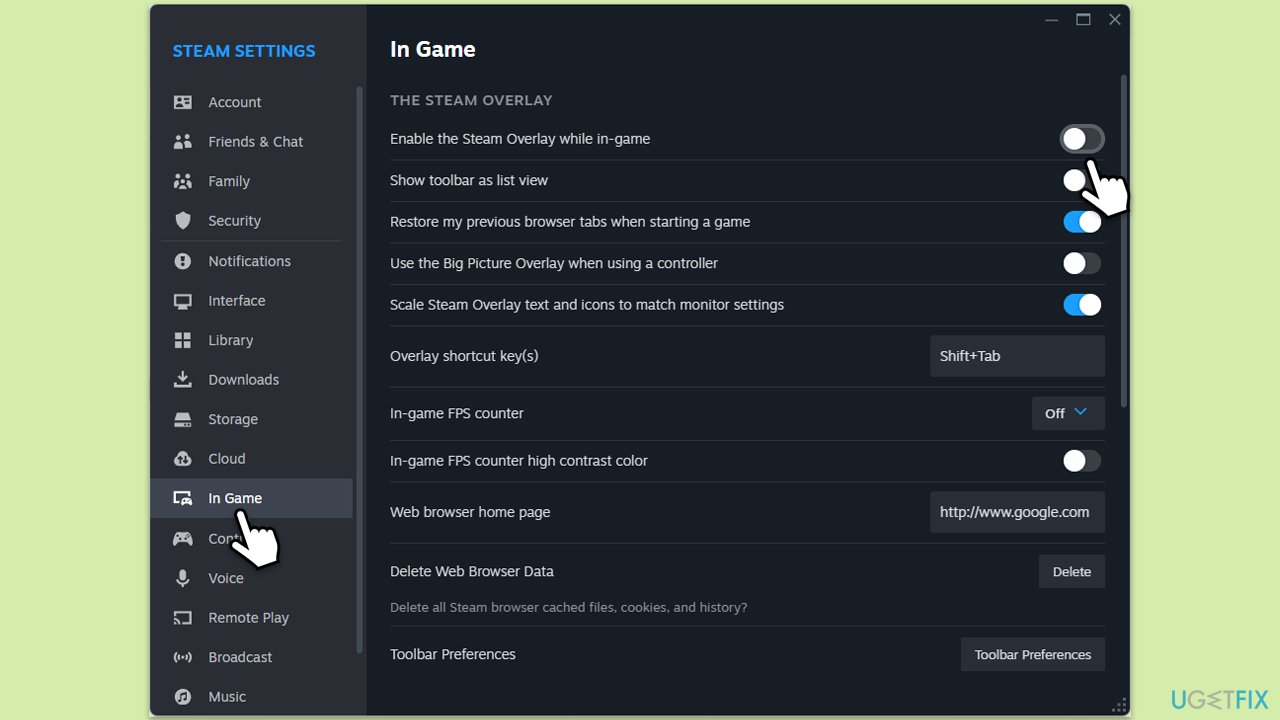
Fix 6. Disable overlays
Some users reported that disabling overlays such as those from Nvidia or Discord helped them to resolve the problem.
- Open the settings of any third-party software with in-game overlay (e.g., Discord, Steam, NVIDIA GeForce Experience).
- Look for an in-game overlay option.
- Turn off the overlay feature.
- Restart your PC to see if the issue persists.
Fix 7. Repair-install Windows
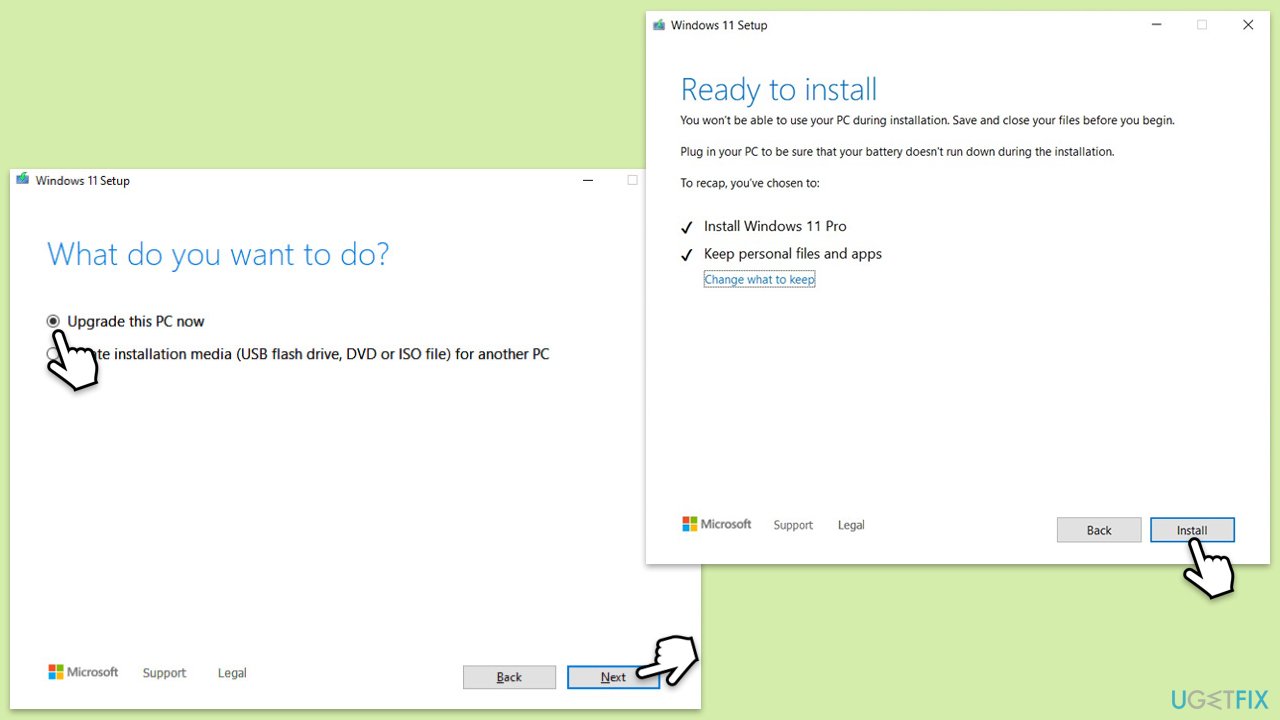
If none of the above helped you to fix the problem, you can always repair-install Windows using the Media Creation Tool. Make sure you uninstall third-party security software before proceeding. Also, disconnect any unnecessary devices such as printers or USB drives.
- Visit the official Microsoft website and download Windows 10 installation media (Windows 11 version).
- Double-click the installer and select Yes when UAC shows up.
- Agree to terms.
- Select Upgrade this PC now and click Next.
- Windows will start downloading the needed files.
- Agree to the terms once again and click Next.
- Before installing, make sure that you are happy with your choices (otherwise, you can click Change what to keep option).
- Finally, click Install to begin the upgrade process.
Bottom line
To fix the error related to Event ID 153, you can try updating, rolling back, or reinstalling your NVIDIA drivers. Additionally, updating your chipset drivers and BIOS may improve system stability. If these solutions do not resolve the issue, consider stopping any GPU overclocking or seeking further assistance.
Frequently asked questions
This error typically indicates an issue with the NVIDIA graphics driver, which may be corrupted or incompatible with your current Windows version.
You can resolve this error by reinstalling the NVIDIA graphics driver or performing a clean installation using the latest driver from the NVIDIA website.
To prevent this error, regularly update your graphics drivers, and ensure your Windows 10 system is up to date with the latest patches and updates.




Report an issue
What's wrong with this guide? We review every report and update or remove content.
Report received — thank you. We'll review and fix it.
You need a free account to submit a report.
Be the first to comment