How to fix
Crowdstrike outage: Windows didn’t load correctly BSOD fix
on Windows
Resolve the Crowdstrike outage and fix the Windows BSOD error effortlessly. Get reliable solutions for Windows 10 and 11, expert-tested for quick results.

What causes Crowdstrike outage: Windows didn’t load correctly BSOD fix?
- Faulty update to CrowdStrike's Falcon Sensor
- Conflict with the Windows operating system
- Malfunctioning kernel-level driver
- Disruption of real-time protection from cyber threats
- Systems stuck in a recovery boot loop
Repairs Windows system files, removes malware, and restores a clean OS state — without reinstalling.
I can't seem to load Windows anymore because of BSOD saying "It looks like Windows didn't load correctly." My colleagues are facing the same issue. What is going on?
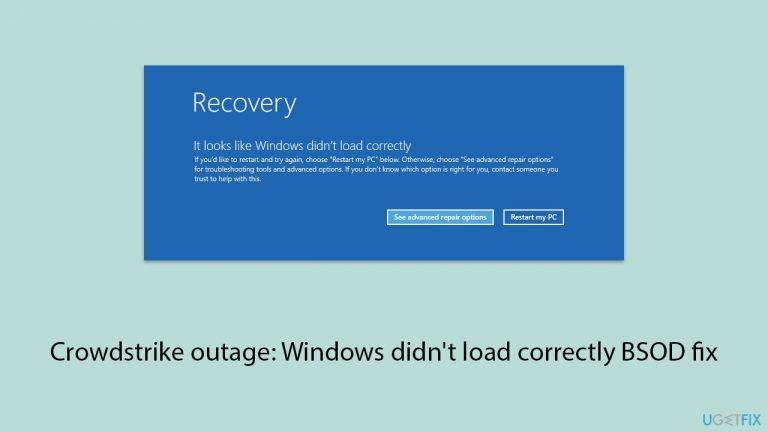
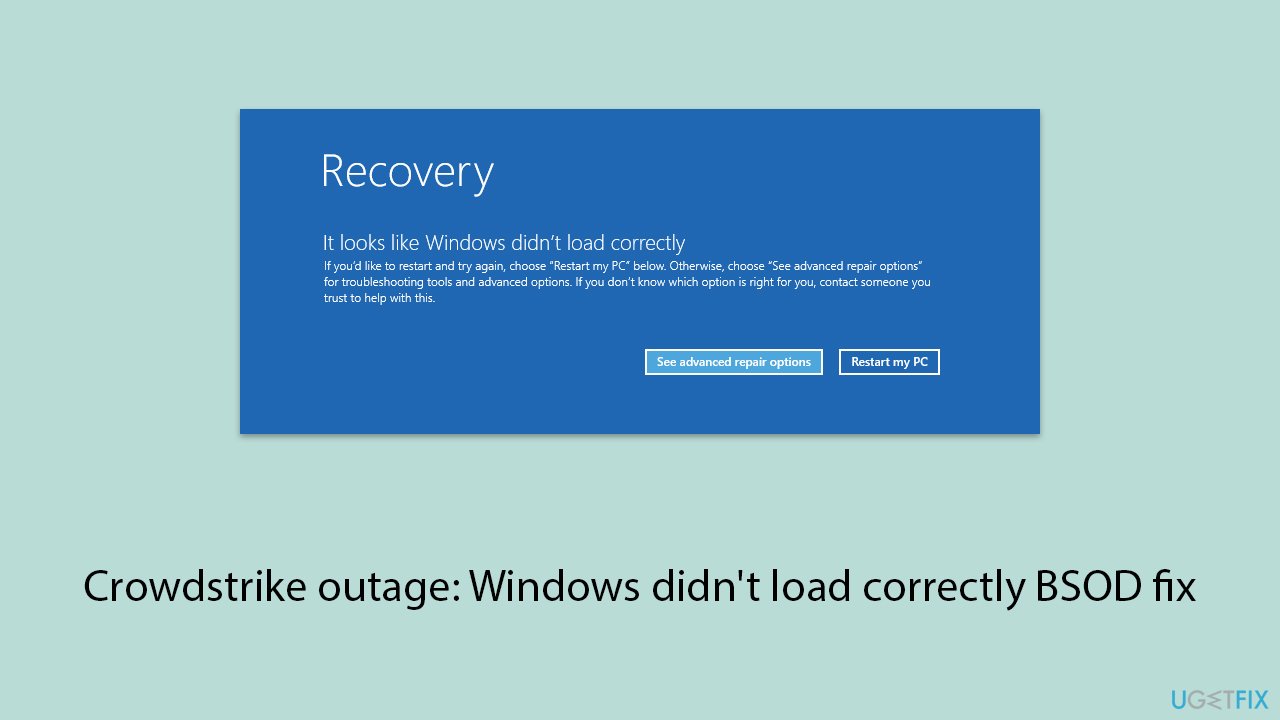
On the 19th of July, 2024, many workers of these companies were unable to log into their PCs as they were facing a Blue Screen of Death (BSOD) error "It looks like Windows didn't load correctly." As a result, many computers and servers are stuck in a recovery boot loop, preventing them from starting correctly.
As it turns out, this worldwide outage was caused by Crowdstrike Falcon, a cybersecurity giant that provides end-point solutions for high-profile organizations such as Microsoft, eBay, Siemens, Visa, Channel 4, Uber, etc.
The issue first emerged in Australia, with banks, airlines, and TV broadcasters reporting problems. The situation quickly spread to Europe and the United States.[ref en-2]
For example, Sky News in the UK was unable to broadcast its morning news, and major airlines like Ryanair and Delta experienced significant disruptions (they even had to ground flights due to communication issues). Even 911 emergency call centers in Alaska were impacted, potentially resulting in catastrophic consequences for those in need of help.
The reason for all of this: CrowdStrike's faulty update, which affected the kernel-level driver used to secure Windows machines. Although CrowdStrike has since identified the problem and deployed a fix, many systems already affected remain stuck in a loop, requiring IT administrators to manually address the issue.
Technical root cause
The root of the problem lies in a malfunctioning update to CrowdStrike's Falcon Sensor, a key component of their endpoint security software. This update contained a bug that caused a conflict with the Windows operating system, leading to the infamous BSOD. The Falcon Sensor is critical for providing real-time protection from cyber threats, but this bug has turned it into a source of major disruption.
CrowdStrike has been working diligently to resolve the issue. They have reverted the faulty update, but the damage has already been done to many companies and users. George Kurtz, the current President and CEO of Crowdstrike wrote there was no cyberattack against the company and it was all caused by technical issues:[ref en-1]
CrowdStrike is actively working with customers impacted by a defect found in a single content update for Windows hosts. Mac and Linux hosts are not impacted. This is not a security incident or cyberattack.
Fixing the problem involves navigating through a complex recovery process, which can be particularly challenging for cloud-based servers and remote devices.
How to fix Crowdstrike BSOD error in Windows?
The solution involves booting affected Windows machines into safe mode and manually deleting a specific system file within the CrowdStrike directory. This process is far from simple, especially for systems that are cloud-based or used remotely.
Here are the steps to fix the Windows didn't load correctly BSOD issue:
Step 1. Boot the machine in Safe Mode
- Restart your computer.
- Once Windows starts booting, press the Power button, interrupting the loading process - do this two more times.
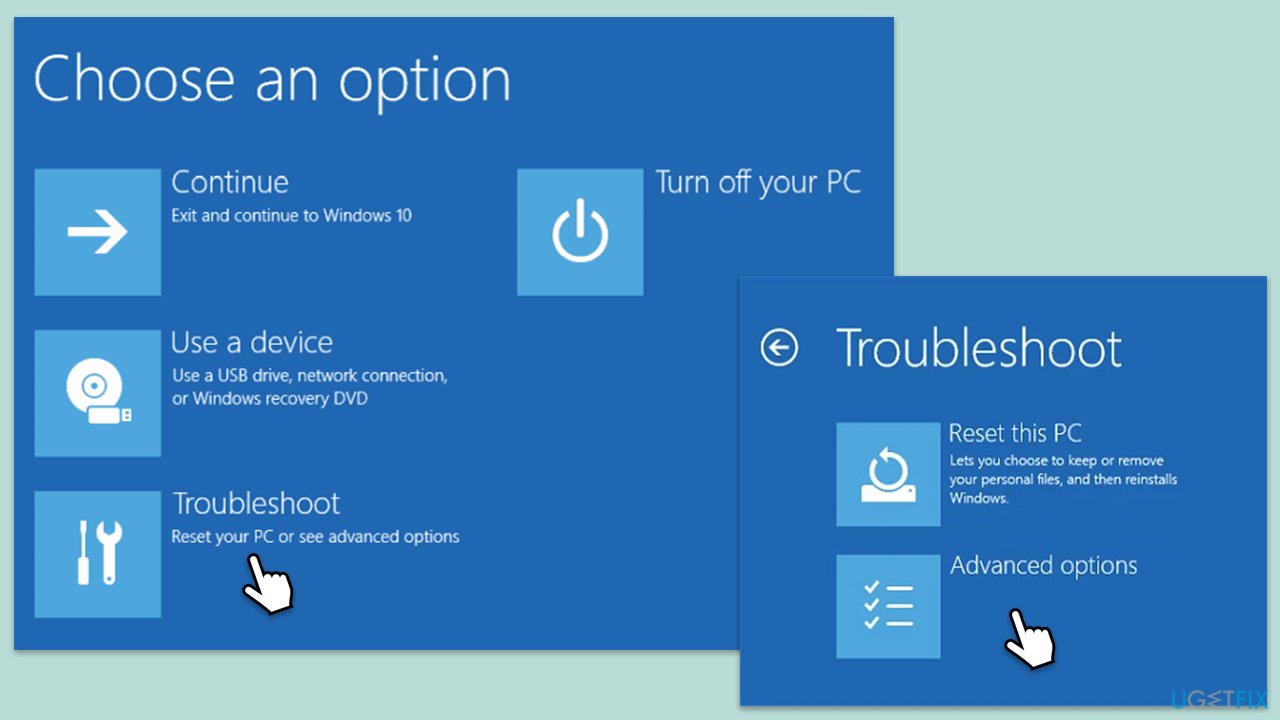
- After that, Windows will automatically enter Advanced Startup mode.
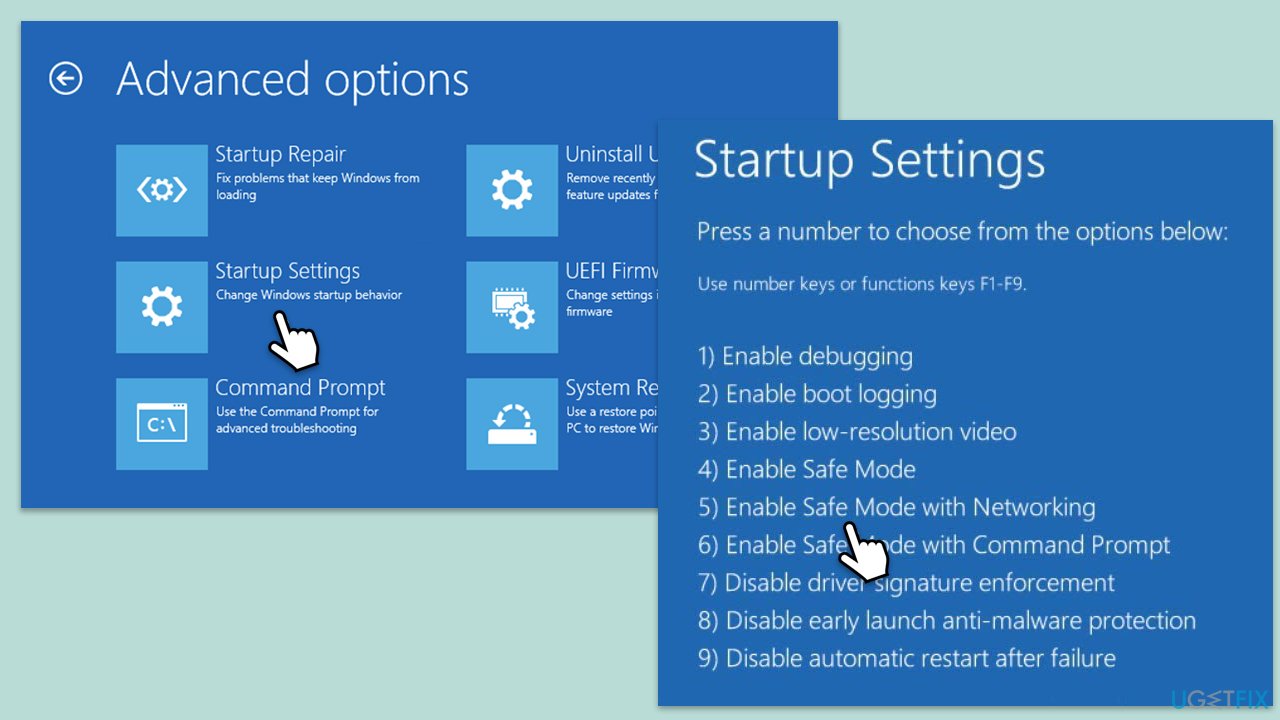
- Select Troubleshoot > Advanced options > Startup Settings and Restart.
- After a reboot, pick either 4/F4 for Safe Mode or 5/F5 for Safe Mode with Networking.
Step 2. Delete the faulty driver file
- In Safe Mode, navigate to the directory:
C:\Windows\System32\drivers\CrowdStrike - Locate and delete the file named C-00000291*.sys.
- Restart the PC to allow it to boot normally.
Once you can access Windows as normal, you should download the latest CrowdStrike update from its official website.
Bottom line
CrowdStrike has identified the problem and deployed a fix, but many systems remain affected and require manual intervention from IT administrators. Users should revert the faulty update and ensure their systems are properly configured. If none of these fixes work, further technical support may be necessary.
Frequently asked questions
First, try booting into Safe Mode by restarting your computer and pressing F8 during startup. If that doesn't work, use the Windows Recovery Environment to perform a system restore to a point before the outage.
You can check the reliability monitor for error reports related to Crowdstrike, and consider uninstalling or updating the software to see if it resolves the BSOD issue.
Make sure your Crowdstrike software is up to date and review its settings to ensure compatibility with your Windows 10 or Windows 11 system.




Report an issue
What's wrong with this guide? We review every report and update or remove content.
Report received — thank you. We'll review and fix it.
You need a free account to submit a report.
Be the first to comment