
AirPods Pro mic not working on Windows 11 and 10: how to fix it

Prefer to fix it yourself? The manual steps follow.
- 6methods
- 5 to 20 minutes
- Easy
Applies to AirPods Pro (1st, 2nd and 3rd generation) and other AirPods paired to a Windows 11 or Windows 10 PC over Bluetooth
6 methods in this guide
For the past week, I can't get my AirPods Pro to work on Windows 11. Any tips on how this could be resolved? Advice would be appreciated.
When AirPods Pro play sound on a Windows PC but nobody hears you, Windows is almost always using another microphone, or the hands-free side of the AirPods is switched off. Start by choosing the AirPods as the input in Windows and in your app, then check the privacy switches and the Bluetooth driver.
Windows can use the AirPods microphone only through the Bluetooth hands-free mode, and many apps keep using the laptop or webcam microphone. Start with Fix 1: set the AirPods as the default input in the Sound window and select them by name in Teams, Zoom or Discord. If they are missing from the input list, tick Hands-free Telephony again (Fix 3) or pair them again (Fix 4).
| Error | No error message. The AirPods play sound, but the level meter does not move and the other side cannot hear you. |
|---|---|
| Where it appears | Teams, Zoom, Discord, WhatsApp and other call apps, and the Recording tab of the Sound window (mmsys.cpl). |
| Main cause | Another microphone is the default in Windows or in the app, or the hands-free profile of the AirPods is off. |
| Fastest fix | Set the AirPods as Default Device and Default Communication Device in the Recording tab, then pick them in the app (Fix 1). |
| Also searched as | AirPods mic not detected on Windows 11, AirPods not showing as input device, AirPods microphone not working on PC. |
| Affects | All AirPods Pro generations on Windows 11 and Windows 10. Users report extra problems with AirPods Pro 3 on Windows 11 25H2 with Intel Bluetooth. |
| Vendor status | Apple supports AirPods as a standard Bluetooth headset on non-Apple devices. Microsoft documents that a Bluetooth microphone needs the Hands-Free Profile (HFP). |
| Sound in calls | Mono, 8 kHz or 16 kHz while the microphone is open. This is how HFP works, not a fault. |
| Time to fix | 2 minutes for Fix 1, up to 20 minutes if you need to pair again or change the driver. |
Facts checked on 15 October 2026. Steps written for Windows 11 25H2 and 26H2 and Windows 10 22H2, with AirPods Pro, AirPods Pro 2 and AirPods Pro 3.
What "AirPods Pro mic not working on Windows" looks like
There is no error code for this problem. Music and video play in the AirPods, but in a call the other person hears nothing, or hears your laptop's built-in microphone from across the room. Most readers see one of these four signs.
- The AirPods are missing from the input list. In the Recording tab or in Teams only the laptop or webcam microphone shows up. People search this as "AirPods microphone not detected Windows 11".
- The AirPods are listed but the meter does not move. The line is there, yet the green bar stays flat when you speak.
- The app uses the wrong microphone. Windows has the AirPods set, but Teams, Zoom or Discord still records from "Default" or from another device.
- Sound turns flat the moment a call starts. The microphone is working: Windows has switched the AirPods to the hands-free mode, which is mono.
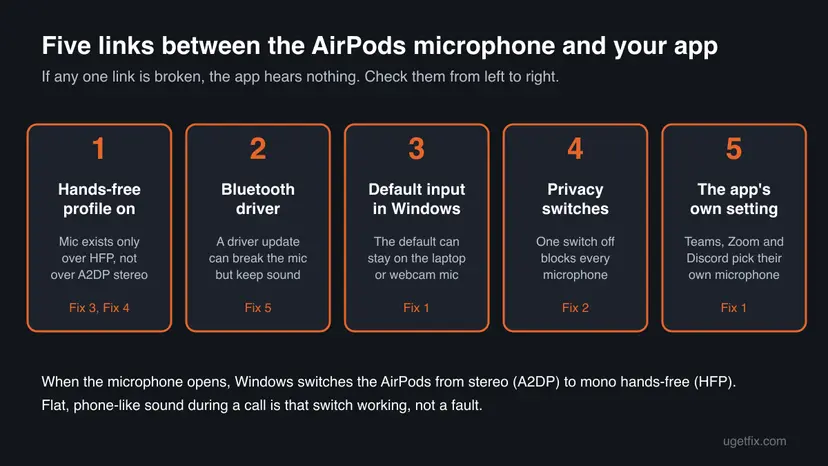
The last sign matters, because it is often mistaken for a broken microphone. Microsoft's Bluetooth documentation says A2DP, the stereo mode, "only supports audio output". When an app opens the microphone, Windows uses the Hands-Free Profile (HFP), which carries mono sound at 8 kHz or 16 kHz in both directions.
| Windows version | Output lines | Input lines |
|---|---|---|
| Windows 11 | One output for the AirPods. | One input for the AirPods, shown only if the hands-free profile is active. |
| Windows 10 | {AirPods name} Stereo and {AirPods name} Hands-Free. | {AirPods name} Hands-Free. |
What stops the AirPods Pro microphone on Windows, from most to least common
The AirPods themselves are rarely the problem. If the microphone works on your phone, the fault is in one of the five links between the AirPods and your app. Here they are, ordered by how often they are the cause in the reports we read.
| Cause | How common | Fix |
|---|---|---|
| Another microphone is the default in Windows, or the app picks its own. | Most often. | Fix 1. |
| A privacy switch blocks microphone access for all apps or for desktop apps. | Often, after an update or a new PC setup. | Fix 2. |
| Hands-free Telephony was unticked, often to get better music sound in Teams or a game. | Often. | Fix 3. |
| The pairing is half broken after an update or a switch from another device. | Sometimes. | Fix 4. |
| A Bluetooth driver update broke the microphone. Users report this with AirPods Pro 3 and Intel Bluetooth on Windows 11 25H2. | Sometimes. | Fix 5. |
| A Bluetooth service is stopped or disabled. | Rarely. | Fix 6. |
Make a call on your iPhone or Android phone with the same AirPods. If the other side hears you, the microphone works and the fixes below apply. If not, clean the microphone grilles on the stems and contact Apple.
How to fix the AirPods Pro microphone on Windows 11 and 10
Go through the fixes in order and test after each one. Fixes 1 to 3 take a few minutes and fix most cases. Steps are given for Windows 11 and for Windows 10 22H2, although Windows 10 left support on 14 October 2025.
| What you see | Start with |
|---|---|
| The AirPods are in the Recording tab, but the app does not hear you. | Fix 1. |
| No app can use any microphone, not even the laptop's. | Fix 2. |
| The AirPods play sound but are missing from the input list. | Fix 3, then Fix 4. |
| The microphone stopped after a Windows or driver update, often with AirPods Pro 3. | Fix 5. |
| The AirPods connect and drop, or nothing changes after Fixes 1 to 5. | Fix 6. |
Fix 1. Set the AirPods as the default microphone in Windows and in your app
3 minutesNo riskThe AirPods are listed as an input, but calls still use the laptop or webcam microphone.
A PC usually has two or three microphones, and Windows and each app pick one on their own. Making the AirPods the default for both media and calls, then naming them in the app, removes the guesswork.
- Put the AirPods in your ears so they are connected.
- Press Win + R, type
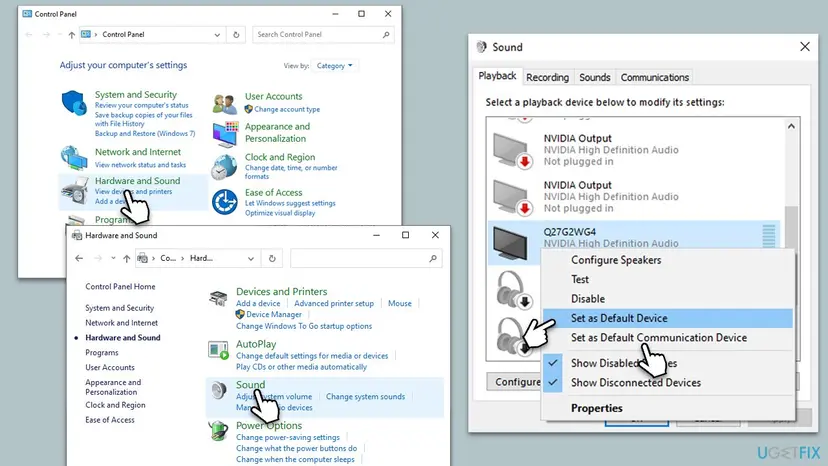
mmsys.cpland press Enter to open the Sound window. - Open the Recording tab. On Windows 10 find {AirPods name} Hands-Free; on Windows 11 find the one input named after your AirPods.
- Right-click it and select Set as Default Device.
- Right-click it again and select Set as Default Communication Device, then select OK.
- In Teams, Zoom, Discord or WhatsApp, open the audio or device settings and pick the AirPods by name as the microphone, not "Default".
- Speak and watch the level meter in the app or in the Recording tab.
On Windows 10 an app that uses the AirPods microphone should also use {AirPods name} Hands-Free as its speaker. Microsoft notes that the stereo stream is discarded when the hands-free side is in use.
It worked if: The green bar in the Recording tab moves when you speak, and the other side of the call hears you.
If not: If the AirPods are not in the Recording tab at all, go to Fix 3. If they are there but no app hears anything, go to Fix 2.
Fix 2. Allow microphone access in the Windows privacy settings
2 minutesNo riskNo app can use any microphone, or one app never asks for the microphone.
Windows checks a set of privacy switches before any app may record. One switch off blocks the AirPods microphone as well as the built-in one, while sound playback keeps working normally.
- Press Win + I to open Settings.
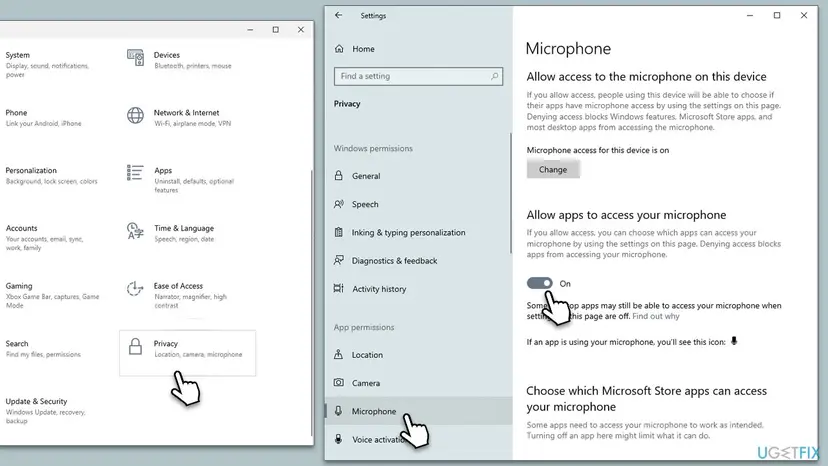
- On Windows 11 open Privacy & security, then Microphone. On Windows 10 open Privacy, then Microphone.
- Turn on Microphone access (Windows 10: Microphone access for this device, changed with Change).
- Turn on Let apps access your microphone (Windows 10: Allow apps to access your microphone).
- Turn on the switch of your call app in the list, if it is there.
- Turn on Let desktop apps access your microphone (Windows 10: Allow desktop apps to access your microphone).
- Close the call app completely and open it again.
It worked if: The app now lists microphones and records from the one you picked in Fix 1.
If not: If the switches were already on, the problem is on the Bluetooth side. Go to Fix 3.
Fix 3. Turn Hands-free Telephony back on for the AirPods
3 minutesLow riskThe AirPods play sound but do not appear as a microphone anywhere, or you once changed their Bluetooth services.
Windows can reach the AirPods microphone only through the Hands-Free Profile. Many guides tell you to untick Hands-free Telephony for better sound in calls and games, and doing that removes the AirPods microphone from Windows.
- Connect the AirPods.
- Press Win + R, type
control printersand press Enter to open Devices and Printers. - Right-click your AirPods and select Properties.
- Open the Services tab and tick Hands-free Telephony. Leave Audio Sink and Remote Control ticked.
- Select Apply, then OK.
- Open Properties again, select the Hardware tab and check that the lines ending in Hands-Free AG and Hands-Free AG Audio are not disabled. Enable them on the Driver tab if they are.
- Take the AirPods out of your ears, put them back in, and check the Recording tab.
If you turned the hands-free mode off on purpose, for example to keep stereo sound in Teams, the two goals clash. Our guide on how to disable Hands-free Telephony for a Bluetooth device explains why Windows cannot give you stereo sound and the headset microphone at the same time.
It worked if: An input named after your AirPods appears in the Recording tab and in your app's microphone list.
If not: If the Services tab has no Hands-free Telephony box, or the input still does not appear, pair the AirPods again with Fix 4.
Fix 4. Remove the AirPods and pair them with Windows again
5 minutesLow riskThe AirPods are missing as an input after Fix 3, or they connected fine before an update or a switch from your phone.
Pairing again makes Windows read the AirPods' Bluetooth profiles from scratch and create the hands-free devices again. A pairing made before an update or a firmware change can keep an old, incomplete profile list.
- On Windows 11 open Settings > Bluetooth & devices > Devices. On Windows 10 open Settings > Devices > Bluetooth & other devices.
- Select the AirPods, then Remove device, and confirm.
- Select Add device, then Bluetooth.
- AirPods Pro or AirPods Pro 2: with the AirPods in the case, open the lid, then press and hold the setup button on the back of the case for about 5 seconds, until the status light flashes white.
- AirPods Pro 3: open the case with the AirPods inside, hold it next to the PC, then double-tap the front of the case so the status light flashes white.
- Select the AirPods when they appear in the list, and wait until Windows shows them as connected.
If the microphone stops in the middle of a call, check whether the AirPods are now connected to your phone or tablet instead of the PC. Turn Bluetooth off on the phone while you test.
It worked if: Windows shows the AirPods as connected, and the input appears in the Recording tab. Set it as default again with Fix 1.
If not: If the input still does not appear, or the microphone stopped right after an update, go to Fix 5.
Fix 5. Roll back or replace the Bluetooth driver
10 to 15 minutesLow riskThe microphone stopped after a Windows or driver update, especially with AirPods Pro 3 on a PC with Intel Bluetooth.
The microphone depends on the Bluetooth radio's driver for the hands-free mode. In 2026, users on Intel's community reported that AirPods Pro 3 lost their microphone on Windows 11 25H2 after new Intel Bluetooth audio drivers, while sound kept working.
- Right-click Start and select Device Manager.
- Expand Bluetooth, right-click your Bluetooth adapter and select Properties.
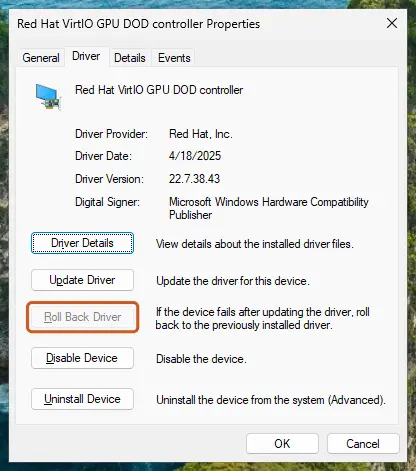
- Open the Driver tab and note the Driver Version.
- If the problem started after an update, select Roll Back Driver and confirm.
- If the button is greyed out, install the Bluetooth driver from your PC maker's support page for your model instead.
- Restart the PC, connect the AirPods and test with Fix 1.
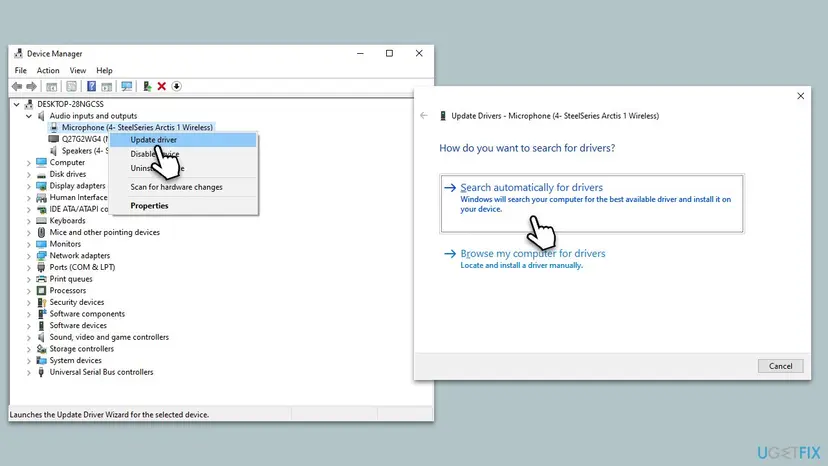
In that Intel thread, an Intel support technician advised installing the PC maker's Bluetooth driver 23.140.0.5 and audio driver 24.9909.2350.36. We could not confirm that this fixes the microphone. The full steps for updating, rolling back and reinstalling a driver are here: Update, roll back or reinstall a driver.
It worked if: After the restart the AirPods input appears again and the meter moves when you speak.
If not: If neither the older nor the PC maker's driver helps, restart the Bluetooth services with Fix 6.
Fix 6. Restart the Bluetooth Support Service and the Bluetooth Audio Gateway Service
5 minutesLow riskThe AirPods drop the connection, the hands-free input comes and goes, or nothing above changed anything.
The Bluetooth Audio Gateway Service serves the hands-free role that carries the AirPods microphone. If it was disabled, often by a tweak guide for better sound, no Bluetooth headset microphone works on the PC.
- Press Win + R, type
services.mscand press Enter. - Double-click Bluetooth Audio Gateway Service. If Startup type is Disabled, set it to Manual and select Apply.
- Select Start if the service is stopped, then OK.
- Right-click Bluetooth Support Service and select Restart.
- Take the AirPods out of your ears and put them back in, then check the Recording tab.
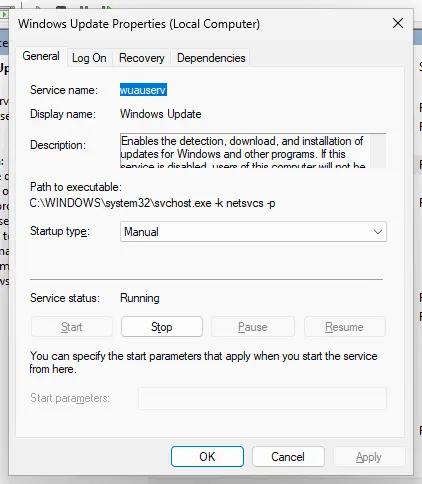
Opening and restarting a service step by step: Check and restart Windows services.
It worked if: Both services show Running, and the AirPods input is back in the Recording tab.
If not: If the microphone still does not work, read the next section to find out whether the problem is the PC, the app or the AirPods.
If the AirPods Pro microphone still does not work on Windows
Narrow it down with three short tests before you spend more time. Each one rules out one part of the chain, and together they tell you whether to look at the PC, the app or the AirPods.
| Test | Result | What it means |
|---|---|---|
| Call someone on your phone with the same AirPods. | They cannot hear you. | The AirPods microphone itself is at fault. Clean the grilles and contact Apple. |
| Pair another Bluetooth headset with a microphone to the PC. | That microphone fails too. | The PC's Bluetooth driver or hands-free service is the problem: Fix 5 and Fix 6. |
| Record in the Windows Sound Recorder app with the AirPods. | It records, but Teams or Discord does not. | The app picks another microphone or is blocked: Fix 1 and Fix 2. |
In Device Manager, open View > Show hidden devices and look under Bluetooth and Audio inputs and outputs. A yellow warning sign on a line with Hands-Free in its name points to a driver problem. Its Properties > General tab shows the device status, which is useful to send to your PC maker's support.
While the microphone is open the AirPods are in HFP mode, mono at 8 kHz or 16 kHz. Microsoft notes that some wideband devices fall back to 8 kHz with some Bluetooth radios. A USB or wired microphone avoids this.
How to keep the AirPods microphone working on Windows
- Name the microphone in each app. Selecting the AirPods by name, not "Default", keeps an app from jumping to the laptop microphone when the default changes.
- Leave Hands-free Telephony ticked if you want to talk through the AirPods. Turning it off for better sound removes the microphone.
- Note your Bluetooth driver version. If the microphone fails after an update, you know what to roll back to.
- Test after big updates. After a Windows feature update or a new Bluetooth driver, make one short test call before an important meeting.
Frequently asked questions
Can AirPods Pro use their microphone on a Windows PC?
Yes. Apple says you can use AirPods as a Bluetooth headset with a non-Apple device, and Windows treats them like any other Bluetooth headset with a microphone. The microphone works through the Bluetooth Hands-Free Profile, so in a call the sound is mono and less clear than music. If it does not show up as a microphone, start with Fix 1 and Fix 3.
Why is my AirPods microphone not detected in Windows 11?
Most often the hands-free side of the AirPods is off or was never set up. Windows 11 shows one input line for the AirPods only when their Hands-Free Profile is active. Check that Hands-free Telephony is ticked in the AirPods' Properties > Services tab (Fix 3). If the box is missing, remove the AirPods and pair them again (Fix 4). A broken Bluetooth driver after an update is the next suspect (Fix 5).
Why does the AirPods Pro 3 microphone not work on Windows 11?
AirPods Pro 3 use the same Bluetooth headset modes as earlier models, so start with Fixes 1 to 4. On Intel's community, users reported that the AirPods Pro 3 microphone stopped working on Windows 11 25H2 after new Intel Bluetooth audio drivers, while sound kept playing. An Intel support technician advised installing the PC maker's Bluetooth and audio drivers. Rolling back the Bluetooth driver (Fix 5) is the fastest test. We could not confirm a fix from Microsoft or Apple.
Why can't people hear me when I call with AirPods on my PC?
Usually because the call app records from another microphone. Windows and every app choose a microphone separately, so the laptop or webcam microphone can win even while the AirPods play the call sound. Set the AirPods as the default and default communication device in the Recording tab, then select them by name in the app's settings (Fix 1). If no app hears any microphone, check the privacy switches (Fix 2).
Why does the sound get worse when the AirPods microphone turns on?
Because Windows switches the AirPods from A2DP to HFP when an app opens the microphone. Microsoft's documentation explains that A2DP is the stereo mode and cannot carry a microphone. HFP carries both directions but in mono, at 8 kHz or 16 kHz. When the microphone closes, Windows switches back to stereo. This is normal Bluetooth behaviour, not a broken microphone.
How do I get AirPods to work with Microsoft Teams on Windows?
Connect the AirPods, then open Teams settings and the Devices section. Select the AirPods as both the speaker and the microphone by name, not "Default". In the Windows Recording tab, set the AirPods as the default communication device too (Fix 1). If Teams lists no AirPods microphone, check the privacy switches for desktop apps (Fix 2) and the Hands-free Telephony box (Fix 3). Then make a test call.
Is the AirPods microphone broken if it does not work on Windows?
Rarely. The quickest check is a phone call with the same AirPods on your iPhone or Android phone. If the other person hears you there, the microphone is fine and the problem is in Windows, the driver or the app. If they cannot hear you on the phone either, clean the small microphone grilles on the stems gently and contact Apple Support about a repair or replacement.
Can I update AirPods firmware from Windows?
No. Windows has no tool for AirPods firmware, and we found no Apple tool for Windows that updates it. Apple delivers AirPods updates through its own devices. We did not check Apple's current update steps for this page. Firmware is also rarely the reason the microphone fails only on Windows, so start with Fixes 1 to 5 before you look for an Apple device.
Do AirPods Pro work as a microphone on Windows 10?
Yes, the same way as on Windows 11. Microsoft's documentation explains that Windows 10 creates separate lines: {AirPods name} Stereo for music and {AirPods name} Hands-Free for calls, with the microphone on the Hands-Free line. Select the Hands-Free line as both the microphone and the speaker in your call app. Windows 10 left support on 14 October 2025, so newer driver fixes may reach Windows 11 only.
Sources
- Microsoft Learn: Bluetooth Classic audio (A2DP, HFP and endpoints on Windows 10 and 11) (learn.microsoft.com)
- Apple Support: Pair AirPods with a non-Apple device (support.apple.com)
- Intel Community: Apple AirPods Pro 3 suddenly not working with Windows 11 25H2 (user reports and Intel support reply) (community.intel.com)
Did this fix work?
One click, no account. It tells the next reader which guides are worth their time.
Questions and experiences: AirPods Pro mic not working on Windows 11 and 10: how to fix it
Still broken, or found a fix we did not cover? Ask here: members and our editors answer. Reading is open; writing needs a free account.
…