How to fix
BitLocker Blue Screen after installing KB5016629
on Windows
Resolve the BitLocker blue screen issue after KB5016629 on Windows 11 effortlessly with expert-tested solutions. Fixed in minutes!

![[Fix] BitLocker Blue Screen after installing KB5016629 on Windows 11](https://ugetfix.com/wp-content/uploads/articles/askit/how-to-fix-bitlocker-blue-screen-after-installing-kb5016629_en-768x432.jpg)
What causes [Fix] BitLocker Blue Screen after installing KB5016629 on Windows 11?
- Recent update KB5016629 installed
- BitLocker blue screen appears
- Users unable to boot into Windows
- Locked out of computers due to BitLocker
- Decryption key may be needed
Repairs Windows system files, removes malware, and restores a clean OS state — without reinstalling.
Hello, I have never used BitLocker before, and neither have I installed it myself. Anyways, after installing the recent update KB5016629 in Windows 11, I can't use it anymore, as all I see is a BitLocker blue screen that asks me to enter the key. How can I bypass this issue, please help!
Windows released the BitLocker along with Windows Vista back in 2007,[ref en-3] and since then has become one of the valuable built-in features within the operating system. This means that everyone who uses Windows Vista/7/8/10/11 or Windows Server can employ it to secure the data.
BitLocker is an encryption system that is designed to protect user files and other data within the volumes. It uses an AES encryption algorithm[ref en-1] with a 128-bit or 256-bit key to do so, which is considered to be relatively secure. This guarantees that users can protect their personal information in case of hardware theft or if their devices are breached by malware.[ref en-2]
This is why BitLocker is such a great tool for many, although it doesn't mean that everyone needs or wants to use it. Unfortunately, with the release of the latest update, KB5016629, users found themselves in a rather bizarre situation - they were no longer able to boot into Windows, as the computer was locked behind the BitLocker's blue screen.
Since the issue started right after users installed the KB5016629 update on their Windows 11 machines, it is safe to assume that it's precisely what caused the issue. However, since users are essentially locked out of their computers, they can't uninstall it or solve the problem in other ways.
Luckily, there are several workarounds that could help you deal with the situation. The main goal would be to uninstall the faulty update, although this may not always be possible. If you manage to find the decryption key, it could also unlock your computer for you. Try several options below to fix BitLocker Blue Screen after installing KB5016629 on Windows 11.
Fix 1. Attempt to recover the key
First of all, if you are using a work computer that belongs to a company, it is likely that you do not have administrative privileges. Therefore, if it is the case, we recommend you contact your administrator, and they might provide you with a BitLocker recovery key.
If your Windows computer is personal, there are alternative ways to retrieve the key, which include:
- Use another computer to sign into your Microsoft account - go to https://account.microsoft.com/devices/recoverykey web address, and you will find it. Make sure you remember your account details. If not, you can recover your account easily, as long as you have access to your email.
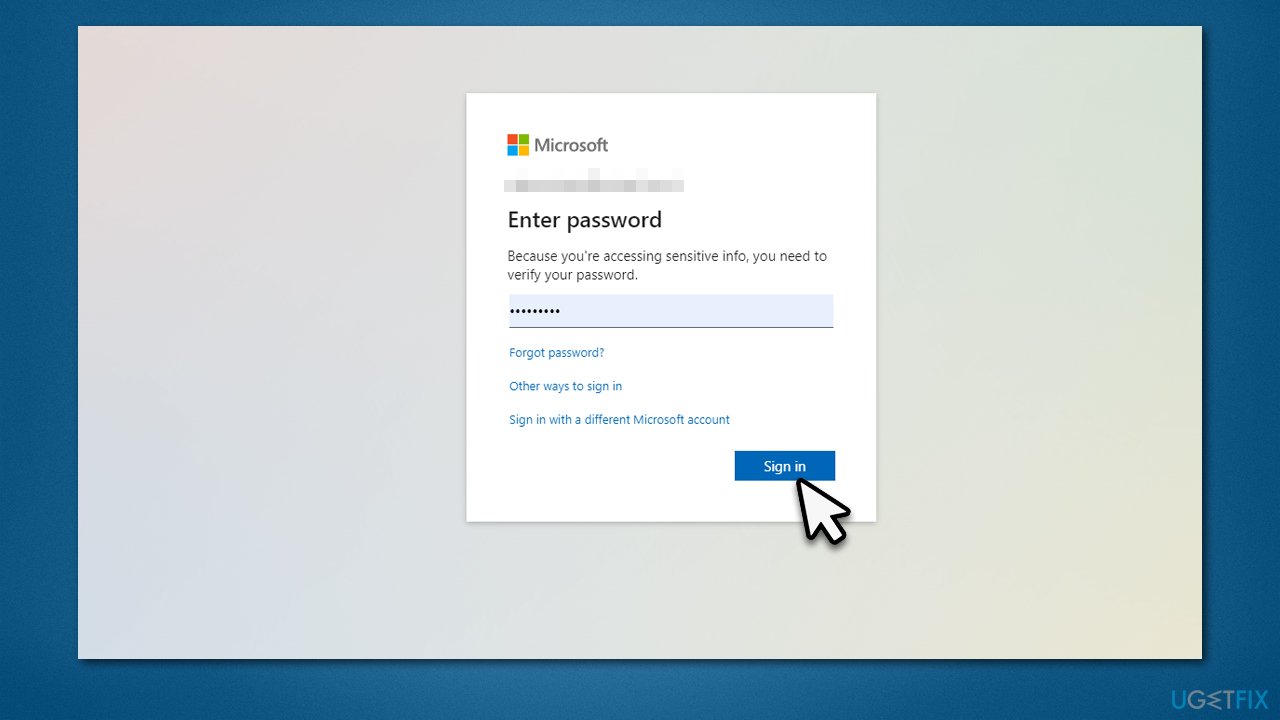
- Azure AD account could store the BitLocker key if you have previously been signed in with a school or work email.
- Anywhere where you could have saved the text file with the password when you were setting up the BitLocker, for example, you might have saved it on a USB or similar storage device.
If none of these solutions apply to you, proceed with the next ones.
Fix 2. Try accessing Safe Mode
You should check whether you can access Safe Mode in a regular way. Proceed with the following:
- Restart Windows
- Once the system starts booting, interrupt the loading process by pressing and holding the Power button – do this two more times
- Windows will automatically enter Advanced Startup mode
- Select Troubleshoot > Advanced options > Startup Settings and Restart
- After a system reboot, select 4/F4 or 5/F5 to access Safe Mode.
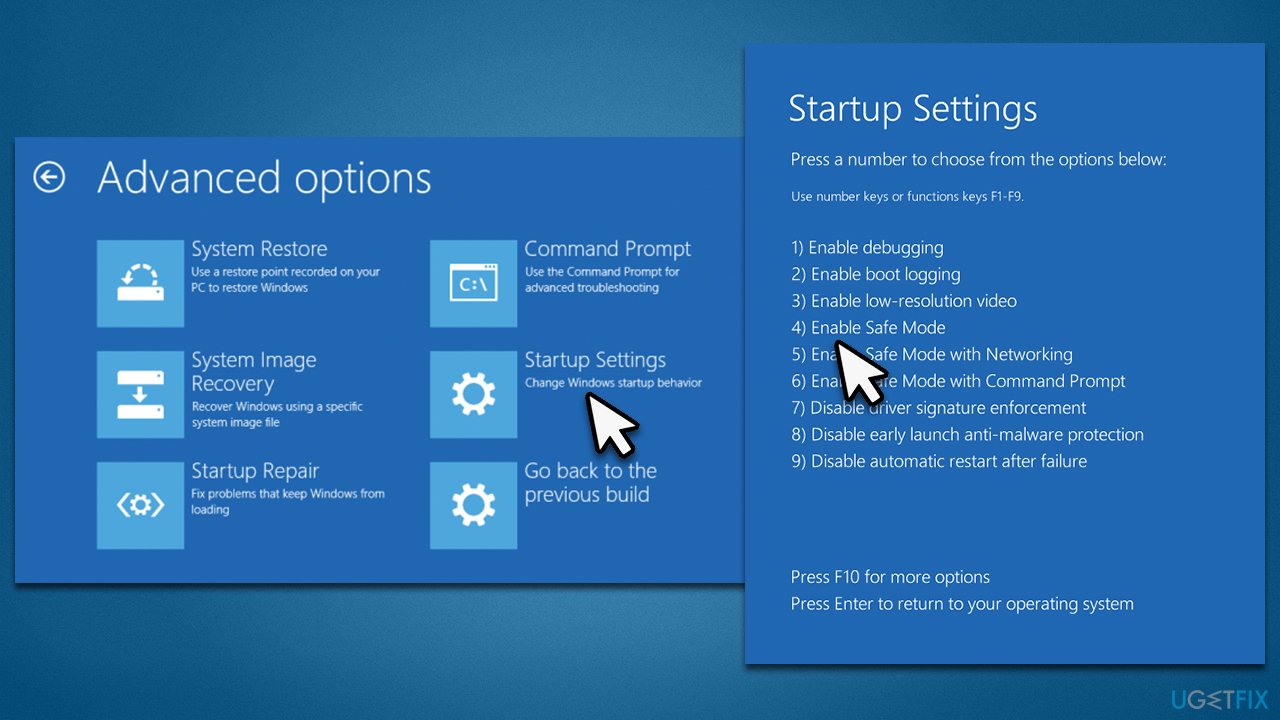
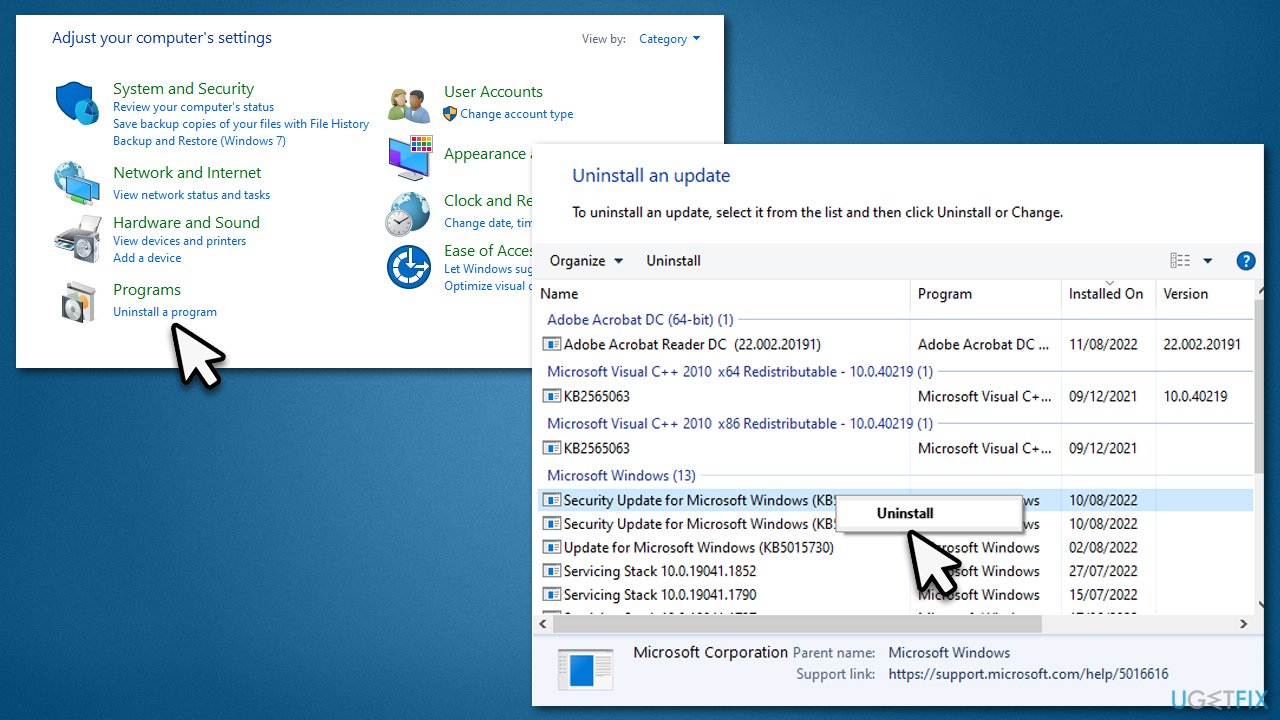
If you manage to access Safe Mode, you should be able to uninstall the faulty update via the Control Panel:
- Type Control Panel in Windows search and press Enter
- Go to Programs > Uninstall a program
- Click View installed updates
- Sort the updates by the date, find KB5016629, and uninstall it
- Reboot your system.
Fix 3. Use Media Creation Tool
You might be able to repair your computer by using the Media Creation Tool, although you do need another PC for that. You need to get a relatively spacious USB drive - at least 8GB large.
- Visit the official Microsoft website and download Windows 11 installation media
- Double-click the installer and select Yes when UAC shows up
- Agree to terms
- Pick Create installation media (USB flash drive, DVD or ISO file) for another PC option and click Next
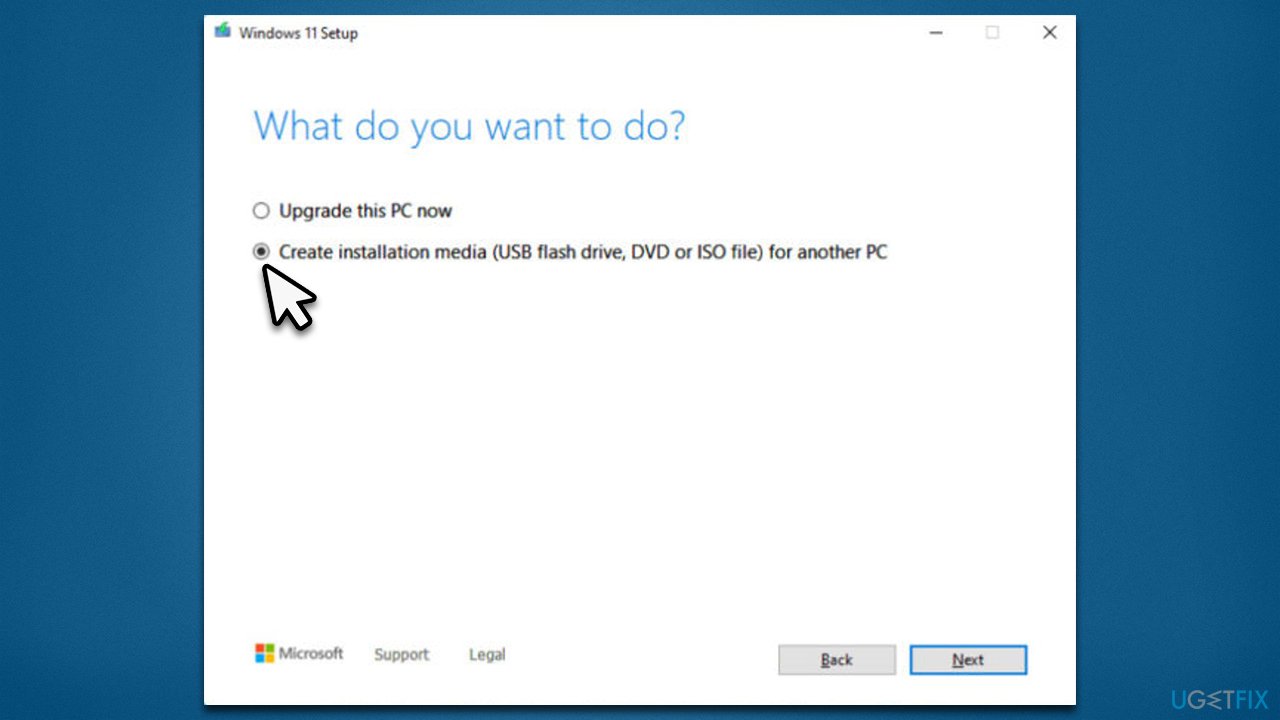
- Select the Use Recommended options for this PC checkbox and click Next
- Choose the ISO file and click Next
- Once you have prepared the ISO, put it into the malfunctioning PC
- Restart your machine and rapidly press F8, F10, F12, Del, or another button that would let you load into BIOS
- Here, go to the Boot section and set the boot priority to Flash drive
- Restart your system.
From here, you have a few options you should try. We recommend starting with the Startup Repair option, which might be able to fix the issue for you automatically.
- Once the system restarts and Choose an option screen shows up, select the Troubleshoot option
- Pick Advanced options and then select Startup Repair
- Your system will attempt to repair startup issues and will restart several times.
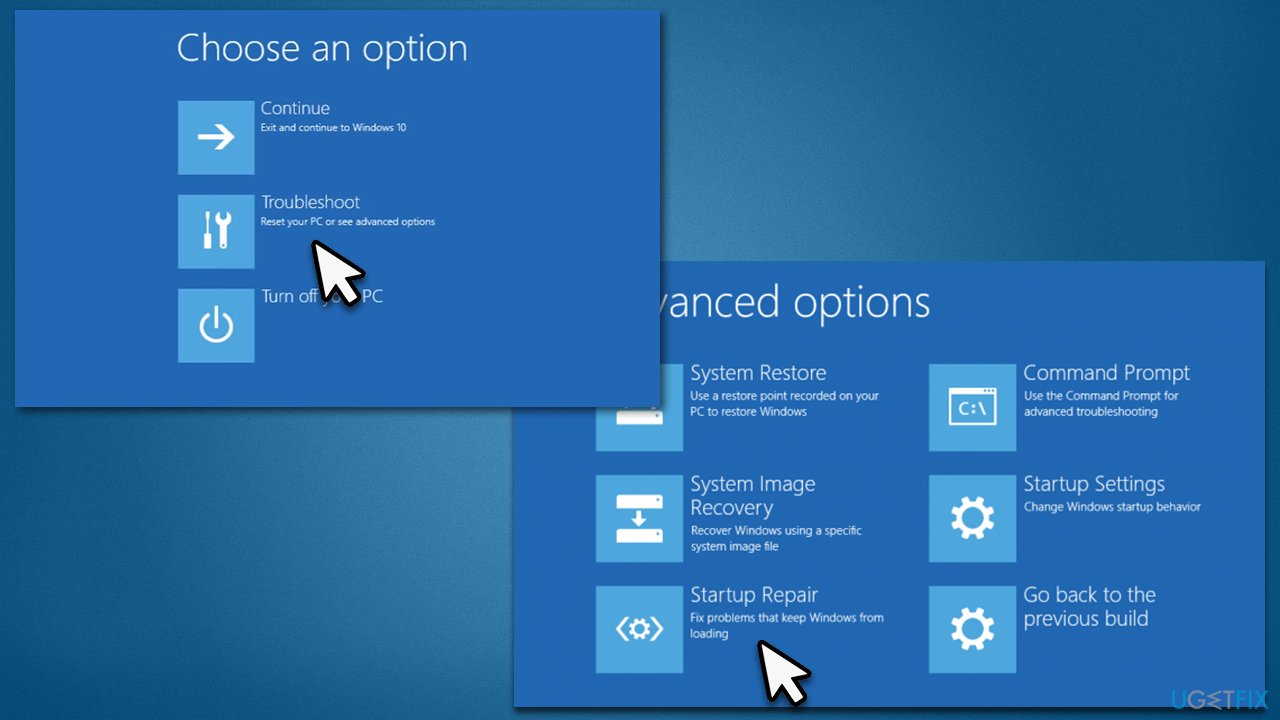
The next thing you could do is try uninstalling updates as follows:
- Go to the Choose an option, select Troubleshoot
- Pick Advanced options and then pick Uninstall Updates
- Select the KB5016629 update and remove it.
Finally, if none of the solutions worked, you could Reset your PC (which would let you keep all your files) via the Troubleshoot > Reset this PC option.
Once you are able to boot into Windows, we recommend checking the system with the [d1] PC repair and maintenance tool to ensure that the system files are not corrupted and run as well as possible.
Bottom line
To fix the BitLocker blue screen after installing KB5016629, users can attempt to recover their decryption key or find ways to uninstall the update. If these options do not work, further troubleshooting may be required.
Frequently asked questions
You can try disabling BitLocker temporarily and then uninstalling the KB5016629 update to see if that resolves the issue. Make sure to back up your data before making any changes.
Go to Settings > Update & Security > Windows Update, then select 'View update history' and click on 'Uninstall updates' to remove the KB5016629 update.
To minimize the risk, ensure that your system drivers are updated and check for any compatibility issues before installing new Windows updates.




Report an issue
What's wrong with this guide? We review every report and update or remove content.
Report received — thank you. We'll review and fix it.
You need a free account to submit a report.
Be the first to comment