How to fix
Can’t change default app to open PDF files
on Windows
Easily resolve issues changing the default app for PDF files in Windows 10 and 11. Quick fixes and tips to get it done—expert-tested!

![[Fix] Can’t change default app to open PDF files in Windows](https://ugetfix.com/wp-content/uploads/articles/askit/fix-cant-change-default-app-to-open-pdf-files-in-windows-copy_en-768x432.jpg)
What causes [Fix] Can’t change default app to open PDF files in Windows?
- Windows update resets default app settings
- Corrupted system files
- Corrupted registry entries
- User account permissions restrict changes
- Policy settings restrict changes
Repairs Windows system files, removes malware, and restores a clean OS state — without reinstalling.
Hi. I am trying to set Acrobat as a program that opens PDF files on my Windows 11 machine. However, when I right-click on a PDF file, the only listed option is Microsoft Edge. How do I change the default app to Adobe Acrobat for PDF files?
In Windows, you can set default apps for various file types, which means you decide which app opens when you click on a specific file. This can be done through the "Default apps" settings in Windows. For instance, you can choose your preferred app to open PDF files, such as Adobe Reader, Microsoft Edge, or any other PDF viewer installed on your system.
However, some users experience issues when trying to change the default app for opening PDF files. Instead of seeing a comprehensive list of installed PDF viewers, they often find only Microsoft Edge or a few other options available. This is often accompanied by the "An app default was reset" notification.
This makes it difficult to set a preferred app like Adobe Reader as the default. This problem is commonly reported after a Windows update, but it can also occur in other situations. It mostly affects devices running Windows 11.
This issue can occur due to several reasons. One common cause is the Windows update itself, which might reset some default app settings to Microsoft's own apps, like Edge. Another reason could be corrupted system files or registry entries that prevent the recognition of newly installed apps. Additionally, user account permissions or policy settings might restrict changes to default apps.
You may manually choose an app that is not mentioned by using the "Choose an app on your PC" option, which may help you fix this problem, although more troubleshooting measures are required if this does work.
To undo any changes impacting the default applications, you may need to uninstall the latest Windows update or modify the default app settings for PDF files in Windows Settings, and more. For detailed instructions, check the section below.
For dealing with various Windows errors and crashes, consider using a [d1] repair and maintenance utility, which is effective in resolving many system issues.
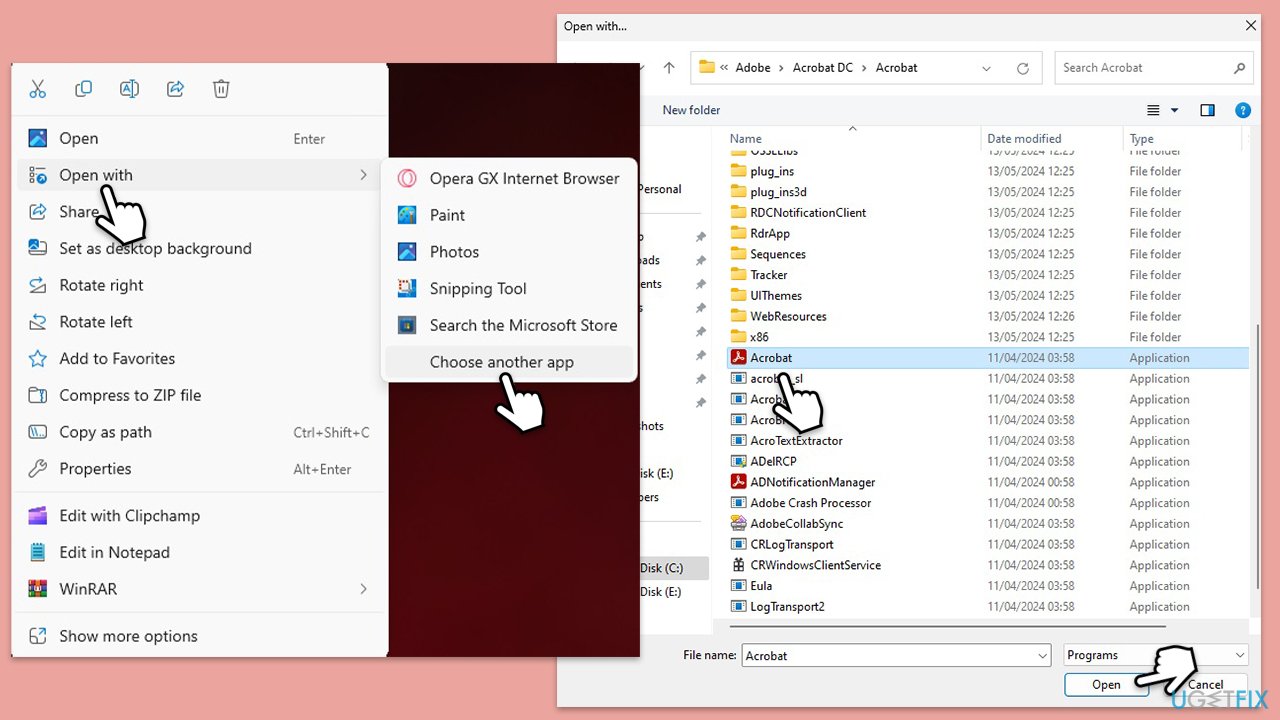
Fix 1. Use the "Choose another app on your PC" option
- Right-click on a PDF file.
- Select Open with > Choose another program.
- Now navigate to the following location (keep in mind that this may vary depending on your Windows and/or Adobe Acrobat version):
C:\Program Files\Adobe\Acrobat DC\Acrobat - Scroll down to find Acrobat.exe (marked as an Application in the Type section).
- Click Open and then OK.
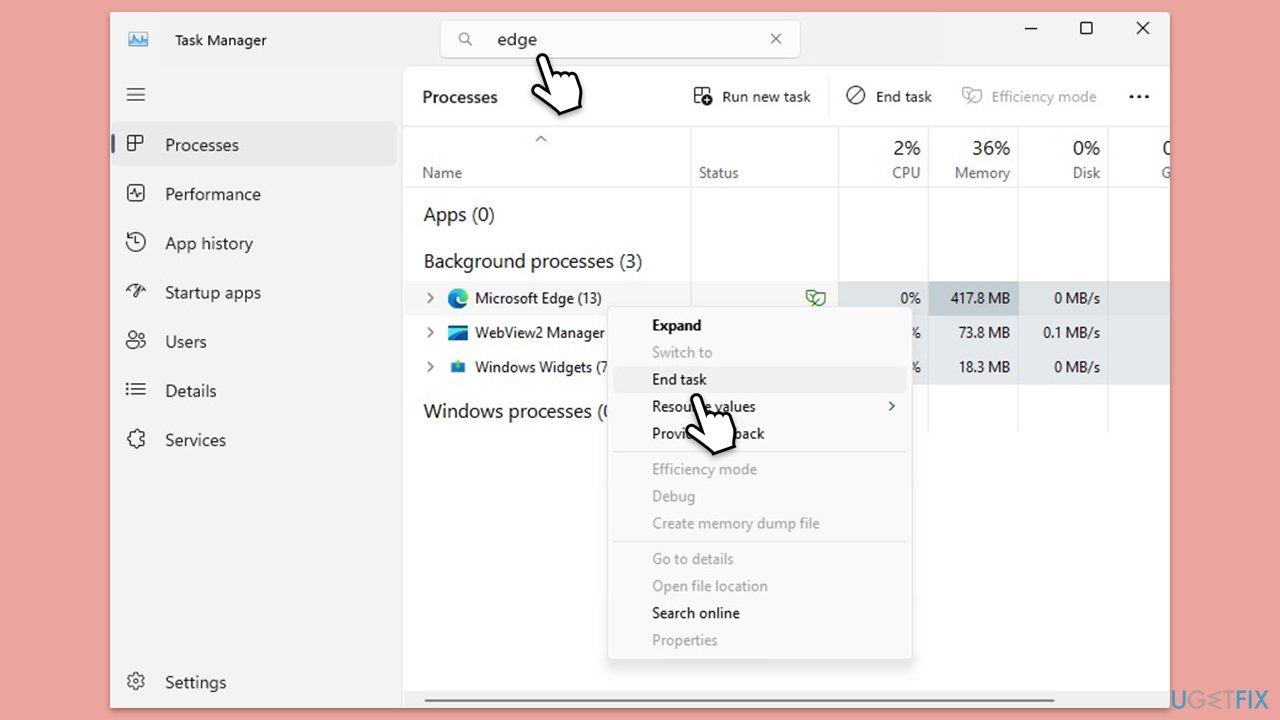
Fix 2. Kill all MSEdge.exe instances in the Task Manager
Those who have the only option to open PDFs with Microsoft Edhe should follow these steps:
- Press Ctrl + Shift + Esc on your keyboard to open the Task Manager.
- In the search bar, type Edge.
- Right-click on every Microsoft Edge-related process and select End Task.
- Now set the default PDF app as usual.
Fix 3. Update Microsoft Edge and Acrobat (or another program)
Similarly, some people said they managed to fix the issue where the default app for PDF wouldn't change in Windows by updating associated apps, such as Edge or Acrobat.
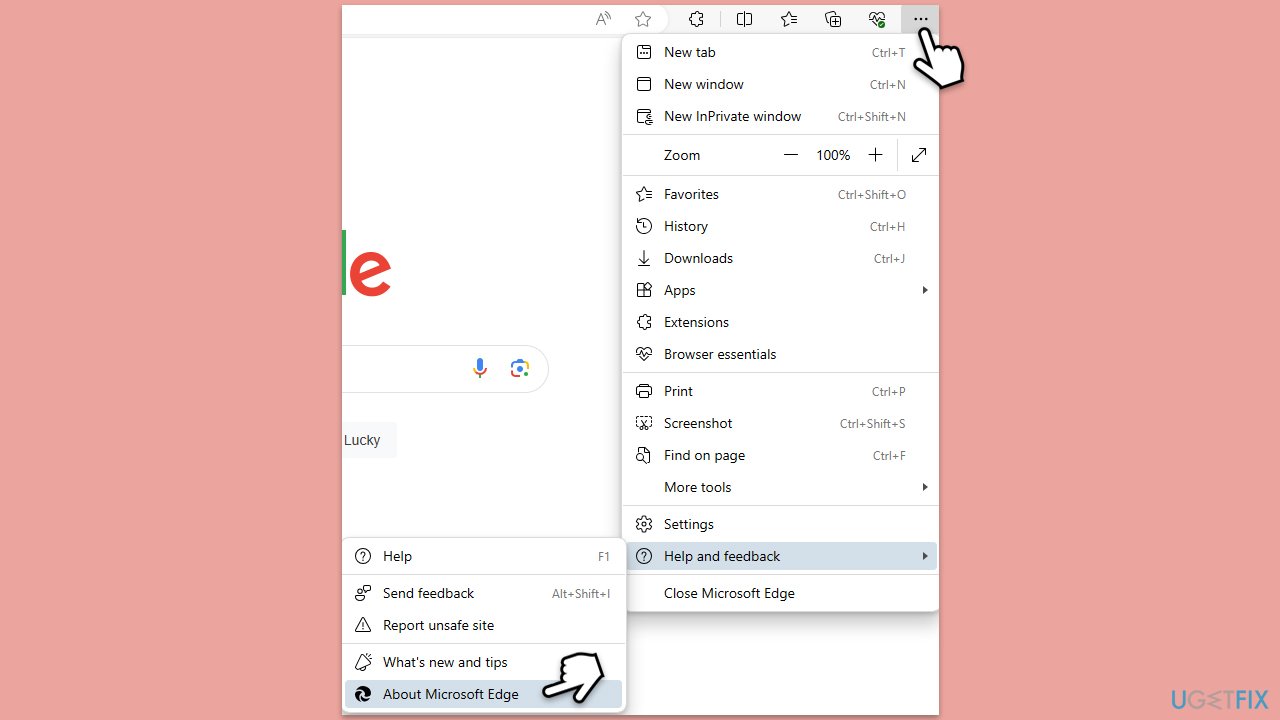
Microsoft Edge
- Open Microsoft Edge.
- Click on three horizontal dots (Settings and more) at the top-right corner of the browser.
- Select Settings.
- Click on Help and Feedback > About Microsoft Edge on the left.
- The browser should now automatically be updated to the latest version.
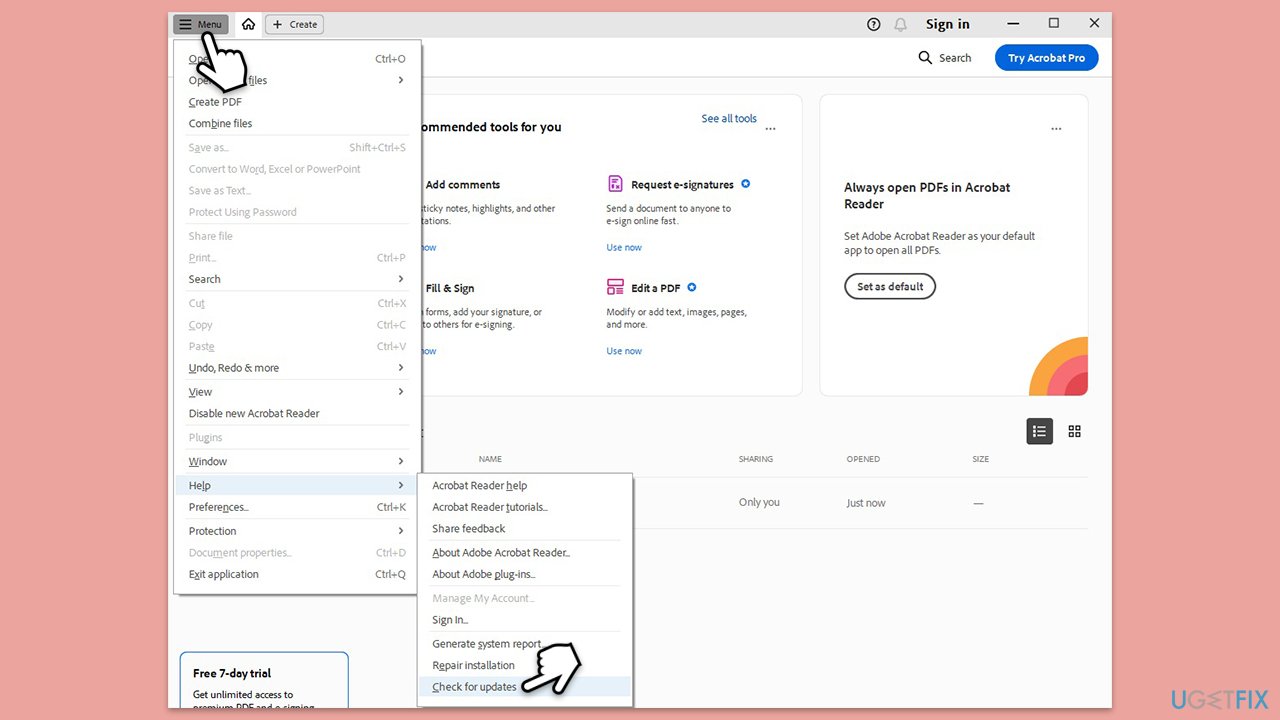
Adobe Acrobat Reader
- Open Acrobat Reader.
- Clock on the Menu at the top-left.
- Select Help > Check for updates.
- Wait till updates are installed.
Fix 4. Select the default app for PDFs in Windows settings
- Right-click on Start and pick Settings.
- Go to the Apps section.
- Pick Default apps.
- Here, you will find a list of apps - select the one of your choice, such as Adobe Acrobat.
- Find the .pdf extension and click on the default app.
- Select the app of your choice, such as Adobe Acrobat.
- Pick your preferred app from the list and click Set default.

Fix 5. Delete the PDF entry in the Windows registry
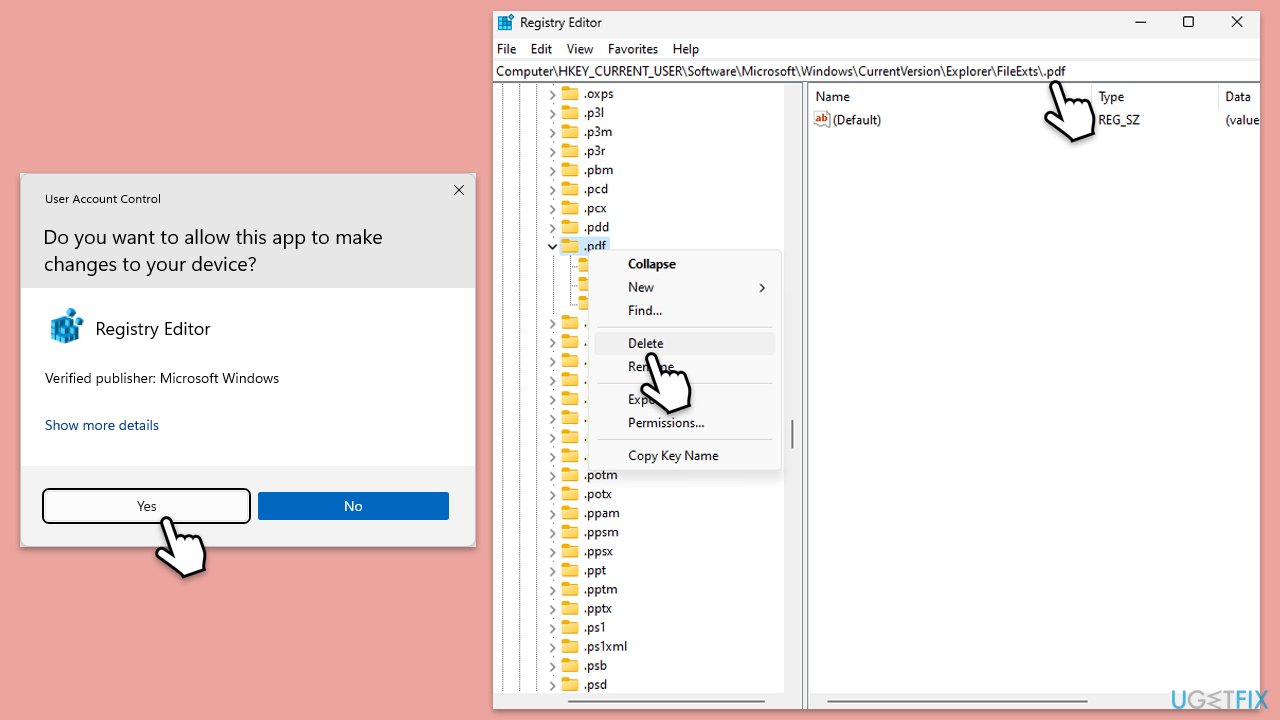
- Type regedit in Windows search and hit Enter.
- When the User Account Control window shows up, click Yes.
- Navigate to the following location:
HKEY_CURRENT_USER\SOFTWARE\Microsoft\Windows\CurrentVersion\Explorer\FileExts\.pdf - Right-click on .pdf and select Delete.
- Close the Registry Editor and try to set the default app again.
If you can't delete this entry due to the "Cannot delete .pdf: Error while deleting key" error, please follow these steps:
- Type cmd in Windows search.
- Right-click on Command Prompt and select Run as administrator.
- Agree to make changes by clicking Yes.
- Copy and paste the following commands, pressing Enter after each:
sc.exe config UCPD start= disabled
schtasks.exe /change /Disable /TN "\Microsoft\Windows\AppxDeploymentClient\UCPD velocity" - Restart your PC and then try to delete the registry key.
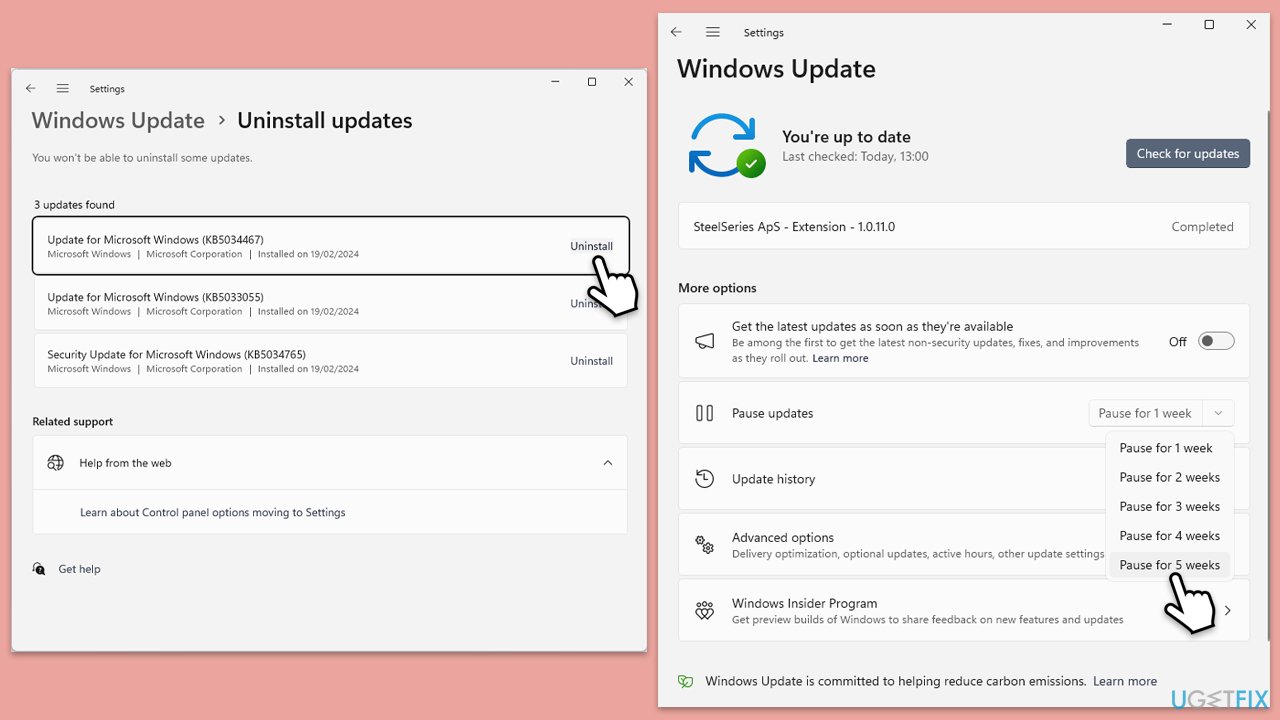
Fix 6. Uninstall the most recent Windows update [workaround]
- Type Control Panel in Windows search and press Enter.
- Select Programs > Uninstall a program.
- Click on View installed updates on the left side of the window.
- Uninstall the most recent update.
- Proceed with on-screen instructions.
- Don't forget to pause the update.
Bottom line
To fix the issue of not being able to change the default app for PDF files, you can manually choose an app using the 'Choose an app on your PC' option, uninstall the latest Windows update, or modify the default app settings in Windows Settings. If these solutions do not work, further troubleshooting measures may be required.
Frequently asked questions
To change the default PDF reader in Windows 10, right-click on any PDF file, select 'Open with', then choose 'Choose another app'. Select your desired PDF reader, check 'Always use this app to open .pdf files', and click 'OK'.
If the default PDF app setting is grayed out in Windows 11, try running Windows Update to ensure your system is up to date, or check for any third-party software that might be conflicting with the settings.
You may be unable to change the default app for PDFs in Windows due to corrupted user profiles or system settings; try creating a new user account or resetting the app preferences in the Settings app.




Report an issue
What's wrong with this guide? We review every report and update or remove content.
Report received — thank you. We'll review and fix it.
You need a free account to submit a report.
Be the first to comment