How to fix
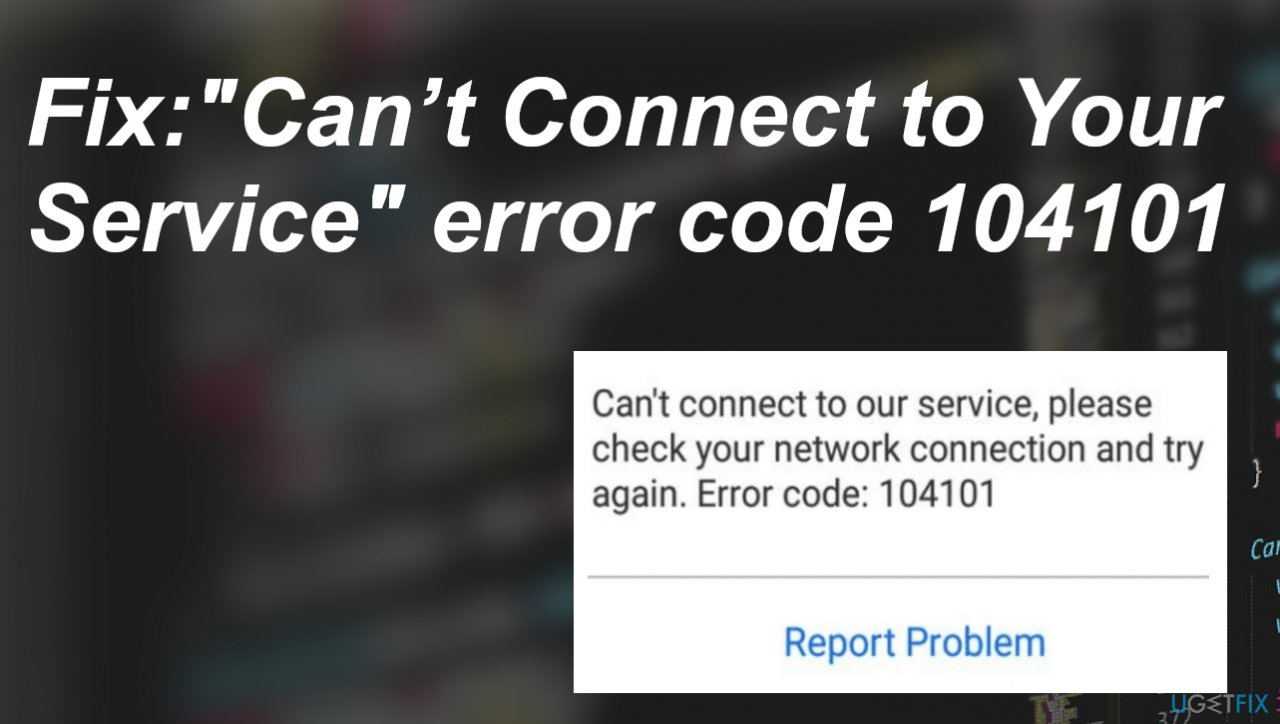
Fix: “Can’t Connect to Your Service” error code 104101 in Zoom
on Windows
Resolve the "Can’t Connect to Your Service" error code 104101 in Zoom on Windows 10 and 11 quickly. Expert-tested solutions with screenshots!


What causes Fix: “Can’t Connect to Your Service” error code 104101 in Zoom?
- Multiple running applications on one machine
- Too many devices connected to the same internet connection
- Poor internet connection
- Outdated Zoom app
- Outdated operating system
- Corruption with the applications or system files
Repairs Windows system files, removes malware, and restores a clean OS state — without reinstalling.
Hey, I have issues with Zoom. I need to use it normally for many things during this time. I kinda rely on it for my job. The annoying error code 104101 appears informing me that the connection to the service is not good. I need help because reporting the problem does not do for me. Help!
Zoom is a popular program used for communication and learning purposes. The program is not perfect, and there are various issues that occur and make users frustrated due to connectivity issues, server problems. "Can’t Connect to Your Service" error code 104101 is one of the more common and new issues with the Zoom application. This problem indicates the issue with settings on the system or the downtime of the servers.
The error code can be caused by the multiple running applications on one machine. These video applications require an internet connection, and if many other programs depend on the internet connection, the background of the machine is stuck. The issue can occur due to too many devices connected to the same internet connection. Zoom gets slow, and errors show up, keeping the program from running smoothly.
"Can’t Connect to Your Service" Zoom error code 104101 issue can be triggered by the poor internet connection, obviously. Checking these connection and internet issues is important since the application relies on a good internet connection.[ref en-1] The app like Zoom uses a lot of bandwidth, so messages with errors can appear due to the simple internet speed problem.
Other reasons behind the application issue can be related to the outdated Zoom app or the operating system. Compatibility issues can be related to these errors because the operating system cannot run the application when it is powerful, and the computer requires upgrades. It is common for Windows 10 to have update bugs too.[ref en-2]
The error code 104101 in Zoom can indicate corruption with the applications or system files. It is possible to fix the reason like this if you reinstall the Zoom, run [d1] to find and repair system files. These solutions can be needed when the machine was previously infected by cyber threats.[ref en-3]
Another fix might include web browser and issues with such tools directly. Browser chance, cookies can trigger problems. Clearing the history and cache, checking cookie issues can help fix the "Can’t Connect to Your Service" Zoom error completely. All these solutions are available, and it depends on the machine that encounters the error. You need to check them below and do not skip through.
Quick fixes:
There are various Zoom application issues like Zoom error 5003, Zoom application error 0xc000003e. These are the fixes for common problems that can trigger the failure of the Zoom application.
- Restart the PC.
- Restart the router.
- Restart Zoom.
- Update application.
- Run a malware scan.
- Clear browsers' cache and cookies.
1. Configure firewall settings
- Open Control Panel.
- Click System and Security.
- Now click on the Windows Defender Firewall option.
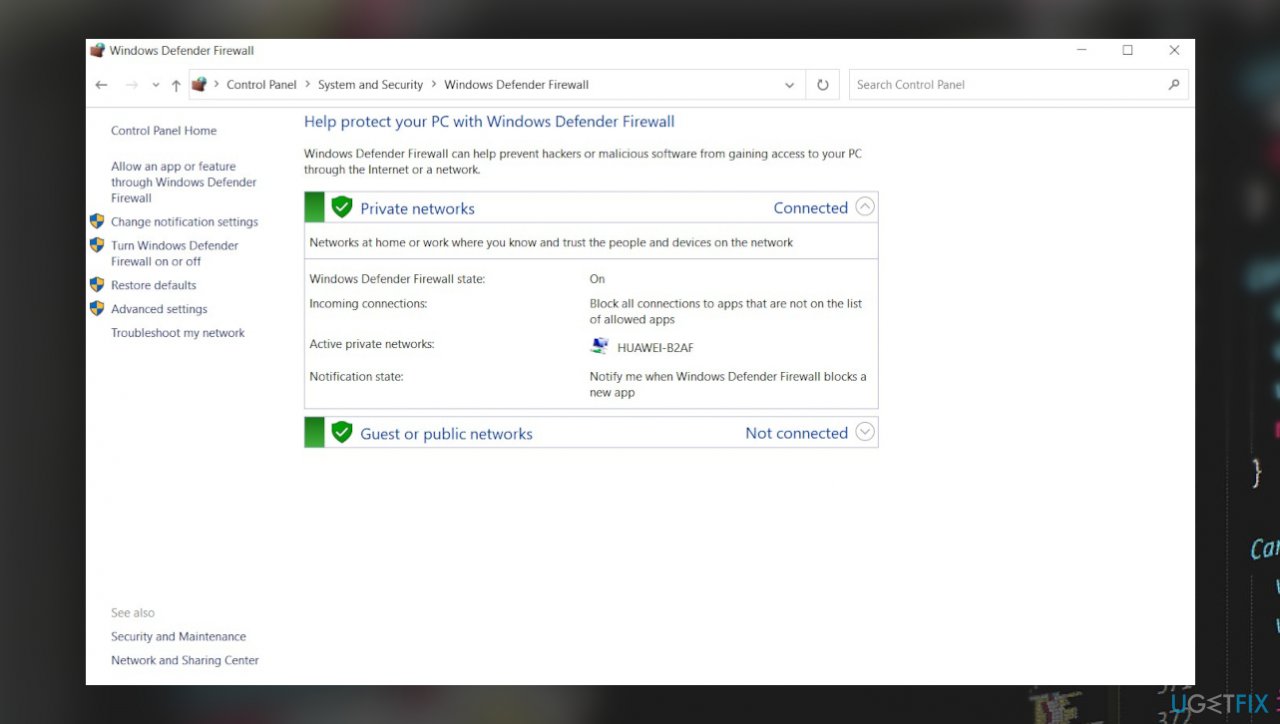
Zoom error code 104101 windows firewall - On the left panel, click on the Allow an app or feature through Windows Defender Firewall option.
- Click on Change Settings.
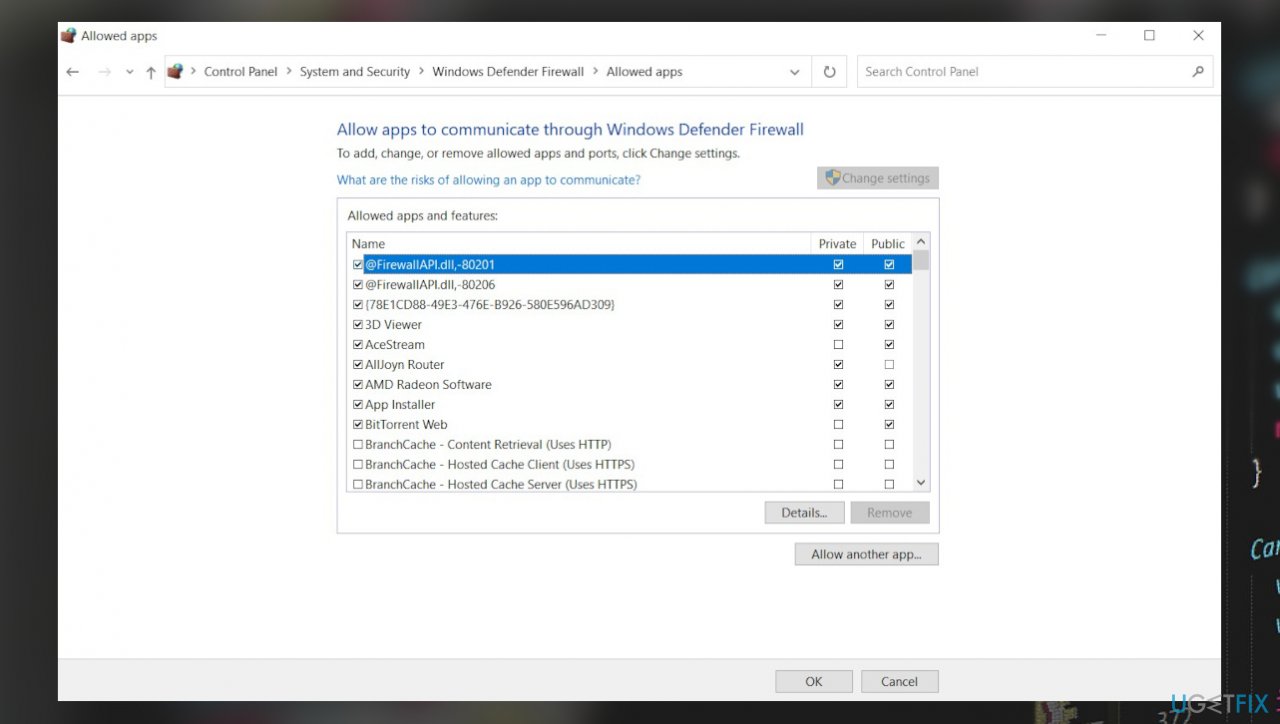
Zoom error code 104101 allowed apps - Scroll down, check-mark the Zoom Video Conference - both public and private options, and then press OK.
- Go to the Windows Defender Firewall window and from the left panel select the Advanced Settings option.
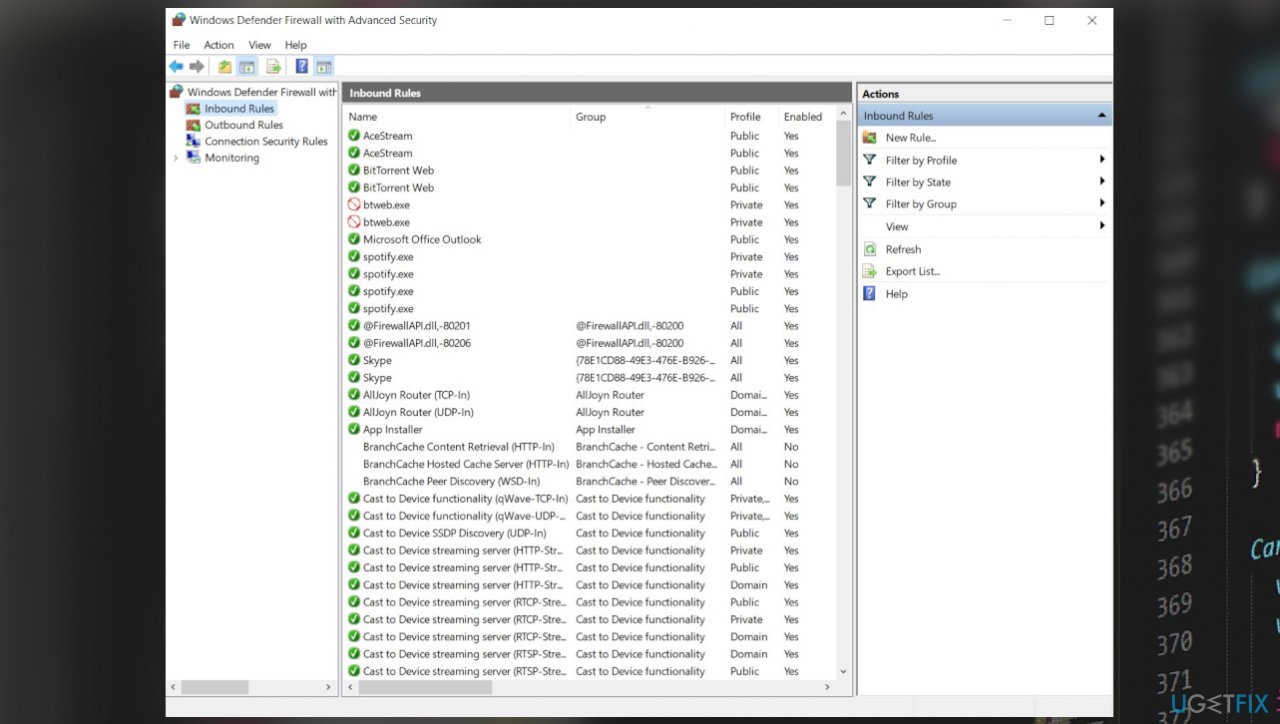
Zoom error code 104101 inbound rules - Select Inbound Rules, scroll down and click the Zoom Video Meeting option.
- On the right-side section, select the Properties option.
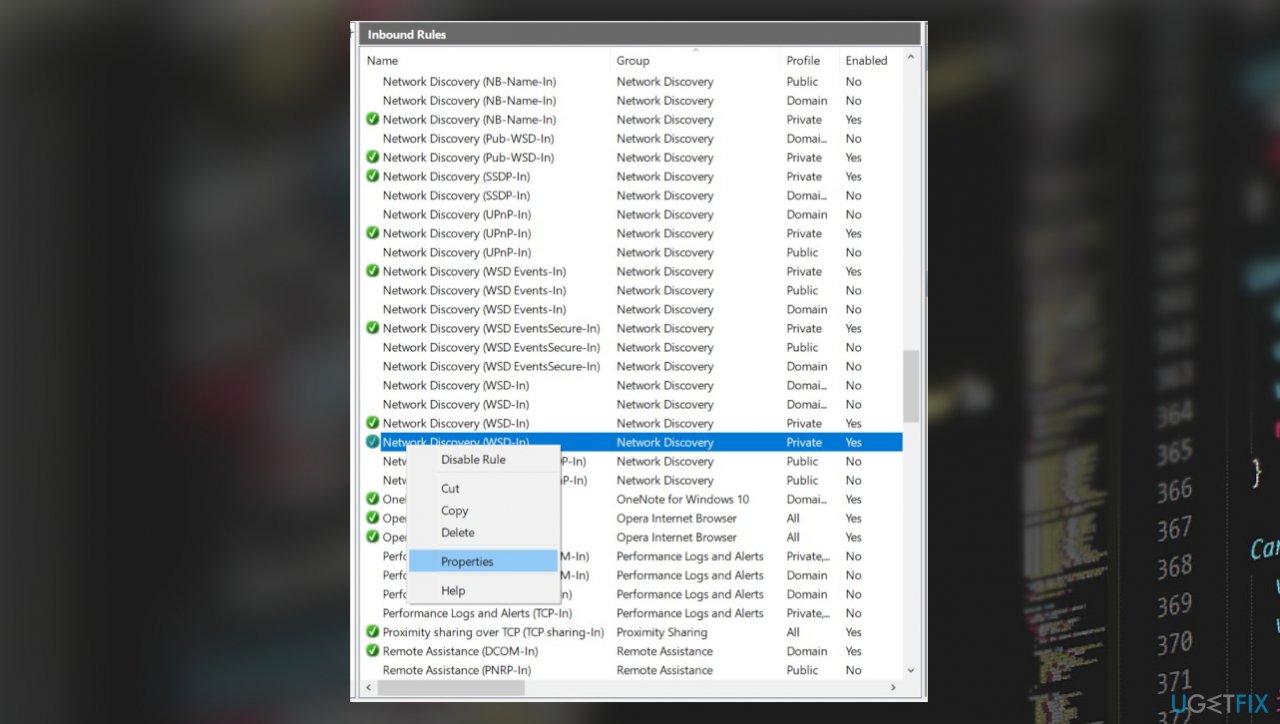
Zoom error code 104101 inbound rules properties - Choose the Allow the Connection option, click Apply and then select OK.
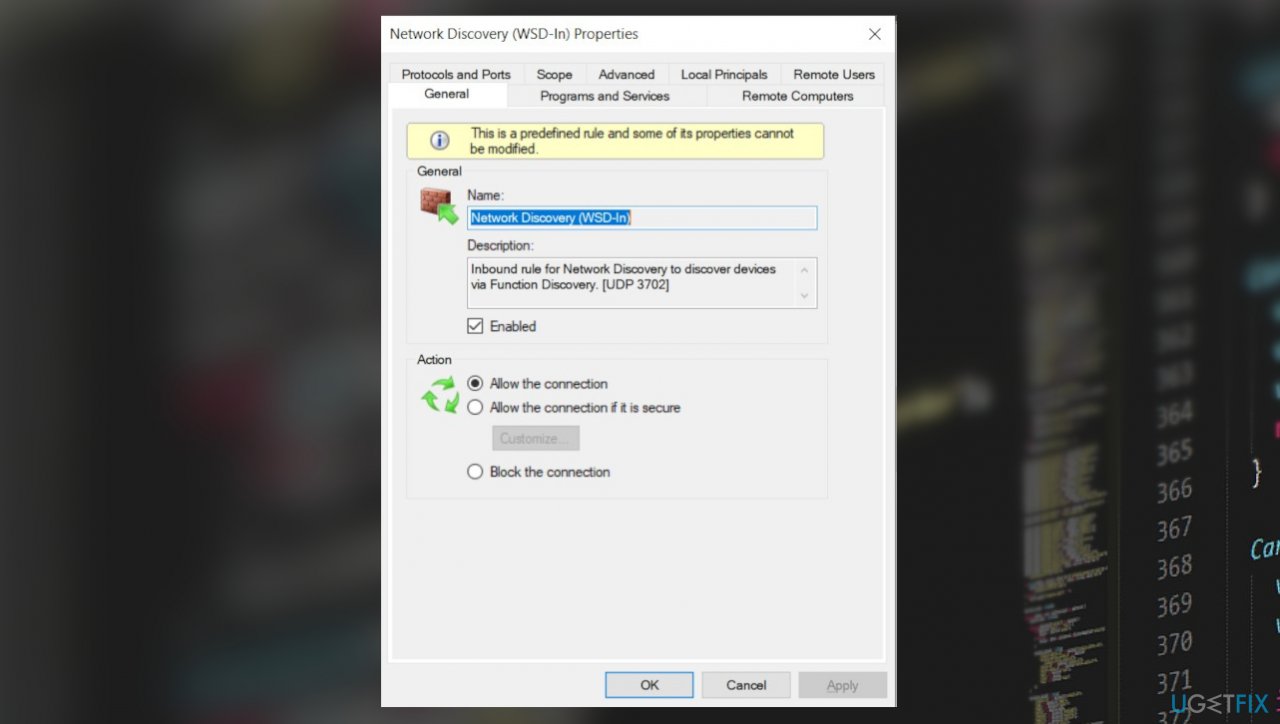
Zoom error code 104101 inbound allow - Check if the issue is fixed.
2. Disable the anti-virus protection
- Click Start, search Windows Security to open it.
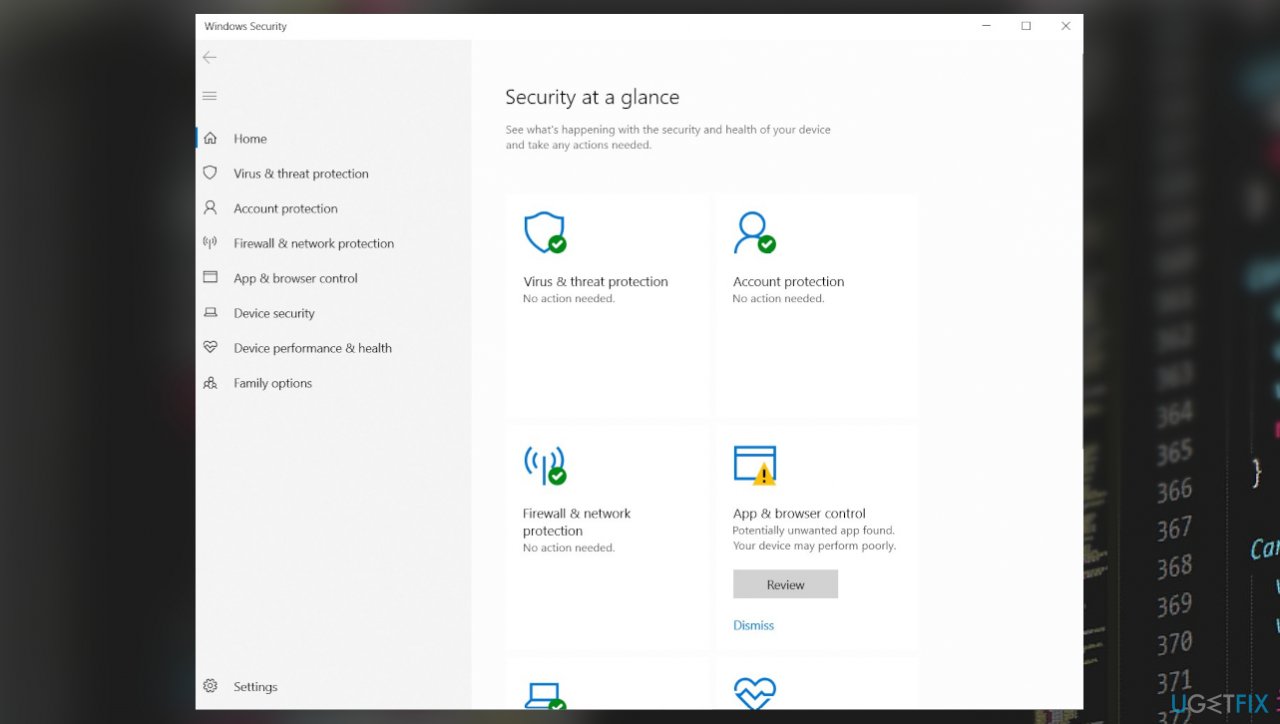
Zoom error code 104101 windoes security - Select Virus and Threat Protection.
- Then click Manage settings to open the management section of Windows Security Settings.
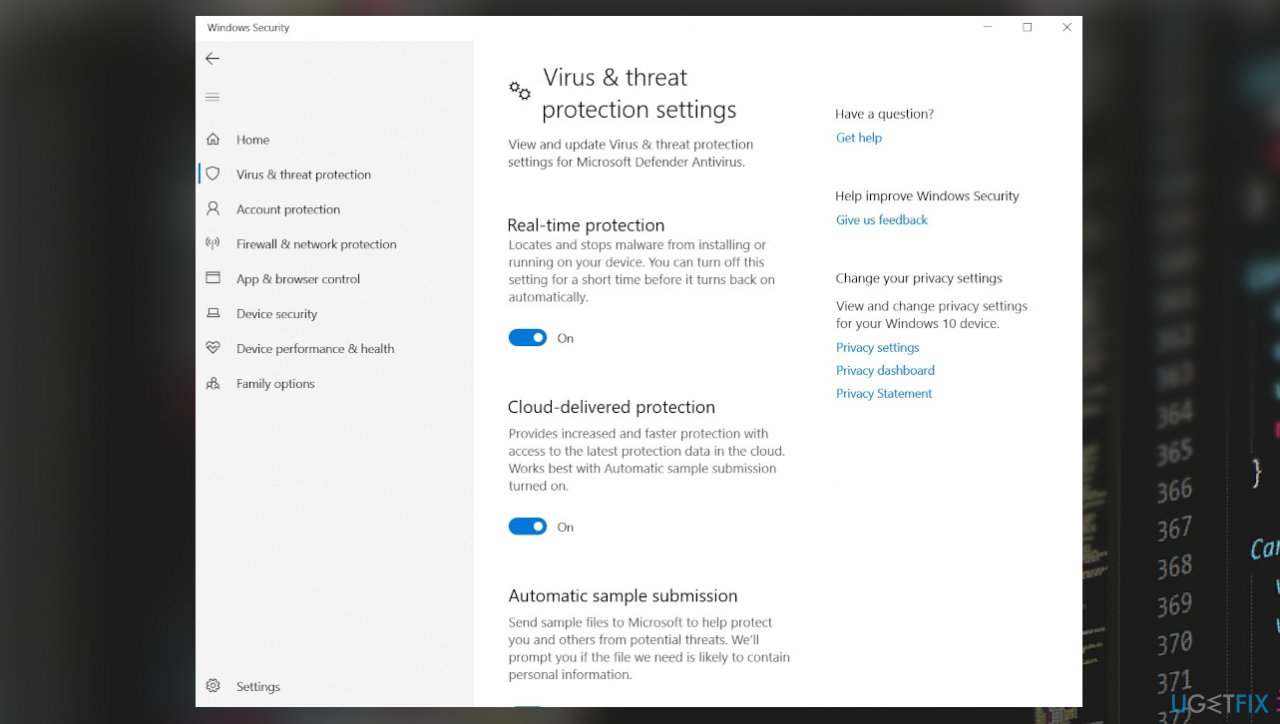
Zoom error code 104101 virus protection - Turn off the Real-Time Protection.
- Now open the Zoom application and try again.
3. Configure DNS server settings
- Click Start, search Command Prompt, and open it with admin rights.
- Copy-paste the command: ipconfig /flushdns and press Enter.
- Then run: netsh winsock reset and press Enter.
- Click Start, search for Control Panel, and open it.
- Select the Network and Internet option.
- Click the Network and Sharing Centre and then select the Change Adapter Settings.
- Now for Ethernet, right-click on its adapter and click the Properties.
- Select the TCP/IPv4 option, then click on Properties.
- Choose Use the following DNS server addresses option and add the DNS server addresses as indicated by the image given below.
- Press OK and then Close.
- Repeat the same procedure for the Wi-Fi adapter but add the DNS server addresses.
- Restart your PC.
Bottom line
To fix the error code 104101 in Zoom, consider reinstalling the Zoom app, checking your internet connection, and ensuring your operating system is up to date. If these solutions do not resolve the issue, you may need to run a system file repair tool.
Frequently asked questions
The error code 104101 in Zoom indicates that the application is unable to connect to the Zoom service, often due to network issues or firewall settings on your Windows device.
To troubleshoot this error on Windows 11, check your internet connection, ensure that Zoom is allowed through your firewall, and try restarting the application.
Yes, settings such as VPN configurations or strict network policies in Windows 10 can interfere with Zoom's ability to connect, leading to the 104101 error.




Report an issue
What's wrong with this guide? We review every report and update or remove content.
Report received — thank you. We'll review and fix it.
You need a free account to submit a report.
Be the first to comment