How to fix
Can’t disable Xbox Game Bar
on Windows
Easily disable Xbox Game Bar in Windows 10/11 with our expert-tested solutions. Troubleshooting made simple and effective for seamless gaming experience!

![[Fix] Can’t disable Xbox Game Bar in Windows](https://ugetfix.com/wp-content/uploads/articles/askit/fix-cant-disable-xbox-game-bar-in-windows_en-768x432.jpg)
What causes [Fix] Can’t disable Xbox Game Bar in Windows?
- Xbox Game Bar is enabled in settings
- Conflicts with other overlay apps
- Incomplete disabling of Game Bar components
- Recent Windows updates causing issues
Repairs Windows system files, removes malware, and restores a clean OS state — without reinstalling.
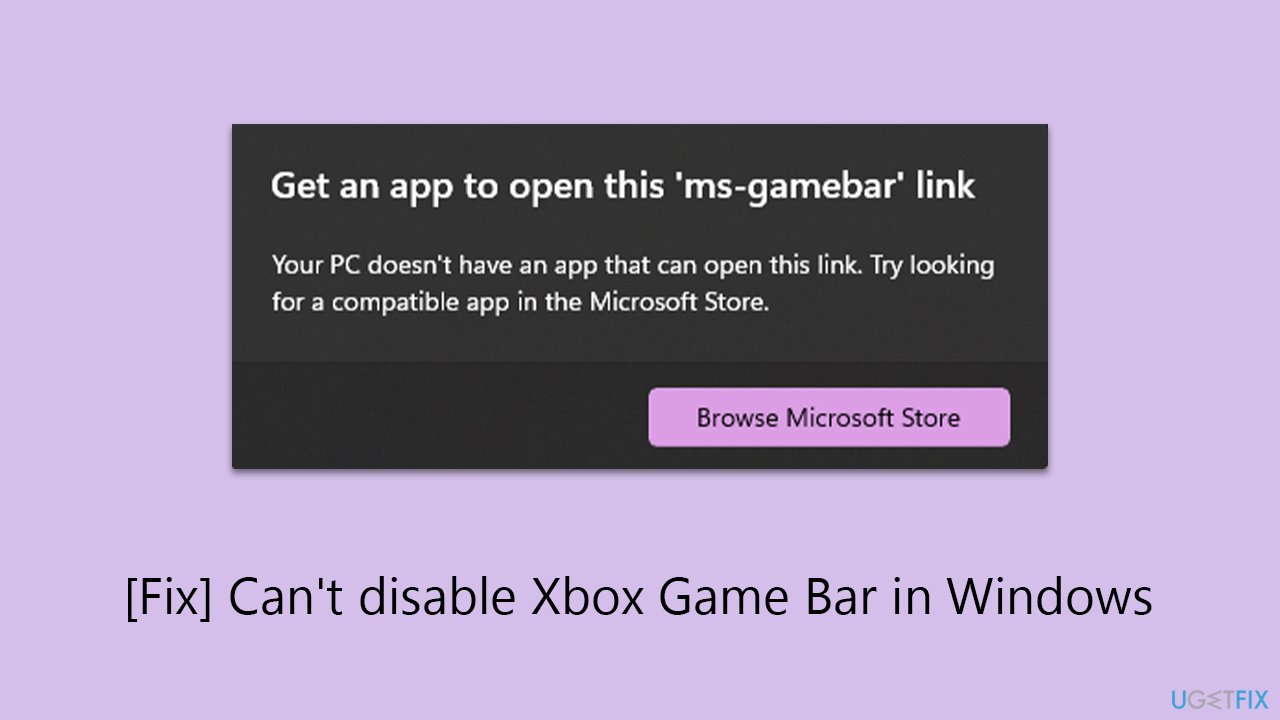
Hello, I can't seem to disable the Xbox Game Bar completely. I do not need it as I use other services for everything (primarily Steam). When I attempt to connect my Xbox controller to the PC, I receive this weird message which reads "We can't open this 'ms-gamebar' link." How do I fix this?
Xbox Game Bar is Microsoft's application dedicated to gaming enthusiasts. It is a gaming overlay built into Windows 11 and Windows 10, designed by Microsoft to allow users to use various widgets while playing games on their computers.
You can open Game Bar by pressing the Windows logo key + G over your game, app, or desktop. The Widget menu provides a list of activities to choose from, including audio, capture, looking for group, performance, Spotify, Xbox achievements, Xbox chat, and Xbox social.
However, not all people are fond of the feature, as it might interfere with similar overlay apps and create various problems. For example, some users claim that, whenever they connect the Xbox controller to Windows, they receive the "We can't open this 'ms-gamebar' link. Your device needs a new app to open this link." message. In other words, they can't disable Game Bar completely, and it creates conflicts and other issues.
If you are in this situation, the first thing you should do is check whether you have disabled everything in settings, as some components might still be enabled. If you still can't disable Game Bar after that, there are more complex troubleshooting steps that could be undertaken, including uninstalling the most recent Windows updates, uninstalling the app via PowerShell, or even modifying the Registry.
If you would rather take a hands-off approach, we recommend you try [d1] PC repair, which is great when dealing with issues of unknown origins.
Fix 1. Disable the Game Bar via Settings
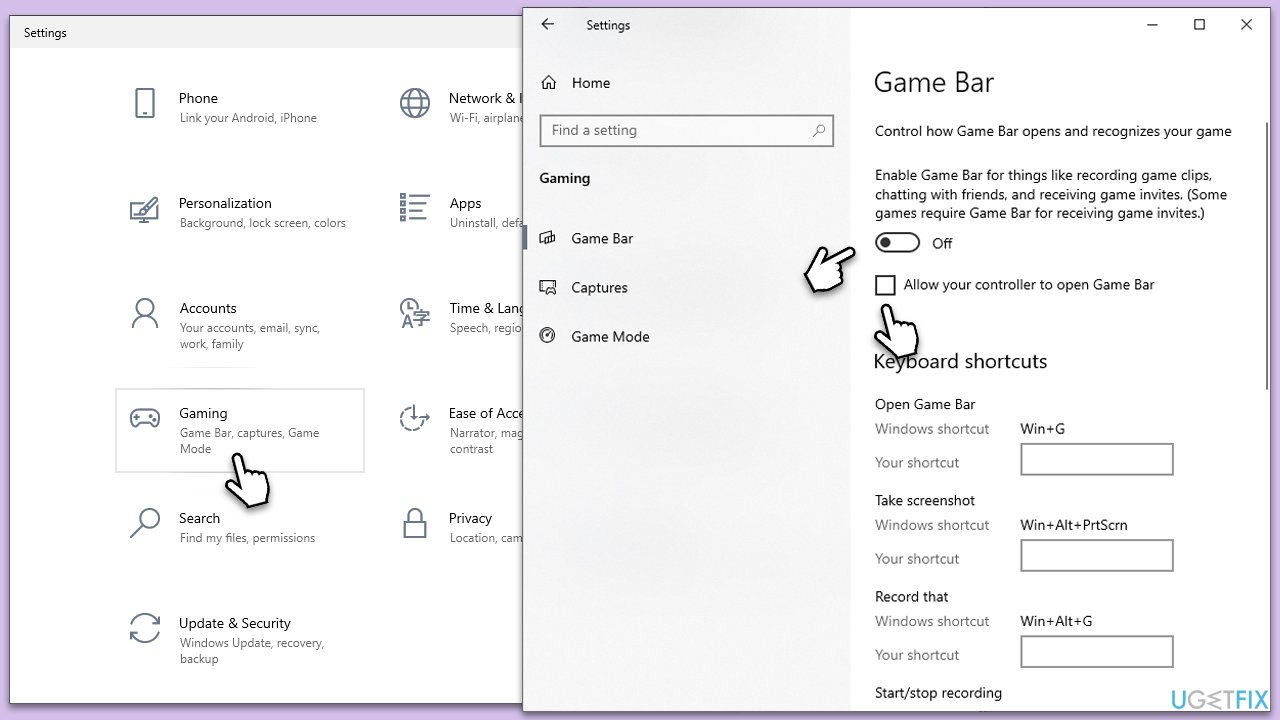
As mentioned, you should make sure that each of the settings is correctly set. Here's how:
- Make sure the Game Bar is not running.
- Right-click on Start and pick Settings.
- Select Gaming from the list.
- Toggle the switch to the Off position to disable the Game Bar.
- Disable the Open Xbox Game Bar using this button on a controller feature as well.
- Next, go to Apps/Apps & Features from the Settings menu.
- Scroll down to find the Xbox Game bar, (click three dots) and select Advanced options.
- Under App permissions, set the setting Never from the drop-down menu.
If you are still having problems with the app, proceed with the more advanced steps below.
Fix 2. Uninstall the most recent Windows update
Some users reported that they have started having troubles after installing the most recent Windows 11 update KB5034204, although this can of course be related to any other updates as well. Thus, if the problems started after installing the most recent update, you can uninstall it as follows:
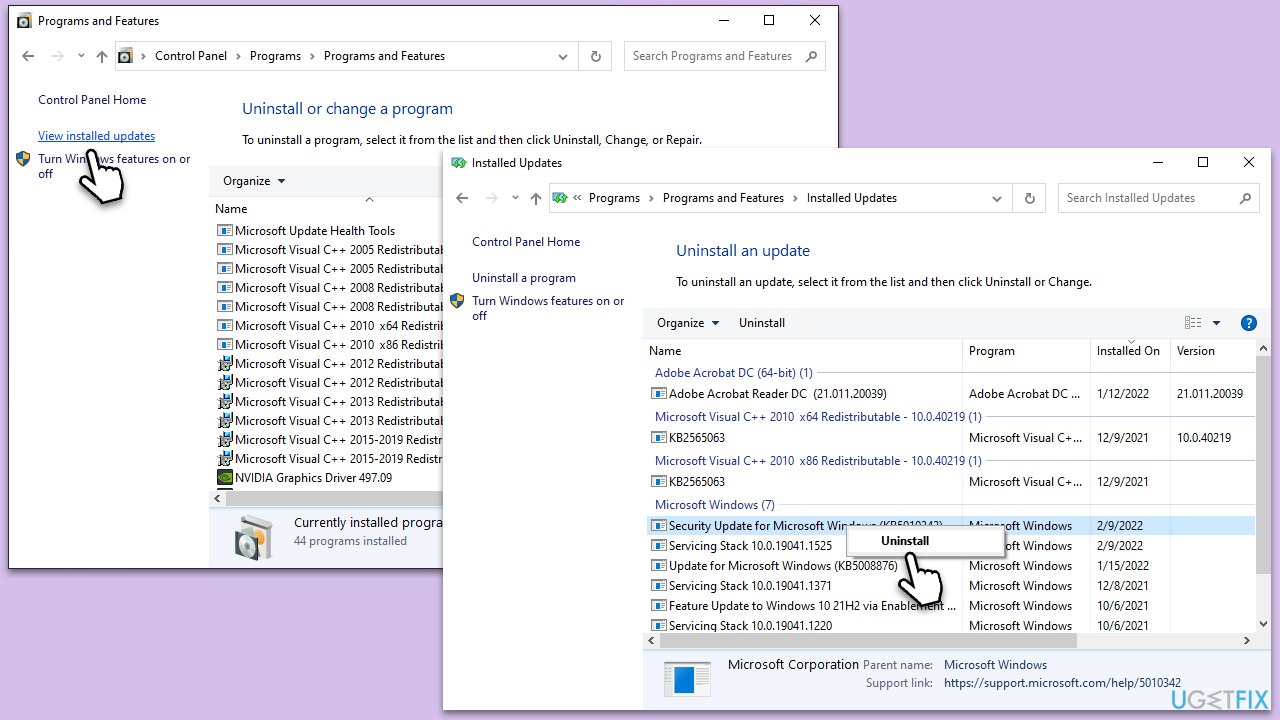
- Type Control Panel in Windows search and press Enter.
- Select Programs > Uninstall a program.
- Click on View installed updates on the left side of the window.
- Sort all the updates by date.
- Right-click on the most recent update and select Uninstall.
- Proceed with on-screen instructions.
- Then, type Updates in Windows search and press Enter.
- Click Pause the updates for 7 days (or you can pick a different time period).
- Install updates only once the issue is addressed by Microsoft.
Fix 3. Disable Autoplay
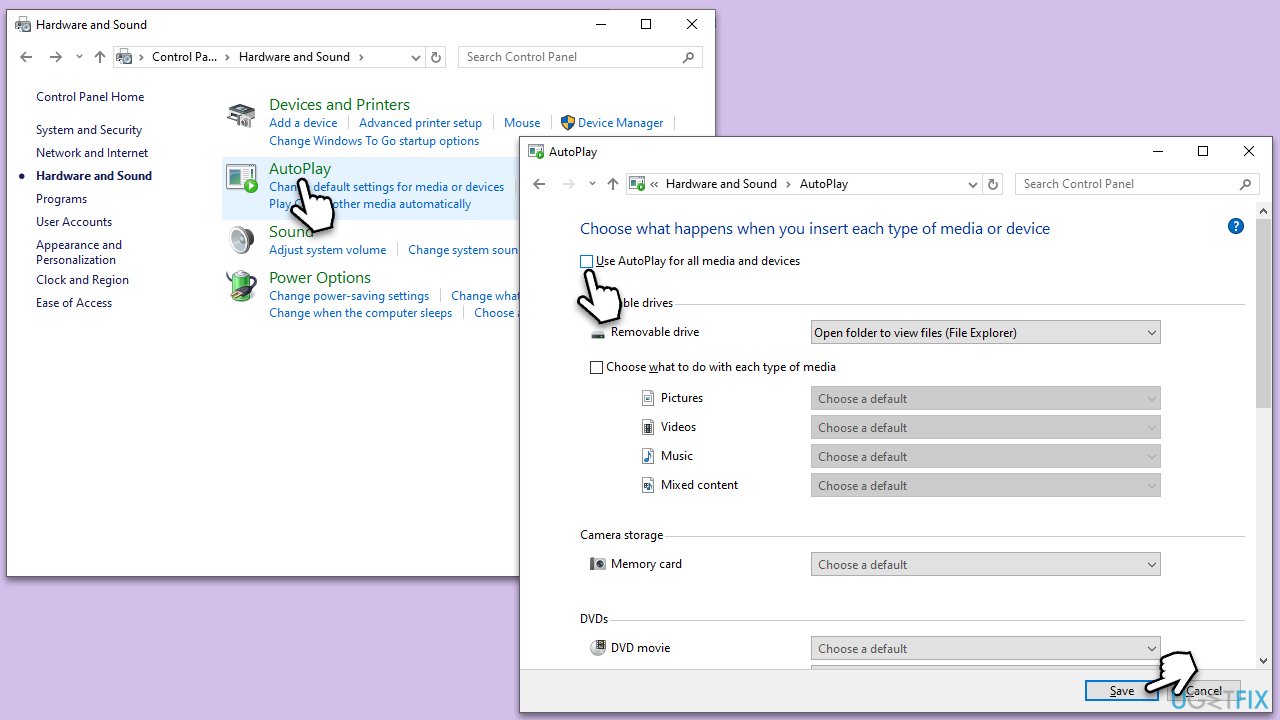
Another Windows feature that could help in this case is Autoplay. Disabling it might stop the Game Bar from attempting to launch every time.
- Type Control Panel in Windows search and press Enter.
- Click on Hardware and Sound.
- Untick the Use AutoPlay for all media and devices.
- Click Save and reboot your system.
Fix 4. Remove via PowerShell
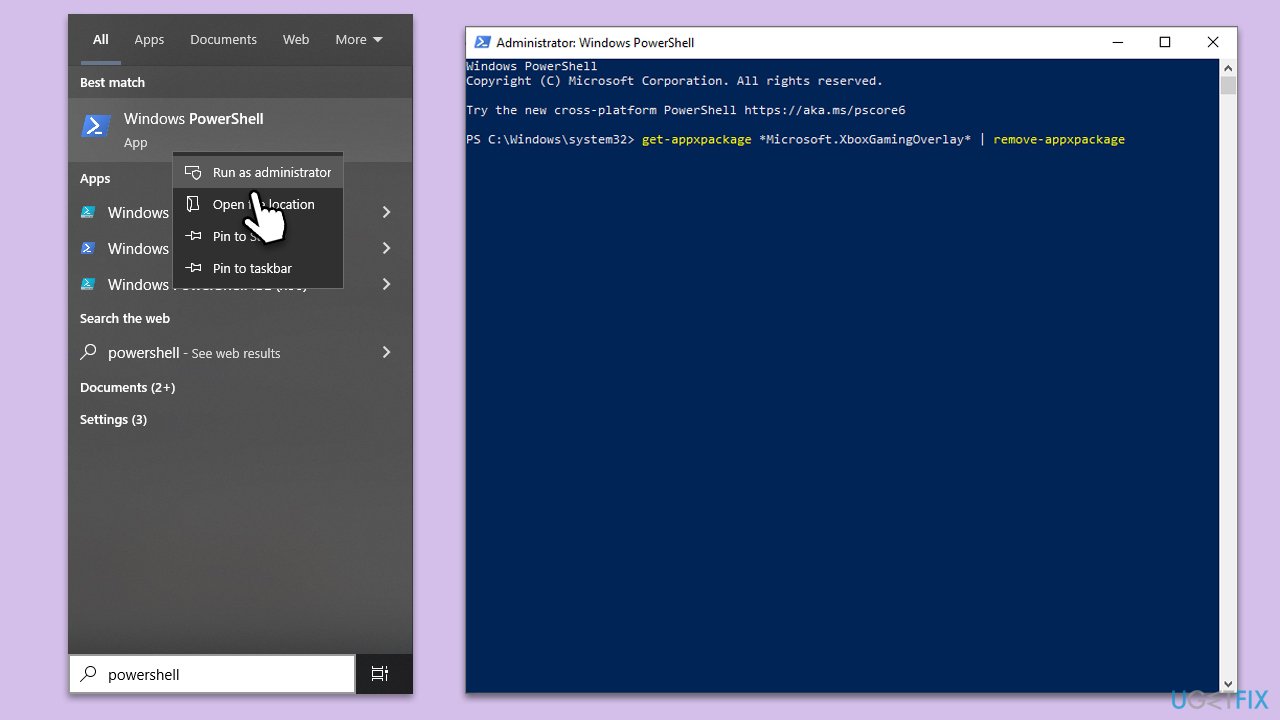
- Type PowerShell in Windows search.
- Right-click on the result and select Run as administrator.
- User Account Control window will show up - click Yes.
- In the new window, copy and paste the following command and press Enter:
get-appxpackage *Microsoft.XboxGamingOverlay* | remove-appxpackage - Restart your PC.
- If that does not work, open Powershell as administrator again and use the following commands, pressing Enter after each of them:
reg add HKCR\ms-gamebar /f /ve /d URL:ms-gamebar 2>&1 >''
reg add HKCR\ms-gamebar /f /v "URL Protocol" /d "" 2>&1 >''
reg add HKCR\ms-gamebar /f /v "NoOpenWith" /d "" 2>&1 >''
reg add HKCR\ms-gamebar\shell\open\command /f /ve /d "\`"$env:SystemRoot\System32\systray.exe\`"" 2>&1 >''
reg add HKCR\ms-gamebarservices /f /ve /d URL:ms-gamebarservices 2>&1 >''
reg add HKCR\ms-gamebarservices /f /v "URL Protocol" /d "" 2>&1 >''
reg add HKCR\ms-gamebarservices /f /v "NoOpenWith" /d "" 2>&1 >''
reg add HKCR\ms-gamebarservices\shell\open\command /f /ve /d "\`"$env:SystemRoot\System32\systray.exe\`"" 2>&1 >'' - Reboot and try again.
Fix 5. Reregister Gaming Overlay
If using the previous command did not work, please try the following:
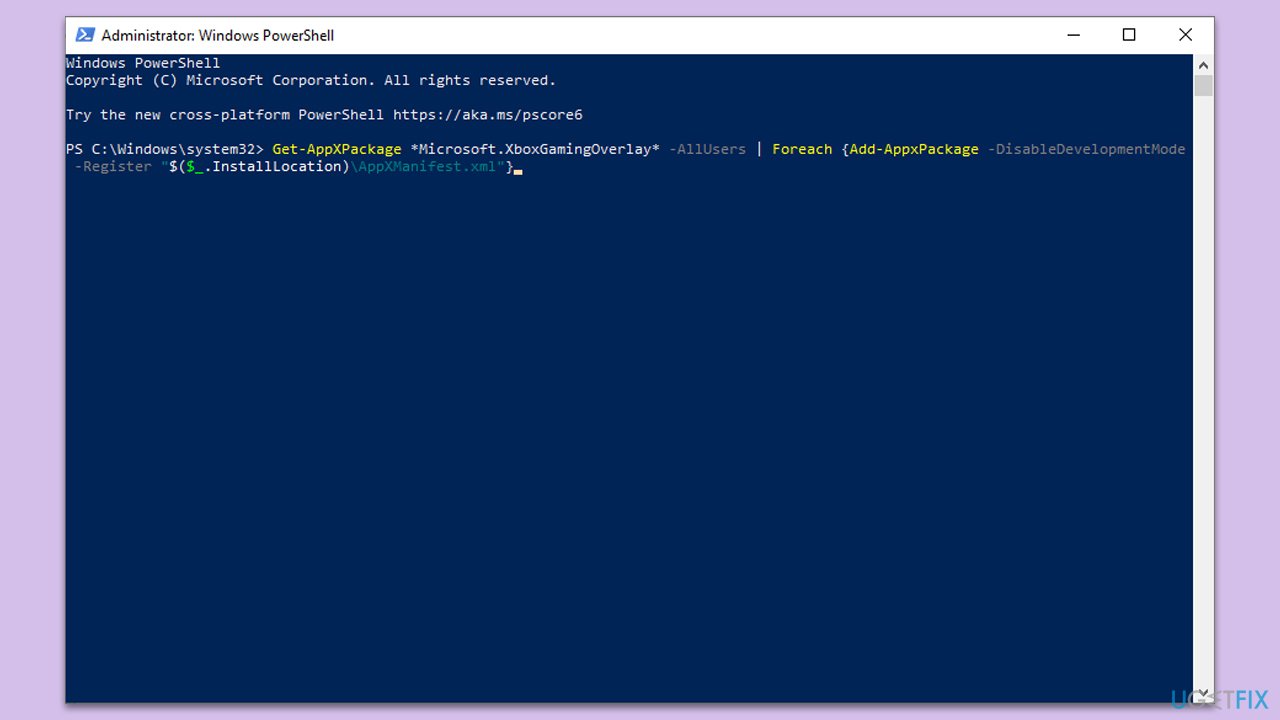
- Open PowerShell as administrator again.
- Use the following command and press Enter:
Get-AppXPackage *Microsoft.XboxGamingOverlay* -AllUsers | Foreach {Add-AppxPackage -DisableDevelopmentMode -Register "$($_.InstallLocation)\AppXManifest.xml"} - Restart your machine again.
Fix 6. Disable Windows Game Recording via the registry
Before modifying the registry, please make a backup just in case.
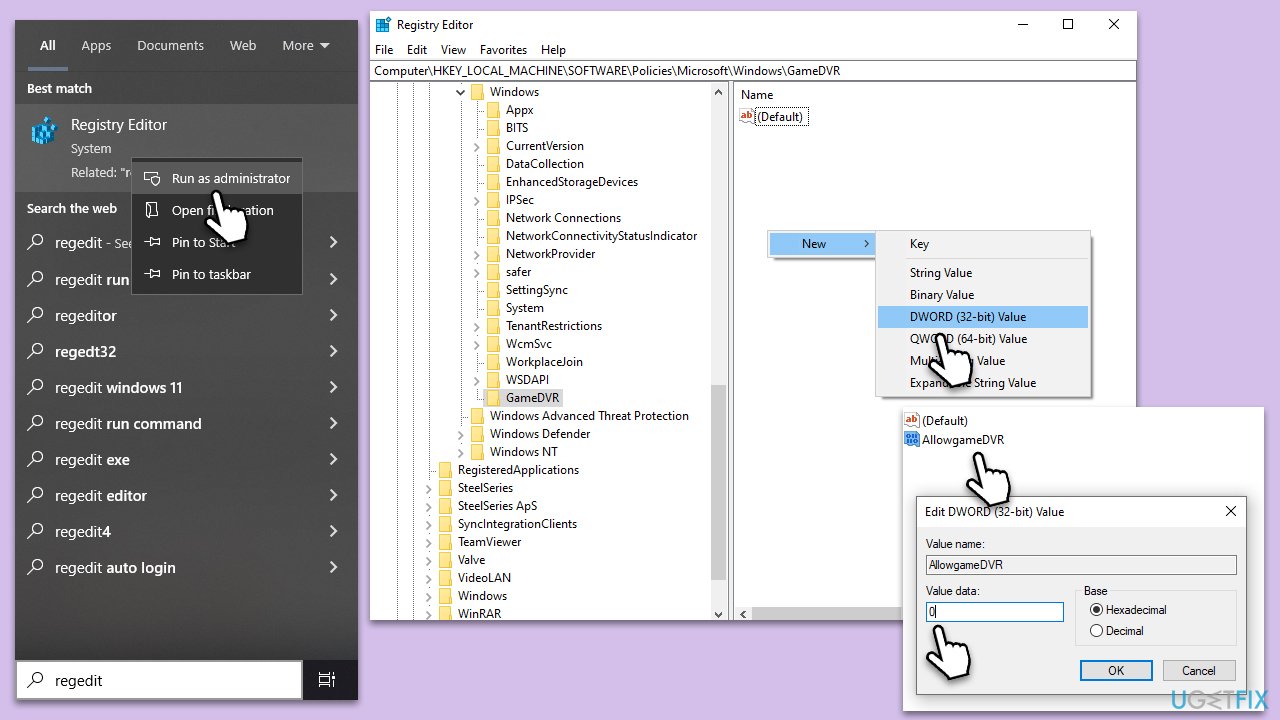
- Type regedit in the Windows search.
- Right-click on Registry Editor and select Run as administrator.
- When UAC shows up, click Yes.
- Navigate to the following location:
HKEY_LOCAL_MACHINE\SOFTWARE\Policies\Microsoft\Windows\GameDVR - On the right side, find the AllowgameDVR key.
- If it doesn't exist, create it by right-clicking on an empty space in the right window, picking New > DWORD, and then naming it AllowgameDVR.
- Double-click the key and set its Value to 0.
- Restart your system.
Bottom line
To fix the issue of not being able to disable the Xbox Game Bar, ensure that all relevant settings are correctly configured. If the problem persists, consider uninstalling recent Windows updates, using PowerShell to uninstall the app, or modifying the Registry. If none of these solutions work, seeking professional PC repair assistance is recommended.




Report an issue
What's wrong with this guide? We review every report and update or remove content.
Report received — thank you. We'll review and fix it.
You need a free account to submit a report.
Be the first to comment