How to fix
Folders won’t automatically reopen after a reboot after latest Windows update
on Windows
Resolve the issue of folders not reopening after reboot on Windows 10 or 11 with our expert-tested solutions. Get your system running smoothly again!

![[Fix] Folders won’t automatically reopen after a reboot after latest Windows update](https://ugetfix.com/wp-content/uploads/articles/askit/how-to-fix-folders-wont-automatically-reopen-after-a-reboot-after-latest-windows-update_en-768x432.jpg)
What causes [Fix] Folders won’t automatically reopen after a reboot after latest Windows update?
- Faulty Windows updates
- Feature turned off by update
- Damaged system files
- Corrupted registry files
- Inconsistencies on the Windows device
Repairs Windows system files, removes malware, and restores a clean OS state — without reinstalling.
Hello. Since I have recently updated Windows, folders won't automatically reopen after Windows reboot. It used to always open my files and folders perfectly fine before that, I am not sure why this isn't working anymore.
"Restore previous folder windows at logon" is a Windows feature that allows users to restore their files and folders as soon as they launch their Windows. This feature should work consistently with system boot, restart, or after coming back from sleep, and can be extremely useful for those who frequently work on same documents. It saves time by users not needing to reopen them every time after logging off or restarting PCs.
Unfortunately, some users experienced issues with this feature, and said that it is not working as intended. To be more precise, they said that folders won't automatically reopen after they launch Windows, which causes usability issues. This problem has been largely observed by those who have installed the latest Windows updates, such as KB5020044, KB5019980 or KB5020030.
The issue here might be that the feature was somehow turned off by the update, so ensuring it is on is the first step you should do if you're suffering from this problem. However, some users reported that folders are not reopening after a reboot even though the "Restore previous folder windows at logon" feature is turned on.
There are a few reasons why this issue may arise and, the most common one is the faulty Windows updates, so uninstalling them and pausing updates temporarily may resolve the issue. In other cases, the culprit could be damaged system/registry files or other related issues.
If folders won't automatically reopen after a reboot and you are seeing some inconsistencies on your Windows device, we strongly advise you run a scan with automatic PC repair software [d1]. It can find corrupted or damaged files and replace them with new ones, clean the system from junk, and remove already installed malware with ease.
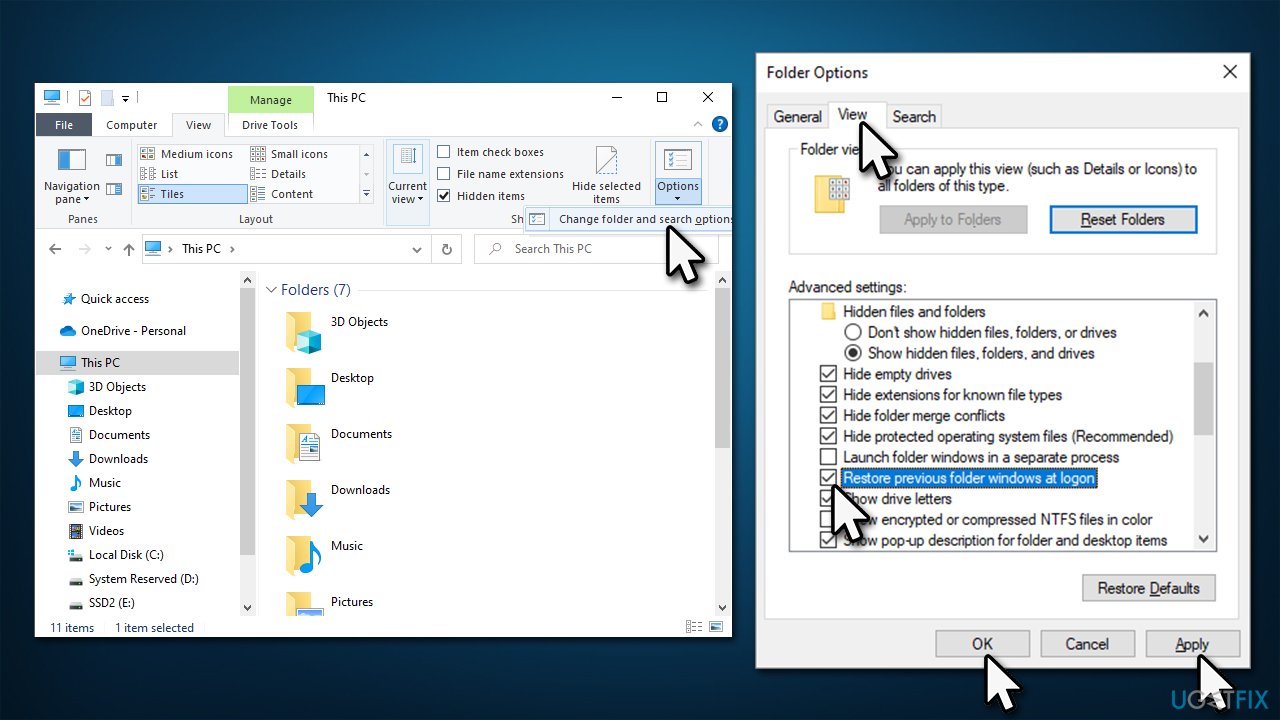
Fix 1. Make sure "Restore previous folder windows at logon" is enabled
First, let's make sure that the option is turned on:
- Press Win + E to open File Explorer
- Select View tab at the top and pick Options > Change folder and search options
- Go to the View tab
- Scroll down and mark the Restore previous folder windows at logon checkbox
- Click Apply and OK.
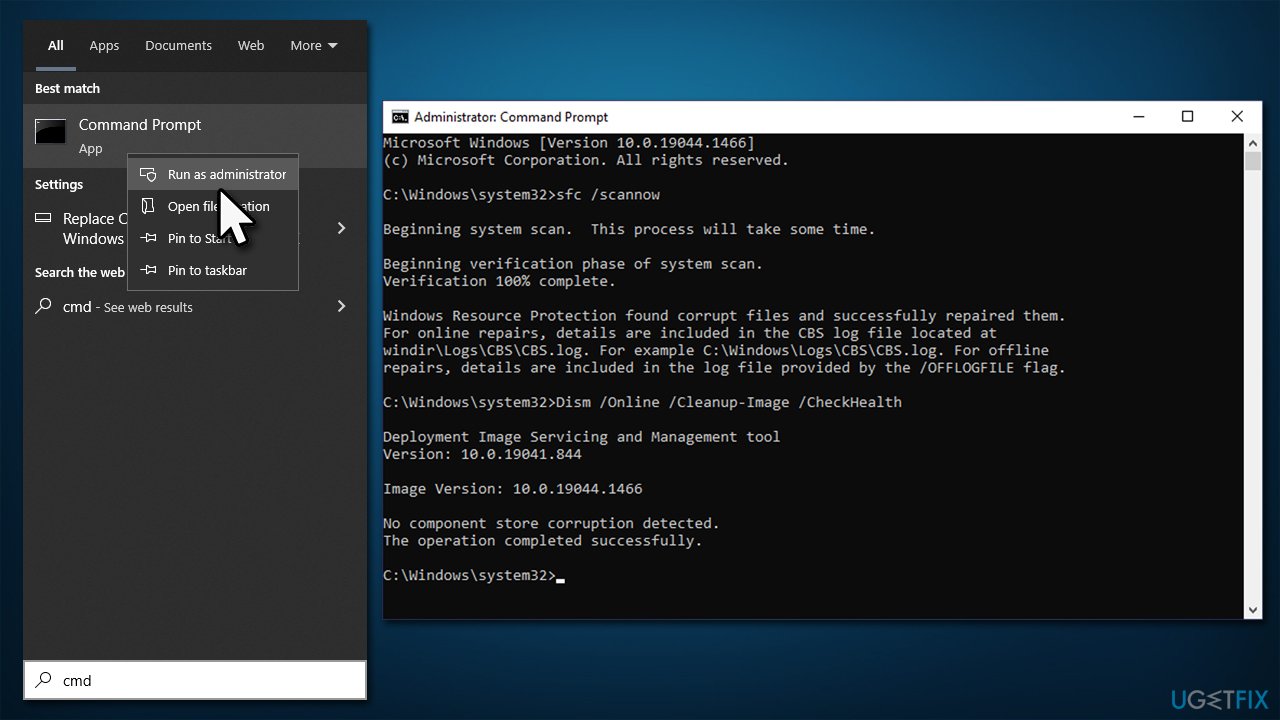
Fix 2. Run SFC and DISM
Ensure that your system files are not corrupted in any way by following these steps:
- Type in cmd into Windows search
- Right-click Command Prompt result and select Run as administrator
- When the User Account Control window shows up, click Yes
- In the new window, type in the following command and press Enter:
sfc /scannow - After the scan is done, copy the following command and press Enter:
dism /online /cleanup-image /scanhealth
dism /online /cleanup-image /checkhealth
dism /online /cleanup-image /restorehealth - Restart your system.
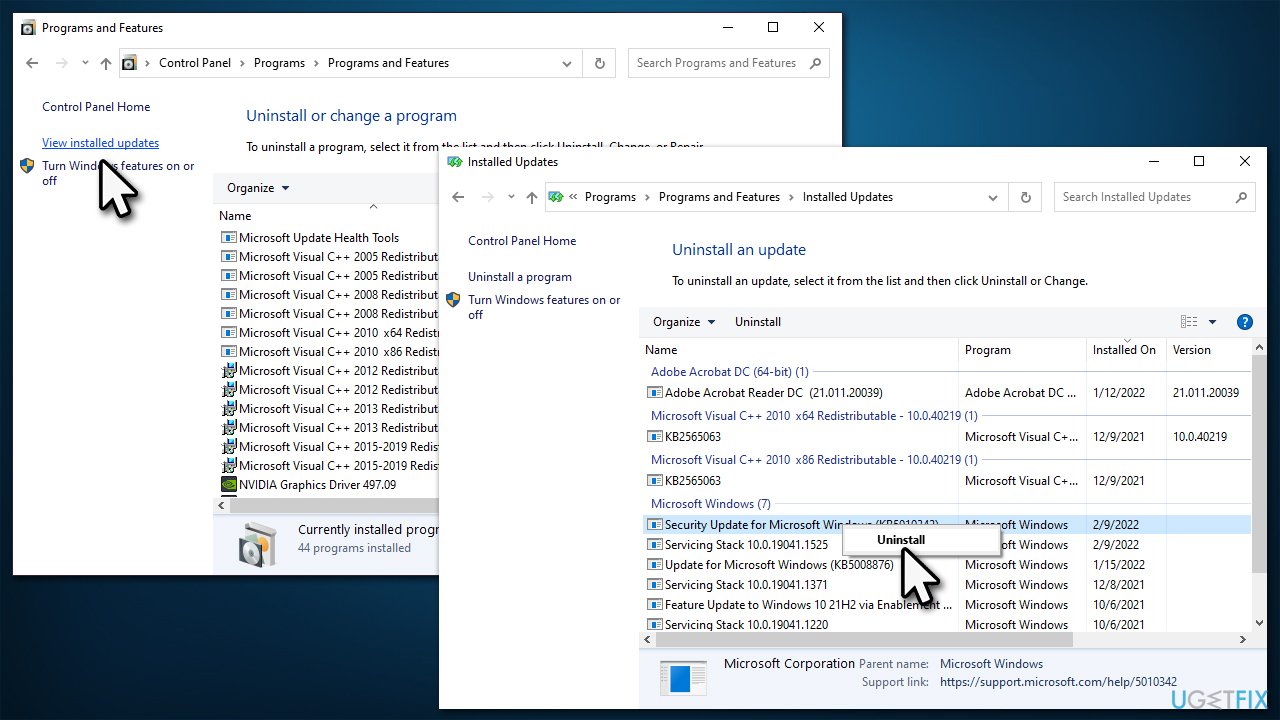
Fix 3. Uninstall recent Windows update [workaround]
If you are sure that the issue was caused by the recent Windows updates, you can uninstall them. Proceed with the following:
- Type Control Panel in Windows search and press Enter
- Select Programs > Uninstall a program
- Click on View installed updates on the left side of the window
- Sort all the updates by date
- Right-click on the most recent update and pick Uninstall
- Follow on-scren instructions and restart your device
- Once done, go to Settings > Update & Security and select Pause updates for 7 days.
Fix 4. Use Hibernate feature [workaround]
This is a workaround that helped people when folders won't reopen automatically after a reboot. Instead of going to sleep mode, Windows can be set to go to hibernate:
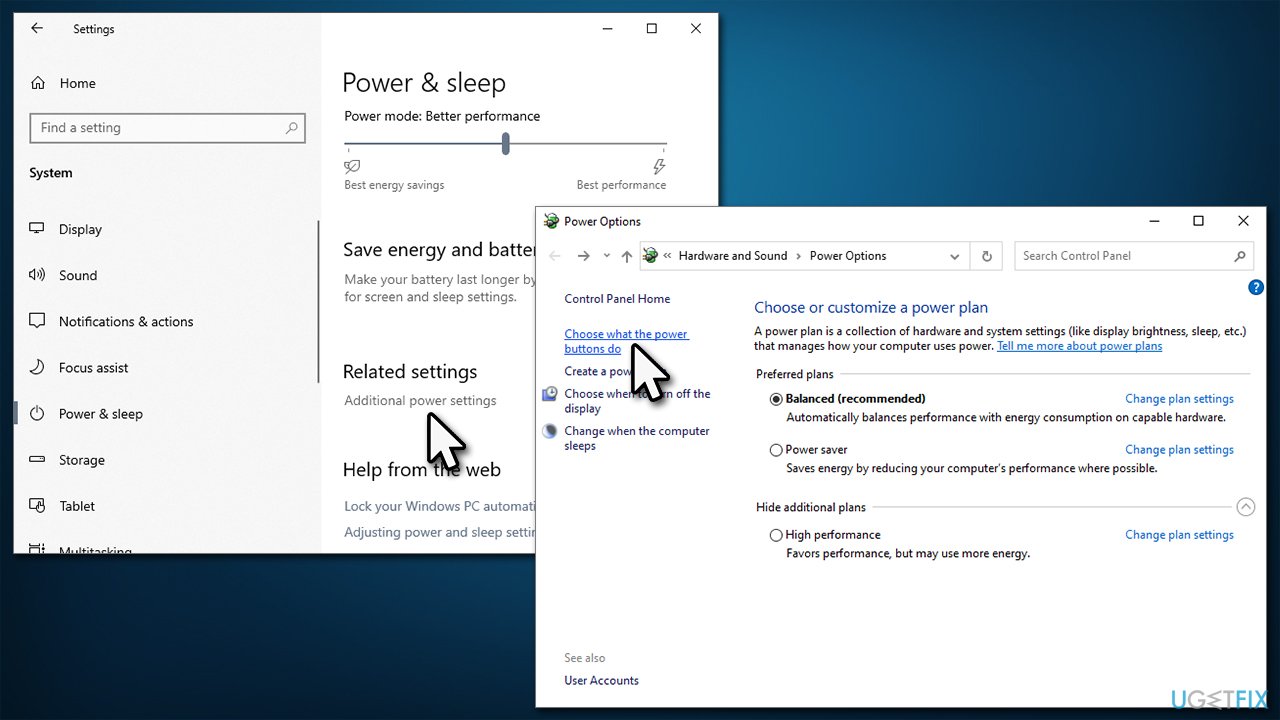
- Open Settings and go to System
- Select Power & sleep on the left
- On the right side, scroll down to Related settings section and pick Additional power settings
- On the left side of the window, click Choose what the power buttons do
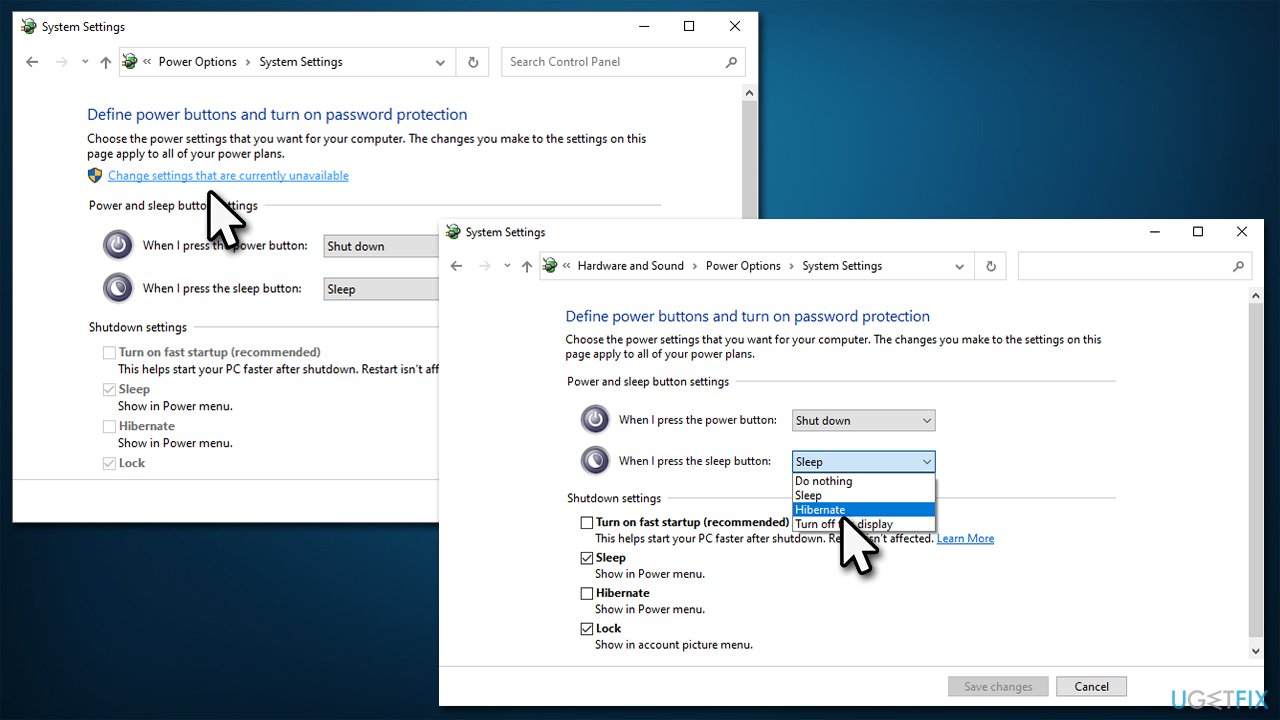
- Select Change settings that are currently unavailable
- In the When I press the sleep button section, select Hibernate option
- Click Save changes.
Fix 5. Disable tabs in File Explorer [workaround for Windows 11]
As it turns out, some users were unable to use the "Restore previous folder windows at logon" feature because of the new Tabs for File Explorer Microsoft introduced in October 2022. If you don't need this feature, you can disable it as follows:
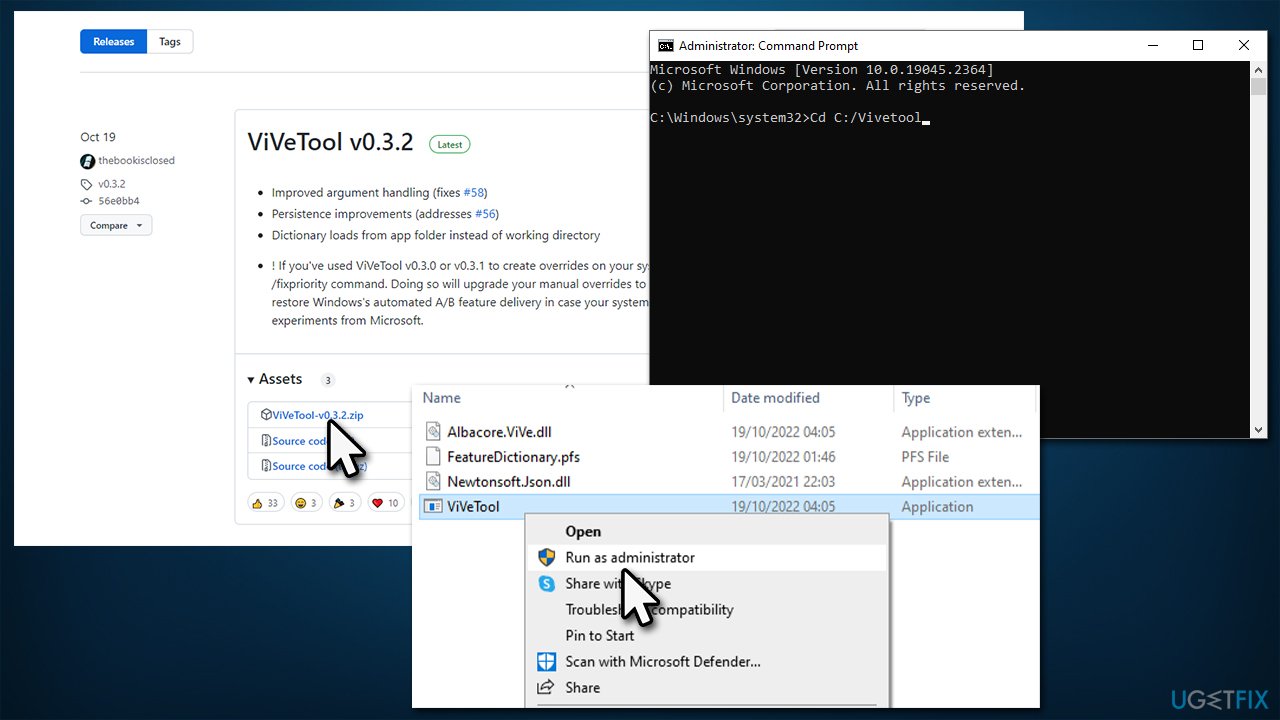
- Download ViVeTool from Github
- Extract the Rar file
- Right-click on ViVeTool.exe and select Run as administrator
- When User Account Control shows up, click Yes
- Unpack files into your C: drive
- Open Command Prompt as administrator and type in the following, pressing Enter after:
Cd C:/Vivetool - Next, use the following commands, pressing Enter each time:
vivetool /disable /id:37634385
vivetool /disable /id:36354489 - Restart your system.
Bottom line
To fix the issue of folders not automatically reopening after a reboot, ensure that the 'Restore previous folder windows at logon' feature is enabled. If the problem persists, consider uninstalling the latest updates or running a scan with automatic PC repair software. If none of these solutions work, further investigation into system integrity may be necessary.
Frequently asked questions
This issue may occur due to a recent Windows update that changed your system settings. You can try adjusting the Folder Options settings to allow folders to reopen after a reboot.
To fix this, go to Folder Options and ensure the 'Restore previous folder windows at logon' option is checked. This setting should help your folders reopen automatically after a restart.
If the problem persists, consider rolling back the recent update or performing a system restore to revert to a previous state where the feature was functioning correctly.




Report an issue
What's wrong with this guide? We review every report and update or remove content.
Report received — thank you. We'll review and fix it.
You need a free account to submit a report.
Be the first to comment