How to fix
Logitech mouse not working
on Windows
Resolve Logitech mouse issues on Windows 10 or 11 quickly. Get expert-tested solutions to restore functionality in minutes, with screenshots.

![[Fix] Logitech mouse not working in Windows](https://ugetfix.com/wp-content/uploads/articles/askit/how-to-fix-logitech-mouse-not-working-in-windows_en-768x432.jpg)
What causes [Fix] Logitech mouse not working in Windows?
- Driver incompatibility issues after a Windows update
- Initial setup and configuration issues
- Discrepancies in device compatibility between different Windows computers
- Hardware malfunction of the mouse
- USB port issues
Repairs Windows system files, removes malware, and restores a clean OS state — without reinstalling.
Hello. I have recently purchased a new laptop that I'd use on the side when I'm away from my PC, and I thought there was no need to buy yet another mouse - I could use the one I already have. So this mouse, which is a Logitech mouse, is not working on my laptop, even though it works fine on my desktop. What is going on?
Computer mice, the quintessential accessories to our computing systems, are the guiding hand that navigates the digital world. Renowned for their innovative designs, durability, and user-friendly features, Logitech mice occupy a premier position in the world of computer peripherals. Whether it's their wired models' cutting-edge precision or their wireless varieties' mobility and flexibility, Logitech mice cater to a wide spectrum of user needs.
Despite being one of the leading brands in the computer peripheral market, Logitech mice are not exempt from the occasional operational hiccup. Some users have reported that their Logitech mouse stopped working, thereby interrupting their regular digital activities.
These problems can vary in nature and severity - some users find that their device has stopped working after a Windows update, others have struggled to get the mouse to function right from the outset, and yet another group finds their mouse works seamlessly on one device but fails when used with a different Windows computer.
The cause of the Logitech mouse not working can be attributed to various reasons. Often, it may be related to driver incompatibility issues, particularly after a Windows update. This is because updates sometimes make changes that can affect the compatibility of existing hardware drivers. Similarly, initial setup and configuration issues might lead to a mouse failing to work from the start. In other cases, discrepancies in device compatibility between different Windows computers may result in inconsistent mouse performance.
Luckily, you do not need to replace your mouse immediately, and there are things that can be done - we explain how to perform troubleshooting steps below. Note that having another mouse to navigate your Windows device would be easier, as doing so with a keyboard alone might be difficult.
In addition to these solutions, you might consider using a PC repair tool, such as [d1]. While it may not directly fix your mouse issue, it can help rectify system file corruption, registry issues, and more, which could potentially contribute to peripheral malfunctions.
Fix 1. Update mouse drivers
Outdated or corrupt mouse drivers can be the root cause of a non-responsive mouse. Updating your Logitech mouse driver ensures compatibility with your system and could resolve the problem.
- Type Device Manager into the Windows search bar and hit Enter.
- Expand the Mice and other pointing devices list.
- Right-click your Logitech mouse device and select Update driver.
- Select Search automatically for drivers and let the process run.
- When done, reboot your PC.
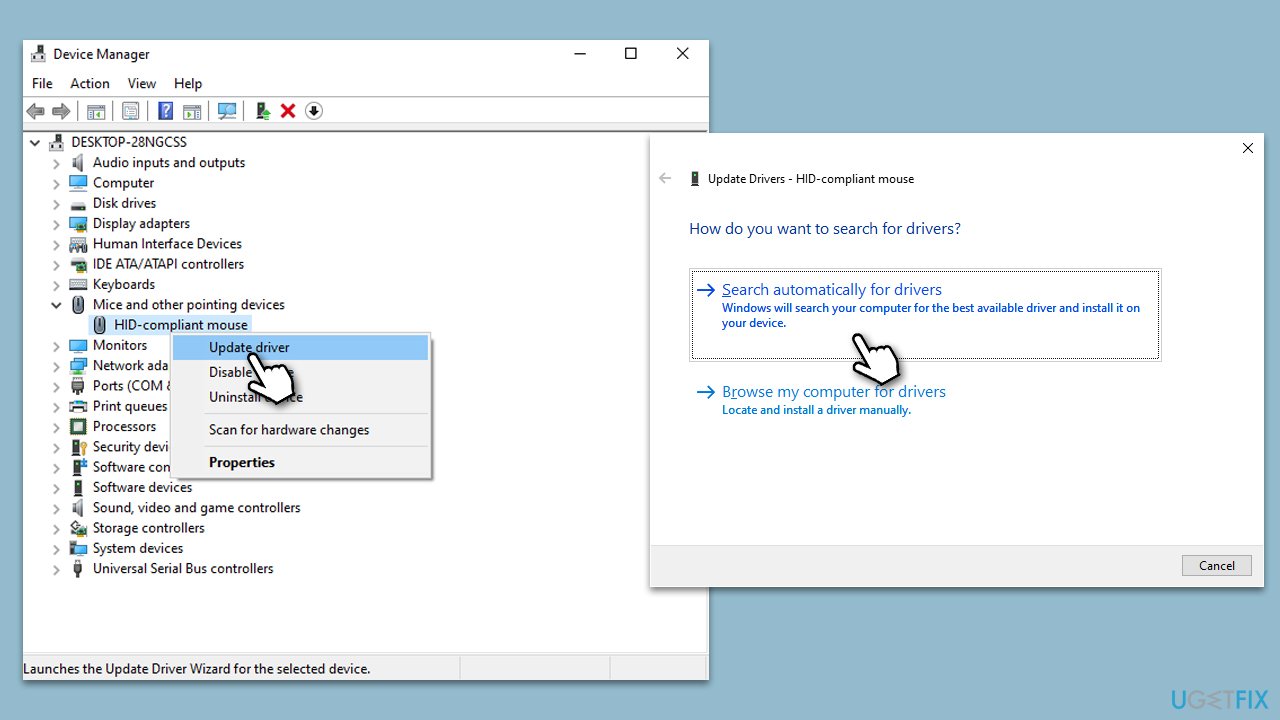
It is worth noting that Windows often fails to find the latest driver software. Thus, we recommend either visiting the official Logitech website and downloading drivers from there or employing an automatic driver updater such as [rev id="DriverFix"] for a hands-off approach.
Fix 2. Reinstall mouse drivers
Sometimes, even updating the drivers isn't enough. A complete reinstallation can erase any glitches present in the driver software.
- Open the Device Manager again.
- Expand the Mice and other pointing devices section and select Uninstall device.
- Click the Uninstall button again.
- Restart your computer. Windows will automatically reinstall the driver upon reboot.
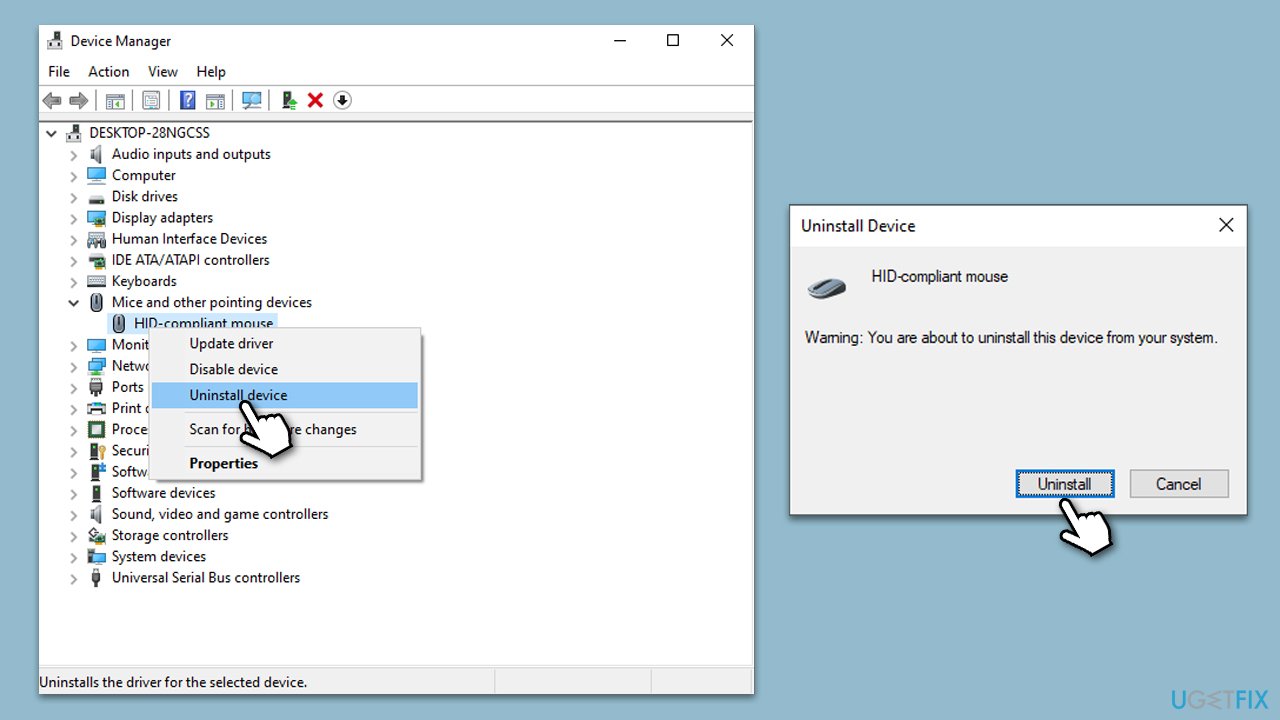
The generic driver might not work properly still, so we recommend employing one of the methods described in the previous solution.
Fix 3. Check USB ports
Faulty USB ports may not provide adequate power or data transfer capacity for the mouse to function correctly.
- Unplug your Logitech mouse from the current USB port.
- Plug it into a different port on your computer.
- If your mouse works, the previous USB port could be the issue.
Fix 4. Install all Windows updates
If you have been neglecting Windows updates, make sure that all of them are installed:
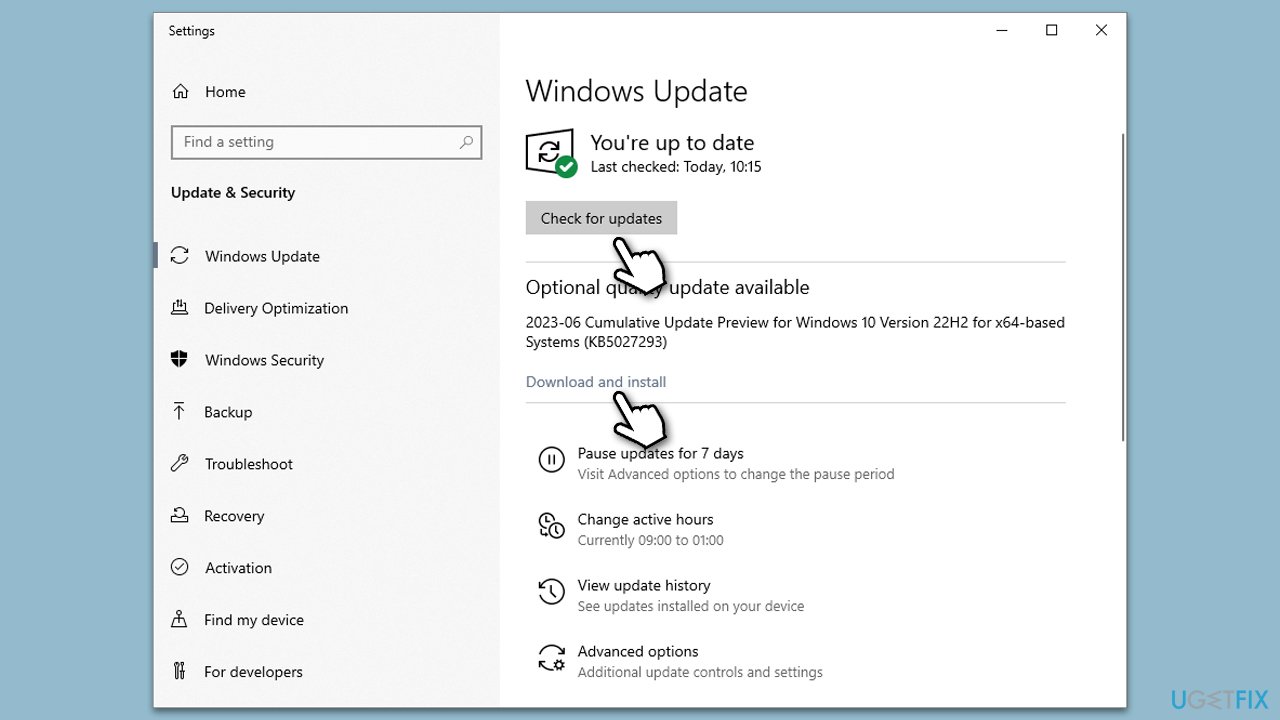
- Type Updates in Windows search and press Enter.
- In the new window, click Check for updates.
- Wait till all the necessary files are downloaded and installed.
- If optional updates are available, install them as well.
- When done, reboot your PC to apply updates.
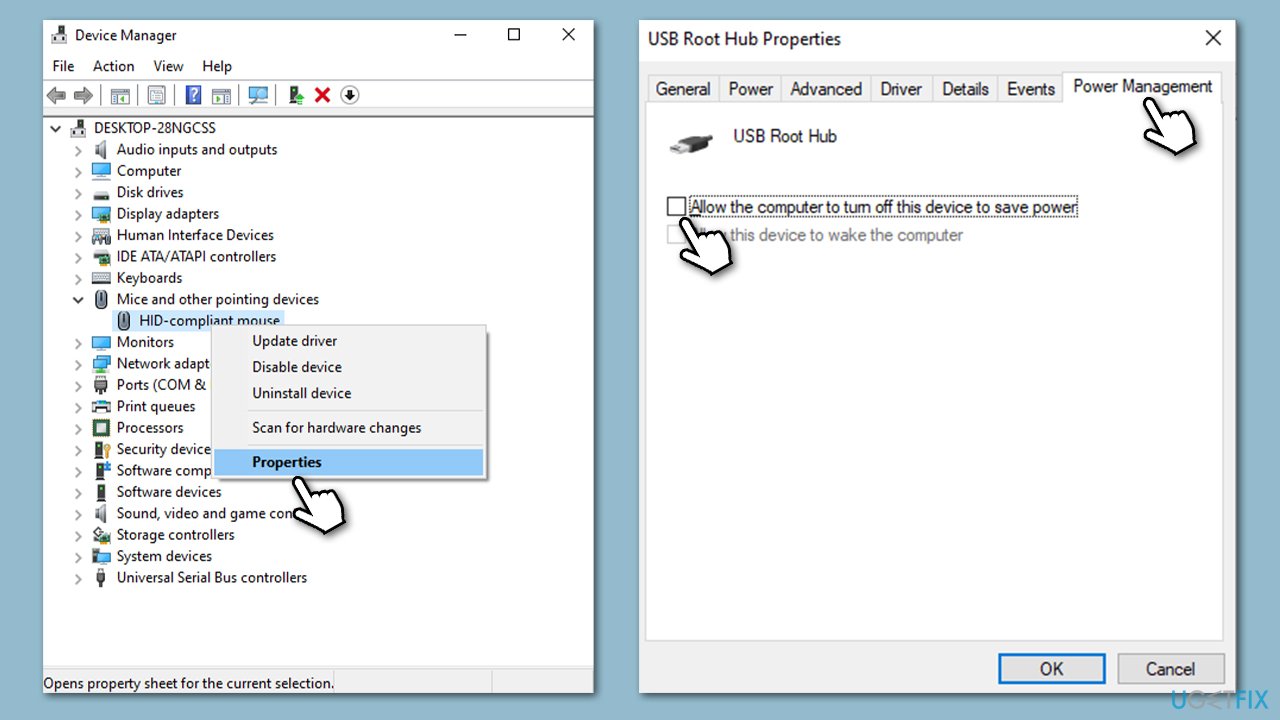
Fix 5. Change power management settings
Windows power management settings can sometimes turn off devices to save power. Changing these settings can prevent such interruptions.
- Open the Device Manager again.
- Right-click your Logitech mouse device and select Properties.
- Go to the Power Management tab.
- Uncheck the Allow the computer to turn off this device to save power option and hit OK.
Fix 6. Uninstall Windows updates
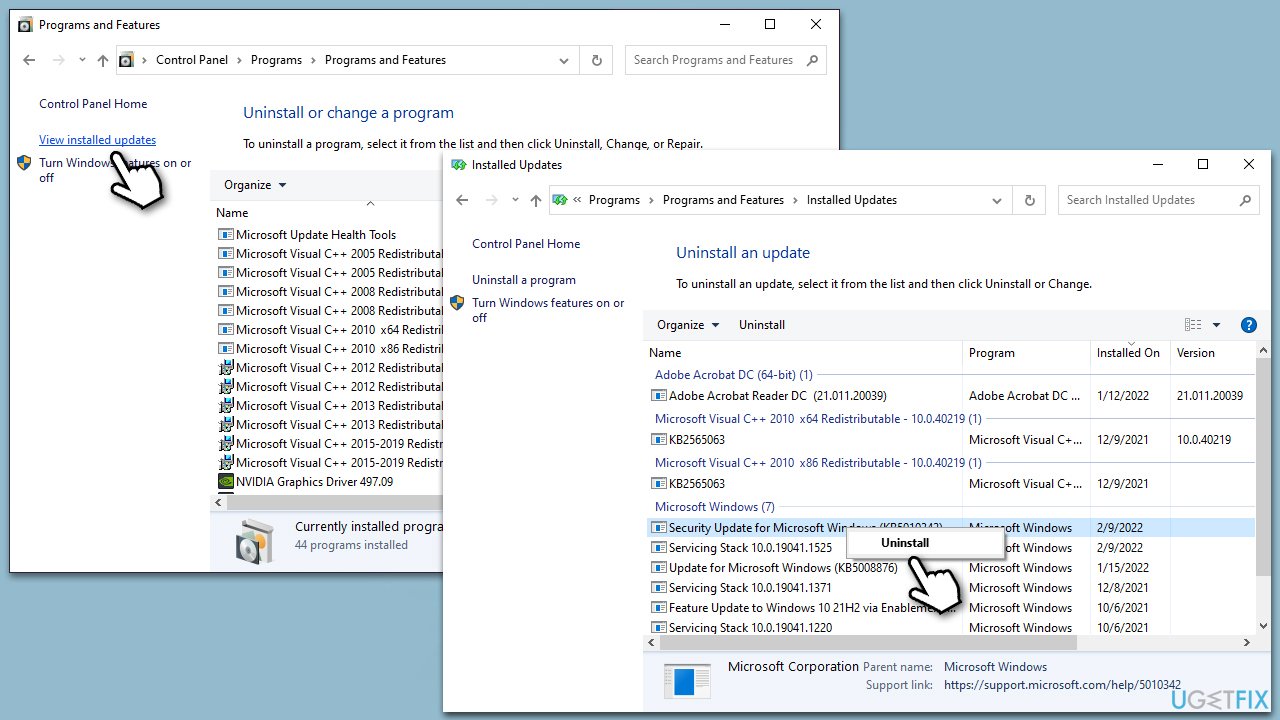
If the issue occurred after updating Windows, you can temporarily uninstall the latest Windows updates. Note that this is only a temporary solution - you should apply updates once fixes by Microsoft or Logitech are released.
- Type Control Panel in Windows search and press Enter.
- Select Programs > Uninstall a program.
- Click on View installed updates on the left side of the window.
- Sort all the updates by date.
- Right-click on the most recent update and select Uninstall.
- Proceed with on-screen instructions.
- Then, type Updates in Windows search and press Enter.
- Click Pause the updates for 7 days (in Windows 11, you can pick a different time period).
Fix 7. Try Clean boot
A clean boot can help diagnose if any third-party software conflicts are causing the mouse to not work properly. By starting your system with a minimal set of drivers and startup programs, you can isolate the source of the problem.
- Press Win + R, type msconfig, then press Enter.
- Select the Services tab and tick the Hide all Microsoft services checkbox.
- Pick Disable all.
- Go to the Startup tab and click Open Task Manager.
- Here, right-click on each of the non-Windows entries and select Disable.
- Close down the Task Manager.
- Go to the Boot tab and tick the Safe boot option
- Reboot your system.

After the restart, your computer will be in a clean boot state. Now, check if your Logitech mouse works. If it does, then a third-party service was causing the issue. You can then enable the services one by one to identify the culprit. Remember to reset your PC to its normal state after the diagnosis by reversing the changes made in the System Configuration.
Bottom line
To fix the Logitech mouse not working in Windows, you can try updating the mouse drivers, checking the USB connection, or ensuring proper configuration settings. If these steps do not resolve the issue, consider testing the mouse on another computer or replacing it.
Frequently asked questions
Your Logitech mouse may not be recognized in Windows 10 due to driver issues or a faulty USB port. Try connecting it to a different port or updating the mouse driver through Device Manager.
To fix lagging issues with your Logitech mouse in Windows 11, ensure that you have the latest drivers installed and check for any interference from wireless devices. Additionally, adjust the mouse settings in the Control Panel to improve responsiveness.
If your Logitech mouse buttons are not functioning on Windows, try resetting the mouse settings in the Logitech Options software or reinstalling the mouse drivers. You can also check for hardware issues by testing the mouse on another computer.




Report an issue
What's wrong with this guide? We review every report and update or remove content.
Report received — thank you. We'll review and fix it.
You need a free account to submit a report.
Be the first to comment