How to fix
Microsoft Sudoku not saving daily challenge results
on Windows
Resolve the issue of Microsoft Sudoku not saving daily challenge results on Windows 10 and 11 effortlessly. Expert-tested solutions await you!

![[Fix] Microsoft Sudoku not saving daily challenge results](https://ugetfix.com/wp-content/uploads/articles/askit/fix-microsoft-sudoku-not-saving-daily-challenge-results-copy_en-768x432.jpg)
What causes [Fix] Microsoft Sudoku not saving daily challenge results?
- Unstable internet connection
- Bug in the app's cache
- Corrupted data
- Ads disrupting functionality
Repairs Windows system files, removes malware, and restores a clean OS state — without reinstalling.
Hi. So for several days now, I can no longer play Microsoft Sudoku properly because it is not saving daily challenge results, which is really annoying for me. Everything worked fine a few days ago but now it's all messed up. Could you please help me to resolve this?
Microsoft Sudoku is a popular puzzle game available through the Microsoft Store. This app offers daily challenges that allow players to earn bonus rewards and engage in a fun pastime. However, some players have encountered a problem where their progress in daily challenges is not saved. This issue typically arises after logging out and then back into their accounts, resulting in lost progress and missed rewards.
The cause of this issue can vary. An unstable internet connection might prevent the game from syncing properly with the online servers, leading to lost progress. Additionally, a bug in the app's cache could corrupt data or interfere with the saving process. Another potential cause is the way ads are managed and displayed within the app, which can sometimes disrupt normal functionality.
If Microsoft Sudoku is not saving daily challenge results, it is likely related to one of these factors. Ensuring a stable and strong internet connection can help, as can clearing the app’s cache if data corruption is suspected. Watching how ads behave during gameplay might also provide clues to the issue.
For detailed instructions on how to address the problem of Microsoft Sudoku not saving daily challenge results, please refer to the solutions listed below.
In case the issue persists and seems related to broader system errors, using a repair utility [d1] can help. Such tools can automatically detect and fix underlying issues with Windows that might be affecting your apps.
Fix 1. Ensure you are logged in to your correct Microsoft account
It's important to verify that you are logged into the correct Microsoft account both in your Windows settings and within the Xbox app to ensure proper synchronization and functionality of Microsoft Sudoku.
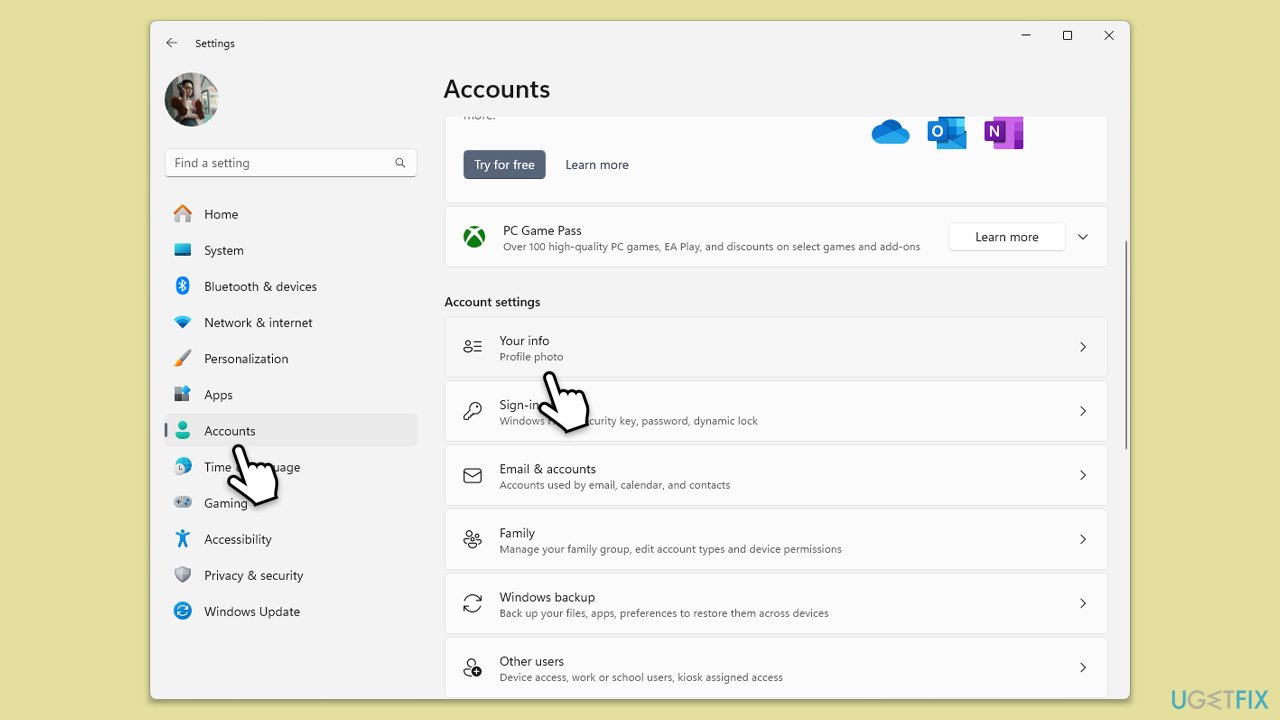
In Windows Settings:
- Open the Start menu and select Settings.
- Click on Accounts.
- Look at the email address under Your info to see which Microsoft account you are logged into (make sure it's not the Local account).
- If it is not the correct account, click on Sign in with a different account and follow the prompts to log in with the correct credentials.
In the Xbox app:
- Open the Xbox app.
- Click on your profile icon, usually found in the top right corner of the app.
- Check the Microsoft account logged in here. It should show under the profile.
- If the account is incorrect, click Sign out.
- After signing out, click on Sign in and log in with the correct Microsoft account details.
Fix 2. Install all Windows updates
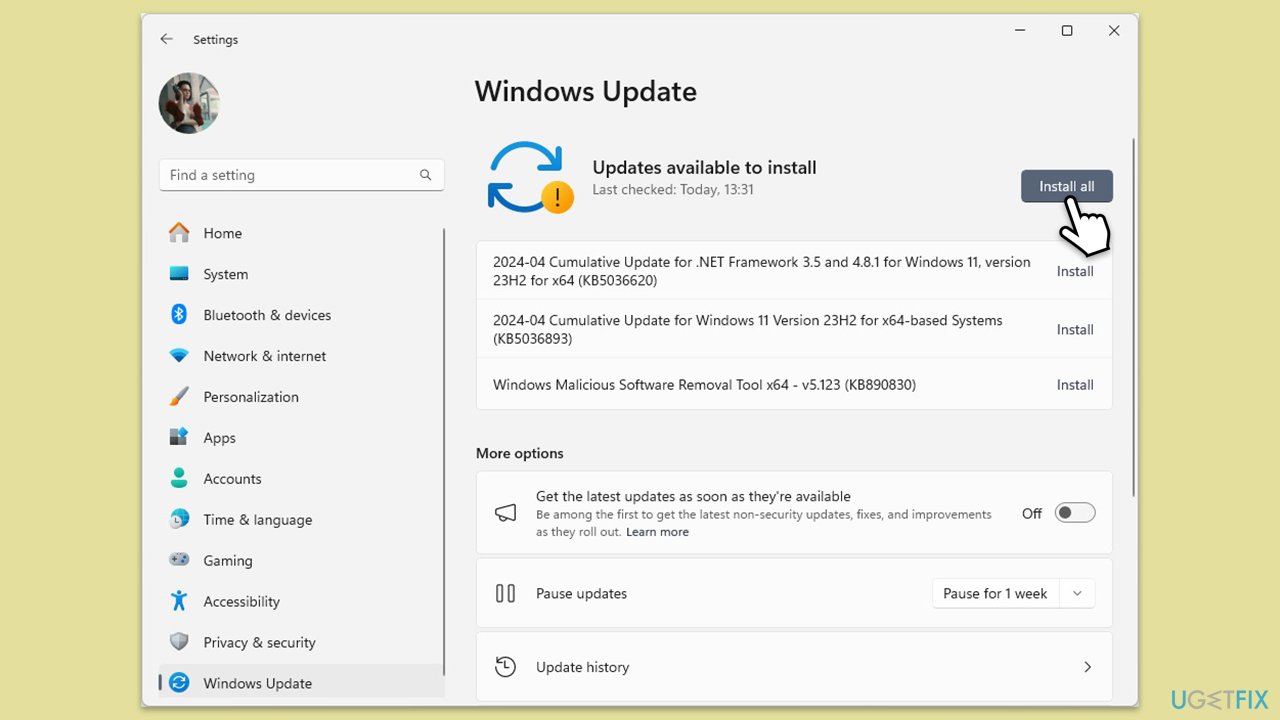
Keeping your system up-to-date is crucial as updates often contain fixes for bugs that could be affecting apps like Microsoft Sudoku.
- Type Updates and press Enter.
- In the new window, click Check for updates.
- Wait till all the files are downloaded and installed.
- If optional updates are available, install them as well.
- Restart your device when done.
Fix 3. Run Network & Internet connections troubleshooter
A faulty network connection might prevent Microsoft Sudoku from syncing your progress properly.
Windows 11
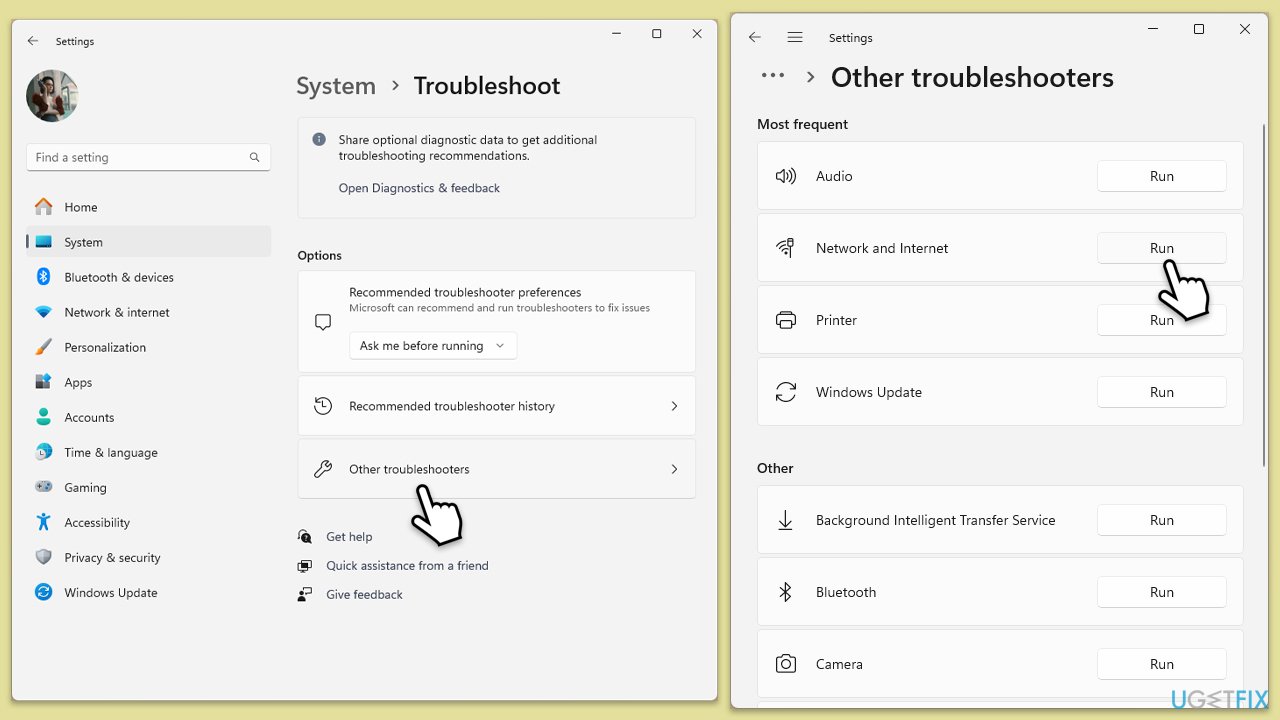
- Type Troubleshoot in Windows search and press Enter.
- Select Other troubleshooters.
- Find Network & Internet troubleshooter from the list and select Run.
- Wait till the process is finished and apply the offered fixes.
- Restart your device.
Windows 10
- Right-click on Start and pick Settings.
- Go to the Network & Internet section.
- On the right side, find the Advanced network settings section.
- Click Network troubleshooter and wait.
- The fixes will be automatically applied.
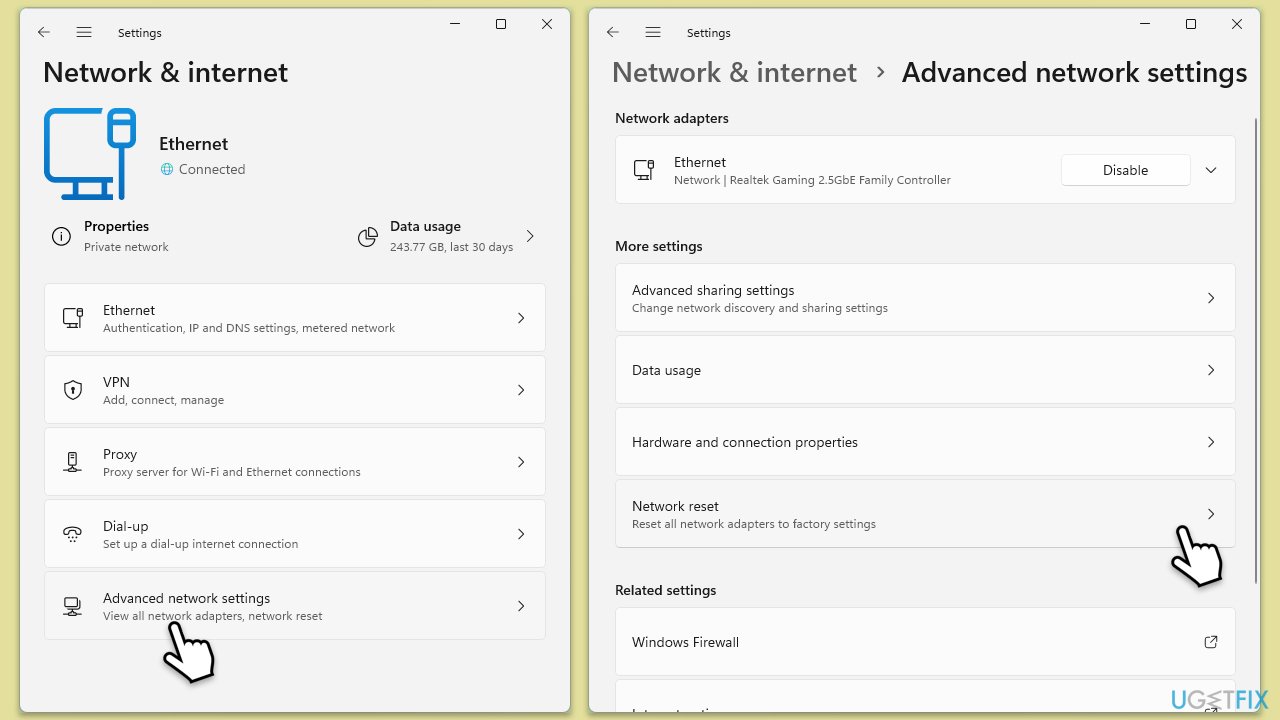
Fix 4. Reset your internet connection
Sometimes a simple reset of your internet connection can resolve issues with online functionalities in apps.
- Right-click on Start and pick Settings.
- Go to Network & Internet.
- Under Advanced network settings, click Network reset.
- Click Reset Now.
- Confirm the action and then restart your system.
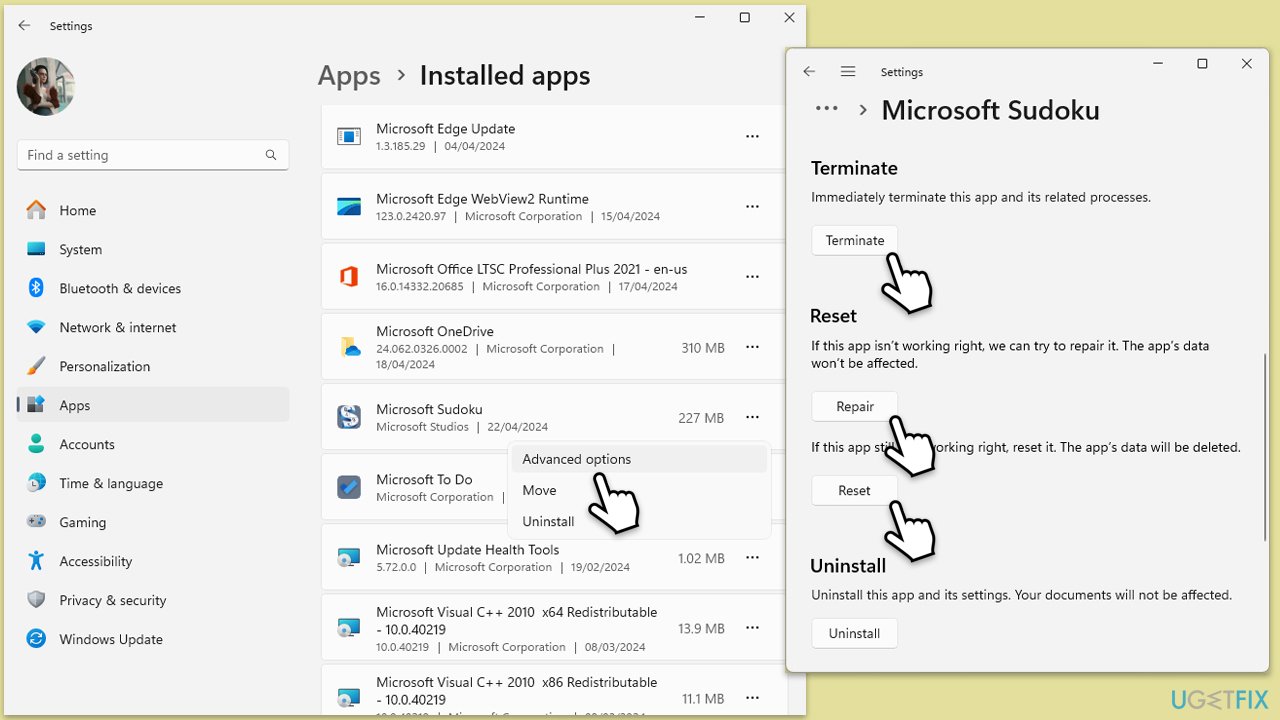
Fix 5. Repair or reset Sudoku app
If the app itself is corrupted, repairing or resetting it can help restore its functionality.
- Right-click on Start and select Apps & Features/Installed apps.
- Scroll down to find the Microsoft Sudoku and click Advanced options.
- Scroll down again and click Terminate and Repair.
- If that does not work, try using Reset.
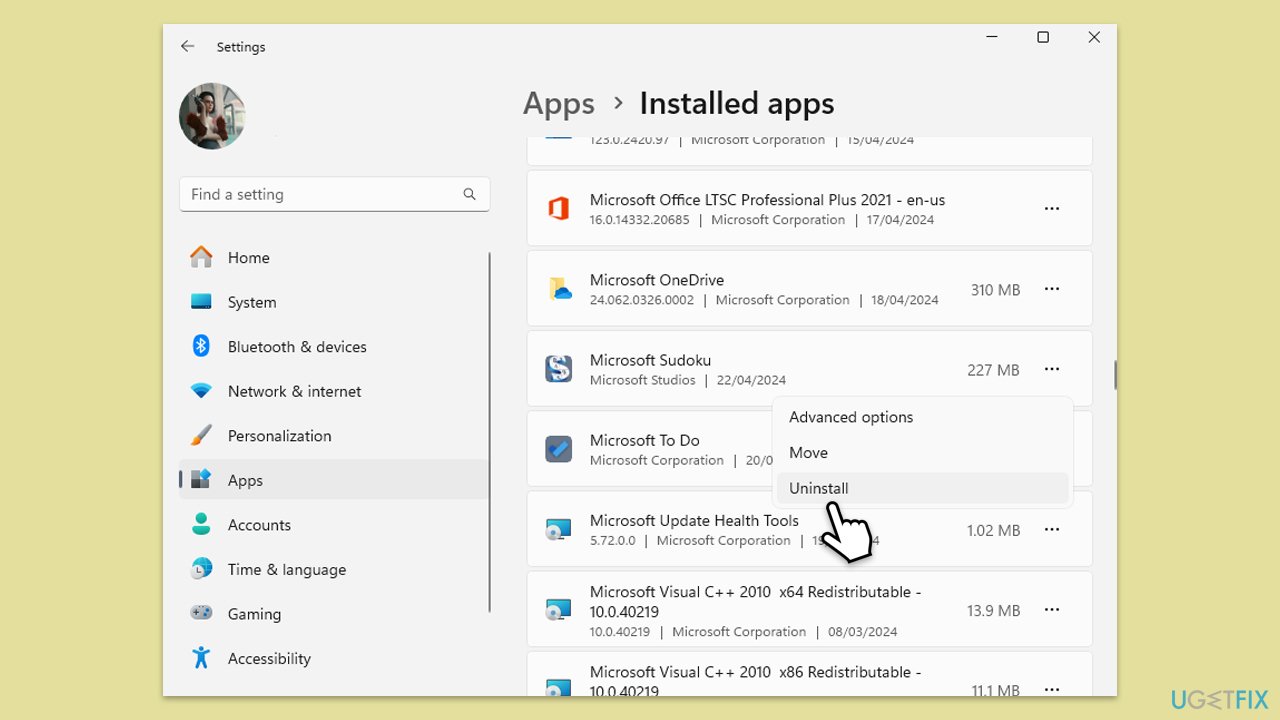
Fix 6. Reinstall the app
A fresh installation of the app can clear up any issues that come from corrupt files or data.
- Right-click on Start and select Apps & Features/Installed apps.
- Scroll down to find the Microsoft Sudoku.
- Click on three dots and select Uninstall.
- Confirm all the prompts to remove the app.
Fix 7. Wait till you receive a short (10s) ad and only then proceed [workaround]
Some users found a bizarre workaround: only watching a 10s ad would let them save their progress after the game.
- Start the daily challenge in Microsoft Sudoku.
- If you see an ad that is 15s or 30s long, close down the app immediately.
- Repeat the process until you get a 10s ad and let it play fully.
- Proceed as normal and Sudoku challenge results should be saved even after turning the app off and on.
Related:
Bottom line
To resolve the issue of Microsoft Sudoku not saving daily challenge results, ensure you are logged into the correct Microsoft account, check your internet connection, and clear the app’s cache. If the problem persists, consider using a repair utility to detect and fix underlying system errors.
Frequently asked questions
This issue may occur due to a corrupted app cache or improper settings. Try resetting the app through the Settings menu to resolve the problem.
Ensure that your Windows 11 is updated to the latest version and check your Microsoft account settings, as syncing issues might prevent saving results.
Clear the app's cache and data through Settings, and ensure that your internet connection is stable, as this can affect syncing your progress.




Report an issue
What's wrong with this guide? We review every report and update or remove content.
Report received — thank you. We'll review and fix it.
You need a free account to submit a report.
Be the first to comment