How to fix
“Restore previous folder windows at logon” not working
on Windows
Resolve the "Restore previous folder windows at logon" issue in Windows 10 and 11 effortlessly. Get expert-tested solutions for quick fixes!

![[Fix] “Restore previous folder windows at logon” not working in Windows](https://ugetfix.com/wp-content/uploads/articles/askit/fix-restore-previous-folder-windows-at-logon-not-working-in-windows_en-768x432.jpg)
What causes [Fix] “Restore previous folder windows at logon” not working in Windows?
- Feature was previously working but has stopped
- Corrupted system files
- Registry settings may be incorrect
- Changes in Windows updates affecting functionality
Repairs Windows system files, removes malware, and restores a clean OS state — without reinstalling.
Hello. I have a Windows 11 computer and the "Restore previous folder windows at logon" feature does not work. It used to work fine previously. Is there any way to fix this?
The "Restore previous folder windows at logon" function in Windows is a feature that allows users to automatically restore the same folder windows that were open when they last logged off or shut down their computer. This can be useful for users who frequently work with multiple folder windows and want to save time by not having to manually reopen them each time they log on to their computer.
Some people report that the "Restore previous folder windows at logon" is not working in Windows. It is unknown why exactly this is happening. One possibility is that some system files responsible for this are corrupted. However, it seems like the only solution to this problem is to modify the Windows registry.[ref en-1]
Of course, users should be especially careful when modifying the registry as it contains a wide variety of settings and configurations for the Windows operating system and the programs that run on it. If users absolutely need to perform changes in the Registry Editor it is best to create a backup and restore it if something goes wrong. You can follow the steps in the How to back up and restore the Windows registry? article.
In this guide, you will find 3 steps that should help you fix "Restore previous folder windows at logon" not working in Windows. If you want to avoid a lengthy process, you can try using a maintenance tool like [d1]. It can fix most system errors, BSODs,[ref en-2] corrupted files, registry issues, or clear cookies and cache.[ref en-3] Otherwise, follow the step-by-step instructions below.
How to Restore Previous Folder Windows at Logon?
- Search for folder options in the Taskbar search box
- Click on the File Explorer Options in the search result
- Switch to the View tab
- Tick the Restore previous folder windows at logon checkbox
- Click the OK button
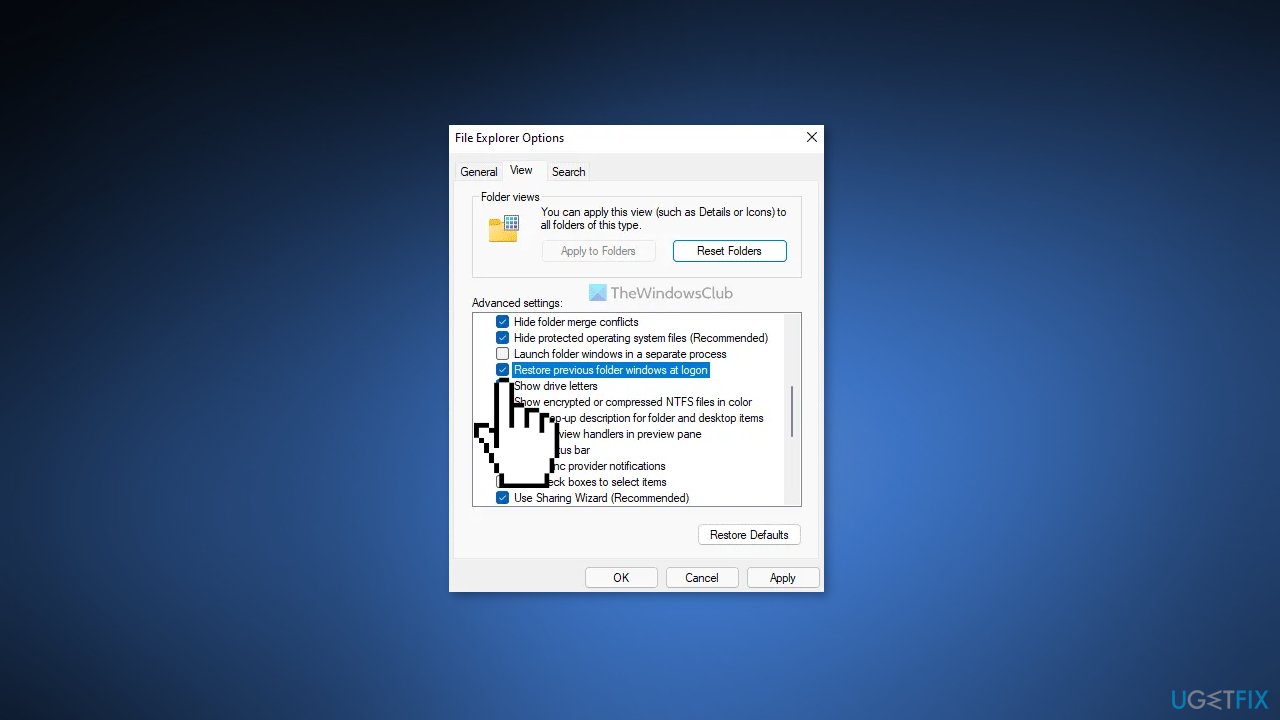
If the function does not work, proceed with the next steps.
Solution 1. Fix Corrupted System Files
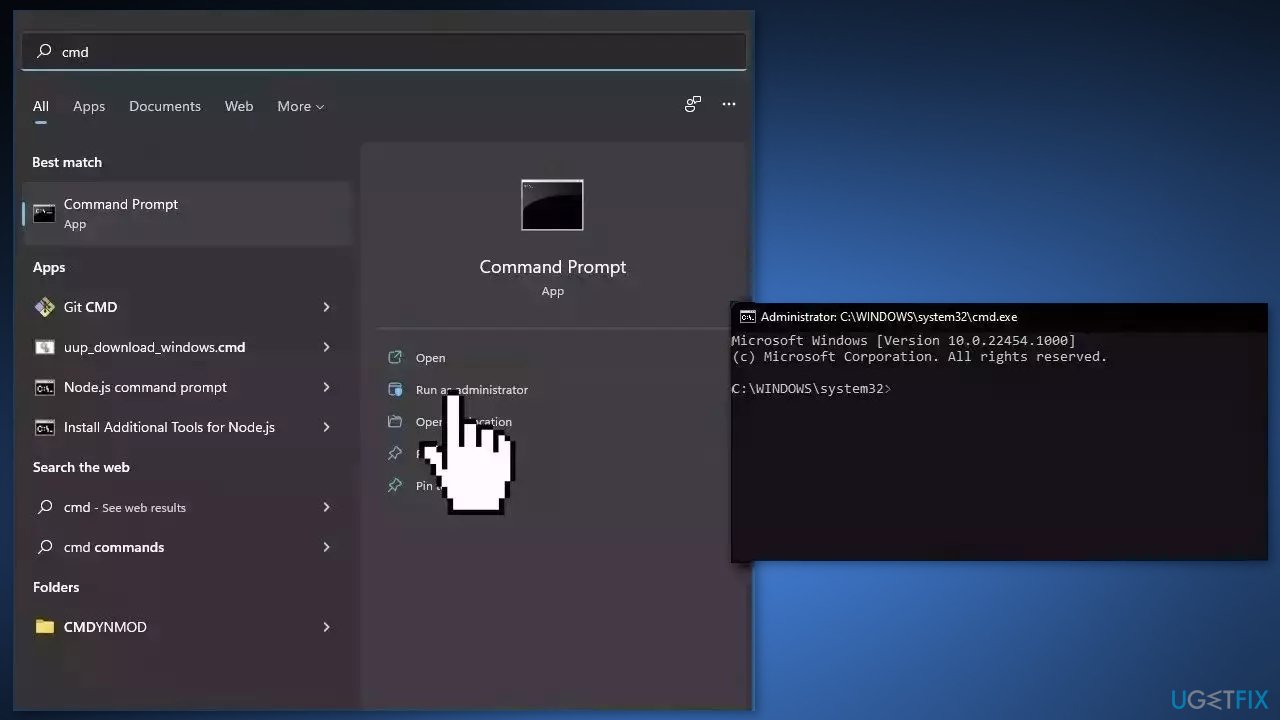
Use Command Prompt commands to repair system file corruption:
- Open Command Prompt as administrator
- Use the following command and press Enter:
sfc /scannow
- Reboot your system
- If SFC returned an error, then use the following command lines, pressing Enter after each:
DISM /Online /Cleanup-Image /CheckHealth
DISM /Online /Cleanup-Image /ScanHealth
DISM /Online /Cleanup-Image /RestoreHealth
Solution 2. Create new Registry Keys
- Press the Windows key + R to open the Run box
- Type regedit and press Enter
- Click on the Yes button if the UAC prompt appears
- Navigate to the following path:
HKEY_CURRENT_USER\Microsoft\Windows\CurrentVersion\Explorer
- Right-click on the Explorer key, select New > Key, and name it Advanced
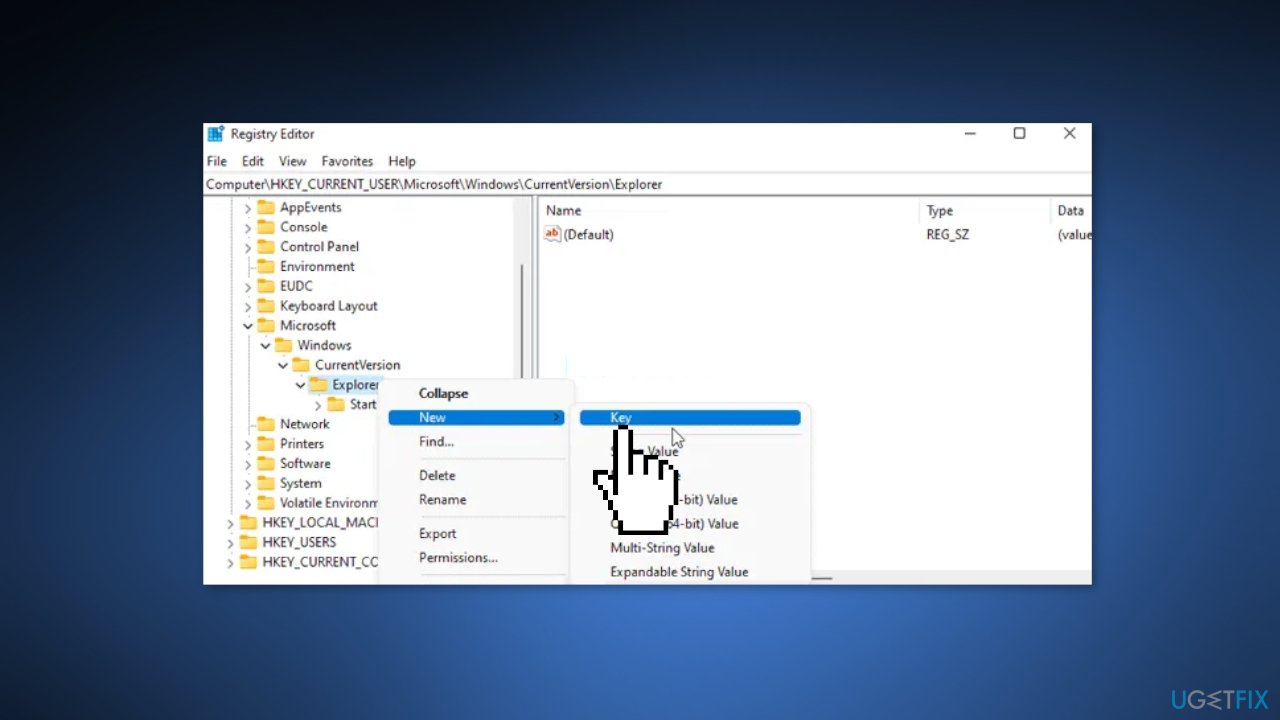
- Right-click on the Advanced key, select New > DWORD (32-bit) Value, and set the name as PersistBrowsers
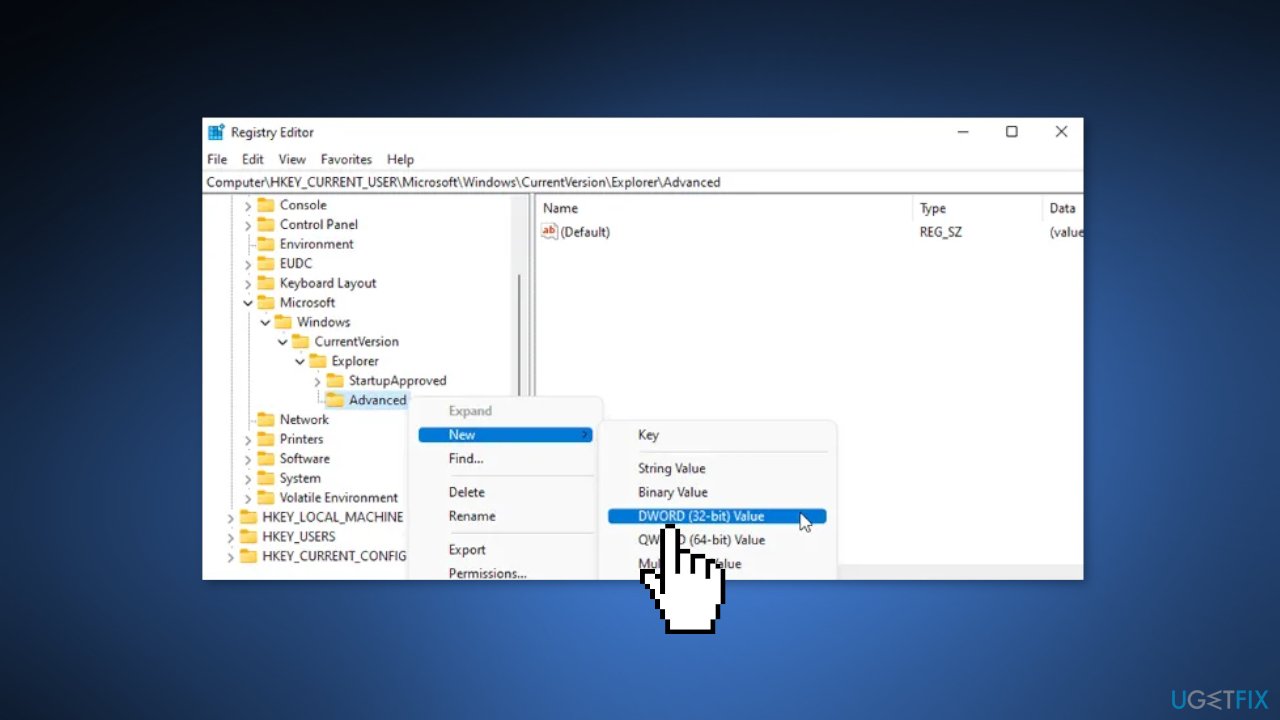
- After that, double-click on this REG_DWORD value and set the Value data as 1
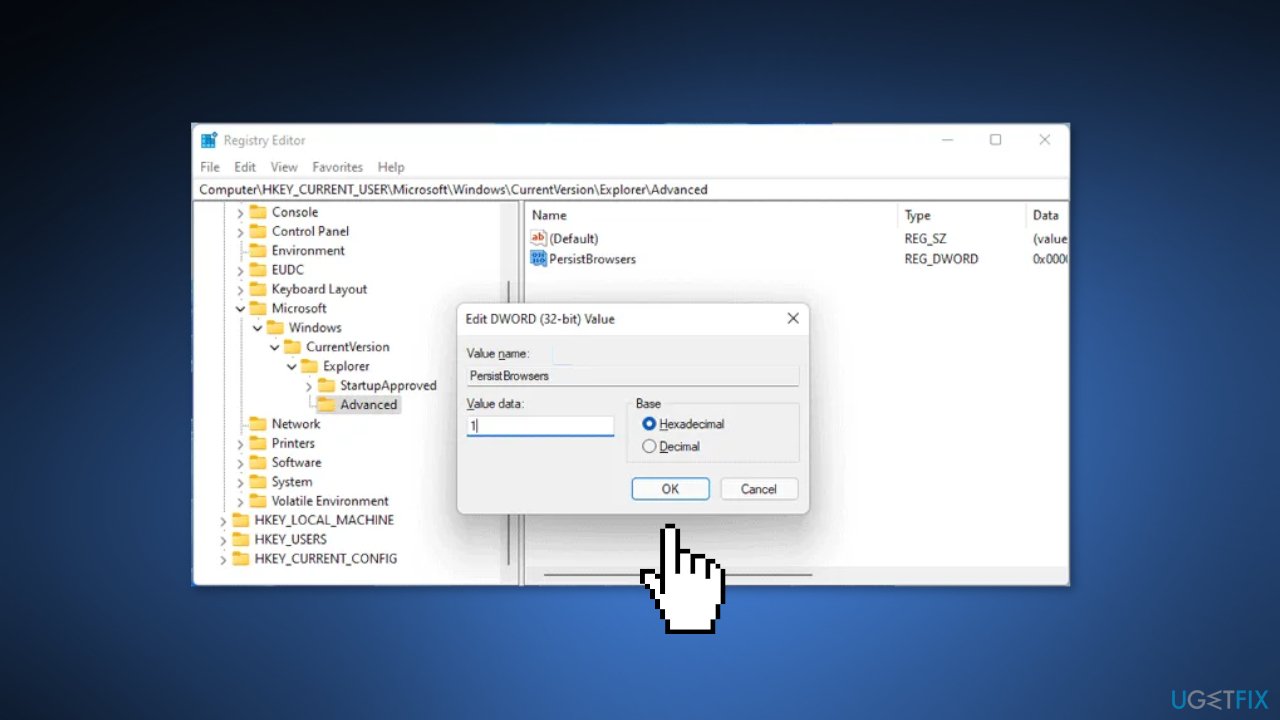
- Click the OK button and restart your computer
- Check if the issue is fixed
- if you want to disable this feature, you need to set the Value data as 0
Solution 3. Delete Registry Entries
- Press the Windows key + R to open the Run box
- Type regedit and press Enter
- Click on the Yes button if the UAC prompt appears
- Navigate to the following path:
HKEY_CURRENT_USER\SOFTWARE\Classes\Local Settings\Software\Microsoft\Windows\Shell\Bags\AllFolders\Shell
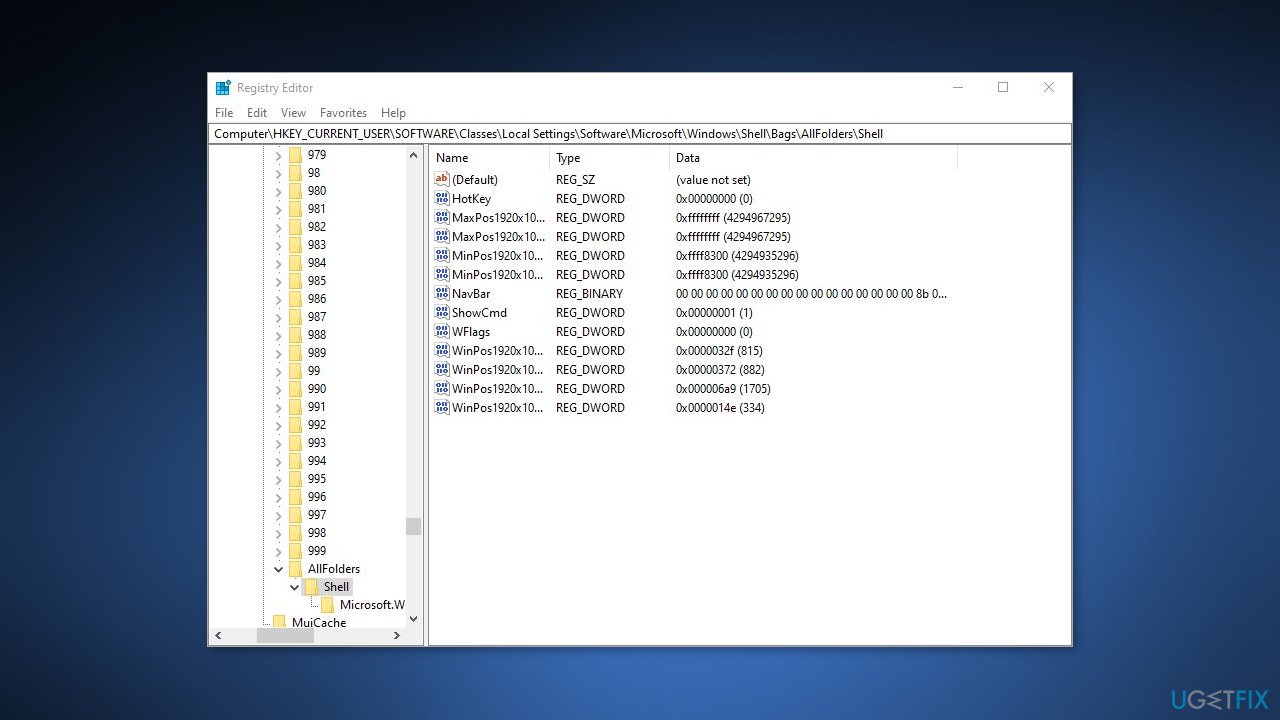
- Delete all the entries that start with WinPos and MaxPos
- Close the Registry Editor and check if the problem is solved
Bottom line
To fix the 'Restore previous folder windows at logon' issue, users can check the File Explorer Options and ensure the appropriate checkbox is ticked. If the issue persists, modifying the Windows registry may be necessary. If none of these solutions work, consider using a maintenance tool to address potential system errors.




Report an issue
What's wrong with this guide? We review every report and update or remove content.
Report received — thank you. We'll review and fix it.
You need a free account to submit a report.
Be the first to comment