How to fix
“The app you’re trying to install isn’t a Microsoft-verified app”
on Windows
Resolve the "app not verified" error on Windows 10 and 11 quickly and effortlessly. Trust our expert-tested solutions for a seamless experience!

![[Fix] “The app you’re trying to install isn’t a Microsoft-verified app”](https://ugetfix.com/wp-content/uploads/articles/askit/the-app-youre-trying-to-install-isnt-a-microsoft-verified-app_en-768x432.jpg)
What causes [Fix] “The app you’re trying to install isn’t a Microsoft-verified app”?
- App not verified by Microsoft
- Windows Defender SmartScreen warning
- App Recommendations feature active
- Potential malware risk
- Settings configuration issue
Repairs Windows system files, removes malware, and restores a clean OS state — without reinstalling.
Hello. I keep trying to install one app but every time Windows is showing me the "The app you’re trying to install isn’t a Microsoft-verified app" message which does not let me proceed with the installation process. Is there anything I can do to disable this alert?
The "The app you’re trying to install isn’t a Microsoft-verified app" message appears in Windows when attempting to install software that has not been verified by Microsoft. This message is part of the App Recommendations feature in Windows Defender SmartScreen,[ref en-1] which assists users in avoiding downloading and installing malicious software.
The feature examines an app's behavior and reputation data in real-time to determine its trustworthiness. When an app is deemed unsafe, Windows Defender SmartScreen displays a warning message. The goal of Windows App Recommendations is to provide users with a more secure and safe experience when installing software on their computers.
The feature reduces the risk of downloading and installing malicious software by only recommending apps that have been verified by Microsoft. While it is possible to disable App Recommendations in Windows, users should be aware that doing so may increase the likelihood of malware infections. If you want to disable App Recommendations, there are three options available in this guide.
It is worth mentioning, that if you are experiencing any other Windows operating system issues, you can use a maintenance tool like [d1] that can fix most system errors, BSODs,[ref en-2] corrupted files, and registry[ref en-3] issues automatically. Otherwise, follow the step-by-step instructions below.
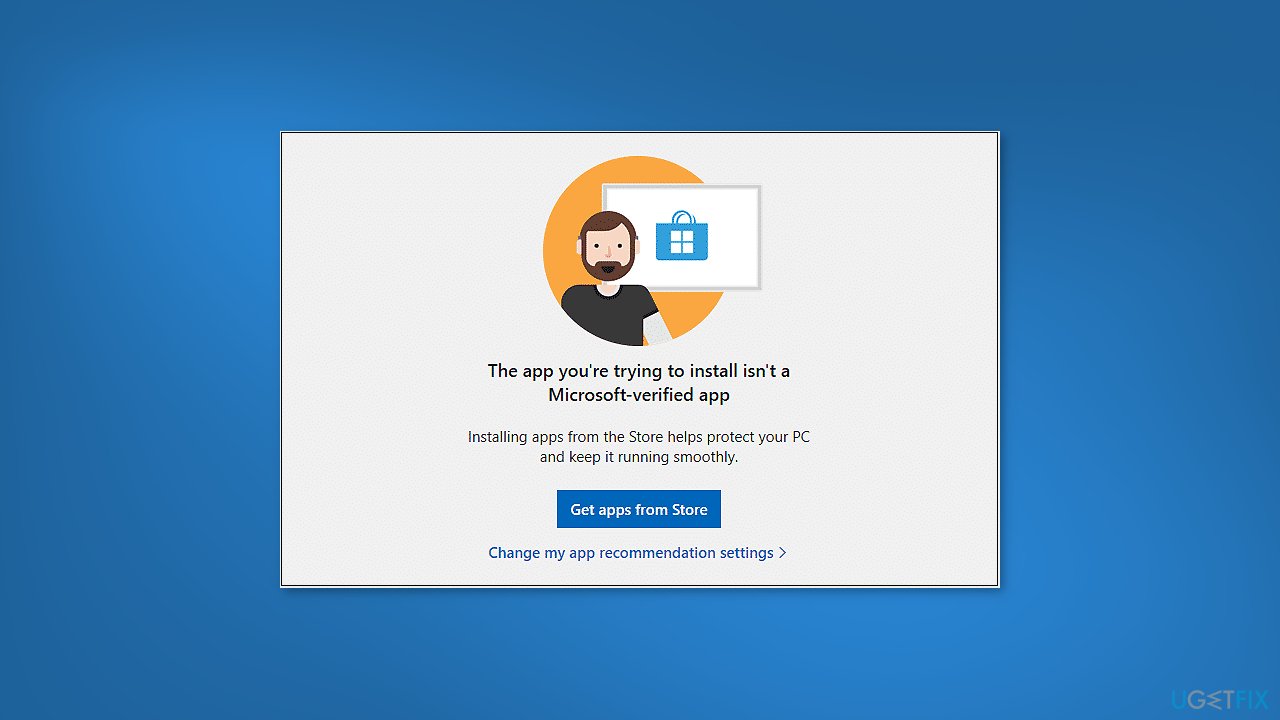
Solution 1. Disable App Recommendations via Settings
- Click on the Start button
- Click the gear icon to open the Settings app
- Choose the Apps category
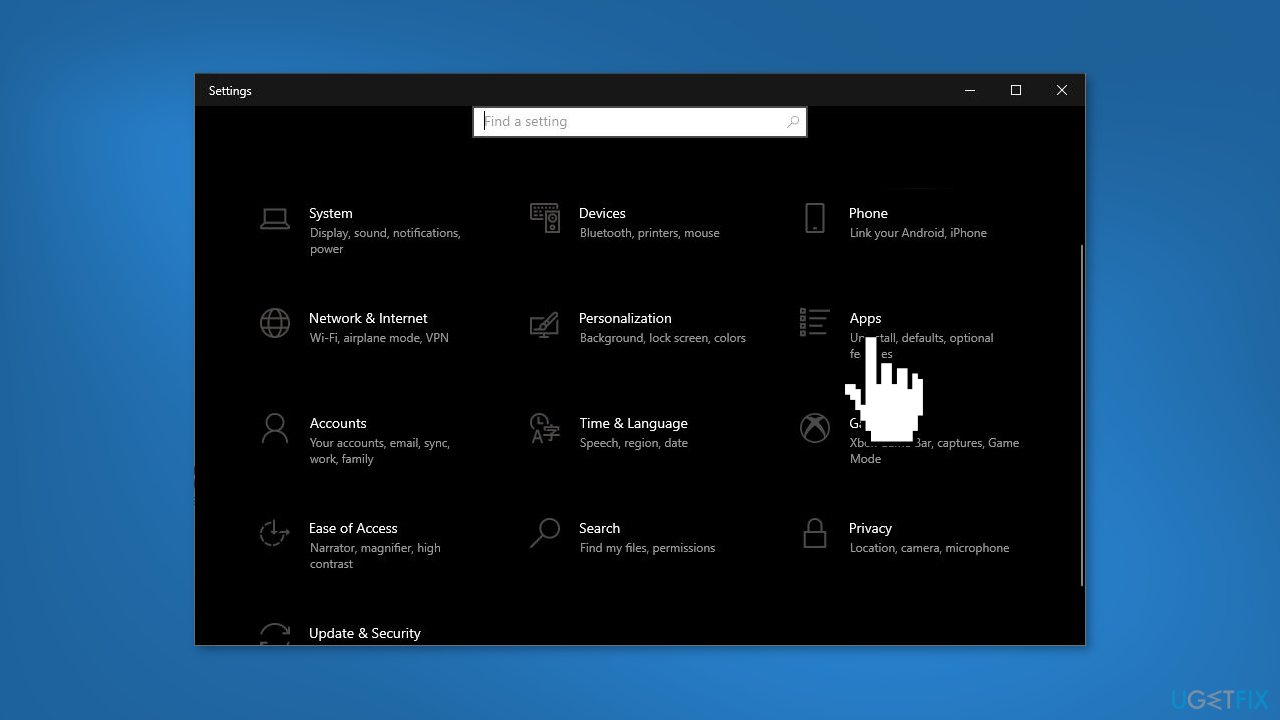
- On the right side, click the Choose where to get apps drop-down list
- Change it from The Microsoft Store only (Recommended) to Anywhere
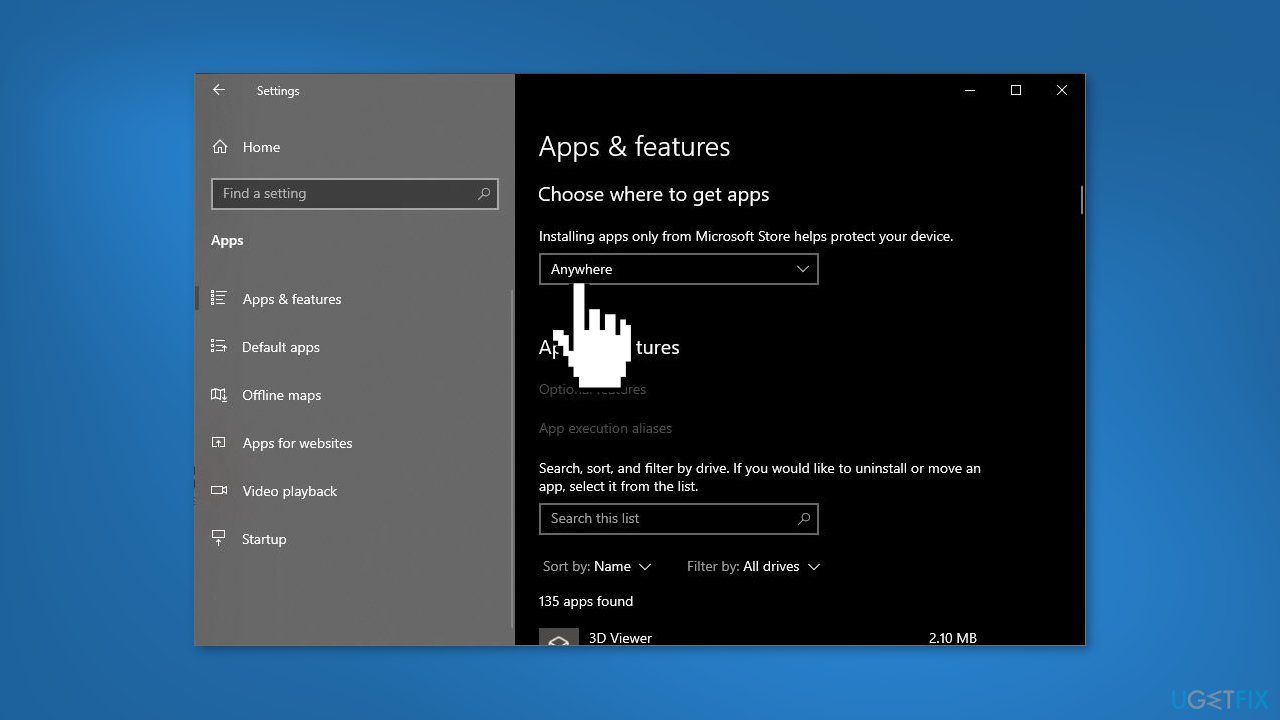
- Close the Settings app and check if the issue persists
Note: If the “Choose where to get apps” drop-down list is grayed out or missing adjust the app installation policy using one of the following methods.
Solution 2. Disable App Recommendations via Registry Editor
While the Registry Editor can be useful for advanced users who need to modify specific settings in the Windows registry, it is important to use it with caution. Making changes to the registry can have serious consequences, such as causing system errors, crashing the operating system, or rendering the computer unstable.
Improperly editing the registry can also leave the computer vulnerable to security threats, as well as make it difficult or impossible to recover from issues. Therefore, it is highly recommended that users back up the registry before making any changes. You can find detailed instructions on how to do this in our How to back up and restore the Windows registry? article.
- Press the Windows key + R to open the Run dialog box
- Type regedit and press OK
- Navigate to the following location: HKEY_LOCAL_MACHINE\SOFTWARE\Microsoft\Windows\CurrentVersion\Explorer
- Look for a string named AicEnabled on the right pane
- Double-click the string and change its value from StoreOnly to Anywhere
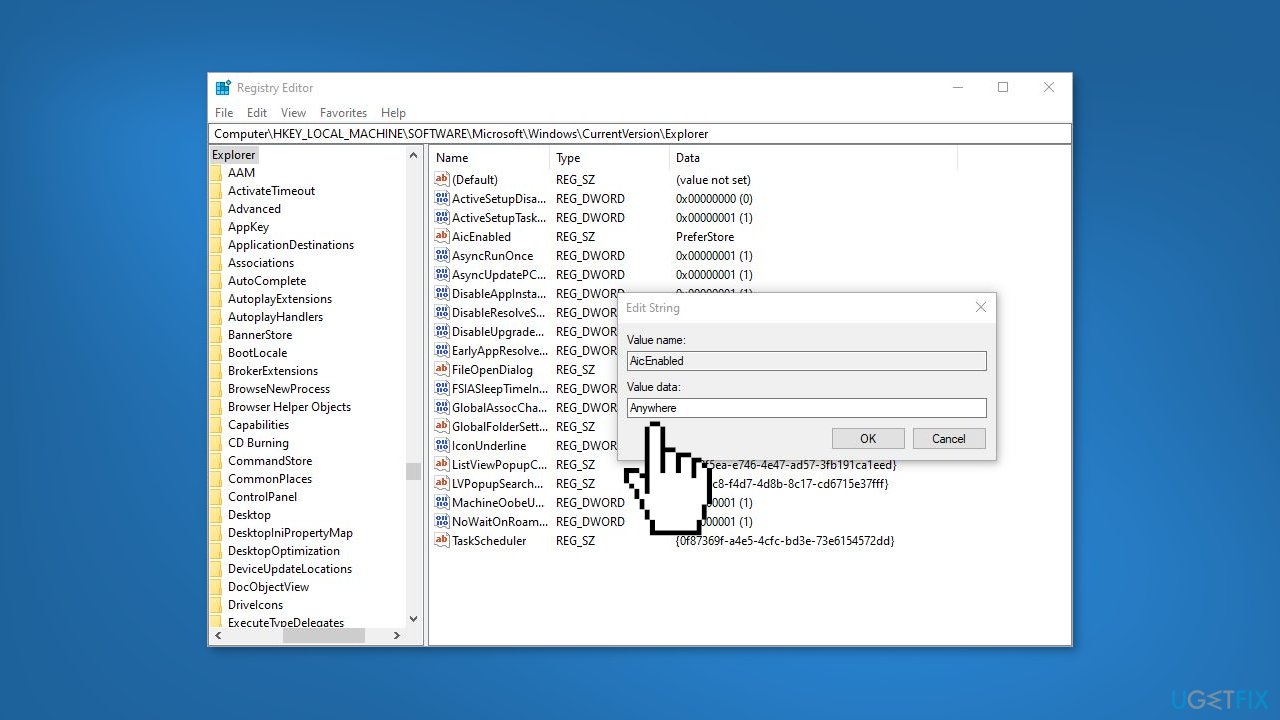
- Navigate to another location in the registry: HKEY_LOCAL_MACHINE\SOFTWARE\Policies\Microsoft\Windows Defender\SmartScreen
- On the right side, double-click the string ConfigureAppInstallControl
- Change its value from StoreOnly to Anywhere
- Close the Registry Editor
- Reboot Windows to apply the changes
Solution 3. Disable App Recommendations via Group Policy
The Group Policy feature in Windows allows for the centralized management of various configuration settings and policies on network computers. Group Policy is a component of Microsoft Active Directory that allows system administrators to enforce consistent configurations and settings across multiple computers in an organization.
Administrators can use this to enforce security policies, configure updates, limit access to specific resources, and manage other aspects of computer management. The Group Policy feature is available in Windows Professional, Windows Enterprise, and Windows Server editions.
- Press the Windows key + R to open the Run dialog box
- Type gpedit.msc and press OK to open the Local Group Policy Editor
- Browse to the following location: Computer Configuration > Administrative Templates > Windows Components > Windows Defender SmartScreen > Explorer
- On the right pane, double-click on the Configure App Install Control policy to edit it
- Select Enabled and then pick up the Turn off app recommendations setting from the drop-down list
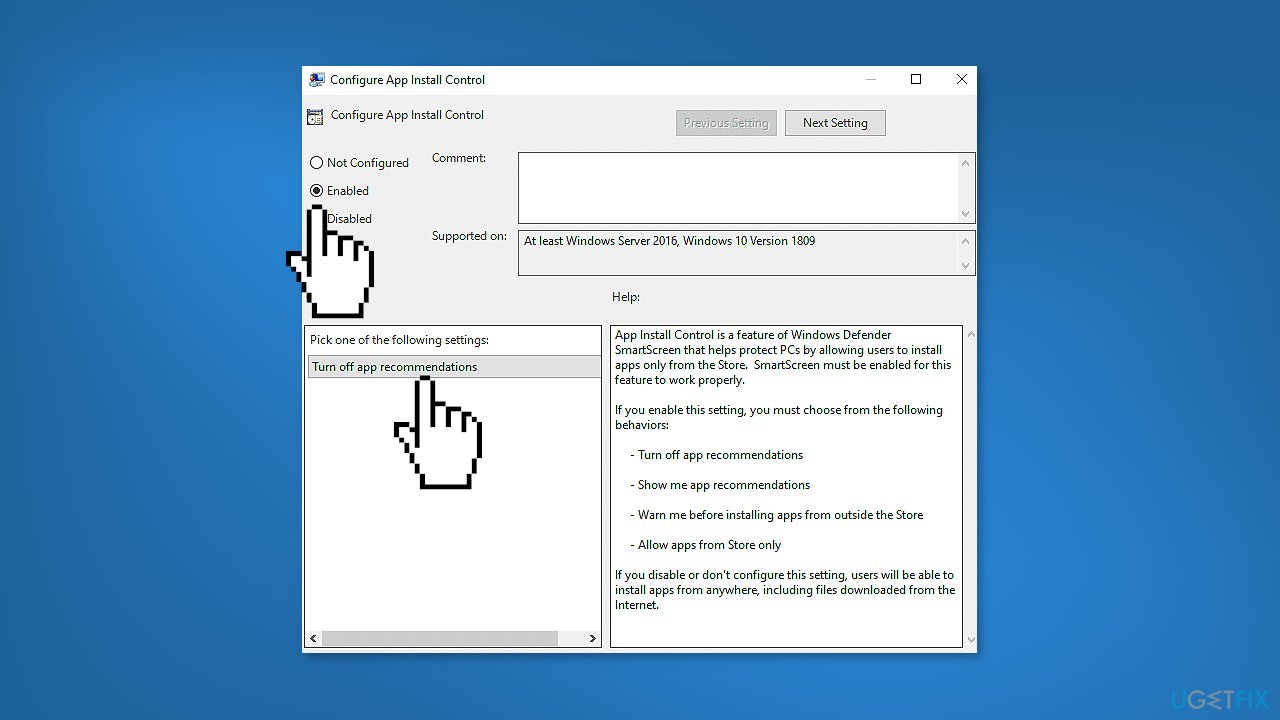
- Click Apply and then OK
- Restart your PC
Bottom line
To resolve the issue of the app not being Microsoft-verified, you can disable App Recommendations via the Settings app by changing the app installation source. If the problem persists, consider using a maintenance tool to fix system errors or explore additional solutions provided in the guide.
Frequently asked questions
This error indicates that Windows 10 is blocking the installation of an app that is not verified by Microsoft, which is a security feature to protect your system from potentially harmful software.
To bypass this error on Windows 11, you can go to Settings > Apps > Apps & features, and change the app installation settings to 'Allow apps from anywhere'.
Disabling app verification can expose your system to risks, so it is recommended to only install apps from trusted sources even if you choose to bypass this security feature.




Report an issue
What's wrong with this guide? We review every report and update or remove content.
Report received — thank you. We'll review and fix it.
You need a free account to submit a report.
Be the first to comment