How to fix
Windows 11 shuts down instead of going to sleep
on Windows
Discover effective solutions for when Windows 11 shuts down instead of sleeping. Get your PC back on track with expert-tested fixes for seamless perform…

![[Fix] Windows 11 shuts down instead of going to sleep](https://ugetfix.com/wp-content/uploads/articles/askit/windows-11-shuts-down-instead-of-going-to-sleep_en-768x432.jpg)
What causes [Fix] Windows 11 shuts down instead of going to sleep?
- Power settings misconfiguration
- Driver issues
- Hardware conflicts
- System updates needed
- BIOS settings
Repairs Windows system files, removes malware, and restores a clean OS state — without reinstalling.
Hello, I have recently installed Windows 11 on my brand new PC and initially, I did not notice any problems. Later though, I noticed that my computer shuts down instead of going to sleep. This happens in both cases - whenever I do it manually or after the automatic sleep option should be triggered. This is a rather annoying issue, and I'd like it resolved, please.
Windows is an intricate operating system that has been around for decades now, so it is not surprising that many users are waiting eagerly for the newest versions that are meant to improve the usability and UI, implement new features and remove annoying bugs.[ref en-1] Windows 11 was highly anticipated before it was finally released on October 5th, 2021.
However, it is unsurprising that the newest operating system did not avoid problems - they reported that the date/clock was missing from their taskbar, that scanner was not working, and that the shutdown box would show up randomly, among others. Windows 11 shutting down instead of going to sleep is another issue that is not critical but can greatly diminish the users' overall experience when using their computers.
Overall it's a known bug that was present in the previous Windows versions, and it seems like it continues to bother users to this day (it affects desktops and laptops just as equally). Users claim that their systems shut down as soon as they go to sleep, which ultimately renders the mode rather useless, as the shutdown function can be used instead.
Sleep mode is a very convenient option, as it uses a tiny fraction of electric power to enable an easy and fast startup - booting Windows from being completely turned off simply takes much longer. Besides, it helps users to preserve electricity if they go away for a shorter period of time. This is the main reason why it is important to fix Windows 11 shutting down instead of going into sleep mode.
There could be a variety of reasons that cause this problem, hence finding the right answer is not always easy. In most cases, it is related to system drivers,[ref en-2] as well as incorrect or disrupted power settings. Thus, updating drivers or changing the power plan could help you resolve this issue.
We also provide additional solutions that could help users in different situations, although we strongly suggest first running a scan with [d1] PC repair software to repair Windows automatically - be it the annoying shutdowns due to BSODs[ref en-3] or registry errors.
Solution 1. Run the Power troubleshooter
Troubleshooters are great tools that come pre-built with every operating system. Therefore, you should try running it:
- In Windows search, type in troubleshoot and press Enter (you can also go to Start > Settings > System > Troubleshoot)
- Pick Other troubleshooters
- Select the Power option and click Run
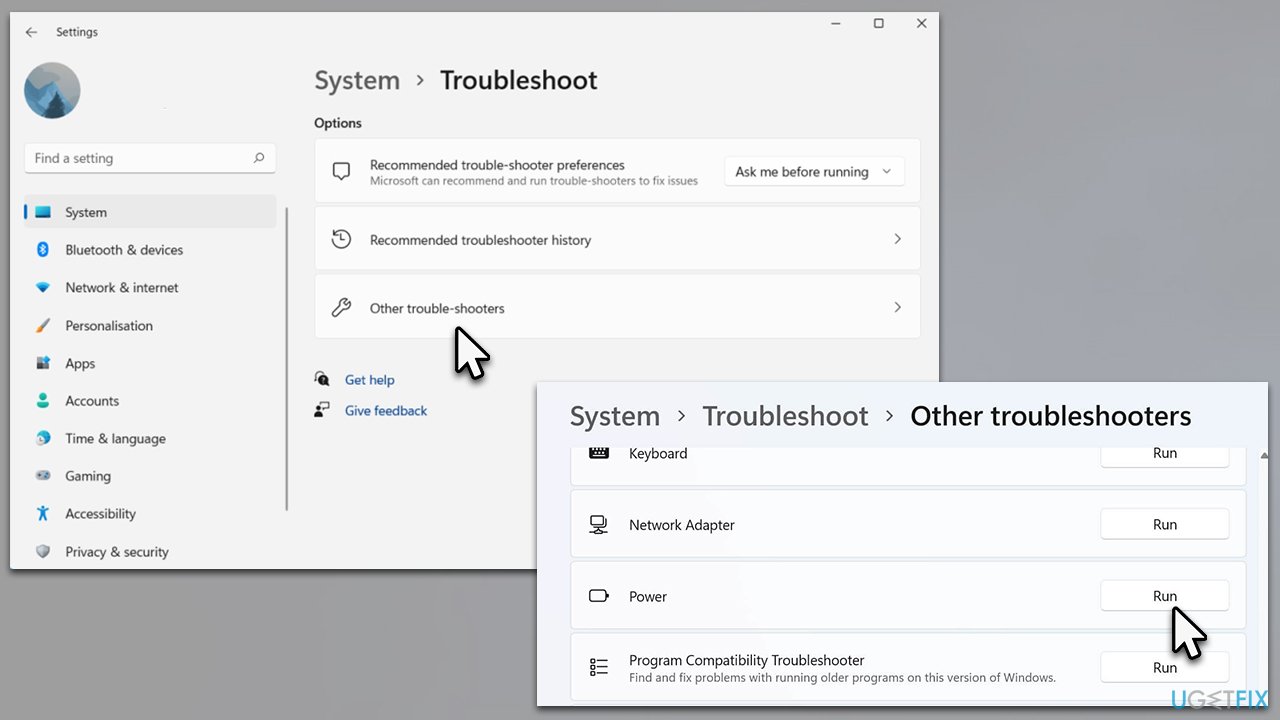
Windows 11 shuts down instead of going to sleep run troubleshooter - Wait till the process is complete
- Apply the offered fixes and restart your PC.
Solution 2. Install all the recent driver updates
Before you proceed with finding a resolution to your driver problems, we recommend relying on an automatic driver updater instead - [rev id="DriverFix"]. This way, you won't have to worry about installing incompatible drivers. Windows might also fail to find the most recent drivers for your machine's components in some cases.
- In Windows search, type Updates and press Enter (alternatively, click on Start and pick Settings)
- On the right side of the window, pick Advanced options
- Here, select Optional updates
- Find the Driver updates section and expand it
- Select everything available by marking the checkboxes and click Download and install
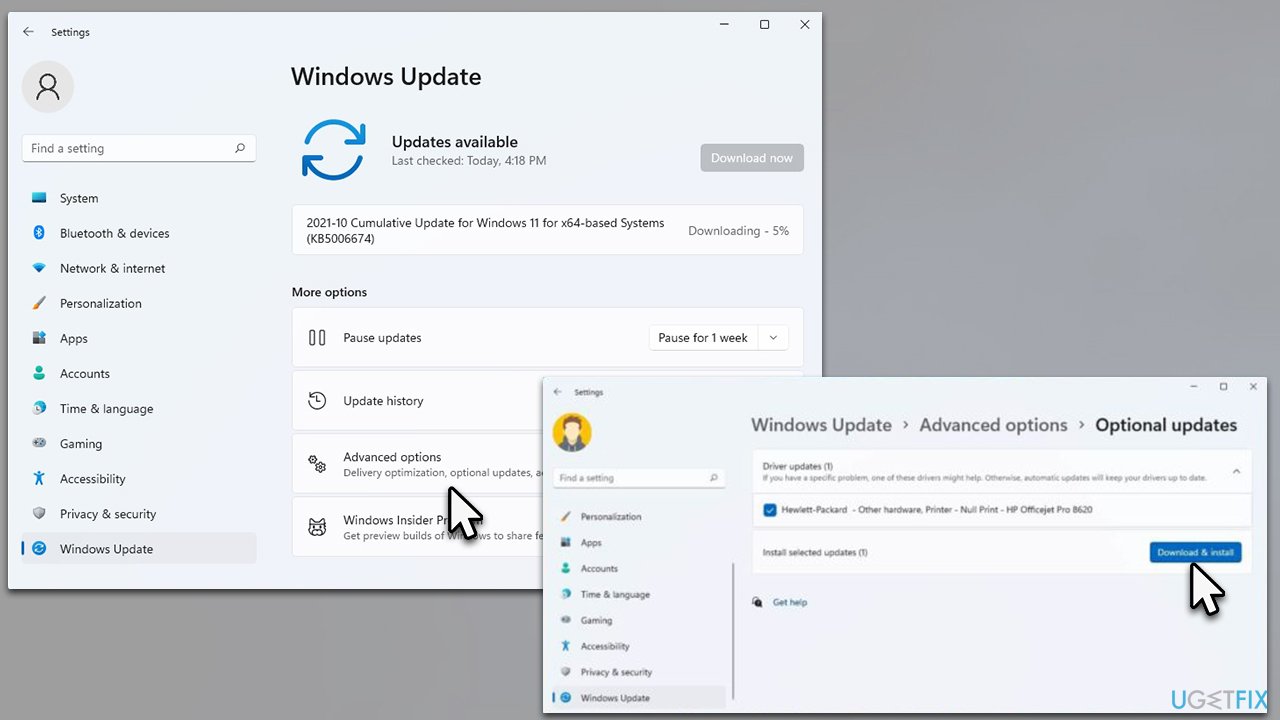
Windows 11 shuts down instead of going to sleep install driver updates - Reboot your device.
Solution 3. Change power settings
Your power settings might not be set correctly. Thus, you need to make sure you set them so your computer would go to sleep instead of shutting down after some time.
- In Windows search, type Control Panel and hit Enter
- Here, go to Hardware and Sound > Power options
- On the left side, select Choose what the power buttons do
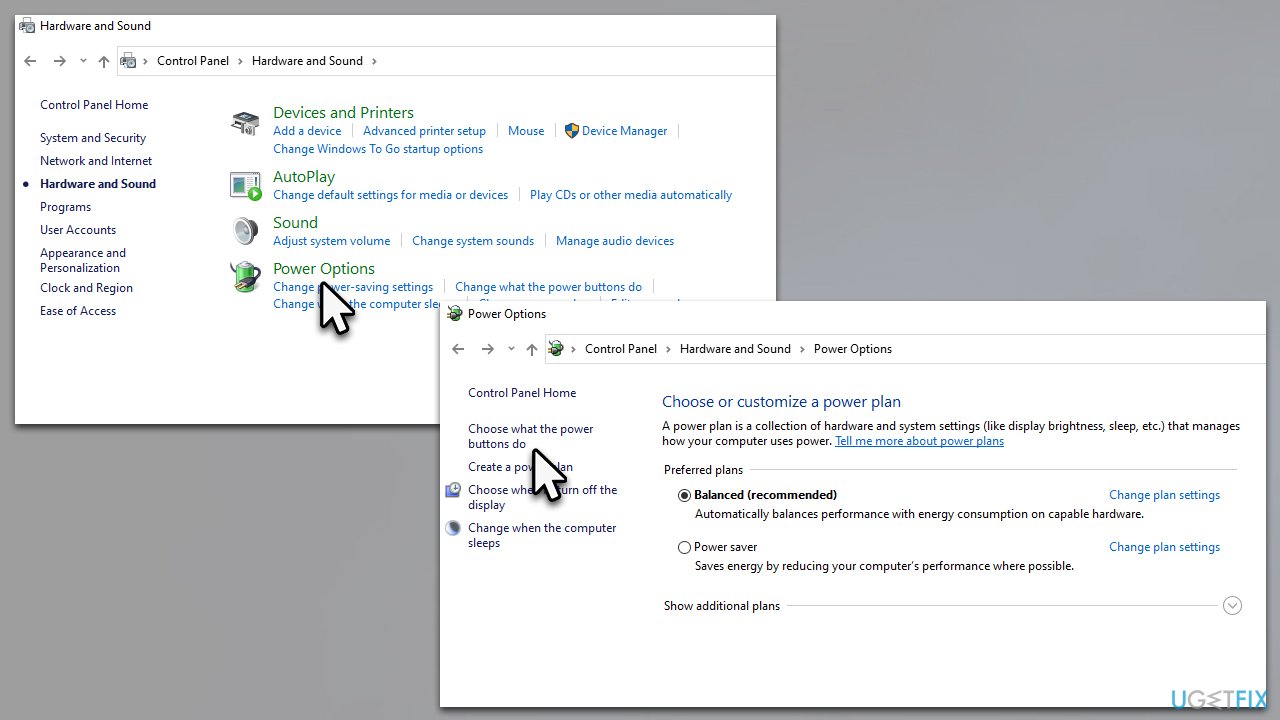
Windows 11 shuts down instead of going to sleep check power settings - Set all values to Sleep and click Save Changes.
Solution 4. Change hard disk power off settings
- Go back to Control Panel > Hardware and Sound > Power options section
- On the left side, select the Change when the computer sleeps option
- Then select Change advanced power settings
- In the new popup window, you should see the Hard disk entry - expand it if you have to
- Here, under the Turn off hard disk after section, pick a larger number than the default. We recommend going for 1,000 or even more to prevent your disk from turning off.
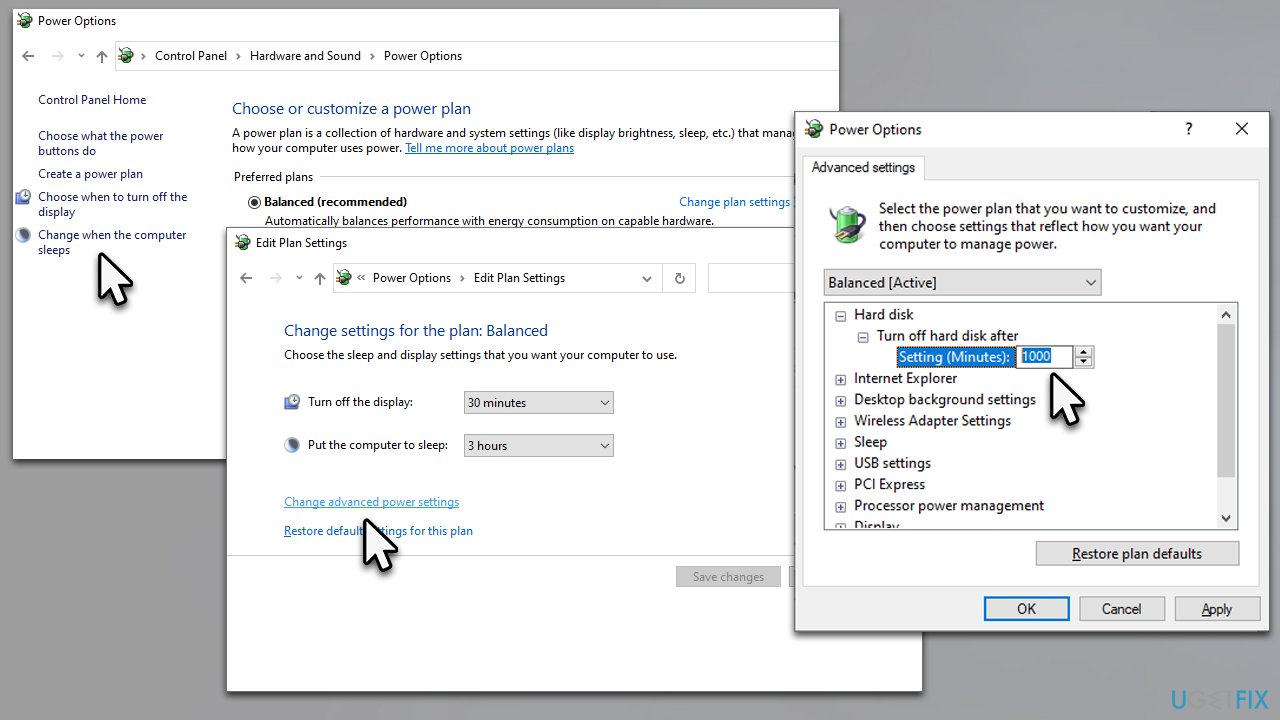
Windows 11 shuts down instead of going to sleep change hard disk power off settings
Bottom line
To resolve the issue of Windows 11 shutting down instead of going to sleep, users can check and adjust their power settings, update drivers, and ensure their BIOS is configured correctly. If these fixes do not work, consider seeking further assistance or checking for additional updates.
Frequently asked questions
This issue can occur due to incorrect power settings or faulty device drivers. Check your power options and ensure that all your drivers are up to date.
You can start by running the Power Troubleshooter in Windows Settings, which can automatically detect and fix sleep issues. Additionally, check for any recent updates that might affect power management.
Make sure the sleep settings in the Power & Sleep menu are configured correctly and that no applications are preventing sleep mode. Also, review the advanced power settings for any conflicts.




Report an issue
What's wrong with this guide? We review every report and update or remove content.
Report received — thank you. We'll review and fix it.
You need a free account to submit a report.
Be the first to comment