How to fix
0x0000003b BSOD error
on Windows
Resolve the 0x0000003b BSOD error in Windows 10 and 11 quickly with expert-tested solutions. Troubleshoot efficiently and get back on track in minutes!

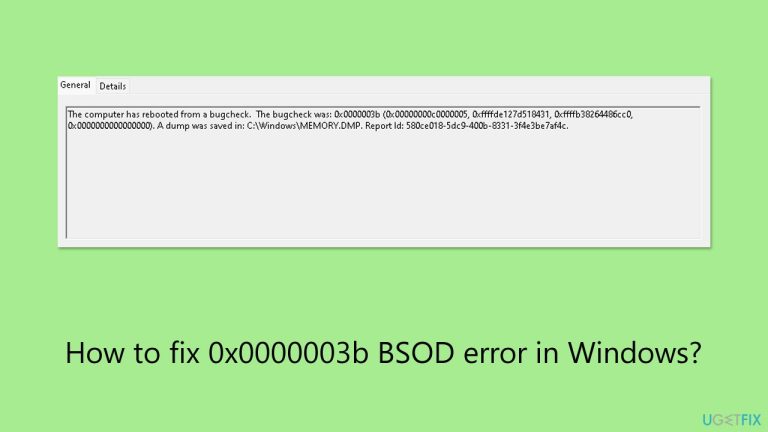
What causes How to fix 0x0000003b BSOD error in Windows?
- Old BIOS firmware
- Faulty RAM
- Incorrect memory configurations
- Obsolete or corrupted drivers
- Incompatibility between third-party software
- Issues within the Windows operating system
Repairs Windows system files, removes malware, and restores a clean OS state — without reinstalling.
Hello, I need your help please. My computer (Windows 11) suffers from constant crashes, and it happens while playing games. BSOD bug check was 0x0000003b with SYSTEM_SERVICE_EXCEPTION error code.
The Blue Screen of Death (BSOD) is a well-known phenomenon for Windows users, one that is sure to elicit feelings of frustration. Despite its inconveniences, the BSOD is designed to fulfill a very crucial function: stopping the system before either the hardware or software suffers further damage.
Blue Screens of Death (BSOD) are essentially errors that occur when the operating system encounters a problem that it cannot resolve. Most BSODs exhibit error codes that identify the problem.
One such error is the 0x0000003b BSOD, which often occurs when playing games. Users who encounter it are also shown error code SYSTEM_SERVICE_EXCEPTION, and it can also be referred to quite a number of components like aswSnx.sys, atikmdag.sys, AuthenticAMD.sys, and others, hence making its root cause very challenging to identify.
The 0x0000003b error can stem from a range of underlying causes, so identifying possible triggers is very important. One of the most common causes is old BIOS firmware, which may cause incompatibility with some hardware or software.
Problems related to memory, such as faulty RAM or incorrect configurations, can also serve to further exacerbate this error. The BSOD has also been linked to driver problems, especially with AMD drivers, because obsolete or corrupted drivers can cause disruption in system processes.
Other causes could be incompatibility between third-party software or even within the Windows operating system itself; these are deep-seated problems that require exhaustive troubleshooting to isolate.
When fixing the 0x0000003b error, there are specific troubleshooting procedures that should be followed, including BIOS updates, checking of memory configurations, and ensuring that drivers are updated. The steps for these processes will be given below the article, where you will be taken through it systematically.
For a more simple solution, one might use [d1] PC repair tool, which automatically fixes most underlying Windows problems, even those leading to BSOD errors that might be hard to tackle manually.
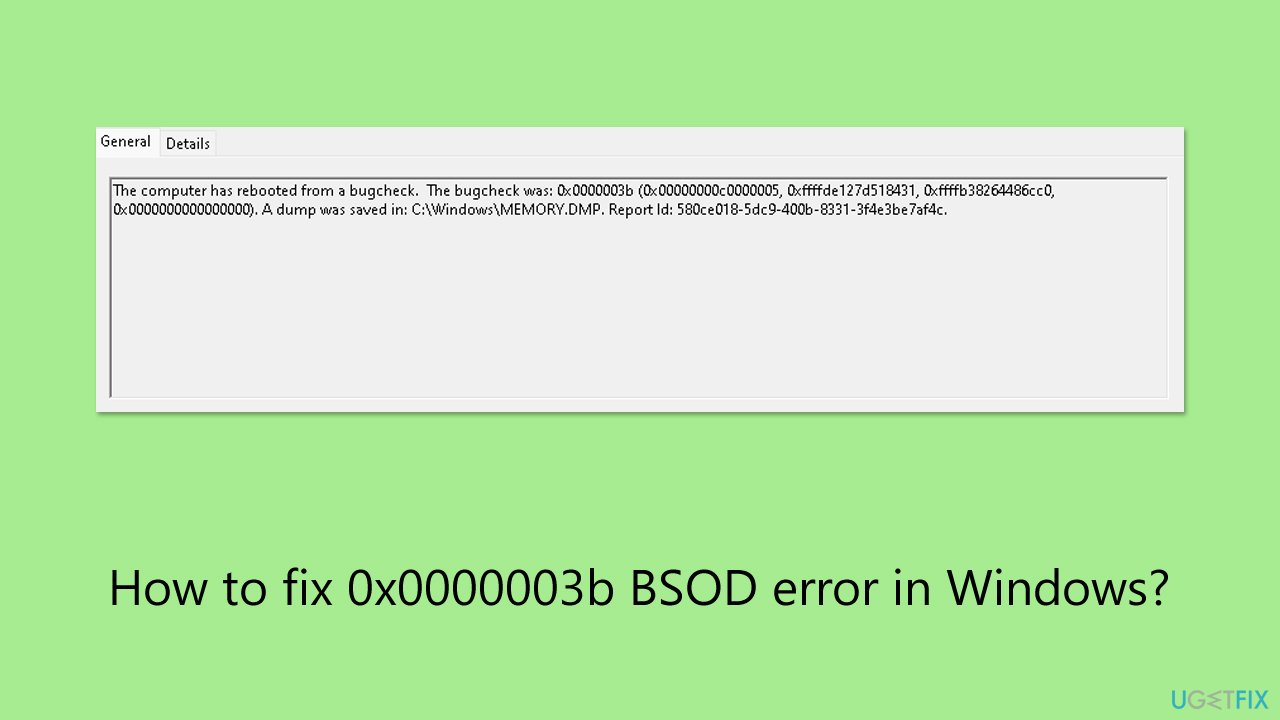
Fix 1. Install all Windows updates
It is very important to keep your system updated, as compatibility and known bugs that may cause the 0x0000003b BSOD. Updates tend to include patches that stabilize the system and enhance driver performance.
- Type Updates in the Windows search bar and press Enter.
- The new window will open and you should be notified about available updates - click Install all.
- If none are available, click Check for updates, and they should be installed automatically.
- Don't forget to install all the available optional updates.
- When done, restart your device.
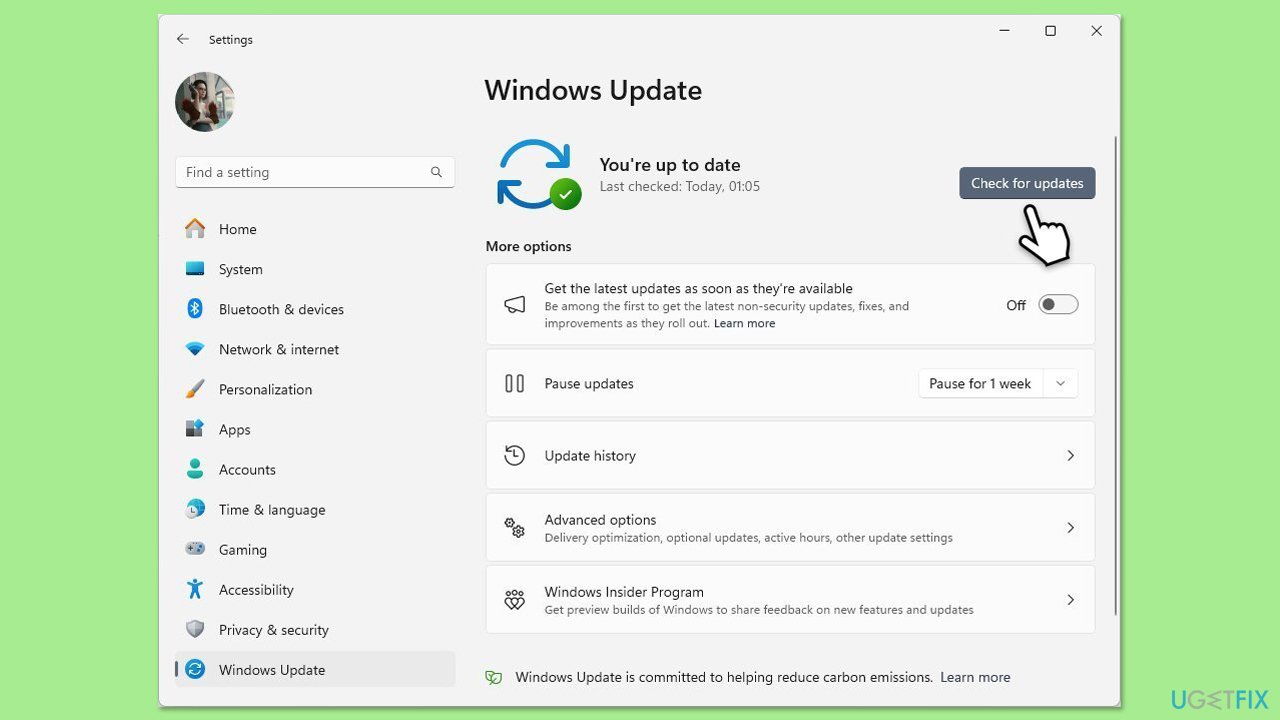
Fix 2. Repair corrupted system files
System file corruption is another very common reason for BSOD; running these tools fixes damaged files and helps the system to be healthy again.
- Type cmd in Windows search.
- Right-click on Command Prompt and select Run as administrator.
- When the User Account Control window shows up, click Yes.
- Copy and paste the following command, pressing Enter after:
sfc /scannow - Wait till the scan is finished. If Windows finds system file integrity violations, it will attempt to fix them. After this, use the set of the following commands, pressing Enter each time:
DISM /Online /Cleanup-Image /CheckHealth
DISM /Online /Cleanup-Image /ScanHealth
DISM /Online /Cleanup-Image /RestoreHealth - (Note: if you get an error executing this last command, add /Source:C:\RepairSource\Windows /LimitAccess to it and try again).
- Close down the Command Prompt and restart your computer.
Fix 3. Run Memory Diagnostics
If faulty RAM is a cause of errors like 0x0000003b, then testing your memory will identify any defects.
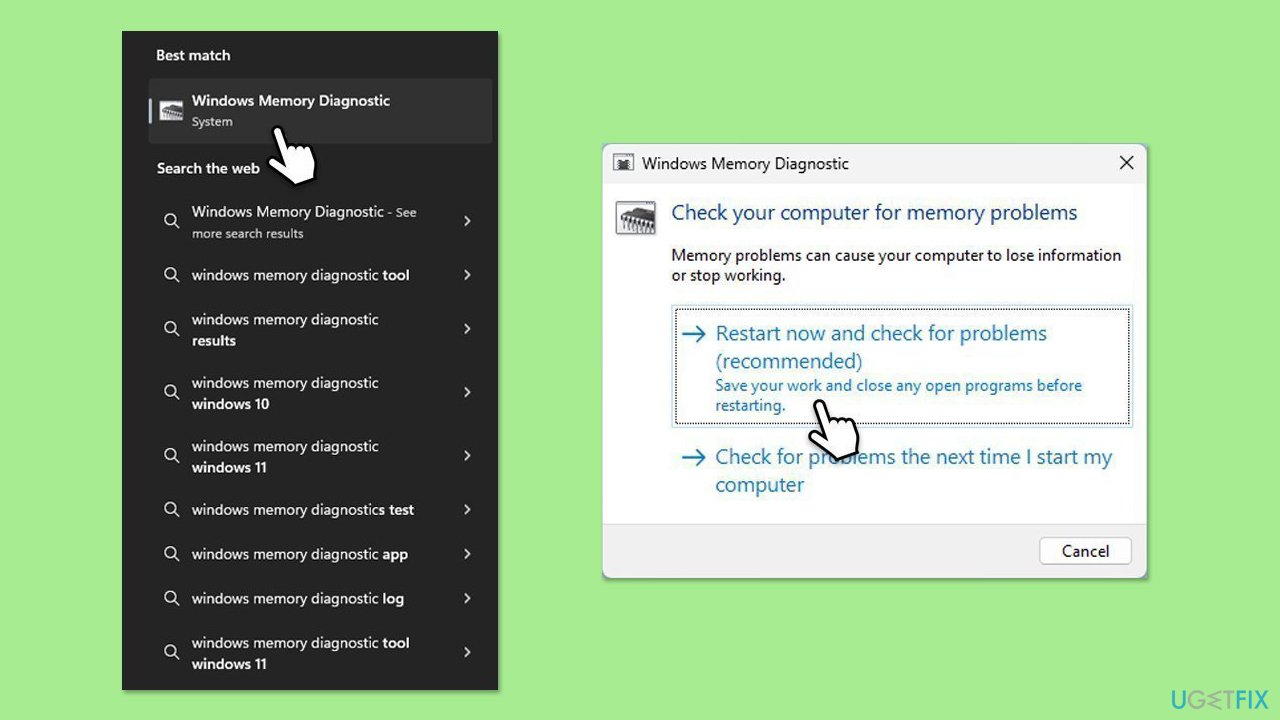
- Type Memory in Windows search and select Windows Memory Diagnostic result.
- Choose Restart now and check for problems (recommended).
- Let the tool run and complete the memory check.
- To check the logs, open the Event Viewer and go to Windows Logs > System. On the right side of the window, under Actions, click on Filter current log and then search for MemoryDiagnostics.
Fix 4. Update your BIOS
Incompatible hardware from an old BIOS can also lead to BSOD. Upgrading the BIOS will make sure that communication between these components is stable.
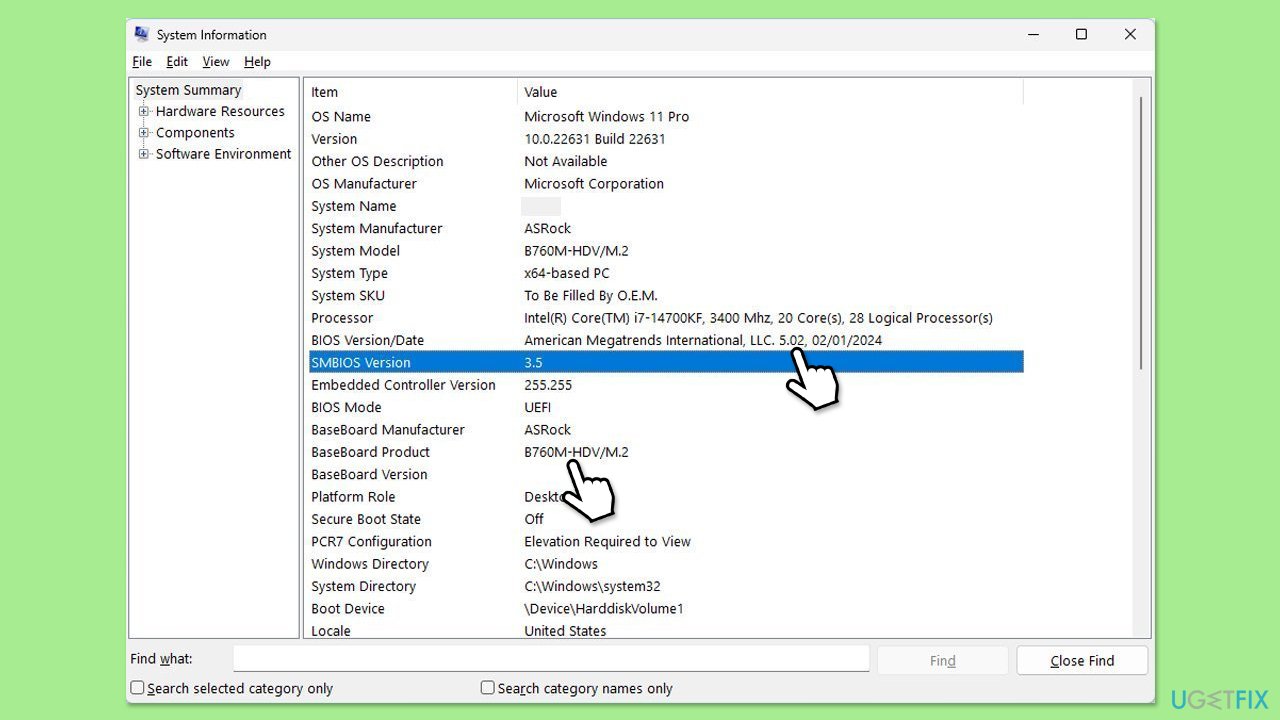
- Visit the manufacturer's website and download your specific model's latest BIOS update file (you can check which BIOS you are using by typing System information in Windows search and checking the BIOS Version/Date and BaseBoard Product entries there).
- Extract the BIOS update files and read any provided instructions or documentation.
- Create a bootable USB drive with the BIOS update files, if required.
- Update the BIOS using the manufacturer's recommended method, which may be through a built-in utility or booting from a USB drive.
- Restart your computer to complete the process.
Fix 5. Update your drivers
The major reason behind BSODs is driver incompatibility. Keeping drivers updated reduces the chances of conflict and adds stability. To update drivers quickly and easily, you can always rely on tools such as [rev id="DriverFix"].
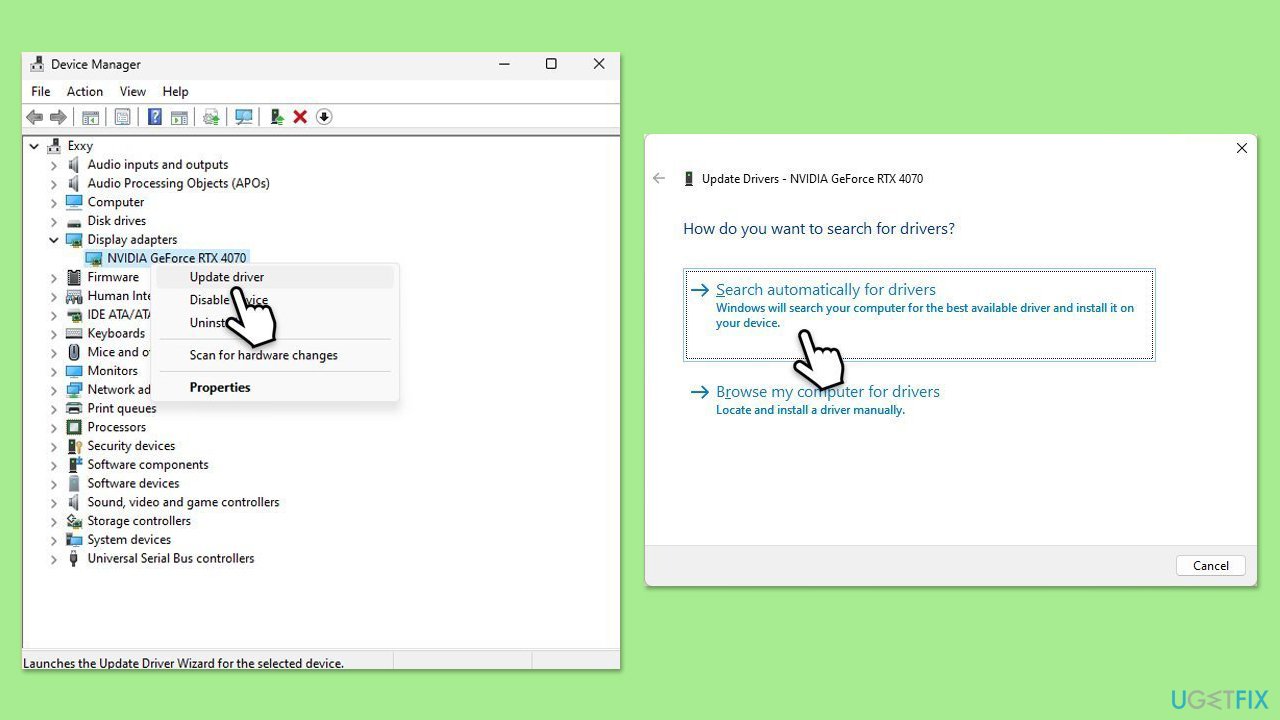
- Right-click on Start and select Device Manager.
- Expand the section for the device you want to update (e.g., Display adapters).
- Right-click the device and select Update driver.
- Choose Search automatically for drivers.
- After the driver is installed, restart your computer to implement these changes.
Fix 6. Reinstall AMD drivers
AMD drivers might often get corrupted or become outdated and cause problems, especially when gaming. Thus, if updating drivers did not work, you can try reinstalling them.
- Open Device Manager and expand Display adapters.
- Right-click on your AMD driver and select Uninstall device.
- Restart your computer.
- Either use the Device Manager or a third-party tool to install the latest drivers or visit the official AMD website and install them manually.
Fix 7. Restore system to a previous state
If the error started after recent changes, restoring your system to an earlier point can resolve the problem.
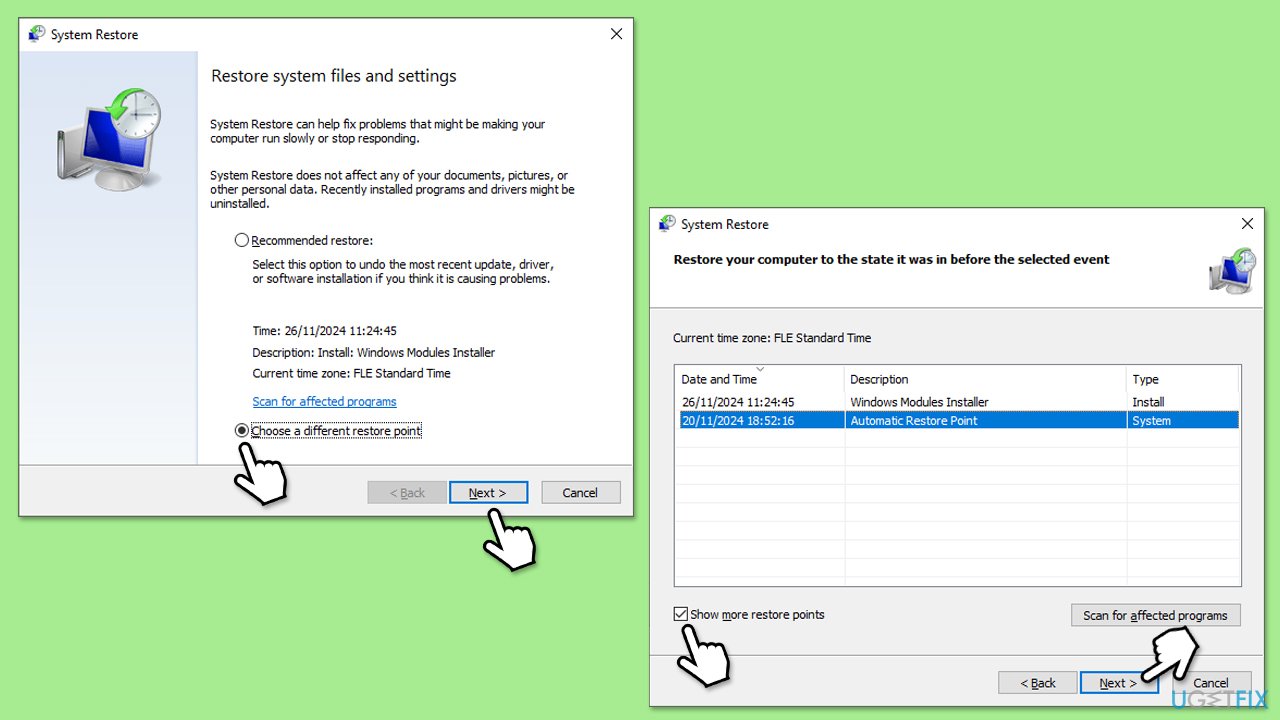
- Type Create a restore point in the Windows search bar and press Enter.
- In the System Properties window, click System Restore.
- Click Next (after picking Choose a different restore point, if applicable).
- Mark the Show more restore points checkbox.
- Choose a restore point from before BSOD started occurring.
- Click Next and follow the on-screen instructions to complete the system restore.
- Restart your computer after the process is finished.
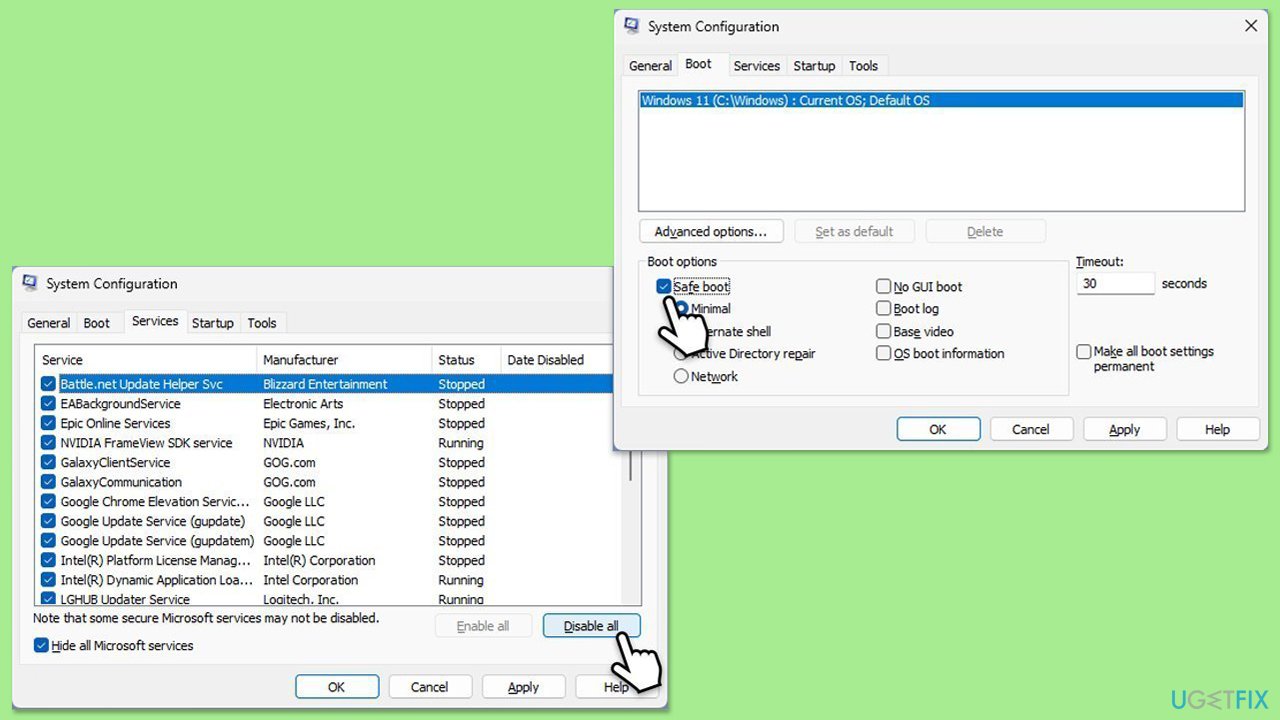
Fix 8. Perform a Clean Boot
Booting your system with minimal startup programs and drivers helps identify whether third-party software is causing the BSOD.
- Type msconfig in the Windows search box and press Enter.
- Pick the Services tab.
- Mark Hide all Microsoft services and select Disable all.
- Select the Startup tab and click Open Task Manager.
- In the Task Manager, right-click on each of the items and select Disable, then close the Task Manager.
- Go to the Boot tab, mark the Safe Boot option, then click Apply and OK.
- On the System Configuration window, click OK.
- If the problem is resolved, it means that the software is causing this. Disable each of the entries (or do that in groups) and reboot the system in normal mode; i.e., use the method of elimination.
Related:
Bottom line
To fix the 0x0000003b BSOD error, you should update your BIOS, check memory configurations, and ensure that all drivers are up to date. If these steps do not resolve the issue, consider using a PC repair tool to automatically fix underlying Windows problems.
Frequently asked questions
The 0x0000003b BSOD error is often caused by faulty drivers, system file corruption, or hardware issues such as incompatible RAM or overheating.
To troubleshoot the 0x0000003b error in Windows 11, you can start by updating your drivers, running a system file check, and checking for hardware issues.
To prevent the 0x0000003b BSOD error in Windows 10, ensure that your system is regularly updated, maintain good hardware conditions, and avoid installing incompatible software.




Report an issue
What's wrong with this guide? We review every report and update or remove content.
Report received — thank you. We'll review and fix it.
You need a free account to submit a report.
Be the first to comment