How to fix
0x00000050 BSOD error
on Windows
Resolve the 0x00000050 BSOD error on Windows 10 or 11 efficiently. Our expert-tested solutions ensure quick fixes and zero traces left behind.

What causes How to fix 0x00000050 BSOD error in Windows?
- Bad Hardware
- Broken RAM
- Older or Wrong Drivers
- Corrupted System Files
- Malware
- Software Conflicts
Repairs Windows system files, removes malware, and restores a clean OS state — without reinstalling.
I got an unexpected BSOD crash yesterday while simply browsing the internet, which I found kind of unusual. After a reboot, everything seemed to work fine again. Today, I've already faced two more crashes with the code 0x00000050. Please help.
0x00000050 Blue Screen of Death (BSOD) error, which often comes with PAGE_FAULT_IN_NONPAGED_AREA code, is a common and annoying problem in Windows computers. This happens when Windows tries to reach some memory that either isn’t there or has gone bad. The system freezes and crashes, showing the famous blue screen. This error can pop up anytime, maybe during startup or when you’re doing demanding tasks like gaming or video editing.
Several things can cause the 0x00000050 error. Often, the problem comes from bad hardware, like broken RAM. Older or wrong drivers may also confuse the computer when it tries to use different pieces of hardware. Corrupted system files, malware, or even software that doesn’t work well together can also trigger it. Has this happened after an update? A Windows or a third-party software update might cause problems too.
0x00000050 blue screen error is especially bad because it messes up your work and erases anything not saved before. Finding out why this happens might be hard since the error message won’t clearly say what went wrong.
To fix the 0x00000050 BSOD, users have different options. These include checking the memory for issues or using Windows tools like sfc /scannow to repair bad files. Keeping drivers and programs updated is also important. In harder cases, users may need to try system recovery options or undo recent changes.
For a quicker and simpler solution, using a trusted tool that fixes and optimizes the system like [d1] might help keep Windows running smoothly without more crashes.
Method 1. Check your RAM for errors
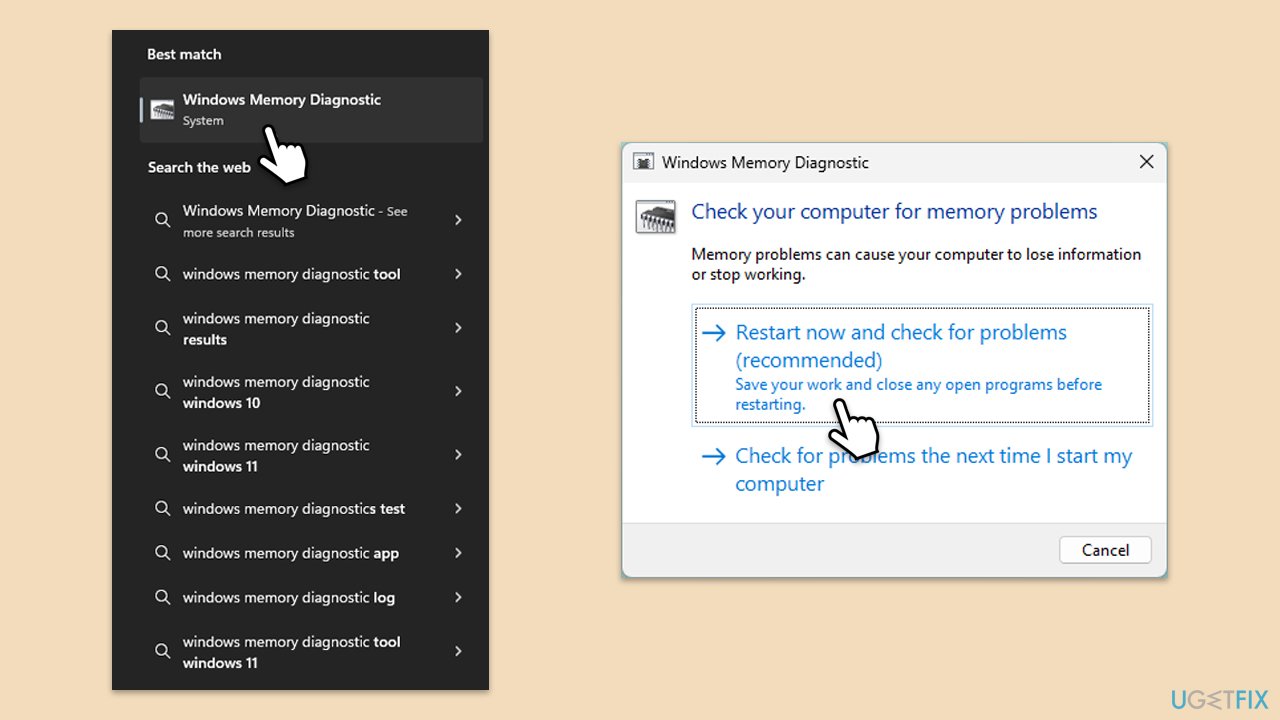
One of the common causes of the 0x00000050 BSOD error is faulty memory (RAM). Running a memory diagnostic can help detect if your RAM is the issue.
- Type Memory in Windows search and select Windows Memory Diagnostic result.
- Choose Restart now and check for problems.
- Let the tool run and complete the memory check.
- Review the results for any errors.
Method 2. Update or reinstall drivers
Outdated or corrupt drivers can lead to conflicts that cause the 0x00000050 BSOD error. Ensuring all drivers are up to date may resolve the issue.
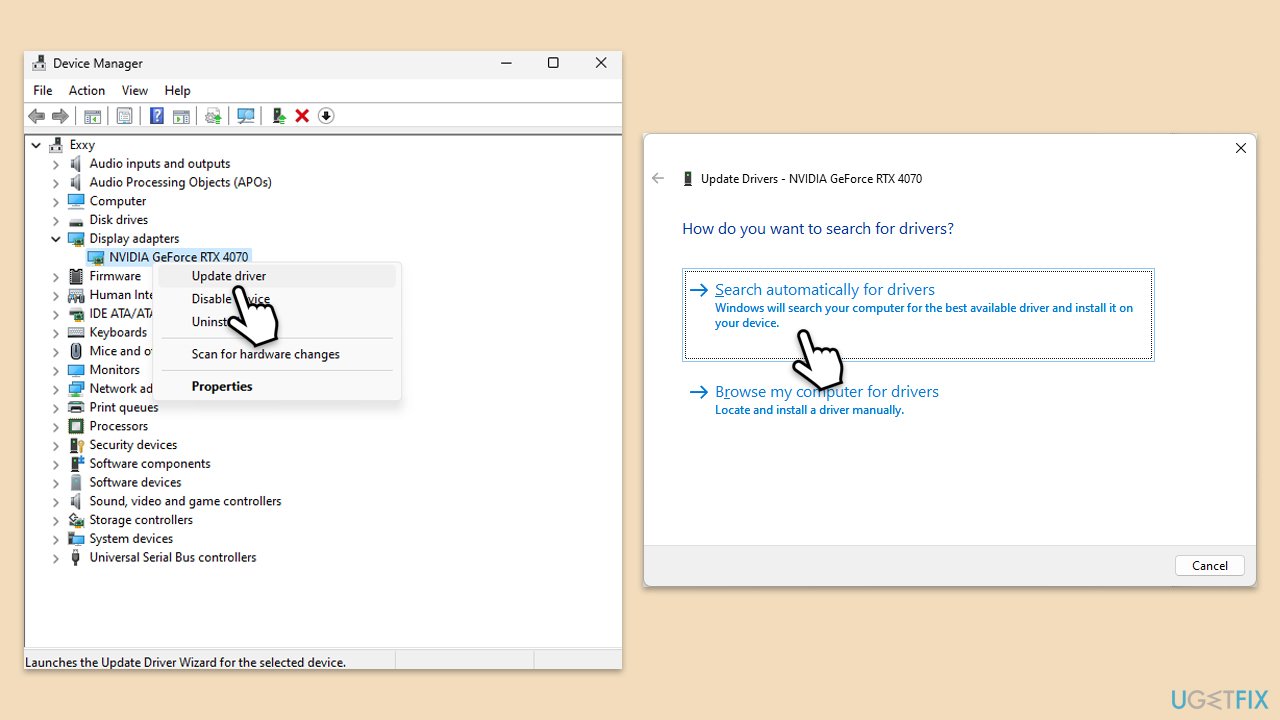
- Right-click on the Start button and select Device Manager from the menu.
- Expand the section you want to update, for example, the Display adapters section.
- Right-click on your device and select Update driver.
- Pick Search automatically for drivers.
- If updates are found, allow them to install.
- Repeat this for other devices, such as network adapters and chipset drivers.
- Restart your computer after updating all necessary drivers.
To update all drivers at once and save time, use automated tools like [rev id="DriverFix"].
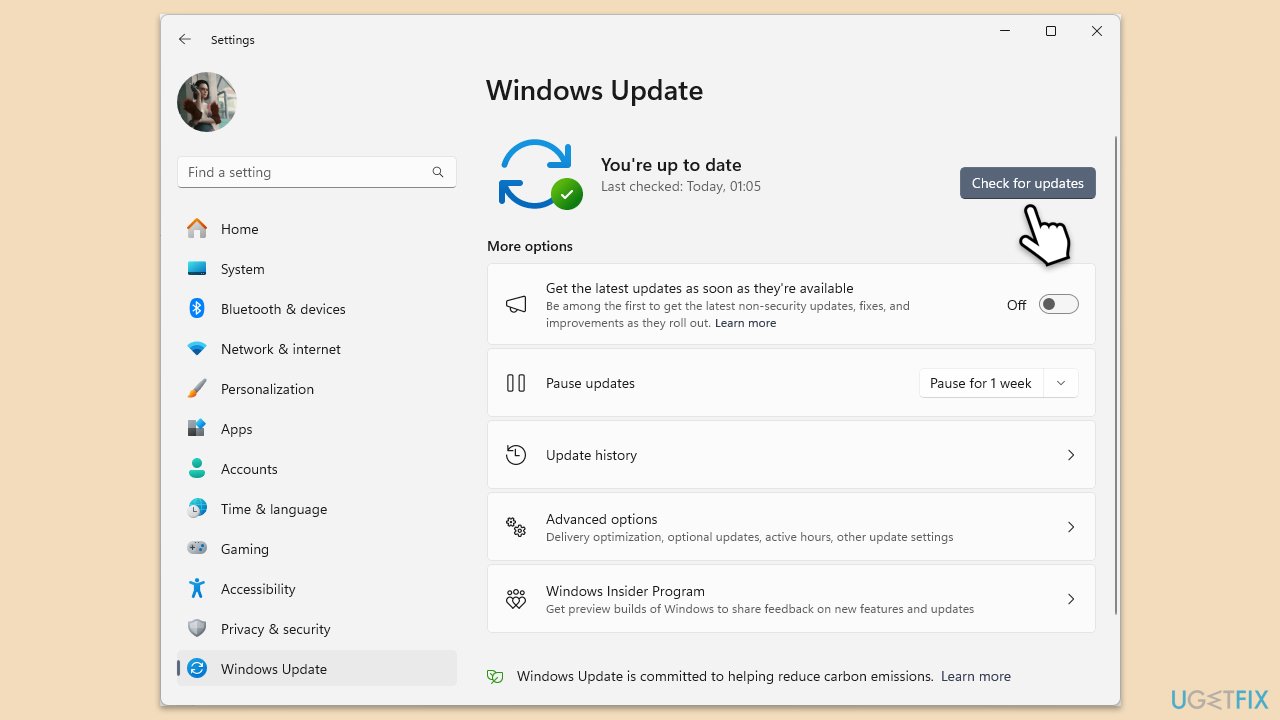
Method 3. Update Windows
- Type Updates and press Enter.
- In the new window, click Check for updates.
- Wait till all the files are downloaded and installed.
- If optional updates are available, install them as well.
- Restart your device when done.
Method 4. Run SFC and DISM
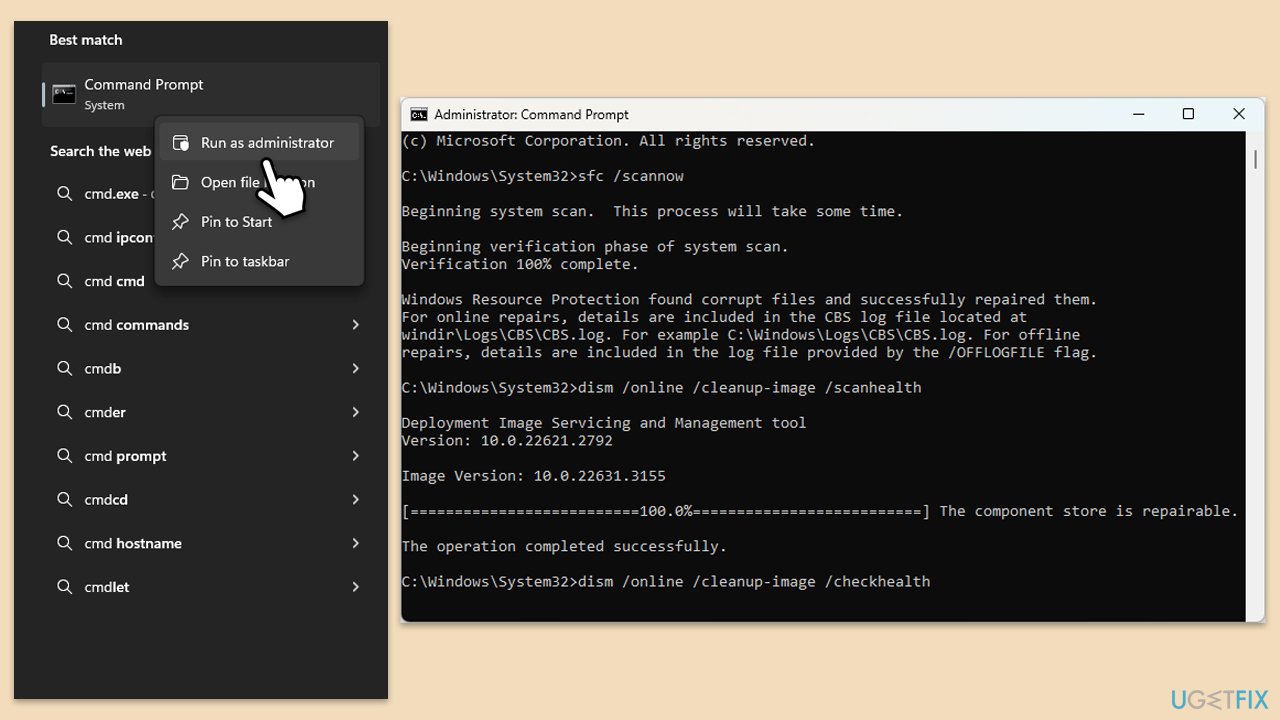
Corrupted system files can trigger BSOD errors like 0x00000050. To address this, follow these steps:
- Type cmd in Windows search.
- Right-click on Command Prompt and pick Run as administrator.
- User Account Control window will show up - click Yes when prompted.
- Then, copy and paste the following command, pressing Enter after:
sfc /scannow - Wait till the scan is finished. If Windows finds system file integrity violations, it will attempt to fix them. After this, use the set of the following commands, pressing Enter each time:
DISM /Online /Cleanup-Image /CheckHealth
DISM /Online /Cleanup-Image /ScanHealth
DISM /Online /Cleanup-Image /RestoreHealth - Close down the Command Prompt and restart your PC.
Method 5. Run Clean Boot
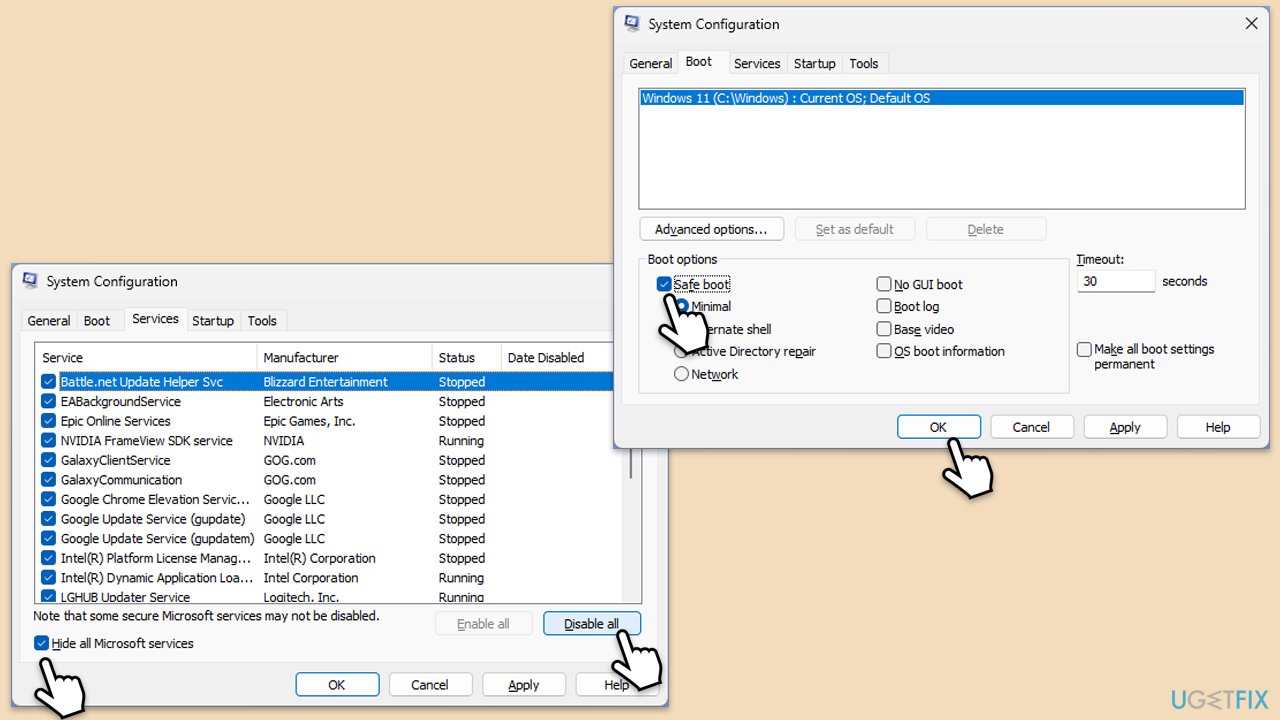
- Type msconfig in Windows search and press Enter.
- In the System Configuration window, go to the Services tab and check the box next to Hide all Microsoft services.
- Click Disable all to disable all non-Microsoft services.
- Go to the Startup tab and click Open Task Manager.
- In Task Manager, disable all startup items.
- Close Task Manager and click OK in the System Configuration window.
- Go to the Boot tab and select Safe Boot.
- Click OK, and restart your computer.
- To find out which app(s) is causing conflicts, enable each of the processes (or you can do it in groups), restart, and see if the problem persists. Repeat until you find the faulty app, then either update or uninstall it.
Method 6. Run a malware scan
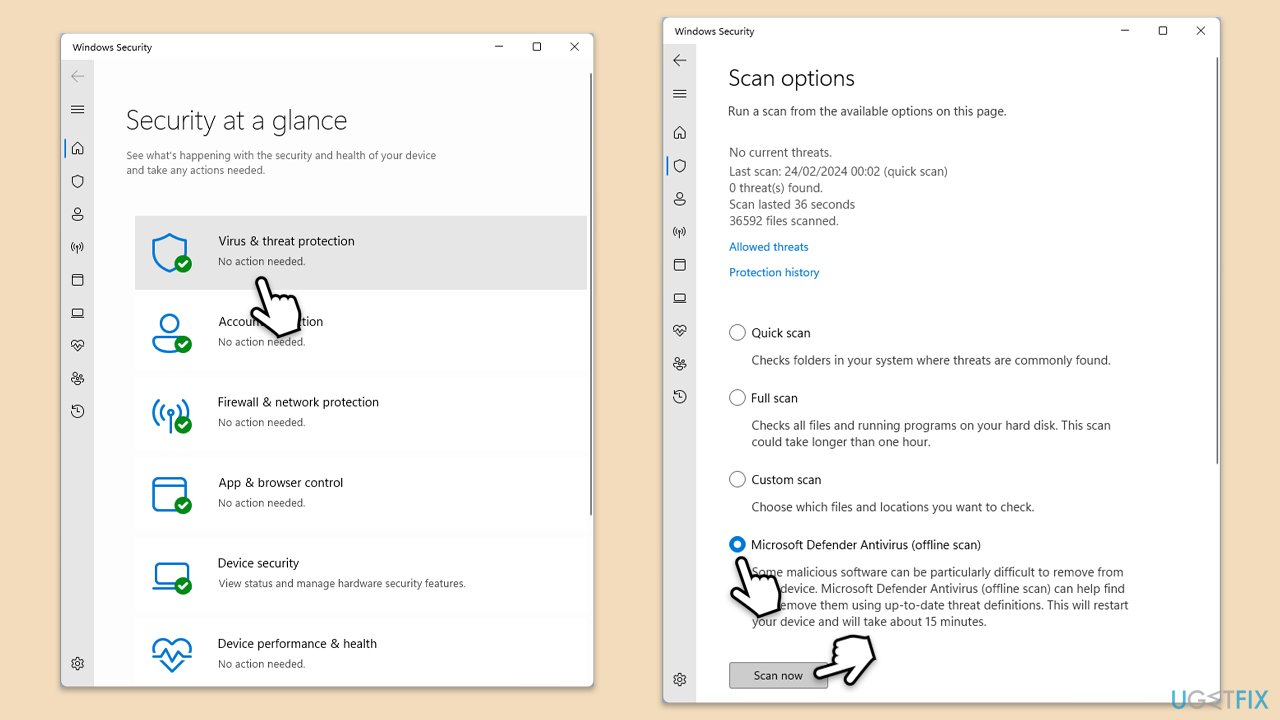
You can use Microsoft Safety Scanner or the built-in Microsoft Defender:
- Type Windows Security in the Windows search bar and hit Enter.
- Select Virus & threat protection.
- Pick Scan options.
- Choose Microsoft Defender Offline scan and click Scan now.
- Your computer will immediately reboot and begin a deep scan
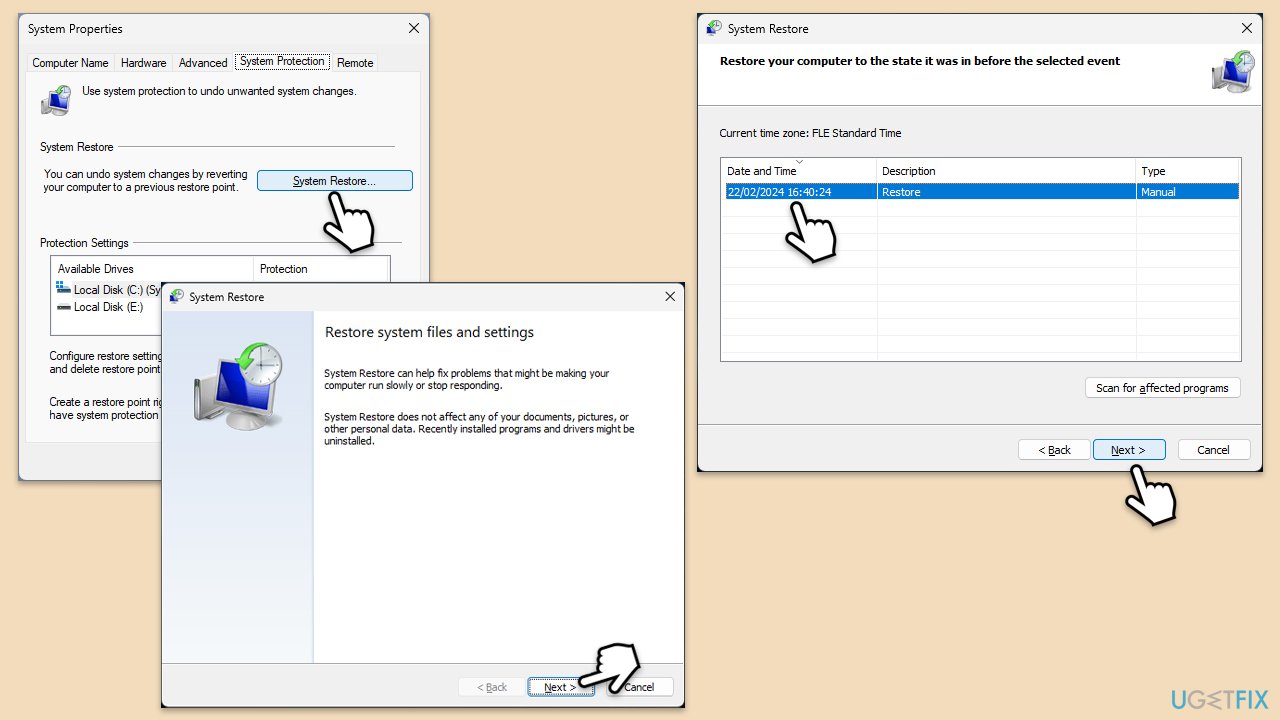
Method 7. Perform a system restore
If the 0x00000050 error started occurring after a recent system update or software installation, performing a system restore can revert your PC to a previous working state.
- Type in Create a restore point in Windows search and hit Enter.
- Go to System Restore and click Next.
- Mark the Show more restore points option (if available).
- Pick the time when the problem did not exist and click Next.
- Finalize the process - your device will restart.
Fix 8. Repair-install Windows
If none of the above works, you can always reinstall Windows.
Create Windows ISO
- Download Windows 11 Installation media from the official Microsoft website. [Windows 10 version]
- Double-click the MediaCreationTool.exe file to launch it.
- When UAC shows up, click Yes.
- Accept license terms.
- Select Language and Edition (make sure it matches the one you have currently installed) or simply mark the Use the recommended options for this PC and click Next).
- Select the ISO file and click Next.
- Pick the location for your ISO file and wait till all the needed files are downloaded, then click Finish.
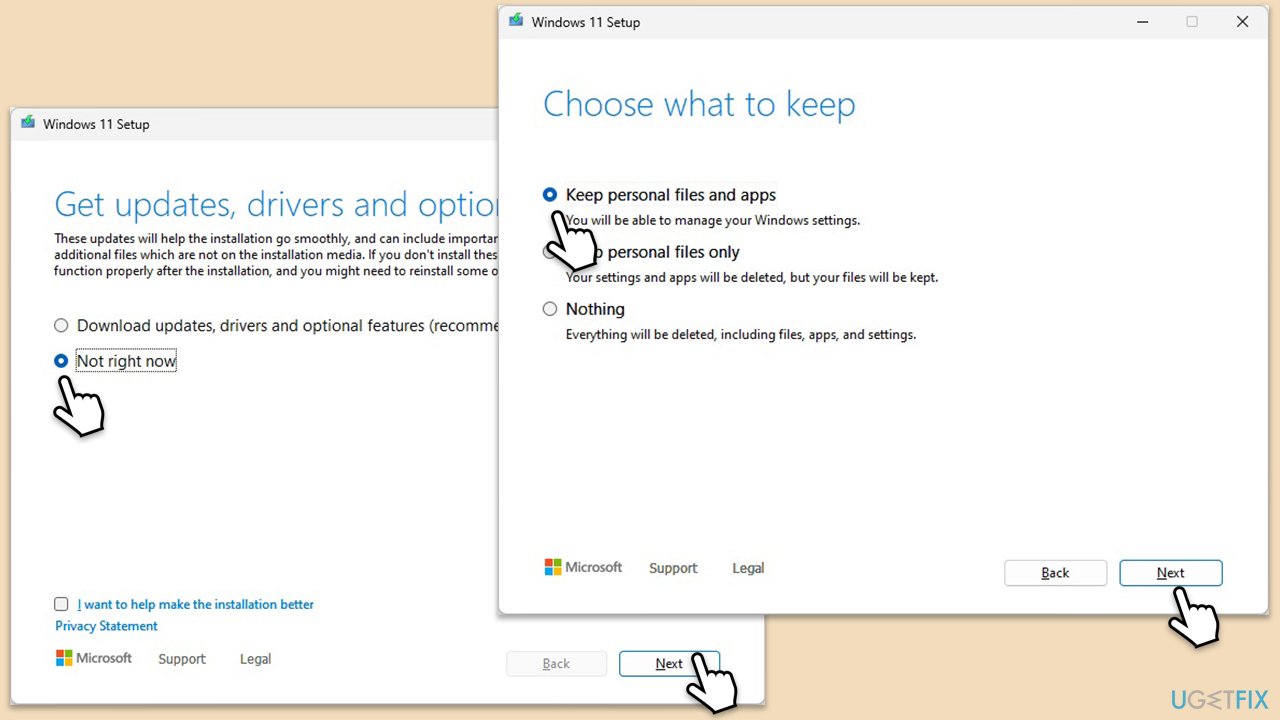
Repair-install Windows
- Mount your USB drive with Windows ISO in it.
- If you can't boot to Windows access BIOS and make it mount via the USB drive.
- Go to the location of your ISO file, right-click, and select Mount.
- Run the setup.exe file.
- You will be asked whether you want to update Windows to the latest version - pick Not right now and click Next.
- Accept Terms and Windows will make several checks to ensure everything is fine.
- Click Change what to keep.
- Here, you have several options: Keep your files and apps, Keep files only, or Keep nothing - choose what suits you the best. Click Next.
- Finally, click Install to begin the installation process.
Bottom line
To fix the 0x00000050 BSOD error, users can check their RAM for issues, run Windows tools like sfc /scannow to repair bad files, and ensure that drivers and programs are updated. If these solutions do not resolve the issue, users may need to explore system recovery options or use a trusted optimization tool.
Frequently asked questions
The 0x00000050 BSOD error is typically caused by faulty drivers, corrupted system files, or hardware issues such as RAM problems. It occurs when the system attempts to access a memory location that it shouldn't.
You can troubleshoot the 0x00000050 error on Windows 11 by running the Memory Diagnostic tool, updating your drivers, or performing a system restore to revert back to a stable state. Additionally, running the SFC and DISM commands can help repair corrupted system files.
Yes, uninstalling recently installed software can be a safe way to resolve the 0x00000050 error in Windows 10, especially if the error started occurring after a new installation. Make sure to also check for any software updates or patches that might fix compatibility issues.




Report an issue
What's wrong with this guide? We review every report and update or remove content.
Report received — thank you. We'll review and fix it.
You need a free account to submit a report.
Be the first to comment