How to fix
0x8007007B error code
on Windows
Resolve the 0x8007007B error in Windows 10 effortlessly. Follow our expert-tested solutions and fix it in minutes for seamless performance.

What causes How to fix 0x8007007B error code in Windows 10?
- Product key doesn't match the edition of Windows
- KMS client can't find KMS SRV resource records in DNS
- Issues with system files
- Security issues
- Activation wizard cannot connect to the Key Management Service
Repairs Windows system files, removes malware, and restores a clean OS state — without reinstalling.
I have a problem with the 0x8007007B error code because I tried to upgrade to Windows 10, and this message appeared: Error code 0x8007007B. The filename, directory name, or volume label syntax is incorrect. I thought that it was okay, and all did go smoothly. Can you offer any solution for this?
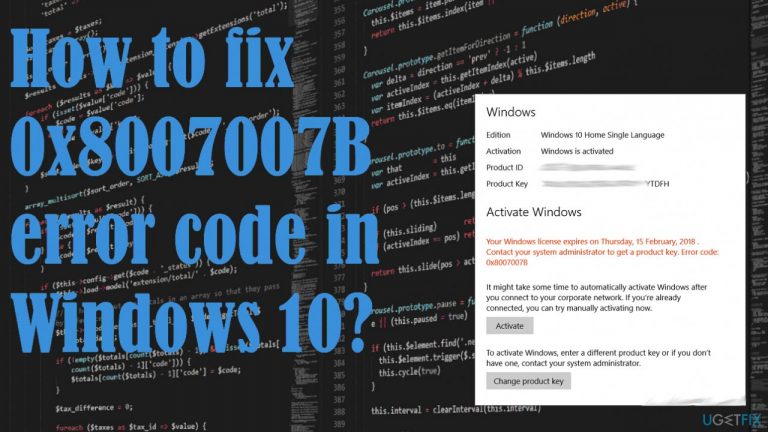
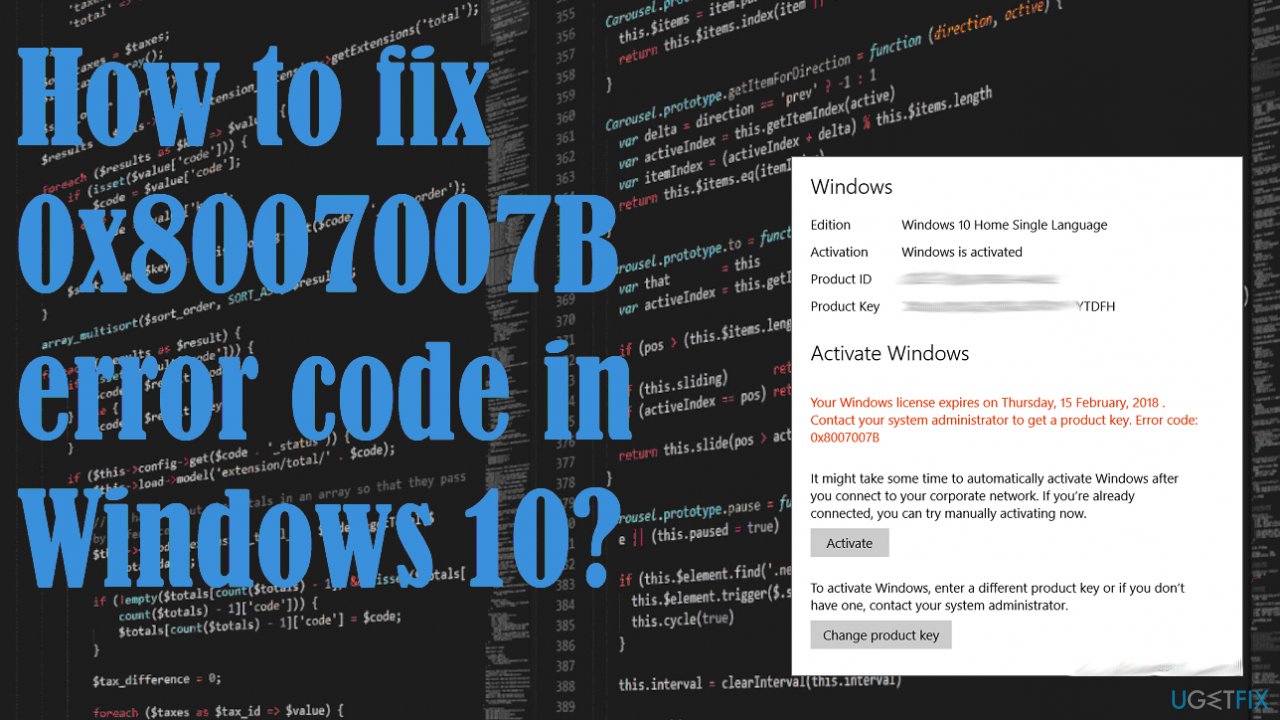
The 0x8007007B error code in Windows 10 typically appears during the installation process, but it can also be an issue with the activation of the Windows operating system.[ref en-1] There are various messages that come with this error code, including an indication of the incorrect value of syntax or directory names, filenames.
This error refers to issues with the Windows activation like other errors like activation error 0xC004F213, Windows activation error 0x80041023, or Activation Error 0x803F7001, and many others. The cause for a particular error on the machine can vary from the situation, but in many scenarios, it is due to the product key that doesn't match the edition of the Windows operating system.
Other causes of the issue are triggered when the KMS client can't find the KMS SRV resource records in the DNS. If none of the proper solutions help, you might need to contact the support for the activation help. Especially if you need help with the work computer.
You might encounter a particular issue during the Windows 10 activation or when trying to install the OS, but the reason why this 0x8007007B error code annoys people remains the same - the activation wizard cannot connect to the Key Management Service.[ref en-2]
The glitch is known, and it mainly happens with build 10240 versions of Windows. The activation error problem can be fixed by changing the product key to a MAK - Multiple Activation Key, but we also have listed a few additional methods. Especially when some issues with system files and even security issues[ref en-3] can be blamed for this problem.
It might be possible to fix the 0x8007007B error code in Windows 10 by ruining a tool like [d1] that checks file damage, affected system parts, issues in directories and data folders. This is a quick solution for various Windows OS problems, so it could be the first step while trying to solve this issue. Other fixes are more difficult, so follow the steps below closely.
Method 1. Activate Windows via PowerSHell
- Use Windows + X to get to the Quick Access Menu.
- Select Windows PowerShell (admin).
- Type wmic path SoftwareLicensingService get OA3xOriginalProductKey and press Enter.
- Then, the product key will be revealed.
- Copy it out to activate Windows.
Method 2. Use MAK instead of KMS
- Open Command Prompt with admin rights.
- You can type cmd in the search to find the tool.
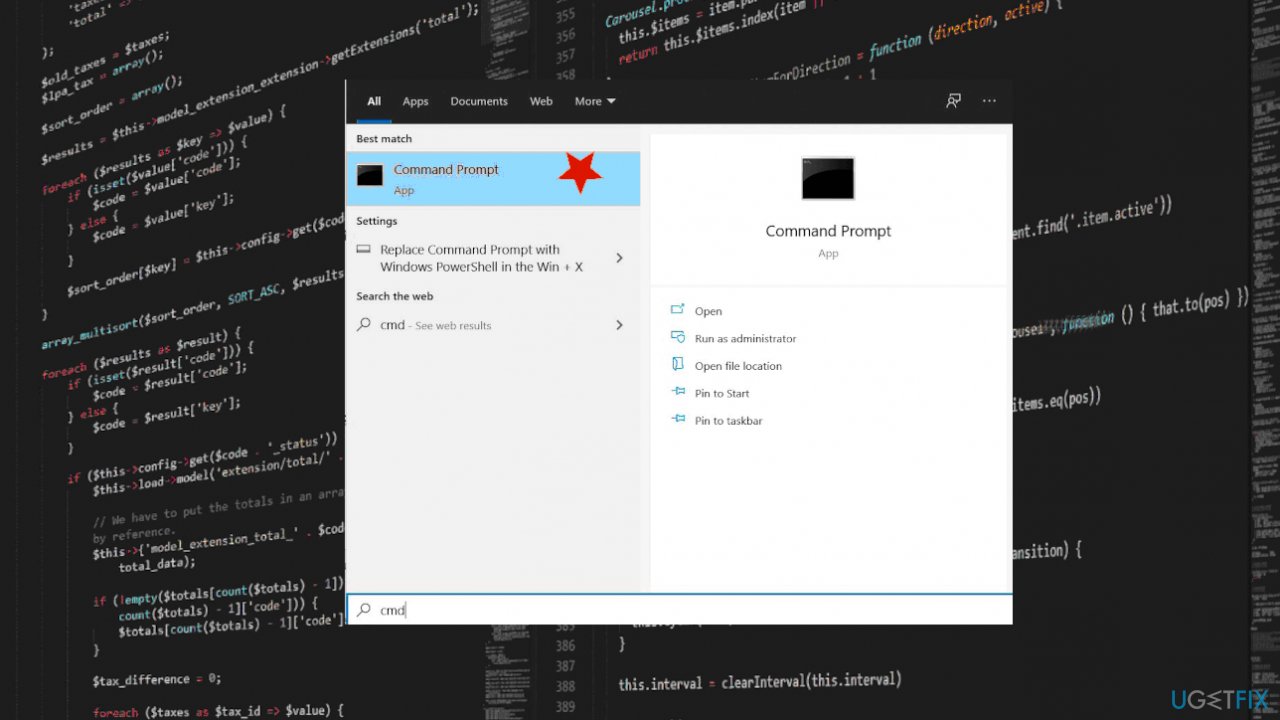
0x8007007b error code fix command - Type slmgr -ipk followed by your product key.
- Make sure that your license is valid, and don’t forget to use dashes every 5 characters to split the key into five sections.
- Hit Enter.
- You should be informed about the is\\nstall and activation then.
Method 3. Run SFC to fix 0x8007007B error code in Windows
- Open Command Prompt as administrator.
- Type the following command and press Enter:
sfc /scannow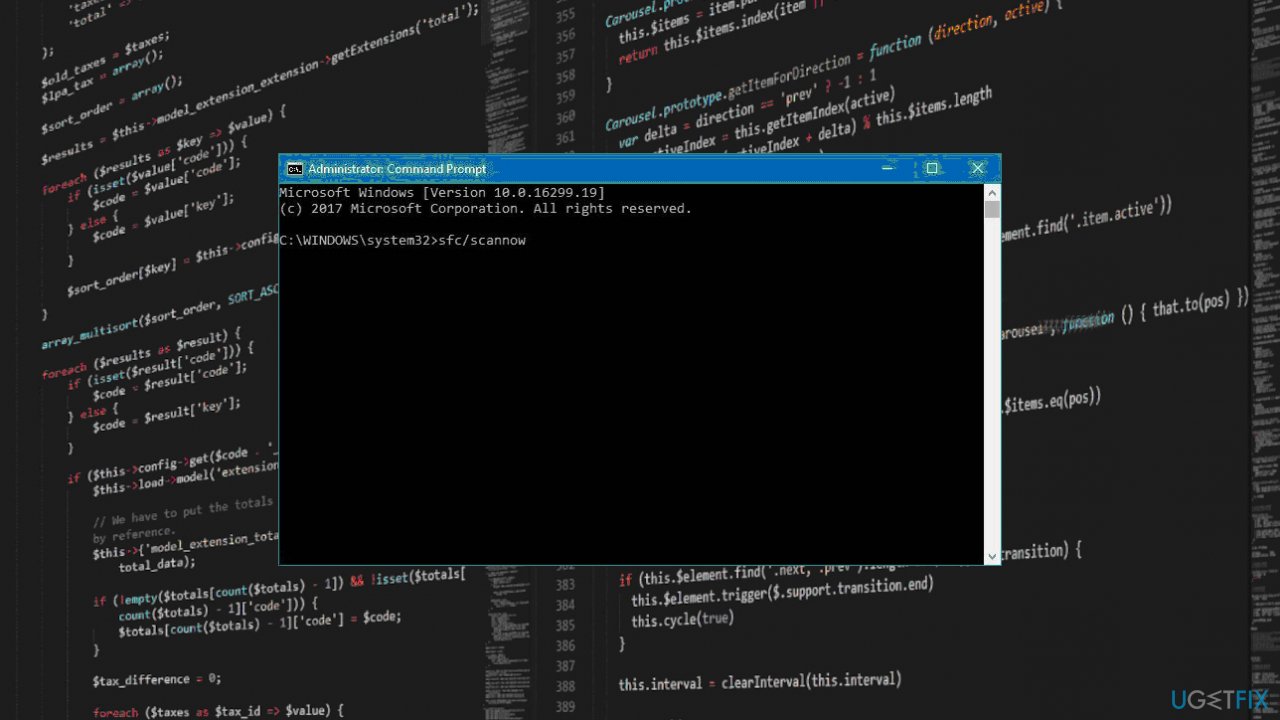
0x8007007b error code fix sfc - Wait till scanning finishes and possible fixes get applied automatically.
- Then restart your PC.
Method 4. Troubleshoot the activation
- Open Settings from the Start menu.
- Click Update & Security option.
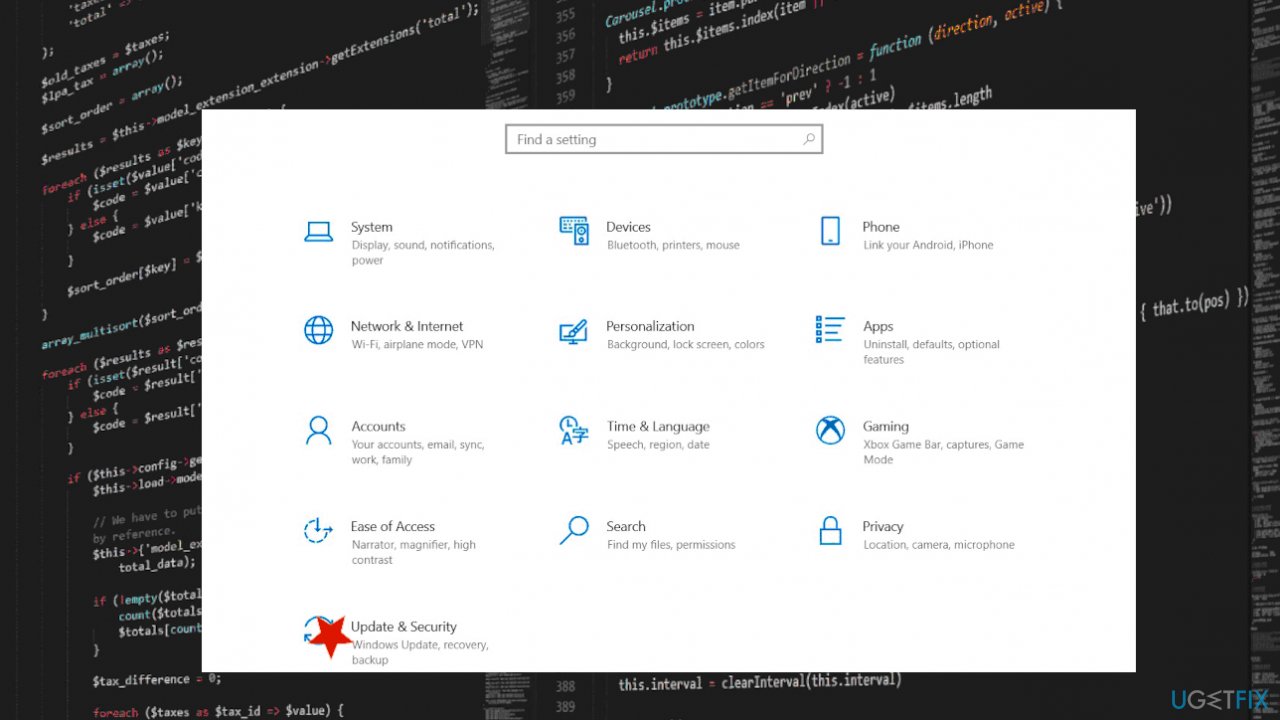
0x8007007b error code fix settings - Select Activation from the left menu.
- You should see several links you can click.
- Then choose Troubleshoot from options.
- Proceed with the on-screen wizard and apply the suggested fixes.
Bottom line
To fix the 0x8007007B error code in Windows 10, you can try changing the product key to a Multiple Activation Key (MAK) or using a tool to check for file damage and issues in directories. If none of these solutions work, consider contacting support for activation help.
Frequently asked questions
The 0x8007007B error code typically indicates that there is a problem with the file path or the format of the path specified in the system settings. This error can occur during updates or installations.
To resolve the 0x8007007B error during installation, ensure that the installation path is correct and does not contain any invalid characters. You can also try running the installation as an administrator.
Yes, resetting the Windows Update components can help fix the 0x8007007B error in Windows 11 by clearing any corrupted files that may be causing the issue. Use the Command Prompt to stop the update services and delete the temporary files.




Report an issue
What's wrong with this guide? We review every report and update or remove content.
Report received — thank you. We'll review and fix it.
You need a free account to submit a report.
Be the first to comment