
How to fix 0xc0000139 BSOD error in Windows?

Prefer to fix it yourself? The manual steps follow.
- 8methods
- 5 minutes to find the cause, 10 to 40 minutes for the fix
- Easy to medium
Applies to Windows 11, Windows 10, desktop programs, games, Python and developer tools, Windows start-up
8 methods in this guide
I got BSOD error 0xc0000139, which made my Windows laptop restart. That was very annoying because I was in the middle of something. Today, this repeated itself. I need some advice, because the code doesn't tell me anything, so I was wondering if you know and could help me.
0xc0000139 is Windows' code for Entry Point Not Found: a program asked a DLL for a function that this DLL does not contain, so Windows stopped it. It is usually one program, not the whole PC, and a true blue screen is the rare case. Read the program and DLL names in the message first.
0xc0000139 means a program could not find a function it needs inside a DLL, usually because the program and the DLL come from different versions. Read the two names in the message (Fix 1), then update or reinstall that program (Fix 2). In Python or your own code, find the wrong copy of the DLL (Fix 3). Only if Windows itself fails to start, use the recovery fixes (Fix 5 to 7).
| Error | 0xC0000139 STATUS_ENTRYPOINT_NOT_FOUND. Microsoft's text: "{Entry Point Not Found} The procedure entry point %hs could not be located in the dynamic link library %hs." The two %hs are filled with a function name and a DLL name. |
|---|---|
| Where it appears | Most often in a window titled Entry Point Not Found when you open a program or game. Also as "Windows fatal exception: code 0xc0000139" in Python, an exit code in PyCharm, a service failure in Event Viewer, and rarely as a start-up blue screen. |
| Main cause | A program and a DLL from different versions: an old DLL found first, a program built for a newer Windows, or a half-finished update or install. |
| Fastest fix | Read the function and DLL names in the message (Fix 1), then install the newest version of the program that shows it (Fix 2). |
| Also written as | 0xc0000139, c0000139, 0x0000139, 0000139, c0139, -1073741511 (signed) and 3221225785 (decimal). The site:learn.microsoft.com search finds the same entry in Microsoft's NTSTATUS list. |
| Not the same as | Stop code 0x139 KERNEL_SECURITY_CHECK_FAILURE, a different blue screen that Microsoft ties to drivers that damage kernel data structures. |
| Affects | Any Windows version, including Windows 11 and Windows 10. Windows 10 left support on 14 October 2025, so programs that need newer Windows functions fail on it more often. |
| Microsoft's status | No known-issue entry and no update that fixes this code as such. It is a general loader status, not a bug in one Windows release. |
| Time to fix | 5 minutes to read the names. 10 to 20 minutes to reinstall a program. 30 to 40 minutes for recovery repairs at start-up. |
Facts checked on 15 October 2026. Steps written for Windows 11 (25H2 and 26H2) and Windows 10 22H2.
What 0xc0000139 STATUS_ENTRYPOINT_NOT_FOUND means
Programs on Windows do not contain everything they need. They ask DLL files for ready-made functions, each by its name. Microsoft's NTSTATUS list names 0xC0000139 STATUS_ENTRYPOINT_NOT_FOUND and gives the message Windows builds from it: The procedure entry point %hs could not be located in the dynamic link library %hs.
In a real window the first %hs is the function the program asked for and the second is the DLL it looked in. So the message already tells you what is wrong: that DLL is a different version from the one the program was built for. The code itself is the same for every program, which is why searching only the code gives such mixed advice.
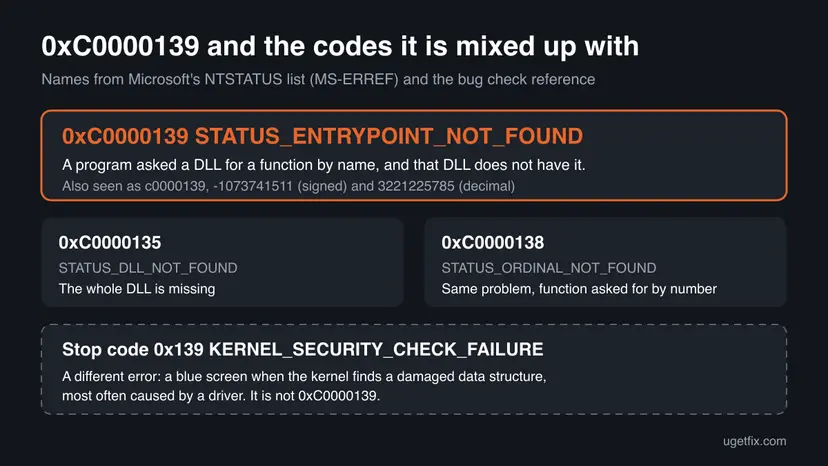
- Its neighbours:
0xC0000135STATUS_DLL_NOT_FOUNDmeans the whole DLL is missing, and0xC0000138STATUS_ORDINAL_NOT_FOUNDis the same problem as 0xc0000139 when a function is asked for by number instead of by name. - Stop code 0xc0000139: a blue screen with this status is rare. It can happen only when a program Windows needs to start, not an app you opened, hits the missing function. That points to mixed Windows files after a failed update or an infection.
- Stop code 0x139 or 0x0000139: that is
KERNEL_SECURITY_CHECK_FAILURE, a different bug check. Microsoft says it means the kernel found a damaged critical data structure, usually a driver's fault. The fixes on this page do not target it. - -1073741511 and 3221225785 are the same code written as a signed and an unsigned decimal number. Developer tools such as PyCharm print it this way.
The old version of this page called 0xc0000139 a BSOD. Microsoft's code list shows it is a program loading status, and most people meet it in a small window or a console line, not a blue screen. If your PC showed a blue screen, read the stop code on it: if it says 0x139 or KERNEL_SECURITY_CHECK_FAILURE, you have the driver error, not this one.
Why error 0xc0000139 happens
Microsoft does not rank the causes of this status, so the order below follows how the error is reported: mostly one program at launch, then developer tools, then Windows parts. Each cause leads to one fix.
| How often | Cause | Signs | Fix |
|---|---|---|---|
| Most often | The program and its own DLLs come from different versions, after a partial update or a copied folder. | One program or game fails with an Entry Point Not Found window; others work. | Fix 1, Fix 2 |
| Often | The program was built for a newer Windows and calls a function your Windows does not have. | The DLL in the message is a Windows file such as KERNEL32.dll; your Windows is old. | Fix 2 |
| Often (developers) | Another copy of the DLL is found first on PATH or in a Python environment. | "Windows fatal exception: code 0xc0000139" or exit code -1073741511 when a module loads. | Fix 3 |
| Less often | A shared runtime, Visual C++ or .NET, is damaged or too old. | Several programs fail, all naming MSVCP or VCRUNTIME DLLs. | Fix 4 |
| Rarely | Windows files are mixed after a failed update, a forced shutdown during an update, or malware. | Windows services fail to start, or the PC cannot reach the desktop. | Fix 5, 6, 7, 8 |
Many pages send you to a memory test and driver updates for this code. Microsoft's description of 0xC0000139 is about a function missing from a DLL, not about RAM or devices. Those checks belong to the stop code 0x139, a different error.
How to fix error 0xc0000139
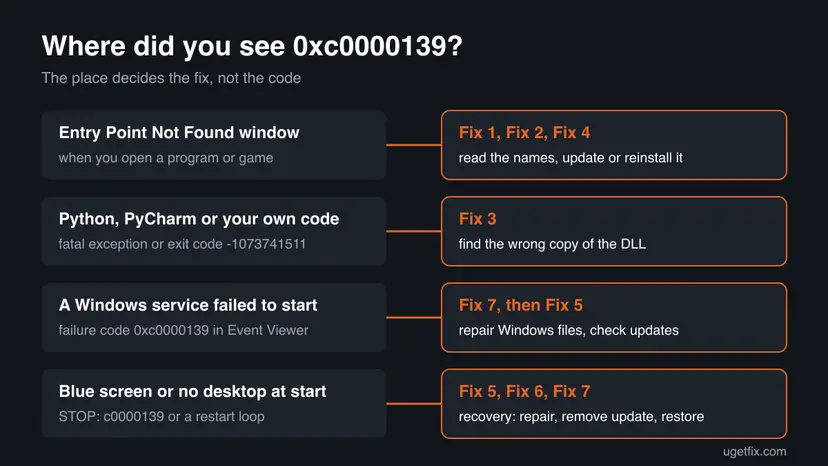
Fix 1 tells you which program and DLL are involved. Fixes 2 to 4 cover one program or one script, which is most cases. Fixes 5 to 8 are for Windows parts or a PC that cannot start.
| What you see or have | Start with |
|---|---|
| An Entry Point Not Found window when you open a program or game | Fix 1, then Fix 2 |
| "Windows fatal exception: code 0xc0000139" in Python, or exit code -1073741511 in PyCharm | Fix 3 |
| Several programs fail and the message names a Visual C++ DLL | Fix 4 |
| Windows does not reach the desktop, or restarts with c0000139 | Fix 5, then Fix 6 |
| A Windows or Defender service "failed to start" with failure code 0xc0000139 | Fix 7, then Fix 5 |
| The DLL in the message is a Windows file you never changed and an unknown program uses it | Fix 8 |
Fix 1. Read the function and DLL names in the 0xc0000139 message
5 minutesNo riskEveryone. The names decide which fix you need.
The code is the same for every program, but the message holds three facts the code does not: the program that failed (title bar), the function it wanted and the DLL it looked in. With those, you know whose files do not match.
- Read the title bar of the window, for example
game.exe - Entry Point Not Found. That is the program that failed. - Copy the function name after The procedure entry point and the DLL name after dynamic link library. Select the window and press Ctrl + C to copy all its text.
- If no window appeared, press Win + R, type
perfmon /reland select OK to open Reliability Monitor. - Select a red cross on the day of the error, then View technical details. Look for the exception code
c0000139and the program path. - Press Win + R, type
winverand select OK. Write down the Windows version and build.
| The DLL in the message | What it tells you | Go to |
|---|---|---|
| A file in the program's own folder | The program's files are from two different versions | Fix 2 |
A Windows file such as KERNEL32.dll or USER32.dll | The program needs a newer Windows, or Windows files are mixed | Fix 2, then Fix 7 |
MSVCP140.dll, VCRUNTIME140.dll or similar | A Visual C++ runtime is too old or damaged | Fix 4 |
| A DLL inside a Python or developer folder | A wrong copy is found first | Fix 3 |
It worked if: You know the program, the function, the DLL and your Windows build.
If not: If you only have a blue screen and no names, go to Fix 5.
Fix 2. Install the newest version of the program that shows the error
10 to 20 minutesLow riskOne program or game fails with the Entry Point Not Found window.
A program and its DLLs must come from the same release. A clean install from the maker puts matching files back. If the program needs a newer Windows than yours, its maker's requirements say so, and only a Windows update or an older program version will help.
- Open the maker's website, or the store or launcher you got the program from.
- Check its system requirements against the Windows version you noted in Fix 1.
- Download the newest version and install it over the old one.
- If it still fails, open Settings > Apps > Installed apps, select ... next to the program and select Uninstall.
- Restart the PC, install the program again and start it.
For a game from Steam or another launcher, let the launcher check its files first: How to verify game files in Steam, Epic Games, Xbox app, EA app, Battle.net and GOG Galaxy. For a full uninstall step by step: Uninstall a program or app in Windows.
Copying a loose DLL into the program folder is how many 0xc0000139 cases start: the copy is from another version. Get files only from the program's own installer. Back up save games or projects stored in the program folder before an uninstall.
It worked if: The program opens without the window.
If not: If the DLL is a Visual C++ file, go to Fix 4. If it is a Windows file and your Windows is current, go to Fix 7.
Fix 3. Find the wrong DLL copy behind "Windows fatal exception: code 0xc0000139"
15 to 30 minutesLow riskYou see "Windows fatal exception: code 0xc0000139" in Python, or "Process finished with exit code -1073741511 (0xC0000139)" in PyCharm or another IDE.
Python's faulthandler module prints the traceback when a process hits a fatal fault. Here the fault is a native module loading a DLL that lacks a function it needs, almost always because another version of that DLL sits earlier on the search path. Users report it often with Qt and with compiled packages from different versions.
- Read the Python traceback printed under the fatal exception line. The last
importline names the module that failed to load. - Run the import alone in the same environment, for example
python -c "import yourmodule", to confirm it is that module. - Run
where yourlib.dllin Command Prompt with the DLL name from the module's folder. Every path it prints is a copy Windows can find. - If an older copy appears in a folder on
PATH, remove that folder from Path in Environment Variables or rename the old copy for a test. - Create a fresh environment with
python -m venv .venv, activate it and install the packages again with matching versions. - For your own C or C++ program, rebuild it and copy the DLLs from the same build or SDK next to the
.exe.
Two forms of the same error
Windows fatal exception: code 0xc0000139
Process finished with exit code -1073741511 (0xC0000139)The same code in an "Exception processing message" window comes from the same cause in a desktop app. Read the program path and treat it like Fix 2.
It worked if: The import works and the script runs without the fatal exception.
If not: If only the system Python fails, reinstall Python from python.org or the Microsoft Store, then go to Fix 4 for the runtimes.
Fix 4. Repair the Visual C++ and .NET runtimes
15 minutesLow riskThe message names an MSVCP, VCRUNTIME or .NET DLL, or several programs fail.
Many programs share the Visual C++ runtime. A program built with a newer runtime calls functions that an older runtime does not have, which is exactly the Entry Point Not Found case. Installing the current runtime adds them.
- Open Programs and Features. Type control panel in the search box on the taskbar and select Control Panel. Select Programs > Programs and Features.
- Find the installed versions. Look for the entries that start with Microsoft Visual C++. Each one shows a year and an architecture, x64 or x86. Several entries side by side are normal: older versions stay installed next to newer ones.
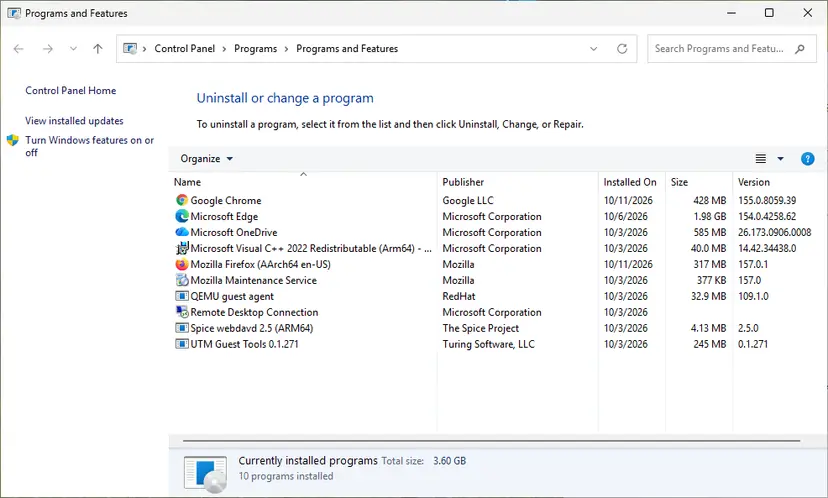
Each Visual C++ version is its own entry in Programs and Features. Screenshot: Windows 11 26H2. - Repair each Visual C++ entry. Right-click an entry and select Change, then select Repair in the window that opens. Do the same for every Microsoft Visual C++ entry.
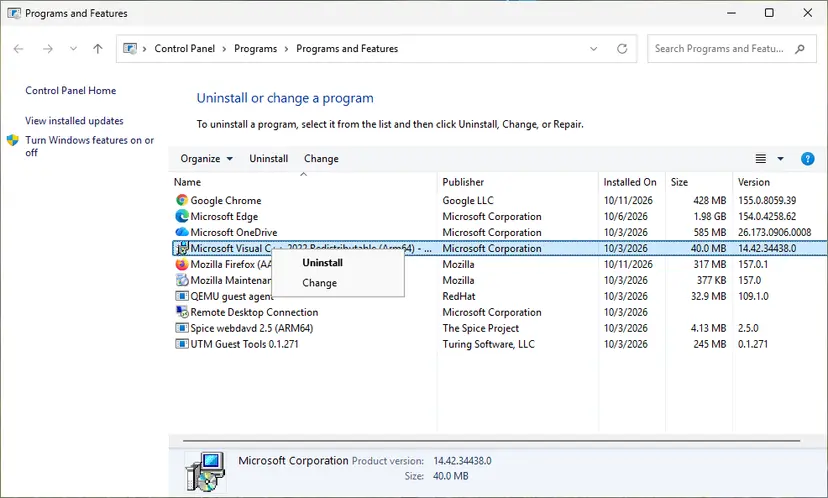
Right-click the entry and select Change to reach the repair option. Screenshot: Windows 11 26H2. - Install the latest supported version. Download the latest Visual C++ v14 Redistributable from Microsoft: Visual C++ Redistributable latest supported downloads and run it. On a 64-bit PC install both X64 and X86, because 32-bit programs need the x86 package. On an ARM64 PC install ARM64. This one version serves programs built with Visual Studio 2017 to 2026.
- Run the .NET Framework Repair Tool. Download the Microsoft .NET Framework Repair Tool and run NetFxRepairTool.exe. The wizard looks for setup problems, asks for your consent before it applies fixes, then repairs the installed .NET Framework versions. The tool is in English only.
- Turn on .NET Framework 3.5 if a program asks for it. Select Start, search for Windows Features and open it. In Turn Windows features on or off, select the .NET Framework 3.5 (includes .NET 2.0 and 3.0) check box and select OK. Windows downloads the files, so stay online.
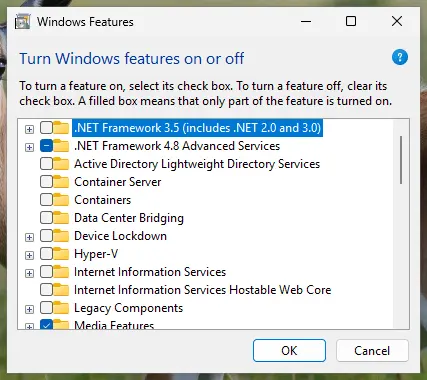
.NET Framework 3.5 is turned on in Windows Features. Screenshot: Windows 11 26H2. - Restart and test. Restart the PC and start the program that showed the error.
These steps were written for Windows 11 25H2 and 26H2, Windows 10 22H2. The full page with the other versions and what each result means: How to repair Microsoft Visual C++ Redistributable and .NET Framework
Install both x64 and x86 packages on a 64-bit PC, because 32-bit programs use the x86 runtime. More on the Visual C++ files: vcruntime140_1.dll is missing.
It worked if: The repair reports success, and after a restart the program starts.
If not: If the program still fails, go back to Fix 2 for a clean reinstall, or Fix 7 if Windows DLLs are named.
Fix 5. Repair start-up and remove the latest update from Windows recovery
20 to 30 minutesRead the warningWindows restarts or shows a blue screen before the desktop, or 0xc0000139 began right after a Windows update.
A start-up failure with this status means a Windows program needed at boot found mismatched system DLLs. That happens when an update was cut off half way. Startup Repair fixes start-up files, and removing the last update puts the previous matching files back.
- Open the recovery environment. After repeated failed starts Windows opens it by itself (Automatic Repair: select Advanced options). If Windows still starts, open Settings > System > Recovery and select Restart now next to Advanced startup. From the sign-in screen, hold Shift and select Power > Restart.
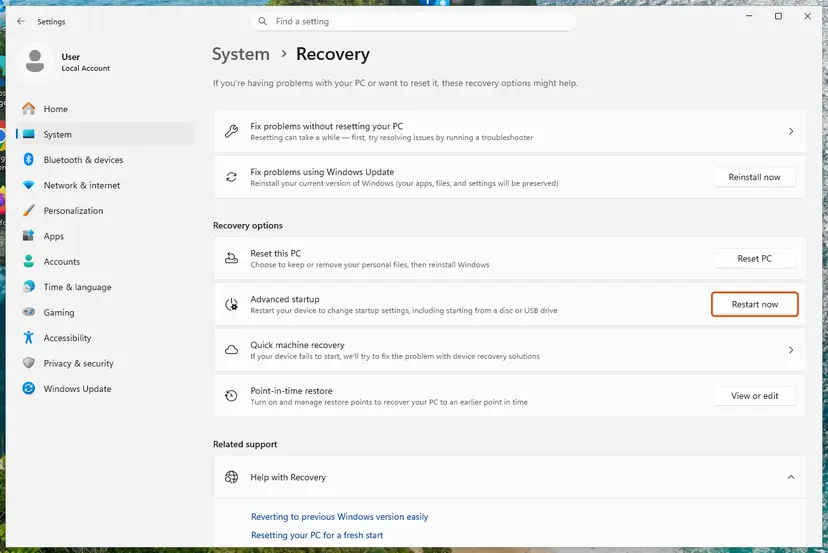
From a working desktop, Advanced startup opens the recovery environment. Screenshot: Windows 11 26H2. - Select Troubleshoot. On Choose an option, select Troubleshoot.
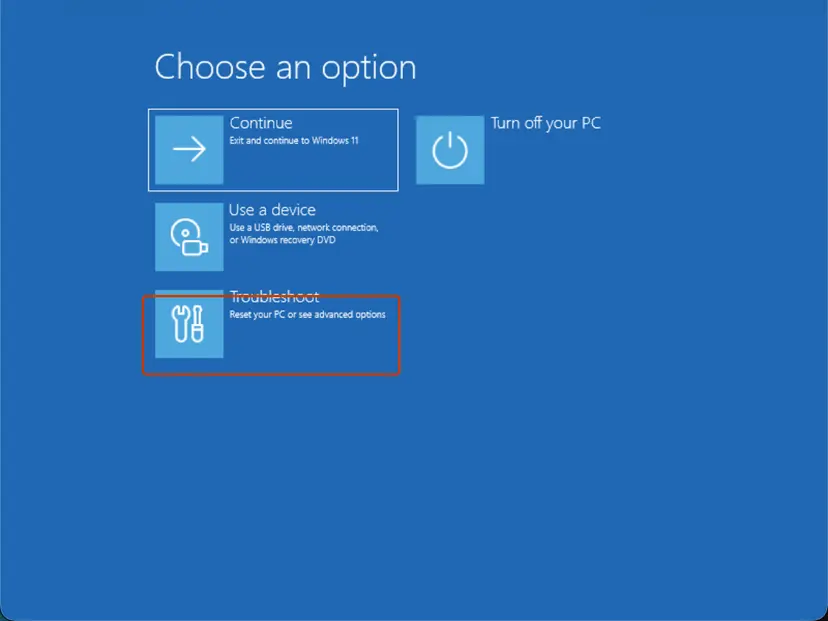
Choose an option: Troubleshoot. Screenshot: Windows 11 26H2. - Open Advanced options. Select Advanced options.
- Start the repair. Select Quick machine recovery (or Startup Repair on older versions).
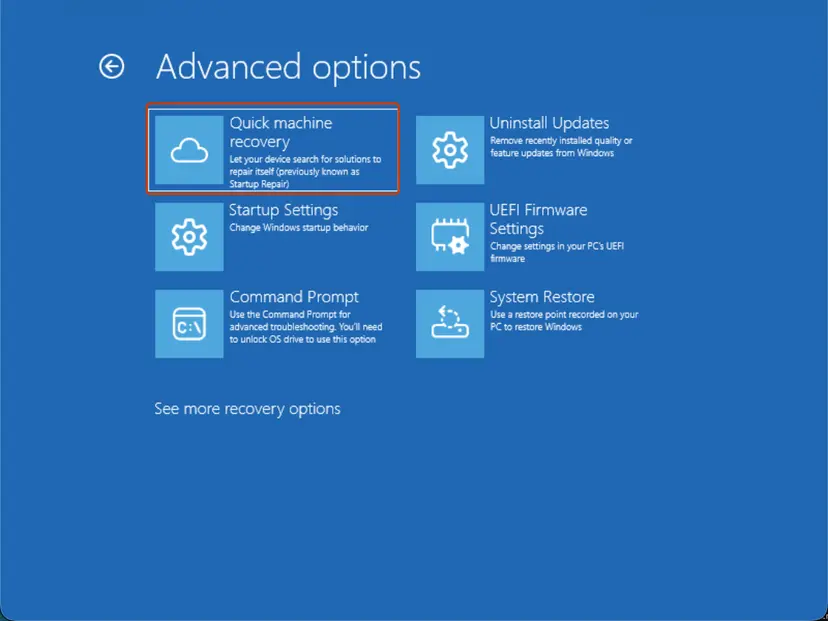
Quick machine recovery is the former Startup Repair tile. Screenshot: Windows 11 26H2. - Sign in if asked. Choose an administrator account and type its password. If Windows asks for the BitLocker recovery key, enter it.
- Wait for the result. The check can take a while. If it fixes the problem, the PC restarts into Windows. If it cannot, it says so and shows where its log file is; select Advanced options and continue below.
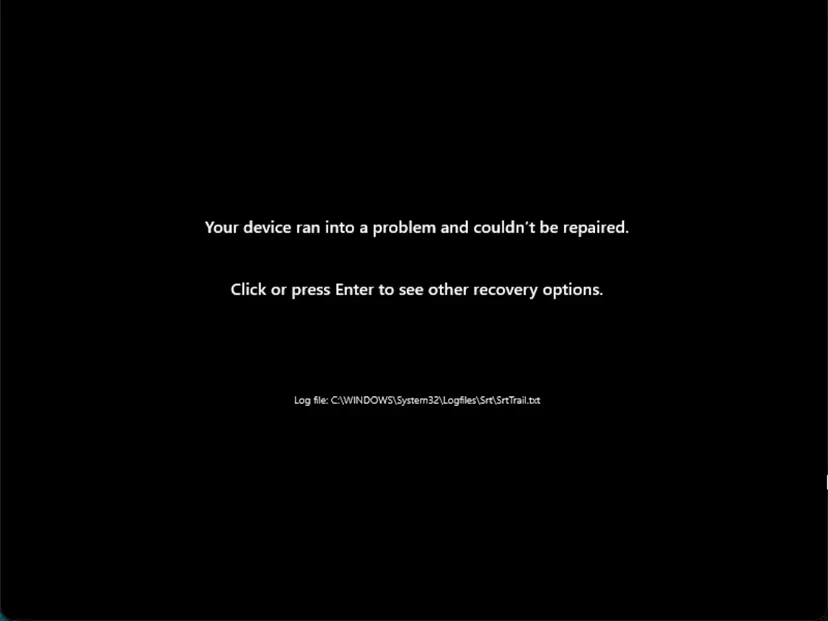
This message means the repair found nothing it could fix. Screenshot: Windows 11 26H2.
These steps were written for Windows 11 and Windows 10, from the Windows Recovery Environment. The full page with the other versions and what each result means: Run Startup Repair
Removing an update also removes its security fixes until Windows installs it again. Your files stay. Let Windows Update install it again once the PC starts normally.
If Startup Repair cannot fix it, in the same Advanced options select Uninstall Updates and remove the latest quality update first: How to uninstall a Windows update.
It worked if: Windows reaches the desktop without the error.
If not: If it still fails to start, go to Fix 6.
Fix 6. Return Windows to a restore point from before the error
20 to 40 minutesLow riskThe error began after an install or update and you have a restore point from before.
System Restore puts back system files, drivers and settings as they were at the restore point, so a DLL that an install replaced returns to its earlier version. Your documents are not changed.
- Open System Restore. Press Windows+R, type the command below and press Enter. You can also open Control Panel > Recovery > Open System Restore. If a first page opens, select Next.
rstrui.exe - Choose a restore point. Select a restore point from a time before the problem started. The Description often names the event, such as a driver or app install. If the one you need is missing, select Show more restore points (shown only when there are more).
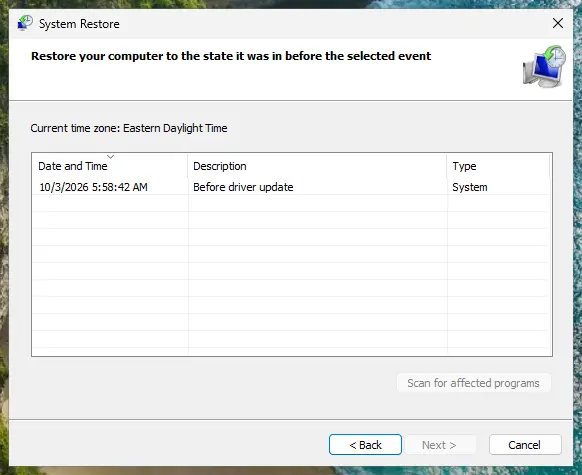
Pick a restore point from before the problem started. Screenshot: Windows 11 26H2. - See what will change. Select Scan for affected programs. The upper list shows programs and drivers that will be removed; the lower list shows those that might come back and may need to be reinstalled. Select Close.
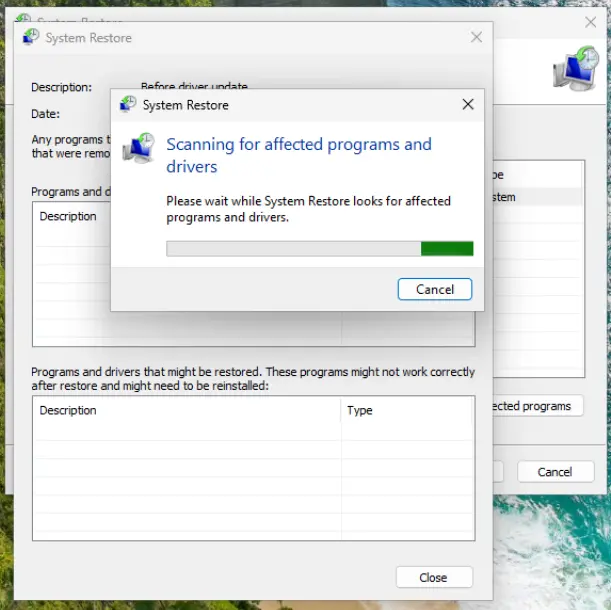
The scan lists programs and drivers the restore removes or brings back. Screenshot: Windows 11 26H2. - Start the restore. Select Next, check the summary and select Finish. Windows restarts and applies the restore point. Do not turn the PC off.
- Check the result. After sign-in Windows reports whether the restore succeeded. Check whether the problem is gone.
These steps were written for Windows 11 and Windows 10 (the steps are the same). The full page with the other versions and what each result means: Undo recent changes with System Restore
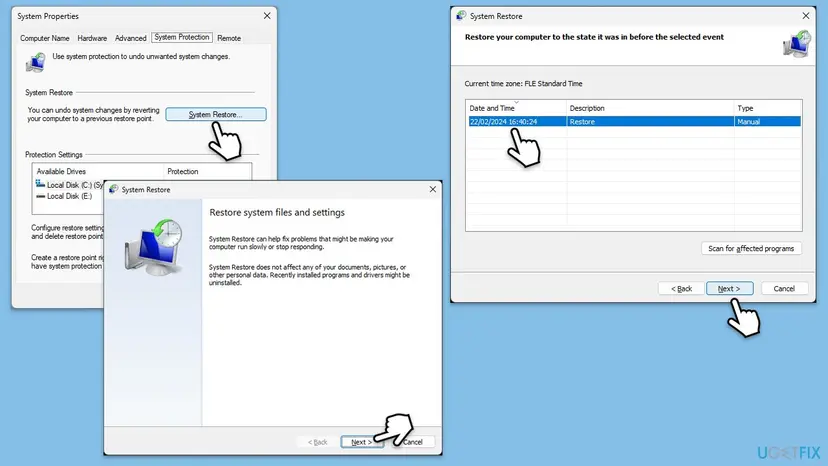
If Windows does not start, open System Restore from Advanced options in recovery instead: Undo recent changes with System Restore.
It worked if: Windows restarts, says the restore was successful, and the error is gone.
If not: Programs installed after the restore point must be installed again. If no restore point exists, go to Fix 7.
Fix 7. Repair Windows system files with DISM and SFC
20 to 30 minutesNo riskThe message names a Windows DLL, a Windows or Defender service fails with failure code 0xc0000139, or nothing above helped.
If Windows DLLs come from different builds, every program that uses them can hit a missing entry point. DISM repairs the Windows image, and SFC then replaces damaged system files with matching ones from it.
- Open an elevated command window. Right-click Start and select Terminal (Admin), or type cmd in the search box, right-click Command Prompt and select Run as administrator. Select Yes when Windows asks for permission.

Search for cmd and choose Run as administrator. Screenshot: Windows 11 26H2. - Run DISM first. Type the command below and press Enter. DISM downloads clean copies of damaged components from Windows Update, so it can take several minutes. Wait until it says The operation completed successfully.
DISM.exe /Online /Cleanup-Image /RestoreHealth
DISM /RestoreHealth running. Screenshot: Windows 11 26H2. - Run System File Checker. In the same window, type the command below and press Enter. Do not close the window until the verification reaches 100%.
sfc /scannow
sfc /scannow at 100%. Screenshot: Windows 11 26H2. - Read the result and restart. Compare the last message with the table below this guide, then restart the PC so that repaired files are loaded.

The result line tells you what SFC did. Screenshot: Windows 11 26H2.
These steps were written for Windows 11 24H2 and 25H2. The full page with the other versions and what each result means: Run DISM and SFC to repair Windows system files
When Windows does not start, the same check can run from recovery: Run DISM and SFC to repair Windows system files. After the repair, install all updates in Settings > Windows Update, so services such as Defender get files that match your build.
It worked if: SFC reports that it repaired files or found no integrity violations, and the service or program starts after a restart.
If not: If SFC cannot repair some files, run DISM again with an internet connection, then go to Fix 8.
Fix 8. Scan for malware that replaced a system DLL
15 minutes for the offline scanLow riskWindows DLLs keep getting damaged, or an unknown program in a Temp or AppData folder shows the error.
Malware that replaces or hooks a system DLL can leave a file that lacks functions Windows programs need. The Microsoft Defender offline scan runs before Windows loads, so such a file cannot hide.
- Open Windows Security. Select Start, type Windows Security and open the app.
- Open Virus & threat protection. Select Virus & threat protection. Under Current threats you see when the last scan ran, how long it took and how many files it checked.
- Run a quick scan. Select Quick scan. If Windows Security thinks a deeper scan is needed, it tells you when the quick scan is done.
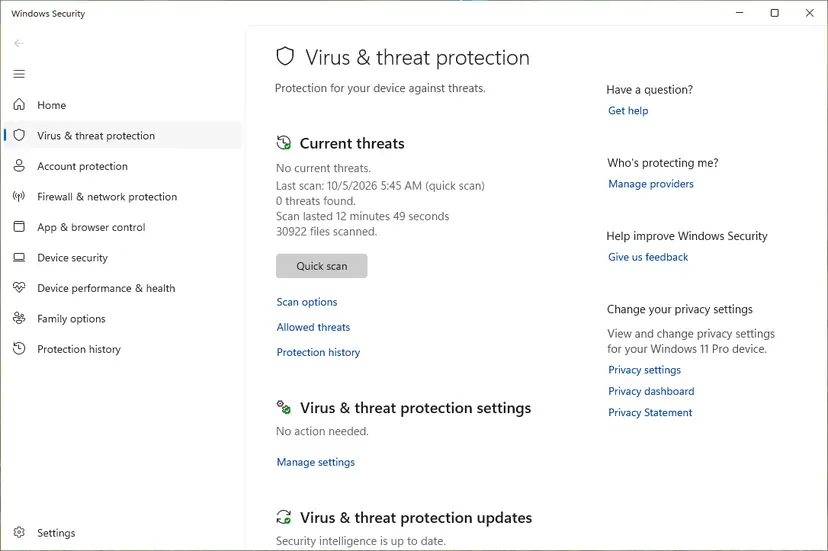
Quick scan and Scan options sit under Current threats. Screenshot: Windows 11 26H2. - Open Scan options. If the quick scan finds nothing and you still suspect an infection, select Scan options under Current threats.
- Run a full scan. Select Full scan and start it. It checks every file and program on the device, so it takes much longer than a quick scan. Leave the PC on until it ends.
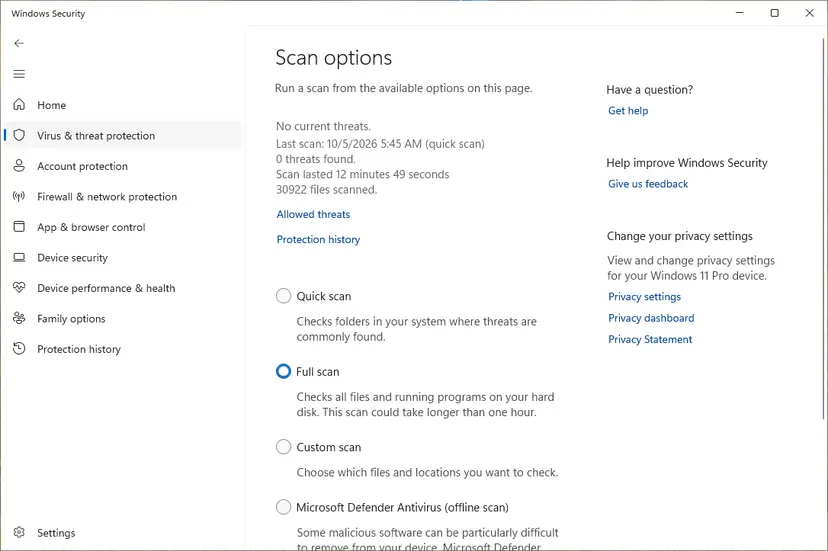
Scan options: Quick scan, Full scan, Custom scan and the offline scan. Screenshot: Windows 11 26H2. - Or scan one folder. To check only a download or a USB drive, select Custom scan in Scan options and choose the folder. You can also right-click a file or folder in File Explorer and select Scan with Microsoft Defender. On Windows 11 you may have to select Show more options first.
- Read Protection history. Go back to the first page of Windows Security and select Protection history. Select a card to expand it and see the details.
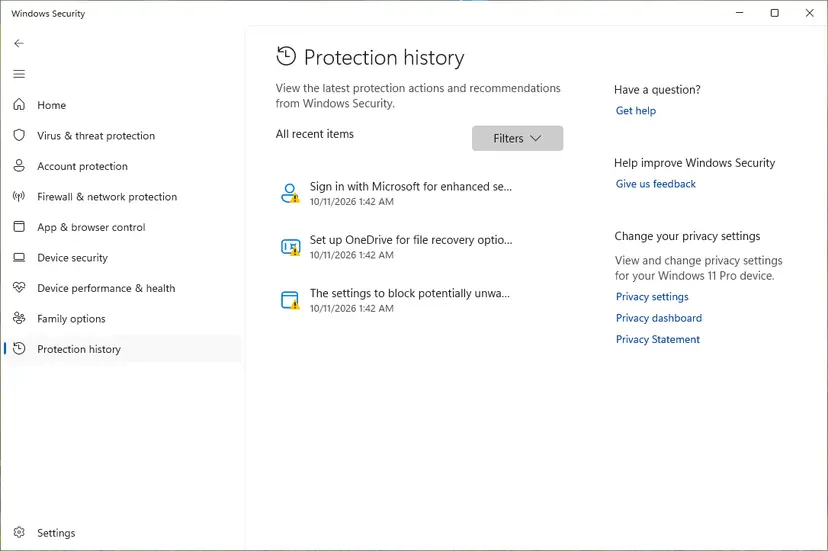
Protection history lists what Defender found and did. Screenshot: Windows 11 26H2.
These steps were written for Windows 11 25H2 and 26H2, Windows 10 22H2. The full page with the other versions and what each result means: How to scan for malware with Microsoft Defender
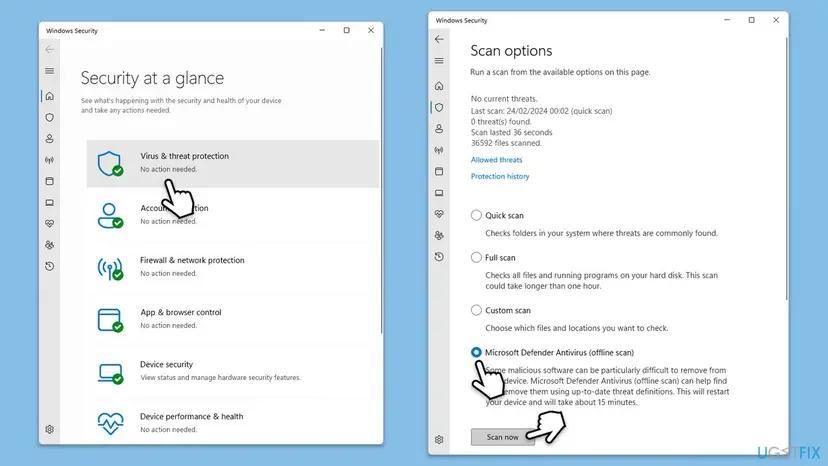
It worked if: The scan ends with no threats, or removes them. Run Fix 7 again after a removal.
If not: Read "If error 0xc0000139 still appears" below.
If error 0xc0000139 still appears
When one program still fails after a clean reinstall, the mismatch is in that program's own build, and only its maker can fix it. Send them the facts, not just the code.
- Copy the full message: program name, function name and DLL name.
- Run
winverand copy the Windows version and OS build. - In Reliability Monitor (
perfmon /rel), open View technical details for the failure and copy the program version. - Send this to the program's support or official forum and ask which Windows build it needs.
- Blue screen with a different stop code: read it.
0x139KERNEL_SECURITY_CHECK_FAILUREpoints to a driver, and Microsoft advises removing recently added hardware or drivers and checking the System log in Event Viewer. - Windows still will not start after Fixes 5 to 7: reinstall Windows and keep your files: Reinstall Windows without losing files.
- On a work PC where a Defender or other security service fails, tell your IT team; they manage its version.
How to keep error 0xc0000139 from coming back
Almost every case is two files from different versions meeting each other. Keep each program's files together and let installers, not hand copies, manage DLLs.
- Install programs and runtimes from their makers' installers.
- Let Windows updates finish and do not switch off the PC while it says not to.
- Use one virtual environment per Python project.
- Keep a restore point before big installs.
- Download single DLLs from DLL sites.
- Copy DLLs into
C:\Windows\System32by hand. - Add many tool folders to the system
PATH. - Turn off antivirus for good to make a program start.
Frequently asked questions
What does 0xc0000139 mean?
It is the Windows status STATUS_ENTRYPOINT_NOT_FOUND. A program asked a DLL for a function by name, and that DLL does not contain it, so Windows stopped the program. Microsoft's message reads: The procedure entry point %hs could not be located in the dynamic link library %hs, with the function and DLL names filled in. It almost always means the program and the DLL come from different versions.
Is 0xc0000139 a blue screen (BSOD) error?
Usually not. Most people see it in a small Entry Point Not Found window or in a console. It can lead to a blue screen or a restart loop only when a program Windows needs at start-up hits a missing function, which points to mixed Windows files after a failed update. If your blue screen says stop code 0x139 KERNEL_SECURITY_CHECK_FAILURE, that is a different, driver-related error.
How do I fix this problem?
Start with the message: read the program name in the title bar, the function name and the DLL name. Then install the newest version of that program from its maker over the old one. If the DLL is a Visual C++ file, repair the runtimes. If Windows itself fails to start, use Startup Repair and remove the last update from recovery. Repairing Windows files with DISM and SFC comes after those, not first.
What is "Windows fatal exception: code 0xc0000139" in Python?
It is Python's faulthandler reporting that the process hit a fatal fault while loading native code. The traceback below it shows which import failed. The cause is a DLL that does not match the module: an older copy on PATH, another Python installation, or packages from different versions. Run the import alone, find the copies with the where command and reinstall the packages in a fresh virtual environment.
What does exit code -1073741511 mean?
It is 0xC0000139 written as a signed decimal number. PyCharm and other tools show "Process finished with exit code -1073741511 (0xC0000139)" when the program they started was stopped by Windows because a DLL lacked a function. The unsigned decimal form is 3221225785. The fix is the same as for the Python message: find which module or DLL loaded the wrong version and replace it with a matching one.
Why does a Windows Defender service fail with failure code 0xc0000139?
A message such as "Windows Defender Advanced Threat Protection Trace Event Monitor executable failed to start. Failure code: 0xc0000139" means that service's program could not find a function in a Windows DLL. That points to service files and Windows files from different updates. Install all pending updates, then repair Windows files with DISM and SFC. We could not confirm a Microsoft article for this exact message. On a work PC, the IT team manages this service.
Can 0xc0000139 be caused by bad RAM or drivers?
Not directly. Microsoft defines 0xC0000139 as a missing function inside a DLL, which is a file version problem. Bad RAM or a faulty driver cause blue screens with other stop codes, such as 0x139 KERNEL_SECURITY_CHECK_FAILURE. A disk or memory fault can damage files in rare cases, so if Windows files keep breaking after SFC repairs them, test the disk and memory as a separate step.
Should I download the missing DLL from a DLL website?
No. The DLL is usually not missing; it is the wrong version. A loose copy from a DLL site is just as likely to be the wrong version, and it can be unsafe. Get the file from the program's own installer, from the Visual C++ Redistributable, or let SFC restore Windows DLLs. Never copy DLLs into C:\Windows\System32 by hand.
Does this error happen on Windows 10 and Windows 11?
Yes, on both and on older versions, because it is a general loading status. On Windows 10 it appears more often with new programs that call functions added in later Windows builds. Windows 10 left support on 14 October 2025, so program makers increasingly build for Windows 11 only. Check the program's requirements against your winver result.
What if I search in another language, such as "solucion" or "hoe oplossen"?
This page is in English, but the steps are the same in any language of Windows. Start with Fix 1: read the program, function and DLL names in the message. Then reinstall the program from its maker in Fix 2. The menu names in the steps are the English ones; your Windows shows them in your language in the same places.
Sources
- Microsoft Learn: [MS-ERREF] NTSTATUS Values (0xC0000139 STATUS_ENTRYPOINT_NOT_FOUND, 0xC0000135, 0xC0000138) (learn.microsoft.com)
- Microsoft Learn: Bug Check 0x139 KERNEL_SECURITY_CHECK_FAILURE (the different stop code and its resolution steps) (learn.microsoft.com)
- Python documentation: faulthandler, dump the Python traceback on a fault (docs.python.org)
Did this fix work?
One click, no account. It tells the next reader which guides are worth their time.
Questions and experiences: fix 0xc0000139 BSOD error in Windows
Still broken, or found a fix we did not cover? Ask here: members and our editors answer. Reading is open; writing needs a free account.
…