How to fix
0xC0000221 BSOD error
on Windows
Resolve the 0xC0000221 BSOD error on Windows 10 and Windows 11 quickly and effectively with expert-tested solutions and step-by-step guidance.


What causes How to fix 0xC0000221 BSOD error in Windows?
- Corrupted system files
- Missing system files
- Incompatible drivers
- Failing hardware
- Recent updates or driver installations
- Sudden power failures
Repairs Windows system files, removes malware, and restores a clean OS state — without reinstalling.
Out of nowhere, my computer (Windows 10) suddenly broke. I didn't use it for a few days, and when I tried to boot it up, it went into automatic repair mode, which I thought was going to be ok. However, after a reboot I keep getting error code 0xc0000221 and I don't know how to get rid of it.
A Blue Screen of Death (BSOD) is a system safeguard designed to prevent further damage to your computer when a critical error occurs. Although the abrupt nature of these crashes can be frustrating, BSODs serve an essential purpose by halting system operations to avoid hardware or software corruption. While some BSODs are less severe and might allow you to restart your computer normally, others are critical and can leave you stuck in a continuous restart cycle, often referred to as a boot loop.
The 0xC0000221 error is one such critical BSOD. This error often prevents users from booting into Windows entirely, making it impossible to access files or troubleshoot the system without additional tools. The blue screen associated with this error might reference specific system files, such as Ntfs.sys, ntoskrnl.exe, hal.dll, and others. These references indicate potential issues with key Windows components related to file management, the kernel, or hardware abstraction.
0xC0000221 error itself typically points to problems such as corrupted or missing system files, incompatible drivers, or even failing hardware. In many cases, this crash is triggered after recent updates, driver installations, or sudden power failures that disrupt the system's normal operation. For users stuck in a boot loop, addressing the issue requires external intervention, as the system may not reach the desktop environment.
Given the nature of this problem, it’s crucial to diagnose and resolve the underlying cause promptly to restore access to your system. Using the [d1] automatic Windows repair tool can be a reliable solution to address system file corruption, repair missing files, and resolve other issues leading to the 0xC0000221 error efficiently.

Fix 1. Boot in Safe Mode
People struggling with BSODs that don't allow them to boot to Windows should try Clean Boot instead. Here's how:
- Restart your computer.
- Once Windows starts booting, press the Power button, interrupting the loading process - do this two more times.
- After that, Windows will automatically enter Advanced Startup mode.
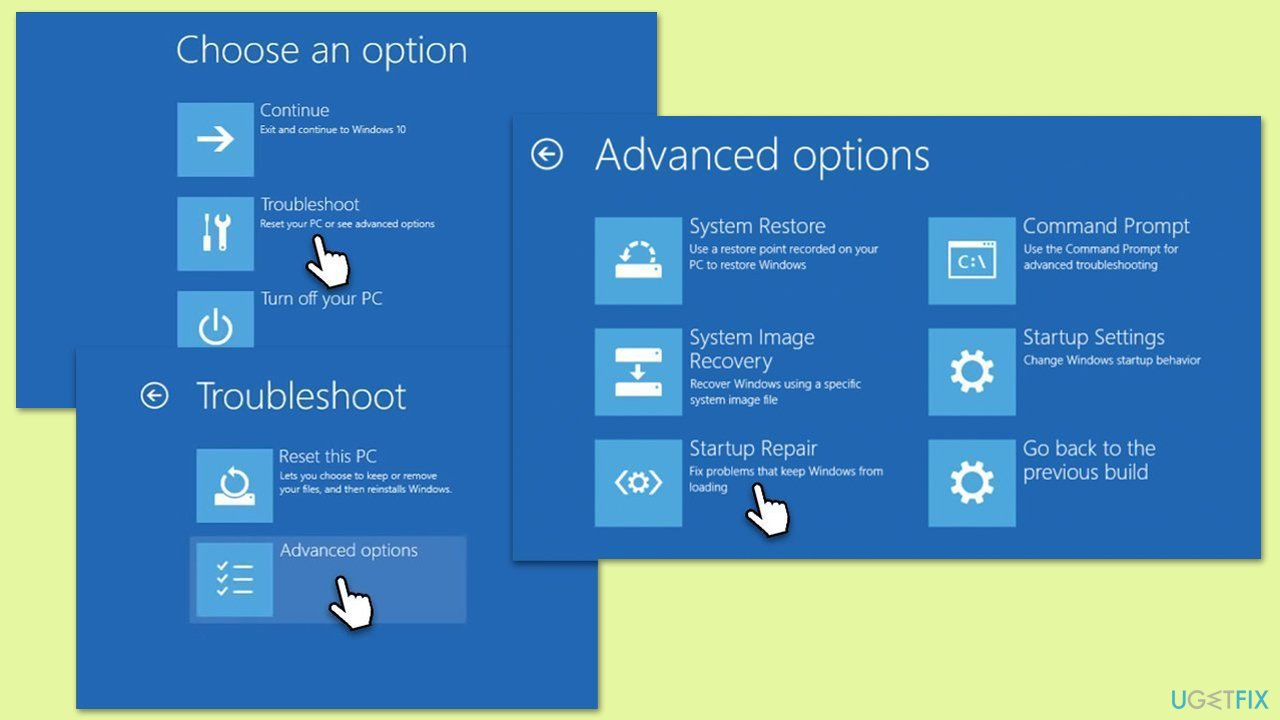
- Select Troubleshoot > Advanced options > Startup Settings and Restart.
- After a reboot, pick either 4/F4 for Safe Mode or 5/F5 for Safe Mode with Networking.
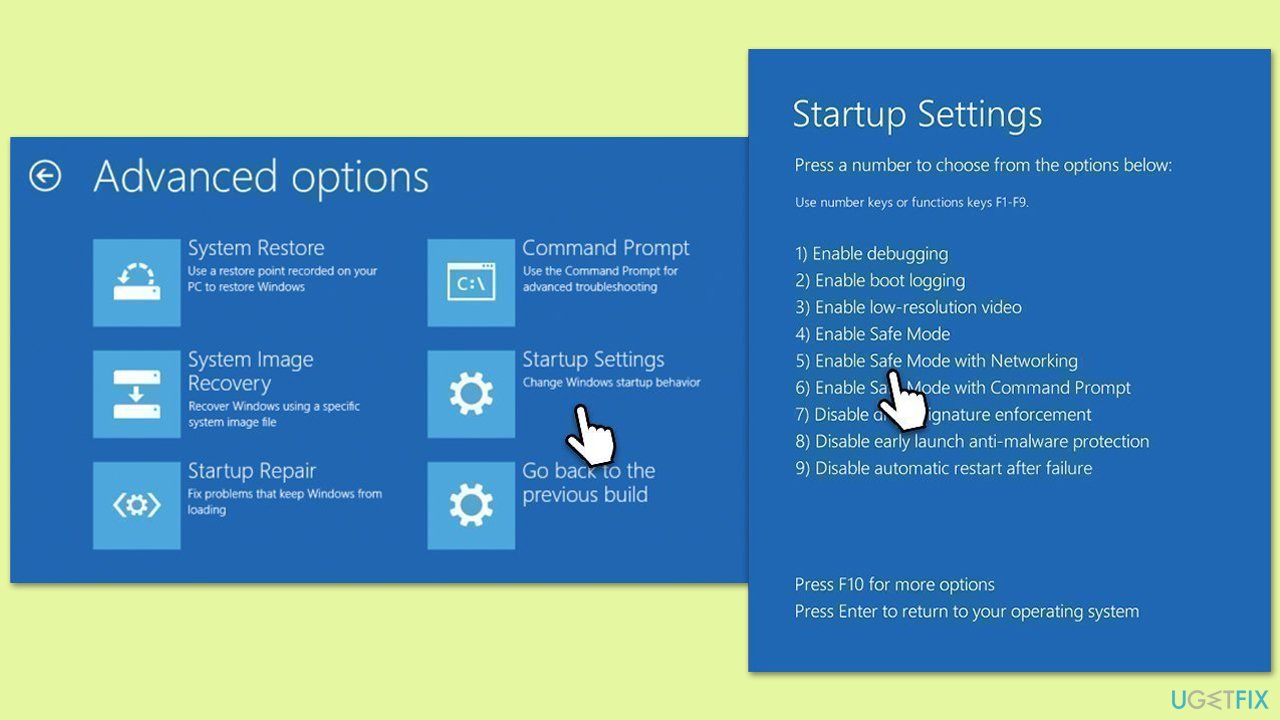
After booting into Safe Mode, you will be able to perform various checks needed to troubleshoot these crashes.
Fix 2. Perform Check Disk
Hardware issues, such as HDD or SSD corruption, could cause the 0xC0000221 BSODs.
- Type cmd in Windows search.
- Right-click on Command Prompt and select Run as administrator.
- If User Account Control shows up, click Yes.
- When User Account Control shows up, click Yes.
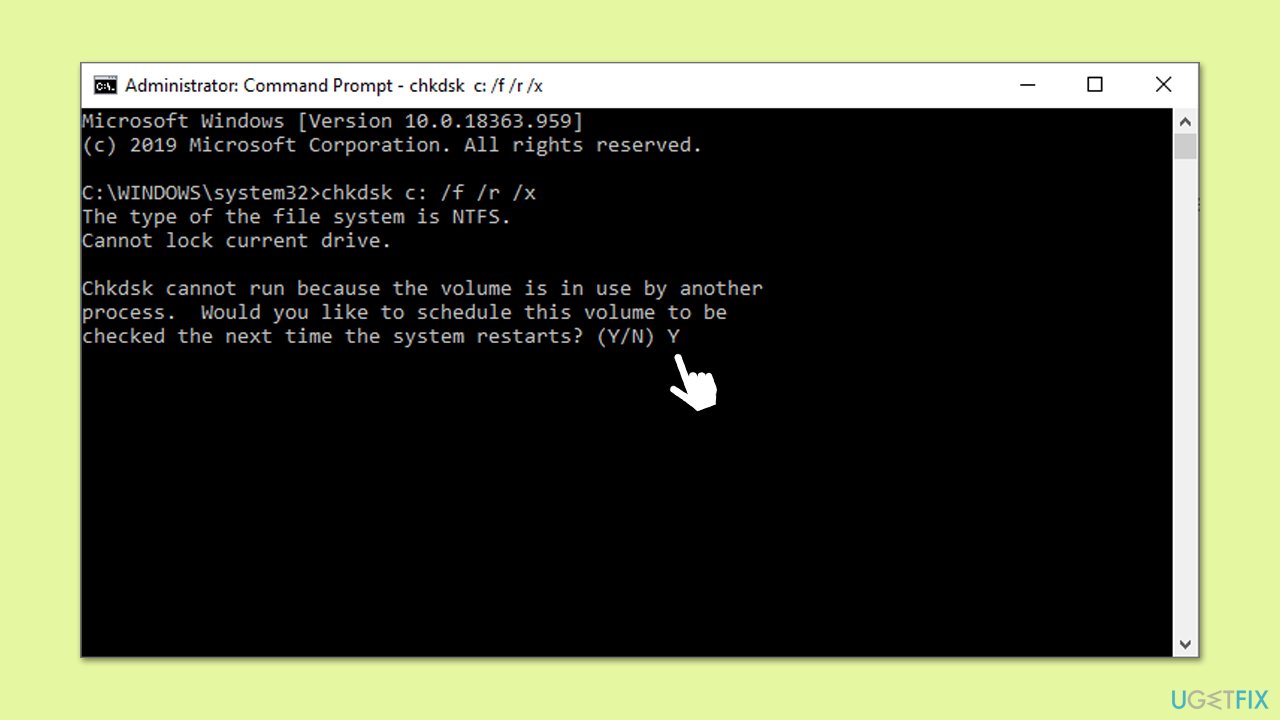
- In the new window, type in the following command and press Enter after:
chkdsk c: /f
(Note: use chkdsk c: /f /r /x command if you are using SSD as your primary partition) - If you receive an error, type in Y, close down Command Prompt and restart your device.
- Wait until the scan is finished - you can find the results in the Event Viewer.
Fix 3. Test your memory (RAM)
The easiest way to do this is by running the built-in Memory Diagnostics tool by Microsoft.
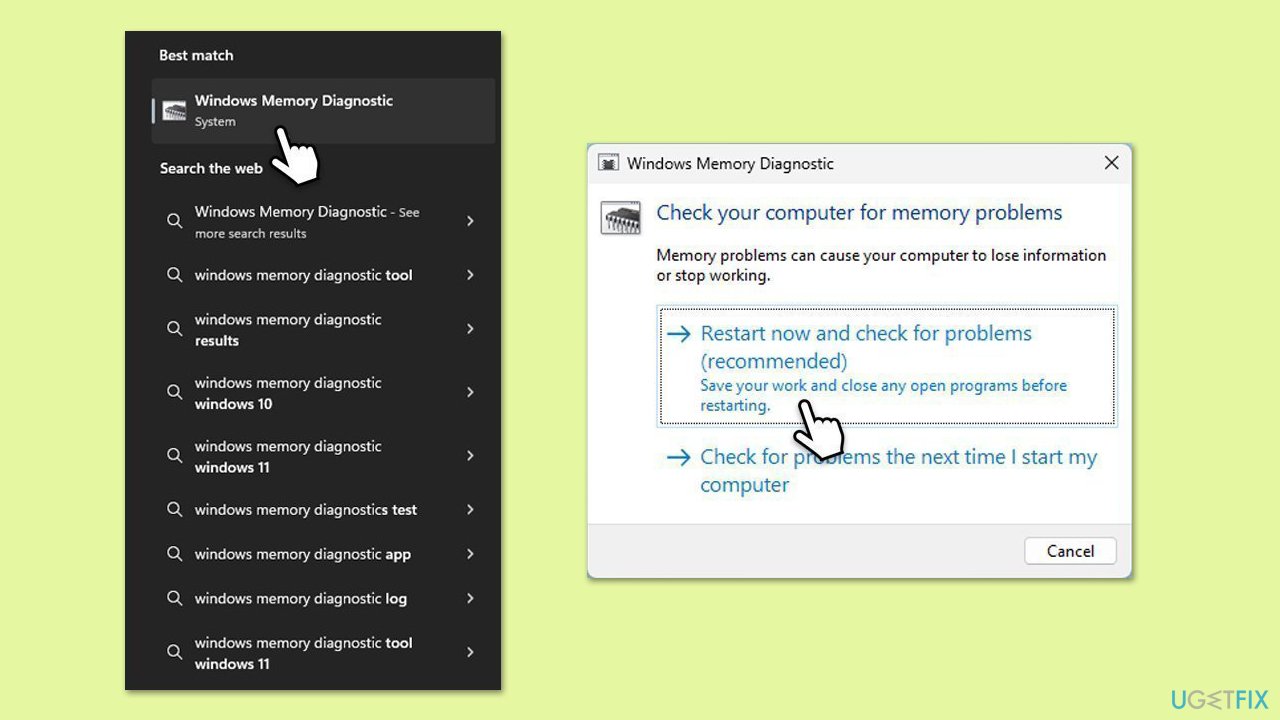
- Type Memory in Windows search and select Windows Memory Diagnostic result.
- Choose Restart now and check for problems (recommended).
- Let the tool run and complete the memory check.
- To check the logs, open the Event Viewer and go to Windows Logs > System. On the right side of the window, under Actions, click on Filter current log and then search for MemoryDiagnostics.
Fix 4. Run SFC and DISM
To repair potential corrupted files, run SFC and DISM scans as follows:
- Type cmd in Windows search.
- Right-click on Command Prompt and pick Run as administrator.
- User Account Control window will show up - click Yes when prompted.
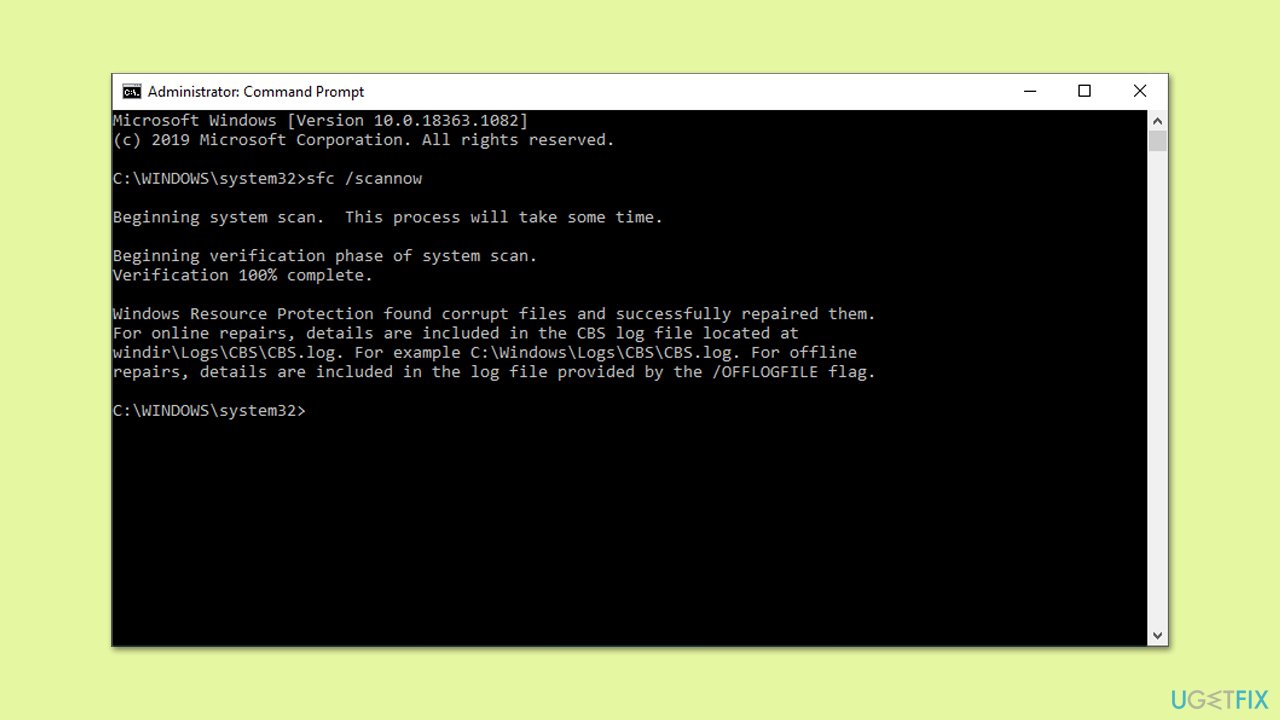
- Then, copy and paste the following command, pressing Enter after:
sfc /scannow - Wait till the scan is finished. If Windows finds system file integrity violations, it will attempt to fix them. After this, use the set of the following commands, pressing Enter each time:
DISM /Online /Cleanup-Image /CheckHealth
DISM /Online /Cleanup-Image /ScanHealth
DISM /Online /Cleanup-Image /RestoreHealth - (Note: if you get an error executing this last command, add /Source:C:\RepairSource\Windows /LimitAccess to it and try again).
- Close down the Command Prompt and restart your device.
Fix 5. Run Startup repair
If you were unable to access the normal Windows environment, you can always try running the Startup Repair:
- Access Windows Recovery Environment.
- From here, select Troubleshoot > Advanced Options and click Startup Repair.
- Allow the Startup Repair process to run and follow any on-screen instructions.
Fix 6. Repair bootup files
If you still can't access Windows, try repairing bootup files.
- Access Windows Recovery Environment as explained in the Fix 1.
- Go to Troubleshooter and select Advanced options.
- Next, select Command Prompt and run the following commands, pressing Enter after each:
sfc /scannow
Dism /Online /Cleanup-Image /RestoreHealth
CHKDSK /f /r /b
Bootrec /Scanos
Bootrec /Rebuildbcd
Bootrec /Fixmbr
Bootrec /Fixboot - Restart your computer.
Fix 7. Reinstall Windows
Create Windows ISO
- Download Windows 11 Installation media from the official Microsoft website. [Windows 10 version]
- Double-click the MediaCreationTool.exe file to launch it.
- When UAC shows up, click Yes.
- Accept license terms.
- Select Language and Edition (make sure it matches the one you have currently installed) or simply mark the Use the recommended options for this PC and click Next).
- Select the ISO file and click Next.
- Pick the location for your ISO file and wait till all the needed files are downloaded, then click Finish.
Repair-install Windows
- Mount your USB drive with Windows ISO in it.
- Boot into BIOS by pressing F2, F8, F12, Del, or another shortcut (refer to your laptop or motherboard manufacturer's website) during the Windows bootup process.
- Go to the Boot menu.
- Here, select the Boot priority option and set it to USB.
- Restart the system.
- When the system boots, you will be presented with the Install now option - click it.
- Select all the preferences and click Next.
- Skip Windows activation for now - select I don't have a product key.
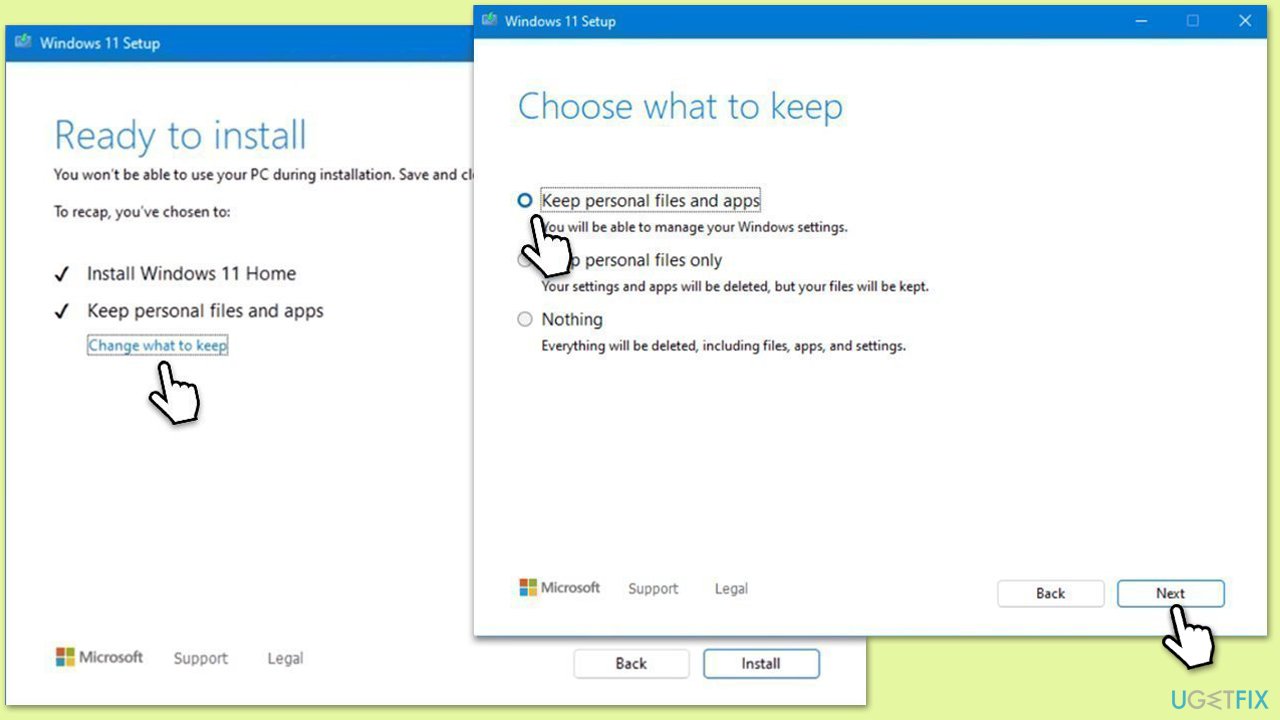
- Select the correct version of the operating system (if you were using Windows 11 Home before, use the same option).
- In the next step, select Keep personal files and apps.
- Select the correct partition and click Next.
- Finalize the process - your Windows should be repaired.
Bottom line
To fix the 0xC0000221 BSOD error, you can try booting in Safe Mode, using the automatic Windows repair tool, or checking for hardware issues. If none of these solutions work, further diagnostics may be necessary to identify and resolve the underlying problem.
Frequently asked questions
The 0xC0000221 BSOD error is typically caused by corrupted system files, faulty drivers, or hardware issues such as failing RAM or hard drives.
You can troubleshoot the 0xC0000221 error by running the Windows Memory Diagnostic tool, checking your hard drive for errors, and performing a system file check using the 'sfc /scannow' command.
Yes, you can fix the 0xC0000221 error by using the Windows Recovery Environment to perform a startup repair or restore your system to an earlier point when it was functioning correctly.




Report an issue
What's wrong with this guide? We review every report and update or remove content.
Report received — thank you. We'll review and fix it.
You need a free account to submit a report.
Be the first to comment