How to fix
22H2 fails to install with error 0x8007000d
on Windows
Resolve the 22H2 install error 0x8007000d on Windows 10 or 11. Get expert-tested solutions to restore your system smoothly and quickly. Fixed in minutes!

What causes How to fix 22H2 fails to install with error 0x8007000d?
- Corrupted system files
- Issues with NVidia applications
- Incomplete Windows update process
- System file corruption
- Troubleshooter not run
Repairs Windows system files, removes malware, and restores a clean OS state — without reinstalling.
Hello. I tried to install the 22H2 update on my Windows 11 computer but I received the 0x8007000d error. What should I do to install the update?
Installing Windows updates is essential if users want to keep their operating system running smoothly. Updates contain bug fixes, new features, and security patches that protect the system from hackers exploiting vulnerabilities. Recently, Microsoft released 22H2 update for Windows 11.[ref en-1] It is meant to improve security, productivity, and the overall user experience.
However, many users struggle with installing the update. We previously wrote about 22H2 Windows 11 update failing with error 0x8007001F-0x3000D. Now, some people receive the 0x8007000d error when trying to update. It is unknown why exactly this happens but a couple of users reported that the problem was fixed after uninstalling NVidia[ref en-2] components.
In this guide, you will find 5 steps that should help you fix 22H2 fails to install with error 0x8007000d. Keep in mind that manual troubleshooting can be a lengthy process. To avoid it, you can use a maintenance tool like [d1]. It can fix various system errors, BSODs,[ref en-3] corrupted files, and registry[ref en-4] issues. Otherwise, follow the step-by-step instructions below.
Method 1. Run Windows Update Troubleshooter
- Click the Windows button and select Settings
- Select System from the left pane, then scroll down on the right pane, and click on Troubleshoot
- Click on Other troubleshooters
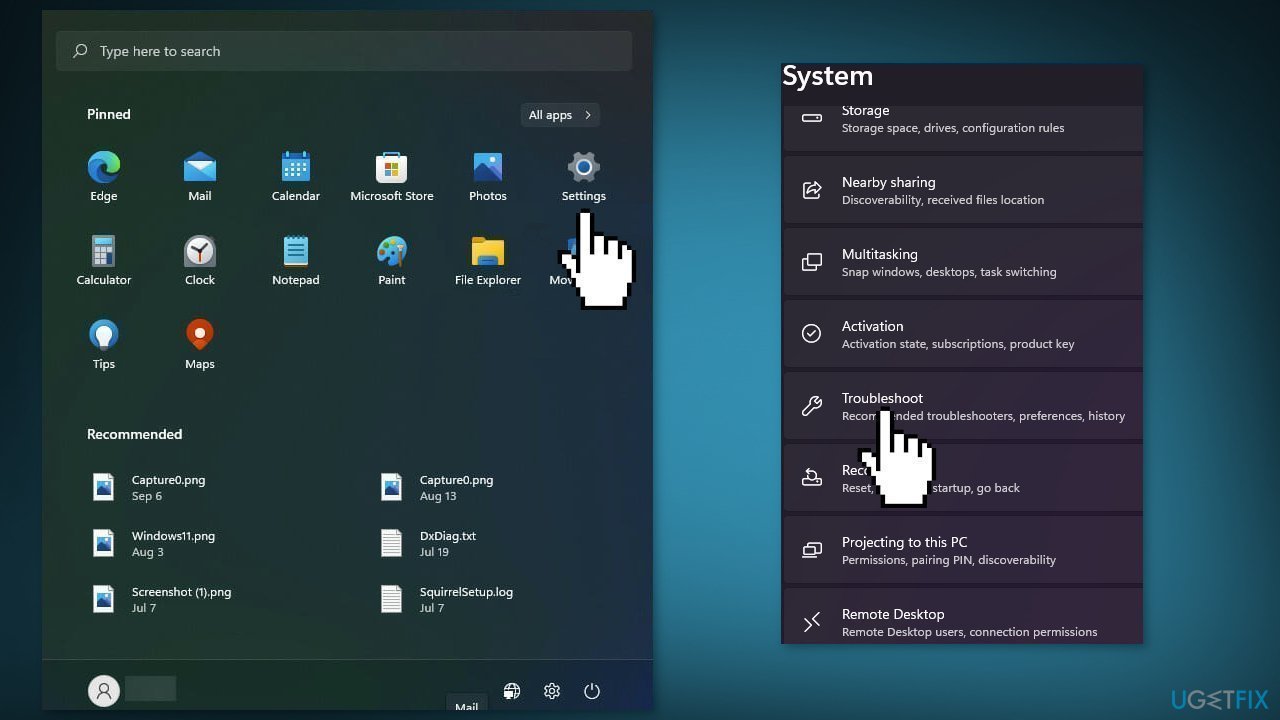
- Locate the Windows Update troubleshooter and hit the Run button
Method 2. Repair Corrupted System Files
Use Command Prompt commands to repair system file corruption:
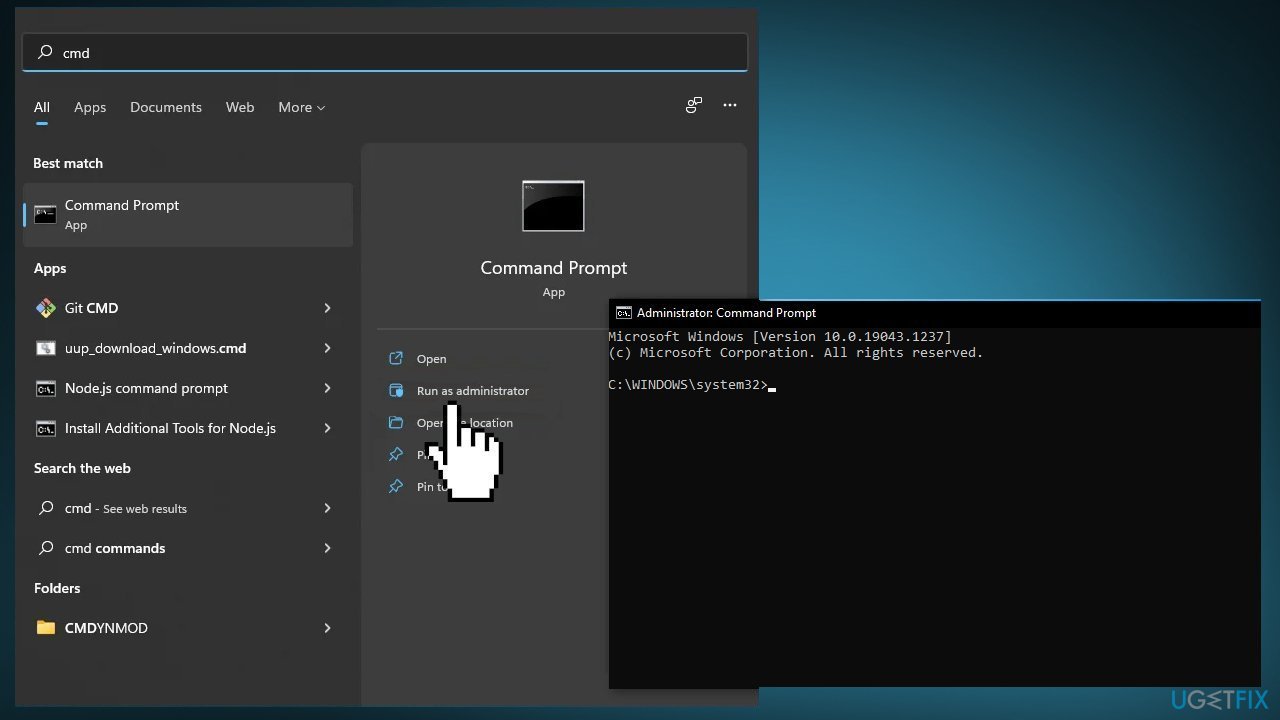
- Open Command Prompt as administrator
- Use the following command and press Enter:
sfc /scannow
- Reboot your system
- If SFC returned an error, then use the following command lines, pressing Enter after each:
DISM /Online /Cleanup-Image /CheckHealth
DISM /Online /Cleanup-Image /ScanHealth
DISM /Online /Cleanup-Image /RestoreHealth
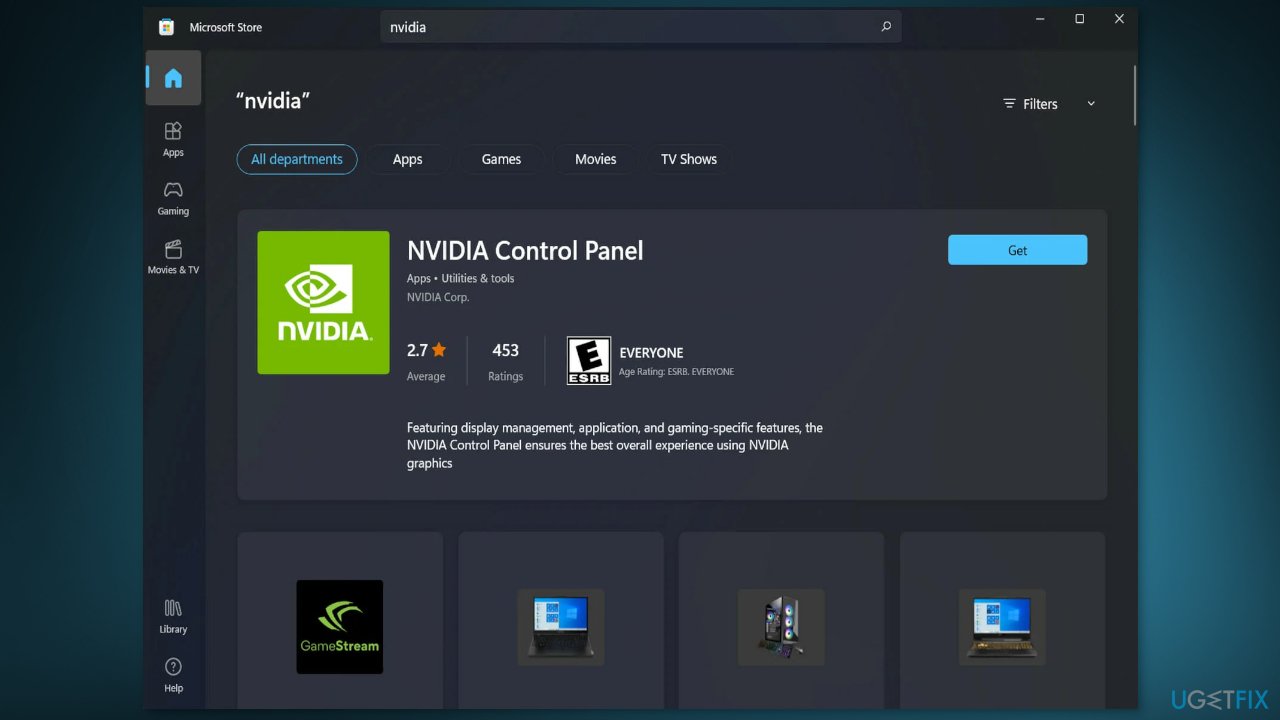
Method 3. Uninstall NVidia Apps
Some users reported that Windows updates were blocked by the NVidia Control Panel and Experience applications. Try uninstalling them to see if it fixes the issue.
- Go to Apps & Features
- Find NVidia Control Panel in the list
- Click on it and press Uninstall
- Do the same with NVidia GeForce Experience
- After the process is complete, try to update your system
- If the updates are installed successfully, you can reinstall NVidia programs
Method 4. Update Device Drivers
Outdated drivers could be the cause of the error. In this case, you can fix it automatically by using [rev id="DriverFix"], which will scan your PC for missing and out-of-date device drivers. Or you can update them manually:
- Open Settings
- Click on Update & Security
- Click on Windows Update
- Click the Check for updates button
- Click the View optional updates option
- Click the Driver updates tab
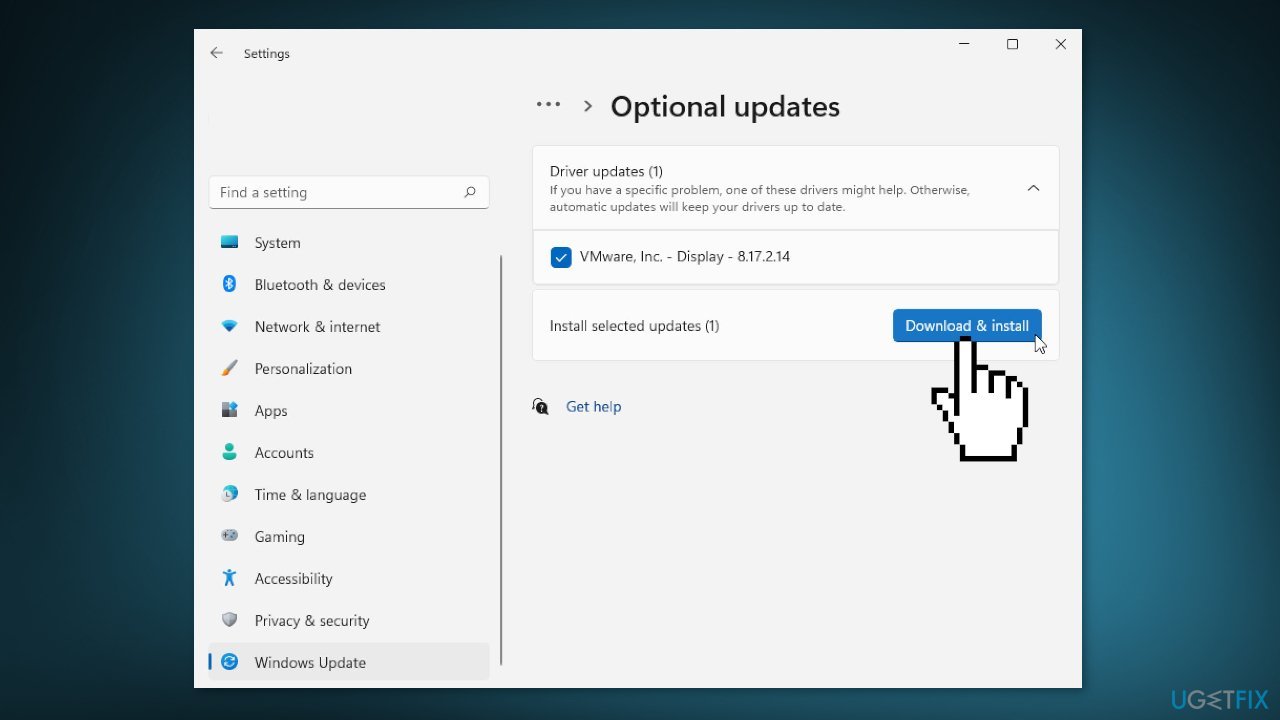
- Select the driver you want to update
- Click the Download and install button
If the View optional updates link is not available after checking for updates, then Windows Update does not have any new drivers or any updates for other products at that particular time.
Method 5. Repair Install Windows
- Visit the official Microsoft website to download Windows 11 Installation Media
- Run the Media Creation Tool and select Create Installation Media for another PC
- Select your USB drive
- Let the Process complete of writing the Installation files to the USB drive
- Click Finish
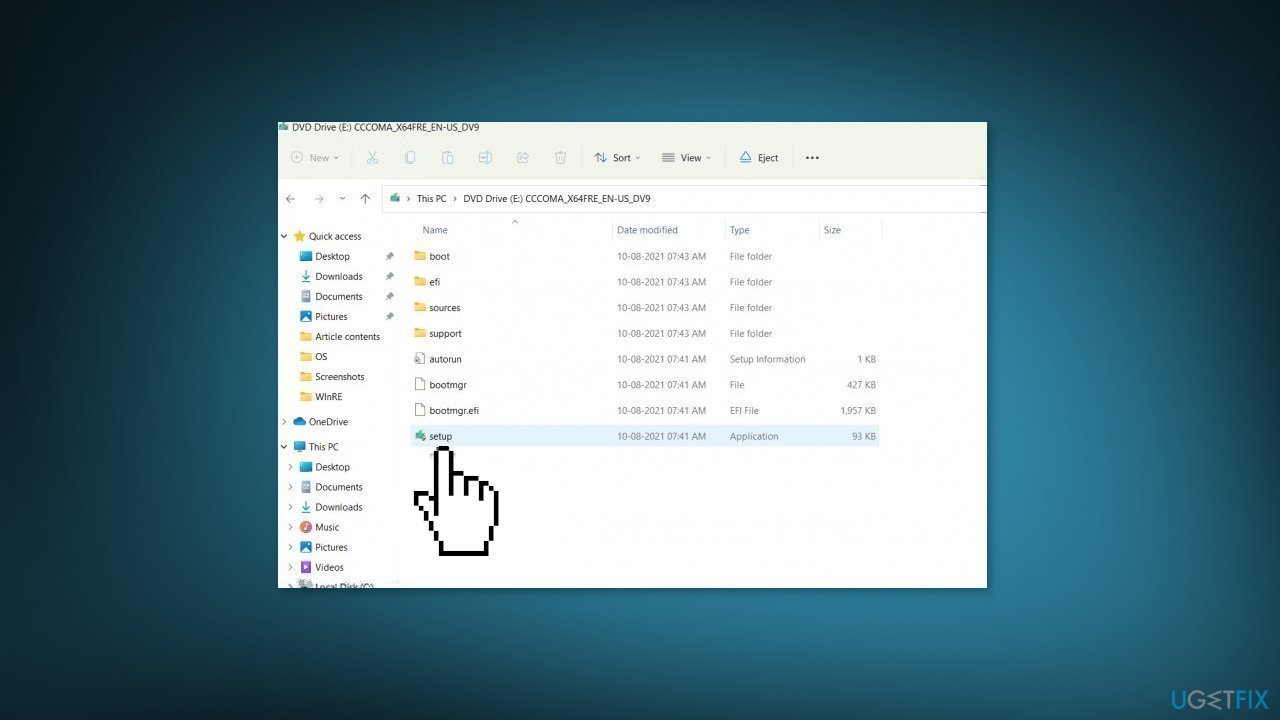
- On the PC you wish to upgrade, Press Windows + E to open the File Explorer
- Open the Removable drive and click Setup.exe
- Accept the license terms on the next screen
- Confirm the Upgrade options – Files, apps and Settings are kept
- Click Install, and the upgrade should start
Bottom line
To fix the 22H2 installation failure with error 0x8007000d, you can run the Windows Update Troubleshooter, repair corrupted system files using Command Prompt, and uninstall NVidia applications if they are causing conflicts. If none of these methods work, consider using a maintenance tool to address various system errors.
Frequently asked questions
Error code 0x8007000d indicates that there is a data error in the installation files, which can prevent the 22H2 update from completing successfully.
To fix this error, you can try running the Windows Update Troubleshooter and performing a system file check using the command 'sfc /scannow' in the Command Prompt.
Yes, you can manually download the Windows 10 or Windows 11 22H2 update from the Microsoft Update Catalog to bypass the error and install the update directly.




Report an issue
What's wrong with this guide? We review every report and update or remove content.
Report received — thank you. We'll review and fix it.
You need a free account to submit a report.
Be the first to comment